Page 139 of 526
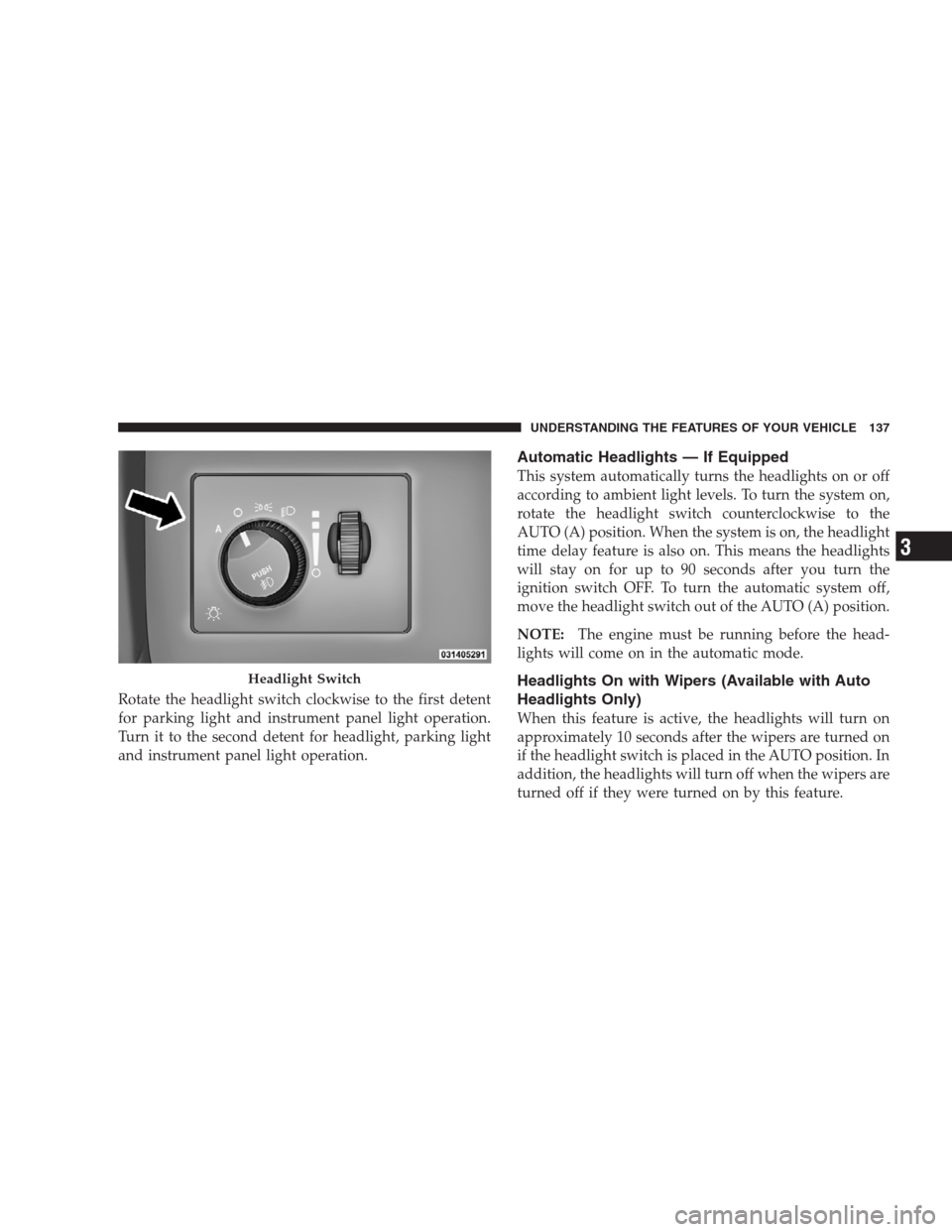
Rotate the headlight switch clockwise to the first detent
for parking light and instrument panel light operation.
Turn it to the second detent for headlight, parking light
and instrument panel light operation.
Automatic Headlights — If Equipped
This system automatically turns the headlights on or off
according to ambient light levels. To turn the system on,
rotate the headlight switch counterclockwise to the
AUTO (A) position. When the system is on, the headlight
time delay feature is also on. This means the headlights
will stay on for up to 90 seconds after you turn the
ignition switch OFF. To turn the automatic system off,
move the headlight switch out of the AUTO (A) position.
NOTE:The engine must be running before the head-
lights will come on in the automatic mode.
Headlights On with Wipers (Available with Auto
Headlights Only)
When this feature is active, the headlights will turn on
approximately 10 seconds after the wipers are turned on
if the headlight switch is placed in the AUTO position. In
addition, the headlights will turn off when the wipers are
turned off if they were turned on by this feature.
Headlight Switch
UNDERSTANDING THE FEATURES OF YOUR VEHICLE 137
3
Page 140 of 526
The Headlights On with Wipers feature can be turned on
or off through the Electronic Vehicle Information Center
(EVIC) (if equipped). Refer to ”Headlights On with
Wipers,” under “Personal Settings (Customer-
Programmable Features)” under “Electronic Vehicle In-
formation Center (EVIC)” in Section 4.
SmartBeams — If Equipped
The SmartBeam system provides increased forward light-
ing at night by automating high beam control through
the use of a digital camera mounted on the inside
rearview mirror. This camera detects vehicle specific light
and automatically switches from high beams to low
beams until the approaching vehicle is out of view.
To Activate
1. Select “Automatic High Beams — ON” through the
EVIC. Refer to “Automatic High Beams,” under “Per-
sonal Settings (Customer-Programmable Features)” un-
der “Electronic Vehicle Information Center (EVIC)” in
Section 4.
2. Rotate the headlight switch counterclockwise to the
AUTO (A) position.
3. Push the multifunction lever away from you to switch
the headlights to the high beam position. Refer to “Mul-
tifunction Lever” in this section.
NOTE:This system will not activate until the vehicle is
at or above 25 mph (40 km/h).
To Deactivate
Perform either of the following steps to deactivate the
SmartBeam system.
138 UNDERSTANDING THE FEATURES OF YOUR VEHICLE
Page 141 of 526
1. Pull the multifunction lever toward you to switch the
headlights from the high beam to the low beam position.
2. Rotate the headlight switch clockwise from the AUTO
(A) to the ON position.
NOTE:Broken, muddy, or obstructed headlights and
taillights of vehicles in the field of view will cause
headlights to remain on longer (closer to the vehicle).
Also, dirt, film, and other obstructions on the windshield
or camera lens will cause the system to function
improperly.
Headlight Time Delay
This feature provides the safety of headlight illumination
for up to 90 seconds (programmable) when leaving your
vehicle in an unlit area.To activate the delay feature, turn OFF the ignition switch
while the headlights are still on. Then, turn off the
headlights within 45 seconds. The delay interval begins
when the headlight switch is turned off.
If you turn the headlights, park lights, or ignition switch
ON again, the system will cancel the delay.
If you turn the headlights off before the ignition, they will
turn off in the normal manner.
NOTE:The lights must be turned off within 45 seconds
of turning the ignition OFF to activate this feature.
The headlight delay time is programmable on vehicles
equipped with the EVIC. Refer to “Delay Turning Head-
lights Off,” under “Personal Settings (Customer-
Programmable Features)” under “Electronic Vehicle In-
formation Center (EVIC)” in Section 4.
UNDERSTANDING THE FEATURES OF YOUR VEHICLE 139
3
Page 203 of 526
UNDERSTANDING YOUR INSTRUMENT PANEL
CONTENTS
�Instrument Panel Features............... 205
�Instrument Cluster — Base............... 206
�Instrument Cluster — Premium........... 207
�Instrument Cluster Descriptions........... 208
�Electronic Vehicle Information Center (EVIC)
— If Equipped........................ 220
▫Electronic Vehicle Information Center (EVIC)
Displays........................... 222
▫Oil Change Required.................. 225
▫Trip Functions...................... 226▫Automatic All Wheel Drive (AWD) Displays
— If Equipped...................... 228
▫Compass Display.................... 229
▫Driver-Selectable Surround Sound (DSS)
– If Equipped....................... 231
▫uconnect�gps (Navigation) — If Equipped . . 232
▫Personal Settings (Customer-Programmable
Features).......................... 232
�Setting The Analog Clock................ 2374
Page 204 of 526
�Sales Code REQ — AM/FM Stereo Radio And
6–Disc CD/DVD Changer (MP3/WMA AUX
Jack)............................... 238
▫Operating Instructions - Radio Mode...... 238
▫Operation Instructions - (Disc Mode For CD
And MP3/WMA Audio Play, DVD-Video) . . . 246
▫Notes On Playing MP3/WMA Files....... 248
▫List Button (Disc Mode For MP3/WMA
Play)............................. 250
▫Info Button (Disc Mode For MP3/WMA
Play)............................. 251
�AM/FM/CD/DVD Radio (RER/REN)
– If Equipped......................... 253
▫Operating Instructions — Voice Recognition
System (VR) — If Equipped............. 253▫Operating Instructions — uconnect�phone
— If Equipped...................... 253
▫Clock Setting Procedure............... 253
�Sales Code RES — AM/FM Stereo Radio With
CD Player (MP3 AUX Jack)............... 256
▫Operating Instructions — Radio Mode..... 256
▫Operation Instructions — CD Mode For CD
And MP3 Audio Play................. 259
▫Notes On Playing MP3 Files............ 261
▫Operation Instructions - Auxiliary Mode.... 264
�Sales Code RES/RSC — AM/FM Stereo Radio
With CD Player (MP3 AUX Jack) And Sirius
Radio............................... 265
▫Operating Instructions — Radio Mode..... 265
202 UNDERSTANDING YOUR INSTRUMENT PANEL
Page 207 of 526
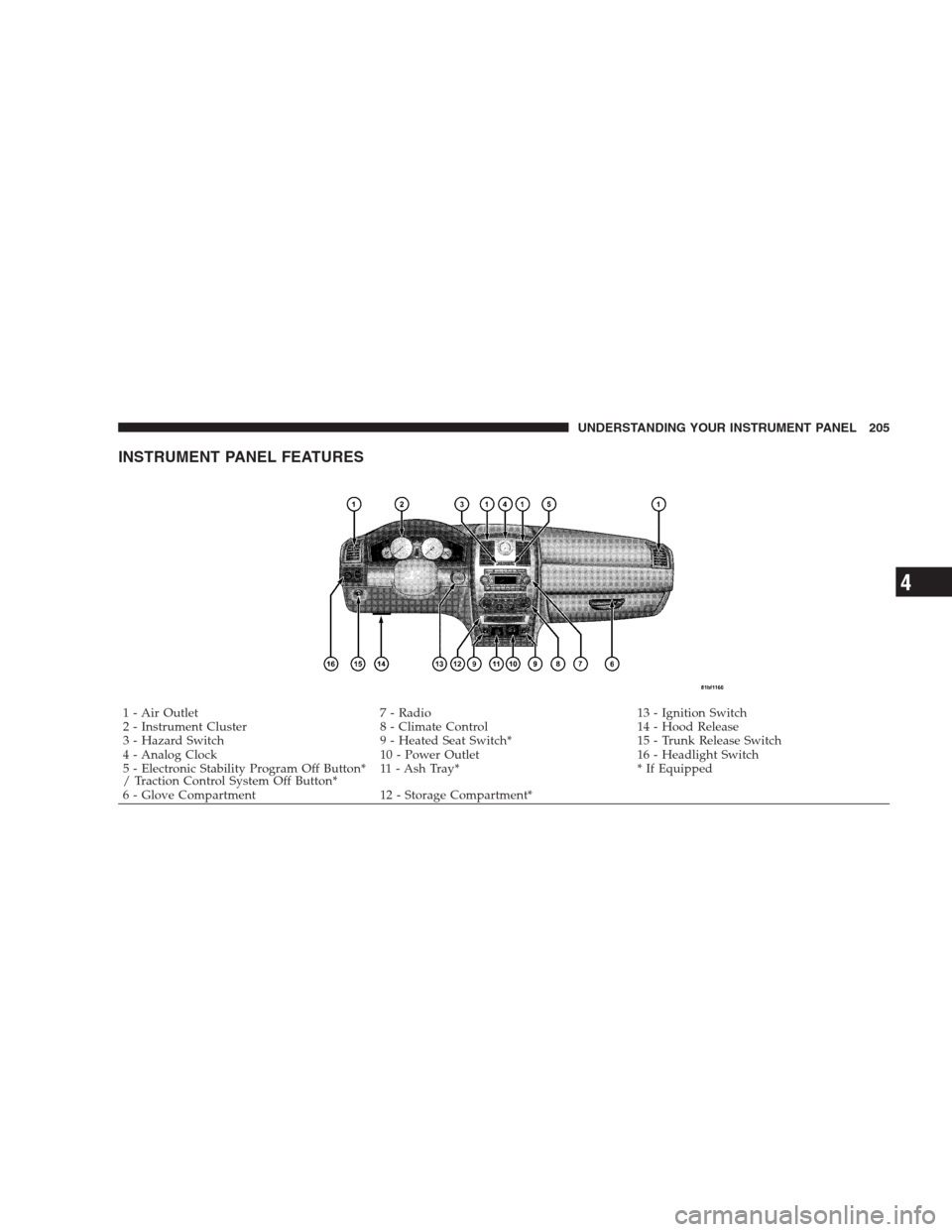
INSTRUMENT PANEL FEATURES
1 - Air Outlet 7 - Radio 13 - Ignition Switch
2 - Instrument Cluster 8 - Climate Control 14 - Hood Release
3 - Hazard Switch 9 - Heated Seat Switch* 15 - Trunk Release Switch
4 - Analog Clock 10 - Power Outlet 16 - Headlight Switch
5 - Electronic Stability Program Off Button*
/ Traction Control System Off Button*11 - Ash Tray* * If Equipped
6 - Glove Compartment 12 - Storage Compartment*UNDERSTANDING YOUR INSTRUMENT PANEL 205
4
Page 239 of 526

“Turn-by-Turn Navigation” — If Equipped
When ON is selected, the turn-by-turn directions will
appear in the display as the vehicle approaches a desig-
nated turn within a programmed route. To make your
selection, press and release the FUNCTION SELECT
button until “ON” or “OFF” appears.
“Display Units of Measure in”
The EVIC, odometer, and uconnect�gps (if equipped)
can be changed between English and Metric units of
measure. To make your selection, press and release the
FUNCTION SELECT button until “US” or “METRIC”
appears.
“Automatic High Beams” — If Equipped
When this feature is selected, the high beam headlights
will deactivate automatically under certain conditions. To
make your selection, press and release the FUNCTION
SELECT button until “ON” or “OFF” appears. Refer to
“SmartBeams” in Section 3.
SETTING THE ANALOG CLOCK
To set the analog clock at the top center of the instrument
panel, press and hold the button until the setting is
correct.
Analog Clock
UNDERSTANDING YOUR INSTRUMENT PANEL 237
4
Page 241 of 526
to seek up and the left switch to seek down. The radio
will remain tuned to the new station until you make
another selection. Holding either button will bypass
stations without stopping until you release it.
SCAN Button
Pressing the SCAN button causes the tuner to search for
the next listenable station in AM, FM or Satellite (if
equipped) frequencies, pausing for five seconds at each
listenable station before continuing to the next. To stop
the search, press the SCAN button a second time.
Voice Recognition Button uconnect�phone — If
Equipped
Press this button to operate the uconnect�phone feature
(if equipped). Refer to “uconnect�phone” in Section 3.
If your vehicle is not equipped with or this feature is not
available on your vehicle, a “Not Equipped With
uconnect” message will display on the radio screen.
Phone Button uconnect�phone — If Equipped
Press this button to operate the uconnect�phone feature
(if equipped). Refer to “uconnect�phone” in Section 3.
If your vehicle is not equipped with or this feature is not
available on your vehicle, a “Not Equipped With
uconnect” message will display on the radio screen.
TIME Button
Press the TIME button to alternate locations of the time
and frequency display.
Clock Setting Procedure
1. Press and hold the TIME button until the hours blink.
2. Adjust the hours by turning the right side TUNE/
SCROLL control knob.
3. After adjusting the hours, press the right side TUNE/
SCROLL control knob to set the minutes. The minutes
will begin to blink.
UNDERSTANDING YOUR INSTRUMENT PANEL 239
4