Page 271 of 526
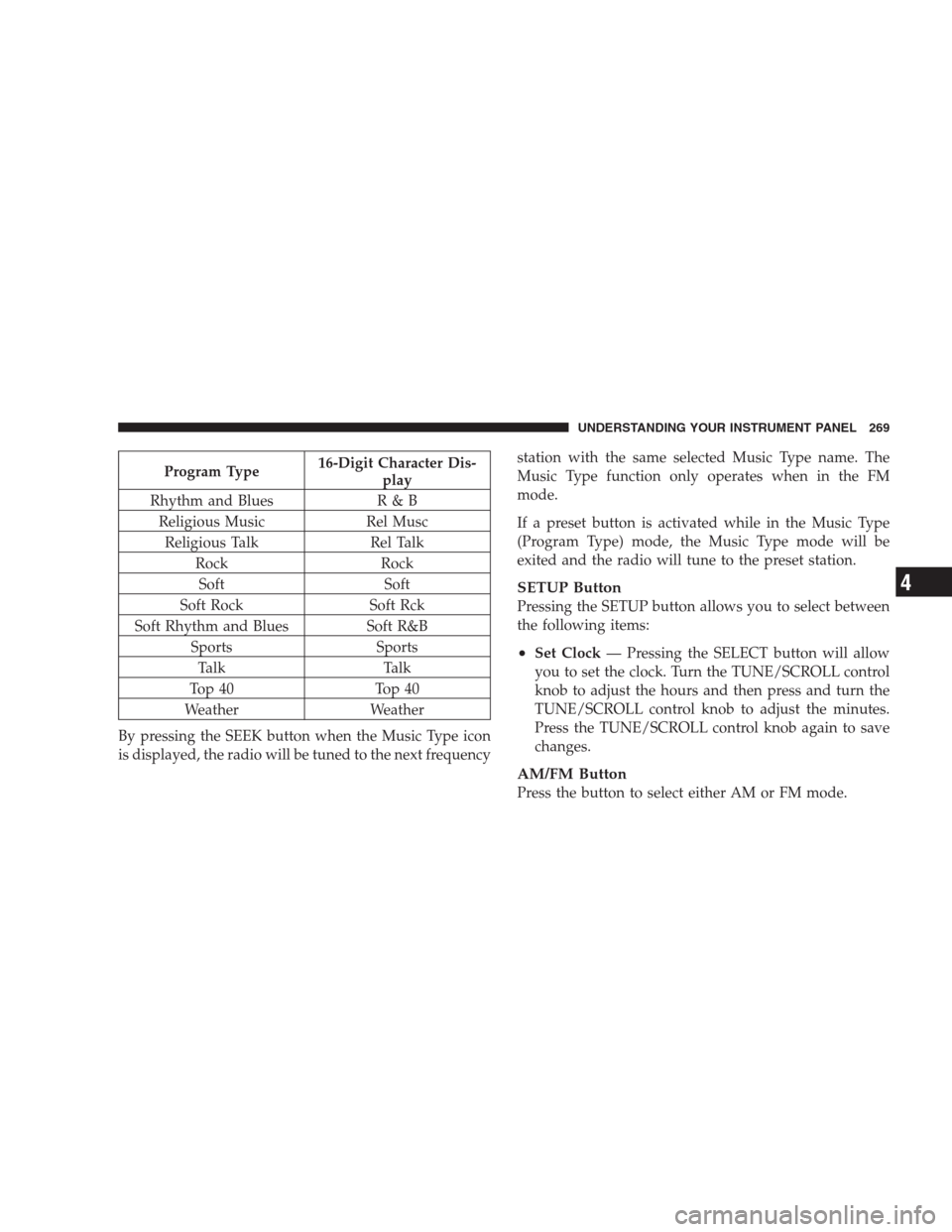
Program Type16-Digit Character Dis-
play
Rhythm and Blues R & B
Religious Music Rel Musc
Religious Talk Rel Talk
Rock Rock
Soft Soft
Soft Rock Soft Rck
Soft Rhythm and Blues Soft R&B
Sports Sports
Talk Talk
Top 40 Top 40
Weather Weather
By pressing the SEEK button when the Music Type icon
is displayed, the radio will be tuned to the next frequencystation with the same selected Music Type name. The
Music Type function only operates when in the FM
mode.
If a preset button is activated while in the Music Type
(Program Type) mode, the Music Type mode will be
exited and the radio will tune to the preset station.
SETUP Button
Pressing the SETUP button allows you to select between
the following items:
•Set Clock— Pressing the SELECT button will allow
you to set the clock. Turn the TUNE/SCROLL control
knob to adjust the hours and then press and turn the
TUNE/SCROLL control knob to adjust the minutes.
Press the TUNE/SCROLL control knob again to save
changes.
AM/FM Button
Press the button to select either AM or FM mode.
UNDERSTANDING YOUR INSTRUMENT PANEL 269
4
Page 280 of 526
•If the iPod�battery is completely discharged, it may
not communicate with the UCI system until a mini-
mum charge is attained. Leaving the iPod�connected
to the UCI system may charge it to the required level.
Using This Feature
By using the optional connection cable to connect an
iPod�to the vehicle’s UCI 16–pin connector port:
•The iPod�audio can be played on the vehicle’s sound
system, providing metadata (Artist, track title, album,
etc.) information on the radio display.
•The iPod�can be controlled using the radio buttons to
Play, Browse, and List the iPod�contents.
•The iPod�battery charges when plugged into the UCI
connector.
Controlling The iPod�Using Radio Buttons
To get into the UCI (iPod�) mode and access a connected
iPod�, press the ‘AUX’ button on the radio faceplate.Once in the UCI (iPod�) mode, iPod�audio tracks (if
available from iPod�) start playing over the vehicle’s
audio system.
Play Mode
When switched to UCI mode, the iPod�automatically
starts Play mode. In Play mode, you may use the
following buttons on the radio faceplate to control the
iPod�and display data:
•Use the TUNE control knob to select the next or
previous track.
•Turning it clockwise (forward) by one click, while
playing a track, skips to the next track.
•Turning it counterclockwise (backward) by one
click, during the first two seconds of the track, will
jump to the previous track in the list. Turning this
button at any other time in the track, will jump to
the beginning of the current track.
278 UNDERSTANDING YOUR INSTRUMENT PANEL
Page 282 of 526
Shuffle OFF modes for the iPod�.IftheRNDicon is
showing on the radio display, then the shuffle mode is
ON.
List Or Browse Mode
During Play mode, pressing any of the buttons described
below, takes you to List mode. List mode enables you to
scroll through the list of menus and tracks on the iPod�.
•TUNEcontrol knob: TheTUNEcontrol knob functions
in a similar manner as the scroll wheel on the iPod�.
•Turning it clockwise (forward) and counterclock-
wise (backward) scrolls through the lists, displaying
the track detail on the radio display. Once you have
the track to be played highlighted on the radio
display, press theTUNEcontrol knob to select and
start playing the track. Turning theTUNEcontrol
knob fast will scroll through the list faster. During
fast scroll, you may notice a slight delay in updating
the information on the radio display.
•During all List modes, the iPod�displays all lists in
“wrap-around” mode. So if the track is at the
bottom of the list just turn the wheel backwards
(counter-clockwise) to get to the track faster.
•In List mode, the radioPRESETButtons are used as
shortcuts to the following lists on the iPod�.
•Preset 1 – Playlists
•Preset 2 – Artists
•Preset 3 – Albums
•Preset 4 – Genres
•Preset 5 - Audiobooks
•Preset 6 – Podcasts
•Pressing a PRESET button, will display the current
list on the top line and the first item in that list on
the second line.
280 UNDERSTANDING YOUR INSTRUMENT PANEL
Page 287 of 526
RW/FF
Pressing the RW (Rewind) or FF (Fast Forward) buttons
causes the tuner to search for the next channel in the
direction of the arrows.
TUNE Control (Rotary)
Turn the rotary TUNE/SCROLL control knob clockwise
to increase or counterclockwise to decrease the channel.
MUSIC TYPE Button — Except REU Radio
Pressing this button once will turn on the Music Type
mode for five seconds. Pressing the MUSIC TYPE button
or turning the TUNE/SCROLL control knob within five
seconds will allow the program format type to be se-
lected.
Toggle the MUSIC TYPE button again to select the music
type.By pressing the SEEK button when the Music Type
function is active, the radio will be tuned to the next
channel with the same selected Music Type name.
If a preset button is activated while in the Music Type
(Program Type) mode, the Music Type mode will be
exited and the radio will tune to the preset channel.
MUSIC TYPE Button — REU Radio
Pressing this button provides a Music Type list from
which you can make a selection. Once a selection is
made, you can seek up or down or scan the channels and
the radio will tune to the next station matching the
selected format. There is no time-out for this screen.
Pressing the MUSIC TYPE button again will close the
Music Type screen. Once closed, seek up, seek down, and
scan will no longer be based on your selection.
SETUP Button
Pressing the SETUP button allows you to select the
following items:
UNDERSTANDING YOUR INSTRUMENT PANEL 285
4
Page 293 of 526
REMOTE SOUND SYSTEM CONTROLS — IF
EQUIPPED
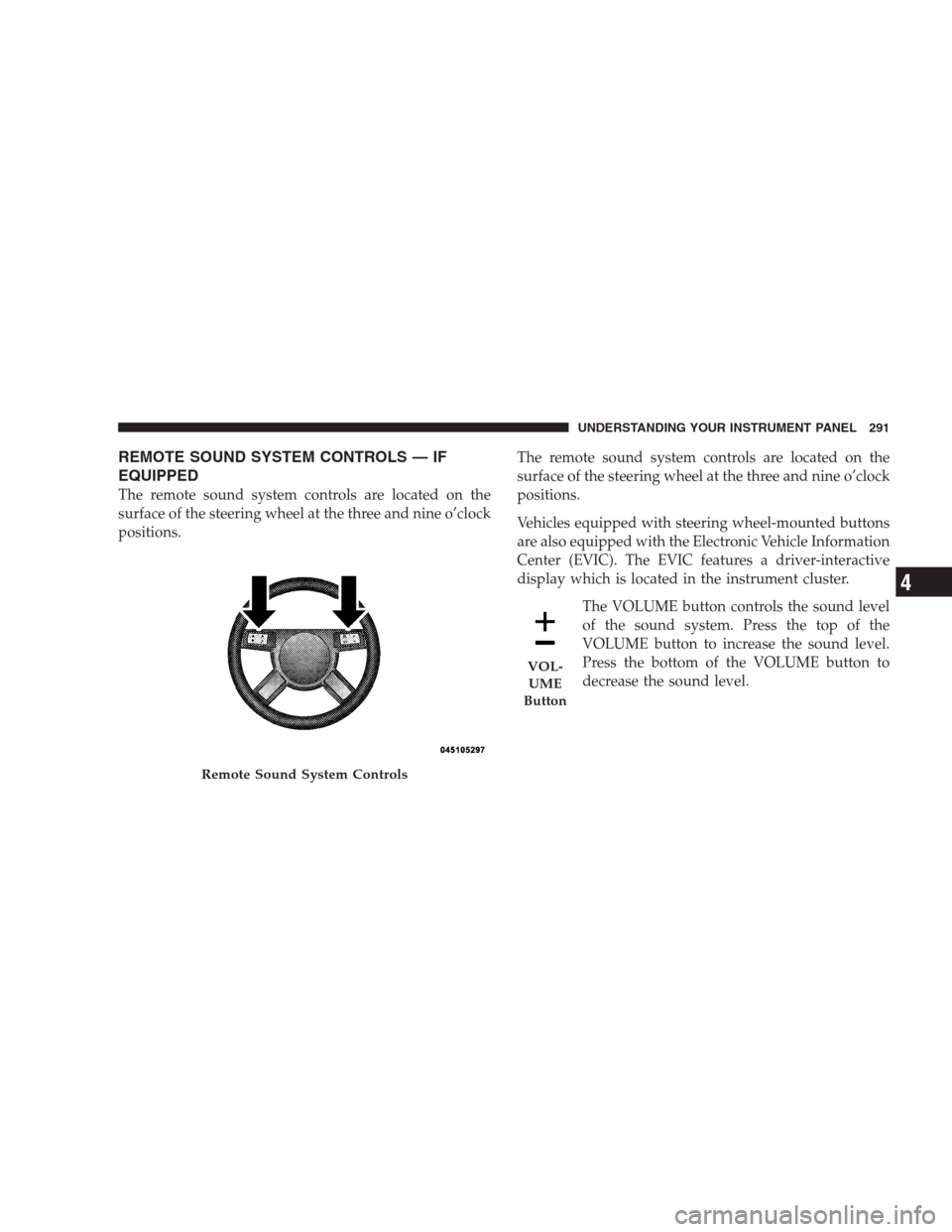
The remote sound system controls are located on the
surface of the steering wheel at the three and nine o’clock
positions.The remote sound system controls are located on the
surface of the steering wheel at the three and nine o’clock
positions.
Vehicles equipped with steering wheel-mounted buttons
are also equipped with the Electronic Vehicle Information
Center (EVIC). The EVIC features a driver-interactive
display which is located in the instrument cluster.
The VOLUME button controls the sound level
of the sound system. Press the top of the
VOLUME button to increase the sound level.
Press the bottom of the VOLUME button to
decrease the sound level.
Remote Sound System Controls
VOL-
UME
Button
UNDERSTANDING YOUR INSTRUMENT PANEL 291
4
Page 404 of 526
WARNING!
To avoid possible personal injury, handle the wheel
covers with care to avoid contact with the metal edges
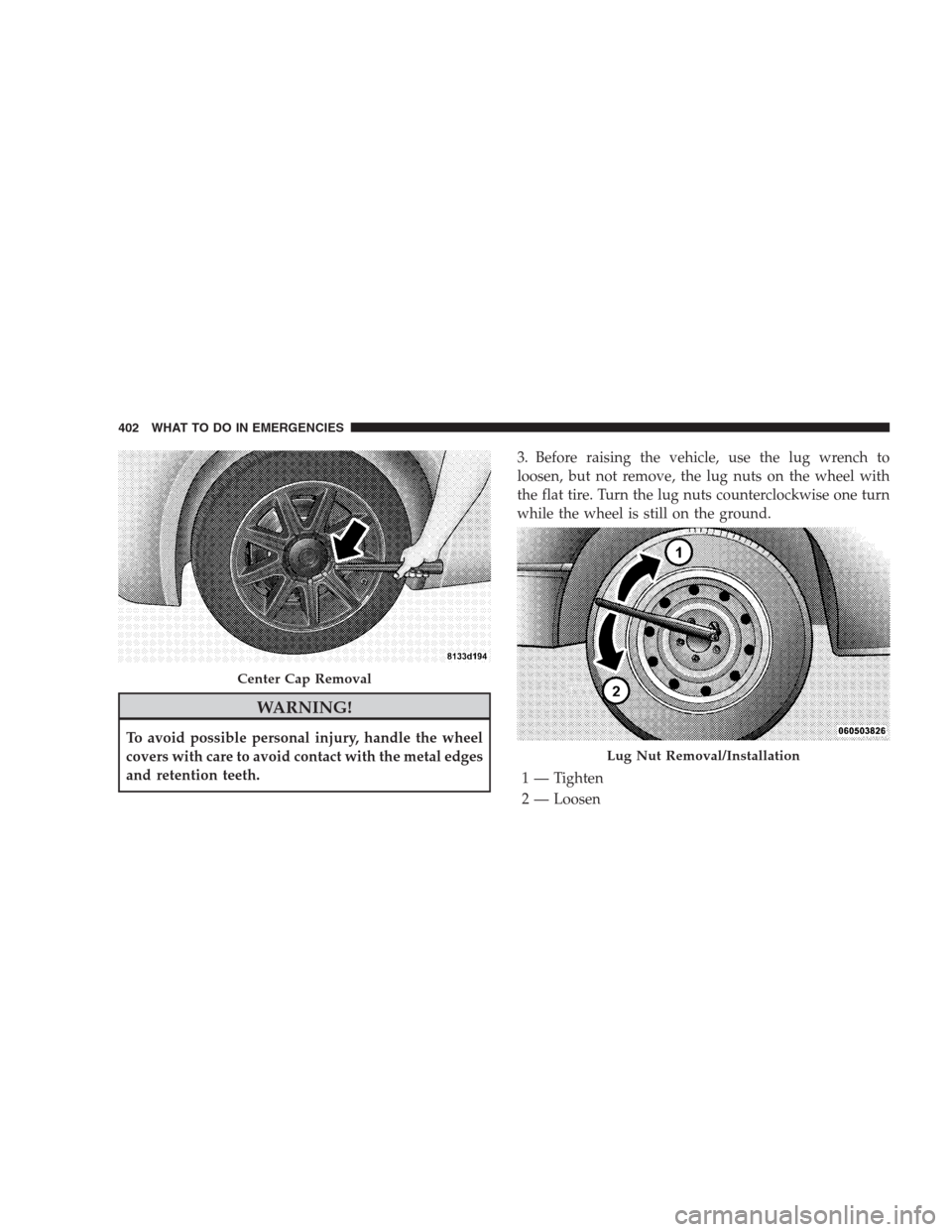
and retention teeth.3. Before raising the vehicle, use the lug wrench to
loosen, but not remove, the lug nuts on the wheel with
the flat tire. Turn the lug nuts counterclockwise one turn
while the wheel is still on the ground.
Center Cap Removal
Lug Nut Removal/Installation
1 — Tighten
2 — Loosen
402 WHAT TO DO IN EMERGENCIES
Page 405 of 526
4. Place the jack underneath the lift area that is closest to
the flat tire. Turn the jack screw clockwise to firmly
engage the jack saddle with the lift area of the sill flange.
5. Raise the vehicle just enough to remove the flat tire
and install the spare tire.
WARNING!
Raising the vehicle higher than necessary can make
the vehicle less stable. It could slip off the jack and
hurt someone near it. Raise the vehicle only enough
to remove the tire.
6. Remove the lug nuts, wheel cover (if equipped), and
tire. Remove the cover by hand. Do not pry it off.
7. Mount the spare tire.
NOTE:For vehicles so equipped, do not attempt to
install a center cap or wheel cover on the compact spare.However, when reinstalling the road tire, follow the
procedure under “Wheel Cover or Center Cap Installa-
tion” in place of the remaining steps in this procedure.
8. Install the lug nuts with the cone shaped end of the
nut toward the wheel. Lightly tighten the lug nuts. To
avoid the risk of forcing the vehicle off the jack, do not
tighten the lug nuts fully until the vehicle is lowered to
the ground.
9. Lower the vehicle to the ground by turning the jack
handle counterclockwise.
10. Finish tightening the lug nuts. Push down on the
wrench while tightening for increased leverage. Alternate
lug nuts until each nut has been tightened twice. The
correct tightness of each lug nut is 100 ft/lb. (135 N·m). If
in doubt about the correct tightness, have them checked
with a torque wrench by your authorized dealer or at a
service station.
WHAT TO DO IN EMERGENCIES 403
6
Page 409 of 526
3. Align the valve notch in the wheel cover with the
valve stem on the wheel. Install the cover by hand,
snapping the cover over the two lug nuts. Do not use a
hammer or excessive force to install the cover.
4. Install the remaining lug nuts with the cone shaped
end of the nut toward the wheel. Lightly tighten the lug
nuts. To avoid the risk of forcing the vehicle off the jack,
do not tighten the lug nuts fully until the vehicle is
lowered to the ground.
5. Lower the vehicle to the ground by turning the jack
handle counterclockwise.
6. Finish tightening the lug nuts. Push down on the
wrench while tightening for increased leverage. Alternate
lug nuts until each nut has been tightened twice. The
correct tightness of each lug nut is 100 ft/lb. (135 N·m). If
in doubt about the correct tightness, have them checked
with a torque wrench by your authorized dealer or at a
service station.7. For vehicles equipped with center caps, install the
center cap by hand. Do not use a hammer or excessive
force to install the center cap.
8. Stow the jack, tools, and spare tire. Make sure the base
of the jack faces the rear of the vehicle before tightening
down the fastener.
WARNING!
A loose tire or jack thrown forward in a collision or
hard stop could endanger the occupants of the ve-
hicle. Always stow the jack parts and the spare tire in
the places provided.
WHAT TO DO IN EMERGENCIES 407
6