Page 264 of 464
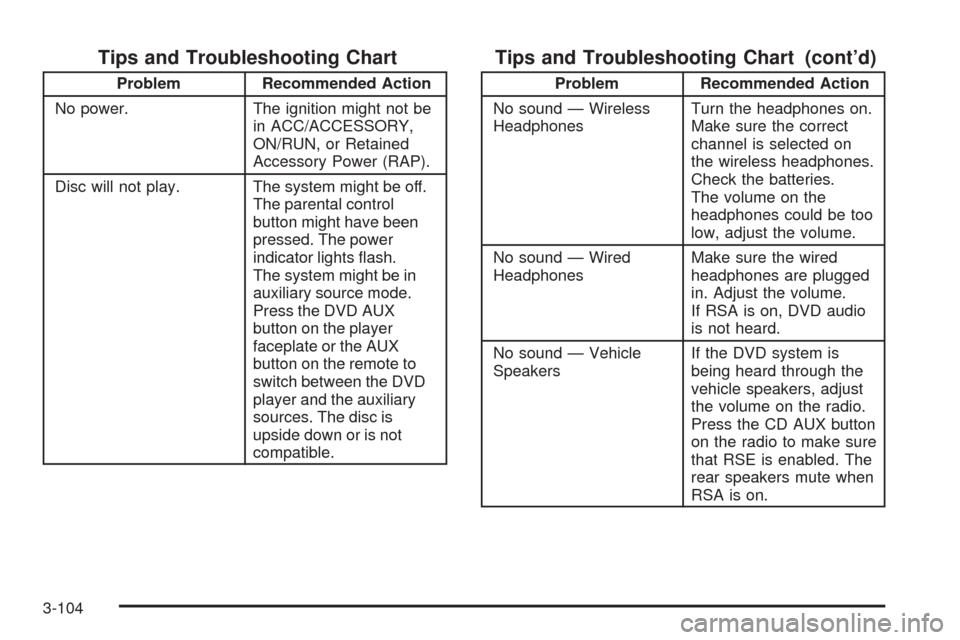
Tips and Troubleshooting Chart
Problem Recommended Action
No power. The ignition might not be
in ACC/ACCESSORY,
ON/RUN, or Retained
Accessory Power (RAP).
Disc will not play. The system might be off.
The parental control
button might have been
pressed. The power
indicator lights ash.
The system might be in
auxiliary source mode.
Press the DVD AUX
button on the player
faceplate or the AUX
button on the remote to
switch between the DVD
player and the auxiliary
sources. The disc is
upside down or is not
compatible.
Tips and Troubleshooting Chart (cont’d)
Problem Recommended Action
No sound — Wireless
HeadphonesTurn the headphones on.
Make sure the correct
channel is selected on
the wireless headphones.
Check the batteries.
The volume on the
headphones could be too
low, adjust the volume.
No sound — Wired
HeadphonesMake sure the wired
headphones are plugged
in. Adjust the volume.
If RSA is on, DVD audio
is not heard.
No sound — Vehicle
SpeakersIf the DVD system is
being heard through the
vehicle speakers, adjust
the volume on the radio.
Press the CD AUX button
on the radio to make sure
that RSE is enabled. The
rear speakers mute when
RSA is on.
3-104
Page 266 of 464
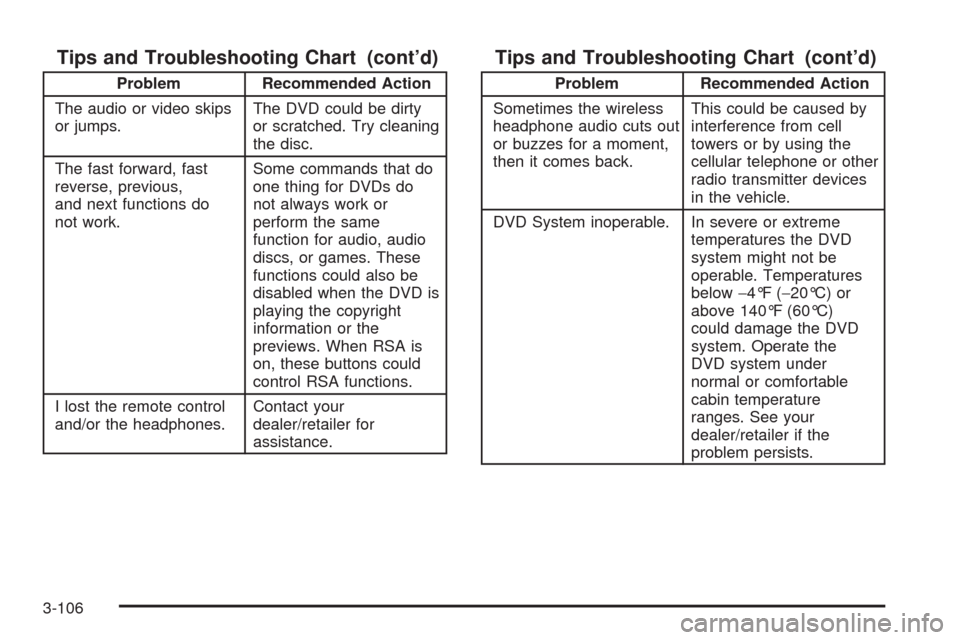
Tips and Troubleshooting Chart (cont’d)
Problem Recommended Action
The audio or video skips
or jumps.The DVD could be dirty
or scratched. Try cleaning
the disc.
The fast forward, fast
reverse, previous,
and next functions do
not work.Some commands that do
one thing for DVDs do
not always work or
perform the same
function for audio, audio
discs, or games. These
functions could also be
disabled when the DVD is
playing the copyright
information or the
previews. When RSA is
on, these buttons could
control RSA functions.
I lost the remote control
and/or the headphones.Contact your
dealer/retailer for
assistance.
Tips and Troubleshooting Chart (cont’d)
Problem Recommended Action
Sometimes the wireless
headphone audio cuts out
or buzzes for a moment,
then it comes back.This could be caused by
interference from cell
towers or by using the
cellular telephone or other
radio transmitter devices
in the vehicle.
DVD System inoperable. In severe or extreme
temperatures the DVD
system might not be
operable. Temperatures
below−4°F (−20°C) or
above 140°F (60°C)
could damage the DVD
system. Operate the
DVD system under
normal or comfortable
cabin temperature
ranges. See your
dealer/retailer if the
problem persists.
3-106
Page 267 of 464

Tips and Troubleshooting Chart (cont’d)
Problem Recommended Action
The wireless headphones
have audio distortion.Verify that the
headphones are facing
to the front of the
vehicle, left and right
sides are indicated on
the headphones to
ensure that the signal
is received properly.
Verify that there is no
obstruction between
the headphone(s) and
the transmitter.
Verify that the batteries
have a full charge.
In auxiliary mode, the
picture moves or scrolls.Check the signal coming
from the auxiliary device
and make sure that the
connection and the signal
is good.
DVD Display Error Messages
The following errors could display on the video screen.
Disc Format Error:This message displays if a disc
is inserted upside down, if the disc is not readable, or if
the disc format is not compatible.
Disc Play Error:This message displays if the
mechanism cannot play the disc. Scratched or damaged
discs will cause this error.
Region Code Error:This message displays if the
region code of the DVD is not compatible with the region
code of the DVD player.
Load/Eject Error:This message displays if the disc is
not properly loaded or ejected.
No Disc:This message displays when you try to play
or eject a disc that is not in the player.
X:An X displays, in the upper left corner of the video
screen, if the operation that has been selected is
not currently available.
3-107
Page 268 of 464

DVD Distortion
Video distortion can occur when operating cellular
phones, scanners, CB radios, Global Position Systems
(GPS)*, two-way radios, mobile fax, or walkie talkies.
It might be necessary to turn off the DVD player when
operating one of these devices in or near the vehicle.
*Excludes the OnStar
®System.
Cleaning the DVD Player
When cleaning the outside DVD faceplate and buttons,
use only a clean cloth dampened with clean water.
Cleaning the Video Screen
When cleaning the video screen, use only a clean cloth
dampened with clean water. Use care when directly
touching or cleaning the screen, as damage may result.
Rear Seat Audio (RSA)
Vehicles with an RSA system allows rear seat
passengers to listen to and control any of the following
audio sources: AM/FM tuner, front CD player, and
XM™ Satellite Radio Service. However, the rear seat
passengers can only control the sources that the
front seat passengers are not listening to. For example,
rear seat passengers can listen to a CD in the front
radio and control it while the front seat passengers listen
to the radio through the front speakers. The rear seat
passengers have control of the volume for each
set of headphones.
The front seat audio controls always have priority over
the RSA controls. If the front seat passengers switch
the source for the main radio to a remote source,
the RSA is not able to control the remote source. RSA
can operate when the main radio is off.
3-108
Page 269 of 464
The DVD or auxiliary device are always be available on
channel (CHA or CH1) of the wireless headphones. All
other RSA sources are available on channel (CHB or
CH2) of the wireless headphones or wired headphones.
If the RSA is off, the wired headphones provide DVD or
auxiliary device audio. The rear seat passengers are not
able to listen to XM on channel (CHB or CH2) if the front
seat passengers are listening to a DVD or an auxiliary
device.
The remote control does not operate any of the RSA
features.
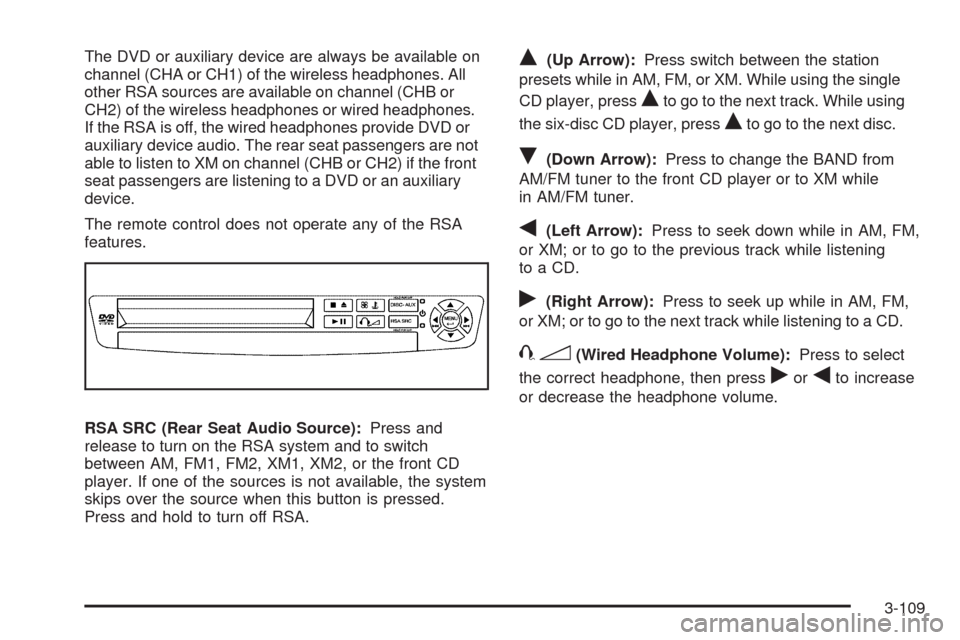
RSA SRC (Rear Seat Audio Source):Press and
release to turn on the RSA system and to switch
between AM, FM1, FM2, XM1, XM2, or the front CD
player. If one of the sources is not available, the system
skips over the source when this button is pressed.
Press and hold to turn off RSA.Q(Up Arrow):Press switch between the station
presets while in AM, FM, or XM. While using the single
CD player, press
Qto go to the next track. While using
the six-disc CD player, press
Qto go to the next disc.
R(Down Arrow):Press to change the BAND from
AM/FM tuner to the front CD player or to XM while
in AM/FM tuner.
q(Left Arrow):Press to seek down while in AM, FM,
or XM; or to go to the previous track while listening
to a CD.
r(Right Arrow):Press to seek up while in AM, FM,
or XM; or to go to the next track while listening to a CD.
43(Wired Headphone Volume):Press to select
the correct headphone, then press
rorqto increase
or decrease the headphone volume.
3-109
Page 270 of 464

wj(Parental Control):This button is located behind
the video screen next to the auxiliary and headphone
jacks. Press
wjwhile using RSA, or when a DVD or CD
is playing to blank the video screen and to mute the
audio. The power indicator lights on the DVD player
ashes. The parental control also disables all other button
operations from the remote control and the DVD player,
except for the eject button. Press
wjagain to restore
operation of the RSA, DVD player, and remote control.
wjcan also be used to turn the DVD player power on
and automatically resume play if the vehicle is on and a
disc is in the player. If a disc is not in the player then the
system powers up in auxiliary mode.
Theft-Deterrent Feature
THEFTLOCK®is designed to discourage theft of the
vehicle’s radio by learning a portion of the Vehicle
Identication Number (VIN). The radio does not operate
and LOC, LOCK, or LOCKED displays if the radio is
stolen or moved to a different vehicle.
When the ignition is in the off position, a blinking red
light on the upper left side of the radio indicates
that THEFTLOCK
®is armed.
3-110
Page 272 of 464
Radio Reception
Frequency interference and static can occur during
normal radio reception if items such as cell phone
chargers, vehicle convenience accessories, and external
electronic devices are plugged into the accessory
power outlet. If there is interference or static, unplug the
item from the accessory power outlet.
AM
The range for most AM stations is greater than for FM,
especially at night. The longer range can cause station
frequencies to interfere with each other. For better radio
reception, most AM radio stations boost the power levels
during the day, and then reduce these levels during the
night. Static can also occur when things like storms and
power lines interfere with radio reception. When this
happens, try reducing the treble on the radio.
FM Stereo
FM signals only reach about 10 to 40 miles
(16 to 65 km). Although the radio has a built-in electronic
circuit that automatically works to reduce interference,
some static can occur, especially around tall buildings or
hills, causing the sound to fade in and out.
XM Satellite Radio Service
XM Satellite Radio Service gives digital radio reception
from coast-to-coast in the 48 contiguous United States,
and in Canada. Just as with FM, tall buildings or hills can
interfere with satellite radio signals, causing the sound to
fade in and out. In addition, traveling or standing under
heavy foliage, bridges, garages, or tunnels may cause
loss of the XM signal for a period of time.
Cellular Phone Usage
Cellular phone usage may cause interference with the
vehicle’s radio. This interference may occur when
making or receiving phone calls, charging the phone’s
battery, or simply having the phone on. This interference
causes an increased level of static while listening to
the radio. If static is received while listening to the radio,
unplug the cellular phone and turn it off.
3-112
Page 320 of 464
Filling the Tank
{CAUTION:
Fuel vapor burns violently and a fuel re can
cause bad injuries. To help avoid injuries to you
and others, read and follow all the instructions on
the pump island. Turn off the engine when you are
refueling. Do not smoke if you are near fuel or
refueling the vehicle. Do not use cellular phones.
Keep sparks, ames, and smoking materials away
from fuel. Do not leave the fuel pump unattended
when refueling the vehicle. This is against the law
in some places. Do not re-enter the vehicle while
pumping fuel. Keep children away from the fuel
pump; never let children pump fuel.
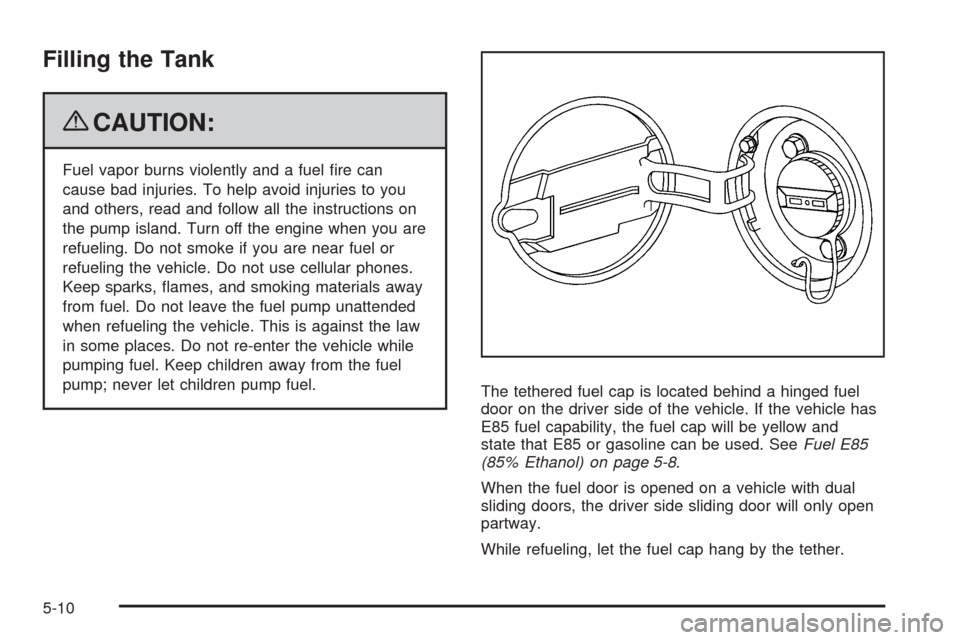
The tethered fuel cap is located behind a hinged fuel
door on the driver side of the vehicle. If the vehicle has
E85 fuel capability, the fuel cap will be yellow and
state that E85 or gasoline can be used. SeeFuel E85
(85% Ethanol) on page 5-8.
When the fuel door is opened on a vehicle with dual
sliding doors, the driver side sliding door will only open
partway.
While refueling, let the fuel cap hang by the tether.
5-10