2009 CHEVROLET UPLANDER phone
[x] Cancel search: phonePage 236 of 464

Audio System(s)
Determine which radio the vehicle has and read the
following pages to become familiar with its features.
{CAUTION:
Taking your eyes off the road for extended periods
could cause a crash resulting in injury or death to
you or others. Do not give extended attention to
entertainment tasks while driving.
This system provides access to many audio and non
audio listings.
To minimize taking your eyes off the road while driving,
do the following while the vehicle is parked:
Become familiar with the operation and controls of
the audio system.
Set up the tone, speaker adjustments, and preset
radio stations.
For more information, seeDefensive Driving on
page 4-2.Notice:Contact your dealer/retailer before adding
any equipment.
Adding audio or communication equipment could
interfere with the operation of the vehicle’s engine,
radio, or other systems, and could damage them.
Follow federal rules covering mobile radio and
telephone equipment.
Notice:The chime signals related to safety belts,
parking brake, and other functions of your vehicle
operate through the radio/entertainment system.
If that equipment is replaced or additional equipment
is added to your vehicle, the chimes may not
work. Make sure that replacement or additional
equipment is compatible with your vehicle before
installing it. SeeAccessories and Modifications
on page 5-3.
The vehicle has Retained Accessory Power (RAP). With
RAP, the audio system can be played even after the
ignition is turned off. SeeRetained Accessory Power
(RAP) on page 2-32for more information.
3-76
Page 242 of 464

4(INFO – Information):If the current station has a
message, INFO displays. Press to see the message.
The message can display the artist, song title, call
in phone numbers, etc.
If the entire message is not displayed, parts of the
message appears every three seconds. To scroll through
the message, press and release this button. A new group
of words display after every press of the button. Once the
complete message displays, INFO disappears from the
display until another new message is received. The last
message can display by pressing this button. The last
message stays on the display until a new message is
received or you turn to a different station.
When a message is not available from a station,
NO INFO displays.
TRAF (TA – Traffic):TA displays if a tuned station
broadcasts traffic announcements.
If a station does not broadcast traffic announcements,
press the TRAF button. The radio seeks to a station that
does. When a station is found, the radio stops seeking
and TA displays. If no station is found that broadcasts
traffic announcements, NO TRAFFIC displays.The radio plays the traffic announcement even if the
volume is low. The radio interrupts the play of a CD if
the last tuned station broadcasts traffic announcements.
If TA displays, press the TRAF button to turn off the
traffic announcements.
This function does not apply to XM Satellite Radio
Service.
Radio Messages
CAL ERR (Calibration Error):The audio system has
been calibrated for the vehicle from the factory. If
CAL ERR displays, it means that the radio has not been
congured properly for the vehicle and must be
returned to your dealer/retailer for service.
LOCKED:This message displays when the
THEFTLOCK
®system has locked up. Take the vehicle
to your dealer/retailer for service.
If any error occurs repeatedly or if an error cannot be
corrected, contact your dealer/retailer. If the radio
displays an error message, write it down and provide it
to your dealer/retailer when reporting the problem.
3-82
Page 249 of 464

Using the Auxiliary Input Jack
The radio system has an auxiliary input jack located on
the upper right side of the faceplate. This is not an audio
output; do not plug the headphone set into the front
auxiliary input jack. However, an external audio device
such as an iPod, laptop computer, MP3 player, CD
changer, or cassette tape player, etc. can be connected
to the auxiliary input jack for use as another source for
audio listening.
Drivers are encouraged to set up any auxiliary device
while the vehicle is in PARK (P). SeeDefensive Driving
on page 4-2.
To use a portable audio player, connect a 3.5 mm
(1/8 inch) cable to the radio’s front auxiliary input jack.
When a device is connected, the radio displays AUX
INPUT DEVICE and begins playing audio from
that device.
Top Knob (Power/Volume):Turn clockwise or
counterclockwise to increase or decrease the volume of
the portable player. Additional volume adjustments
might need to be made from the portable device.BAND:Press to listen to the radio while a portable
audio device is playing. The portable audio device
continues playing, so you might want to stop it or
turn it off.
CD/AUX (CD/Auxiliary):Press to play a CD or other
optional remote audio features, while a portable
audio device is playing. If the external audio device is
disconnected from the faceplate, the radio automatically
returns to the last station that was set.
Using an MP3
MP3 CD-R Disc
MP3 Format
If you burn your own MP3 disc on a personal computer:
Make sure the MP3 les are recorded on a
CD-R disc.
Do not mix standard audio and MP3 les on
one disc.
Make sure playlists have a .mp3 or .wpl extension,
other le extensions may not work.
3-89
Page 253 of 464

CH Unauth:This channel is blocked or cannot be
received with your XM Subscription package.
CH Unavail:This previously assigned channel is no
longer assigned. Tune to another station. If this station
was one of the presets, choose another station for
that preset button.
No Info:No artist, song title, category, or text
information is available at this time on this channel. The
system is working properly.
Not Found:There are no channels available for the
selected category. The system is working properly.
XM Locked:The XM receiver in the vehicle may have
previously been in another vehicle. For security
purposes, XM receivers cannot be swapped between
vehicles. If this message is received after having
the vehicle serviced, check with your dealer/retailer.
Radio ID:If tuned to channel 0, this message will
alternate with the XM Radio 8 digit radio ID label. This
label is needed to activate the service.Unknown:If this message is received when tuned to
channel 0, there may be a receiver fault. Consult
with your dealer/retailer.
Chk XMRcvr:If this message does not clear within a
short period of time, the receiver may have a fault.
Consult with your dealer/retailer.
Rear Seat Entertainment (RSE)
System
Vehicles with an RSE system have a video display
screen, auxiliary inputs, two sets of wireless
headphones, a DVD player, and a remote control.
Before Driving
The RSE is designed for rear seat passengers only.
The driver cannot safely view the video screen
while driving and should not try to do so.
Normal operation could be limited under extremely low
or high temperatures in order to protect the system
from damage. Operate the RSE system under normal or
comfortable cabin temperature ranges.
3-93
Page 255 of 464

To use the auxiliary audio and video inputs, connect an
external auxiliary device such as a camcorder to the
RCA jacks and turn on both the auxiliary device power
and the power on the front of the RSE player.
If a disc is present when the RSE power is turned on,
the player automatically begins playing the disc.
Press the AUX button on the remote control or the
DVD AUX button on the DVD player faceplate to switch
the system between the DVD player and the auxiliary
device. See “DVD Player” and “Remote Control” later in
this section for more information.
Parental Control
wj
(Parental Control):This button is located behind
the video screen next to the auxiliary and headphone
jacks. Press
wjwhile using RSA, or when a DVD or CD
is playing to blank the video screen and to mute the
audio. The power indicator lights on the DVD player
ashes. The parental control also disables all other button
operations from the remote control and the DVD player,
except for the eject button. Press
wjagain to restore
operation of the RSA, DVD player, and remote control.
wjcan also be used to turn the DVD player power on
and automatically resume play if the vehicle is on and a
disc is in the player. If a disc is not in the player then the
system powers up in auxiliary mode.
Audio Output
Audio from the DVD player or auxiliary inputs can be
heard through the following sources:
Vehicle Speakers
Wireless Headphones
Wired Headphones (not included)
Vehicle Speakers
Only one audio source can be heard through the
vehicle’s speakers at a time.
The RSE system or an auxiliary device can be heard
through all of the vehicle’s speakers when the following
occurs:
A DVD or auxiliary device is playing
The front audio system is on and the CD AUX
button is pressed to enable the RSE system
DVD appears on the radio display when the RSE
system is on.
To turn the vehicles speakers on and off, press the
CD AUX button on the radio. The audio from the RSE
system can be heard through the wireless headphones
and the vehicles speakers at the same time. The
volume on the radio varies when switching between the
radio, CD, DVD, MP3, or an auxiliary device.
3-95
Page 256 of 464
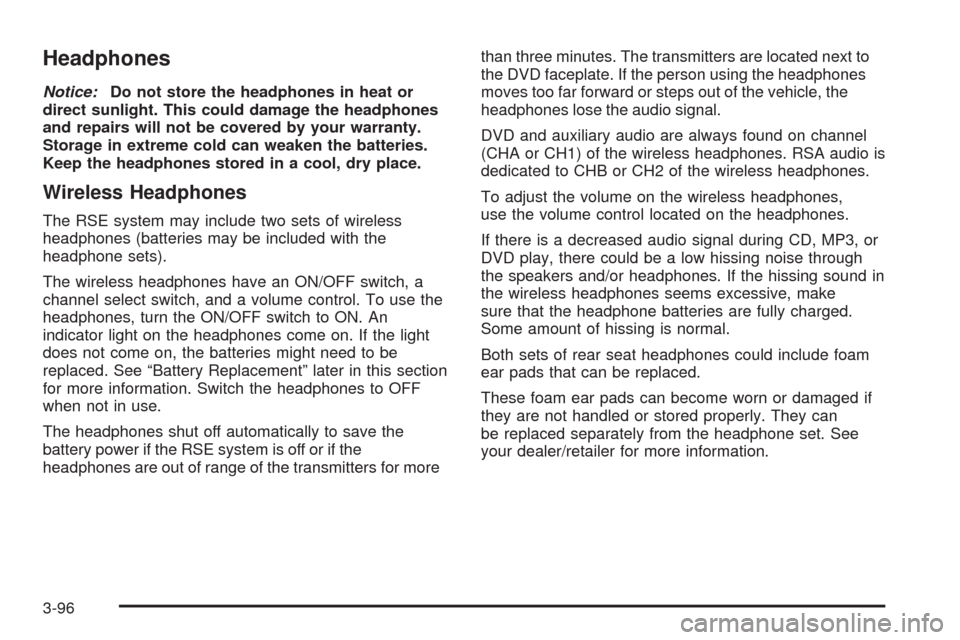
Headphones
Notice:Do not store the headphones in heat or
direct sunlight. This could damage the headphones
and repairs will not be covered by your warranty.
Storage in extreme cold can weaken the batteries.
Keep the headphones stored in a cool, dry place.
Wireless Headphones
The RSE system may include two sets of wireless
headphones (batteries may be included with the
headphone sets).
The wireless headphones have an ON/OFF switch, a
channel select switch, and a volume control. To use the
headphones, turn the ON/OFF switch to ON. An
indicator light on the headphones come on. If the light
does not come on, the batteries might need to be
replaced. See “Battery Replacement” later in this section
for more information. Switch the headphones to OFF
when not in use.
The headphones shut off automatically to save the
battery power if the RSE system is off or if the
headphones are out of range of the transmitters for morethan three minutes. The transmitters are located next to
the DVD faceplate. If the person using the headphones
moves too far forward or steps out of the vehicle, the
headphones lose the audio signal.
DVD and auxiliary audio are always found on channel
(CHA or CH1) of the wireless headphones. RSA audio is
dedicated to CHB or CH2 of the wireless headphones.
To adjust the volume on the wireless headphones,
use the volume control located on the headphones.
If there is a decreased audio signal during CD, MP3, or
DVD play, there could be a low hissing noise through
the speakers and/or headphones. If the hissing sound in
the wireless headphones seems excessive, make
sure that the headphone batteries are fully charged.
Some amount of hissing is normal.
Both sets of rear seat headphones could include foam
ear pads that can be replaced.
These foam ear pads can become worn or damaged if
they are not handled or stored properly. They can
be replaced separately from the headphone set. See
your dealer/retailer for more information.
3-96
Page 257 of 464

Battery Replacement
To change the batteries on the headphones:
1. Turn the screw to loosen the battery door located
on the left side of the headphones, then slide the
battery door open.
2. Replace the two batteries in the compartment.
Make sure that they are installed correctly using the
diagram on the inside of the battery compartment.
3. Replace the battery door and tighten the door
screw.
If the headphones are to be stored for a long period of
time, remove the batteries, and keep them in a cool,
dry place.
Wired Headphones
There is a right and left wired headphone jack located
behind the video screen next to the auxiliary jacks.
The wired headphones work as follows:
DVD on / RSA off: The wired headphones plays
RSE audio.
DVD off / RSA on: The wired headphones plays
RSA audio.
DVD on / RSA on: The wired headphones plays
RSA audio.
DVD Player
The DVD player is located in the overhead console and
can be controlled by the buttons on the DVD player
and/or by the buttons on the remote control. See “Remote
Control” later in this section for more information.
The RSE system DVD player is only compatible with
DVDs of the appropriate region code for the country that
the vehicle was sold. The DVD region code is printed
on the jacket of most DVDs.
The player is capable of playing the following media
formats:
DVD (single and dual layer)
DVD+R/RW
DVD-R/RW
DVD-ROM with MP3
DVD-ROM with WMA
CD-DA
CD-R/RW
CD-ROM with MP3
CD-ROM with WMA
Enhanced CD
SACD (CD player only)
3-97
Page 258 of 464

An error message could display if any other type of
media is inserted into the DVD player.
If an error message displays on the video screen, see
“DVD Messages” later in this section.
DVD Player Buttons
cY(Stop/Eject):Press and release to stop playing,
rewinding, or fast forwarding.
Press
cYtwice to eject a disc. If the player is
already stopped, then only press
cYonce.
DVD AUX (Disc Auxiliary):Press to switch the system
between the DVD player and an auxiliary device.
rj(Play/Pause):Press to start play of a disc. If the
disc is playing, press
rjto pause it. Pressrj
again to continue playing the disc.
43(Wired Headphone Volume):Press to select
the correct headphone, then press
rorqto increase
or decrease the headphone volume.
When a DVD is playing in the DVD player and the RSA
system is on,
cYandrjare the only buttons
that will work.
RSA SRC (Rear Seat Audio Source):Press and
release to turn on the RSA system and to switch
between AM, FM1, FM2, XM1, XM2, or the front CD
player. If one of the sources is not available, the system
skips over the source when this button is pressed.
Press and hold to turn off RSA.
q,Q,r,R(Directional Arrows):Press to navigate
through DVD menus.
QandRmove through MP3 folders.
g(Fast Reverse):Press to fast reverse the DVD and
CD. To stop reversing, press
rjorcY. While
the DVD is playing the copyright information or previews,
gmay not work. RSE Faceplate with Rear Seat Climate Controls
shown, RSE Faceplate without Rear Seat Climate
Controls similar
3-98