2009 CHEVROLET CORVETTE service
[x] Cancel search: servicePage 220 of 434
Using the Radio
Radio Data System (RDS)
RDS features are available for use only on FM stations
that broadcast RDS information. The station name or call
letters display while the radio is tuned to an RDS station.
This system relies upon receiving specic information
from these stations and works only when the information
is available. In rare cases, a radio station can broadcast
incorrect information that causes the radio features
to work improperly. If this happens, contact the radio
station.
With RDS, the radio can:
Seek to stations broadcasting the selected type of
programming.
Receive announcements concerning local and
national emergencies.
Display messages from radio stations.
Seek to stations with traffic announcements.
Provide the time of day.
Provide a program type (PTY) for current
programming.
Provide the name of the program being broadcast.
XM™ Satellite Radio Service
XM is a satellite radio service that is based in the
48 contiguous United States and 10 Canadian
provinces. XM Satellite Radio has a wide variety
of programming and commercial-free music,
coast-to-coast, and in digital-quality sound. During your
trial or when you subscribe, you will get unlimited
access to XM Radio Online for when you are not in
the vehicle. A service fee is required to receive the
XM service. For more information, contact XM at
xmradio.com or call 1-800-929-2100 in the U.S. and
xmradio.ca or call 1-877-438-9677 in Canada.
Finding an FM/AM/XM Station
BAND:Press to switch between FM1, FM2, AM,
XM1orXM2.
Oe(Tune):Turn to select radio stations.
tSEEKu:Press to go to the previous or to the next
station and stay there.
The radio only stops at stations with a strong signal.
tSCANu:Press and holdtorufor two seconds
until FREQUENCY SCAN displays. The radio goes
to a station, plays for a few seconds, then goes on to
the next station. Press
toruagain to stop scanning.
3-84
Page 221 of 434
To scan preset stations:
Press and hold
torufor four seconds until PRESET
SCAN displays. The radio goes to the next preset
station, plays for a few seconds, then goes to the next
preset station. Press
toruagain or one of the
pushbuttons to stop scanning presets.
The radio only scans stations with a strong signal.
1-6 (Preset Pushbuttons):Press to play stations that
are programmed to the radio preset pushbuttons.
Setting Preset Stations
Up to 30 stations (six FM1, six FM2, and six AM,
six XM1 and six XM2), and equalization settings for
each station can be programmed on the six numbered
pushbuttons.
To set presets:
1. Turn the radio on.
2. Press BAND to select FM1, FM2, AM, or XM1
or XM2.
3. Tune in the desired station.
4. Press AUTO EQ to select the equalization.
5. Press and hold one of the six numbered
pushbuttons until the radio beeps once.
6. Repeat the steps for each pushbutton.
Finding a Category (CAT) Station
(XM Satellite Radio Service Only)
To select an XM station by category:
1. Press CAT. The last selected category displays.
2. Turn the
Oeknob to select a category.
3. Press
toruto go to a category’s station.
SEEKING CATEGORY displays.
4. To go to another station within that category, press
the CAT button to display the category, then press
toruto go to another station.
If the radio cannot nd the desired category, NONE
displays and the radio returns to the last station tuned.
SCAN:To scan the stations within a category:
1. Press CAT. The last selected category displays.
2. Turn the
Oeknob to select a category.
3. Press and hold
toruuntil a beep sounds and
SCAN CATEGORY displays. The radio begins
scanning the stations in the category.
4. Press
toruto stop scanning.
3-85
Page 222 of 434
Radio Messages
CAL ERR (Calibration Error):Displays if the radio
is no longer congured properly for the vehicle.
The vehicle must be returned to your dealer/retailer
for service.
LOC (Locked):Displays when the THEFTLOCK
®
system has locked up. The vehicle must be returned to
your dealer/retailer for service.
If any error occurs repeatedly or cannot be corrected,
contact your dealer/retailer.
RDS Messages
ALERT!:Alert warns of local or national emergencies.
When an alert announcement comes on the current
radio station, ALERT! displays. The announcement is
heard, even if the volume is low or a CD is playing. If a
CD is playing, play stops during the announcement.
Alert announcements cannot be turned off.
ALERT! is not affected by tests of the emergency
broadcast system. This feature is not supported by all
RDS stations.
4(Information):If the current station has a message,
INFO (information) displays. Press
4to see the message.
The message can display the artist, song title, call in
phone numbers, etc.
If the entire message is not displayed, parts of the
message appears every three seconds. To scroll through
the message, press and release
4. A new group of
words display after every press of the button. Once the
complete message has displayed, INFO disappears
from the display until another new message is received.
The last message can be displayed by pressing this
button. The last message until a new message is
received or the radio is tuned to a different station.
NO INFO displays when a message is not available from
a station.
TRAF (Traffic):TA (traffic) displays when the station
broadcasts traffic announcements, the announcement
will be played.
Press TRAF and the radio seeks to a station that
broadcasts traffic announcements. When a station is
found, the radio stops seeking and TA displays.
NO TRAFFIC INFO displays if a station that broadcasts
traffic announcements can not be found.
3-86
Page 223 of 434
Press TRAF to turn off the traffic announcements
if TA is on the display.
The radio plays the traffic announcement even if the
volume is low. The radio interrupts the play of a CD if
the last tuned station broadcasts traffic announcements.
This function does not apply to XM Satellite Radio
Service.
Radio Messages for XM Only
SeeXM Radio Messages on page 3-95XM Radio
Messages later in this section for further detail.
Using the CD Player
The CD player can play smaller 3 inch (8 cm) single
CDs with an adapter ring.
A CD in the player it stays in the player when the
ignition is turned off. When the ignition or radio is turned
on, the CD starts to play where it stopped, if it was
the last selected audio source.
Loading a CD
Single CD Radio:
Insert the CD partway into the slot, label side up, until
the player pulls the CD in. The CD begins playing
automatically.
The CD symbol displays when a CD is inserted, and
the track number displays when each new track starts
to play.
Six-Disc CD Radio:
If more than one CD has been loaded, a number for
each CD displays.
M(Load):Press to load CDs into the CD player.
To insert one CD:
1. Press
M.
2. Load a CD and insert the CD partway into the slot,
label side up when INSERT CD # displays.
The player pulls the CD in.
3-87
Page 231 of 434

XM Radio Messages
XL (Explicit Language Channels):These
channels, or any others, can be blocked by calling
1-800-852-XMXM (9696).
Updating:The encryption code in the receiver is being
updated, and no action is required. This process
should take no longer than 30 seconds.
No Signal:The system is functioning correctly, but the
vehicle is in a location that is blocking the XM signal.
When the vehicle is moved into an open area, the signal
should return.
Loading XM:The audio system is acquiring and
processing audio and text data. No action is needed.
This message should disappear shortly.
CH Off Air:This channel is not currently in service.
Tune in to another channel.
CH Unauth:This channel is blocked or cannot be
received with your XM Subscription package.
CH Unavail:This previously assigned channel is no
longer assigned. Tune to another station. If this station
was one of the presets, choose another station for
that preset button.No Info:No artist, song title, category, or text
information is available at this time on this channel.
The system is working properly.
Not Found:There are no channels available for the
selected category. The system is working properly.
XM Locked:The XM receiver in the vehicle may have
previously been in another vehicle. For security
purposes, XM receivers cannot be swapped between
vehicles. If this message is received after having
the vehicle serviced, check with your dealer/retailer.
Radio ID:If tuned to channel 0, this message will
alternate with the XM Radio 8 digit radio ID label.
This label is needed to activate the service.
Unknown:If this message is received when tuned to
channel 0, there may be a receiver fault. Consult
with your dealer/retailer.
Chk XMRcvr:If this message does not clear within a
short period of time, the receiver may have a fault.
Consult with your dealer/retailer.
Navigation/Radio System
For vehicles with a navigation radio system, see the
separate Navigation System manual.
3-95
Page 239 of 434
Receiving a Call
When an incoming call is received, the audio system
mutes and a ring tone is heard in the vehicle.
Pressbgand begin speaking to answer the call.
Presscto ignore a call.
Call Waiting
Call waiting must be supported on the Bluetooth phone
and enabled by the wireless service carrier to work.
Pressbgto answer an incoming call when
another call is active. The original call is placed
on hold.
Pressbgagain to return to the original call.
To ignore the incoming call, continue with the
original call with no action.
Presscto disconnect the current call and switch
to the call on hold.
Three-Way Calling
Three-Way Calling must be supported on the Bluetooth
phone and enabled by the wireless service carrier
to work.
1. While on a call press
bg. The system responds
with “Ready” followed by a tone.
2. Say “Three-way call”. The system responds with
“Three-way call, please say dial or call”.
3. Use the dial or call command to dial the number of
the third party to be called.
4. Once the call is connected, press
bgto link all
the callers together.
Ending a Call
Presscto end a call.
Muting a Call
During a call, all sounds from inside the vehicle can be
muted so that the person on the other end of the
call cannot hear them.
3-103
Page 242 of 434
Other Information
The Bluetooth®word mark and logos are owned by the
Bluetooth®SIG, Inc. and any use of such marks by
General Motors is under license. Other trademarks and
trade names are those of their respective owners.
This device complies with Part 15 of the FCC Rules.
Operation is subject to the following two conditions:
1. This device may not cause harmful interference.
2. This device must accept any interference received,
including interference that may cause undesired
operation.
This device complies with RSS-210 of Industry Canada.
Operation is subject to the following two conditions:
1. This device may not cause interference.
2. This device must accept any interference received,
including interference that may cause undesired
operation of the device.
Changes or modications to this system by other than
an authorized service facility could void authorization to
use this equipment.
Theft-Deterrent Feature
THEFTLOCK®is designed to discourage theft of the
vehicle’s radio by learning a portion of the Vehicle
Identication Number (VIN). The radio does not operate
and LOCKED displays if the radio is stolen or moved
to a different vehicle.
When the when the ignition is in the off position, a
blinking red light on the upper left side of the radio
indicates that THEFTLOCK
®is armed.
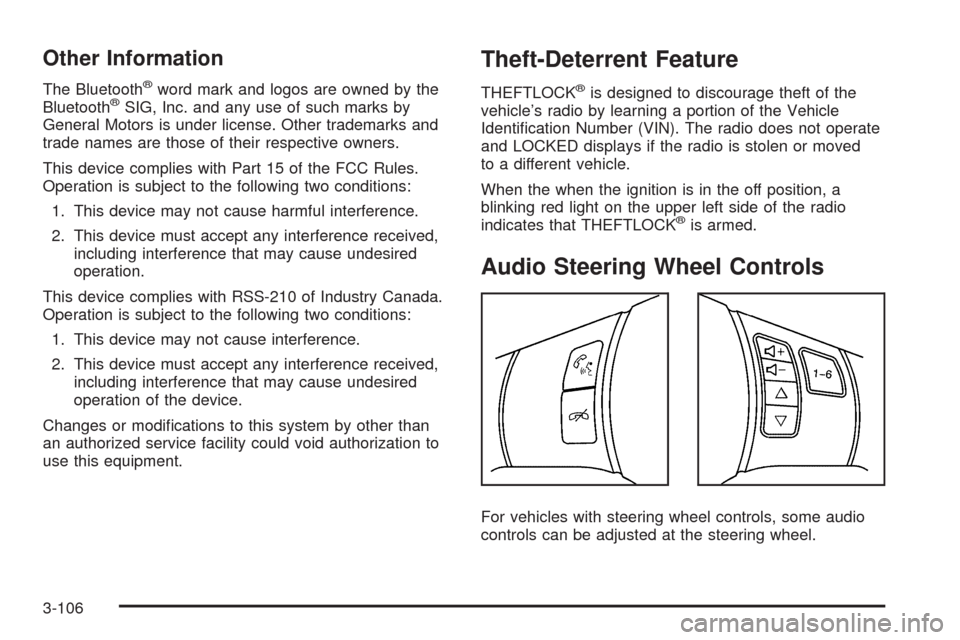
Audio Steering Wheel Controls
For vehicles with steering wheel controls, some audio
controls can be adjusted at the steering wheel.
3-106
Page 244 of 434
Radio Reception
Frequency interference and static can occur during
normal radio reception if items such as cell phone
chargers, vehicle convenience accessories, and external
electronic devices are plugged into the accessory power
outlet. If there is interference or static, unplug the
item from the accessory power outlet.
AM
The range for most AM stations is greater than for FM,
especially at night. The longer range can cause station
frequencies to interfere with each other. For better radio
reception, most AM radio stations boost the power levels
during the day, and then reduce these levels during the
night. Static can also occur when things like storms and
power lines interfere with radio reception. When this
happens, try reducing the treble on the radio.
FM Stereo
FM signals only reach about 10 to 40 miles (16 to 65 km).
Although the radio has a built-in electronic circuit that
automatically works to reduce interference, some static
can occur, especially around tall buildings or hills,
causing the sound to fade in and out.
XM™ Satellite Radio Service
XM Satellite Radio Service gives digital radio reception
from coast-to-coast in the 48 contiguous United States,
and in Canada. Just as with FM, tall buildings or hills caninterfere with satellite radio signals, causing the sound to
fade in and out. In addition, traveling or standing under
heavy foliage, bridges, garages, or tunnels may cause
loss of the XM signal for a period of time.
Cellular Phone Usage
Cellular phone usage may cause interference with the
vehicle’s radio. This interference may occur when
making or receiving phone calls, charging the phone’s
battery, or simply having the phone on. This interference
causes an increased level of static while listening to
the radio. If static is received while listening to the radio,
unplug the cellular phone and turn it off.
Diversity Antenna System
The AM-FM antenna is a hidden self tuning system.
It optimizes the AM and FM signals relative to the
vehicle’s position and radio station source.
No maintenance or adjustments are needed.
XM™ Satellite Radio Antenna System
For vehicles with XM Satellite Radio Service, the
antenna is located on the roof or on the trunk lid of the
vehicle. Keep the antenna clear of obstructions for
clear radio reception.
3-108