Page 259 of 648
Install the dock connector to the
USB adapter cable securely.
Connect your dock connector to
the iPod correctly and securely.
Pull out the USB connector f rom
the holder.
Do not connect your iPod using a
hub.
DonotkeeptheiPodinthe
vehicle. Direct sunlight and high
heat will damage it.
Do not use an extension cable
between the USB adapter cable
equipped with your vehicle and
your dock connector.
We recommend backing up your
data bef ore playing it.
1. 2.
3.
Playing an iPod(Models without navigation system)
Connect ing an iPod
256
NOTE:
DOCK CONNECTOR
USB ADAPTER CABLE
USB ADAPTER CABLE USB CONNECTOR
�\f���—�
���—�����y�
�\f��\f����
���y���
�)� �����\f�\f�y�\f�����
�y
2009 TL
Page 267 of 648

�Î
�Î
This audio system can select and
play the audio f iles on a USB f lash
memory device with the same
controls used f or the disc player. To
play a USB f lash memory device,
connect it to the USB adapter cable
in the console compartment, then
press the AUX button. The ignition
switch must be in the ACCESSORY
(I) or ON (II) position. Do not use a device such as a
card reader or hard drive as the
device or your f iles may be
damaged.
Do not connect your USB f lash
memory device using a hub.
Do not use an extension cable to
the USB adapter cable equipped
with your vehicle.
Do not keep a USB f lash memory
device in the vehicle. Direct
sunlight and high heat will damage
it.
We recommend backing up your
data bef ore playing a USB f lash
memory device.
Some USB f lash memory devices
(such as devices with security lock-
out f eatures, etc.) will not work in
this audio unit.
The recommended USB f lash
memory devices are 256 Mbyte or
higher. Some digital audio players
maybecompatibleaswell. Only AAC f ormat f iles recorded
with iTunes are playable on this
audio unit.
The audio system reads and plays
the audio f iles on the USB f lash
memory device in MP3, WMA or
AAC f ormats. Depending on the
f ormat, the display shows MP3,
WMA or AAC when a USB flash
memory device is playing. The USB
f lash memory device limit is up to
700 f olders or up to 65535 f iles.
:
To Play a USB Flash Memory
Device
Playing a USB Flash Memory Device (Models without navigation system)
264
NOTE:
�\f���—�\f���—�����y�
����
��������y���
�)� �����\f�\f�y�\f�������y
2009 TL
Page 280 of 648
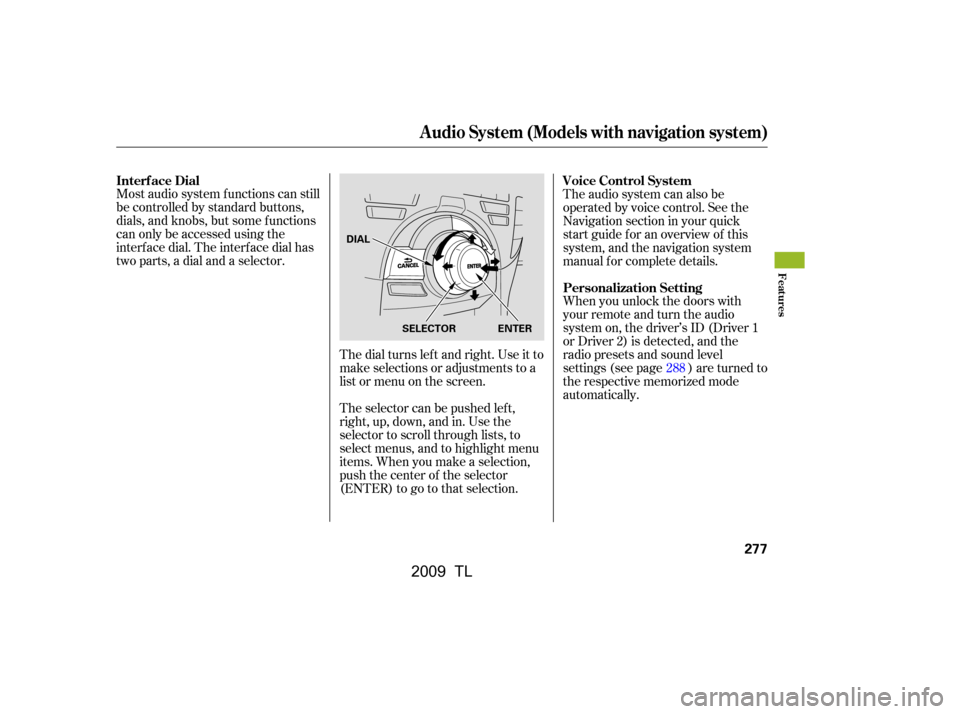
Most audio system f unctions can still
be controlled by standard buttons,
dials, and knobs, but some f unctions
can only be accessed using the
interf ace dial. The interf ace dial has
two parts, a dial and a selector.The dial turns lef t and right. Use it to
make selections or adjustments to a
list or menu on the screen.
The selector can be pushed lef t,
right, up, down, and in. Use the
selector to scroll through lists, to
select menus, and to highlight menu
items. When you make a selection,
push the center of the selector
(ENTER)togotothatselection.The audio system can also be
operated by voice control. See the
Navigation section in your quick
start guide f or an overview of this
system, and the navigation system
manual f or complete details.
When you unlock the doors with
your remote and turn the audio
system on, the driver’s ID (Driver 1
or Driver 2) is detected, and the
radio presets and sound level
settings (see page ) are turned to
the respective memorized mode
automatically.
288
Interf ace Dial
Voice Control System
Personalization Setting
Audio System (Models with navigation system)
Features
277
SELECTOR ENTER
DIAL
�\f���—�\f���—�����y�
����
��������y���
�)� �����\f�\f�y�\f�������y
2009 TL
Page 306 of 648

Select the disc player by pressing the
DISC button. The system will begin
playing the last selected track in the
disc. You will see the current track
position highlighted.
Title inf ormation will be displayed by
a list when the inf ormation is f ound
in the Gracenote
Album Inf o
(Gracenote
Media Database) on the
built-inharddiskdrive.Whenyou
play a CD recorded with text data,
you will see the genre, artist name,
album and track name on the screen.
When you play MP3/WMA/AAC
discs, you will see the genre, artist
name, album name and track name
on the screen. If the disc was not
recorded with this inf ormation, it will
not be displayed. Each time you press the TITLE
button, the center display changes
f rom artist name to album name, to
track name and then to normal
display that shows the track number
and the elapsed time. When playing
a disc in MP3/WMA/AAC, the
display mode changes f rom f older
name,tofilename,toartisttag,to
album tag, to track tag, and then to
normal display.
Each time you press and release the
side of the skip bar, the player
skips forward to the beginning of the
next track. Press and release the side of the skip bar to skip
backward to the beginning of the
current track. Press the side
againtoskiptotheprevioustrack.
To move rapidly within a track, press
andholdeithersideof theskipbar.
When you insert a CD f or the f irst
time, the system automatically starts
recording to the hard disc. For
inf ormation on recording f rom music
CDs, see page . 319
To Play a Disc
To Change Tracks
Playing a Disc (Models with navigation system)
Features
303
�\f���—�
���—�����y�
�\f��
����
���y���
�)� �����\f�\f�y�\f���\f���y
2009 TL
Page 316 of 648
When using CD-R, CD-RW,
DVD-R or DVD-RW discs, use
only high quality discs labeled f or
audio use.
Play only standard, round, 5-inch
(12 cm) discs. Smaller or odd-
shaped discs may jam in the drive
or cause other problems.
Handle your discs properly to
prevent damage and skipping.
When recording a CD-R, CD-RW,
DVD-R or DVD-RW the recording
must be closed f or it to be used by
the disc player.
When using DVD-R/RW discs,
they should meet DVD verif ication
standards.When a disc is not being played,
store it in its case to protect it f rom
dust and other contamination. To
prevent warpage, keep discs out of
direct sunlight and extreme heat.
To clean a disc, use a clean sof t cloth.
Wipe across the disc f rom the center
to the outside edge.
A new disc may be rough on the
inner and outer edges. The small
plastic pieces causing this roughness
can f lake of f and f all on the
recording surf ace of the disc,
causing skipping or other problems.
Remove these pieces by rubbing the
inner and outer edges with the side
of a pencil or pen. Never try to insert f oreign objects in
the disc player.
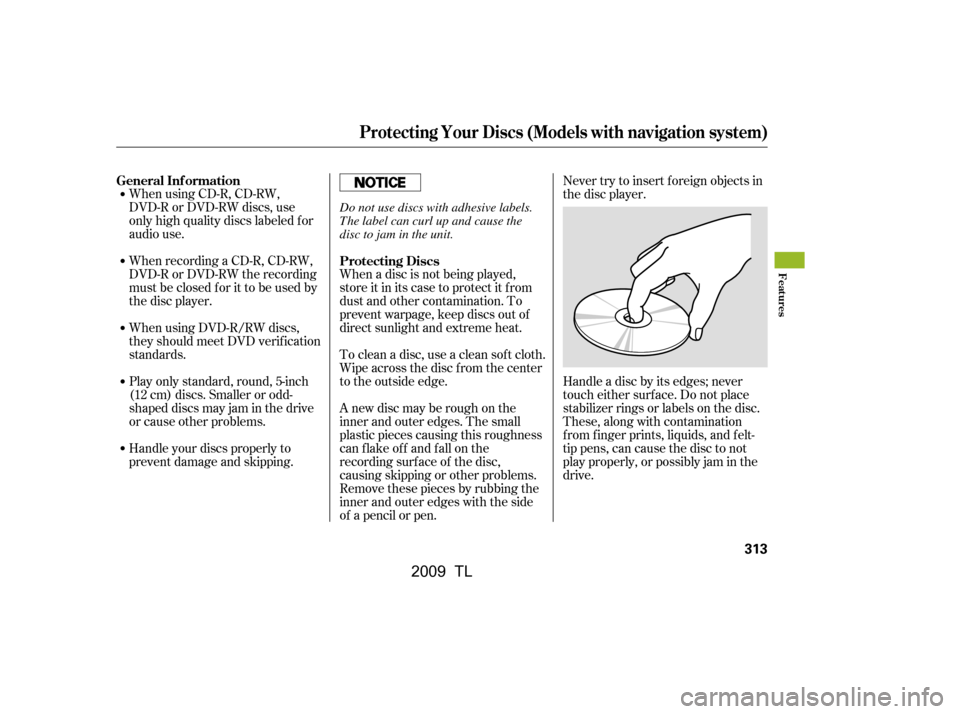
Handle a disc by its edges; never
touch either surf ace. Do not place
stabilizer rings or labels on the disc.
These, along with contamination
f rom f inger prints, liquids, and f elt-
tip pens, can cause the disc to not
play properly, or possibly jam in the
drive.
General Inf ormation
Protecting Discs
Protecting Your Discs (Models with navigation system)
Features
313
Do not use discs with adhesive labels.
The label can curl up and cause the
disc to jam in the unit.
�\f���—�\f���—�����y�
�������������y���
�)� �����\f�\f�y�\f���
���y
2009 TL
Page 320 of 648

�µ
�µ
�µ
�µ
�µ
�µ
�µ
�µ
�µRecording f unction f rom f ollowing
media is not supported.
CD-DA which prohibits the copy
by SCMS
CD-DA with copy control
SACD (Super Audio CD)
DTS-CD
DVD-A
CD-R/RW
DVD-R/RW
Copy controlled CDs (Playback
cannot be guaranteed)
DTS-CDs (Only enabled f or
playback)
The Hard Disc Drive (HDD) Audio
f unction can record tracks f rom
music CDs to the navigation system’s
hard disc. This f unction also allows
f or various playing methods, such as
playingrecordedtracksonanartist-
by-artist or genre-by-genre basis. For
example, you can play the tracks that
youwanttolistentoinanyorder
that you like f or each playlist.
Music data recorded on HDD can
only be used f or personal
enjoyment.
Data is recorded using ultra-
ef f icient compression technology,
theref ore, sound quality may vary
slightly f rom the original.
Title inf ormation will be displayed
when the inf ormation is f ound in
the Gracenote
Album Inf o
(Gracenote
Media Database) on
the built-in hard disk drive. See
page . If the HDD is ever replaced, all data
will be lost and stored music will not
be recovered.
Only recordings f rom a standard
CD-DA (44.1 kHz, 16 bit stereo
PCM digital sound data) to HDD
are supported.
Digital music f iles, such as MP3,
WMA, AAC etc., in CD-R, DVD-R
and USB f lash memory devices
cannot be copied to HDD.
Likewise, digital music f iles
recorded to HDD cannot be copied
to CD-R, DVD-R and USB devices. 342
Playing Hard Disc Drive (HDD) Audio (Models with navigation system)
Features
317
NOTE:
�\f���—�\f���—�����y�
���������
���y���
�)� �����\f�\f�y�\f�������y
2009 TL
Page 350 of 648
CONT INUED
Connect your dock connector to
the iPod correctly and securely.
Install the dock connector to the
USB adapter cable securely.
Unclip the USB connector by
pulling it up, and pull out the USB
adapter cable in the console
compartment.
Do not connect your iPod using a
hub.
Do not keep the iPod and dock
connector cable in the vehicle.
Direct sunlight and high heat will
damage it.
Do not use an extension cable
between the USB adapter cable
equipped with your vehicle and
your dock connector.
We recommend backing up your
data bef ore playing it.
1.
2.
3.
Playing an iPod(Models with navigation system)
Connect ing an iPod
Features
347
NOTE:
DOCK CONNECTOR
USB ADAPTER CABLE
USB ADAPTER CABLE
USB CONNECTOR
�\f���—�
���—�����y�
�\f��
��������y���
�)� �����\f�\f�y�\f�������y
2009 TL
Page 359 of 648

�Î
�Î
The audio system reads and plays
the audio f iles on the USB f lash
memory device in MP3, WMA or
AAC formats. The USB flash
memory device limit is up to 700
f olders or up to 15000 f iles.
The recommended USB f lash
memory devices are 256 Mbyte or
higher. Some digital audio players
maybecompatibleaswell.
Some USB f lash memory devices
(such as devices with security lock-
out f eatures, etc.) will not work in
this audio unit.Do not use a device such as a card
reader or hard drive as it or your
f iles may be damaged.
Do not connect your USB f lash
memory device using a hub.
Do not use an extension cable to
the USB adapter cable equipped
with your vehicle.
Only AAC f ormat f iles recorded
with iTunes are playable on this
audio unit.
This audio system can select and
play the audio f iles on a USB f lash
memory device with the same
controls used f or the disc player. To
play a USB f lash memory device,
connect it to the USB adapter cable
in the console compartment, then
press the HDD/AUX button until
you see ‘‘AUX’’ in the display. The
power mode must be ACCESSORY
or ON.
Your vehicle has the engine start/
stop button instead of an ignition
switch. For more inf ormation to
select the power mode, see page .
Depending on the sof tware the
f iles were made with, it may not be
possibletoplaysomefiles,or
display some text data.
Depending on the type and
number of f iles, it may take some
time bef ore they begin to play.
We recommend backing up your
data bef ore playing a USB f lash
memory device.
Do not keep a USB f lash memory
device in the vehicle. Direct
sunlight and high heat will damage
it.
:
178
To Play a USB Flash Memory
Device
Playing a USB Flash Memory Device (Models with navigation system)
356
NOTE:
�\f���—�\f���—�����y�
�����������\f�y���
�)� �����\f�\f�y�\f�����
�y
2009 TL

