2008 SUBARU TRIBECA buttons
[x] Cancel search: buttonsPage 167 of 409

Automatic climate control
systemNOTE.Operate the automatic climate con-
trol system when the engine is running.
. The blower fan rotates at a low
speed when the engine coolant tem-
perature is low.
For efficient defogging or dehumidify-
ing in cold weather, press the “A/C ”
button.
. Even when cooling is not necessary,
setting the temperature much lower
than the current outlet air temperature
turns on the air conditioner compres-
sor automatically and the “A/C ”indi-
cator light on the control panel comes
on.
. Seven-seater models each have a
rear air conditioner. The fan speed of
the rear air conditioner can be ad-
justed, but other adjustments (outlet
air temperature, air distribution, etc.)
are not possible for the rear air condi-
tioner. For details, refer to “Rear air
conditioner ”in this section.
The automatic climate control system
automatically controls outlet air tempera-
ture, fan speed, air flow distribution air-
inlet control, and air conditioner compres- sor operation. It activates when the
“AUTO
”button is pressed, and is used to
maintain a constant, comfortable climate
within the passenger compartment.
The temperature can be set within a range
of 65 to 85 8F (18 to 32 8C).
& Control panel1) Temperature control dial (driver ’s side)
2) Defroster button
3) Fan speed control dial
4) Rear window defogger button (Refer to the“Rear window defogger button ”in
chapter 3.)
5) Temperature control dial (passenger ’s
side)
6) Air conditioner button
7) Air flow mode selection button
8) Air inlet selection button
9) OFF button 10) AUTO button
!
AUTO button
AUTO mode operation:When the “AUTO”button is pressed, the
indicator light on the button comes on. In
this state, fan speed, air flow distribution,
air-inlet control, and air conditioner com-
pressor operation are automatically con-
trolled.
Manual mode operation:
If you operate any of the buttons on the
control panel other than the “OFF”button
and temperature control dial during auto-
matic mode operation, the indicator light
will go out. You can then manually control
the system as desired using the button
you operated.
Climate control
4-5
– CONTINUED –
ProCarManuals.com
Page 170 of 409
4-8
Climate control
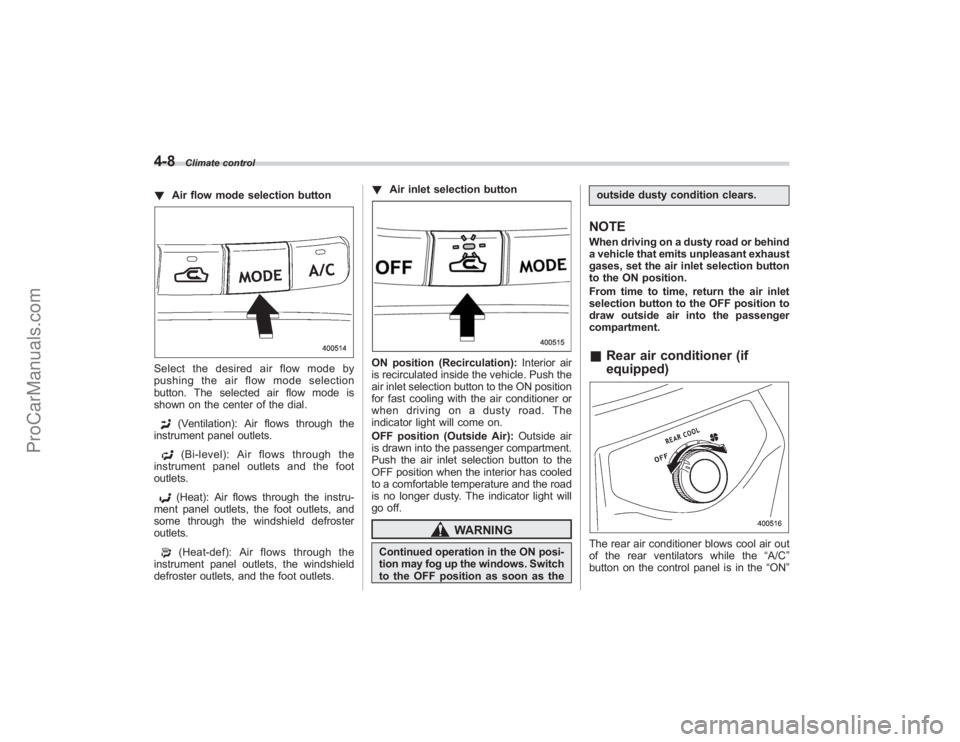
!Air flow mode selection buttonSelect the desired air flow mode by
pushing the air flow mode selection
button. The selected air flow mode is
shown on the center of the dial.
(Ventilation): Air flows through the
instrument panel outlets.(Bi-level): Air flows through the
instrument panel outlets and the foot
outlets.(Heat): Air flows through the instru-
ment panel outlets, the foot outlets, and
some through the windshield defroster
outlets.(Heat-def): Air flows through the
instrument panel outlets, the windshield
defroster outlets, and the foot outlets. !
Air inlet selection button
ON position (Recirculation): Interior air
is recirculated inside the vehicle. Push the
air inlet selection button to the ON position
for fast cooling with the air conditioner or
when driving on a dusty road. The
indicator light will come on.
OFF position (Outside Air): Outside air
is drawn into the passenger compartment.
Push the air inlet selection button to the
OFF position when the interior has cooled
to a comfortable temperature and the road
is no longer dusty. The indicator light will
go off.
WARNING
Continued operation in the ON posi-
tion may fog up the windows. Switch
to the OFF position as soon as the outside dusty condition clears.
NOTEWhen driving on a dusty road or behind
a vehicle that emits unpleasant exhaust
gases, set the air inlet selection button
to the ON position.
From time to time, return the air inlet
selection button to the OFF position to
draw outside air into the passenger
compartment.&
Rear air conditioner (if
equipped)The rear air conditioner blows cool air out
of the rear ventilators while the “A/C”
button on the control panel is in the “ON”
ProCarManuals.com
Page 177 of 409
Antenna system............................................... 5-2
Printed antenna................................................ 5-2
FM reception .................................................... 5-2
XM
TM
satellite radio reception
(if equipped) .................................................. 5-2
Installation of accessories ............................... 5-4
Audio set .......................................................... 5-4
Type A audio set .............................................. 5-4
Type B audio set .............................................. 5-4
Type A audio set (if equipped) ........................ 5-5
Radio operation................................................ 5-5 Compact disc player operation .
....................... 5-11
Type B audio set (if equipped)...................... 5-16
Radio operation.............................................. 5-16
Built in CD changer operation .. ....................... 5-22
Audio control buttons................................... 5-27
MODE button.................................................. 5-27
Aux unit operation ......................................... 5-29
Rear Seat Entertainment (RSE) system operation (if equipped) ................................... 5-29
Precautions to observe when handling a compact disc ............................................... 5-30
Audio
5
ProCarManuals.com
Page 184 of 409
5-8
Audio
NOTEWhile you are holding down either side
of the TUNE TRACK button, the tuning
frequency will not stop changing even
if the frequency of a receivable station
is reached.
!Seek tuning
If you press the “
”or “
”side of the
SEEK FLDR button (7), the radio will
automatically search for a receivable
station and stop at the first one it finds.
This function may not be available, how-
ever, when radio signals are weak. In such
a situation, perform manual tuning to
select the desired station.
! Automatic tuning (SCAN)
Press the “SCAN”button (8) to change the
radio to the SCAN mode. In this mode, the
radio scans through the radio band until a
station is found. The radio will stop at the
station for 5 seconds while displaying the
frequency, after which scanning will con-
tinue until the entire band has been
scanned from the low end to the high
end. Press the “SCAN”button again to
cancel the SCAN mode and to stop on any
displayed frequency.
Press the “
”or “
”side of the SEEK
FLDR (7) button again to cancel the scan
mode and to stop on any displayed frequency.
When the
“SCAN”button is pressed for
automatic tuning, stations are scanned in
the direction of low frequencies to high
frequencies only.
Automatic tuning may not function prop-
erly if the station reception is weakened by
distance from the station or proximity to
tall buildings and hills.
! Selecting preset stations
Presetting a station with a preset button
(10) allows you to select that station in a
single operation. Up to six, AM, FM1 and
FM2 stations each may be preset.
! How to preset stations
1. Press the “FM AM”button (2) to select
FM1, FM2, or AM reception.
2. Press the “SCAN”button (8) or tune
the radio manually until the desired station
frequency is displayed.
3. Press one of the preset buttons (10)
for more than 1.5 seconds to store the
frequency. If the button is pressed for less
than 1.5 seconds, the preceding selection
will remain in memory.
NOTE. If the connection between the radio
and battery is broken for any reason
such as vehicle maintenance or radio removal, all stations stored in the
preset buttons are cleared. If this
occurs, it is necessary to reset the
preset buttons.
.
If a cell phone is placed near the
radio, it may cause the radio to emit
noise when it receives calls. This noise
does not indicate a radio fault.
! Satellite radio mode (if equipped)
To receive satellite radio, it is necessary to
install the Subaru genuine satellite recei-
ver (optional part) and to enter into a
contract. For details, please contact your
SUBARU dealer.
! Sirius satellite radio
Sirius satellite radio is a recent innovation
that allows the listener to experience
digital sound quality and to have a greater
variety of channels to choose from (more
than 160 channels with the relevant
subscription).
Use of satellite radio (Sirius) requires a
tuner, antenna and a service contract. For
details, please contact your SUBARU
dealer or visit Sirius Satellite Radio at
www.sirius.com or call 1-888-539-SIRIUS
(7474) for more information. Sirius, the
Sirius dog logo, channel names and logos
are trademarks of SIRIUS Satellite Radio
Inc.
ProCarManuals.com
Page 186 of 409
5-10
Audio
2. Press the“SCAN”button (8) or the
TUNE TRACK button (4) to select the
channel.
3. Press one of the preset buttons (10)
for more than 1.5 seconds to store the
channel. If the button is pressed for less
than 1.5 seconds, the preceding selection
will remain in memory.NOTEIf the connection between the radio and
battery is broken for any reason such
as vehicle maintenance or radio re-
moval, all channels stored in the preset
buttons are cleared. If this occurs, it is
necessary to reset the preset buttons.
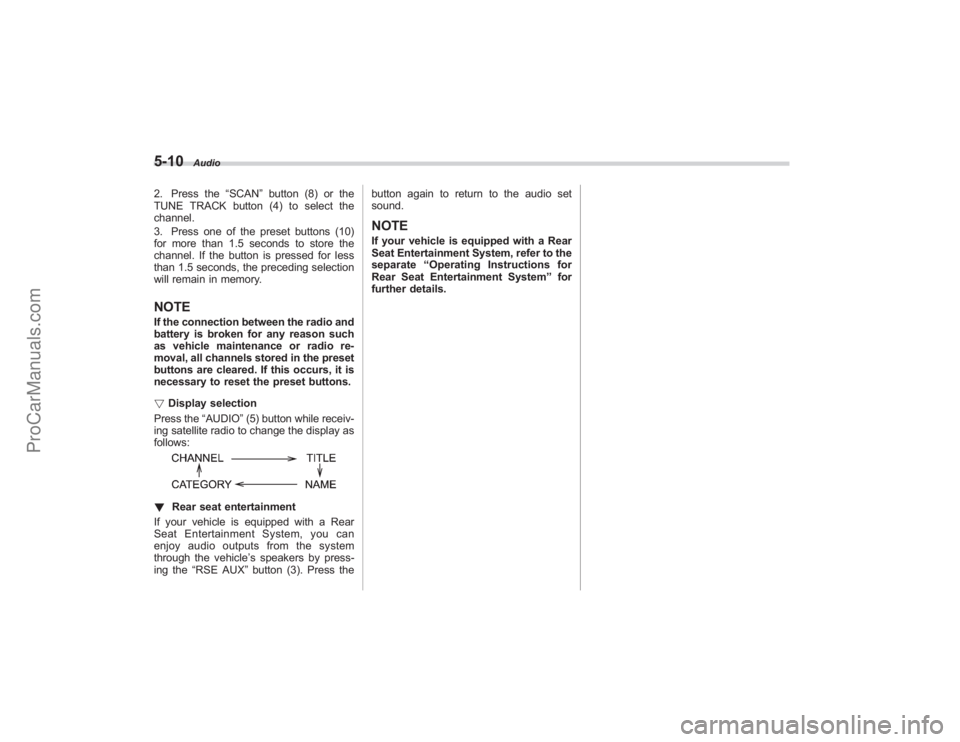
! Display selection
Press the “AUDIO”(5) button while receiv-
ing satellite radio to change the display as
follows:! Rear seat entertainment
If your vehicle is equipped with a Rear
Seat Entertainment System, you can
enjoy audio outputs from the system
through the vehicle ’s speakers by press-
ing the “RSE AUX ”button (3). Press the button again to return to the audio set
sound.
NOTEIf your vehicle is equipped with a Rear
Seat Entertainment System, refer to the
separate
“Operating Instructions for
Rear Seat Entertainment System ”for
further details.
ProCarManuals.com
Page 195 of 409
NOTEWhile you are holding down either side
of the TUNE/TRACK button, the tuning
frequency will not stop changing even
if the frequency of a receivable station
is reached.
!Seek tuning (SEEK)
If you press the “
”or “
”side of the
SEEK FLDR button (7), the radio will
automatically search for a receivable
station and stop at the first one it finds.
This function may not be available, how-
ever, when radio signals are weak. In such
a situation, perform manual tuning to
select the desired station.
! Scan tuning (SCAN)
Press the “SCAN”button (8) to change the
radio to the SCAN mode. In this mode, the
radio scans through the radio band until a
station is found. The radio will stop at the
station for 5 seconds while displaying the
frequency, after which scanning will con-
tinue until the entire band has been
scanned from the low end to the high
end. Press the “SCAN”button again to
cancel the SCAN mode and to stop on any
displayed frequency.
Press the “
”or “
”side of the SEEK
FLDR button (7) again to cancel the scan
mode and to stop on any displayed frequency.
When the
“SCAN”button is pressed for
automatic tuning, stations are scanned in
the direction of low frequencies to high
frequencies only.
Automatic tuning may not function prop-
erly if the station reception is weakened by
distance from the station or proximity to
tall buildings and hills.
! Selecting preset stations
Presetting a station with a preset button
allows you to select that station in a single
operation. Up to six AM, FM1 and FM2
stations each may be preset.
! How to preset stations
1. Press the “FM AM”button (2) to select
FM1, FM2 or AM reception.
2. Press the “SCAN”button (8) or tune
the radio manually until the desired station
frequency is displayed.
3. Press one of the preset buttons for
more than 1.5 seconds to store the
frequency. If the button is pressed for less
than 1.5 seconds, the preceding selection
will remain in memory.
NOTE. If the connection between the radio
and battery is broken for any reason
such as vehicle maintenance or radio removal, all stations stored in the
preset buttons are cleared. If this
occurs, it is necessary to reset the
preset buttons.
.
If a cell phone is placed near the
radio, it may cause the radio to emit
noise when it receives calls. This noise
does not indicate a radio fault.
! Satellite radio mode (if equipped)
To receive satellite radio, it is necessary to
install the Subaru genuine satellite recei-
ver (optional part) and to enter into a
contract. For details, please contact your
SUBARU dealer.
! Sirius satellite radio
Sirius satellite radio is a recent innovation
that allows the listener to experience
digital sound quality and to have a greater
variety of channels to choose from (more
than 160 channels with the relevant
subscription).
Use of satellite radio (Sirius) requires a
tuner, antenna and a service contract. For
details, please contact your SUBARU
dealer or visit Sirius Satellite Radio at
www.sirius.com or call 1-888-539-SIRIUS
(7474) for more information. Sirius, the
Sirius dog logo, channel names and logos
are trademarks of SIRIUS Satellite Radio
Inc.
Audio
5-19
– CONTINUED –
ProCarManuals.com
Page 197 of 409
2. Press the“SCAN”button (8) or the
TUNE TRACK button (4) to select the
channel.
3. Press one of the preset buttons (10)
for more than 1.5 seconds to store the
channel. If the button is pressed for less
than 1.5 seconds, the preceding selection
will remain in memory.NOTEIf the connection between the radio and
battery is broken for any reason such
as vehicle maintenance or radio re-
moval, all channels stored in the preset
buttons are cleared. If this occurs, it is
necessary to reset the preset buttons.
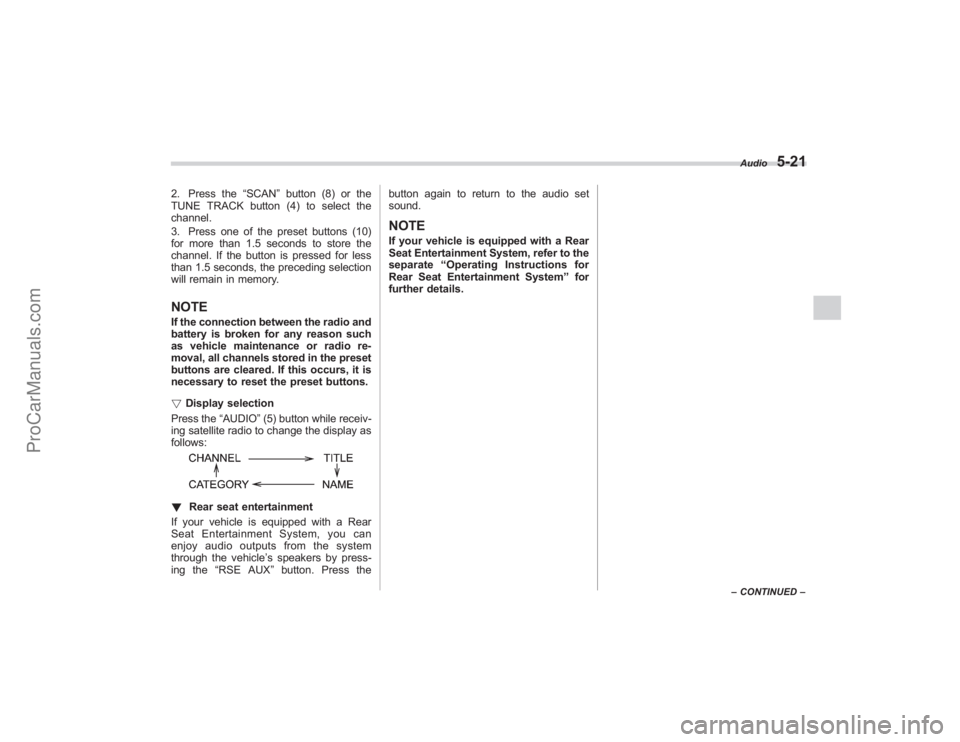
! Display selection
Press the “AUDIO”(5) button while receiv-
ing satellite radio to change the display as
follows:! Rear seat entertainment
If your vehicle is equipped with a Rear
Seat Entertainment System, you can
enjoy audio outputs from the system
through the vehicle ’s speakers by press-
ing the “RSE AUX ”button. Press the button again to return to the audio set
sound.
NOTEIf your vehicle is equipped with a Rear
Seat Entertainment System, refer to the
separate
“Operating Instructions for
Rear Seat Entertainment System ”for
further details.
Audio
5-21
– CONTINUED –
ProCarManuals.com
Page 200 of 409
5-24
Audio
!When there are CDs loaded:
Press a desired one of the disc select
buttons (9) the disc number indicator of
which steadily lights up. The player will
then start playback of the selected CD,
beginning with the first track.
If a disc that the player cannot read has
been loaded, “CHECK DISC ”will appear
on the display and the player will not play
anything.
! To select a song from its beginning
! Forward direction
Briefly press the “
”side of the TUNE
TRACK button (2) to skip to the beginning
of the next track/file (track). Each time the
button is pressed, the indicated track/file
(track) number will increase.
NOTEIn an MP3 folder, skipping past the last
track/file (track) will take you back to
the first track/file (track) in the folder.
! Backward direction
Briefly press the “
”side of the TUNE
TRACK button (2) to skip to the beginning
of the current track/file (track). Each time
the button is pressed, the indicated track/
file (track) number will decrease.
NOTEIn an MP3 folder, skipping past the first
track/file (track) will take you to the last
track/file (track) in the folder.
! Fast-forwarding and fast-reversing
! Fast-forwarding
Press the “
”side of the TUNE TRACK
button (2) continuously to fast-forward the
track/file.
Release the button to stop fast-forwarding.
NOTEIf you fast-forward to the end of the last
track/file (track), fast-forwarding will
stop and the player will start playback
beginning with the first track/file
(track).
! Fast-reversing
Press the “
”side of the TUNE TRACK
button (2) continuously to fast-reverse the
track/file.
Release the button to stop fast-reversing.
NOTEIf you fast-reverse to the beginning of
the first track/file (track), fast-reversing
will stop and the player will start play-
back. !
Repeating
! To repeat the currently playing track/
file (track)
To repeat a track/file (track), briefly press
the “RPT ”button (6) while the track/file
(track) is playing. The display will show
“RPT ”, and the track/file (track) will be
repeated.
To cancel the track/file (track) repeat-play
mode, briefly press the “RPT ”button
twice. The “RPT”indication will go off,
and the normal playback mode will be
resumed.
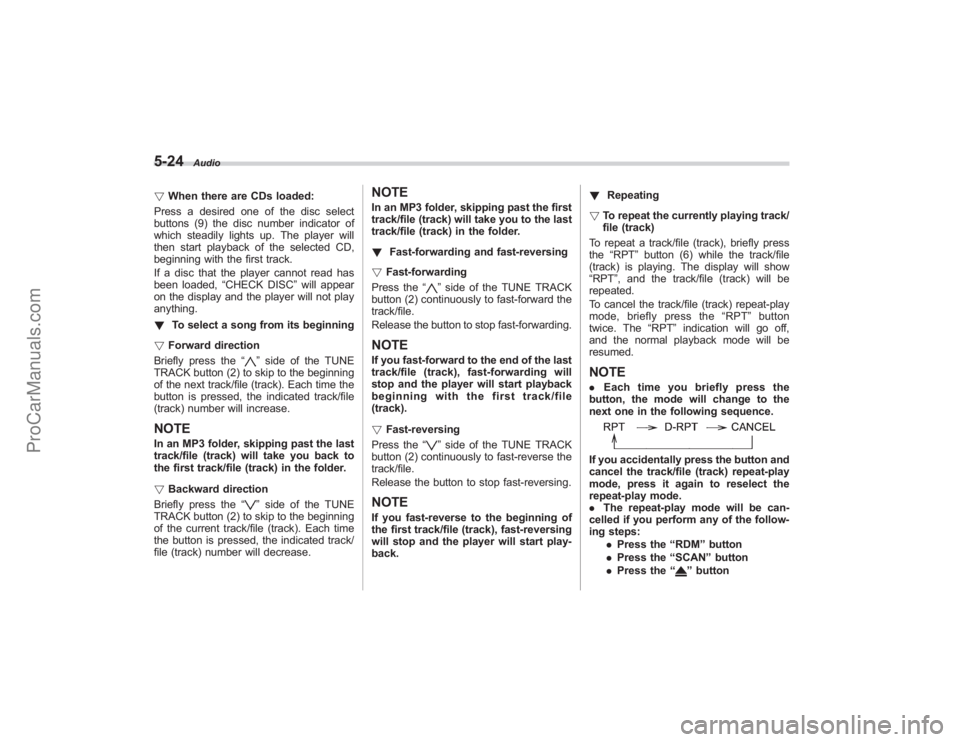
NOTE. Each time you briefly press the
button, the mode will change to the
next one in the following sequence.If you accidentally press the button and
cancel the track/file (track) repeat-play
mode, press it again to reselect the
repeat-play mode.
. The repeat-play mode will be can-
celled if you perform any of the follow-
ing steps:
.Press the “RDM ”button
. Press the “SCAN” button
. Press the “
”button
ProCarManuals.com