2008 SUBARU TRIBECA reset
[x] Cancel search: resetPage 184 of 409
5-8
Audio
NOTEWhile you are holding down either side
of the TUNE TRACK button, the tuning
frequency will not stop changing even
if the frequency of a receivable station
is reached.
!Seek tuning
If you press the “
”or “
”side of the
SEEK FLDR button (7), the radio will
automatically search for a receivable
station and stop at the first one it finds.
This function may not be available, how-
ever, when radio signals are weak. In such
a situation, perform manual tuning to
select the desired station.
! Automatic tuning (SCAN)
Press the “SCAN”button (8) to change the
radio to the SCAN mode. In this mode, the
radio scans through the radio band until a
station is found. The radio will stop at the
station for 5 seconds while displaying the
frequency, after which scanning will con-
tinue until the entire band has been
scanned from the low end to the high
end. Press the “SCAN”button again to
cancel the SCAN mode and to stop on any
displayed frequency.
Press the “
”or “
”side of the SEEK
FLDR (7) button again to cancel the scan
mode and to stop on any displayed frequency.
When the
“SCAN”button is pressed for
automatic tuning, stations are scanned in
the direction of low frequencies to high
frequencies only.
Automatic tuning may not function prop-
erly if the station reception is weakened by
distance from the station or proximity to
tall buildings and hills.
! Selecting preset stations
Presetting a station with a preset button
(10) allows you to select that station in a
single operation. Up to six, AM, FM1 and
FM2 stations each may be preset.
! How to preset stations
1. Press the “FM AM”button (2) to select
FM1, FM2, or AM reception.
2. Press the “SCAN”button (8) or tune
the radio manually until the desired station
frequency is displayed.
3. Press one of the preset buttons (10)
for more than 1.5 seconds to store the
frequency. If the button is pressed for less
than 1.5 seconds, the preceding selection
will remain in memory.
NOTE. If the connection between the radio
and battery is broken for any reason
such as vehicle maintenance or radio removal, all stations stored in the
preset buttons are cleared. If this
occurs, it is necessary to reset the
preset buttons.
.
If a cell phone is placed near the
radio, it may cause the radio to emit
noise when it receives calls. This noise
does not indicate a radio fault.
! Satellite radio mode (if equipped)
To receive satellite radio, it is necessary to
install the Subaru genuine satellite recei-
ver (optional part) and to enter into a
contract. For details, please contact your
SUBARU dealer.
! Sirius satellite radio
Sirius satellite radio is a recent innovation
that allows the listener to experience
digital sound quality and to have a greater
variety of channels to choose from (more
than 160 channels with the relevant
subscription).
Use of satellite radio (Sirius) requires a
tuner, antenna and a service contract. For
details, please contact your SUBARU
dealer or visit Sirius Satellite Radio at
www.sirius.com or call 1-888-539-SIRIUS
(7474) for more information. Sirius, the
Sirius dog logo, channel names and logos
are trademarks of SIRIUS Satellite Radio
Inc.
ProCarManuals.com
Page 185 of 409
!XM
TM
satellite radio
XM
TM
is a continental U.S. based satellite
radio service that offers more than 160
coast to coast channels, including music,
news, sports, talk and children ’s program-
ming. XM
TM
provides digital quality audio
and text information, including song title
and artist name. A service fee is required
to receive the XM
TM
service. For more
information, contact your SUBARU dealer
or XM
TM
at
www.xmradio.com or call 1-800-
XMRADIO (1-800-967-2346) for U.S.www.xmradio.ca or call 1-877-GET-XMSR
(1-877-438-9677) for Canada.
! Satellite radio reception
Satellite radio signals are best received in
areas with a clear view of the open sky. In
areas where there are tall buildings, trees,
tunnels or other structures that may
obstruct the signal of the satellites, there
may be signal interruptions. Other circum-
stances that may result in signal loss
include driving near a wall, steep cliff or
hill, or driving on the lower level of a multi-
tiered road or inside a parking garage.
To help reduce this condition, satellite
radio providers have installed ground-
based repeaters in heavily populated
areas. However, you may still experience
reception problems in some areas. !
Displaying satellite radio ID of tuner
When you activate satellite radio, you
should have your satellite radio tuner ID
ready because each tuner is identified by
its unique satellite radio tuner ID.
The satellite radio ID will be needed when
you activate satellite radio and receive
satellite radio customer support.
The satellite radio ID can be found on the
audio display by tuning the channel to “0”.
Turn the “TUNE TRACK ”button (4) to
select the satellite radio channel.
! Band selection button
Push the “SAT”button (1) when the radio
is off to turn on the radio.
Push the “SAT”button when the radio is
on to select SAT1, SAT2 or SAT3 recep-
tion.
! Channel selection
Press “
”of the TUNE TRACK button (4)
to select the next channel and press “
”
of the button to select the previous
channel.
Keep pressing “
”of the button to
change to the next channel continuously
and keep pressing “
”of the button to
change to the previous channel continu-
ously. !
Category selection
Press “
”or “
”of the SEEK FLDR
button (7) to display the current category.
Press “
”again to select the next
category, and press “
”again to select
the previous category.
! Channel scan
Press the “SCAN”button (8) to change the
radio to the SCAN mode. In this mode, the
radio scans through the channels until a
station is found. The radio will stop at the
station for 5 seconds while displaying the
channel number, after which scanning will
continue until the entire channel has been
scanned from the low end to the high end.
Also during the category selection, chan-
nel scan can be performed in that cate-
gory.
Press the “SCAN”button again to cancel
the SCAN mode and to stop on any
displayed channel.
! Selecting preset channels
Presetting a channel with a preset button
(10) allows you to select that channel in a
single operation. Up to six, SAT1, SAT2
and SAT3 channels each may be preset.
! How to preset channels
1. Press the “SAT”button (1) to select
SAT1, SAT2 and SAT3 reception.
Audio
5-9
– CONTINUED –
ProCarManuals.com
Page 186 of 409
5-10
Audio
2. Press the“SCAN”button (8) or the
TUNE TRACK button (4) to select the
channel.
3. Press one of the preset buttons (10)
for more than 1.5 seconds to store the
channel. If the button is pressed for less
than 1.5 seconds, the preceding selection
will remain in memory.NOTEIf the connection between the radio and
battery is broken for any reason such
as vehicle maintenance or radio re-
moval, all channels stored in the preset
buttons are cleared. If this occurs, it is
necessary to reset the preset buttons.
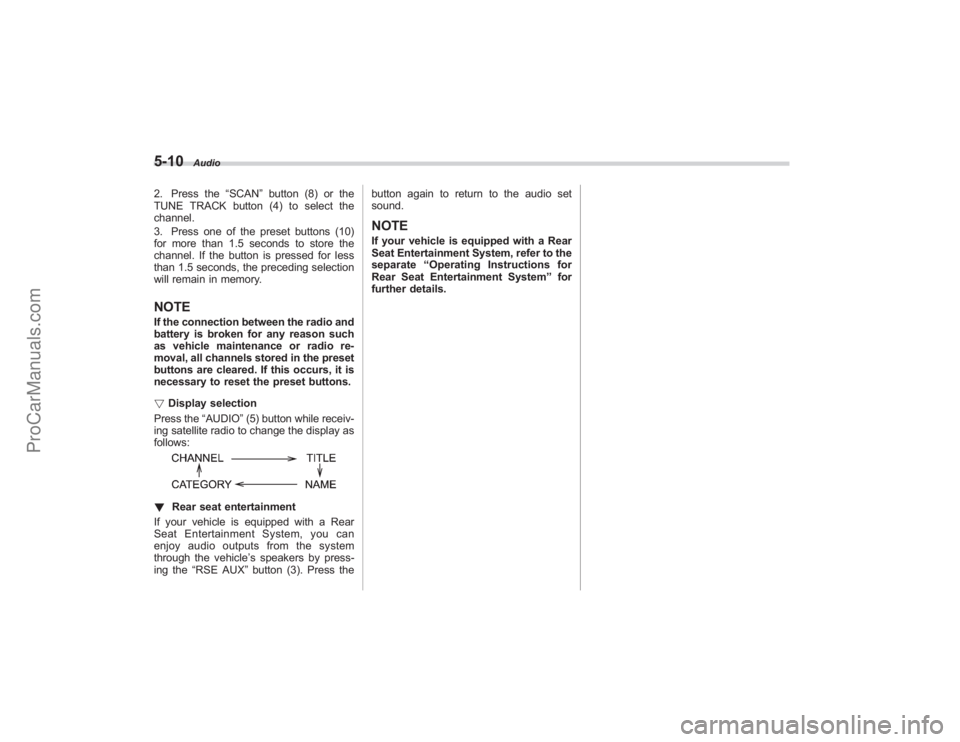
! Display selection
Press the “AUDIO”(5) button while receiv-
ing satellite radio to change the display as
follows:! Rear seat entertainment
If your vehicle is equipped with a Rear
Seat Entertainment System, you can
enjoy audio outputs from the system
through the vehicle ’s speakers by press-
ing the “RSE AUX ”button (3). Press the button again to return to the audio set
sound.
NOTEIf your vehicle is equipped with a Rear
Seat Entertainment System, refer to the
separate
“Operating Instructions for
Rear Seat Entertainment System ”for
further details.
ProCarManuals.com
Page 192 of 409
5-16
Audio
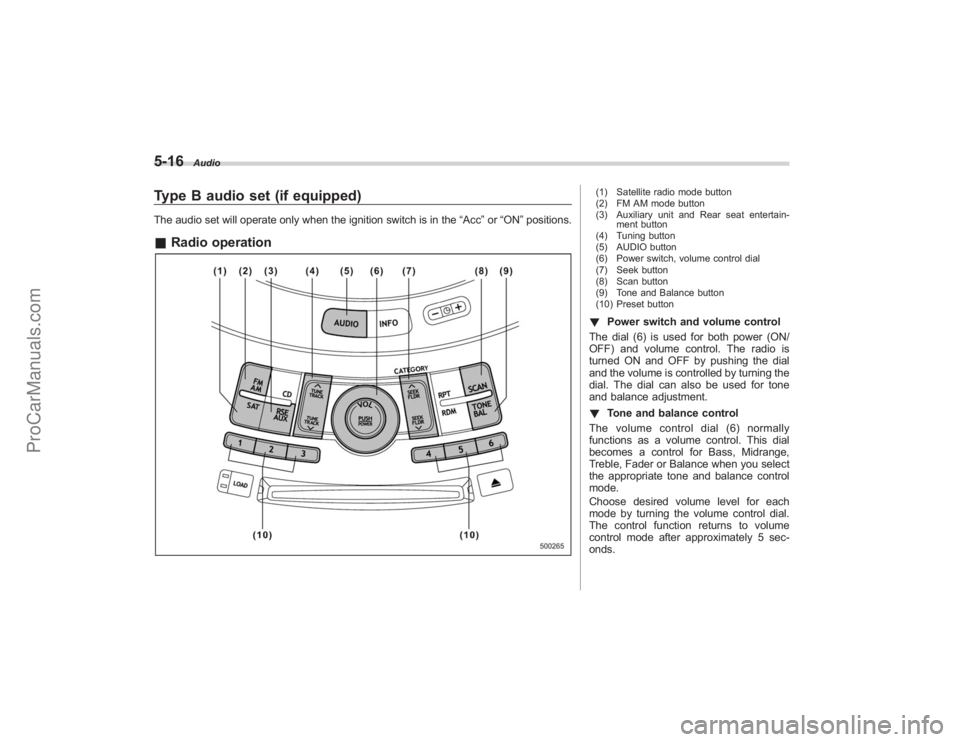
Type B audio set (if equipped)The audio set will operate only when the ignition switch is in the“Acc”or “ON ”positions.& Radio operation
(1) Satellite radio mode button
(2) FM AM mode button
(3) Auxiliary unit and Rear seat entertain-
ment button
(4) Tuning button
(5) AUDIO button
(6) Power switch, volume control dial
(7) Seek button
(8) Scan button
(9) Tone and Balance button
(10) Preset button! Power switch and volume control
The dial (6) is used for both power (ON/
OFF) and volume control. The radio is
turned ON and OFF by pushing the dial
and the volume is controlled by turning the
dial. The dial can also be used for tone
and balance adjustment.
! Tone and balance control
The volume control dial (6) normally
functions as a volume control. This dial
becomes a control for Bass, Midrange,
Treble, Fader or Balance when you select
the appropriate tone and balance control
mode.
Choose desired volume level for each
mode by turning the volume control dial.
The control function returns to volume
control mode after approximately 5 sec-
onds.
ProCarManuals.com
Page 195 of 409
NOTEWhile you are holding down either side
of the TUNE/TRACK button, the tuning
frequency will not stop changing even
if the frequency of a receivable station
is reached.
!Seek tuning (SEEK)
If you press the “
”or “
”side of the
SEEK FLDR button (7), the radio will
automatically search for a receivable
station and stop at the first one it finds.
This function may not be available, how-
ever, when radio signals are weak. In such
a situation, perform manual tuning to
select the desired station.
! Scan tuning (SCAN)
Press the “SCAN”button (8) to change the
radio to the SCAN mode. In this mode, the
radio scans through the radio band until a
station is found. The radio will stop at the
station for 5 seconds while displaying the
frequency, after which scanning will con-
tinue until the entire band has been
scanned from the low end to the high
end. Press the “SCAN”button again to
cancel the SCAN mode and to stop on any
displayed frequency.
Press the “
”or “
”side of the SEEK
FLDR button (7) again to cancel the scan
mode and to stop on any displayed frequency.
When the
“SCAN”button is pressed for
automatic tuning, stations are scanned in
the direction of low frequencies to high
frequencies only.
Automatic tuning may not function prop-
erly if the station reception is weakened by
distance from the station or proximity to
tall buildings and hills.
! Selecting preset stations
Presetting a station with a preset button
allows you to select that station in a single
operation. Up to six AM, FM1 and FM2
stations each may be preset.
! How to preset stations
1. Press the “FM AM”button (2) to select
FM1, FM2 or AM reception.
2. Press the “SCAN”button (8) or tune
the radio manually until the desired station
frequency is displayed.
3. Press one of the preset buttons for
more than 1.5 seconds to store the
frequency. If the button is pressed for less
than 1.5 seconds, the preceding selection
will remain in memory.
NOTE. If the connection between the radio
and battery is broken for any reason
such as vehicle maintenance or radio removal, all stations stored in the
preset buttons are cleared. If this
occurs, it is necessary to reset the
preset buttons.
.
If a cell phone is placed near the
radio, it may cause the radio to emit
noise when it receives calls. This noise
does not indicate a radio fault.
! Satellite radio mode (if equipped)
To receive satellite radio, it is necessary to
install the Subaru genuine satellite recei-
ver (optional part) and to enter into a
contract. For details, please contact your
SUBARU dealer.
! Sirius satellite radio
Sirius satellite radio is a recent innovation
that allows the listener to experience
digital sound quality and to have a greater
variety of channels to choose from (more
than 160 channels with the relevant
subscription).
Use of satellite radio (Sirius) requires a
tuner, antenna and a service contract. For
details, please contact your SUBARU
dealer or visit Sirius Satellite Radio at
www.sirius.com or call 1-888-539-SIRIUS
(7474) for more information. Sirius, the
Sirius dog logo, channel names and logos
are trademarks of SIRIUS Satellite Radio
Inc.
Audio
5-19
– CONTINUED –
ProCarManuals.com
Page 196 of 409
5-20
Audio
!XM
TM
satellite radio
XM
TM
is a continental U.S. based satellite
radio service that offers more than 160
coast to coast channels, including music,
news, sports, talk and children ’s program-
ming. XM
TM
provides digital quality audio
and text information, including song title
and artist name. A service fee is required
to receive the XM
TM
service. For more
information, contact your SUBARU dealer
or XM
TM
at
www.xmradio.com or call 1-800-
XMRADIO (1-800-967-2346) for U.S.www.xmradio.ca or call 1-877-GET-XMSR
(1-877-438-9677) for Canada.
! Satellite radio reception
Satellite radio signals are best received in
areas with a clear view of the open sky. In
areas where there are tall buildings, trees,
tunnels or other structures that may
obstruct the signal of the satellites, there
may be signal interruptions. Other circum-
stances that may result in signal loss
include driving near a wall, steep cliff or
hill, or driving on the lower level of a multi-
tiered road or inside a parking garage.
To help reduce this condition, satellite
radio providers have installed ground-
based repeaters in heavily populated
areas. However, you may still experience
reception problems in some areas. !
Displaying satellite radio ID of tuner
When you activate satellite radio, you
should have your satellite radio tuner ID
ready because each tuner is identified by
its unique satellite radio tuner ID.
The satellite radio ID will be needed when
you activate satellite radio and receive
satellite radio customer support.
The satellite radio ID can be found on the
audio display by tuning the channel to “0”.
Turn the “TUNE/TRACK ”button (4) to
select the satellite radio channel.
! Band selection button
Push the “SAT”button (1) when the radio
is off to turn on the radio.
Push the “SAT”button when the radio is
on to select SAT1, SAT2 or SAT3 recep-
tion.
! Channel selection
Press “
”of the TUNE TRACK button (4)
to select the next channel and press “
”
of the button to select the previous
channel.
Keep pressing “
”of the button to
change to the next channel continuously
and keep pressing “
”of the button to
change to the previous channel continu-
ously. !
Category selection
Press “
”or “
”of the SEEK FLDR
button (7) to display the current category.
Press “
”again to select the next
category, and press “
”again to select
the previous category.
! Channel scan
Press the “SCAN”button (8) to change the
radio to the SCAN mode. In this mode, the
radio scans through the channels until a
station is found. The radio will stop at the
station for 5 seconds while displaying the
channel number, after which scanning will
continue until the entire channel has been
scanned from the low end to the high end.
Also during the category selection, chan-
nel scan can be performed in that cate-
gory.
Press the “SCAN”button again to cancel
the SCAN mode and to stop on any
displayed channel.
! Selecting preset channels
Presetting a channel with a preset button
(10) allows you to select that channel in a
single operation. Up to six, SAT1, SAT2
and SAT3 channels each may be preset.
! How to preset channels
1. Press the “SAT”button (1) to select
SAT1, SAT2 and SAT3 reception.
ProCarManuals.com
Page 197 of 409
2. Press the“SCAN”button (8) or the
TUNE TRACK button (4) to select the
channel.
3. Press one of the preset buttons (10)
for more than 1.5 seconds to store the
channel. If the button is pressed for less
than 1.5 seconds, the preceding selection
will remain in memory.NOTEIf the connection between the radio and
battery is broken for any reason such
as vehicle maintenance or radio re-
moval, all channels stored in the preset
buttons are cleared. If this occurs, it is
necessary to reset the preset buttons.
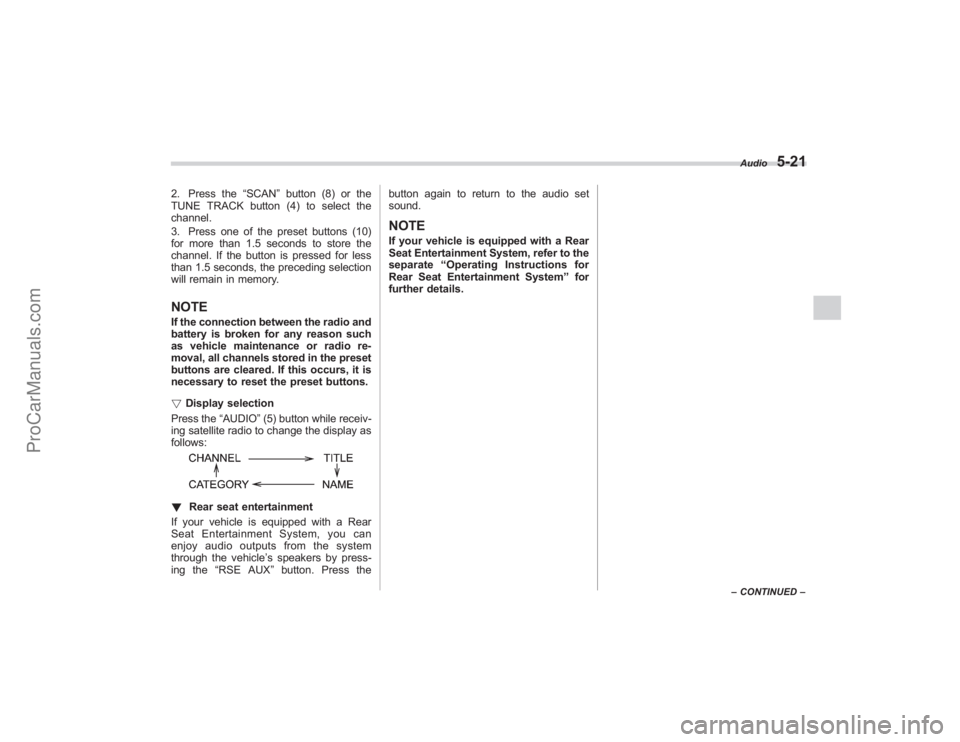
! Display selection
Press the “AUDIO”(5) button while receiv-
ing satellite radio to change the display as
follows:! Rear seat entertainment
If your vehicle is equipped with a Rear
Seat Entertainment System, you can
enjoy audio outputs from the system
through the vehicle ’s speakers by press-
ing the “RSE AUX ”button. Press the button again to return to the audio set
sound.
NOTEIf your vehicle is equipped with a Rear
Seat Entertainment System, refer to the
separate
“Operating Instructions for
Rear Seat Entertainment System ”for
further details.
Audio
5-21
– CONTINUED –
ProCarManuals.com
Page 262 of 409
7-28
Starting and operating
comes on while driving, never brake
suddenly and keep driving straight
ahead while gradually reducing
speed. Then slowly pull off the road
to a safe place. Otherwise an acci-
dent involving serious vehicle da-
mage and serious personal injury
could occur.
Check the pressure for all four tires
and adjust the pressure to the COLD
tire pressure shown on the tire
placard on the door pillar on the
driver’s side.
Even when the vehicle is driven a
very short distance, the tires get
warm and their pressures increase
accordingly. Be sure to let the tires
cool thoroughly before adjusting
their pressures to the standard
values shown on the tire placard.
(Refer to the “Tires and wheels ”
section in chapter 11.) The tire
pressure monitoring system does
not function when the vehicle is
stationary. After adjusting the tire
pressures, increase the vehicle
speed to at least 20 mph (32 km/h)
to start the TPMS re-checking of the
tire inflation pressures. If the tire
pressures are now above the severe
low pressure threshold, the low tire
pressure warning light should go off a few minutes later.
If this light still comes on while
driving after adjusting the tire pres-
sure, a tire may have significant
damage and a fast leak that causes
the tire to lose air rapidly. If you have
a flat tire, replace it with a spare tire
as soon as possible.
When a spare tire is mounted or a
wheel rim is replaced without the
original pressure sensor/transmitter
being transferred, the low tire pres-
sure warning light will illuminate
steadily after blinking for approxi-
mately one minute. This indicates
the TPMS is unable to monitor all
four road wheels. Contact your
SUBARU dealer as soon as possible
for tire and sensor replacement and/
or system resetting.
Do not inject any tire liquid or
aerosol tire sealant into the tires,
as this may cause a malfunction of
the tire pressure sensors. If the light
illuminates steadily after blinking for
approximately one minute, promptly
contact a SUBARU dealer to have
the system inspected.
CAUTION
Do not place metal film or any metal
parts under the driver
’s seat. This
may cause poor reception of the
signals from the tire pressure sen-
sors, and the tire pressure monitor-
ing system will not function prop-
erly.NOTEThis device complies with Part 15 of
the FCC Rules and with RSS-210 of
Industry Canada. Operation is subject
to the following two conditions: (1) This
device may not cause harmful inter-
ference, and (2) this device must
accept any interference received, in-
cluding interference that may cause
undesired operation.
Changes or modifications not ex-
pressly approved by the party respon-
sible for compliance could void the
user ’s authority to operate the equip-
ment.
ProCarManuals.com