Page 225 of 457
Tone Control
The Bass and/or Treble controls sound for the desired
tone. Press the AUDIO button, select Bass or TREBLE,
then press SEEK + or SEEK2to increase or decrease
amplification of the band.
To Set The Radio Push-Button Memory
When you are receiving a station that you wish to
commit to push-button memory, press the SET button.
SET 1 will show in the display window. Select the
push-button you wish to lock onto this station and press
and release that button. If a station is not selected within
5 seconds after pressing the SET button, the station will
continue to play but will not be locked into push-button
memory.
You may add a second station to each push-button by
repeating the above procedure with this exception: Press
the SET button twice and SET 2 will show in the display
window. Each button can be set for SET 1 and SET 2 inboth AM and FM. This allows a total of 10 AM and 10 FM
stations to be locked into memory. You can recall the
stations stored in SET 2 memory by pressing the push-
button twice.
To Change From Clock To Radio Mode
Press the TIME button to change the display between
radio frequency and time.
General Information
This radio complies with Part 15 of FCC rules and with
RSS-210 of Industry Canada. Operation is subject to the
following conditions:
1. This device may not cause harmful interference,
2. This device must accept any interference received,
including interference that may cause undesired opera-
tion.
UNDERSTANDING YOUR INSTRUMENT PANEL 225
4
Page 235 of 457
EJECT (EJT) Button
If there is a disc in the changer, press the EJT button and
the disc will eject. If you do not remove the disc within 10
seconds, it will be reloaded and the display will show
PAUSE. The radio mode will continue to operate.
To eject additional discs from the premium version
multi-disc changer, first select the numbered button
where the disc is located and then press the EJT button.
Operating Instructions Ð Remote Control
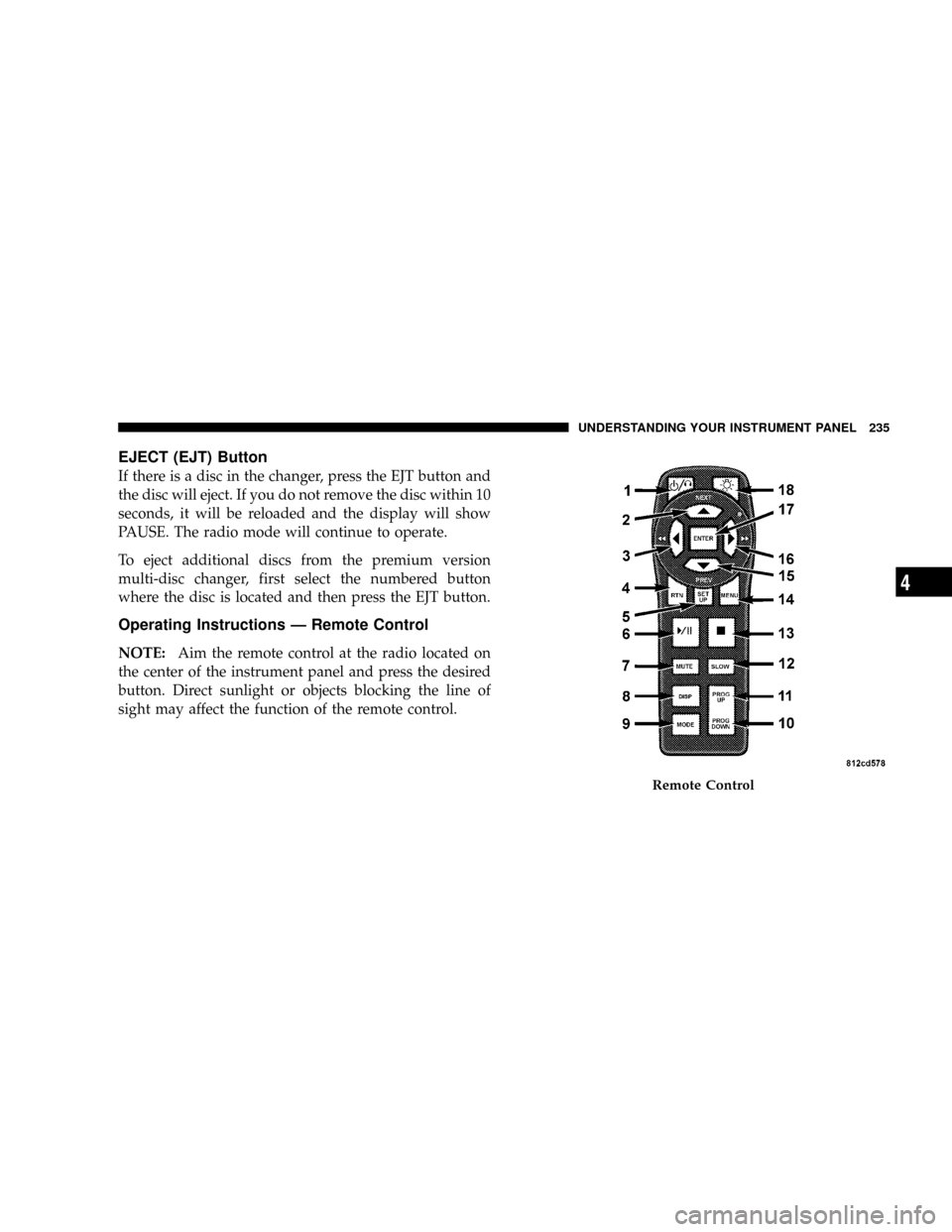
NOTE:Aim the remote control at the radio located on
the center of the instrument panel and press the desired
button. Direct sunlight or objects blocking the line of
sight may affect the function of the remote control.
Remote Control
UNDERSTANDING YOUR INSTRUMENT PANEL 235
4
Page 242 of 457

Headphone Battery Service
²
Press the button at the bottom of each headphone
earpiece and lift the cover upward.
²Replace the battery in each earpiece and reinstall the
cover. The headphones require two AAA batteries.
General Information
This device complies with part 15 of the FCC rules and
RSS 210 of Industry Canada. Operation is subject to the
following two conditions: (1) This device may not cause
harmful interference and (2) This device must accept any
interference received, including interference that may
cause undesired operation.
If you do not hear sound coming from the headphones,
check for the following conditions:
1. Rear Seat Audio/Video System and headphones are
on. Press the headphone transmitter button (1) on the
remote control and the power button on the headphones.
An indicator light will illuminate on the headphone
earpiece to indicate the headphones are ON.
2. Weak batteries in the headphones.
3. Direct sunlight or objects blocking the line of sight
between the headphone transmitter on the video screen
and the headphones.
Headphone Battery Service
242 UNDERSTANDING YOUR INSTRUMENT PANEL
Page 244 of 457
NAVIGATION SYSTEM Ð IF EQUIPPED
The navigation system provides maps, turn identifica-
tion, selection menus and instructions for selecting a
variety of destinations and routes. The buttons to operate
the system are located on the instrument panel next to the
analog clock.
Refer to your Navigation User's Manual for detailed
operating instructions.
The navigation DVD unit is located in the underfloor
storage compartment in the rear cargo area. A single disc
containing map information for the entire United States
and parts of Canada is stored in the DVD unit. Updated
DVD's are available from your authorized dealer.To replace the navigation map DVD lift the storage bin
cover and liner in the rear cargo area, press the eject
button and the disc will eject. Gently insert the new disc
into the DVD unit with the label facing up. The disc will
automatically be pulled into the DVD unit.
Navigation DVD Location
244 UNDERSTANDING YOUR INSTRUMENT PANEL
Page 247 of 457
Selecting a Channel
Press and release the SEEK or TUNE buttons to search for
the next channel. Press the top of the button to search up
and the bottom of the button to search down. Holding the
TUNE button causes the radio to bypass channels until
the button is released.
Press and release the SCAN button (if equipped) to
automatically change channels every 7 seconds. The
radio will pause on each channel for 7 seconds before
moving on to the next channel. The word9SCAN9will
appear in the display between each channel change. Press
the SCAN button a second time to stop the search.
NOTE:Channels that may contain objectionable content
can be blocked. Contact Sirius Customer Care at 888-539-
7474 to discuss options for channel blocking or unblock-
ing. Please have your ESN/SID information available.
Storing and Selecting Pre-Set Channels
In addition to the 10 AM and 10 FM pre-set stations, you
may also commit 10 satellite stations to push button
memory. These satellite channel pre-set stations will not
erase any AM or FM pre-set memory stations. Follow the
memory pre-set procedures that apply to your radio.
Using the PTY (Program Type) Button (If
Equipped)
Follow the PTY button instructions that apply to your
radio.
PTY Button(SCAN(
When the desired program type is obtained, press the
9SCAN9button within five seconds. The radio will play 7
seconds of the selected channel before moving to the next
channel of the selected program type. Press the9SCAN9
button a second time to stop the search.
UNDERSTANDING YOUR INSTRUMENT PANEL 247
4
Page 248 of 457

NOTE:Pressing the9SEEK9or9SCAN9button while
performing a music type scan will change the channel by
one and stop the search. Pressing a pre-set memory
button during a music type scan, will call up the memory
channel and stop the search.
PTY Button(SEEK(
When the desired program is obtained, press the9SEEK9
button within five seconds. The channel will change to
the next channel that matches the program type selected.
Satellite Antenna
To ensure optimum reception, do not place items on the
roof around the rooftop antenna location or strap items to
the trunk lid around the trunk lid antenna (if equipped).
Metal objects placed within the line of sight of the
antenna will cause decreased performance. Larger lug-
gage items such as bikes should be placed as far rearward
as possible, within the loading design of the rack. Do not
place items directly on or above the antenna.
Reception Quality
Satellite reception may be interrupted due to one of the
following reasons.
²The vehicle is parked in an underground parking
structure or under a physical obstacle.
²Dense tree coverage may interrupt reception in the
form of short audio mutes.
²Driving under wide bridges or along tall buildings can
cause intermittent reception.
²Placing objects over or too close to the antenna can
cause signal blockage.
248 UNDERSTANDING YOUR INSTRUMENT PANEL
Page 249 of 457
REMOTE SOUND SYSTEM CONTROLS
The remote sound system controls are located on the rear
surface of the steering wheel at the 3 and 9 o'clock
positions.
The right hand rocker switch has a push button in the
center and controls the volume and mode of the sound
system. Pressing the top of the rocker switch will increase
the volume and pressing the bottom of the rocker switch
will decrease the volume. Pressing the center button
changes the operation of the radio from AM to FM to
Tape or CD mode depending on which radio is in the
vehicle.
The left hand rocker switch has a push button in the
center. The function of the left hand switch is different
depending on which mode you are in.
The following describes the left hand rocker switch
operation in each mode:
Radio Operation
Pressing the top of the switch will SEEK up for the next
listenable station and pressing the bottom of the switch
will SEEK down for the next listenable station.
The button located in the center of the left hand switch
will tune to the next pre-set station that you have
programmed in the radio pre-set push-button.
CD Player
Pressing the top of the switch once will go to the next
track on the CD. Pressing the bottom of the switch once
will go to the beginning of the current track or to the
beginning of the previous track if it is within one second
after the current track begins to play.
If you press the switch up or down twice it plays the
second track, three times, it will play the third, etc.
The button in the center of the left hand switch has no
function in this mode.
UNDERSTANDING YOUR INSTRUMENT PANEL 249
4
Page 251 of 457
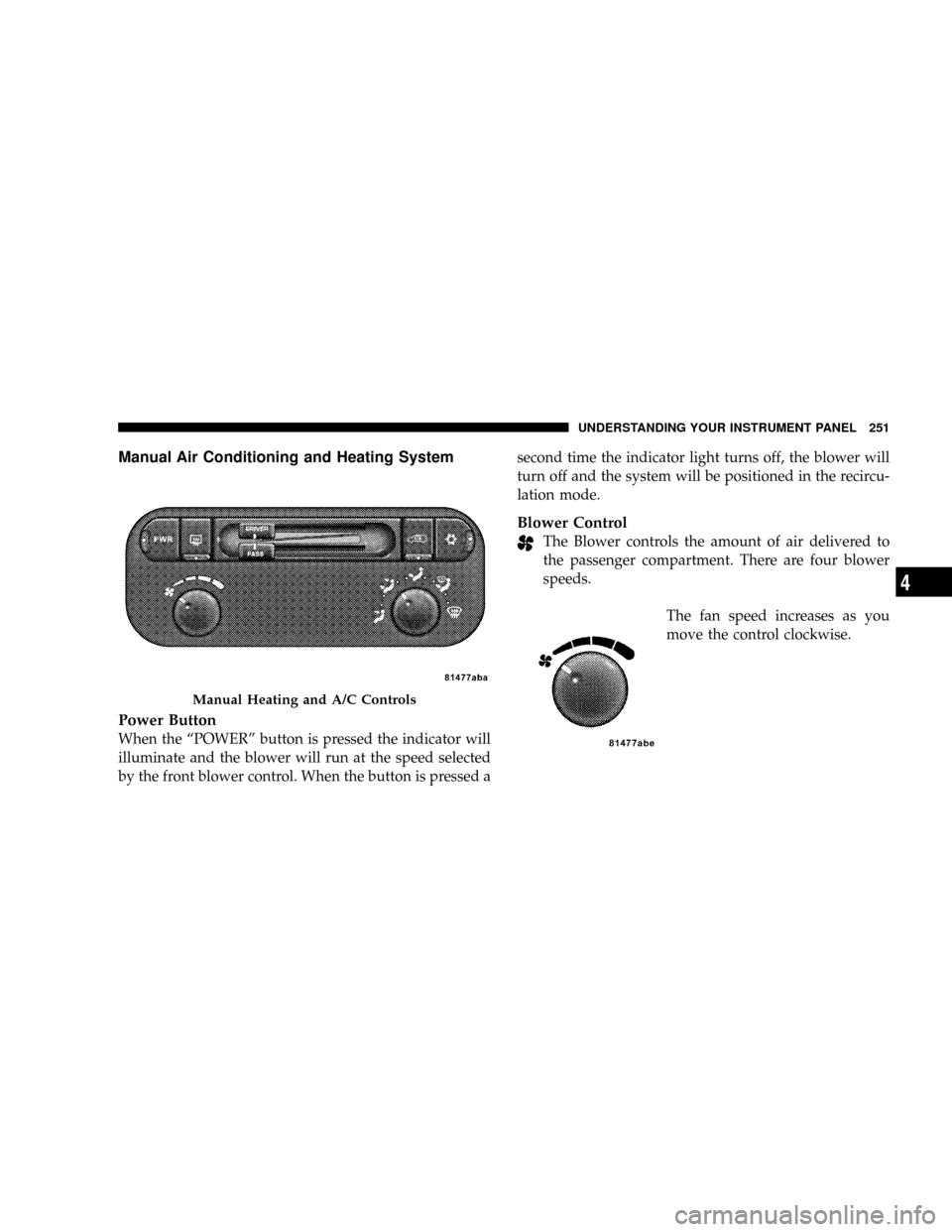
Manual Air Conditioning and Heating System
Power Button
When the ªPOWERº button is pressed the indicator will
illuminate and the blower will run at the speed selected
by the front blower control. When the button is pressed asecond time the indicator light turns off, the blower will
turn off and the system will be positioned in the recircu-
lation mode.
Blower Control
The Blower controls the amount of air delivered to
the passenger compartment. There are four blower
speeds.
The fan speed increases as you
move the control clockwise.
Manual Heating and A/C Controls
UNDERSTANDING YOUR INSTRUMENT PANEL 251
4