2008 CADILLAC XLR change time
[x] Cancel search: change timePage 249 of 470

Once the map DVD is inserted correctly, you will have
the following two choices:
LANGUAGE
I AGREE
You can change the language at this time.
See “Language” underNavigation Audio System on
page 4-54for more information on choosing a language.
Once a language has been selected, touch I AGREE
to plan a route. The map will appear showing your
current vehicle position.
DVD Map Disc Messages
If an error appears on the display and/or the map disc
comes out, it could be for one of the following reasons:
If the map disc was installed into the CD slot.
See “Installing the DVD Map Disc” previously.
It is very hot, when the temperature returns to
normal, the map disc should play.
You are driving on a very rough road. When
the road becomes smoother, the map disc
should play.
The map disc is dirty, scratched, wet, or
upside down.
If any error occurs repeatedly or if an error cannot be
corrected, contact your dealer/retailer.
Ejecting the DVD Map Disc
When the DVD map disc is not loaded, you will not be
able to use the navigation portion of the system.
1. Turn the ignition on.
2. With the vehicle in PARK (P), press and hold the
TILT key until a beep is heard. The system’s
faceplate will open.
3. The map DVD will eject from the slot. Pull the
disc out.
4. Press and release the TILT key to close the
faceplate.
Notice:Shifting out of PARK (P) with the system’s
faceplate open will cause the faceplate to close
automatically. This could cause damage to a
CD, DVD or the system if it is partially loaded. Before
shifting out of PARK (P), make sure that the DVD
or CD is loaded properly. The vehicle must be
shifted back into PARK (P) to close the faceplate.
4-41
Page 257 of 470

Touching the up arrow will give you upcoming streets.
At times, there may not be names available for entrance
or exit ramps.
To avoid a turn, touch AVOID next to the turn you want
to avoid. You can use REDUCE or ENLARGE to edit
the avoided point. Touch Reroute or press the MAP key
to calculate your new route.
Touch Return to view your current position and to turn
the turn list screen off.
Touch REROUTE or press the MAP key to calculate a
new route.
Auto Reroute
When your destination is set and you travel off of the
planned route, the system will automatically begin
to reroute you. You will see the new route highlighted
on the screen.
Traveling Across Regions
If you plan to drive across several states, you may have
to change the selected region to represent the area
you are traveling to.
There are two ways you can plan a destination when
traveling across regions.The following method is suggested and provides the
most route guidance and map display functions:
1. Change the selected search area region when
you get closer to the area you are traveling to.
See “Setting the Search Area” underMaps on
page 4-39.
2. Enter your destination and route settings.
SeeEnter Destination on page 4-28for more
information.
If you do not want to use the rst method, keep your
currently selected search area region and enter your
destination. This method allows you only to select a
destination from the easy planning route method or
from the All Points of Interest (POI) categories with the
“All Search Areas” comment for US Only. For example,
Tourist is a category that features this comment. See
Enter Destination on page 4-28for more information.
If you are traveling in or to Canada and you cross the
regional border, the only map scale views available
are 4 mi, 8 mi, 31 mi, and 128 mi (8 km, 16 km, 64 km
and 256 km). Change the selected search area region
when you get closer to the area you are traveling to.
See “Setting the Search Area” underMaps on page 4-39
for more information.
4-49
Page 259 of 470

Vehicle Positioning
At times, the position of the vehicle on the map may be
inaccurate due to one or more of the following reasons:
The road system has changed.
The vehicle is driving on slippery road surfaces such
as in sand, gravel, and/or snow.
The vehicle is traveling on winding roads.
The vehicle is on a long straight road.
The vehicle is approaching a tall building or a large
vehicle.
The surface streets run parallel to a freeway.
The vehicle has just been transferred by a vehicle
carrier or a ferry.
The current position calibration is set incorrectly.
The vehicle is traveling at high speed.
The vehicle changes directions more than once, or
when the vehicle is turning on a turn table in a
parking lot.
The vehicle is entering and/or exiting a parking lot,
garage, or a lot with a roof.
The GPS signal is not received.
A roof carrier is installed on your vehicle.
The vehicle is being driven with tire chains.
The tires are replaced.
The tire pressure for your tires is incorrect.
The tires are worn.
The rst time the map DVD is inserted.
The battery is disconnected for several days.
The vehicle is driving in heavy traffic where driving is
at low speeds, and the vehicle is stopped and started
repeatedly.
If you experience problems with your system, see
“Adjust Vehicle Position” underSetup Menu on
page 4-13to calibrate the system.
4-51
Page 260 of 470

Problems with Route Guidance
Inappropriate route guidance may occur under one or
more of the following conditions:
You have not turned onto the road indicated.
Route guidance may not be available when using
automatic rerouting for the next right or left turn.
The route may not be changed when using
automatic rerouting.
There is no route guidance when turning at an
intersection.
Plural names of places may be announced
occasionally.
It may take a long time to operate automatic
rerouting during high-speed driving.
Automatic rerouting may display a route returning to
the set waypoint if you are heading for a destination
without passing through a set waypoint.
The route prohibits the entry of a vehicle due to a
regulation by time or season or any other regulation
which may be given.
Some routes may not be searched.
The route to the destination may not be shown if
there are new roads, if roads have recently
changed, or if certain roads are not listed on the
map DVD. SeeOrdering Map DVDs on page 4-53.
To recalibrate the vehicle’s position on the map, see
“Adjust Vehicle Position” underSetup Menu on
page 4-13to calibrate the system.
If the System Needs Service
If your system needs service and you have followed the
steps listed here and still are experiencing problems,
see your dealer/retailer for assistance.
4-52
Page 265 of 470

Screen Adjust Menu
The following options are available from this menu:
K(Contrast):Touch the plus (+) or minus (−) signs to
adjust the contrast of the screen.
You will see the screen change. Touch SET to conrm
the setting.
!(Brightness):Touch the plus (+) or minus (−) signs
to adjust the brightness of the screen.
You will see the screen change. Touch SET to conrm
the setting.
AUTO:This setting automatically adjusts the contrast
and brightness of the screen depending on exterior
lighting conditions.
DAY:This setting leaves the screen in day mode.
Day mode is best suited for daylight conditions.
NIGHT:This setting leaves the screen in night mode.
Night mode is best suited for nighttime conditions.
SCREEN OFF:Touch SCREEN OFF to turn off the
screen. Press any hard key to turn the screen back on.
SET:Touch SET to save your choices and exit the
CLOCK ADJUST menu.
4-57
Page 275 of 470
No CAT Info:No category information is available.
The system is working properly.
CAT Not Found:There are no channels available for
the selected category. The system is working properly.
No Information:No text or informational messages
are available. The system is working properly.
XM Theftlocked:The XM™ receiver may have
previously been in another vehicle. For security
purposes, XM™ receivers cannot be swapped between
vehicles. If this message is received after having
your vehicle serviced, check with your dealer/retailer.
XM Radio ID:If tuned to channel 0, this message
will alternate with the XM™ Radio eight digit radio
ID label. This label is needed to activate the service.
Unknown:If this message is received when tuned
to channel 0, there may be a receiver fault. Consult with
your dealer/retailer.
Check XM Receiver:If this message does not clear
within a short period of time, the receiver may have
a fault. Consult with your dealer/retailer.Six-Disc CD Changer
With the compact disc changer, you can play up to
six normal size discs continuously.
When the radio is turned on, the changer will begin
checking for discs. This will continue for up to one and
a half minutes, depending on the number of discs
loaded. You may hear noise, but this is normal.
The CD changer is initializing.
Press the CD hard key to access the six-disc CD
changer screen. You can also use the system’s DVD
player for single CD play once the map DVD is removed.
SeeCD/DVD Player on page 4-70for more information.
If no CD is loaded in the CD/DVD Player and you
press the CD hard key, the message “No CD Loaded”
will appear on the display.
4-67
Page 276 of 470
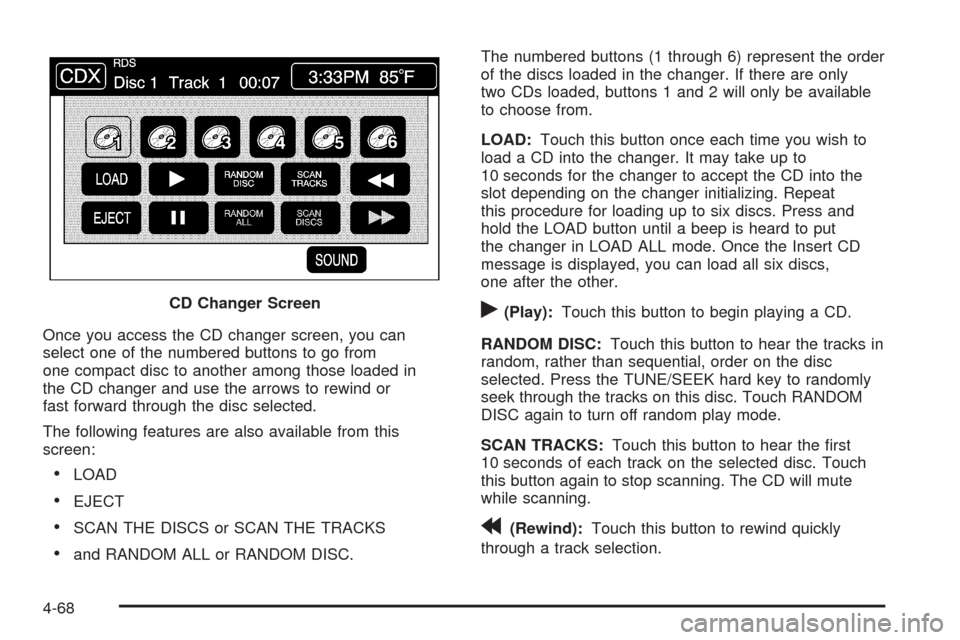
Once you access the CD changer screen, you can
select one of the numbered buttons to go from
one compact disc to another among those loaded in
the CD changer and use the arrows to rewind or
fast forward through the disc selected.
The following features are also available from this
screen:
LOAD
EJECT
SCAN THE DISCS or SCAN THE TRACKS
and RANDOM ALL or RANDOM DISC.The numbered buttons (1 through 6) represent the order
of the discs loaded in the changer. If there are only
two CDs loaded, buttons 1 and 2 will only be available
to choose from.
LOAD:Touch this button once each time you wish to
load a CD into the changer. It may take up to
10 seconds for the changer to accept the CD into the
slot depending on the changer initializing. Repeat
this procedure for loading up to six discs. Press and
hold the LOAD button until a beep is heard to put
the changer in LOAD ALL mode. Once the Insert CD
message is displayed, you can load all six discs,
one after the other.
r(Play):Touch this button to begin playing a CD.
RANDOM DISC:Touch this button to hear the tracks in
random, rather than sequential, order on the disc
selected. Press the TUNE/SEEK hard key to randomly
seek through the tracks on this disc. Touch RANDOM
DISC again to turn off random play mode.
SCAN TRACKS:Touch this button to hear the rst
10 seconds of each track on the selected disc. Touch
this button again to stop scanning. The CD will mute
while scanning.
r(Rewind):Touch this button to rewind quickly
through a track selection. CD Changer Screen
4-68
Page 284 of 470

Voice Recognition
The navigation system’s voice recognition allows for
hands-free operation of navigation and audio system
features. Voice recognition can be used when the
ignition is on or when Retained Accessory Power (RAP)
is active.
This feature only works if the map DVD is inserted and
I AGREE has been selected. If you try to use voice
recognition without the map DVD inserted, the system
will display “Please insert the navigation map DVD
to use the voice recognition feature.” See “Installing the
DVD Map Disc” underMaps on page 4-39.To use navigation voice recognition, do the following:
1. Push and hold the talk
symbol steering wheel
control until you
hear a beep. The audio
system will mute.
2. Clearly state one of the commands listed on the
following pages. For example, say “FM1”.
3. The system will tell you the command being
implemented. For example, the system will say
“FM1 Radio” and change the audio system to the
FM1 source.
You can end voice recognition by not speaking any
commands. After about ve seconds of silence,
the system will automatically cancel voice recognition.
At times, the system may not understand a spoken
command. If this happens, try saying the command
again. If a spoken command is not available, the system
will provide feedback based on availability.
While using voice recognition, make sure to keep interior
noise levels to a minimum. Otherwise, the system might
not recognize voice commands.
The system will only recognize commands spoken in
English.
4-76