Page 277 of 458
277
26p246b
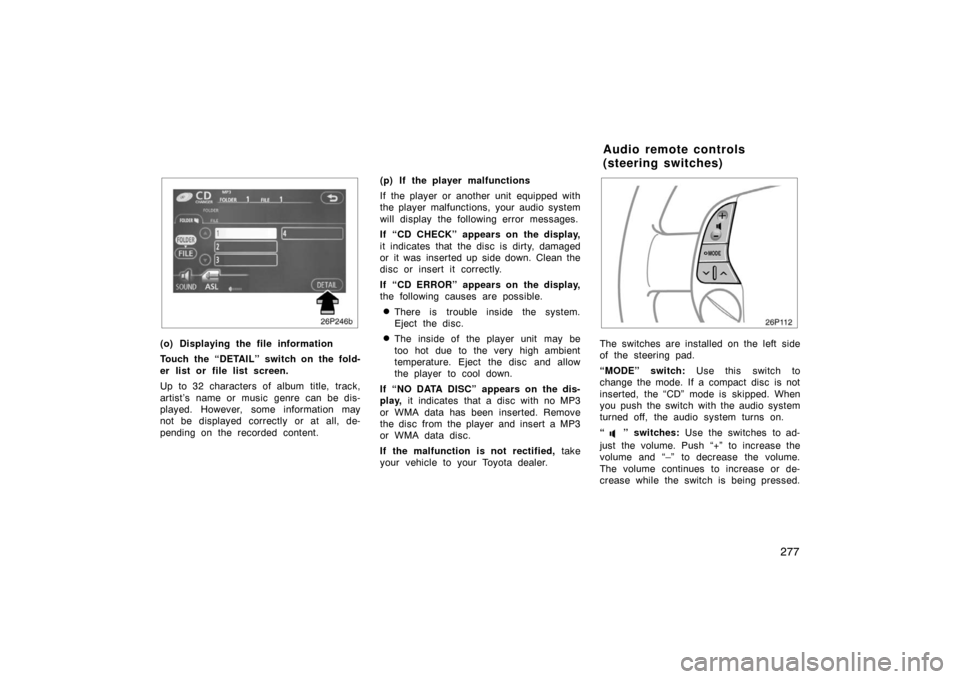
(o) Displaying the file information
Touch the “DETAIL” switch on the fold-
er list or file list screen.
Up to 32 characters of album title, track,
artist’s name or music genre can be dis-
played. However, some information may
not be displayed correctly or at all, de-
pending on the recorded content.(p) If the player malfunctions
If the player or another unit equipped with
the player malfunctions, your audio system
will display the following error messages.
If “CD CHECK” appears on the display,
it indicates that the disc is dirty, damaged
or it was inserted up side down. Clean the
disc or insert it correctly.
If “CD ERROR” appears on the display,
the following causes are possible.
�There is trouble inside the system.
Eject the disc.
�The inside of the player unit may be
too hot due to the very high ambient
temperature. Eject the disc and allow
the player to cool down.
If “NO DATA DISC” appears on the dis-
play, it indicates that a disc with no MP3
or WMA data has been inserted. Remove
the disc from the player and insert a MP3
or WMA data disc.
If the malfunction is not rectified, take
your vehicle to your Toyota dealer.
26p112
The switches are installed on the left side
of the steering pad.
“MODE” switch: Use this switch to
change the mode. If a compact disc is not
inserted, the “CD” mode is skipped. When
you push the switch with the audio system
turned off, the audio system turns on.
“
” switches: Use the switches to ad-
just the volume. Push “+” to increase the
volume and “–” to decrease the volume.
The volume continues to increase or de-
crease while the switch is being pressed.
Audio remote controls
(steering switches)
Page 278 of 458
278
(a) When the radio mode is selected
“
” or “” switch: Push this switch for
seek tuning or to select a station.
�To select a preset station, push the
switch briefly. Do this again to select
the next preset station.
�To seek a station, push and hold the
switch until you hear a beep. Do this
again to find the next station. If you
push the switch on either side (“ �” or
“ � ”) during the seek mode, seeking
will be canceled.
�To step up or down the frequency,
push and hold the switch even after
you hear a beep. When you release
from the switch, the radio will begin
seeking up or down for a station. Do
this again to find the next station. (b) When the “CD” mode is selected
“
” or “” switch:
Use this switch to
select a desired track or disc.
�Push this switch briefly to select a de-
sired track.
�To select a desired disc, push and hold
this switch until the desired number of
the disc appears and you hear a beep.
(c) When the “MP3/WMA” mode is se- lected
“
” or “” switch: Use this switch to
select a desired file or folder.
�Push this switch briefly to select a de-
sired file.
�To select a desired folder, push and
hold this switch until the desired folder
appears and you hear a beep.
CAUTION
Operate the switches with due care
while you are driving to avoid acci-
dents.
28P129
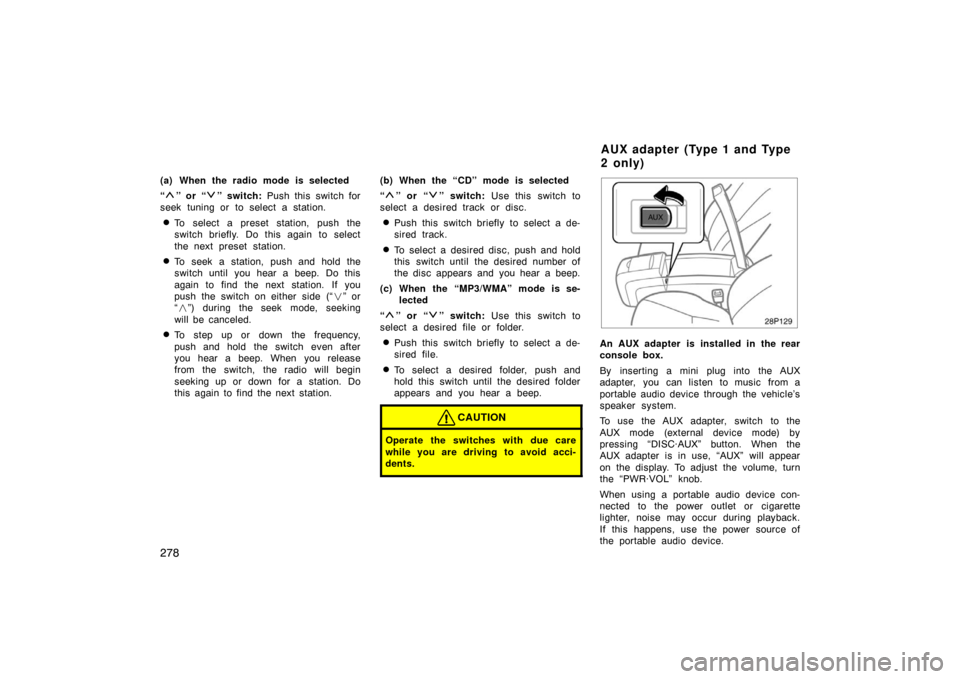
An AUX adapter is installed in the rear
console box.
By inserting a mini plug into the AUX
adapter, you can listen to music from a
portable audio device through the vehicle’s
speaker system.
To use the AUX adapter, switch to the
AUX mode (external device mode) by
pressing “DISC·AUX” button. When the
AUX adapter is in use, “AUX” will appear
on the display. To adjust the volume, turn
the “PWR·VOL” knob.
When using a portable audio device con-
nected to the power outlet or cigarette
lighter, noise may occur during playback.
If this happens, use the power source of
the portable audio device.
A U X ad ap t er (Typ e 1 an d Typ e
2 o n ly)
Page 283 of 458
283
�
WMA files can contain a WMA tag that
is used in the same way as an ID3
tag. WMA tags carry information such
as track title, artist name.
�The emphasis function is available only
when playing MP3/WMA files recorded
at 32, 44.1 and 48 kHz. (The system
can play MP3 files with sampling fre-
quencies of 16, 22.05, and 24 kHz.
However, the emphasis function is not
available for files recorded at these fre-
quencies.)
�The sound quality of MP3/WMA files
generally improves with higher bit
rates. In order to achieve a reasonable
level of sound quality, discs recorded
with a bit rate of at least 128 kbps are
recommended.
Playable bit rates
MP3 files:
MPEG1 LAYER3—64 to 320 kbps
MPEG2 LSF LAYER3—64 to 160 kbps
WMA files:
Ver. 7, 8 CBR—48 to 192 kbps
Ver. 9 CBR—48 to 320 kbps
�The MP3/WMA player does not play
back MP3/WMA files from discs record-
er using packet write data transfer
(UDF format). Discs should be re-
corded using “per
−mastering” software
rather than packet −write software.
�M3u playlists are not compatible with
the audio player.
�MP3i (MP3 interactive) and MP3PRO
formats are not compatible with the au-
dio player.
�The MP3 player is compatible with
VBR (Variable Bit Rate).
�When playing back files recorded as
VBR (Variable Bit Rate) files, the play
time will not be correctly displayed if
fast −forward or reverse operations are
used.
�It is not possible to check folders that
do not include MP3/WMA files.
�MP3/WMA files in folders up to 8 lev-
els deep can be played. However, the
start of playback may be delayed when
using discs containing numerous levels
of folders. For this reason, we recom-
mend creating discs with no more than
two levels of folders.
�It is possible to play up to 192 folders
or 255 files on one disc.
002.wma
003.mp3
Folder 2 004.wma
005.mp3
006.mp3
001.mp3
Folder 3
Folder 1
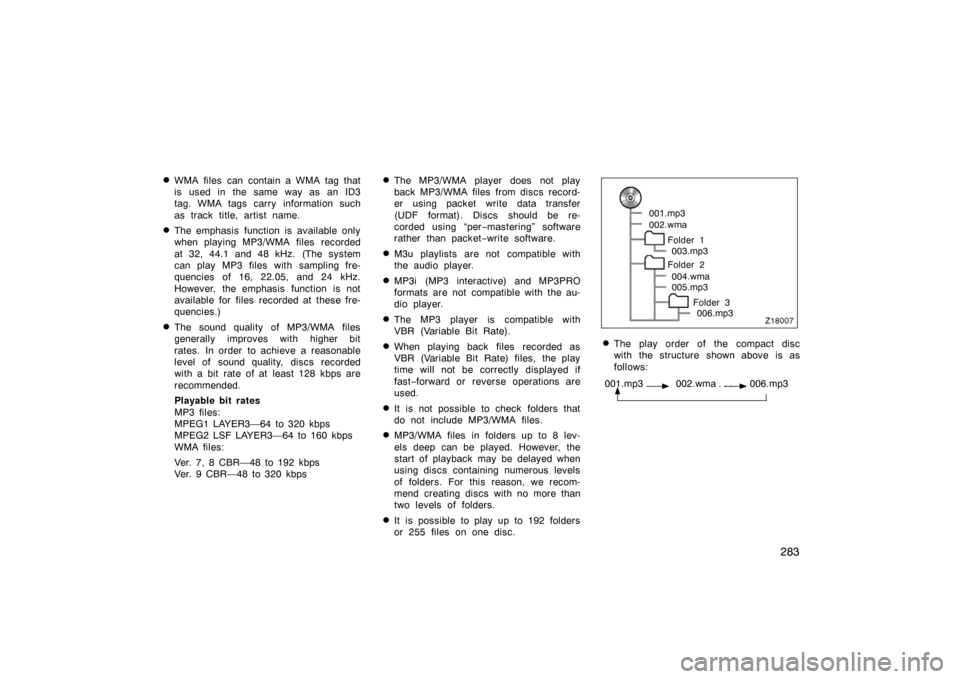
�The play order of the compact disc
with the structure shown above is as
follows:
001.mp3 002.wma . . . 006.mp3
Page 288 of 458
288
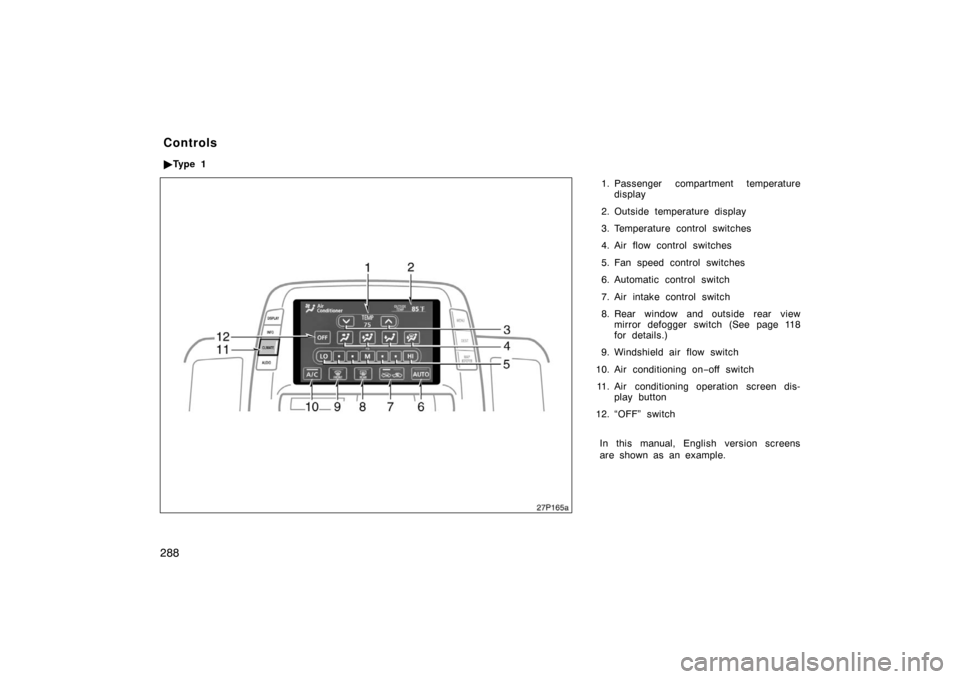
1. Passenger compartment temperaturedisplay
2. Outside temperature display
3. Temperature control switches
4. Air flow control switches
5. Fan speed control switches
6. Automatic control switch
7. Air intake control switch
8. Rear window and outside rear view mirror defogger switch (See page 118
for details.)
9. Windshield air flow switch
10. Air conditioning on −off switch
11. Air conditioning operation screen dis- play button
12. “OFF” switch
In this manual, English version screens
are shown as an example.
Controls
� Ty p e 1
27p165a
Page 289 of 458
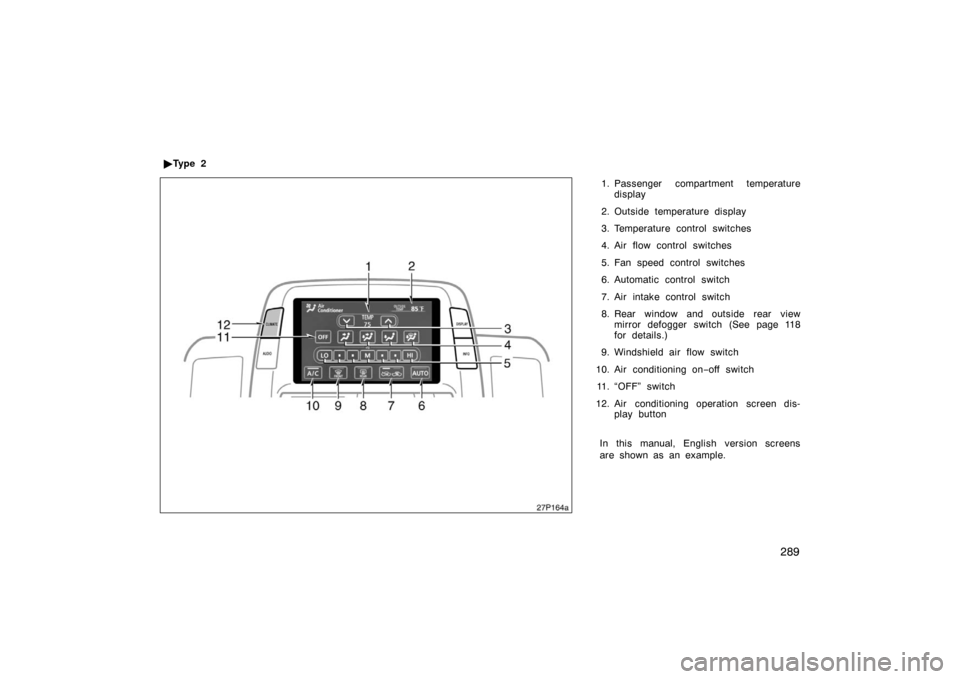
289
1. Passenger compartment temperaturedisplay
2. Outside temperature display
3. Temperature control switches
4. Air flow control switches
5. Fan speed control switches
6. Automatic control switch
7. Air intake control switch
8. Rear window and outside rear view mirror defogger switch (See page 118
for details.)
9. Windshield air flow switch
10. Air conditioning on −off switch
11. “OFF” switch
12. Air conditioning operation screen dis- play button
In this manual, English version screens
are shown as an example.
�
Ty p e 2
27p164a
Page 290 of 458
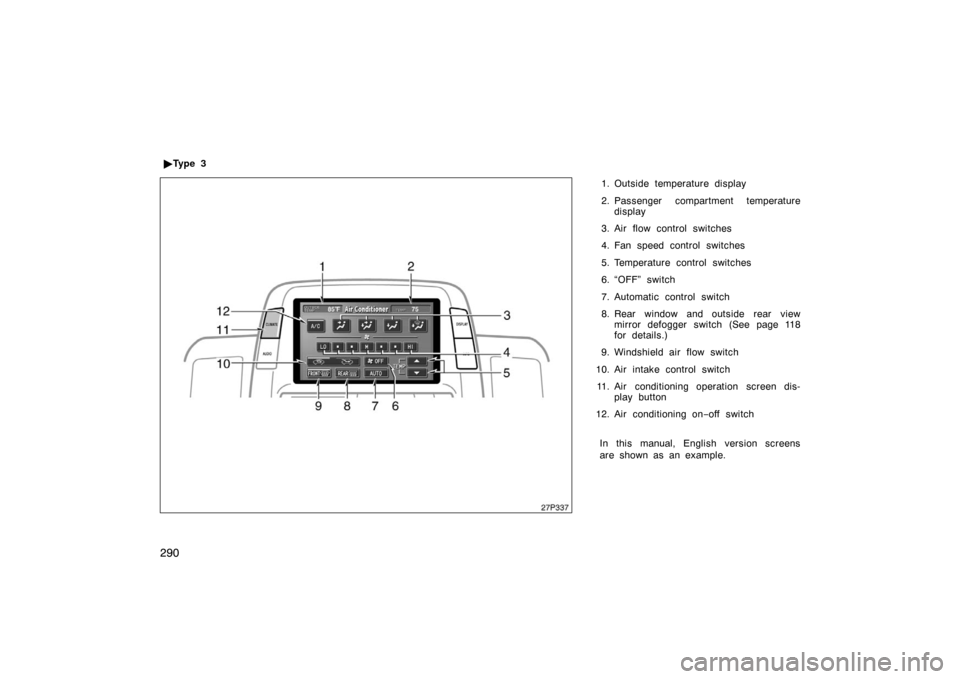
290
1. Outside temperature display
2. Passenger compartment temperaturedisplay
3. Air flow control switches
4. Fan speed control switches
5. Temperature control switches
6. “OFF” switch
7. Automatic control switch
8. Rear window and outside rear view mirror defogger switch (See page 118
for details.)
9. Windshield air flow switch
10. Air intake control switch 11. Air conditioning operation screen dis- play button
12. Air conditioning on −off switch
In this manual, English version screens
are shown as an example.
�
Ty p e 3
27p337
Page 291 of 458
291
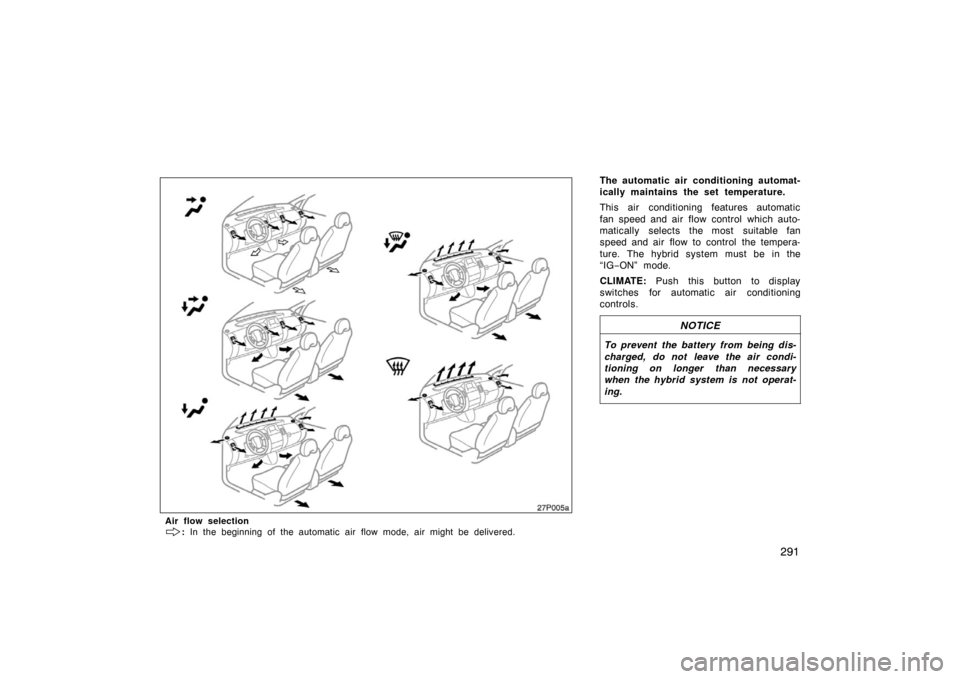
The automatic air conditioning automat-
ically maintains the set temperature.
This air conditioning features automatic
fan speed and air flow control which auto-
matically selects the most suitable fan
speed and air flow to control the tempera-
ture. The hybrid system must be in the
“IG−ON” mode.
CLIMATE: Push this button to display
switches for automatic air conditioning
controls.
NOTICE
To prevent the battery from being dis-
charged, do not leave the air condi-
tioning on longer than necessary
when the hybrid system is not operat-
ing.
27p005a
Air flow selection
: In the beginning of the automatic air flow mode, air might be delivered.
Page 304 of 458
304
Clock
28p009d
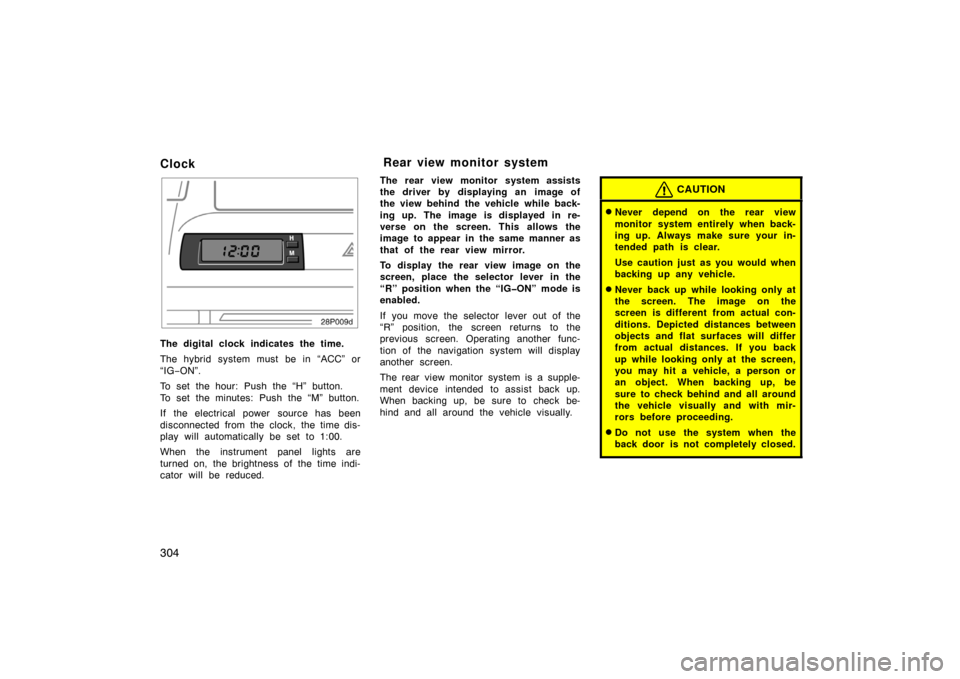
The digital clock indicates the time.
The hybrid system must be in “ACC” or
“IG−ON”.
To set the hour: Push the “H” button.
To set the minutes: Push the “M” button.
If the electrical power source has been
disconnected from the clock, the time dis-
play will automatically be set to 1:00.
When the instrument panel lights are
turned on, the brightness of the time indi-
cator will be reduced. The rear view monitor system assists
the driver by displaying an image of
the view behind the vehicle while back-
ing up. The image is displayed in re-
verse on the screen. This allows the
image to appear in the same manner as
that of the rear view mirror.
To display the rear view image on the
screen, place the selector lever in the
“R” position when the “IGON” mode is
enabled.
If you move the selector lever out of the
“R” position, the screen returns to the
previous screen. Operating another func-
tion of the navigation system will display
another screen.
The rear view monitor system is a supple-
ment device intended to assist back up.
When backing up, be sure to check be-
hind and all around the vehicle visually.
CAUTION
�Never depend on the rear view
monitor system entirely when back-
ing up. Always make sure your in-
tended path is clear.
Use caution just as you would when
backing up any vehicle.
�Never back up while looking only at
the screen. The image on the
screen is different from actual con-
ditions. Depicted distances between
objects and flat surfaces will differ
from actual distances. If you back
up while looking only at the screen,
you may hit a vehicle, a person or
an object. When backing up, be
sure to check behind and all around
the vehicle visually and with mir-
rors before proceeding.
�Do not use the system when the
back door is not completely closed.
Rear view monitor system