2007 HUMMER H2 buttons
[x] Cancel search: buttonsPage 285 of 570

To use the RSE OSD menu while using a CD or
an MP3, do the following:
1. Make sure a CD or an MP3 is loaded in the
RSE system and that the system is not in
auxiliary, then press the SETUP button on the
system’s remote control.
2. Once the general setup menu is on the
screen, press the directional arrows on
the system’s remote control and then the
ENTER button to navigate the screen.
This menu lets you select default preferences
for language and playback settings.
3. Press the RETURN button on the system’s
remote control to exit this menu, or wait for
the menu to time out.Advanced MP3 CD Menu Displays and
Operation
To use the RSE OSD menu for advanced MP3
CD menu displays and operation, do the following:
1. Insert an MP3 CD and then select it for
playback from the RSE on-screen display
menu. The name of the folder shows on the
monitor’s top line and the names of songs
show in columns underneath.
When an MP3 is selected for play, all les
and folders are accessed in the order in which
they were written to the CD. Because of
this, the order in which they are expected to
play might not match the order in which
they are actually played.
2. Press the directional arrows on the system’s
remote control to help navigate through the
folders, then press ENTER or PLAY to
start playing a selection.
3. You can also press the GO button on the
system’s remote control to directly access
the Songs. See “GO” under Remote Control
Buttons (DVD Control Functions) earlier in
this section.
285
Page 289 of 570

FM Modulator Control
The FM Modulator Control is located on the right
upper side of the system’s remote control.
The FM Modulator can be controlled through an
on-screen display on either head restraint
screen. The FM Modulator lets DVD audio
reproduce over the vehicle’s sound system by
tuning the FM radio to one of eight frequencies.
The selected frequency displays on-screen.
The buttons for the FM Modulator consist of power
and frequency. Follow the button descriptions and
instructions for using the FM Modulator as shown:
POWER:Press this button to turn the FM
Modulator control on or off.FREQ (Frequency):Press this button on the
system’s remote control to match the frequency
selected on the radio.
To use the FM Modulator, follow the
instructions below:
1. Select one of these radio frequencies not
currently being used by a local FM station
to prevent interference.
2. Press the POWER button on the system’s
remote control to turn the FM Modulator on.
3. Press the FREQ button on the system’s
remote control to match frequency selected
on the radio. DVD audio can then be
heard through the vehicle’s sound system.
4. To adjust the volume and tone preferences,
use the vehicle’s radio controls. Depending
on the vehicle’s radio system, SeeRadio with
Cassette and CD on page 243orRadio
with Six-Disc CD on page 256in this manual
for more information.
The FM Modulator should be powered off when
listening to normal radio broadcasts for best
reception performance.
289
Page 295 of 570
xSEEKw:When listening to FM1, FM2, AM, or
XM1 or XM2 (if equipped), press the up or the
down arrow to go to the next or to the previous
station and stay there. This function is inactive if
the front seat passengers are listening to the radio.
When a cassette tape is playing, press the up
or the down arrow to go to the next or the previous
selection. This function is inactive if the front
seat passengers are listening to a cassette tape.
When a CD is playing, press the up arrow to
got to the next track on the CD. Press the down
arrow to go to the start of the current track if more
than eight seconds have played. This function
is inactive if the front seat passengers are listening
to a CD.
PROG (Program):Press this button to go to the
next preset radio station set on the pushbuttons
on the main radio. This function is inactive if
the front seat passengers are listening to the radio.
When a cassette tape is playing, press this
button to go to the other side of the tape. This
function is inactive if the front seat passengers are
listening to a cassette tape.When a CD is playing, press this button to go to
the beginning of the CD. This function is inactive if
the front seat passengers are listening to a CD.
When a CD is playing in the six-disc CD changer,
press this button to select the next CD, if
multiple CDs are loaded. This function is inactive if
the front seat passengers are listening to a CD.
Theft-Deterrent Feature
THEFTLOCK®is designed to discourage theft of
your vehicle’s radio. The feature works
automatically by learning a portion of the Vehicle
Identication Number (VIN). If the radio is
moved to a different vehicle, it does not operate
and LOCKED displays.
When the radio and vehicle are turned off, the
blinking red light indicates that THEFTLOCK
®
is armed.
With THEFTLOCK
®activated, the radio does not
operate if stolen.
295
Page 296 of 570

Audio Steering Wheel Controls
If your vehicle has this feature, some audio
controls can be adjusted at the steering wheel.
They include the following:
g(OnStar®/Mute):Press this button to interact
with the OnStar system. See theOnStar®System
on page 144in this manual for more information.
PROG (Program):Press this button to play the
stations that are programmed on the radio preset
pushbuttons. The radio will go to the rst preset
station, play for a few seconds, then go to the next
preset station. Press this button again to stop
scanning. The radio will only scan preset stations
with a strong signal that are in the selected band.When a cassette tape is playing, press this button
to play the other side of the tape.
When a CD is playing in the CD changer, press this
button to go to the next available CD, if multiple
CDs are loaded.
QSOURCER:Press this button to switch
between FM1, FM2, AM, or XM1, or XM2
(if equipped), or a cassette tape or CD. The
cassette or CD must be loaded to play. Available
loaded sources are shown on the display as a
tape or a CD symbol.
QSEEKR:Press the up or the down arrow to
go to the next or to the previous radio station
and stay there. The radio will only seek stations
with a strong signal that are in the selected band.
When a cassette tape or CD is playing, press
the up or the down arrow to fast forward or
reverse.
QVOLR(Volume):Press the up or the down
arrow to increase or to decrease the volume.
296
Page 311 of 570
Locking Rear Axle
The locking rear axle can give your vehicle
additional traction from the rear wheels when
traveling in off-road situations such as mud, snow,
sand, steep hills and uneven terrain.
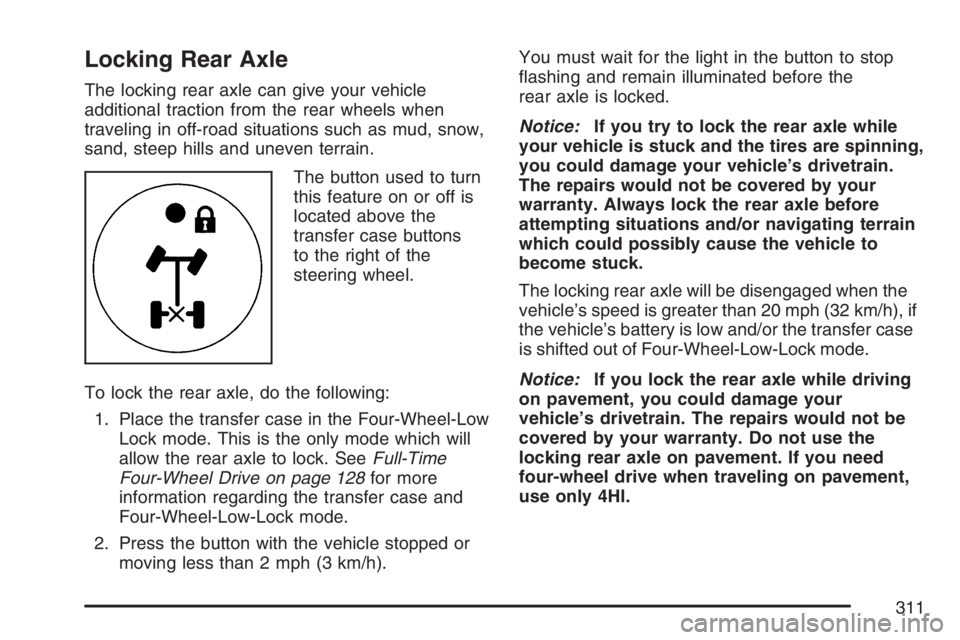
The button used to turn
this feature on or off is
located above the
transfer case buttons
to the right of the
steering wheel.
To lock the rear axle, do the following:
1. Place the transfer case in the Four-Wheel-Low
Lock mode. This is the only mode which will
allow the rear axle to lock. SeeFull-Time
Four-Wheel Drive on page 128for more
information regarding the transfer case and
Four-Wheel-Low-Lock mode.
2. Press the button with the vehicle stopped or
moving less than 2 mph (3 km/h).You must wait for the light in the button to stop
ashing and remain illuminated before the
rear axle is locked.
Notice:If you try to lock the rear axle while
your vehicle is stuck and the tires are spinning,
you could damage your vehicle’s drivetrain.
The repairs would not be covered by your
warranty. Always lock the rear axle before
attempting situations and/or navigating terrain
which could possibly cause the vehicle to
become stuck.
The locking rear axle will be disengaged when the
vehicle’s speed is greater than 20 mph (32 km/h), if
the vehicle’s battery is low and/or the transfer case
is shifted out of Four-Wheel-Low-Lock mode.
Notice:If you lock the rear axle while driving
on pavement, you could damage your
vehicle’s drivetrain. The repairs would not be
covered by your warranty. Do not use the
locking rear axle on pavement. If you need
four-wheel drive when traveling on pavement,
use only 4HI.
311
Page 492 of 570

When cleaning your vehicle’s interior, only use
cleaners specically designed for the surfaces
being cleaned. Permanent damage may result
from using cleaners on surfaces for which
they were not intended.Use glass cleaner only on
glass. Remove any accidental over-spray from
other surfaces immediately. To prevent over-spray,
apply cleaner directly to the cleaning cloth.
Notice:If you use abrasive cleaners when
cleaning glass surfaces on your vehicle, you
could scratch the glass and/or cause damage
to the rear window defogger. When cleaning
the glass on your vehicle, use only a soft cloth
and glass cleaner.
Many cleaners contain solvents that may become
concentrated in your vehicle’s breathing space.
Before using cleaners, read and adhere to all safety
instructions on the label. While cleaning your
vehicle’s interior, maintain adequate ventilation by
opening your vehicle’s doors and windows.
Dust may be removed from small buttons and
knobs using a small brush with soft bristles.
Your dealer has a product for cleaning your
vehicle’s glass. Should it become necessary, you
can also obtain a product from your dealer to
remove odors from your vehicle’s upholstery.Do not clean your vehicle using the following
cleaners or techniques:
Never use a knife or any other sharp object to
remove a soil from any interior surface.
Never use a stiff brush. It can cause damage
to your vehicle’s interior surfaces.
Never apply heavy pressure or rub
aggressively with a cleaning cloth. Use of
heavy pressure can damage your interior
and does not improve the effectiveness of soil
removal.
Use only mild, neutral-pH soaps. Avoid laundry
detergents or dishwashing soaps with
degreasers. Using too much soap will leave a
residue that leaves streaks and attracts
dirt. For liquid cleaners, about 20 drops per
gallon (3.78 L) of water is a good guide.
Do not heavily saturate your upholstery while
cleaning.
Damage to your vehicle’s interior may result
from the use of many organic solvents such
as naptha, alcohol, etc.
492