Page 148 of 400

Clock Setting Procedure
1. Press and hold the time button until the hours blink.
2. Adjust the hours by turning the right side Tune/
Audio control.
3. After the hours are adjusted, press the right side
Tune/Audio control to set the minutes. The minutes will
begin to blink.
4. Adjust the minutes using the right side Tune/Audio
control.
5. To exit, press any button/knob or wait 5 seconds.
RW/FF (Radio Mode)
Pressing the rewind/fast forward button causes the tuner
to search for the next frequency in the direction of the
arrows. This feature operates in either AM, FM or Satel-
lite (if equipped) frequencies.
TUNE Control (Radio Mode)
Turn the right side rotary control clockwise to increase or
counter-clockwise to decrease the frequency.
AM/FM Button (Radio Mode)
Press the button to select AM or FM Modes.
Setting the Tone, Balance, and Fade
Press the rotary TUNE control and BASS will display.
Turn the TUNE control to the right or left to increase or
decrease the Bass tones.
Press the rotary TUNE control a second time and MID
will display. Turn the TUNE control to the right or left to
increase or decrease the Mid Range tones.
Press the rotary TUNE control a third time and TREB will
display. Turn the TUNE control to the right or left to
increase or decrease the Treble tones.
148 INSTRUMENT PANEL AND CONTROLS
Page 149 of 400

Press the rotary TUNE control a fourth time and BAL will
display. Turn the TUNE control to the right or left to
adjust the sound level from the right or left side speakers.
Press the rotary TUNE control a fifth time and FADE will
display. Turn the TUNE control to the left or right to
adjust the sound level between the front and rear speak-
ers.
Press the tune control again or wait 5 seconds to exit
setting tone, balance, and fade.
RND/SET Button (Radio Mode) To SET The
Push-Button Memory
When you are receiving a station that you wish to
commit to push-button memory, press the SET button.
The symbol SET 1 will now show in the display window.
Select the button (1-6) you wish to lock onto this station
and press and release that button. If a button is notselected within 5 seconds after pressing the SET button,
the station will continue to play but will not be stored
into push-button memory.
You may add a second station to each push-button by
repeating the above procedure with this exception: Press
the SET button twice and SET 2 will show in the display
window. Each button can be set for SET 1 and SET 2 in
both AM and FM. This allows a total of 12 AM, 12 FM,
and 12 Satellite (if equipped) stations to be stored into
push-button memory. The stations stored in SET 2
memory can be selected by pressing the push-button
twice.
Every time a preset button is used, a corresponding
button number will display.
Preset Buttons1-6(Radio Mode)
These buttons tune the Radio to the stations that you
commit to push-button memory {12 AM, 12 FM, and 12
Satellite (if equipped) stations}.
INSTRUMENT PANEL AND CONTROLS 149
4
Page 152 of 400

Operation Instructions - Auxiliary Mode
The auxiliary (AUX) jack is an audio input jack, which
allows the user to plug in a portable device such as an
MP3 player, cassette player, or microphone and utilize
the vehicle’s audio system to amplify the source and play
through the vehicle speakers.
The auxiliary mode becomes active when an electrical
device is plugged into the AUX jack using a standard 3.5
mm stereo audio cable and the user presses and releases
the MODE button until AUX appears on the display.
NOTE:The radio will return to the last stored mode if
the ignition switch is turned from the OFF/LOCK posi-
tion to the ACC position, the radio is turned on, and the
radio was previously in the AUX mode.
SEEK Button (Auxiliary Mode)
No function.
MUTE Button (Auxiliary Mode)
Press the MUTE button to cancel the sound from the
speakers.�MUTE�will display. Press the MUTE button a
second time and the sound from the speakers will return.
Rotating the volume control or turning OFF the ignition
will also return the sound from the speakers.
SCAN Button (Auxiliary Mode)
No function.
EJECT Button (Auxiliary Mode)
No function.
PSCAN Button (Auxiliary Mode)
No function.
152 INSTRUMENT PANEL AND CONTROLS
Page 156 of 400

Time Button
Press the time button and the time of day will be
displayed for 5 seconds.
Clock Setting Procedure
1. Press and hold the time button until the hours blink.
2. Adjust the hours by turning the right side Tune /
Audio control.
3.
After the hours are adjusted, press the right side Tune /
Audio control to set the minutes. The minutes will begin to
blink.
4. Adjust the minutes using the right side Tune / Audio
control.
5. To exit, press any button/knob or wait 5 seconds.
RW/FF (Radio Mode)
Pressing the rewind/fast forward button causes the tuner
to search for the next frequency in the direction of the
arrows. This feature operates in either AM, FM or Satel-
lite (if equipped) frequencies.
TUNE Control (Radio Mode)
Turn the right side rotary control clockwise to increase or
counter-clockwise to decrease the frequency.
AM/FM Button (Radio Mode)
Press the button to select AM or FM Modes.
Setting the Tone, Balance, and Fade
Press the rotary TUNE control and BASS will display.
Turn the TUNE control to the right or left to increase or
decrease the Bass tones.
Press the rotary TUNE control a second time and MID
will display. Turn the TUNE control to the right or left to
increase or decrease the Mid Range tones.
156 INSTRUMENT PANEL AND CONTROLS
Page 158 of 400
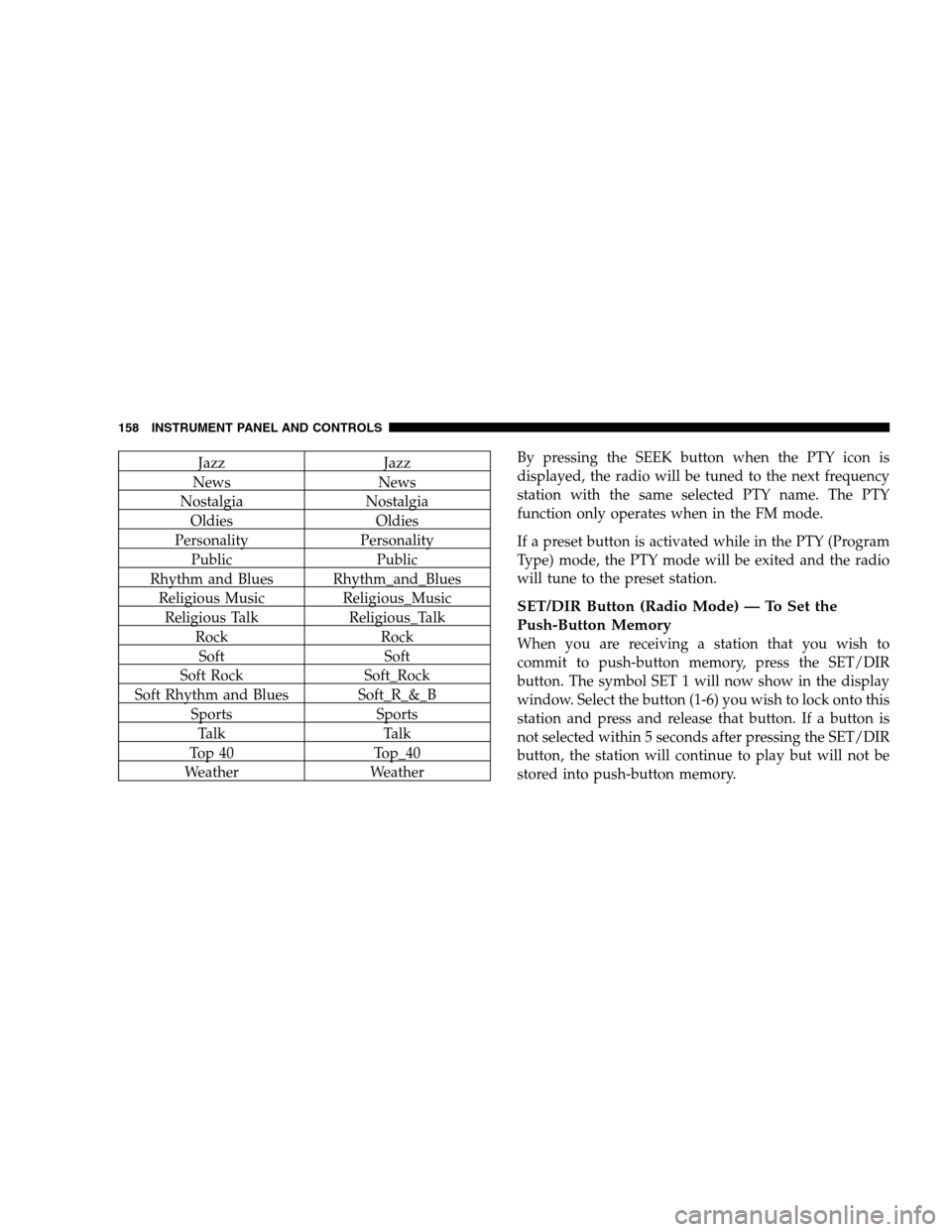
Jazz Jazz
News News
Nostalgia Nostalgia
Oldies Oldies
Personality Personality
Public Public
Rhythm and Blues Rhythm_and_Blues
Religious Music Religious_Music
Religious Talk Religious_Talk
Rock Rock
Soft Soft
Soft Rock Soft_Rock
Soft Rhythm and Blues Soft_R_&_B
Sports Sports
Ta l k Ta l k
Top 40 Top_40
Weather WeatherBy pressing the SEEK button when the PTY icon is
displayed, the radio will be tuned to the next frequency
station with the same selected PTY name. The PTY
function only operates when in the FM mode.
If a preset button is activated while in the PTY (Program
Type) mode, the PTY mode will be exited and the radio
will tune to the preset station.
SET/DIR Button (Radio Mode) — To Set the
Push-Button Memory
When you are receiving a station that you wish to
commit to push-button memory, press the SET/DIR
button. The symbol SET 1 will now show in the display
window. Select the button (1-6) you wish to lock onto this
station and press and release that button. If a button is
not selected within 5 seconds after pressing the SET/DIR
button, the station will continue to play but will not be
stored into push-button memory.
158 INSTRUMENT PANEL AND CONTROLS
Page 170 of 400

Selecting a Channel
Press and release the SEEK or TUNE knob to search for
the next channel. Press the top of the button to search up
and the bottom of the button to search down. Holding the
TUNE button causes the radio to bypass channels until
the button is released.
Press and release the SCAN button (if equipped) to
automatically change channels every 7 seconds. The
radio will pause on each channel for 7 seconds before
moving on to the next channel. The word�SCAN�will
appear in the display between each channel change. Press
the SCAN button a second time to stop the search.
NOTE:Channels that may contain objectionable content
can be blocked. Contact Sirius Customer Care at 888-539-
7474 to discuss options for channel blocking or unblock-
ing. Please have your ESN/SID information available.
Storing and Selecting Pre-Set Channels
In addition to the 12 AM and 12 FM pre-set stations, you
may also commit 12 satellite stations to push button
memory. These satellite channel pre-set stations will not
erase any AM or FM pre-set memory stations. Follow the
memory pre-set procedures that apply to your radio.
Using the PTY (Program Type) Button (if
equipped)
Follow the PTY button instructions that apply to your
radio.
PTY Button�SCAN�
When the desired program type is obtained, press the
�SCAN�button within five seconds. The radio will play 7
seconds of the selected channel before moving to the next
channel of the selected program type. Press the�SCAN�
button a second time to stop the search.
NOTE:Pressing the�SEEK�or�SCAN�button, while
performing a music type scan, will change the channel by
170 INSTRUMENT PANEL AND CONTROLS
Page 171 of 400

one and stop the search. Pressing a pre-set memory
button during a music type scan, will call up the memory
channel and stop the search.
PTY Button�SEEK�
When the desired program is obtained, press the�SEEK�
button within five seconds. The channel will change to
the next channel that matches the program type selected.
Satellite Antenna
To ensure optimum reception, do not place items on the
roof around the rooftop antenna location. Metal objects
placed within the line of sight of the antenna will cause
decreased performance. Larger luggage items should be
placed as far forward as possible. Do not place items
directly on or above the antenna.
Reception Quality
Satellite reception may be interrupted due to one of the
following reasons.
•The vehicle is parked in an underground parking
structure or under a physical obstacle.
•Dense tree coverage may interrupt reception in the
form of short audio mutes.
•Driving under wide bridges or along tall buildings can
cause intermittent reception.
•Placing objects over or too close to the antenna can
cause signal blockage.
INSTRUMENT PANEL AND CONTROLS 171
4
Page 177 of 400
Mix
Outside air flows in equal proportions through the
floor and defroster outlets.
Defrost
Outside air is primarily directed to the windshield
through the defroster outlets located at the base of
the windshield, and the demister outlets located at the
edge of each side of the instrument panel.
NOTE:The air conditioner compressor operates in both
Mix and Defrost or a blend of these modes, even if the
A/C button has not been pressed. This dehumidifies the
air to help dry the windshield.
Blower Control
The rotary knob on the left of
the control panel is the
blower control. Turn the knob
clockwise to one of the four
positions to obtain the blower
speed you desire. To turn the
blower off, turn the knob to
the far left position.
INSTRUMENT PANEL AND CONTROLS 177
4