2007 CHEVROLET TRAIL BLAZER light
[x] Cancel search: lightPage 268 of 574
To insert multiple CDs, do the following:
1. Turn the ignition on.
2. Press and hold the LOAD button for
two seconds.
A beep sounds and the indicator light, located
to the right of the slot, begins to ash and
MULTI LOAD # displays.
3. Once the light stops ashing and turns green,
INSERT CD # displays, load a CD. Insert the
CD part way into the slot, label side up.
The player pulls the CD in.
Once the CD is loaded, the indicator light
begins ashing again. Once the light stops
ashing and turns green, you can load another
CD. The CD player takes up to six CDs.
Do not try to load more than six.
To load more than one CD but less than six,
complete Steps 1 through 3. When nished
loading CDs, press the LOAD button to cancel
the loading function. The radio begins to play
the last CD loaded.
If more than one CD has been loaded,
a number for each CD displays.Playing a Specic Loaded CD
For every CD loaded, a number displays. To play
a specic CD, rst press the CD AUX button
(if not already in CD mode), then press the
numbered pushbutton that corresponds to the CD.
A small bar displays under the CD number that
is playing and the track number displays.
If an error displays, see “CD Messages” later in
this section.
CD
Z(Eject):Press theZbutton to eject CD(s).
To eject the CD that is currently playing, press
and release this button.
To eject multiple CDs, do the following:
1. Press and hold the CD
Zbutton for
two seconds.
A beep sounds and the indicator light, located
to the right of the slot, begins to ash and
EJECT ALL displays.
2. Once the light stops ashing, REMOVE CD #
displays. The CD ejects and can be removed.
Once the CD is removed, the indicator light
begins ashing again and another CD ejects.
To stop ejecting the CDs, press the
Zbutton.
268
Page 284 of 574
Navigation/Radio System
Your vehicle may have a navigation radio system.
The navigation system has built-in features
intended to minimize driver distraction. Technology
alone, no matter how advanced, can never replace
your own judgment. See the Navigation System
manual for some tips to help you reduce
distractions while driving.
Rear Seat Entertainment System
Your vehicle may have the Digital Versatile
Disc (DVD) Rear Seat Entertainment (RSE)
system. The RSE system includes a DVD player,
a video display screen, two sets of wireless
headphones, and a remote control.
Parental Control
This button is located behind the video screen.
Press this button while a DVD or CD is playing
to freeze the video and mute the audio. The video
screen displays Parental Control ON and the
power indicator light on the DVD player ashes.It also disables all other button operations from
the remote control and the DVD player, with
the exception of the eject button. Press this button
again to restore operation of the DVD player.
This button can also be used to turn the DVD
player power on and automatically resume play if
the ignition is in RUN, ACCESSORY, or if RAP
is active.
Before You Drive
The RSE system is for rear seat passengers only.
The driver cannot safely view the video screen
while driving and should not try to do so.
Headphones
The RSE system includes two sets of wireless
headphones.
Each set of headphones has an ON/OFF control.
An indicator light illuminates on the headphones
when they are on. If the light does not illuminate,
the batteries may need to be replaced. See “Battery
Replacement” following for more information.
Each set of headphones has a volume knob.
To adjust the volume, adjust this knob.
284
Page 285 of 574
The transmitters are located below the video display
screen. The headphones shut off automatically if
they lose the signal from the system after about
four minutes to save battery power. The signal
can be lost if the system is turned off or if the
headphones are out of range of the transmitters.
When using the wired headphones, if the front
seat passengers play a CD in the Radio with
Six-Disc CD (if equipped) or use XM™ Satellite
Radio Service (if equipped), you will hear the
audio for these sources, instead of the DVD or
CD that is currently playing through the RSE.
Notice:Do not store the headphones in heat
or direct sunlight. This could damage the
headphones and repairs will not be covered
by your warranty. Keep the headphones stored
in a cool, dry place.
Both sets of rear seat headphones may include
foam ear pads that can be replaced.
Foam ear pads on these headphones can become
worn or damaged. The headphone foam ear pads
can become damaged if they are not handled orstored properly. If the foam ear pads do become
damaged or worn out, the pads can be replaced
separately from the headphone set. It is not
necessary to replace the complete headphone set.
The headphone replacement foam ear pads can
be ordered in pairs. See your dealer/retailer
for more information.
Battery Replacement
To change the batteries, do the following:
1. Loosen the screw on the battery compartment
door located on the left side of the headphone
earpiece.
2. Replace the two AAA batteries in the
compartment. Make sure that they are
installed correctly, using the diagram on
the inside of the battery compartment.
3. Tighten the screw to close the
compartment door.
If the headphones are to be stored for a long
period of time, remove the batteries and keep
them in a cool, dry place.
285
Page 286 of 574
Stereo RCA Jacks
The RCA jacks are located behind the video
screen. The RCA jacks allow audio and video
signals to be connected from an auxiliary device
such as a camcorder or a video game unit to
the RSE system. Standard RCA cables, not
included, are needed to connect the auxiliary
device to the RCA jacks. The yellow connector
inputs video and the red and white connectors
input right and left audio. Refer to the
manufacturer’s instructions for proper
connection of the auxiliary device.
To use the auxiliary inputs on the RSE system,
connect an external auxiliary device to the
color-coded RCA jacks and turn both the
auxiliary device and the RSE system power on.
If the RSE system had been previously in the
DVD player mode, pressing the SRCE button
on the faceplate or the remote control switches
the RSE system between the auxiliary device
and the DVD player.
How to Change the Video Format when
in the Auxiliary Mode
The auxiliary input video format is preset to NTSC.
In some countries, the video format may be in
the PAL system. To change the video format,
perform the following:
1. Press the
zdisplay menu button.
2. Press the down
qnavigation arrow to
highlight the Video Format option.
3. Press the
rbutton to select Video Format.
4. Press the left
por rightonavigation
arrows to select the desired video format.
5. Press the
rbutton to accept the change.
Audio Output
Audio from the DVD player or auxiliary inputs can
be heard through the following possible sources:
Wireless Headphones
Vehicle Speakers
Vehicle wired headphone jacks on the
Rear Seat Audio system (if equipped)
286
Page 289 of 574
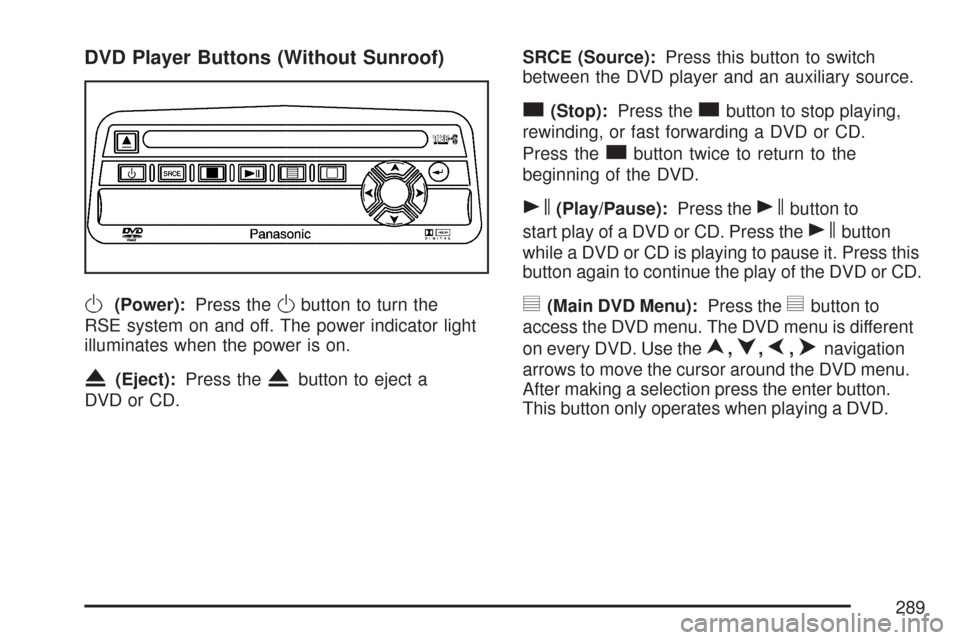
DVD Player Buttons (Without Sunroof)
O(Power):Press theObutton to turn the
RSE system on and off. The power indicator light
illuminates when the power is on.
X(Eject):Press theXbutton to eject a
DVD or CD.SRCE (Source):Press this button to switch
between the DVD player and an auxiliary source.
c(Stop):Press thecbutton to stop playing,
rewinding, or fast forwarding a DVD or CD.
Press the
cbutton twice to return to the
beginning of the DVD.
s(Play/Pause):Press thesbutton to
start play of a DVD or CD. Press the
sbutton
while a DVD or CD is playing to pause it. Press this
button again to continue the play of the DVD or CD.
y(Main DVD Menu):Press theybutton to
access the DVD menu. The DVD menu is different
on every DVD. Use the
n,q,p,onavigation
arrows to move the cursor around the DVD menu.
After making a selection press the enter button.
This button only operates when playing a DVD.
289
Page 290 of 574
z(Set-up Menu):Press thezbutton to
adjust the color, tint, brightness, contrast,
display mode, and dynamic range compression.
The dynamic range compression feature can
be used to reduce loud audio and increase
low audio produced by some DVDs.
To change a feature back to the factory default
setting, press the
zbutton to display the feature,
then press and hold this button until the default
setting displays.
While playing an Audio or DVD disc, press and
hold the
zbutton to display and to remove
the track and time information.
n,q,p,o(Menu Navigation Arrows):
Use the arrows to navigate through a menu.
r(Enter):Press therbutton to select
the choices that are highlighted in any menu.
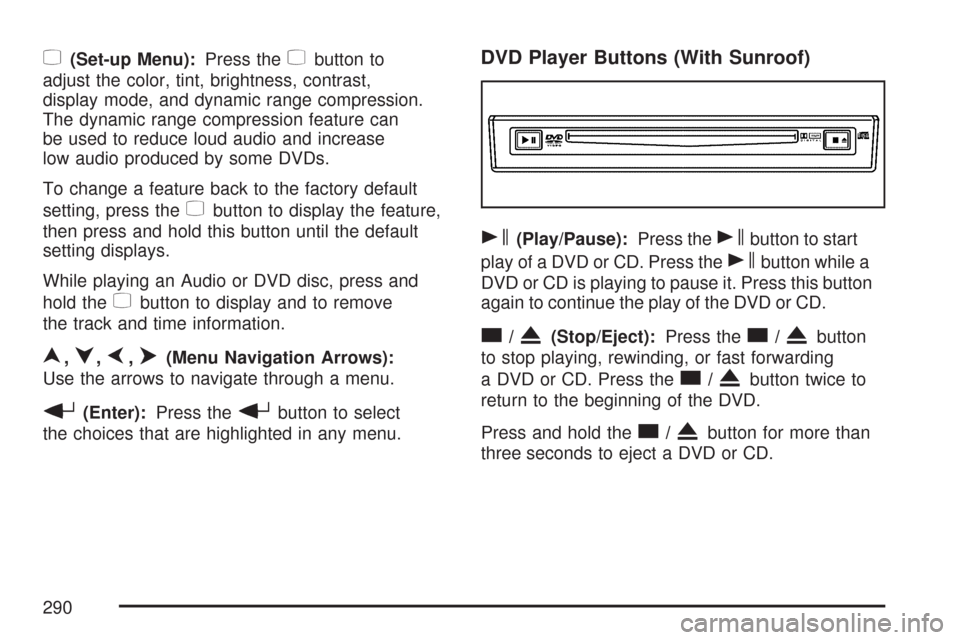
DVD Player Buttons (With Sunroof)
s(Play/Pause):Press thesbutton to start
play of a DVD or CD. Press the
sbutton while a
DVD or CD is playing to pause it. Press this button
again to continue the play of the DVD or CD.
c/X(Stop/Eject):Press thec/Xbutton
to stop playing, rewinding, or fast forwarding
a DVD or CD. Press the
c/Xbutton twice to
return to the beginning of the DVD.
Press and hold the
c/Xbutton for more than
three seconds to eject a DVD or CD.
290
Page 292 of 574
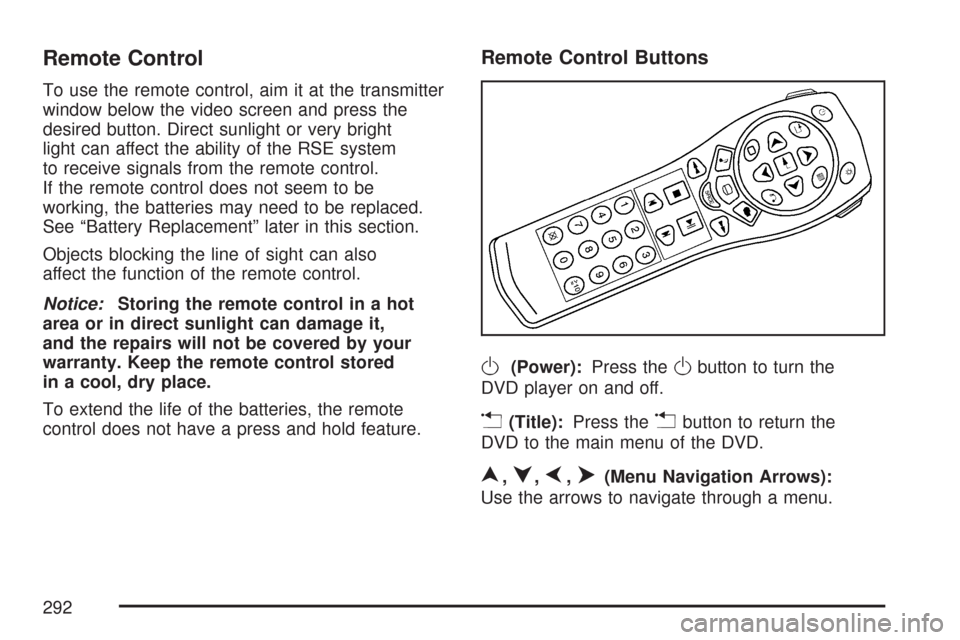
Remote Control
To use the remote control, aim it at the transmitter
window below the video screen and press the
desired button. Direct sunlight or very bright
light can affect the ability of the RSE system
to receive signals from the remote control.
If the remote control does not seem to be
working, the batteries may need to be replaced.
See “Battery Replacement” later in this section.
Objects blocking the line of sight can also
affect the function of the remote control.
Notice:Storing the remote control in a hot
area or in direct sunlight can damage it,
and the repairs will not be covered by your
warranty. Keep the remote control stored
in a cool, dry place.
To extend the life of the batteries, the remote
control does not have a press and hold feature.
Remote Control Buttons
O(Power):Press theObutton to turn the
DVD player on and off.
v(Title):Press thevbutton to return the
DVD to the main menu of the DVD.
n,q,p,o(Menu Navigation Arrows):
Use the arrows to navigate through a menu.
292
Page 293 of 574
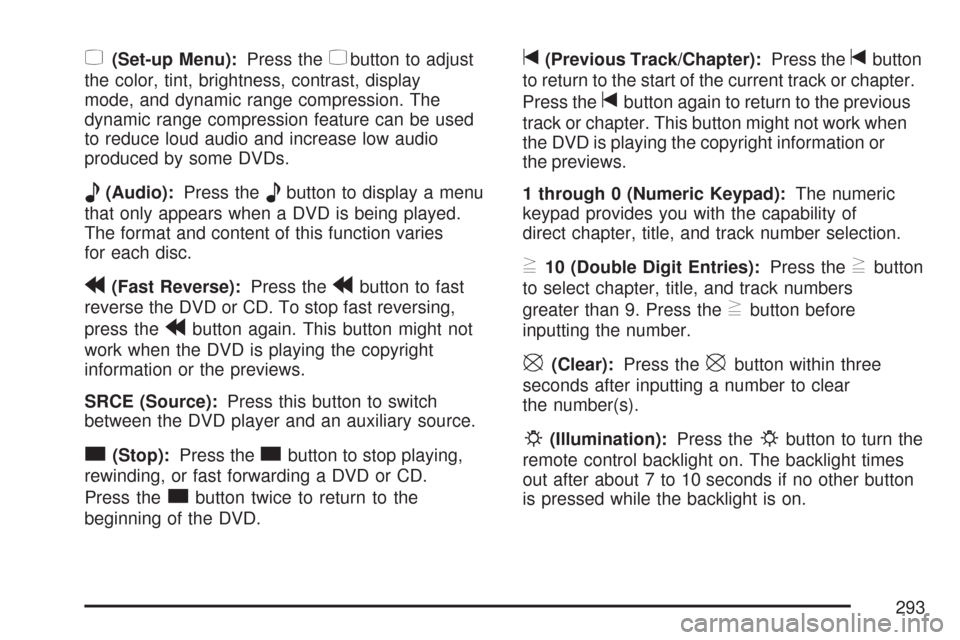
z(Set-up Menu):Press thezbutton to adjust
the color, tint, brightness, contrast, display
mode, and dynamic range compression. The
dynamic range compression feature can be used
to reduce loud audio and increase low audio
produced by some DVDs.
e(Audio):Press theebutton to display a menu
that only appears when a DVD is being played.
The format and content of this function varies
for each disc.
r(Fast Reverse):Press therbutton to fast
reverse the DVD or CD. To stop fast reversing,
press the
rbutton again. This button might not
work when the DVD is playing the copyright
information or the previews.
SRCE (Source):Press this button to switch
between the DVD player and an auxiliary source.
c(Stop):Press thecbutton to stop playing,
rewinding, or fast forwarding a DVD or CD.
Press the
cbutton twice to return to the
beginning of the DVD.
t(Previous Track/Chapter):Press thetbutton
to return to the start of the current track or chapter.
Press the
tbutton again to return to the previous
track or chapter. This button might not work when
the DVD is playing the copyright information or
the previews.
1 through 0 (Numeric Keypad):The numeric
keypad provides you with the capability of
direct chapter, title, and track number selection.
}10 (Double Digit Entries):Press the}button
to select chapter, title, and track numbers
greater than 9. Press the
}button before
inputting the number.
\(Clear):Press the\button within three
seconds after inputting a number to clear
the number(s).
P(Illumination):Press thePbutton to turn the
remote control backlight on. The backlight times
out after about 7 to 10 seconds if no other button
is pressed while the backlight is on.
293