2007 CHEVROLET CORVETTE wheel
[x] Cancel search: wheelPage 234 of 488
DIC Vehicle Personalization
Many features on your vehicle can be personalized.
This means that the operation of these features can
be set to operate differently depending on who is
driving the vehicle. See “Personal Options” later in
this section for the features that you can
personalize.
The personalization settings for other features are
automatically updated and saved as the driver
adjusts them. These include the following settings
and presets:
The radio presets, tone, volume, fade,
balance, equalization (EQ) settings and source
(radio or CD)
The last climate control setting
The Head-Up Display (HUD) position and
dimming level, if your vehicle has this feature
The instrument panel cluster dimming level and
last selected DIC display
Separate personalization settings are saved for two
different drivers. One of the keyless access
transmitters is assigned to driver 1. The other is
assigned to driver 2. The back of the keyless
access transmitters are labelled 1 or 2 to
correspond to each driver.The current driver’s preferences are recalled when
one of the following occurs:
The lock or unlock button on the keyless
access transmitter, labelled 1 or 2, is pressed.
The appropriate memory button, 1 or 2, located
on the driver’s door is pressed. SeeMemory
Seat, Mirrors and Steering Wheel on
page 10for more information.
A valid keyless access transmitter is detected
upon opening the driver’s door.
If more than one valid keyless access transmitter
is detected upon opening the driver’s door, the
driver preferences for the lowest driver number will
be recalled.
If a keyless access transmitter that is not
labelled 1 or 2 is used, the personalization system
will not recognize the transmitter. The Driver
Information Center (DIC) will not display a current
driver number and the features that are normally
programmed through the DIC will be set to
the default states. Also, if the OPTION button is
pressed, the DIC does not display the menus used
to set personalizations, but instead displays
OPTIONS UNAVAILABLE for a few seconds.
234
Page 237 of 488
If you choose YES, when you turn the ignition off
and open the driver’s door or press the unlock
button on the keyless access transmitter, the seat
and the telescopic steering wheel, if your
vehicle has this feature, will return to their stored
exit positions for an easy exit or an easy
entrance when returning to the vehicle.
The seat and steering wheel will only return to the
stored driving position if you press the appropriate
memory button or activate the auto memory
recall feature.
If you choose NO, this option will turn off.
When the mode you want is selected, press the
OPTION button to set your choice and advance to
the next personal option.
Approach Lights:This option briey turns on the
parking lamps, the front fog lamps and the
back-up lamps during low light periods when the
keyless access transmitter is used to unlock
the vehicle.Press the OPTION button until APPROACH
LIGHTS appears on the display, then press the
RESET button to scroll through the following
modes:
OFF
ON (default)
If you choose OFF, this option will turn off.
If you choose ON, the parking lamps, the front fog
lamps, and the back-up lamps will come on for
20 seconds during low light periods when all of the
following occurs:
You press the unlock button on the keyless
access transmitter.
Both of the doors are closed.
The vehicle is off or in RAP.
The lamps remain on for 20 seconds or until a door
is opened, the lock button on the keyless access
transmitter is pressed or the vehicle is no longer off
or in RAP.
SeeKeyless Access System on page 72for more
information.
When the mode you want is selected, press the
OPTION button to set your choice and advance to
the next personal option.
237
Page 244 of 488
Audio System(s)
Determine which radio your vehicle has and then
read the pages following to familiarize yourself
with its features.
Driving without distraction is a necessity for a
safer driving experience. SeeDefensive Driving on
page 274. By taking a few moments to read this
manual and get familiar with your vehicle’s
audio system, you can use it with less effort, as
well as take advantage of its features. While your
vehicle is parked, set up your audio system by
presetting your favorite radio stations, setting the
tone and adjusting the speakers. Then, when
driving conditions permit, you can tune to
your favorite stations using the presets and
steering wheel controls if the vehicle has them.{CAUTION:
This system provides you with a far greater
access to audio stations and song listings.
Giving extended attention to entertainment
tasks while driving can cause a crash and
you or others can be injured or killed.
Always keep your eyes on the road and
your mind on the drive — avoid engaging
in extended searching while driving.
Keeping your mind on the drive is important for
safe driving. Here are some ways in which you can
help avoid distraction while driving.
244
Page 245 of 488

While your vehicle is parked:
Familiarize yourself with all of its controls.
Familiarize yourself with its operation.
Set up your audio system by presetting your
favorite radio stations, setting the tone, and
adjusting the speakers. Then, when driving
conditions permit, you can tune to your favorite
radio stations using the presets and steering
wheel controls if the vehicle has them.
Notice:Before adding any sound equipment
to your vehicle, such as an audio system,
CD player, CB radio, mobile telephone,
or two-way radio, make sure that it can be
added by checking with your dealer/retailer.
Also, check federal rules covering mobile radio
and telephone units. If sound equipment can
be added, it is very important to do it properly.
Added sound equipment may interfere with
the operation of your vehicle’s engine, radio,
or other systems, and even damage them.
Your vehicle’s systems may interfere with
the operation of sound equipment that
has been added.Your vehicle has a feature called Retained
Accessory Power (RAP). With RAP, the audio
system can be played even after the ignition
is turned off. SeeRetained Accessory Power
(RAP) on page 91for more information.
Setting the Time
With the ignition on and the radio off, press
the H or the M button to enter clock mode.
Press and hold H until the correct hour appears
on the display. Press and hold M until the
correct minute appears on the display.
To change the time default setting from 12 hour
to 24 hour, press either the H or the M button
to enter the clock mode. Press the tune knob
to select between the 12 or 24 hour display format.
The clock mode automatically times out with
the changed display format set as the current
default setting.
245
Page 269 of 488
Navigation/Radio System
Your vehicle may have a navigation radio system.
The navigation system has built-in features
intended to minimize driver distraction. Technology
alone, no matter how advanced, can never
replace your own judgment. See the Navigation
System manual for some tips to help you
reduce distractions while driving.
Theft-Deterrent Feature
THEFTLOCK®is designed to discourage theft
of your vehicle’s radio. The feature works
automatically by learning a portion of the
Vehicle Identication Number (VIN). If the radio
is moved to a different vehicle, it will not operate
and LOCKED will appear on the display.
With THEFTLOCK
®activated, the radio will not
operate if stolen.
Your radio has a blinking indicator light located
on the upper left side of the radio. The indicator
light is used to show that the theft-deterrent feature
mode is set. The blinking indicator light will only
ash when the ignition is in the off position.
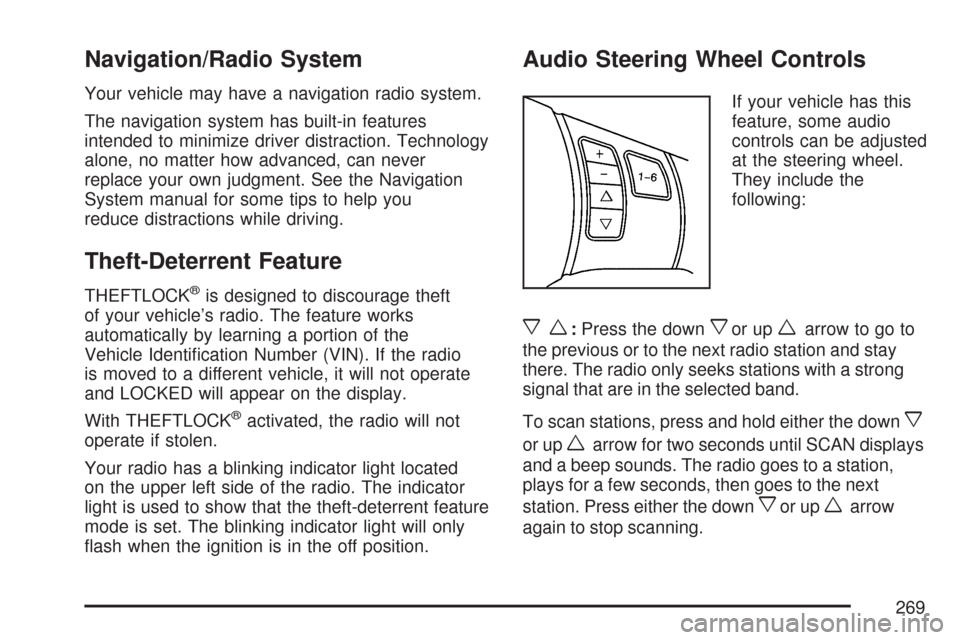
Audio Steering Wheel Controls
If your vehicle has this
feature, some audio
controls can be adjusted
at the steering wheel.
They include the
following:
xw:Press the downxor upwarrow to go to
the previous or to the next radio station and stay
there. The radio only seeks stations with a strong
signal that are in the selected band.
To scan stations, press and hold either the down
x
or upwarrow for two seconds until SCAN displays
and a beep sounds. The radio goes to a station,
plays for a few seconds, then goes to the next
station. Press either the down
xor upwarrow
again to stop scanning.
269
Page 280 of 488
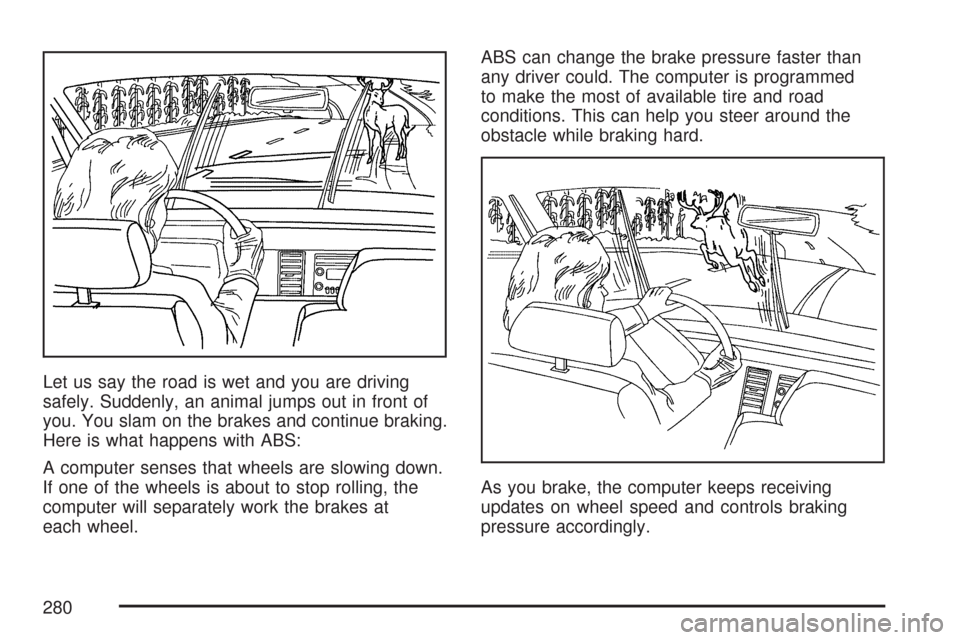
Let us say the road is wet and you are driving
safely. Suddenly, an animal jumps out in front of
you. You slam on the brakes and continue braking.
Here is what happens with ABS:
A computer senses that wheels are slowing down.
If one of the wheels is about to stop rolling, the
computer will separately work the brakes at
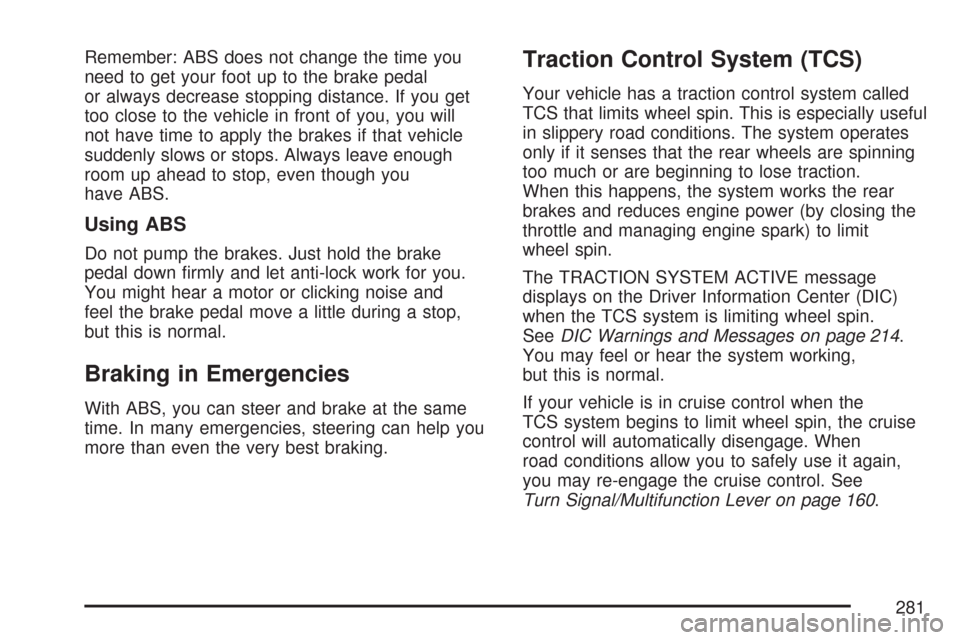
each wheel.ABS can change the brake pressure faster than
any driver could. The computer is programmed
to make the most of available tire and road
conditions. This can help you steer around the
obstacle while braking hard.
As you brake, the computer keeps receiving
updates on wheel speed and controls braking
pressure accordingly.
280
Page 281 of 488
Remember: ABS does not change the time you
need to get your foot up to the brake pedal
or always decrease stopping distance. If you get
too close to the vehicle in front of you, you will
not have time to apply the brakes if that vehicle
suddenly slows or stops. Always leave enough
room up ahead to stop, even though you
have ABS.
Using ABS
Do not pump the brakes. Just hold the brake
pedal down rmly and let anti-lock work for you.
You might hear a motor or clicking noise and
feel the brake pedal move a little during a stop,
but this is normal.
Braking in Emergencies
With ABS, you can steer and brake at the same
time. In many emergencies, steering can help you
more than even the very best braking.
Traction Control System (TCS)
Your vehicle has a traction control system called
TCS that limits wheel spin. This is especially useful
in slippery road conditions. The system operates
only if it senses that the rear wheels are spinning
too much or are beginning to lose traction.
When this happens, the system works the rear
brakes and reduces engine power (by closing the
throttle and managing engine spark) to limit
wheel spin.
The TRACTION SYSTEM ACTIVE message
displays on the Driver Information Center (DIC)
when the TCS system is limiting wheel spin.
SeeDIC Warnings and Messages on page 214.
You may feel or hear the system working,
but this is normal.
If your vehicle is in cruise control when the
TCS system begins to limit wheel spin, the cruise
control will automatically disengage. When
road conditions allow you to safely use it again,
you may re-engage the cruise control. See
Turn Signal/Multifunction Lever on page 160.
281
Page 282 of 488
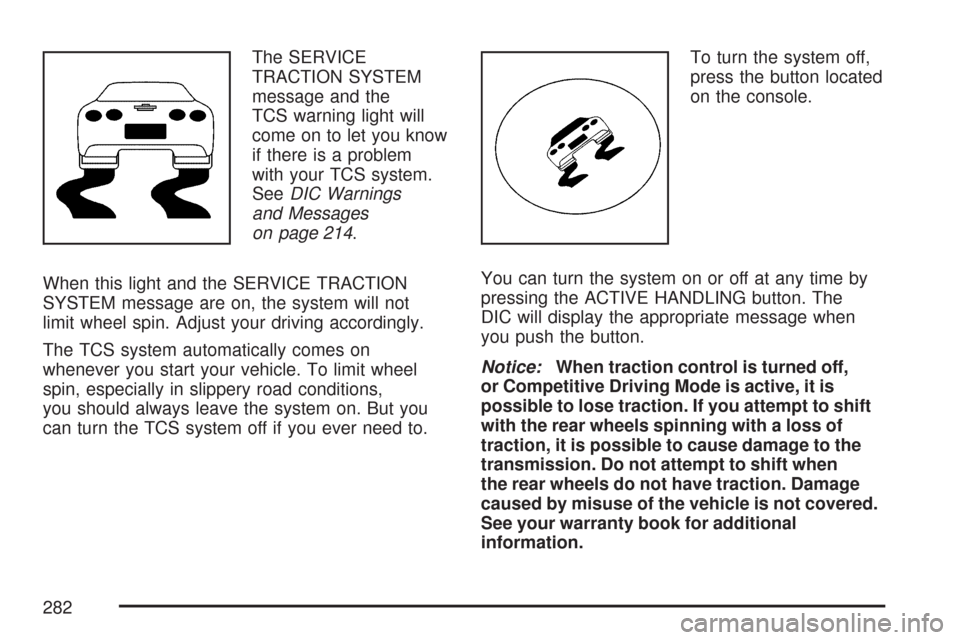
The SERVICE
TRACTION SYSTEM
message and the
TCS warning light will
come on to let you know
if there is a problem
with your TCS system.
SeeDIC Warnings
and Messages
on page 214.
When this light and the SERVICE TRACTION
SYSTEM message are on, the system will not
limit wheel spin. Adjust your driving accordingly.
The TCS system automatically comes on
whenever you start your vehicle. To limit wheel
spin, especially in slippery road conditions,
you should always leave the system on. But you
can turn the TCS system off if you ever need to.To turn the system off,
press the button located
on the console.
You can turn the system on or off at any time by
pressing the ACTIVE HANDLING button. The
DIC will display the appropriate message when
you push the button.
Notice:When traction control is turned off,
or Competitive Driving Mode is active, it is
possible to lose traction. If you attempt to shift
with the rear wheels spinning with a loss of
traction, it is possible to cause damage to the
transmission. Do not attempt to shift when
the rear wheels do not have traction. Damage
caused by misuse of the vehicle is not covered.
See your warranty book for additional
information.
282