Page 146 of 253
Route guidance
144
Displaying route
You have the option of displaying various views
of the route during route guidance.
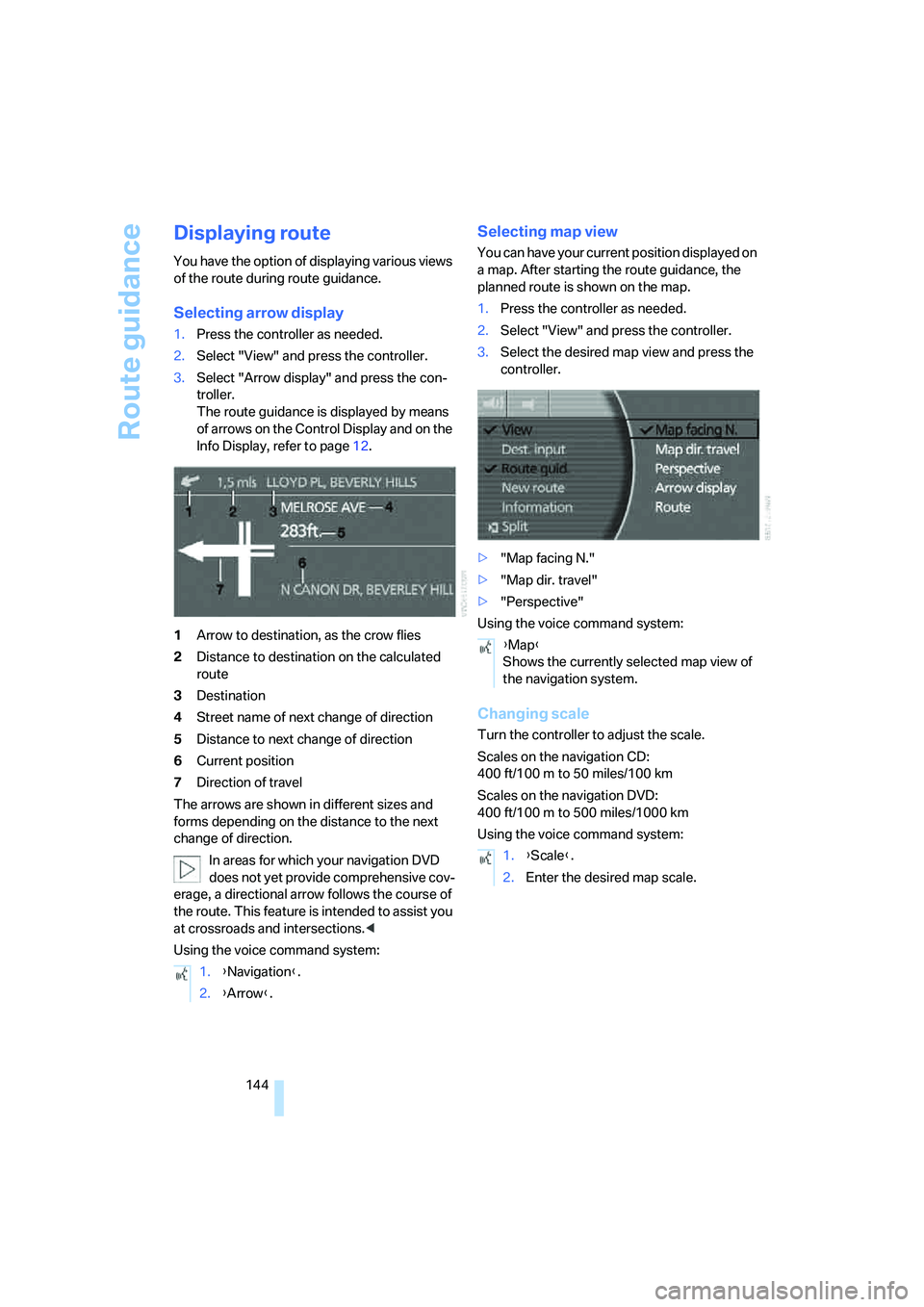
Selecting arrow display
1.Press the controller as needed.
2.Select "View" and press the controller.
3.Select "Arrow display" and press the con-
troller.
The route guidance is displayed by means
of arrows on the Control Display and on the
Info Display, refer to page12.
1Arrow to destination, as the crow flies
2Distance to destination on the calculated
route
3Destination
4Street name of next change of direction
5Distance to next change of direction
6Current position
7Direction of travel
The arrows are shown in different sizes and
forms depending on the distance to the next
change of direction.
In areas for which your navigation DVD
does not yet provide comprehensive cov-
erage, a directional arrow follows the course of
the route. This feature is intended to assist you
at crossroads and intersections.<
Using the voice command system:
Selecting map view
You can have your current position displayed on
a map. After starting the route guidance, the
planned route is shown on the map.
1.Press the controller as needed.
2.Select "View" and press the controller.
3.Select the desired map view and press the
controller.
>"Map facing N."
>"Map dir. travel"
>"Perspective"
Using the voice command system:
Changing scale
Turn the controller to adjust the scale.
Scales on the navigation CD:
400 ft/100 m to 50 miles/100 km
Scales on the navigation DVD:
400ft/100m to 500miles/1000km
Using the voice command system:
1.{Navigation}.
2.{Arrow}.
{Map}
Shows the currently selected map view of
the navigation system.
1.{Scale}.
2.Enter the desired map scale.
Page 147 of 253
Navigation
Driving tips
145Reference
At a glance
Controls
Communications
Entertainment
Mobility
Displaying streets or towns on the
route
You can have the names of the streets and
towns/cities on your route displayed whenever
the route guidance is active.
The display also shows the distances to be trav-
eled on each individual road.
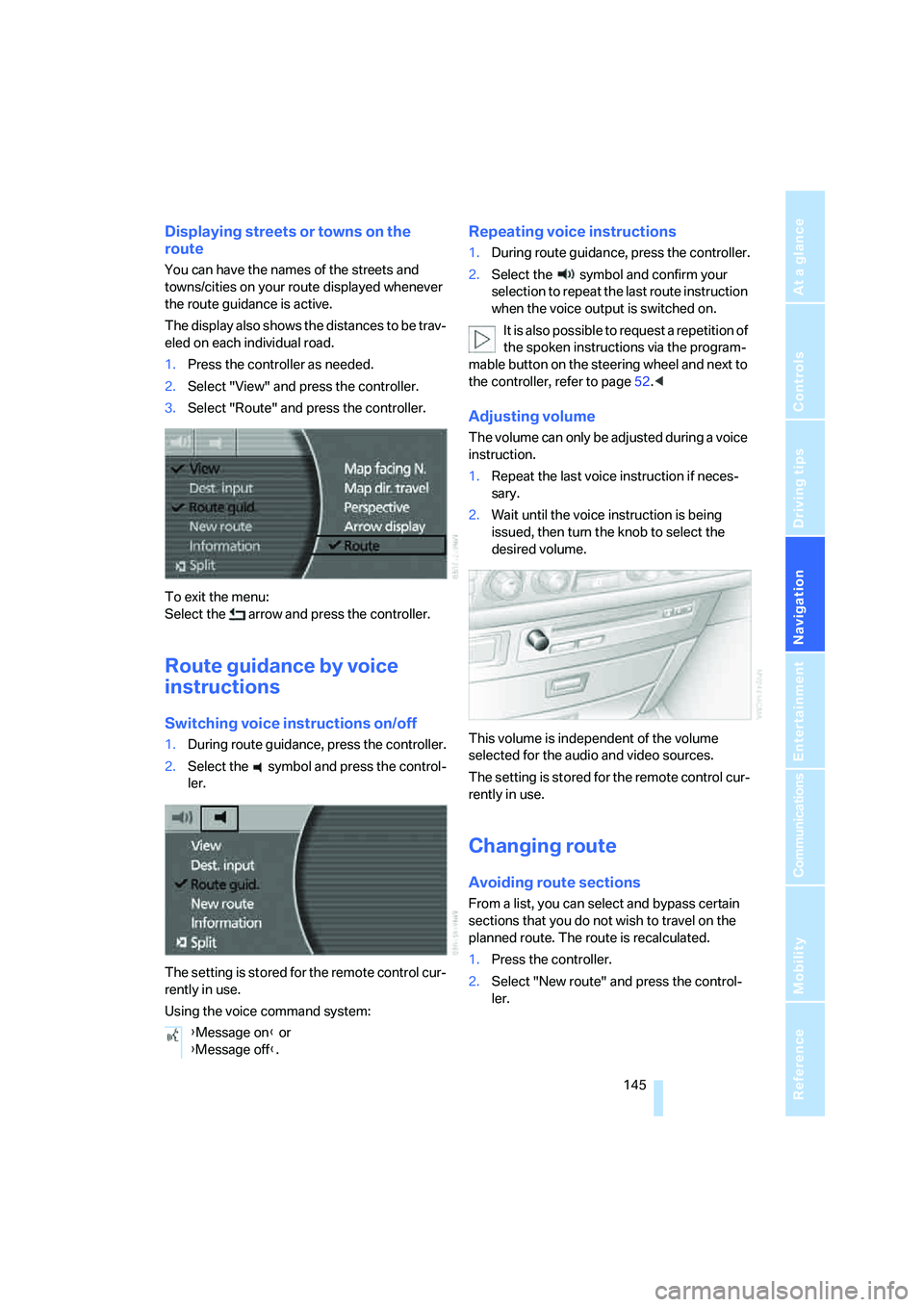
1.Press the controller as needed.
2.Select "View" and press the controller.
3.Select "Route" and press the controller.
To exit the menu:
Select the arrow and press the controller.
Route guidance by voice
instructions
Switching voice instructions on/off
1.During route guidance, press the controller.
2.Select the symbol and press the control-
ler.
The setting is stored for the remote control cur-
rently in use.
Using the voice command system:
Repeating voice instructions
1.During route guidance, press the controller.
2.Select the symbol and confirm your
selection to repeat the last route instruction
when the voice output is switched on.
It is also possible to request a repetition of
the spoken instructions via the program-
mable button on the steering wheel and next to
the controller, refer to page52.<
Adjusting volume
The volume can only be adjusted during a voice
instruction.
1.Repeat the last voice instruction if neces-
sary.
2.Wait until the voice instruction is being
issued, then turn the knob to select the
desired volume.
This volume is independent of the volume
selected for the audio and video sources.
The setting is stored for the remote control cur-
rently in use.
Changing route
Avoiding route sections
From a list, you can select and bypass certain
sections that you do not wish to travel on the
planned route. The route is recalculated.
1.Press the controller.
2.Select "New route" and press the control-
ler.
{Message on} or
{Message off}.
Page 149 of 253
Navigation
Driving tips
147Reference
At a glance
Controls
Communications
Entertainment
Mobility
Correcting current position
If the navigation system cannot place the cur-
rent position, e.g.if you are currently in a parking
structure, then in addition to the country and
city, only longitude and latitude are displayed.
You can then correct your current position, e.g.
by entering the name of the adjacent street or
intersection.
1.Select "Dest. input" and press the control-
ler.
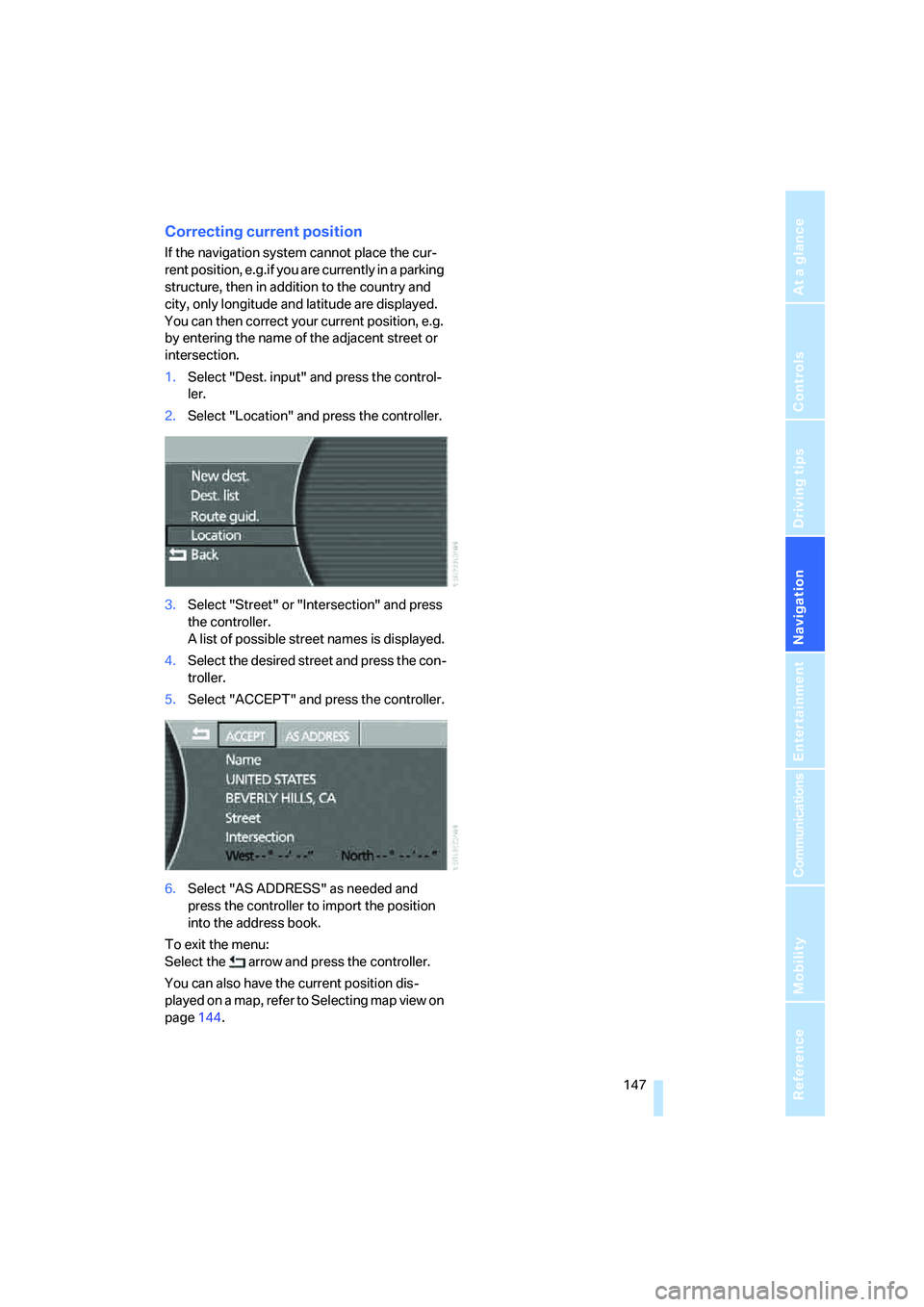
2.Select "Location" and press the controller.
3.Select "Street" or "Intersection" and press
the controller.
A list of possible street names is displayed.
4.Select the desired street and press the con-
troller.
5.Select "ACCEPT" and press the controller.
6.Select "AS ADDRESS" as needed and
press the controller to import the position
into the address book.
To exit the menu:
Select the arrow and press the controller.
You can also have the current position dis-
played on a map, refer to Selecting map view on
page144.
Page 150 of 253
What to do if …
148
What to do if …
What to do if …
>a navigation DVD is inserted, but an instruc-
tion to insert the DVD appears on the Con-
trol Display?
The navigation DVD may not be the right
DVD for the navigation system. The DVD is
labeled accordingly.
>you request the current position of your
vehicle, but do not receive a precise dis-
play?
The system is unable to receive enough
GPS signals at your current position due to
obstructions, your position is not yet avail-
able on your navigation DVD, or the system
is in the process of calculating your posi-
tion. Please wait and then try again a little
later.
>the route guidance does not accept a desti-
nation?
The data of the destination is not stored on
the navigation DVD that is loaded. Select a
destination that is as close as possible to
the original.
>the route guidance does not accept a desti-
nation without the street?
On the navigation DVD, no downtown area
can be determined for the city or town
entered. Enter any street, or a destination
such as the railway station etc., then start
the route guidance.
>you want to enter a destination for the route
guidance, but it is not possible to select the
letters for your desired entry?
The data of the destination is not stored on
the navigation DVD that is loaded. In this
case, the system will not offer you any let-
ters to choose from. Select a destination
that is as close as possible to the original.>the system stops furnishing directions on
which way to turn as you approach intersec-
tions?
You are driving in an area that has not yet
been completely recorded on the naviga-
tion DVD. Instead of an arrow indicating a
turn, you will see an arrow which indicates
the general direction of your planned route.
Or you have left the recommended route
and the system requires a few seconds to
calculate a new recommended route.
>the navigation system does not react to
entries?
If the battery was disconnected, it then
takes up to 10 minutes before the system is
once again operational.
Page 151 of 253
Navigation
Driving tips
149Reference
At a glance
Controls
Communications
Entertainment
Mobility
Page 155 of 253
Navigation
Entertainment
Driving tips
153Reference
At a glance
Controls
Communications
Mobility
refer to page11, and via the voice command
system
*, refer to page24.
Switching on/off
In order to switch the Entertainment sound out-
put on/off: press the knob.
The system selects the most recently used
audio or video source, radio, CD, external audio
device, or DVD.
Using the voice command system:
Using with ignition off
The audio and video functions remain available
for use for a period of approx. 30 minutes after
you switch off the ignition.
Switch the sound output back on to enjoy this
function.
Adjusting volume
Turn the knob to the desired volume level.
The sound system automatically reverts
to its mute mode whenever you initiate or
accept a phone call.
rently in use.
Tone control
You can change various tone settings, e.g. tre-
ble and bass or the speed-dependent volume
control. The tone settings are set globally for all
of the audio sources.
Speakers, headsets in the rear, and external
audio devices can be adjusted separately. The
sound settings of the headphones are made on
the rear seat screen with the headphones con-
nected. Only treble, bass and balance can be
adjusted.
The setting is stored for the remote control cur-
rently in use.
Tone adjustment
iDrive, for principle details, refer to page16.
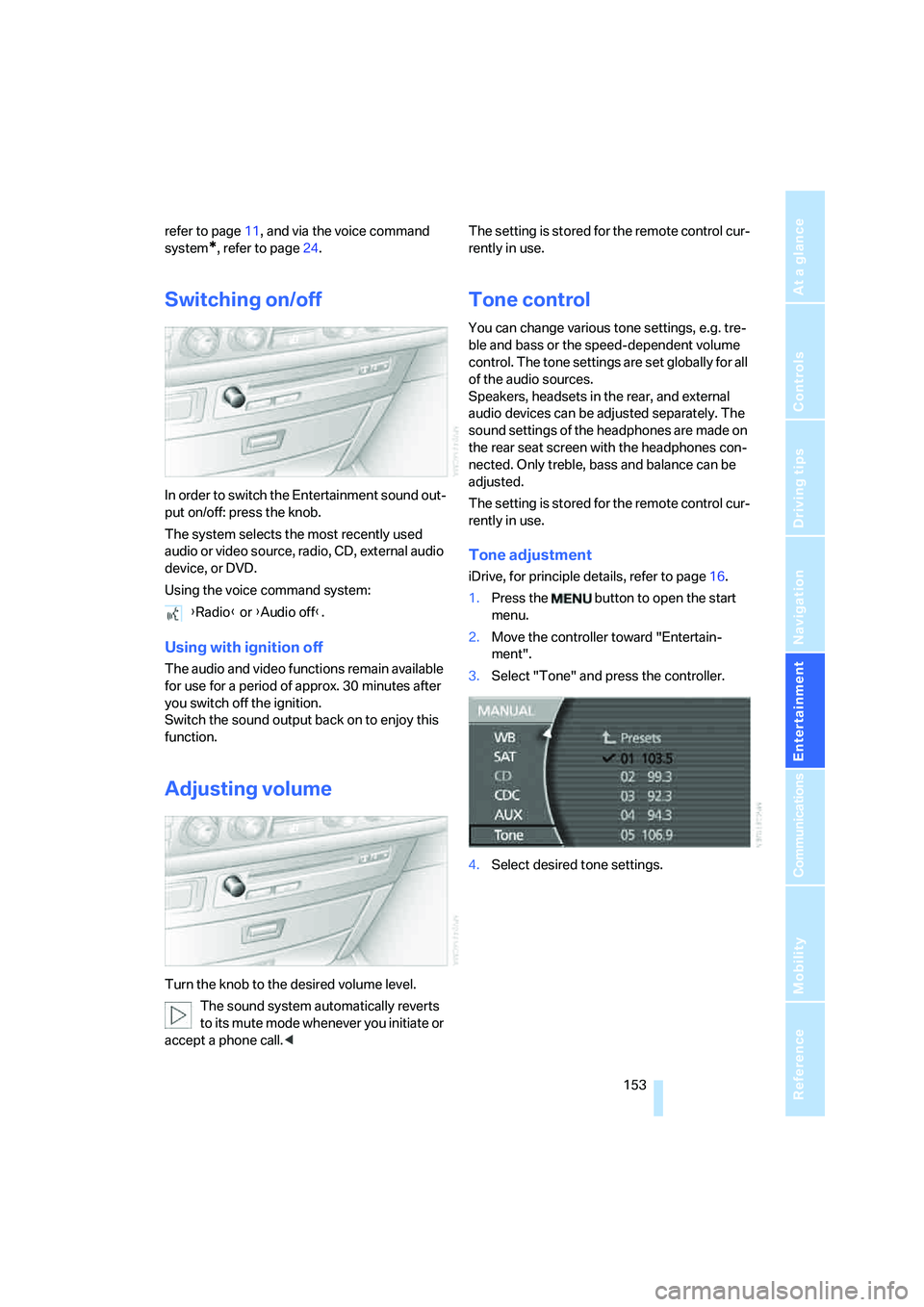
1.Press the button to open the start
menu.
2.Move the controller toward "Entertain-
ment".
3.Select "Tone" and press the controller.
4.Select desired tone settings. {Radio} or {Audio off}.
Page 157 of 253
Navigation
Entertainment
Driving tips
155Reference
At a glance
Controls
Communications
Mobility
Resetting tone settings
You can reset all tone settings except "Speed
Vol." to the standard default settings.
Select "RESET" and press the controller.
Page 159 of 253
Navigation
Entertainment
Driving tips
157Reference
At a glance
Controls
Communications
Mobility
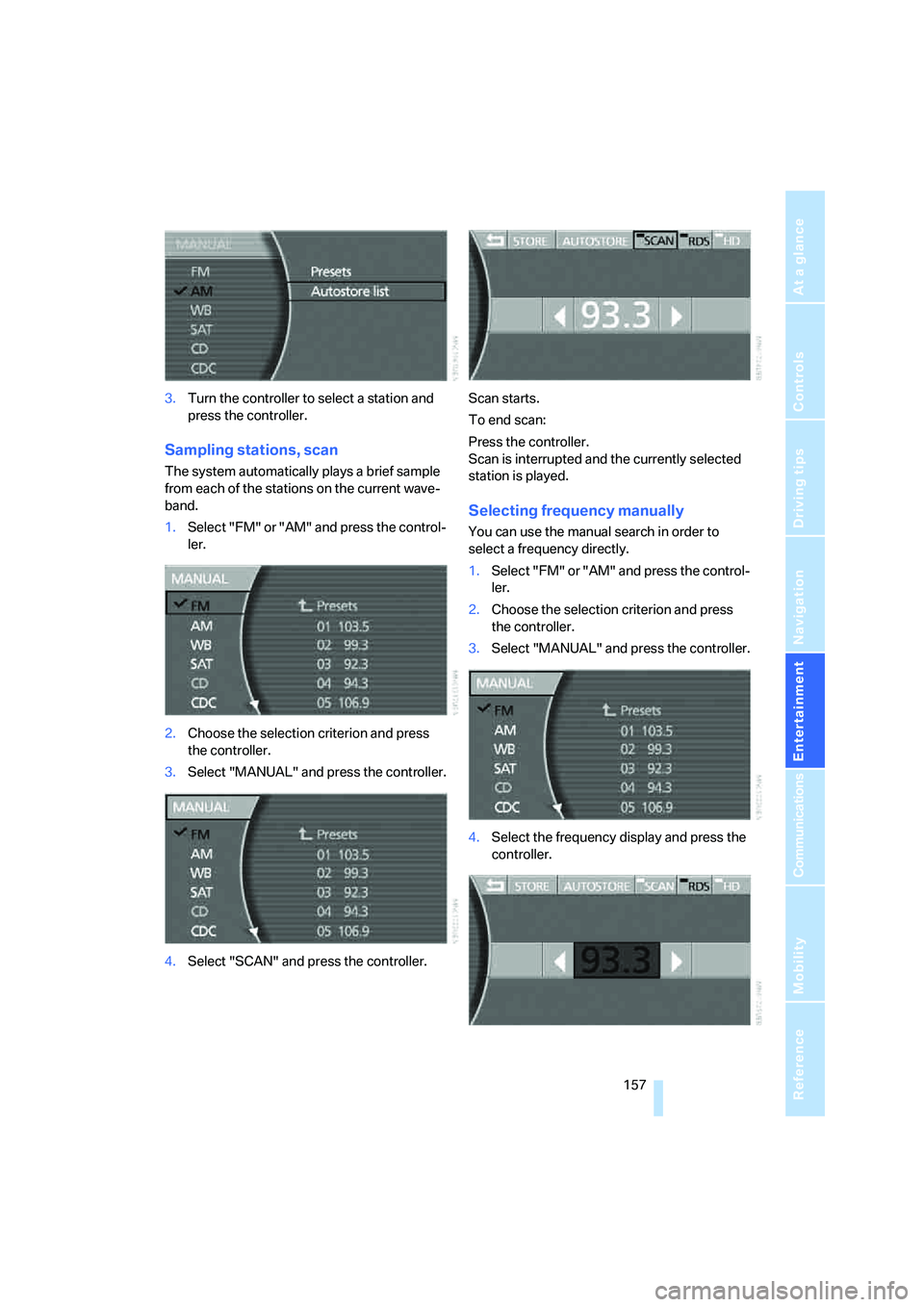
3.Turn the controller to select a station and
press the controller.
Sampling stations, scan
The system automatically plays a brief sample
from each of the stations on the current wave-
band.
1.Select "FM" or "AM" and press the control-
ler.
2.Choose the selection criterion and press
the controller.
3.Select "MANUAL" and press the controller.
4.Select "SCAN" and press the controller.Scan starts.
To end scan:
Press the controller.
Scan is interrupted and the currently selected
station is played.
Selecting frequency manually
You can use the manual search in order to
select a frequency directly.
1.Select "FM" or "AM" and press the control-
ler.
2.Choose the selection criterion and press
the controller.
3.Select "MANUAL" and press the controller.
4.Select the frequency display and press the
controller.