Page 115 of 185
114 Navigation*
Destination entry
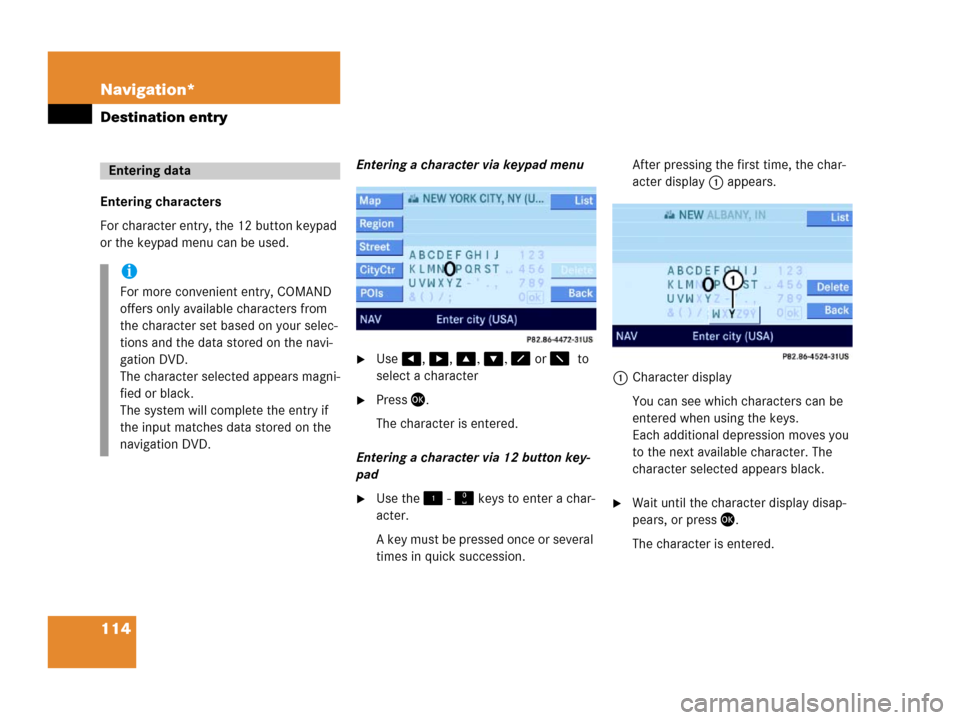
Entering characters
For character entry, the 12 button keypad
or the keypad menu can be used.Entering a character via keypad menu
�Use, , , , or to
select a character
�Press.
The character is entered.
Entering a character via 12 button key-
pad
�Use the - keys to enter a char-
acter.
A key must be pressed once or several
times in quick succession.After pressing the first time, the char-
acter display 1 appears.
1Character display
You can see which characters can be
entered when using the keys.
Each additional depression moves you
to the next available character. The
character selected appears black.�Wait until the character display disap-
pears, or press.
The character is entered.
Entering data
i
For more convenient entry, COMAND
offers only available characters from
the character set based on your selec-
tions and the data stored on the navi-
gation DVD.
The character selected appears magni-
fied or black.
The system will complete the entry if
the input matches data stored on the
navigation DVD.
Page 117 of 185
116 Navigation*
Destination entry
Selectable menu items
�Destination memory
You can select destinations from the
Destination memory (�page 148) only if
destinations have alreday been stored.
�Destination entry
You can enter a destination manually
via the Destination entry menu
(
�page 117).
�Last destinations
You can select from the list of last des-
tinations (
�page 147) only if the sys-
tem has already stored destinations.
�POIs
You can input POIs (points of interest),
for example gas stations, airports or
hospitals.
�Current location
Provides access to store the current lo-
cation as home address (
�page 116)
or select a home address using the
map (
�page 116).
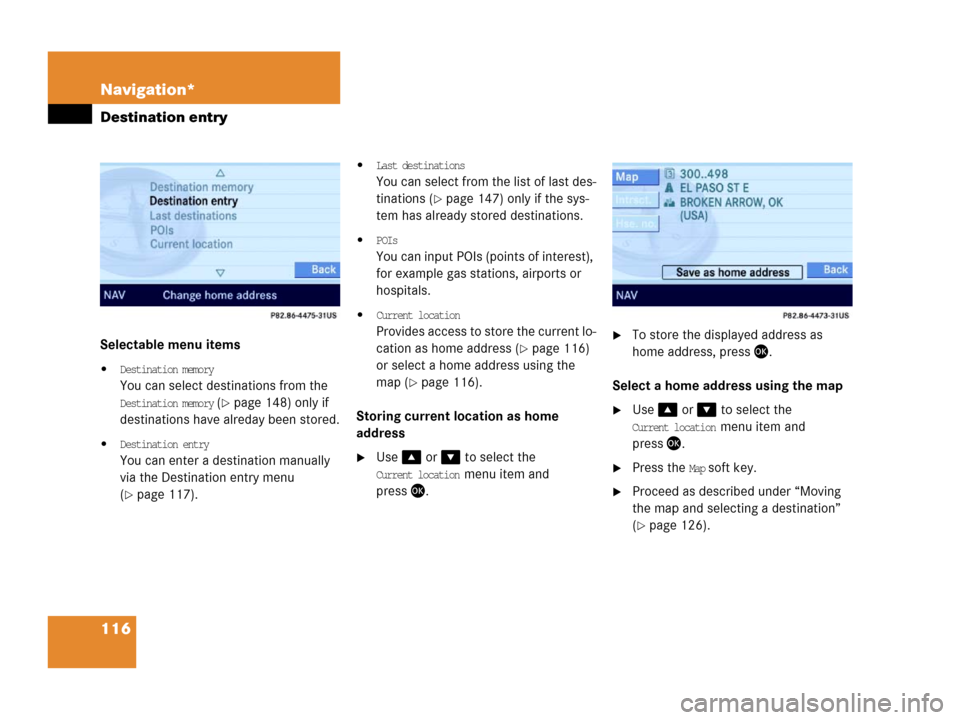
Storing current location as home
address
�Use or to select the
Current location menu item and
press.
�To store the displayed address as
home address, press .
Select a home address using the map
�Use or to select the
Current location menu item and
press.
�Press the Map soft key.
�Proceed as described under “Moving
the map and selecting a destination”
(
�page 126).
Page 118 of 185
117 Navigation*
Destination entry
�Or, to store the selected destination as
home adress, press.
�Call up the Navigation main menu
(
�page 110).
�Use or to select the
Destination entry menu item and
press.
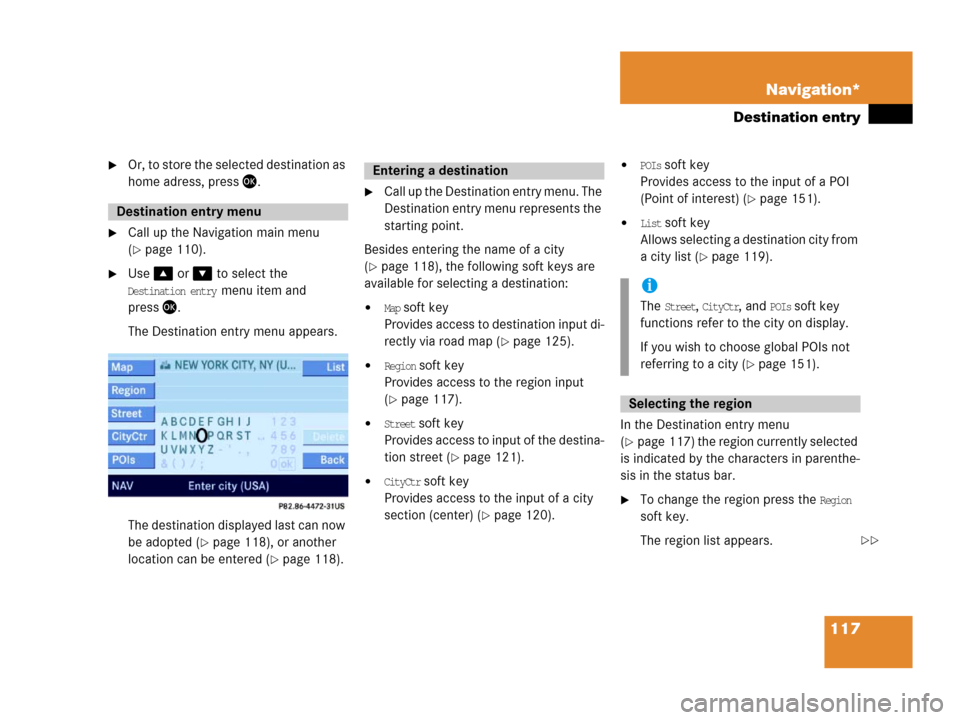
The Destination entry menu appears.
The destination displayed last can now
be adopted (
�page 118), or another
location can be entered (
�page 118).
�Call up the Destination entry menu. The
Destination entry menu represents the
starting point.
Besides entering the name of a city
(
�page 118), the following soft keys are
available for selecting a destination:
�Map soft key
Provides access to destination input di-
rectly via road map (
�page 125).
�Region soft key
Provides access to the region input
(
�page 117).
�Street soft key
Provides access to input of the destina-
tion street (
�page 121).
�CityCtr soft key
Provides access to the input of a city
section (center) (
�page 120).
�POIs soft key
Provides access to the input of a POI
(Point of interest) (
�page 151).
�List soft key
Allows selecting a destination city from
a city list (
�page 119).
In the Destination entry menu
(
�page 117) the region currently selected
is indicated by the characters in parenthe-
sis in the status bar.
�To change the region press the Region
soft key.
The region list appears.
Destination entry menu
Entering a destination
i
The Street, CityCtr, and POIs soft key
functions refer to the city on display.
If you wish to choose global POIs not
referring to a city (
�page 151).
Selecting the region
��
Page 119 of 185
118 Navigation*
Destination entry
�Use or to select a region.
�Press .
Selecting a different region deletes the
city last entered. The first city of the
newly selected region appears (in al-
phabetical order).
The Destination entry menu (
�page 117)
represents the starting point.
Enter city (USA) appears in the status bar.
The characters in parenthesis indicate the
selected region.
Accepting the displayed destination
�Press and hold for approx. 2 sec-
onds.Entering a different city
�Use the keypad menu or the 12 buttton
keypad to enter the data of the city
(
�page 114).
After entering the city a selection list of
cities appears. Now continue with se-
lecting a city.
Switching to a selection list is possible at
any time while entering a city.
�Press the List soft key.
The selection list appears. Now contin-
ue with selecting a city.
Entering a cityi
Do not confuse the button with the
symbol in the main screen.
ok
Page 120 of 185
119 Navigation*
Destination entry
Selecting a city
�Use or to select the destina-
tion city. The
Page soft keys allow scroll-
ing through the list page by page.
�Press.After selecting the desired city, one of
the following menus appears:
�For larger cities with more than 15
streets:
Enter Street menu (
�page 121).
�For smaller cities with up to
15 streets:
Select Street menu (
�page 121).
�If no streets are registered for the
selected city:
Select City Center menu
(
�page 120).
The appropriate menu can be identified
from the display in the status bar.
.
Besides entering a street name
(
�page 121), the following soft keys are
available for narrowing the destination:
�Map soft key
Provides access to further destination
input directly via road map
(
�page 125).
i
The selection is cancelled if the Back
soft key is pressed.
Narrowing of the destination after
selecting city
��
Page 121 of 185
120 Navigation*
Destination entry
�CityCtr soft key
Provides access to the selection of a
section of the city (center)
(
�page 120).
�POIs soft key
Provides access to the input of a POI
referring to the destination city
(
�page 152).
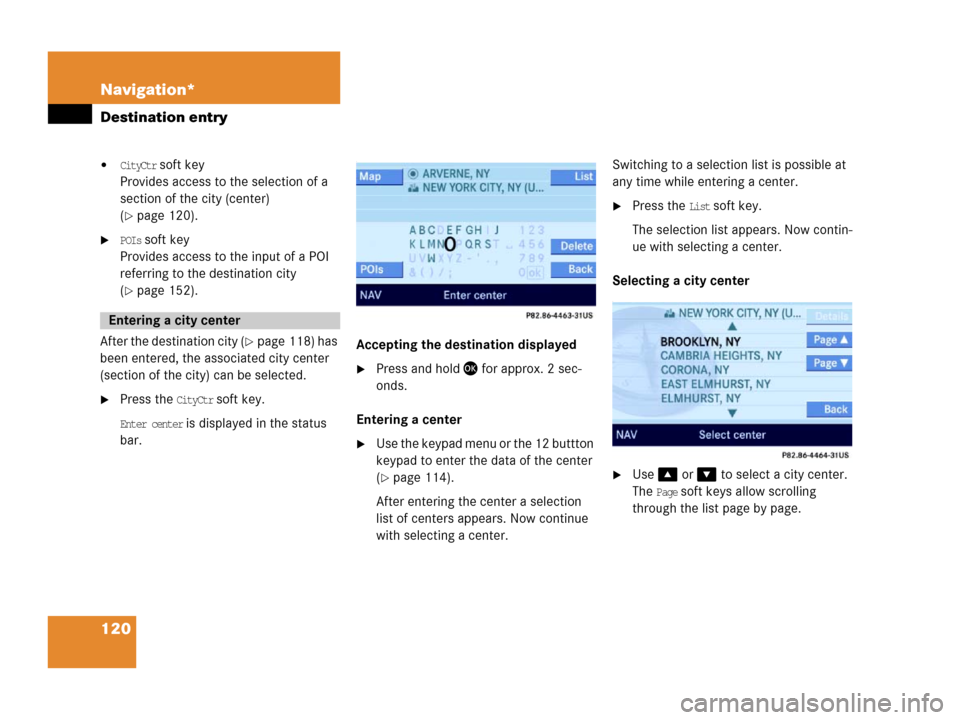
After the destination city (
�page 118) has
been entered, the associated city center
(section of the city) can be selected.
�Press the CityCtr soft key.
Enter center is displayed in the status
bar.
.
Accepting the destination displayed
�Press and hold for approx. 2 sec-
onds.
Entering a center
�Use the keypad menu or the 12 buttton
keypad to enter the data of the center
(
�page 114).
After entering the center a selection
list of centers appears. Now continue
with selecting a center.Switching to a selection list is possible at
any time while entering a center.
�Press the List soft key.
The selection list appears. Now contin-
ue with selecting a center.
Selecting a city center
.
�Use or to select a city center.
The
Page soft keys allow scrolling
through the list page by page.
Entering a city center
Page 122 of 185
121 Navigation*
Destination entry
�Press .
The Start Route Guidance menu
(
�page 130) appears.
The system accesses one of the following
menus after entering of a destination city
(
�page 118):
�For larger cities with more than 15
streets:
Enter Street menu.
�For smaller cities with up to 15 streets:
Select Street menu (
�page 121).
�If no streets are registered for the se-
lected city, or if a street extends
through several city centers:
Select City Center menu (
�page 120).
The appropriate menu can be identified
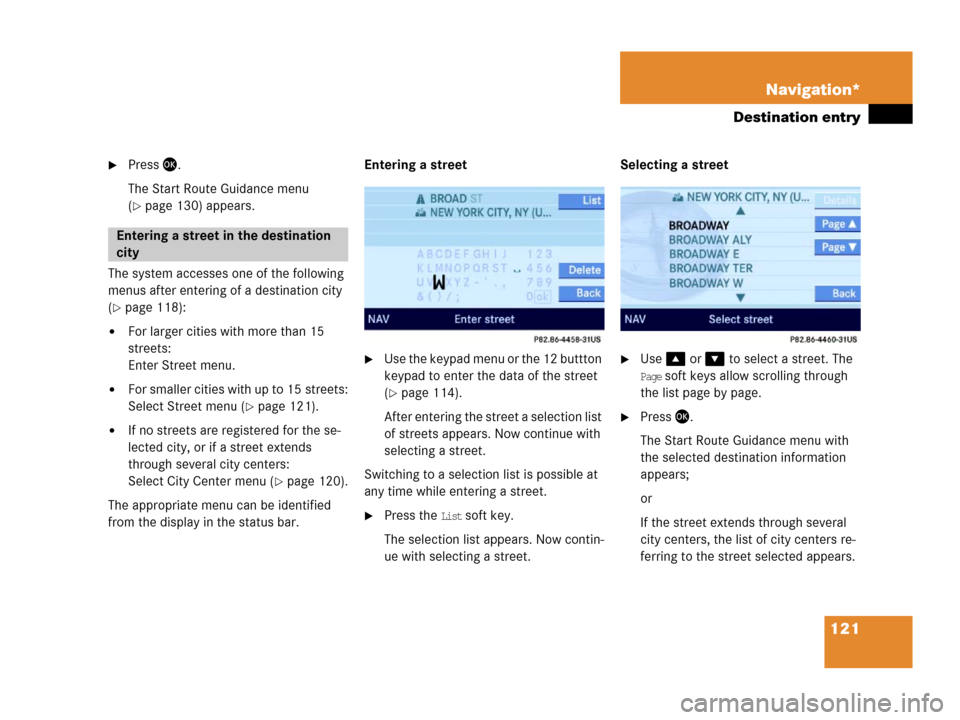
from the display in the status bar.Entering a street
�Use the keypad menu or the 12 buttton
keypad to enter the data of the street
(
�page 114).
After entering the street a selection list
of streets appears. Now continue with
selecting a street.
Switching to a selection list is possible at
any time while entering a street.
�Press the List soft key.
The selection list appears. Now contin-
ue with selecting a street.Selecting a street
�Use or to select a street. The
Page soft keys allow scrolling through
the list page by page.
�Press .
The Start Route Guidance menu with
the selected destination information
appears;
or
If the street extends through several
city centers, the list of city centers re-
ferring to the street selected appears.
Entering a street in the destination
city
Page 126 of 185
125 Navigation*
Destination entry
�Use or to select the sym-
bol and press.
The house number list appears. Now a
house number range can be selected.
Selecting a house number range
�Use or to select the desired
range of house numbers. The
Page soft
keys allow scrolling through the list
page by page.
�Press.
The Start Route Guidance menu
(
�page 130) appears.
Calling up the map display
�Press;
or
�Press the Map soft key if it appears in a
menu.
The map appears in full-screen display.
�If the soft key displays are hidden,
press any soft key.
The soft key displays appear.Selectable soft keys
�Coord. soft key
Allows entering a destination via geo
coordinates (
�page 127).
�Symbol soft key
Provides access to setting the symbols
display (
�page 142)
i
The symbol can only be selected if
the system recognized the house num-
ber.
ok
ok
Entering a destination using the map
i
If no soft key is selected within
approx. 8 seconds, the soft key dis-
plays will disappear.
��


