Page 102 of 185
101 Telephone*
SMS (Mail)
� SMS (Mail)
SMS messages can be received if your ve-
hicle is equipped with a telephone and
SMS messaging is available from your car-
rier.
Received messages are saved in the folder
SMS inbox.
�Open the Telephone main menu
(
�page 89).
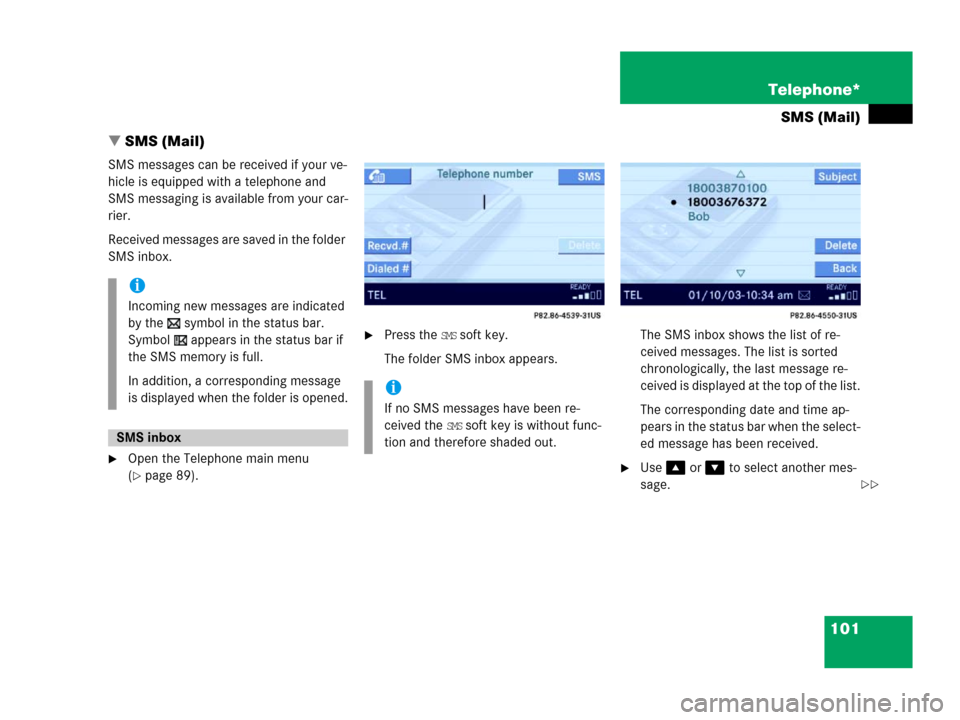
�Press the SMS soft key.
The folder SMS inbox appears.The SMS inbox shows the list of re-
ceived messages. The list is sorted
chronologically, the last message re-
ceived is displayed at the top of the list.
The corresponding date and time ap-
pears in the status bar when the select-
ed message has been received.
�Use or to select another mes-
sage.
i
Incoming new messages are indicated
by the symbol in the status bar.
Symbol appears in the status bar if
the SMS memory is full.
In addition, a corresponding message
is displayed when the folder is opened.
SMS inbox
i
If no SMS messages have been re-
ceived the
SMS soft key is without func-
tion and therefore shaded out.
��
Page 103 of 185
102 Telephone*
SMS (Mail)
The SMS inbox offers the following op-
tions:
�Switching between subject and sender.
�Reading a message (�page 102).
�Deleting a message (�page 103).
Switching between subject and sender
The SMS messages can be displayed with
the sender or the subject. In the SMS inbox
(
�page 101) you can either see the Subject
soft key or the
Sender soft key.
�Press the Subject soft key.
The first characters of the message
texts appears;
or
�Press the Sender soft key.
The name(s) or phone number(s) of the
message sender(s) appear(s).
�In the SMS inbox (�page 101),
use or to select a message.
�Press.
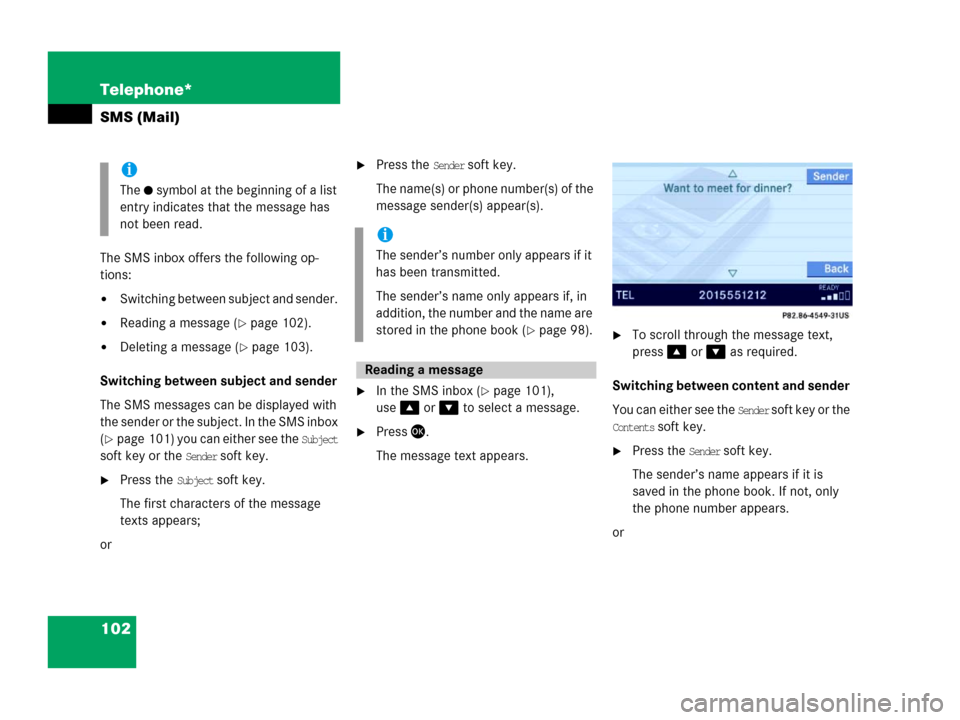
The message text appears.
�To scroll through the message text,
press or as required.
Switching between content and sender
You can either see the
Sender soft key or the
Contents soft key.
�Press the Sender soft key.
The sender’s name appears if it is
saved in the phone book. If not, only
the phone number appears.
or
i
The symbol at the beginning of a list
entry indicates that the message has
not been read.
i
The sender’s number only appears if it
has been transmitted.
The sender’s name only appears if, in
addition, the number and the name are
stored in the phone book (
�page 98).
Reading a message
Page 104 of 185
103 Telephone*
SMS (Mail)
�Press the Contents soft key.
The message text appears;
�To return to the SMS inbox press the
Back soft key.
�In the SMS inbox (�page 101),
use or to select the message
to be deleted.
�Press the Delete soft key.
A delete prompt is displayed.
�Use to select the menu item Yes.
�Press.
The message is now deleted.
�Press the Back soft key.
This returns you to the Telephone main
menu.
Deleting a message
Exiting from the SMS menu
Page 107 of 185
106 Navigation*
Important notes
Safety Instructions
WarningG
For safety reasons, you should only enter a
destination when the vehicle is stationary.
When the vehicle is in motion, a passenger
should enter the destination. Study manual
and select route before driving.
Do not watch display screen or operate but-
tons while the vehicle is in motion - let navi-
gation announcements guide you. Stop at a
safe location before using buttons or mak-
ing corrections.
Traffic regulations always have priority over
any route recommendations given.
Bear in mind that at a speed of just 30 mph
(approximately 50 km/h), your vehicle is
covering a distance of 44 feet (approximate-
ly 14 m) every second.
The route calculated by COMAND is a rec-
ommendation on how to best reach your se-
lected destination.
During route guidance, you will not receive
any information on
�Traffic lights
�Stop and yield signs
�Parking or stopping zones
�One-way streets
�Narrow bridges
�Similar traffic regulation data
You should therefore always strictly observe
traffic regulations while driving. Drive care-
fully and always obey traffic laws and road
signs even if they contradict COMAND in-
structions.
WarningG
The Navigation DVD module contains a
Class 1 laser product. There is a danger of
invisible laser radiation if the cover is
opened or damaged.
Do not remove the cover. The Navigation
DVD module does not contain any parts
which can be serviced by the user. For safe-
ty reasons, have any service work which
may be necessary performed only by quali-
fied personnel.
Page 108 of 185

107 Navigation*
Important notes
COMAND calculates the route with the
help of data that is stored on the naviga-
tion DVD.
Only use Mercedes-Benz navigation DVDs
designed for the E-Class (211) COMAND
system. No other CDs or DVDs will work.
Using other navigation CDs or DVDs might
lead to malfunctions.
Because of changes in local traffic patterns
(e.g. road works) and/or incomplete data,
errors in calculation may occur.
As a result, the recommended route may
deviate from the ideal route. The data
stored on the DVD only reflects local con-
ditions at the time of DVD production. DVD
maps do not cover all areas nor all routes
within an area.The DVD is loaded into (and ejected from)
the navigation module.
The navigation module is mounted on the
left-hand side of the trunk.
1Ejecting DVDs
2DVD slotLoading
�Insert the DVD into the DVD slot 2
with the label facing up.
The navigation computer pulls the DVD
in.
Ejecting
�Press and wait until the navigation
computer ejects the DVD.
Navigation DVDLoading/ejecting the DVD i
Your Navigation DVD drive has been
designed to play DVDs which corre-
spond to the IEC 60908 standard.
If you insert thicker data carriers, e.g.
ones that have data on both sides (one
side with DVD data, the other side with
audio data), they cannot be ejected
and will damage the drive.
Page 109 of 185
108 Navigation*
Important notes
The navigation DVD covers the continental
U.S., Hawaii and Canada.
Contact your Mercedes-Benz Center or the
Customer Assistance Center in the U.S. at
1-800-FOR-MERCedes (1-800-367-6372)
or in Canada at 1-800-387-0100 for other
DVDs that may be available.
�Change the navigation DVD
(
�page 107).
T
If your vehicle has been transported by a
car, train or ferry, COMAND may require
some time to find its exact position.
COMAND may issue navigation announce-
ments not suited to your actual position. Moving the vehicle a few yards is typically
enough to remedy the situation.
While determining the exact position ,
route guidance is subject to the following
restrictions:
�COMAND does not output navigation
announcements.
�The display OFF ROAD and an arrow indi-
cating the direction of the destination
appear instead of the detailed naviga-
tion displays.
Once the system is correctly repositioned,
route guidance continues with navigation
announcements and detailed navigation
displays.
Travelling abroad
Route guidance with GPS
i
GPS (Global Positioning System) sig-
nals received make it possible to deter-
mine the current vehicle position.
i
Deviations from the actual position
may occur
�if the reception of GPS signals is
disturbed e. g. in parking garages
and tunnels
�if road conditions are bad
�depending on the vehicle’s condi-
tion
Route guidance after vehicle trans-
port
i
The navigation DVD must be loaded in
the navigation computer (
�page 107).
Page 111 of 185
110 Navigation*
Navigation main menu
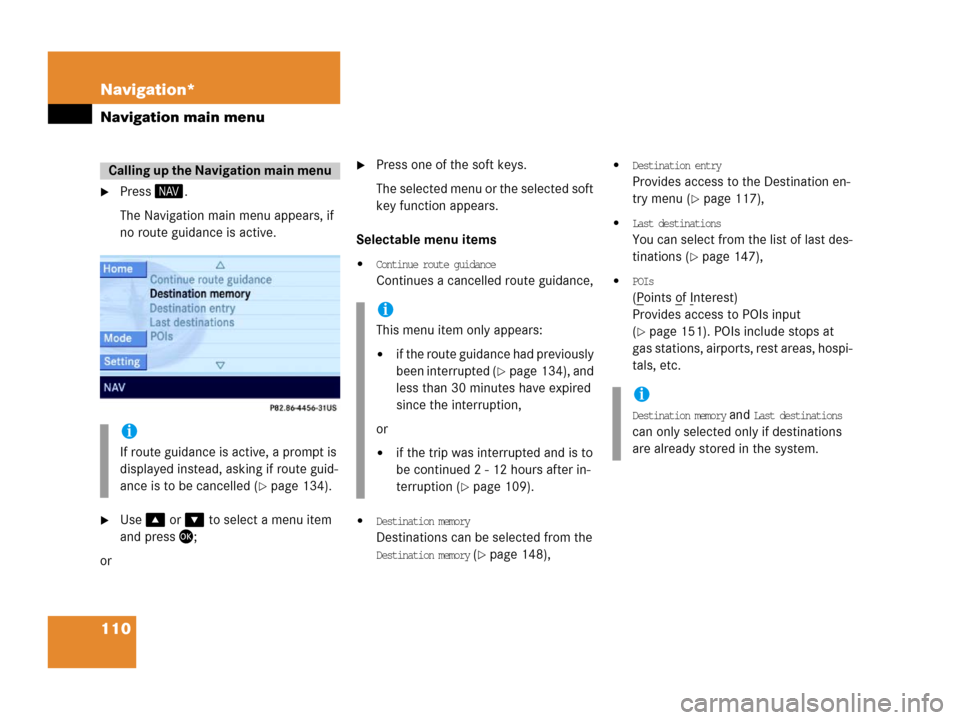
�Press .
The Navigation main menu appears, if
no route guidance is active.
�Use or to select a menu item
and press;
or
�Press one of the soft keys.
The selected menu or the selected soft
key function appears.
Selectable menu items
�Continue route guidance
Continues a cancelled route guidance,
�Destination memory
Destinations can be selected from the
Destination memory (�page 148),
�Destination entry
Provides access to the Destination en-
try menu (
�page 117),
�Last destinations
You can select from the list of last des-
tinations (
�page 147),
�POIs
(Points of Interest)
Provides access to POIs input
(
�page 151). POIs include stops at
gas stations, airports, rest areas, hospi-
tals, etc.
Calling up the Navigation main menu
i
If route guidance is active, a prompt is
displayed instead, asking if route guid-
ance is to be cancelled (
�page 134).
i
This menu item only appears:
�if the route guidance had previously
been interrupted (
�page 134), and
less than 30 minutes have expired
since the interruption,
or
�if the trip was interrupted and is to
be continued 2 - 12 hours after in-
terruption (
�page 109).
i
Destination memory and Last destinations
can only selected only if destinations
are already stored in the system.
Page 113 of 185
112 Navigation*
Navigation main menu
Setting bass/treble
�Press the Bass or Treble soft key in the
Setting menu.
�Press or .
The cursor moves horizontally, adjust-
ing bass or treble accordingly.
�Press or the Back soft key,
or
�Wait until the display changes.
The new setting is stored and activat-
ed.
Setting balance and fader
�Press the Bal/Fad soft key in the Setting
menu.
A cross-hair cursor appears. The verti-
cal line represents the balance setting.
The horizontal line represents the fader
setting.
�Press or .
The vertical line moves, adjusting the
balance accordingly,
or
�Press or .
The horizontal line moves, adjusting
the fader accordingly.
�Press or the Back soft key,
or
�Wait until the display changes.
The new setting is stored and activat-
ed.Adjusting the volume
Automatically generated navigation an-
nouncements are superimposed over any
other active audio source. The volume dif-
ference is adjustable. This setting serves
to lower the volume of the currently active
audio source while the announcement is
being made.
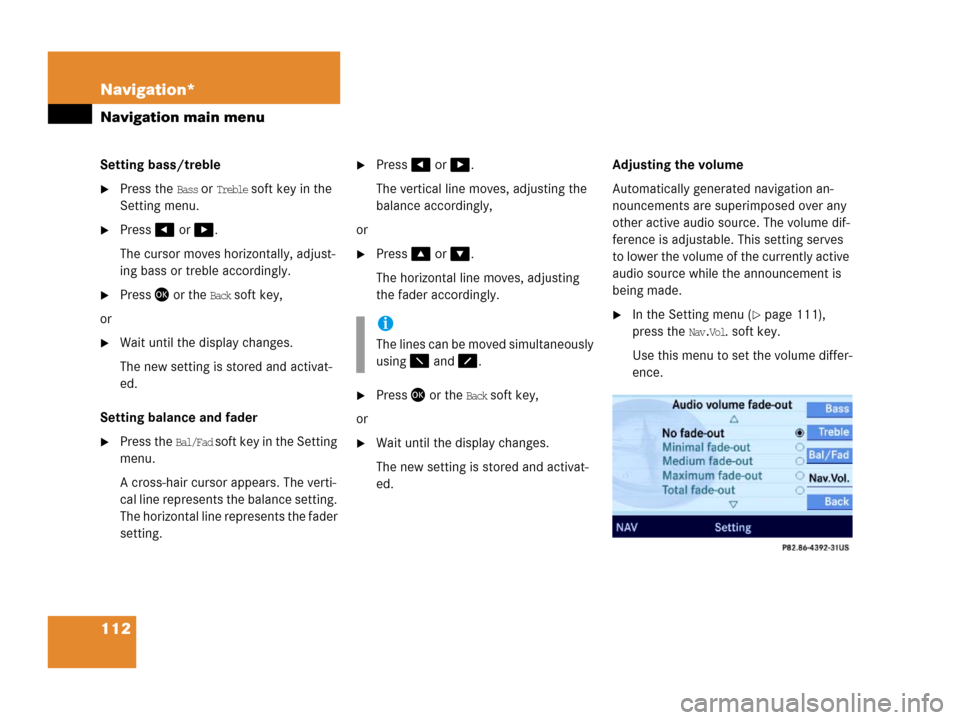
�In the Setting menu (�page 111),
press the
Nav.Vol. soft key.
Use this menu to set the volume differ-
ence.i
The lines can be moved simultaneously
using and .