Page 78 of 202
MAKING THE SYSTEM GUIDE THE
ROUTE WITH DETAILED OPTIONSBy choosing the destination from the menu, you
can choose detailed options such as waypoints
and calculation conditions and have the system
guide you from the current position to the des-
tination.Setting the destinationFirst, you will have to set the destination.
1. Select a destination using one of the meth-
ods described earlier in this chapter:— Address Book
— Previous Destination
— Street Address
— Intersection
— Point of Interest (POI)
— City
— Phone Number
— Map
— Home
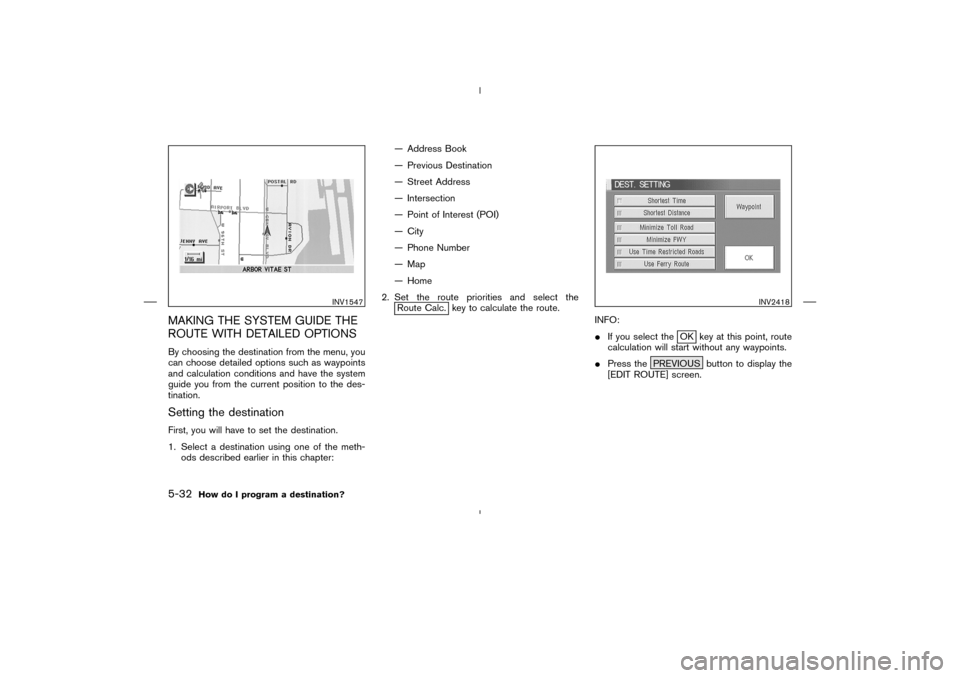
2. Set the route priorities and select the
Route Calc. key to calculate the route.
INFO:
�If you select the
OK key at this point, route
calculation will start without any waypoints.
�Press the PREVIOUS button to display the
[EDIT ROUTE] screen.
INV1547
INV2418
5-32
How do I program a destination?
�
04.7.6/Z33-N
�
Page 92 of 202
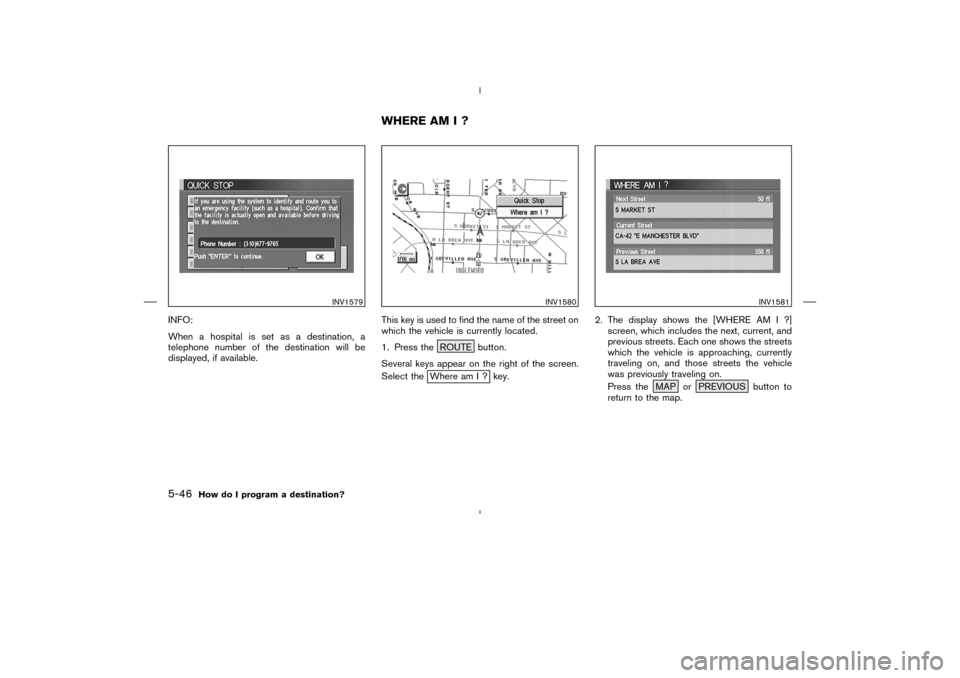
INFO:
When a hospital is set as a destination, a
telephone number of the destination will be
displayed, if available.This key is used to find the name of the street on
which the vehicle is currently located.
1. Press the ROUTE button.
Several keys appear on the right of the screen.
Select the
Where am I ? key.2. The display shows the [WHERE AM I ?]
screen, which includes the next, current, and
previous streets. Each one shows the streets
which the vehicle is approaching, currently
traveling on, and those streets the vehicle
was previously traveling on.
Press the MAP or PREVIOUS button to
return to the map.
INV1579
INV1580
INV1581
WHERE AM I ?
5-46
How do I program a destination?
�
04.7.6/Z33-N
�
Page 96 of 202
![NISSAN 350Z 2005 Z33 Navigation Manual 3. When a facility name is selected, the display
shows the [DEST. SETTING (POI)] screen to
set the destination.
To set priorities, select the
OK key. Then,
the route calculation will be started.
When](/manual-img/5/685/w960_685-95.png "NISSAN 350Z 2005 Z33 Navigation Manual 3. When a facility name is selected, the display
shows the [DEST. SETTING (POI)] screen to
set the destination.
To set priorities, select the
OK key. Then,
the route calculation will be started.
When")
3. When a facility name is selected, the display
shows the [DEST. SETTING (POI)] screen to
set the destination.
To set priorities, select the
OK key. Then,
the route calculation will be started.
When you alter the destination or set way-
points, select the
Waypoint key.
Please refer to “Making the system guide the
route with detailed options” on page 5-32.�When the
Info key next to the facility name
of your choice is selected in step 2, the
display shows the detailed [Address] and
[Telephone number] of the selected facility,
and theMap and
Enter keys.�When setting the facility as the destination,
select the
Enter key. The display shows the
[DEST. SETTING (POI)] screen to set the
destination.
Set priorities and select the
OK key. Then,
the route calculation will be started.
When you alter the destination or set way-
points, select the
Waypoint key.
Please refer to “Making the system guide the
route with detailed options” on page 5-32.
INV2422
INV2423
INV2422
6-4
How do I use the Point of Interest (POI) feature?
�
04.7.6/Z33-N
�
Page 105 of 202
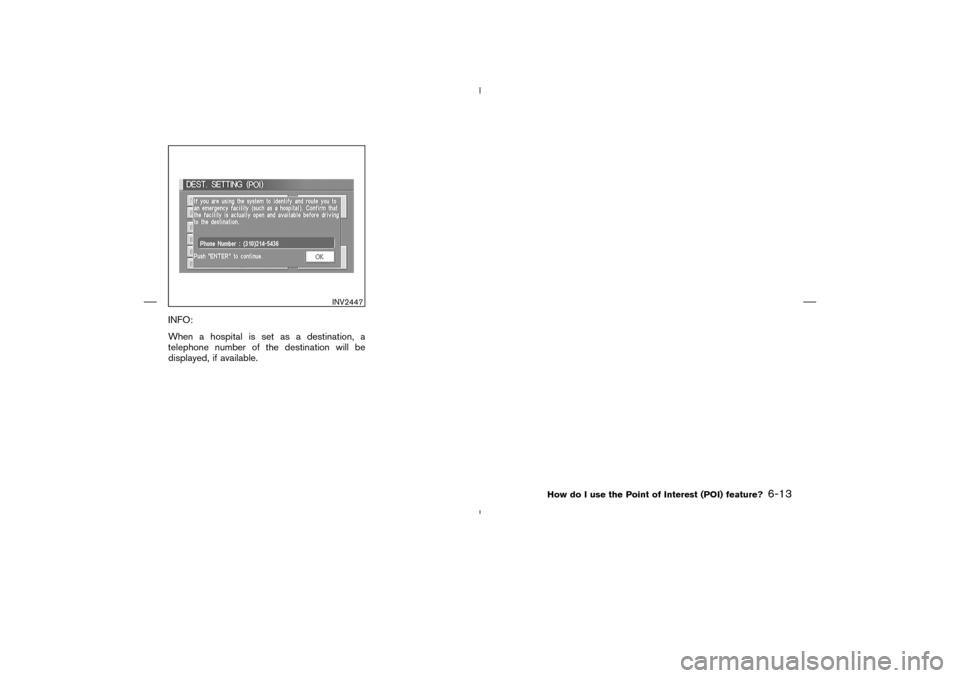
INFO:
When a hospital is set as a destination, a
telephone number of the destination will be
displayed, if available.
INV2447
How do I use the Point of Interest (POI) feature?
6-13
�
04.7.6/Z33-N
�
Page 110 of 202
You can store locations in the address book for
quicker access, or name the location and set a
special icon on the map.You can store your favorite places or the places
you frequently visit. By storing them, you can
retrieve them quickly on the display, enabling
easier setting of these destinations.
USING VARIOUS CATEGORIES TO
STORE LOCATIONSYou can choose various categories in the menu
to store the locations. The categories are: Street
Address, Points of Interest (POI), Phone Num-
ber, Map, Intersection, City and Previous Dest.
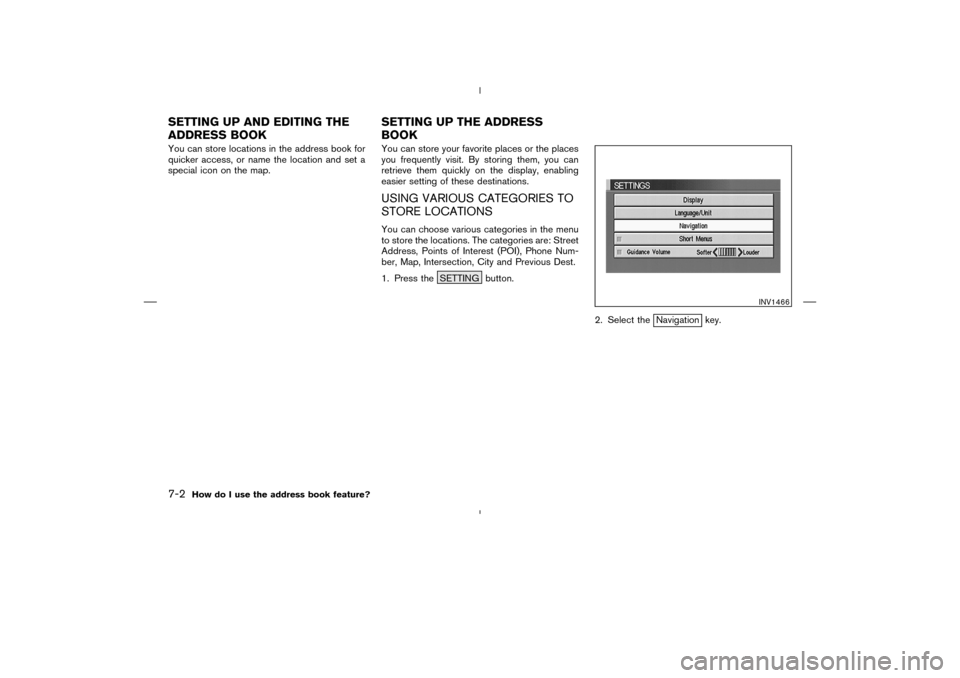
1. Press the SETTING button.
2. Select the
Navigation key.
INV1466
SETTINGUP AND EDITINGTHE
ADDRESS BOOKSETTINGUP THE ADDRESS
BOOK7-2
How do I use the address book feature?
�
04.7.6/Z33-N
�
Page 180 of 202
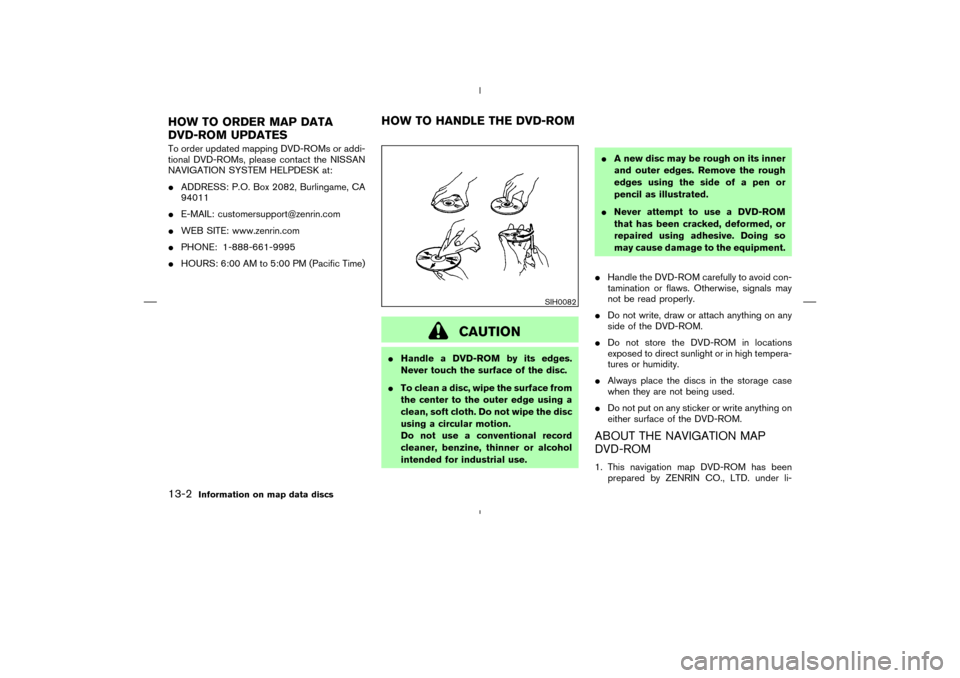
To order updated mapping DVD-ROMs or addi-
tional DVD-ROMs, please contact the NISSAN
NAVIGATION SYSTEM HELPDESK at:
�ADDRESS: P.O. Box 2082, Burlingame, CA
94011
�E-MAIL: [email protected]
�WEB SITE: www.zenrin.com
�PHONE: 1-888-661-9995
�HOURS: 6:00 AM to 5:00 PM (Pacific Time)
CAUTION
�Handle a DVD-ROM by its edges.
Never touch the surface of the disc.
�To clean a disc, wipe the surface from
the center to the outer edge using a
clean, soft cloth. Do not wipe the disc
using a circular motion.
Do not use a conventional record
cleaner, benzine, thinner or alcohol
intended for industrial use.�A new disc may be rough on its inner
and outer edges. Remove the rough
edges using the side of a pen or
pencil as illustrated.
�Never attempt to use a DVD-ROM
that has been cracked, deformed, or
repaired using adhesive. Doing so
may cause damage to the equipment.
�Handle the DVD-ROM carefully to avoid con-
tamination or flaws. Otherwise, signals may
not be read properly.
�Do not write, draw or attach anything on any
side of the DVD-ROM.
�Do not store the DVD-ROM in locations
exposed to direct sunlight or in high tempera-
tures or humidity.
�Always place the discs in the storage case
when they are not being used.
�Do not put on any sticker or write anything on
either surface of the DVD-ROM.
ABOUT THE NAVIGATION MAP
DVD-ROM1. This navigation map DVD-ROM has been
prepared by ZENRIN CO., LTD. under li-
SIH0082
HOW TO ORDER MAP DATA
DVD-ROM UPDATESHOW TO HANDLE THE DVD-ROM13-2
Information on map data discs
�
04.7.6/Z33-N
�
Page 201 of 202

Address Book key........................................... 5-3Adjust Current Location key.................... 11-19All Clear key ................................................... 5-42Area key ................................................. 8-4, 8-10Auto Re-route On/Off key ............................ 9-2Avoid Area Setting key .................................. 8-2Avoid the Current Street key ....................... 9-4Avoid Freeway key .............................. 8-4, 8-10Birdview key ................................................... 11-5Brightness/Contrast/Map Backgroundkey .................................................................... 11-22Button Tone/Beep Response key ......... 11-20Category key .................................................... 6-5Cancel Simulation key .............................. 11-15City key (DEST. SETTING) ........................ 5-21Clear Memory key......................................... 4-21Complete route key ................................... 11-11Country key .................................................... 5-29Destination key .............................................. 5-31Display key ................................................... 11-21Display Off key ........................................... 11-26
key................................................ 5-33
Detour key ......................................................... 9-4Edit Address Book key .................................. 7-3Edit Route key.................................................. 9-4GPS information key ................................. 11-18Guidance Volume key ................................. 10-2Heading key ................................................... 11-8Heading up key ............................................. 11-8Home key........................................................ 5-30I AGREE key .................................................. 4-17Intersection key ............................................. 5-14Landmark Icon key ....................................... 7-11Language/Unit key .......................................... 4-9Louder key ...................................................... 10-2Map key........................................................... 5-28Minimize FWY key ........................................ 5-35Minimize Toll Road key ............................... 5-35Navigation key ............................................... 4-10Nearby key...................................................... 6-12Nearby Display Icons key ........................... 6-15North up key .................................................. 11-8
Pause key ..................................................... 11-15Phone Number key....................................... 5-25Plan View key ................................................ 11-5Point of Interest (POI) key ............................ 6-2Previous Dest. key .......................................... 5-5Priorities key................................................... 5-34Quick Stop key ............................................. 5-43Quick Stop Customer Settings key......... 5-45Rename key ............................................. 7-9, 8-6Return All Settings to Default key .......... 4-23Route Calc. key............................................. 5-36Route Info key ............................................... 4-14Route Simulation key ................................ 11-13Save Current Location key ........................... 7-5Set Average Speed for Estimated Journey Timekey....................................................................... 4-23Setting Display Duration key................... 11-28Short Menus key ............................................. 3-4Shortest Distance key ................................. 5-35Shortest Time key......................................... 5-35Softer key ....................................................... 10-2
KEY
15-3
�
04.7.6/Z33-N
�