2005 CHEVROLET EQUINOX reset
[x] Cancel search: resetPage 162 of 364
Then as you drive, automatic volume increases the
volume, as necessary, to overcome noise at any speed.
The volume level should always sound the same to
you as you drive. AUTO VOL NONE will appear on the
display if the radio cannot determine the vehicle
speed or if the engine is not running. To turn off
automatic volume, press this button until AUTO VOL
OFF appears on the display.
DISP (Display):For RDS, press this knob to change
what appears on the display while using RDS. The
display options are station name, RDS station frequency,
PTY, and the name of the program (if available).
For XM™ (if equipped), press the DISP knob while in
XM™ mode to retrieve four different categories of
information related to the current song or channel: Artist,
Song Title, Category or PTY, Channel Number/
Channel Name.
Finding a Station
BAND:Press this button to switch between FM1, FM2,
AM, or XM1 or XM2 (if equipped). The display will
show the selection.
ADJ (Adjust):Turn this knob to select radio stations.
xSEEKw:Press the down or up arrow to go to the
previous or to the next station and stay there.To scan stations, press and hold either arrow for
two seconds until SCAN appears on the display and you
hear a beep. The radio will go to a station, play for a
few seconds, then go on to the next station. Press either
arrow again to stop scanning. If no station can be found
during scan, NOT FOUND will appear on the display and
the radio will go back to the last tuned station.
The radio will only seek and scan stations with a strong
signal that are in the selected band.
Setting Preset Stations
Up to 30 stations (six FM1, six FM2, and six AM,
six XM1 and six XM2 (if equipped)), can be programmed
on the six numbered pushbuttons, by performing the
following steps:
1. Turn the radio on.
2. Press BAND to select FM1, FM2, AM, or XM1
or XM2.
3. Tune in the desired station.
4. Press AUTO EQ to select the equalization.
5. Press and hold one of the six numbered
pushbuttons until you hear a beep. Whenever that
numbered pushbutton is pressed, the station
that was set will return and the equalization that
was selected will be stored for that pushbutton.
6. Repeat the steps for each pushbutton.
3-52
Page 166 of 364
XM™ Radio Messages
Radio Display
MessageCondition Action Required
XL (Explicit Language
Channels)XL on the radio display,
after the channel name,
indicates content with
explicit language.These channels, or any others, can be blocked at a
customer’s request, by calling 1-800-852-XMXM (9696).
Updating Updating encryption code The encryption code in the receiver is being updated, and
no action is required. This process should take no longer
than 30 seconds.
No Signal Loss of signal The system is functioning correctly, but the vehicle is in a
location that is blocking the XM™ signal. When you move
into an open area, the signal should return.
Loading XM Acquiring channel audio
(after 4 second delay)The audio system is acquiring and processing audio and
text data. No action is needed. This message should
disappear shortly.
Off Air Channel not in service This channel is not currently in service. Tune to another
channel.
CH Unavl Channel no longer
availableThis previously assigned channel is no longer assigned.
Tune to another station. If this station was one of the
presets, choose another station for that preset button.
No Info Artist Name/Feature not
availableNo artist information is available at this time on this
channel. The system is working properly.
No Info Song/Program Title not
availableNo song title information is available at this time on this
channel. The system is working properly.
3-56
Page 177 of 364
Finding a Station
BAND:Press this button to switch between FM1, FM2,
AM, or XM1 or XM2 (if equipped). The display will
show the selection.
ADJ (Adjust):Turn this knob to select radio stations.
xSEEKw:Press the down or up arrow to go to the
next or to the previous station and stay there.
To scan stations, press and hold either arrow for
two seconds until SCAN appears on the display and
you hear a beep. The radio will go to a station, play for
a few seconds, then go on to the next station. Press
either arrow again to stop scanning. If no station can be
found during scan, NOT FOUND will appear on the
display and the radio will go back to the last tuned
station.
To scan preset stations, press and hold either arrow for
more than four seconds until you hear two beeps.
The radio will go to the rst preset station stored on the
pushbuttons, play for a few seconds, then go on to
the next preset station. Press either arrow again to stop
scanning presets.
The radio will only seek and scan stations with a strong
signal that are in the selected band.
Setting Preset Stations
Up to 30 stations (six FM1, six FM2, and six AM,
six XM1 and six XM2 (if equipped)), can be programmed
on the six numbered pushbuttons, by performing the
following steps:
1. Turn the radio on.
2. Press BAND to select FM1, FM2, AM, or XM1
or XM2.
3. Tune in the desired station.
4. Press AUTO EQ to select the equalization.
5. Press and hold one of the six numbered
pushbuttons until you hear a beep. Whenever that
numbered pushbutton is pressed, the station
that was set will return and the equalization that
was selected will be stored for that pushbutton.
6. Repeat the steps for each pushbutton.
3-67
Page 181 of 364
XM™ Radio Messages
Radio Display
MessageCondition Action Required
XL (Explicit Language
Channels)XL on the radio display,
after the channel name,
indicates content with
explicit language.These channels, or any others, can be blocked at a
customer’s request, by calling 1-800-852-XMXM (9696).
Updating Updating encryption code The encryption code in the receiver is being updated, and
no action is required. This process should take no longer
than 30 seconds.
No Signal Loss of signal The system is functioning correctly, but the vehicle is in a
location that is blocking the XM™ signal. When the vehicle
is moved into an open area, the signal should return.
Loading XM Acquiring channel audio
(after 4 second delay)The audio system is acquiring and processing audio and
text data. No action is needed. This message should
disappear shortly.
Off Air Channel not in service This channel is not currently in service. Tune to another
channel.
CH Unavl Channel no longer
availableThis previously assigned channel is no longer assigned.
Tune to another station. If this station was one of the
presets, choose another station for that preset button.
No Info Artist Name/Feature not
availableNo artist information is available at this time on this
channel. The system is working properly.
No Info Song/Program Title not
availableNo song title information is available at this time on this
channel. The system is working properly.
3-71
Page 188 of 364
Theft-Deterrent Feature
THEFTLOCK®is designed to discourage theft of your
vehicle’s radio. The feature works automatically by
learning a portion of the Vehicle Identication
Number (VIN). If the radio is moved to a different
vehicle, it will not operate and LOCKED will appear on
the display.
With THEFTLOCK
®activated, the radio will not operate
if stolen.
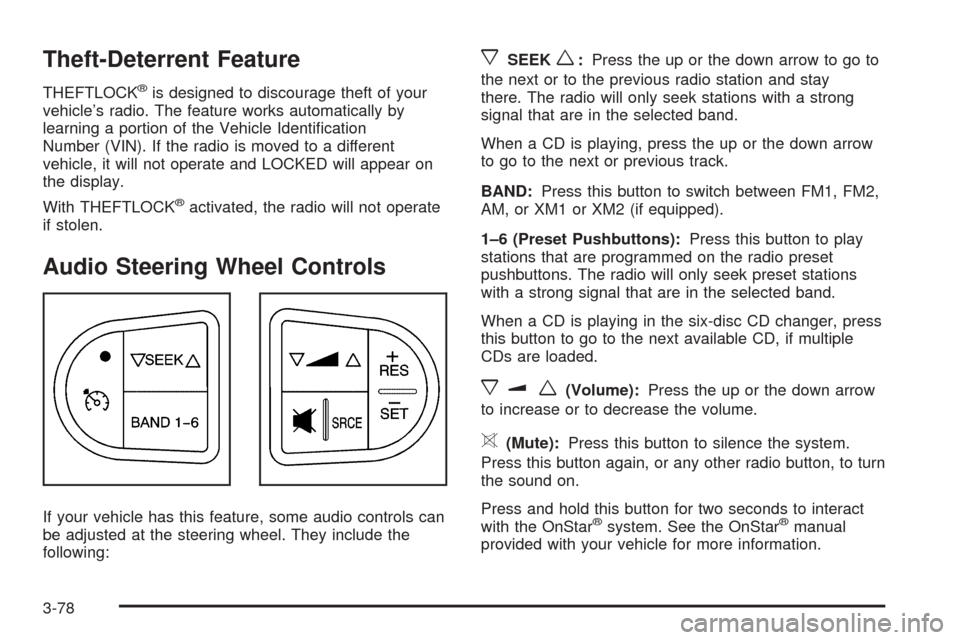
Audio Steering Wheel Controls
If your vehicle has this feature, some audio controls can
be adjusted at the steering wheel. They include the
following:
xSEEKw:Press the up or the down arrow to go to
the next or to the previous radio station and stay
there. The radio will only seek stations with a strong
signal that are in the selected band.
When a CD is playing, press the up or the down arrow
to go to the next or previous track.
BAND:Press this button to switch between FM1, FM2,
AM, or XM1 or XM2 (if equipped).
1–6 (Preset Pushbuttons):Press this button to play
stations that are programmed on the radio preset
pushbuttons. The radio will only seek preset stations
with a strong signal that are in the selected band.
When a CD is playing in the six-disc CD changer, press
this button to go to the next available CD, if multiple
CDs are loaded.
xuw(Volume):Press the up or the down arrow
to increase or to decrease the volume.
>(Mute):Press this button to silence the system.
Press this button again, or any other radio button, to turn
the sound on.
Press and hold this button for two seconds to interact
with the OnStar
®system. See the OnStar®manual
provided with your vehicle for more information.
3-78
Page 250 of 364
Engine Oil Life System
When to Change Engine Oil
Your vehicle has a computer system that lets you know
when to change the engine oil and lter. This is
based on engine revolutions and engine temperature,
and not on mileage. Based on driving conditions,
the mileage at which an oil change will be indicated can
vary considerably. For the oil life system to work
properly, you must reset the system every time the oil is
changed.
When the system has calculated that oil life has been
diminished, it will indicate that an oil change is
necessary. A change engine oil light will come on.
Change your oil as soon as possible within the next
600 miles (1 000 km). It is possible that, if you are
driving under the best conditions, the oil life system may
not indicate that an oil change is necessary for over a
year. However, your engine oil and lter must be
changed at least once a year and at this time the system
must be reset. Your dealer has GM-trained people
who will perform this work using genuine GM parts and
reset the system. It is also important to check your
oil regularly and keep it at the proper level.
If the system is ever reset accidentally, you must
change your oil at 3,000 miles (5 000 km) since your
last oil change. Remember to reset the oil life system
whenever the oil is changed.
How to Reset the Engine Oil Life
System
The Engine Oil Life System calculates when to change
your engine oil and lter based on vehicle use.
Anytime your oil is changed, reset the system so it can
calculate when the next oil change is required. If a
situation occurs where you change your oil prior to a
change engine oil light being turned on, reset the
system.
1. Turn the ignition key to RUN with the engine off.
2. Fully press and release the accelerator pedal
three times within ve seconds.
The change engine oil light will ash while the
system is resetting.
3. Turn the key to LOCK.
If the change engine oil light comes back on and stays
on when you start your vehicle, the engine oil life
system has not reset. Repeat the procedure.
5-16
Page 260 of 364
Overheated Engine Protection
Operating Mode
This emergency operating mode allows your vehicle to
be driven to a safe place in an emergency situation.
If an overheated engine condition exists, an overheat
protection mode which alternates ring groups of
cylinders helps prevent engine damage. In this mode,
you will notice a signicant loss in power and engine
performance. The temperature gage will indicate
an overheat condition exists. Driving extended
miles (km) and/or towing a trailer in the overheat
protection mode should be avoided.
Notice:After driving in the overheated engine
protection operating mode, to avoid engine damage,
allow the engine to cool before attempting any
repair. The engine oil will be severely degraded.
Repair the cause of coolant loss, change the oil and
reset the oil life system. SeeEngine Oil on
page 5-13.
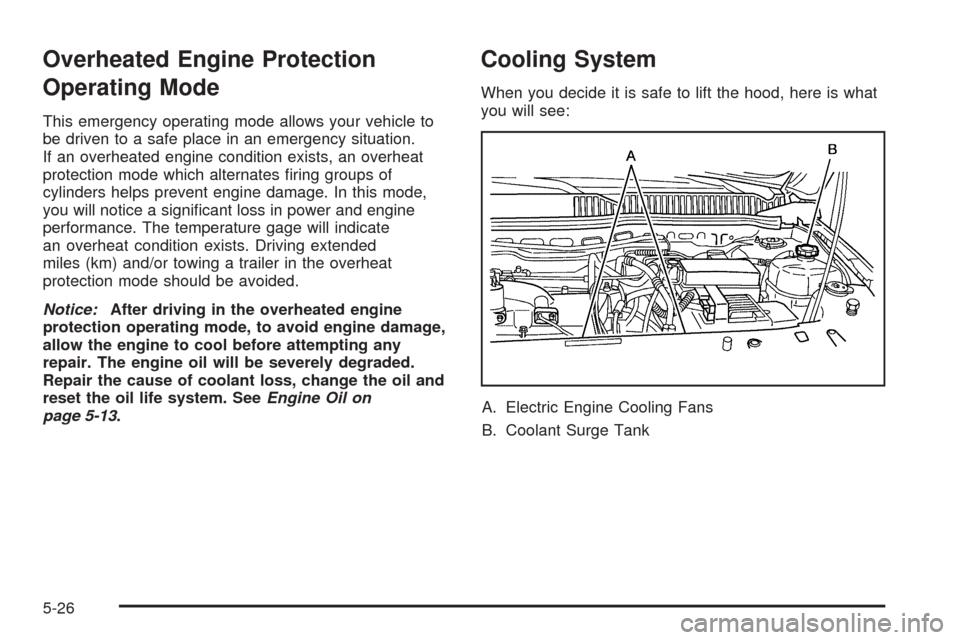
Cooling System
When you decide it is safe to lift the hood, here is what
you will see:
A. Electric Engine Cooling Fans
B. Coolant Surge Tank
5-26
Page 328 of 364
If you want to purchase service information, seeService
Publications Ordering Information on page 7-11.
Owner Checks and Services on page 6-8tells you what
should be checked, when to check it and what you
can easily do to help keep your vehicle in good
condition.
The proper replacement parts, uids and lubricants to
use are listed inRecommended Fluids and Lubricants
on page 6-12andNormal Maintenance Replacement
Parts on page 6-13. When your vehicle is serviced,
make sure these are used. All parts should be replaced
and all necessary repairs done before you or anyone
else drives the vehicle. We recommend the use of
genuine GM parts.
Scheduled Maintenance
When the change engine oil message comes on, it
means that service is required for your vehicle. Have
your vehicle serviced as soon as possible within the next
600 miles (1 000 km). It is possible that, if you are
driving under the best conditions, the engine oil
life system may not indicate that vehicle service is
necessary for over a year. However, your engine oil and
lter must be changed at least once a year and at
this time the system must be reset. Your GM
Goodwrench
®dealer has GM-trained service technicians
who will perform this work using genuine GM parts
and reset the system.If the engine oil life system is ever reset accidentally,
you must service your vehicle within 3,000 miles
(5 000 km) since your last service. Remember to reset
the oil life system whenever the oil is changed. See
Engine Oil Life System on page 5-16for information on
the Engine Oil Life System and resetting the system.
When the change engine oil message appears, certain
services, checks, and inspections are required.
Required services are described in the following for
“MaintenanceI” and “MaintenanceII.” Generally,
it is recommended that your rst service be
MaintenanceI, your second service be MaintenanceII,
and that you alternate MaintenanceIand MaintenanceII
thereafter. However, in some cases, MaintenanceII
may be required more often.
MaintenanceI— Use MaintenanceIif the change
engine oil message comes on within 10 months since
the vehicle was purchased or MaintenanceIIwas
performed.
MaintenanceII— Use MaintenanceIIif the previous
service performed was MaintenanceI. Always use
MaintenanceIIwhenever the message comes on
10 months or more since the last service or if the
message has not come on at all for one year.
6-4