Page 30 of 168
29 At a glance
Quick reference COMAND
Setting the volume �
Turn the rotary control
located on
the COMAND control unit,
or
�
Pressæ or ç on the multifunc-
tion steering wheel
The volume changes up or down, de-
pending on the direction of rotation or
which button was pressed.The system stores the volume settings
when the device is switched OFF.
After switching the system back on again,
the volume may be lower than at the time
when the system was switched off.
This could be the case if�
the system was switched off for more
than 15 minutes, and
�
the volume had been set to a value in a
certain range at the time the device
was switched OFF.
Automatic volume control
The automatic volume control adjusts the
volume depending on
�
the vehicle’s speed (only in vehicles
without Sound-system*),
or on
the interior ambient noises of the vehi-
cle (only in vehicles with Sound-sys-
tem*)
�
other parameters (e.g. windows open
or closed)A common balance and fader setting ap-
plies to the following operating modes:
�
Radio
�
Single CD
�
CD changer*
�
AUX
�
Satellite radio*
When adjusting the balance or the fader,
the system automatically stores the set-
ting for the currently active operating
mode.Balance and faderiFor navigation* a different balance/
fader setting is possible. You find the
description under “Adjusting the
acoustics for navigation announce-
ments” (
�page 99).
Page 31 of 168
30 At a glanceQuick reference COMANDSetting balance/fader�
Open the main menu of the appropriate
operating mode (
�page 25).
�
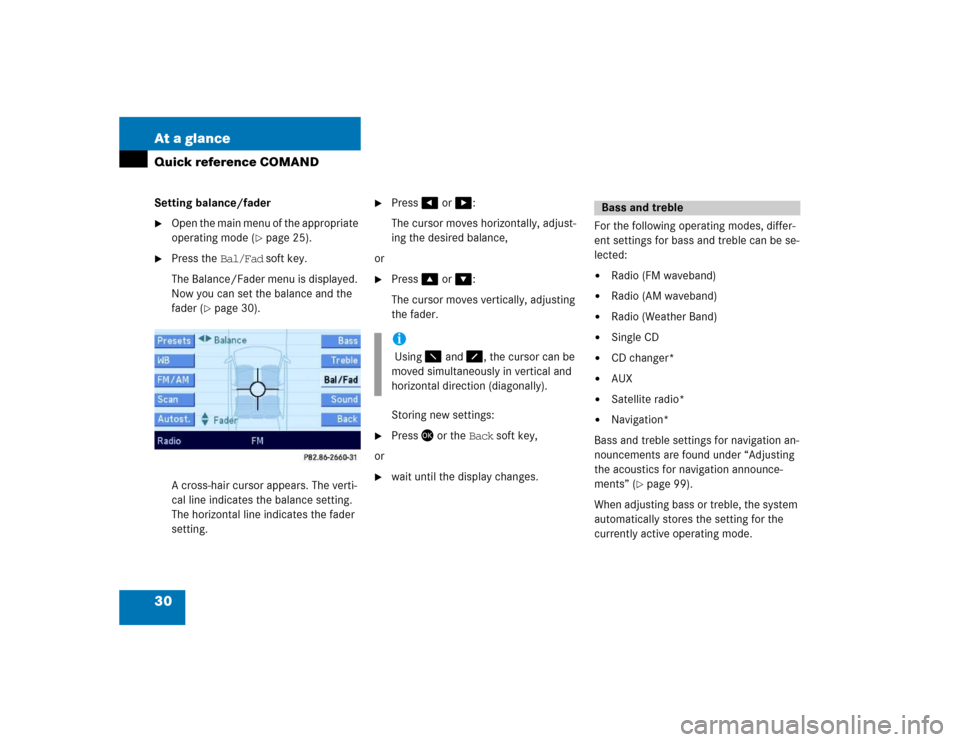
Press the Bal/Fad soft key.
The Balance/Fader menu is displayed.
Now you can set the balance and the
fader (
�page 30).
A cross-hair cursor appears. The verti-
cal line indicates the balance setting.
The horizontal line indicates the fader
setting.
�
Press� or �:
The cursor moves horizontally, adjust-
ing the desired balance,
or
�
Press� or �:
The cursor moves vertically, adjusting
the fader.
Storing new settings:
�
Press� or the Back soft key,
or
�
wait until the display changes.For the following operating modes, differ-
ent settings for bass and treble can be se-
lected:
�
Radio (FM waveband)
�
Radio (AM waveband)
�
Radio (Weather Band)
�
Single CD
�
CD changer*
�
AUX
�
Satellite radio*
�
Navigation*
Bass and treble settings for navigation an-
nouncements are found under “Adjusting
the acoustics for navigation announce-
ments” (
�page 99).
When adjusting bass or treble, the system
automatically stores the setting for the
currently active operating mode.
i Using � and �, the cursor can be
moved simultaneously in vertical and
horizontal direction (diagonally).
Bass and treble
Page 32 of 168
31 At a glance
Quick reference COMAND
Setting bass and treble�
Open the main menu of the appropriate
operating mode (
�page 25).
�
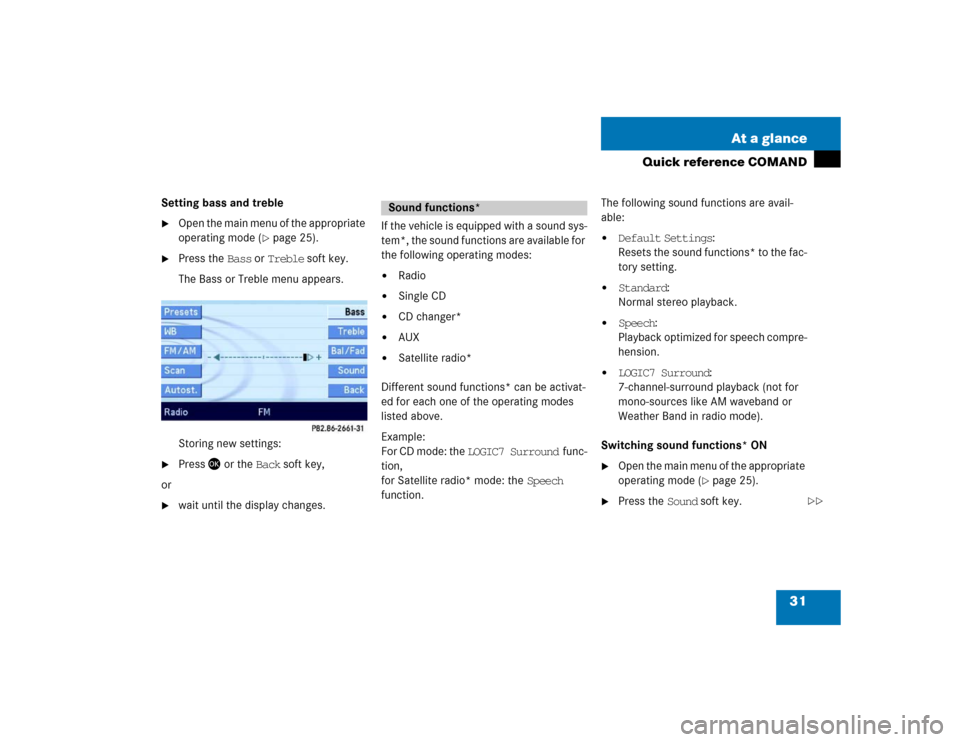
Press the Bass or Treble soft key.
The Bass or Treble menu appears.
Storing new settings:
�
Press� or the Back soft key,
or
�
wait until the display changes.If the vehicle is equipped with a sound sys-
tem*, the sound functions are available for
the following operating modes:
�
Radio
�
Single CD
�
CD changer*
�
AUX
�
Satellite radio*
Different sound functions* can be activat-
ed for each one of the operating modes
listed above.
Example:
For CD mode: the LOGIC7 Surround func-
tion,
for Satellite radio* mode: the Speech
function.The following sound functions are avail-
able:
�
Default Settings:
Resets the sound functions* to the fac-
tory setting.
�
Standard:
Normal stereo playback.
�
Speech:
Playback optimized for speech compre-
hension.
�
LOGIC7 Surround:
7-channel-surround playback (not for
mono-sources like AM waveband or
Weather Band in radio mode).
Switching sound functions* ON
�
Open the main menu of the appropriate
operating mode (
�page 25).
�
Press the Sound soft key.
Sound functions*
��
Page 34 of 168
33
Audio main menu
Radio operation
Single CD operation
CD changer* operation
Audio AUX operation
Audio
Page 35 of 168
34 AudioAudio main menu�
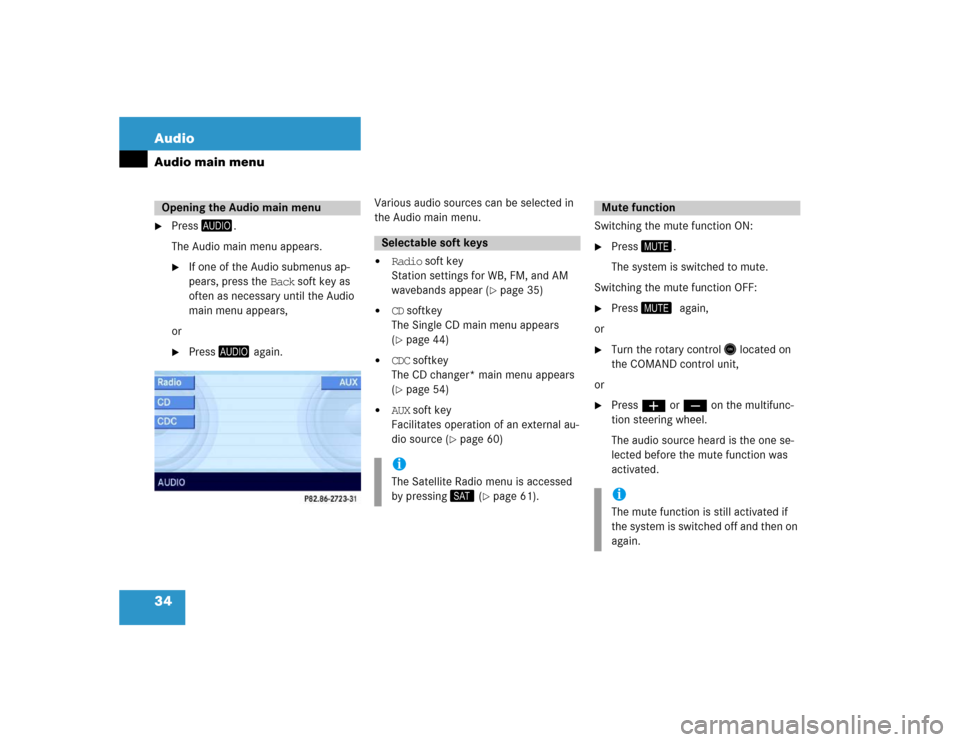
Press
.
The Audio main menu appears.�
If one of the Audio submenus ap-
pears, press the Back soft key as
often as necessary until the Audio
main menu appears,
or
�
Press
again.Various audio sources can be selected in
the Audio main menu.
�
Radio soft key
Station settings for WB, FM, and AM
wavebands appear (
�page 35)
�
CD softkey
The Single CD main menu appears
(�page 44)
�
CDC softkey
The CD changer* main menu appears
(�page 54)
�
AUX soft key
Facilitates operation of an external au-
dio source (
�page 60)Switching the mute function ON:
�
Press �.
The system is switched to mute.
Switching the mute function OFF:
�
Press ��again,
or
�
Turn the rotary control� located on
the COMAND control unit,
or
�
Pressæ or ç on the multifunc-
tion steering wheel.
The audio source heard is the one se-
lected before the mute function was
activated.
Opening the Audio main menu
Selectable soft keysiThe Satellite Radio menu is accessed
by pressing� (
�page 61).
Mute functioniThe mute function is still activated if
the system is switched off and then on
again.
Page 49 of 168

48 AudioCD changer* operation
�
Only touch the CD on the sides.
�
Avoid touching the CD surface with
your fingers.
�
Clean the CD with a dry, lint-free cloth.
Wipe the CD a straight line from the
center. Never wipe the CD in a circular
motion.
�
Do not use rubbing alcohol or solvents
to clean CDs.
�
Do not expose the CDs to heat or direct
sunlight.
�
Do not write or put stickers on CDs
�
The system may not be able to play au-
dio CDs with copy protection.
General informationWarning
G
In order to avoid distraction which could
lead to an accident, the driver should insert
CDs with the vehicle at a standstill and
operate the audio system only when road,
weather and traffic conditions permit.
Bear in mind that at a speed of just 30 mph
(approximately 50 km/h), your vehicle is
covering a distance of 44 feet (approximate-
ly 14 m) every second.
Warning
G
The CD changer* is a Class 1 laser product.
There is a danger of invisible laser radiation
when you open or damage the cover.
Do not remove the cover. The CD changer*
does not contain any parts serviceable by
the user. For safety reasons, have any nec-
essary service work performed by qualified
personnel.
Tips on caring for your CDs
Page 50 of 168
49 Audio
CD changer* operation
�
Open the CD changer* main menu
(�page 54).
or
�
Load an audio CD into the CD changer*
(�page 49).
The CD changer* can play audio CDs.
The CD changer* is concealed behind the
control panel faceplate in the center con-
sole.
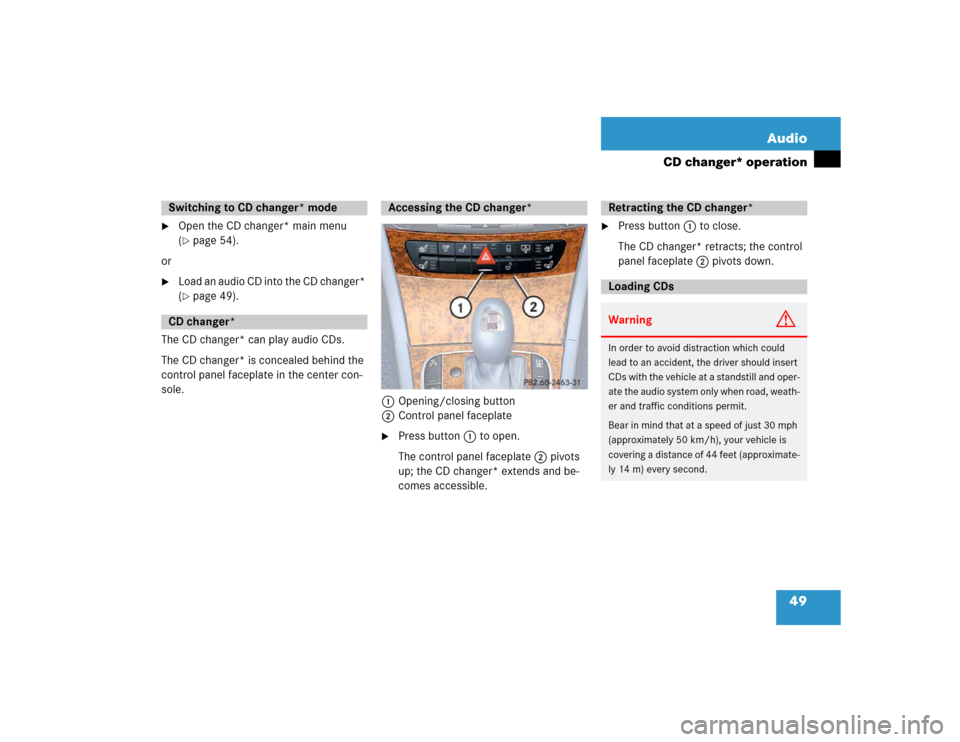
1Opening/closing button
2Control panel faceplate
�
Press button 1 to open.
The control panel faceplate 2 pivots
up; the CD changer* extends and be-
comes accessible.
�
Press button 1 to close.
The CD changer* retracts; the control
panel faceplate 2 pivots down.
Switching to CD changer* modeCD changer*
Accessing the CD changer*
Retracting the CD changer* Loading CDsWarning
G
In order to avoid distraction which could
lead to an accident, the driver should insert
CDs with the vehicle at a standstill and oper-
ate the audio system only when road, weath-
er and traffic conditions permit.
Bear in mind that at a speed of just 30 mph
(approximately 50 km/h), your vehicle is
covering a distance of 44 feet (approximate-
ly 14 m) every second.
Page 51 of 168
50 AudioCD changer* operation
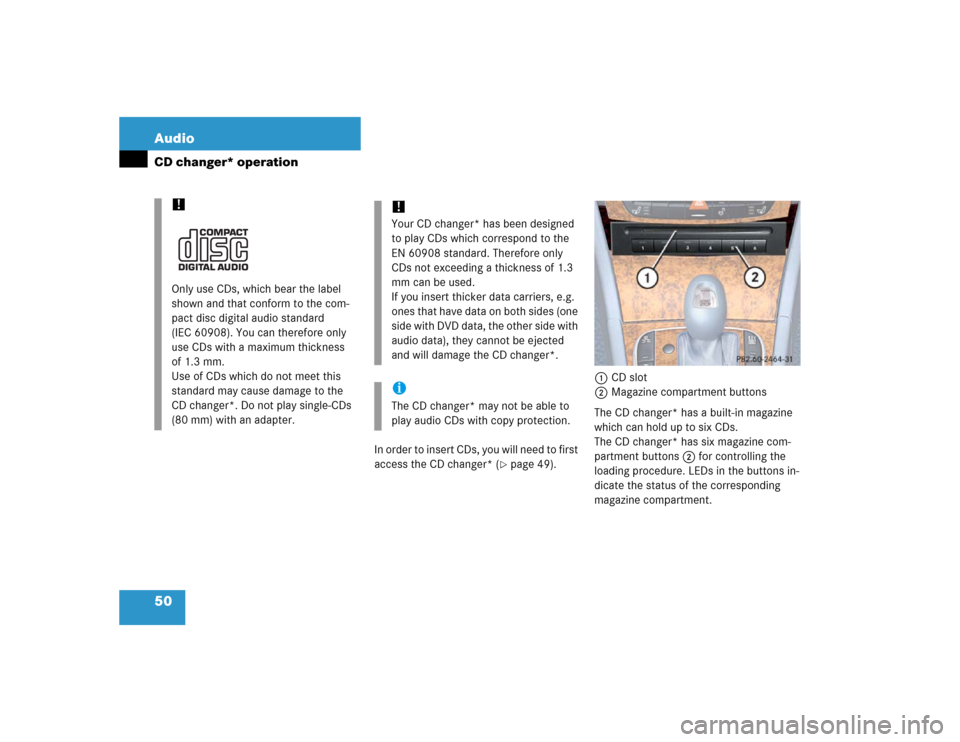
In order to insert CDs, you will need to first
access the CD changer* (
�page 49).1CD slot
2Magazine compartment buttons
The CD changer* has a built-in magazine
which can hold up to six CDs.
The CD changer* has six magazine com-
partment buttons 2 for controlling the
loading procedure. LEDs in the buttons in-
dicate the status of the corresponding
magazine compartment.
!Only use CDs, which bear the label
shown and that conform to the com-
pact disc digital audio standard
(IEC 60908). You can therefore only
use CDs with a maximum thickness
of 1.3 mm.
Use of CDs which do not meet this
standard may cause damage to the
CD changer*. Do not play single-CDs
(80 mm) with an adapter.
!Your CD changer* has been designed
to play CDs which correspond to the
EN 60908 standard. Therefore only
CDs not exceeding a thickness of 1.3
mm can be used.
If you insert thicker data carriers, e.g.
ones that have data on both sides (one
side with DVD data, the other side with
audio data), they cannot be ejected
and will damage the CD changer*.iThe CD changer* may not be able to
play audio CDs with copy protection.
