Page 649 of 4449

AV-58
INTEGRATED DISPLAY SYSTEM
Revision: 2004 November 2004 FX35/FX45
SETTING SCREEN
�Setting of electric status can be changed by A/C and AV switch. The signal is sent to BCM through display
unit to change vehicle electric system setting.
�Display unit is communicating with driver seat control unit.
�Pressing “SETTING” switch once cycles display from DISPLAY→LANGUAGE→BEEP SET→SERVICE
ALERT→PERSONALIZED SETTINGS MENU→DISPLAY OFF→DISPLAY.
�Using the joystick, setting of each item will become possible.
Adjustable Vehicle Status
NOTE:
Setting in factory shipment is ON.
Setting itemsSetting varia-
tionsInitial
settingOperation
DISPLAY ON/OFF ON It switches displayed/Non-displayed of the screen.
LANGUAGEENGLISH/
FRANCAIS– It switches displayed language.
BEEP SET ON/OFF ONIt selects beep sound ON/OFF during switch operation. How-
ever, even if beep is set OFF, beep for NO OPERATION and
for screen interception are not reset.
SERVICE ALERT ON/OFF OFFIt switches displayed/Non-displayed of alert indication.
�When the setting is ON, if engine oil or tire rotation will be
replace distance, alert is displayed.
�When the setting is OFF, alert is not displayed.
PERSONALIZED
SETTING MENUSLIDE BACK DR
SEAT ON EXITON/OFF
ON
NoteThe driver’s seat automatically moves back and returns to
the original position for exceptional ease of exit and entry.
(Models with automatic drive positioner.)
LIFT STEERING
WHEEL ON EXITON/OFF
ON
NoteThe steering column automatically tilts up and returns to the
original position for exceptional ease of entry and exit. (Mod-
els with automatic drive positioner.)
REMOTE UNLOCK
DOOR LOGICDR-1ST/ALL DR-1STThis key can switch the unlock doors of the 1st unlocking
operation as follows:
�Only the driver side door⇔All the doors
HORN CHIRP WITH
REMOTEON/OFF ONThis key changes the horn chirp mode occurring when press-
ing the LOCK button on the keyfob.
LAMPS FLASH
WITH REMOTEALL/LOCK/
UNLOCK/OFFALLThis key changes the hazard indicator flash mode occurring
when pressing the LOCK or UNLOCK button on the keyfob.
AUTO RE-LOCK
TIME5m/1m/OFF 1mThe length of auto door re-lock time can be set. Select the
“Auto Re-Lock timer” key, then move the joystick to adjust the
time.
AUTO HEADLAMP
SENSITIVITYLEVEL 1/2/3/4LEVEL
2Automatic light illumination can be set as desired. Select the
“Auto Headlamp Sensitivity” key, then move the joystick to
the left (lower) or right (higher).
AUTO HEADLAMP
OFF DELAYOFF/30/45/60/
90/120/150/
180 SEC45 SECThis key can control how long it takes the automatic turn off
timer to extinguish the headlamps in “AUTO” position. Select
the “Auto Headlamp Off Delay” key, then move the joystick to
the left or right to adjust the timer.
SPEED SENSING
WIPER INTERVALON/OFF ONThis key turns on and off the driving speed dependent inter-
mittent wiper function.
CONFIRM RESET
SETTINGSYES/NO NOWhen this key is selected and turned on using the “ENTER”
button, all settings mode by PERSONALIZED SETTINGS will
return to the initial conditions.
Page 652 of 4449
INTEGRATED DISPLAY SYSTEM
AV-61
C
D
E
F
G
H
I
J
L
MA
B
AV
Revision: 2004 November 2004 FX35/FX45
CAN Communication UnitAKS00BO7
Refer to LAN-6, "CAN Communication Unit" .
Component Parts and Harness Connector Location AKS00BO8
SKIA4970E
Page 667 of 4449
AV-76
INTEGRATED DISPLAY SYSTEM
Revision: 2004 November 2004 FX35/FX45
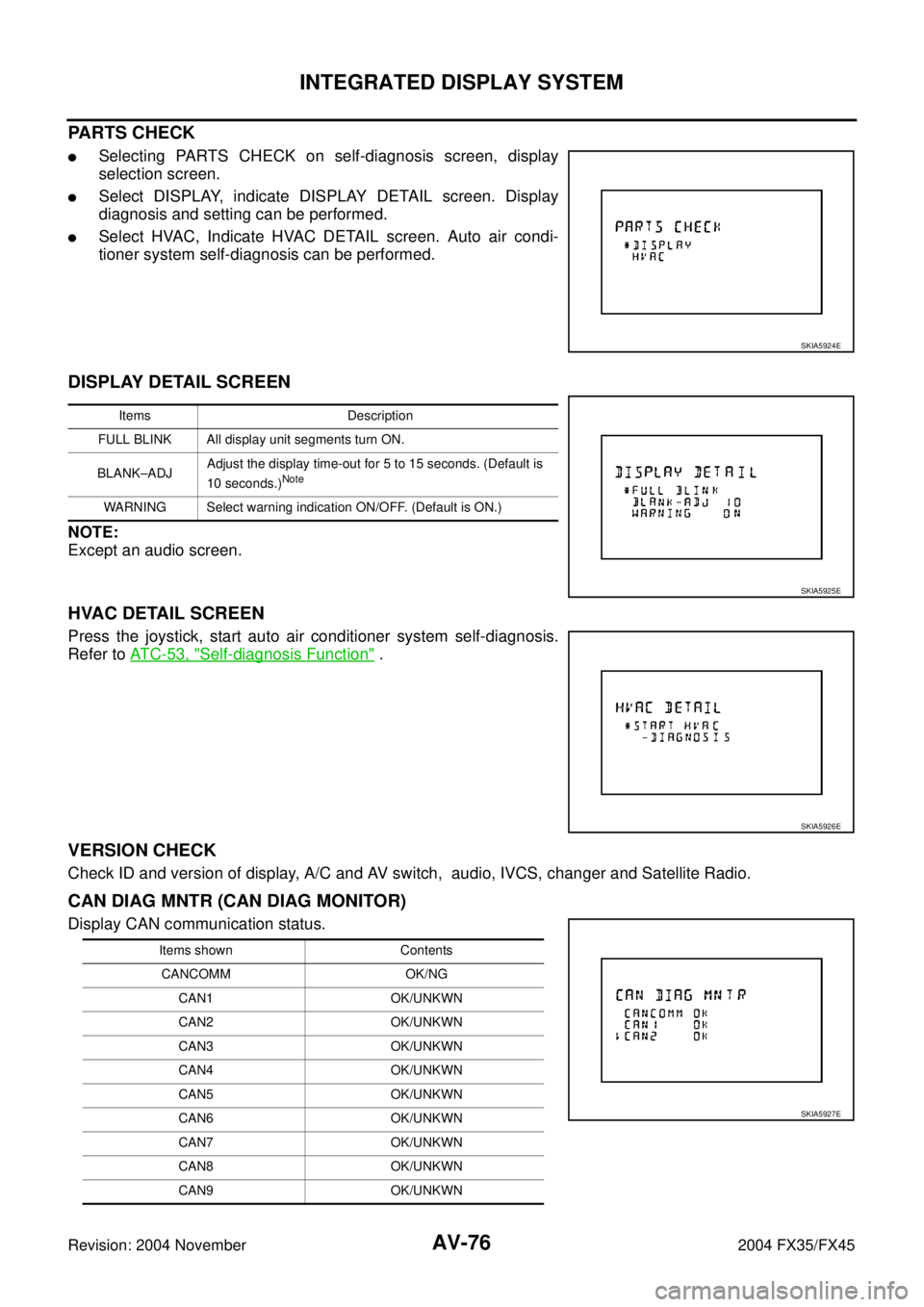
PARTS CHECK
�Selecting PARTS CHECK on self-diagnosis screen, display
selection screen.
�Select DISPLAY, indicate DISPLAY DETAIL screen. Display
diagnosis and setting can be performed.
�Select HVAC, Indicate HVAC DETAIL screen. Auto air condi-
tioner system self-diagnosis can be performed.
DISPLAY DETAIL SCREEN
NOTE:
Except an audio screen.
HVAC DETAIL SCREEN
Press the joystick, start auto air conditioner system self-diagnosis.
Refer to AT C - 5 3 , "
Self-diagnosis Function" .
VERSION CHECK
Check ID and version of display, A/C and AV switch, audio, IVCS, changer and Satellite Radio.
CAN DIAG MNTR (CAN DIAG MONITOR)
Display CAN communication status.
SKIA5924E
Items Description
FULL BLINK All display unit segments turn ON.
BLANK–ADJAdjust the display time-out for 5 to 15 seconds. (Default is
10 seconds.)
Note
WARNING Select warning indication ON/OFF. (Default is ON.)
SKIA5925E
SKIA5926E
Items shown Contents
CANCOMM OK/NG
CAN1 OK/UNKWN
CAN2 OK/UNKWN
CAN3 OK/UNKWN
CAN4 OK/UNKWN
CAN5 OK/UNKWN
CAN6 OK/UNKWN
CAN7 OK/UNKWN
CAN8 OK/UNKWN
CAN9 OK/UNKWN
SKIA5927E
Page 676 of 4449

INTEGRATED DISPLAY SYSTEM
AV-85
C
D
E
F
G
H
I
J
L
MA
B
AV
Revision: 2004 November 2004 FX35/FX45
3. CHECK AV COMMUNICATION SIGNAL
1. Replace A/C and AV switch.
2. Check A/C and AV switch if it functions normally.
OK or NG
OK >> INSPECTION END
NG >> Replace display unit switch.
CAN Communication Line InspectionAKS00BOQ
1. CHECK MONITOR DESCRIPTION
1. Start display unit self-diagnosis. Refer to AV- 7 4 , "
Self-Diagnosis Mode" .
2. Select “CAN DIAG MNTR”. Refer to AV- 7 6 , "
CAN DIAG MNTR
(CAN DIAG MONITOR)" .
3. Record each item display description (OK/NG/UKNWN) displayed on the following CAN DIAG MONITOR
Check Sheet.
CAN DIAG MONITOR Check Sheet
>> After filling in CAN DIAG MONITOR Check Sheet, go to LAN-4, "
Precautions When Using CON-
SULT-II" .
Audio Steering Wheel Switch InspectionAKS00BOR
1. A/C AND AV SWITCH SELF-DIAGNOSIS FUNCTION
1. Start A/C and AV switch self-diagnosis function. Refer to AV- 3 5 , "
A/C and AV Switch Self-Diagnosis Func-
tion" .
2. Operate audio steering wheel switch.
Does the audio steering wheel switch is operated normally?
YES >> INSPECTION END (System is OK)
NO >> GO TO 2
Diagnosis itemData monitor display description
Normal conditionAbnormal condition
(example)
CANCOMM OK NG
CAN1 OK UNKWN
CAN2 OK UNKWN
CAN3 OK UNKWN
CAN4 OK UNKWN
CAN5 OK UNKWN
CAN6 OK UNKWN
CAN7 OK UNKWN
CAN8 OK UNKWN
CAN9 OK UNKWN
SKIA5927E
Diagnosis item Screen display Diagnosis item Screen display
CANCOMM OK NG CAN5 OK UNKWN
CAN1 OK UNKWN CAN6 OK UNKWN
CAN2 OK UNKWN CAN7 OK UNKWN
CAN3 OK UNKWN CAN8 OK UNKWN
CAN4 OK UNKWN CAN9 OK UNKWN
Page 683 of 4449
AV-92
NAVIGATION SYSTEM
Revision: 2004 November 2004 FX35/FX45
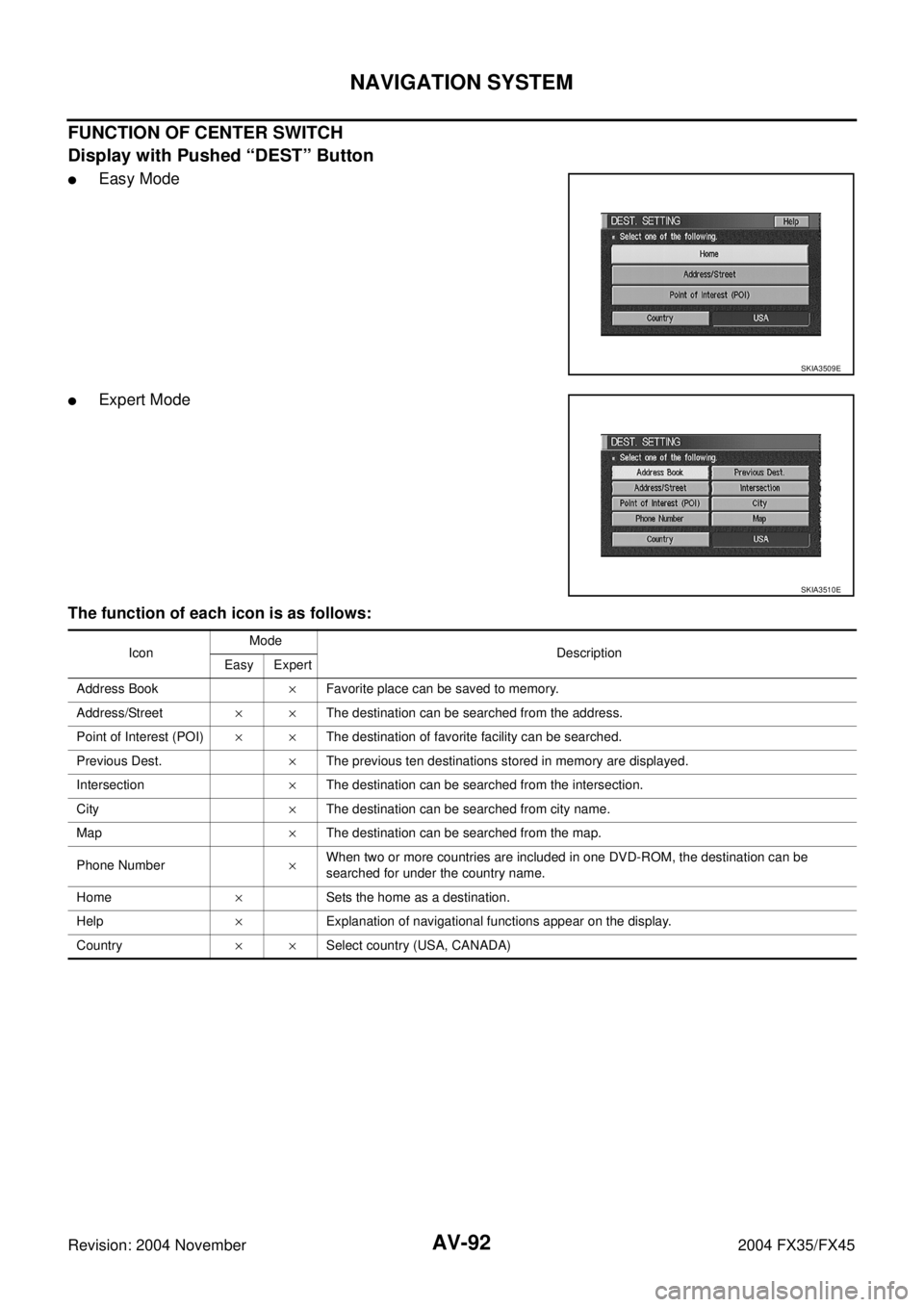
FUNCTION OF CENTER SWITCH
Display with Pushed “DEST” Button
�Easy Mode
�Expert Mode
The function of each icon is as follows:
SKIA3509E
SKIA3510E
IconMode
Description
Easy Expert
Address Book×Favorite place can be saved to memory.
Address/Street××The destination can be searched from the address.
Point of Interest (POI)××The destination of favorite facility can be searched.
Previous Dest.×The previous ten destinations stored in memory are displayed.
Intersection×The destination can be searched from the intersection.
City×The destination can be searched from city name.
Map×The destination can be searched from the map.
Phone Number×When two or more countries are included in one DVD-ROM, the destination can be
searched for under the country name.
Home×Sets the home as a destination.
Help×Explanation of navigational functions appear on the display.
Country××Select country (USA, CANADA)
Page 684 of 4449
NAVIGATION SYSTEM
AV-93
C
D
E
F
G
H
I
J
L
MA
B
AV
Revision: 2004 November 2004 FX35/FX45
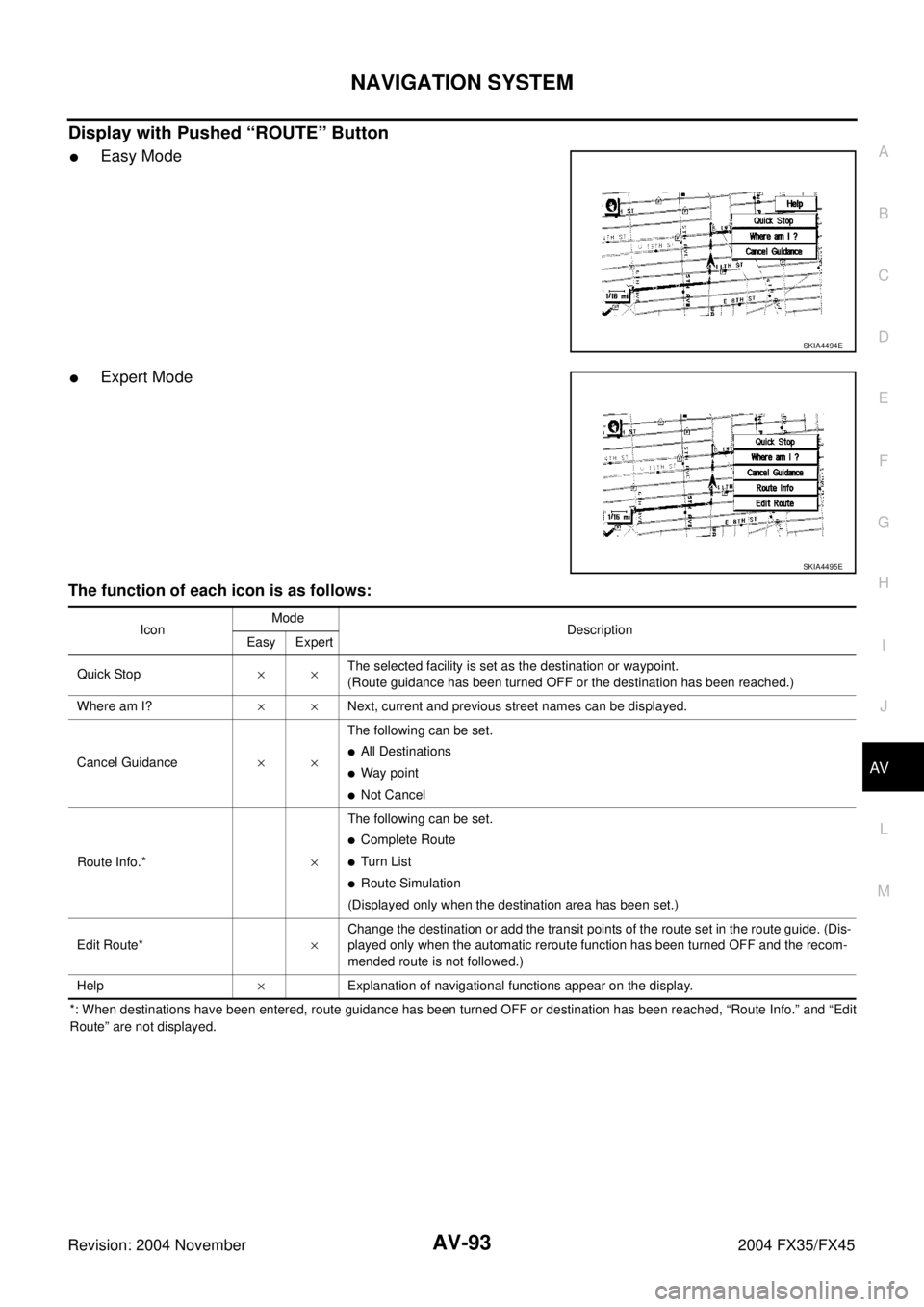
Display with Pushed “ROUTE” Button
�Easy Mode
�Expert Mode
The function of each icon is as follows:
*: When destinations have been entered, route guidance has been turned OFF or destination has been reached, “Route Info.” and “Edit
Route” are not displayed.
SKIA4494E
SKIA4495E
IconMode
Description
Easy Expert
Quick Stop××The selected facility is set as the destination or waypoint.
(Route guidance has been turned OFF or the destination has been reached.)
Where am I?××Next, current and previous street names can be displayed.
Cancel Guidance××The following can be set.
�All Destinations
�Way point
�Not Cancel
Route Info.*×The following can be set.
�Complete Route
�Tu rn List
�Route Simulation
(Displayed only when the destination area has been set.)
Edit Route*×Change the destination or add the transit points of the route set in the route guide. (Dis-
played only when the automatic reroute function has been turned OFF and the recom-
mended route is not followed.)
Help×Explanation of navigational functions appear on the display.
Page 685 of 4449
AV-94
NAVIGATION SYSTEM
Revision: 2004 November 2004 FX35/FX45
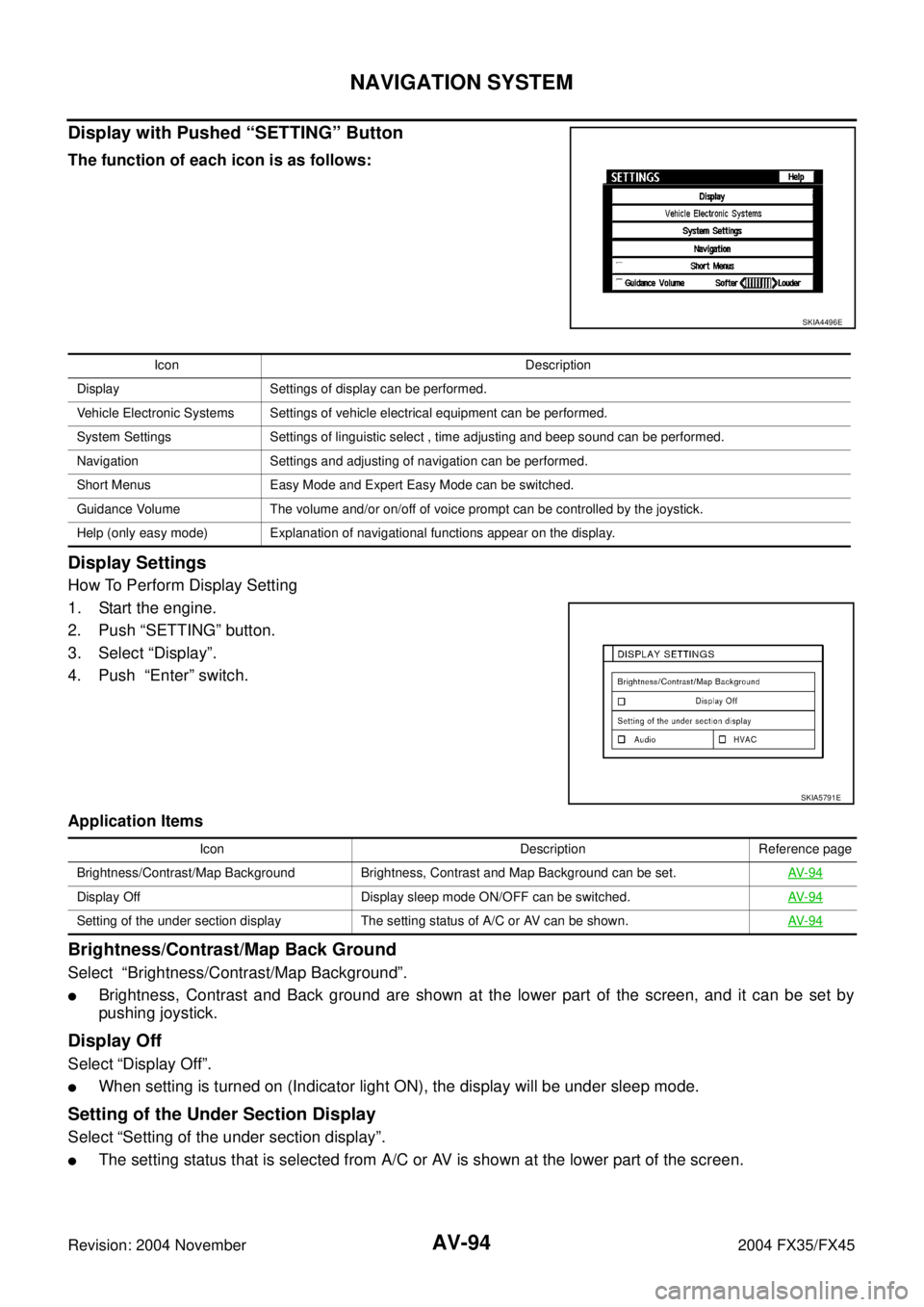
Display with Pushed “SETTING” Button
The function of each icon is as follows:
Display Settings
How To Perform Display Setting
1. Start the engine.
2. Push “SETTING” button.
3. Select “Display”.
4. Push “Enter” switch.
Application Items
Brightness/Contrast/Map Back Ground
Select “Brightness/Contrast/Map Background”.
�Brightness, Contrast and Back ground are shown at the lower part of the screen, and it can be set by
pushing joystick.
Display Off
Select “Display Off”.
�When setting is turned on (Indicator light ON), the display will be under sleep mode.
Setting of the Under Section Display
Select “Setting of the under section display”.
�The setting status that is selected from A/C or AV is shown at the lower part of the screen.
SKIA4496E
Icon Description
Display Settings of display can be performed.
Vehicle Electronic Systems Settings of vehicle electrical equipment can be performed.
System Settings Settings of linguistic select , time adjusting and beep sound can be performed.
Navigation Settings and adjusting of navigation can be performed.
Short Menus Easy Mode and Expert Easy Mode can be switched.
Guidance Volume The volume and/or on/off of voice prompt can be controlled by the joystick.
Help (only easy mode) Explanation of navigational functions appear on the display.
SKIA5791E
Icon Description Reference page
Brightness/Contrast/Map Background Brightness, Contrast and Map Background can be set.AV- 9 4
Display Off Display sleep mode ON/OFF can be switched.AV- 9 4
Setting of the under section display The setting status of A/C or AV can be shown. AV- 9 4
Page 688 of 4449
NAVIGATION SYSTEM
AV-97
C
D
E
F
G
H
I
J
L
MA
B
AV
Revision: 2004 November 2004 FX35/FX45
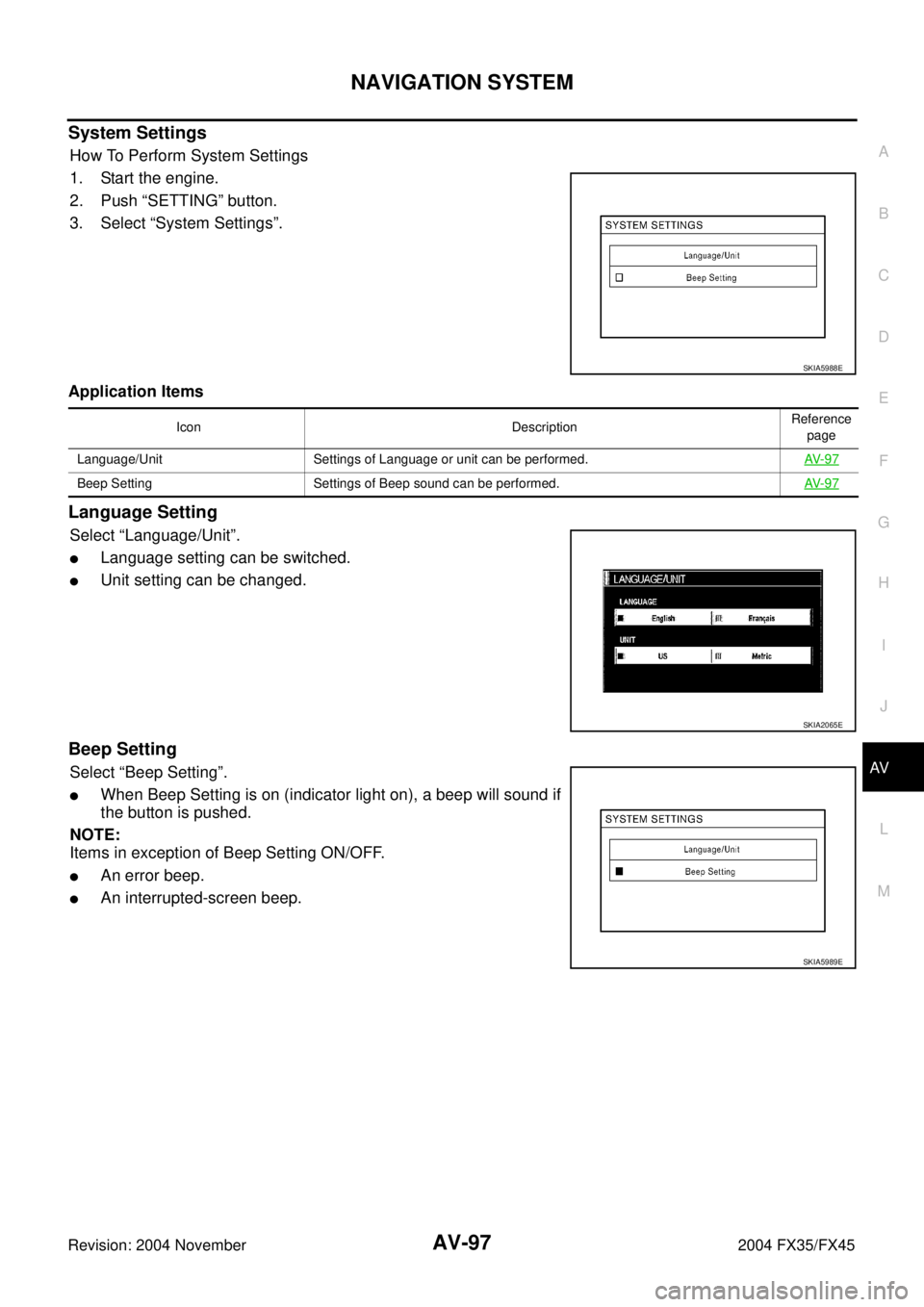
System Settings
How To Perform System Settings
1. Start the engine.
2. Push “SETTING” button.
3. Select “System Settings”.
Application Items
Language Setting
Select “Language/Unit”.
�Language setting can be switched.
�Unit setting can be changed.
Beep Setting
Select “Beep Setting”.
�When Beep Setting is on (indicator light on), a beep will sound if
the button is pushed.
NOTE:
Items in exception of Beep Setting ON/OFF.
�An error beep.
�An interrupted-screen beep.
SKIA5988E
Icon DescriptionReference
page
Language/Unit Settings of Language or unit can be performed.AV- 9 7
Beep Setting Settings of Beep sound can be performed.AV- 9 7
SKIA2065E
SKIA5989E