2004 CHEVROLET MALIBU phone
[x] Cancel search: phonePage 214 of 426
Battery Replacement
To change the batteries, do the following:
1. Loosen the screw on the battery compartment door
located on the left side of the headphone earpiece.
2. Replace the two AAA batteries in the compartment.
Make sure that they are installed correctly using the
diagram on the inside of the battery compartment.
3. Replace the battery compartment door and tighten
the screw.
If the headphones are to be stored for a long period of
time, remove the batteries, and keep them in a cool,
dry place.
Stereo RCA Jacks
The RCA jacks are located on the DVD faceplate on the
oor console. The RCA jacks allow you to connect audio
and video signals from an auxiliary device such as a
camcorder or a video game unit to your RSE just as you
would to a standard television. The yellow RCA jack is
used for video, the red RCA jack for right audio, and the
white RCA jack for left audio inputs. The system requires
standard RCA cables (not included) to connect your
auxiliary device to the RCA jacks. Refer to the
manufacturer’s instructions for proper usage.To use the auxiliary audio and video inputs on the
entertainment system, connect an external auxiliary
device such as a camcorder to the RCA jacks and turn
on both the auxiliary device power and the power on
the front of the RSE system. Press the play and source
buttons at the same time or the AUX button on the
remote control to switch to the auxiliary device.
See “DVD Player”, and “Remote Control” later in this
section for more information.
Audio Speakers
Audio from the DVD player or auxiliary devices can
be heard through the following possible sources:
Wireless Headphones
Vehicle’s Speakers
Wired Headphones (not included)
Only one audio source can be heard through the
vehicles speakers at a time.
You can listen to the entertainment system or an
auxiliary device through all of the vehicles speakers
when the following occurs:
The RSE system is off
a DVD or auxiliary device is playing
the front audio system is on and the SRCE button
is pressed to enable the rear seat entertainment
system
3-98
Page 215 of 426
The front audio system will display the headphone icon
when the entertainment system is on and the headphone
icon will disappear from the display when it is off.
To turn the vehicles rear speakers on and off, press the
power button on the RSE or on the remote control.
When the rear speakers are off, the audio from the
entertainment system can be heard through both the
wireless headphones and the vehicles front speakers
at the same time.
You can listen to the entertainment system through the
wired headphones (not included) on the RSE system
when the following occurs:
The RSE system is on
a DVD or auxiliary device is playing
The volume on the audio system may vary when
switching between a radio station, CD, DVD, cassette,
or auxiliary device.
If there is a decreased audio signal during CD or
DVD play, you may hear a low “hissing” noise through
the speakers and/or headphones. If the hissing sound
in the wireless headphones seems excessive, make
sure that the headphone batteries are fully charged.
Some amount of hissing is normal.
Video Screen
The video screen is located on the back of the oor
console. Open the video screen by rotating the screen
up and adjust its position as desired.
The video screen may not be able to be rotated up if
the rear seat is too far forward. See “Rear Sliding Seat
(MAXX Only)” underRear Seat Operation on page 1-7
for more information.
When the video screen is not in use, push it down into
its stored position.
The DVD player and display will continue to operate
when the video screen is in either the up or down
positions.
The transmitters from the wireless headphones and the
receiver for the remote control are behind the window
on the RSE system. If the screen is in the closed
position, the signals will not be available for the
operation of the headphones or the remote control.
Notice:Directly touching the video screen may
damage it. Do not touch the screen. SeeCleaning the
Video Screen on page 3-118for more information.
3-99
Page 217 of 426
1–6 (Preset Pushbuttons):This button is inactive
when in DVD mode.
BAND:Press this button to switch between FM1,
FM2, or AM, XM1 or XM2 (48 contiguous US states,
if equipped). If the front seat passengers are listening
to the DVD player, the rear seat passengers cannot
select XM1 or XM2.
SRCE (Source):Press this button to switch between
playing a cassette tape or a CD.
xSEEKw:Press the down arrow to go to the
beginning of the current chapter or track if more than
ve seconds have played. Press the up arrow to
go to the next chapter or track. This button may not
work when the DVD is playing the copyright information
or the previews.
xw(Volume):Press the up or down arrow to
increase or decrease the volume on the wired
headphones (not included). The arrows on the left side
are for the left headphone and the arrows on the
right side are for the right headphone.
Playing a Disc
To play a disc, gently insert the disc with the label side
up into the loading slot. The DVD player will continue
loading the disc and the player will automatically start if
the vehicle is in run, accessory or RAP.
If a disc is already in the player, make sure that the
DVD player is on, then press the play/pause button on
the player faceplate or on the remote control.
Some DVDs will not allow you to fast forward or skip
the copyright information or previews. Some DVDs will
begin playing after the previews have nished. If the
DVD does not begin playing at the main title, refer to the
on-screen instructions.
3-101
Page 224 of 426
Time Search:The user can jump to different areas of
a DVD by using the remote control arrow and enter
buttons to select a specic time position.
Not all DVDs support all of the feature defaults in the
setup menus. In the event a feature is not supported,
defaults will be provided by the DVD media.
Exit the setup menu by pressing the return button on
the remote control. If you make changes to the
setup menu, the DVD will resume play from the
beginning.
Battery Replacement
To change the remote control batteries, do the following:
1. Unclip the battery door located on the back of the
remote control.
2. Remove the batteries from the compartment.
3. Replace the two AA batteries. Make sure that they
are installed correctly, using the diagram on the
inside of the battery compartment.
If the remote control is to be stored for a long period
of time, remove the batteries and keep them in a cool,
dry place.
Tips and Trouble
Problem Recommended Action
No power. The ignition may not be in
run, accessory or RAP.
The parental control button
might have been pressed.
Disc will not play. The system might be off.
The parental control button
might have been pressed.
The system might be in
auxiliary source mode.
Press the AUX button to
toggle between the DVD
player and the auxiliary
source. The disc is upside
down or is not compatible.
No sound. The volume on the
headphones could be too
low. Adjust the volume on
the right earpiece on the
wireless headphones.
If the DVD system is being
heard through the vehicle
speakers, adjust the
volume from the radio.
The radio must have the
RSE channel enabled by
using the SRCE button.
3-108
Page 226 of 426
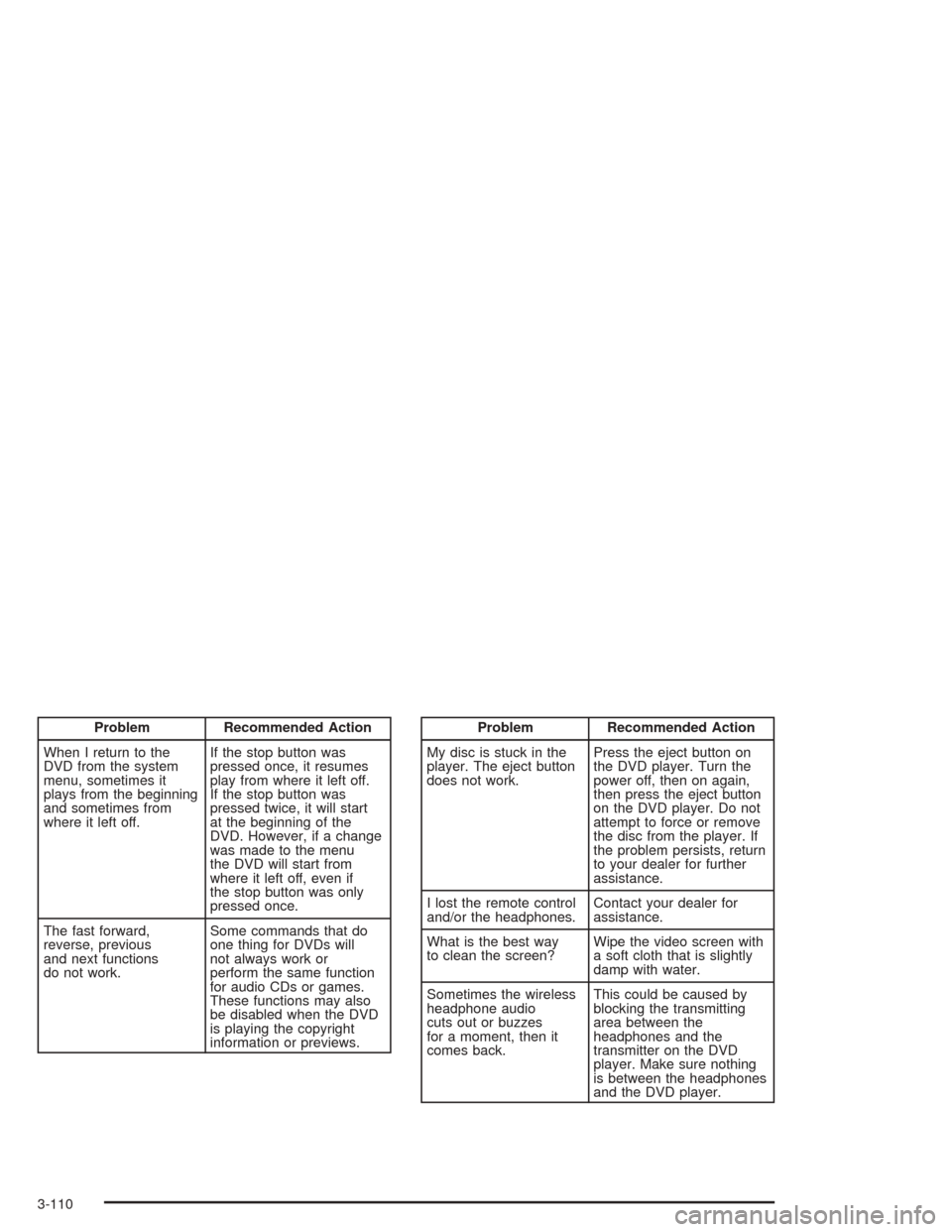
Problem Recommended Action
When I return to the
DVD from the system
menu, sometimes it
plays from the beginning
and sometimes from
where it left off.If the stop button was
pressed once, it resumes
play from where it left off.
If the stop button was
pressed twice, it will start
at the beginning of the
DVD. However, if a change
was made to the menu
the DVD will start from
where it left off, even if
the stop button was only
pressed once.
The fast forward,
reverse, previous
and next functions
do not work.Some commands that do
one thing for DVDs will
not always work or
perform the same function
for audio CDs or games.
These functions may also
be disabled when the DVD
is playing the copyright
information or previews.Problem Recommended Action
My disc is stuck in the
player. The eject button
does not work.Press the eject button on
the DVD player. Turn the
power off, then on again,
then press the eject button
on the DVD player. Do not
attempt to force or remove
the disc from the player. If
the problem persists, return
to your dealer for further
assistance.
I lost the remote control
and/or the headphones.Contact your dealer for
assistance.
What is the best way
to clean the screen?Wipe the video screen with
a soft cloth that is slightly
damp with water.
Sometimes the wireless
headphone audio
cuts out or buzzes
for a moment, then it
comes back.This could be caused by
blocking the transmitting
area between the
headphones and the
transmitter on the DVD
player. Make sure nothing
is between the headphones
and the DVD player.
3-110
Page 227 of 426
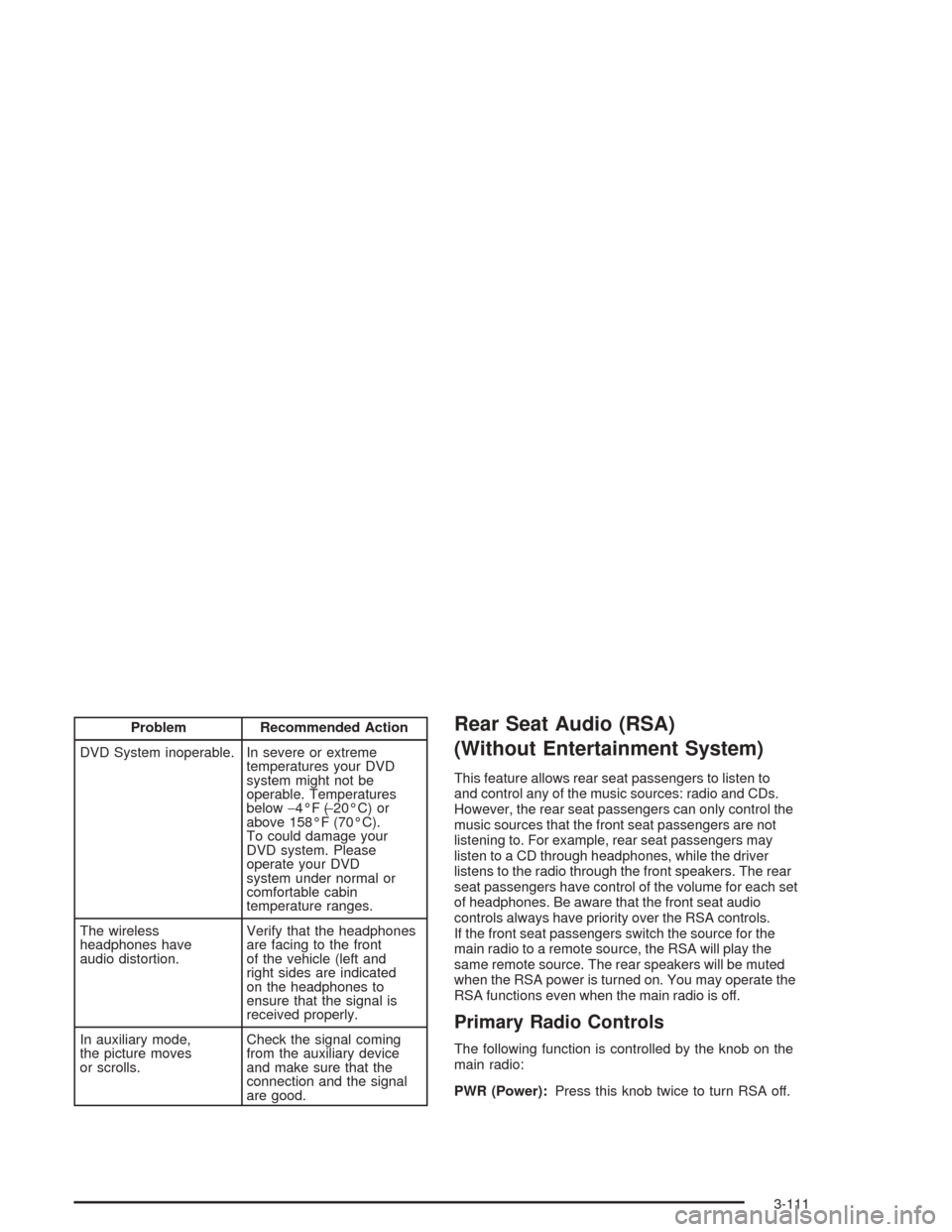
Problem Recommended Action
DVD System inoperable. In severe or extreme
temperatures your DVD
system might not be
operable. Temperatures
below−4°F (−20°C) or
above 158°F (70°C).
To could damage your
DVD system. Please
operate your DVD
system under normal or
comfortable cabin
temperature ranges.
The wireless
headphones have
audio distortion.Verify that the headphones
are facing to the front
of the vehicle (left and
right sides are indicated
on the headphones to
ensure that the signal is
received properly.
In auxiliary mode,
the picture moves
or scrolls.Check the signal coming
from the auxiliary device
and make sure that the
connection and the signal
are good.Rear Seat Audio (RSA)
(Without Entertainment System)
This feature allows rear seat passengers to listen to
and control any of the music sources: radio and CDs.
However, the rear seat passengers can only control the
music sources that the front seat passengers are not
listening to. For example, rear seat passengers may
listen to a CD through headphones, while the driver
listens to the radio through the front speakers. The rear
seat passengers have control of the volume for each set
of headphones. Be aware that the front seat audio
controls always have priority over the RSA controls.
If the front seat passengers switch the source for the
main radio to a remote source, the RSA will play the
same remote source. The rear speakers will be muted
when the RSA power is turned on. You may operate the
RSA functions even when the main radio is off.
Primary Radio Controls
The following function is controlled by the knob on the
main radio:
PWR (Power):Press this knob twice to turn RSA off.
3-111
Page 228 of 426
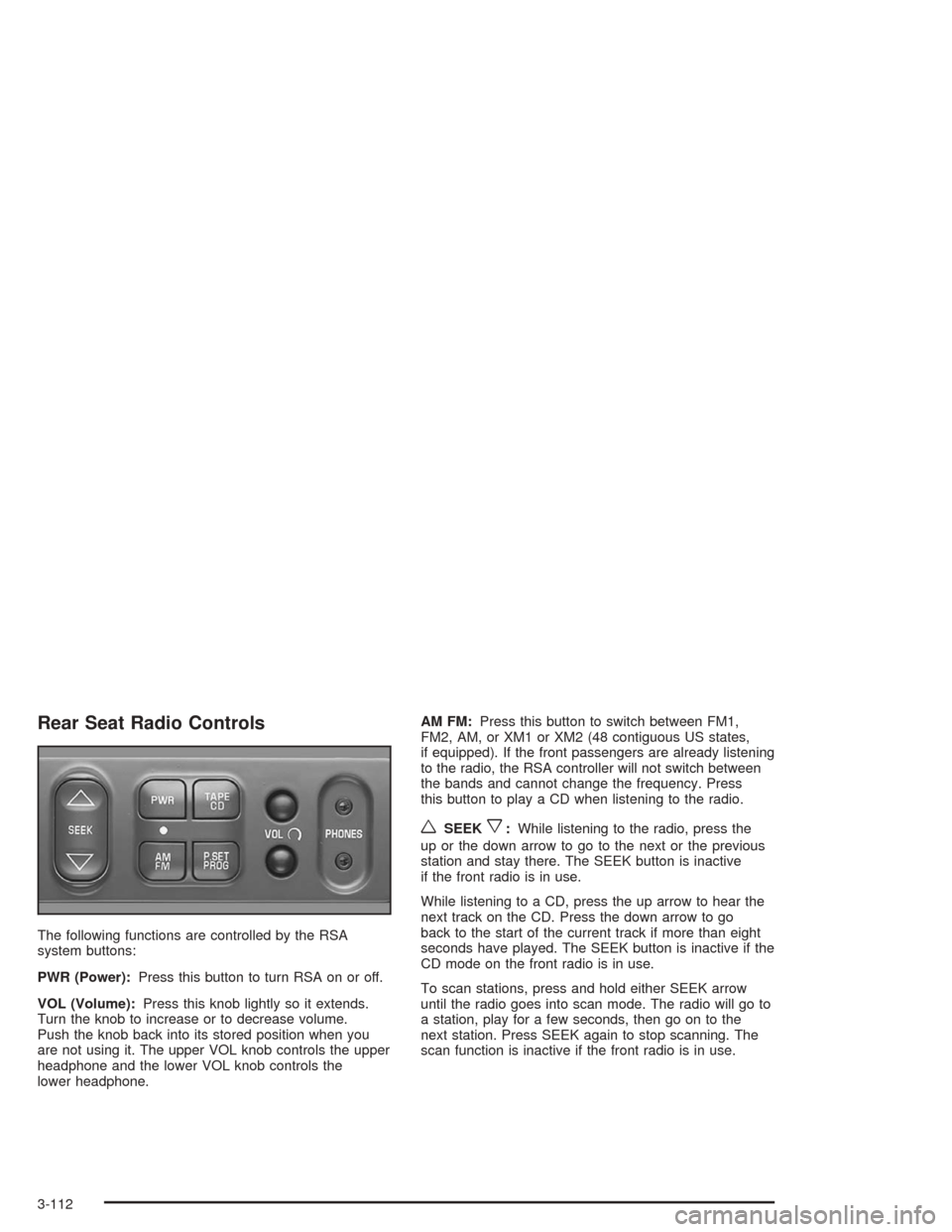
Rear Seat Radio Controls
The following functions are controlled by the RSA
system buttons:
PWR (Power):Press this button to turn RSA on or off.
VOL (Volume):Press this knob lightly so it extends.
Turn the knob to increase or to decrease volume.
Push the knob back into its stored position when you
are not using it. The upper VOL knob controls the upper
headphone and the lower VOL knob controls the
lower headphone.AM FM:Press this button to switch between FM1,
FM2, AM, or XM1 or XM2 (48 contiguous US states,
if equipped). If the front passengers are already listening
to the radio, the RSA controller will not switch between
the bands and cannot change the frequency. Press
this button to play a CD when listening to the radio.
wSEEKx:While listening to the radio, press the
up or the down arrow to go to the next or the previous
station and stay there. The SEEK button is inactive
if the front radio is in use.
While listening to a CD, press the up arrow to hear the
next track on the CD. Press the down arrow to go
back to the start of the current track if more than eight
seconds have played. The SEEK button is inactive if the
CD mode on the front radio is in use.
To scan stations, press and hold either SEEK arrow
until the radio goes into scan mode. The radio will go to
a station, play for a few seconds, then go on to the
next station. Press SEEK again to stop scanning. The
scan function is inactive if the front radio is in use.
3-112
Page 229 of 426
P.SET PROG (Preset Program):The front passengers
must be listening to something different for each of
these functions to work:
Press this button to scan through the preset radio
stations set on the pushbuttons on the main radio.
The radio will go to a preset station stored on
your pushbuttons, play for a few seconds, then go
on to the next preset station. Press this button
again to stop scanning presets.
If your vehicle has the Radio with Six-Disc CD,
when a CD is playing, press this button to select
the next CD, if multiple CDs are loaded.
TAPE CD:Press this button to play a CD when
listening to the radio.
Rear Seat Audio (RSA)
(With Entertainment System)
This feature allows rear seat passengers to listen to
and control any of the music sources: radio, cassette
tapes and CDs. However, the rear seat passengers
can only control the music sources that the front seat
passengers are not listening to. For example, rear
seat passengers may listen to and control a cassette
tape or CD through headphones, while the driver listens
to the radio through the front speakers. The rear seat
passengers have control of the volume for each
set of headphones.
The front seat audio controls always have priority over
the RSA controls. If the front seat passengers switch
the source for the main radio to a remote source,
the RSA will not be able to control the remote source.
The rear speakers will be muted when the RSA power
is turned on. You may operate the RSA functions
even when the main radio is off.
3-113