2003 FORD FOCUS audio
[x] Cancel search: audioPage 29 of 216
Press again for a brief sampling of all MP3 directories on the disc. SCAN
ALL appears at the bottom of the display.
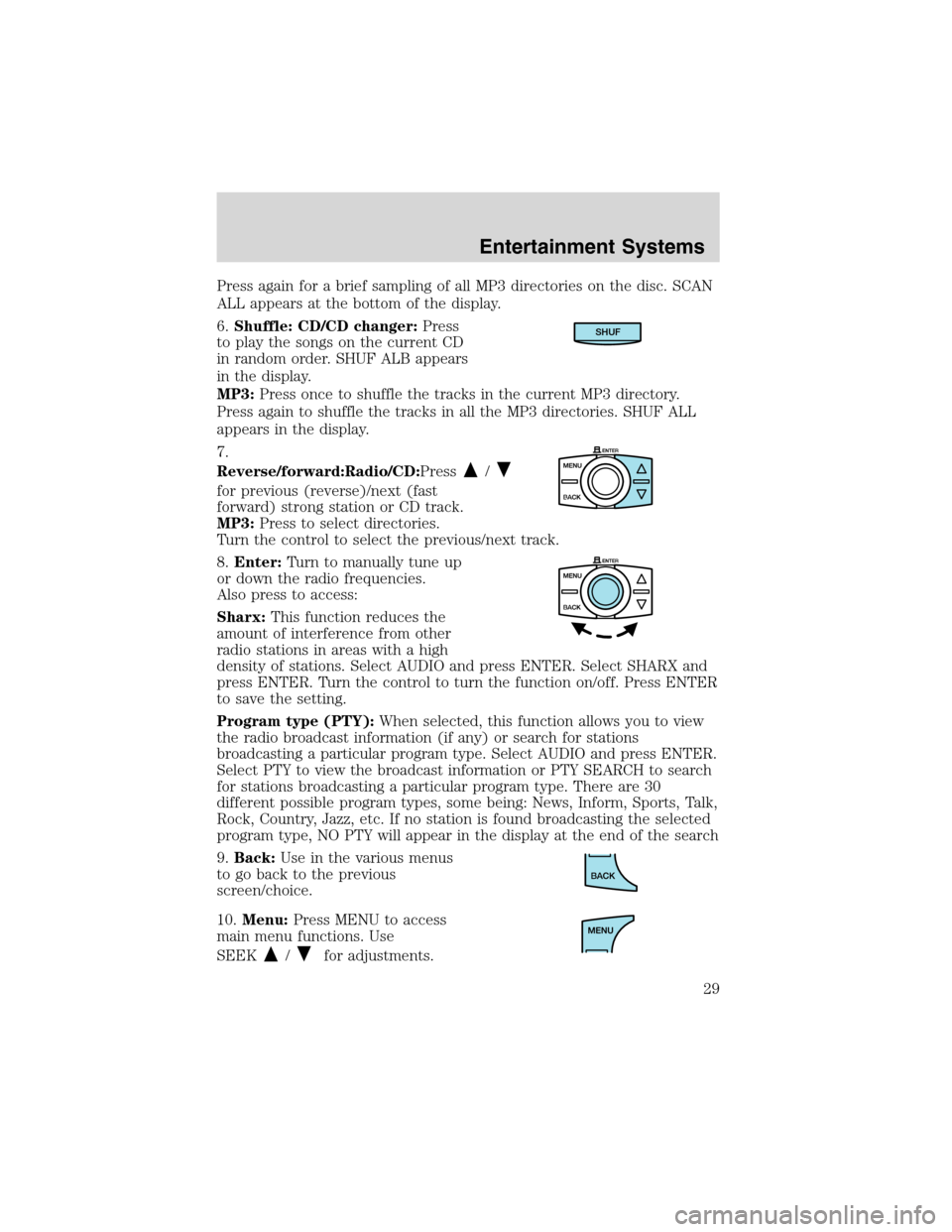
6.Shuffle: CD/CD changer:Press
to play the songs on the current CD
in random order. SHUF ALB appears
in the display.
MP3:Press once to shuffle the tracks in the current MP3 directory.
Press again to shuffle the tracks in all the MP3 directories. SHUF ALL
appears in the display.
7.
Reverse/forward:Radio/CD:Press
/
for previous (reverse)/next (fast
forward) strong station or CD track.
MP3:Press to select directories.
Turn the control to select the previous/next track.
8.Enter:Turn to manually tune up
or down the radio frequencies.
Also press to access:
Sharx:This function reduces the
amount of interference from other
radio stations in areas with a high
density of stations. Select AUDIO and press ENTER. Select SHARX and
press ENTER. Turn the control to turn the function on/off. Press ENTER
to save the setting.
Program type (PTY):When selected, this function allows you to view
the radio broadcast information (if any) or search for stations
broadcasting a particular program type. Select AUDIO and press ENTER.
Select PTY to view the broadcast information or PTY SEARCH to search
for stations broadcasting a particular program type. There are 30
different possible program types, some being: News, Inform, Sports, Talk,
Rock, Country, Jazz, etc. If no station is found broadcasting the selected
program type, NO PTY will appear in the display at the end of the search
9.Back:Use in the various menus
to go back to the previous
screen/choice.
10.Menu:Press MENU to access
main menu functions. Use
SEEK
/for adjustments.
SHUF
Entertainment Systems
29
Page 30 of 216
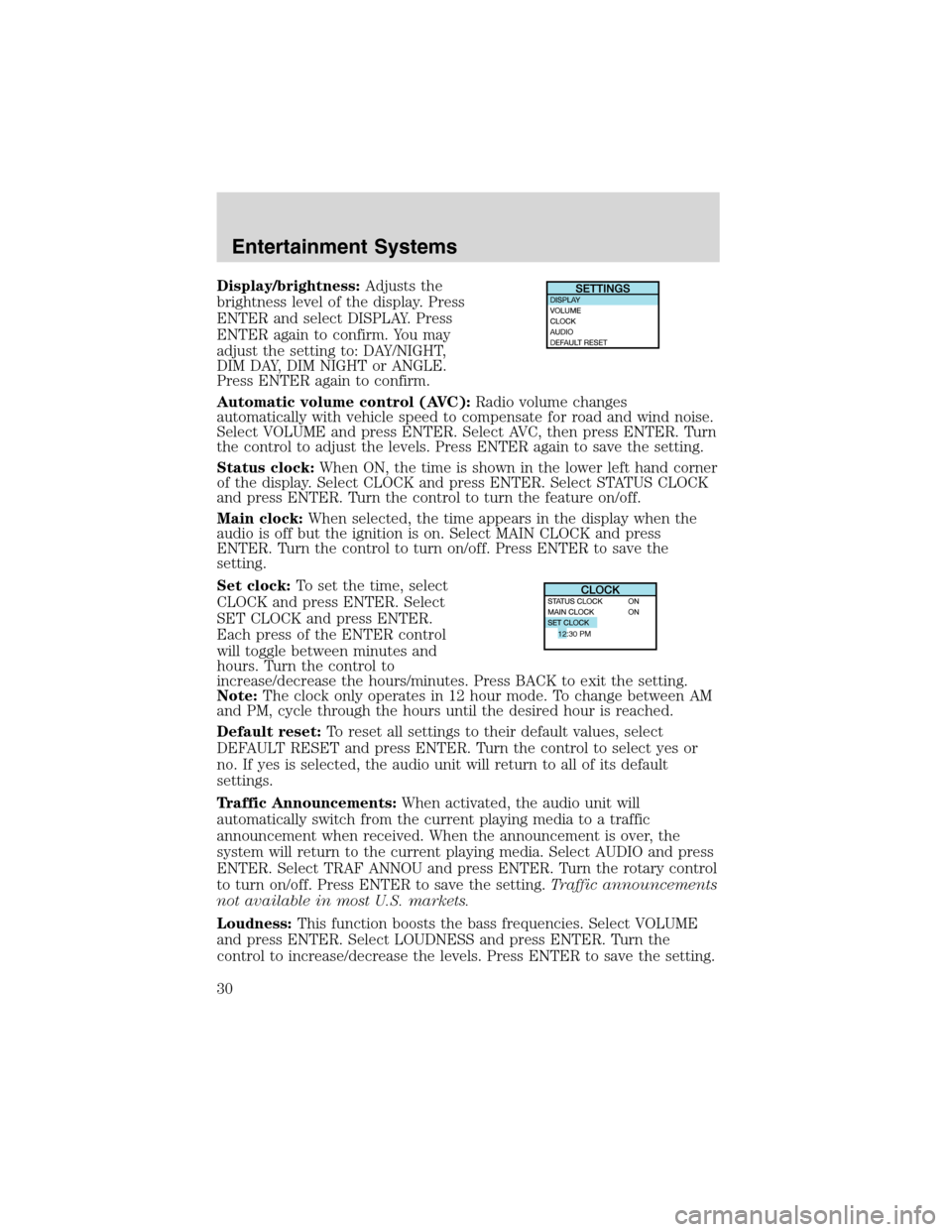
Display/brightness:Adjusts the
brightness level of the display. Press
ENTER and select DISPLAY. Press
ENTER again to confirm. You may
adjust the setting to: DAY/NIGHT,
DIM DAY, DIM NIGHT or ANGLE.
Press ENTER again to confirm.
Automatic volume control (AVC):Radio volume changes
automatically with vehicle speed to compensate for road and wind noise.
Select VOLUME and press ENTER. Select AVC, then press ENTER. Turn
the control to adjust the levels. Press ENTER again to save the setting.
Status clock:When ON, the time is shown in the lower left hand corner
of the display. Select CLOCK and press ENTER. Select STATUS CLOCK
and press ENTER. Turn the control to turn the feature on/off.
Main clock:When selected, the time appears in the display when the
audio is off but the ignition is on. Select MAIN CLOCK and press
ENTER. Turn the control to turn on/off. Press ENTER to save the
setting.
Set clock:To set the time, select
CLOCK and press ENTER. Select
SET CLOCK and press ENTER.
Each press of the ENTER control
will toggle between minutes and
hours. Turn the control to
increase/decrease the hours/minutes. Press BACK to exit the setting.
Note:The clock only operates in 12 hour mode. To change between AM
and PM, cycle through the hours until the desired hour is reached.
Default reset:To reset all settings to their default values, select
DEFAULT RESET and press ENTER. Turn the control to select yes or
no. If yes is selected, the audio unit will return to all of its default
settings.
Traffic Announcements:When activated, the audio unit will
automatically switch from the current playing media to a traffic
announcement when received. When the announcement is over, the
system will return to the current playing media. Select AUDIO and press
ENTER. Select TRAF ANNOU and press ENTER. Turn the rotary control
to turn on/off. Press ENTER to save the setting.Traffic announcements
not available in most U.S. markets.
Loudness:This function boosts the bass frequencies. Select VOLUME
and press ENTER. Select LOUDNESS and press ENTER. Turn the
control to increase/decrease the levels. Press ENTER to save the setting.
12:30 PM
Entertainment Systems
30
Page 31 of 216
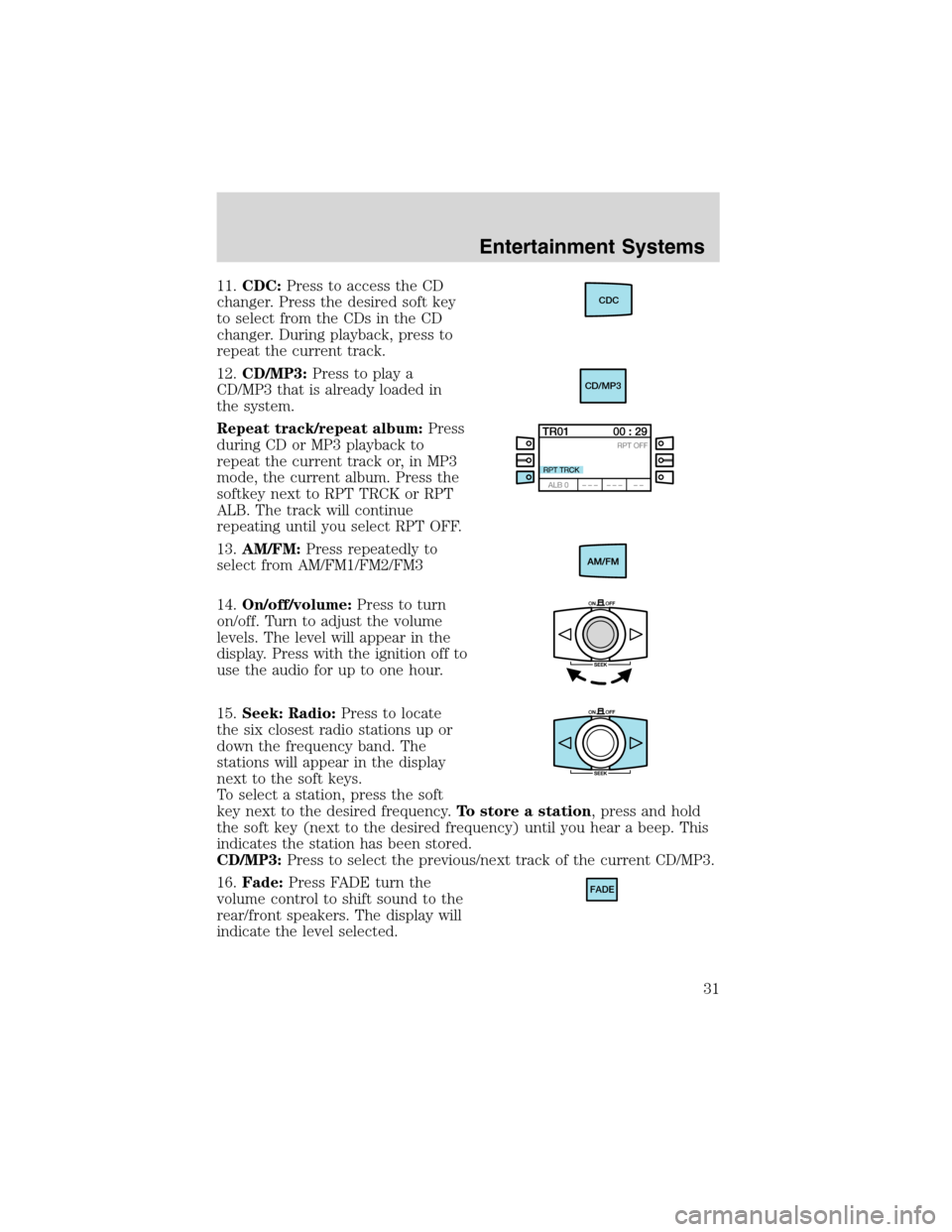
11.CDC:Press to access the CD
changer. Press the desired soft key
to select from the CDs in the CD
changer. During playback, press to
repeat the current track.
12.CD/MP3:Press to play a
CD/MP3 that is already loaded in
the system.
Repeat track/repeat album:Press
during CD or MP3 playback to
repeat the current track or, in MP3
mode, the current album. Press the
softkey next to RPT TRCK or RPT
ALB. The track will continue
repeating until you select RPT OFF.
13.AM/FM:Press repeatedly to
select from AM/FM1/FM2/FM3
14.On/off/volume:Press to turn
on/off. Turn to adjust the volume
levels. The level will appear in the
display. Press with the ignition off to
use the audio for up to one hour.
15.Seek: Radio:Press to locate
the six closest radio stations up or
down the frequency band. The
stations will appear in the display
next to the soft keys.
To select a station, press the soft
key next to the desired frequency.To store a station, press and hold
the soft key (next to the desired frequency) until you hear a beep. This
indicates the station has been stored.
CD/MP3:Press to select the previous/next track of the current CD/MP3.
16.Fade:Press FADE turn the
volume control to shift sound to the
rear/front speakers. The display will
indicate the level selected.CDC
CD/MP3
FADE
Entertainment Systems
31
Page 32 of 216
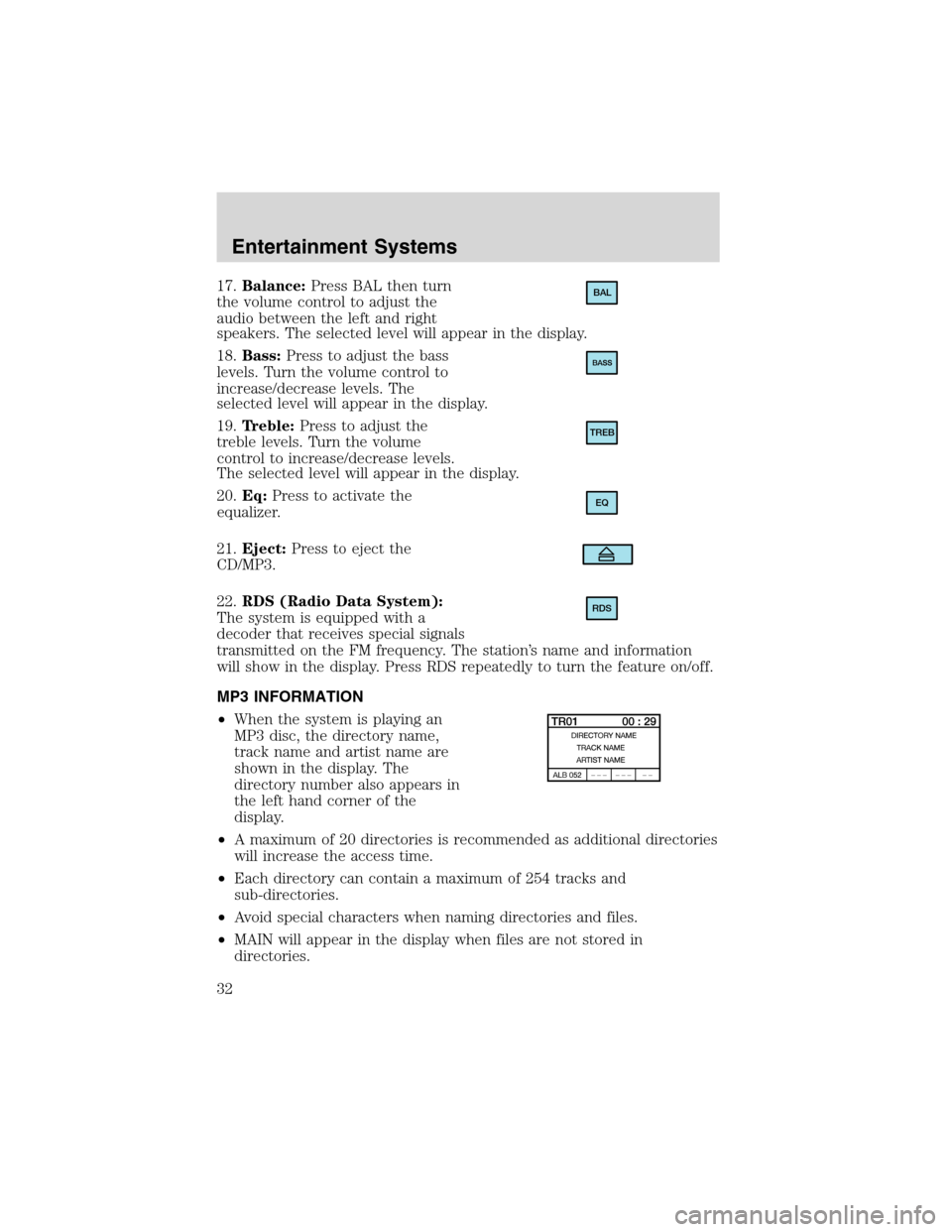
17.Balance:Press BAL then turn
the volume control to adjust the
audio between the left and right
speakers. The selected level will appear in the display.
18.Bass:Press to adjust the bass
levels. Turn the volume control to
increase/decrease levels. The
selected level will appear in the display.
19.Treble:Press to adjust the
treble levels. Turn the volume
control to increase/decrease levels.
The selected level will appear in the display.
20.Eq:Press to activate the
equalizer.
21.Eject:Press to eject the
CD/MP3.
22.RDS (Radio Data System):
The system is equipped with a
decoder that receives special signals
transmitted on the FM frequency. The station’s name and information
will show in the display. Press RDS repeatedly to turn the feature on/off.
MP3 INFORMATION
•When the system is playing an
MP3 disc, the directory name,
track name and artist name are
shown in the display. The
directory number also appears in
the left hand corner of the
display.
•A maximum of 20 directories is recommended as additional directories
will increase the access time.
•Each directory can contain a maximum of 254 tracks and
sub-directories.
•Avoid special characters when naming directories and files.
•MAIN will appear in the display when files are not stored in
directories.BAL
TREB
EQ
RDS
Entertainment Systems
32
Page 34 of 216
CD/CD PLAYER CARE
Do:
•Handle discs by their edges only. Never touch the playing surface.
•Inspect discs before playing. Clean only with an approved CD cleaner
and wipe from the center out.
Don’t:
•Expose discs to direct sunlight or heat sources for extended periods
of time.
•Insert more than one disc into each slot of the CD changer magazine.
•Clean using a circular motion.
CD units are designed to play commercially pressed 12 cm (4.75
in) audio compact discs only. Due to technical incompatibility,
certain recordable and re-recordable compact discs may not
function correctly when used in Ford CD players. Irregular
shaped CDs, CDs with a scratch protection film attached, and CDs
with homemade paper (adhesive) labels should not be inserted
into the CD player. The label may peel and cause the CD to
become jammed. It is recommended that homemade CDs be
identified with permanent felt tip marker rather than adhesive
labels. Ball point pens may damage CDs. Please contact your
dealer for further information.
AUDIO SYSTEM WARRANTY AND SERVICE
Refer to theWarranty Guidefor audio system warranty information. If
service is necessary, see your dealer or qualified technician.
Entertainment Systems
34
Page 107 of 216
DrivingSTARTING
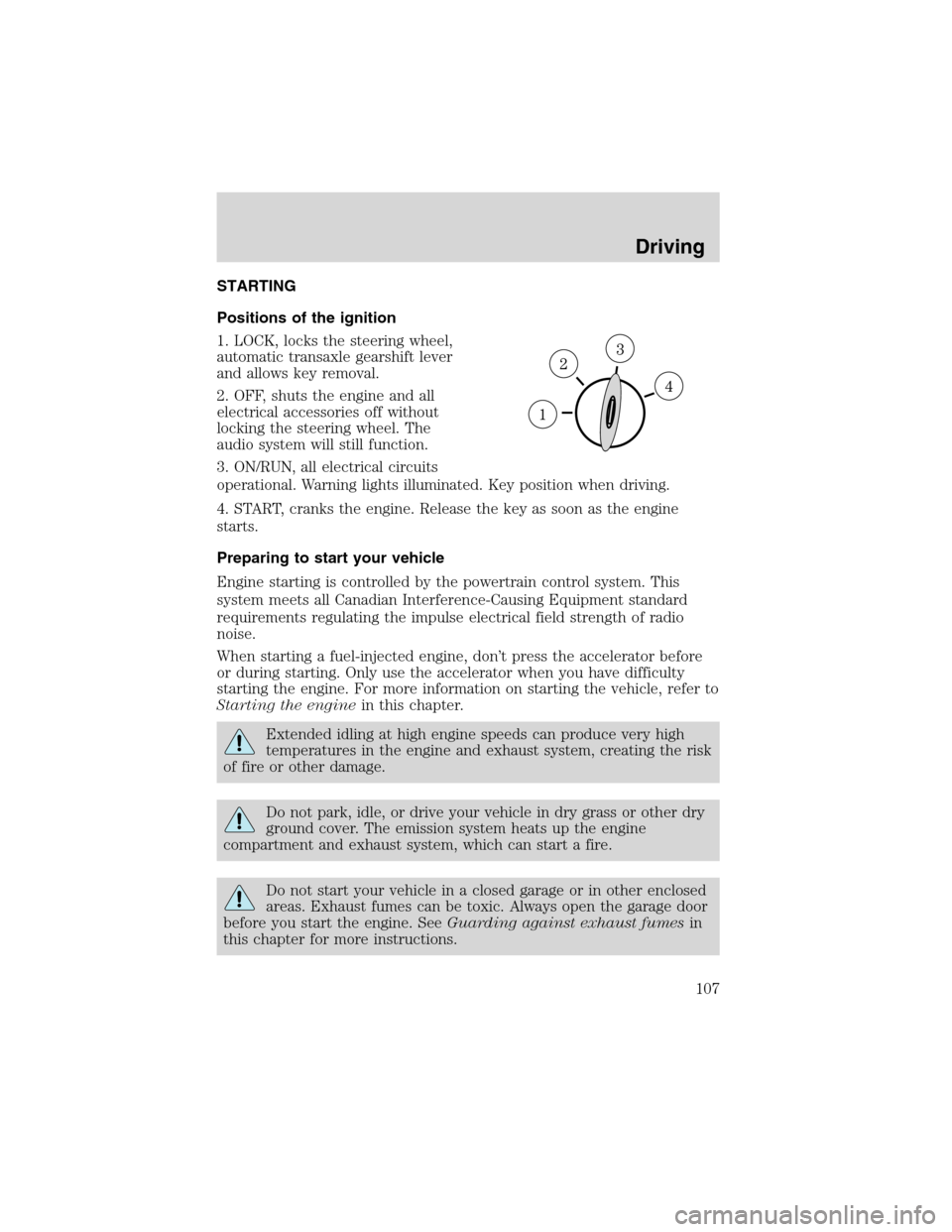
Positions of the ignition
1. LOCK, locks the steering wheel,
automatic transaxle gearshift lever
and allows key removal.
2. OFF, shuts the engine and all
electrical accessories off without
locking the steering wheel. The
audio system will still function.
3. ON/RUN, all electrical circuits
operational. Warning lights illuminated. Key position when driving.
4. START, cranks the engine. Release the key as soon as the engine
starts.
Preparing to start your vehicle
Engine starting is controlled by the powertrain control system. This
system meets all Canadian Interference-Causing Equipment standard
requirements regulating the impulse electrical field strength of radio
noise.
When starting a fuel-injected engine, don’t press the accelerator before
or during starting. Only use the accelerator when you have difficulty
starting the engine. For more information on starting the vehicle, refer to
Starting the enginein this chapter.
Extended idling at high engine speeds can produce very high
temperatures in the engine and exhaust system, creating the risk
of fire or other damage.
Do not park, idle, or drive your vehicle in dry grass or other dry
ground cover. The emission system heats up the engine
compartment and exhaust system, which can start a fire.
Do not start your vehicle in a closed garage or in other enclosed
areas. Exhaust fumes can be toxic. Always open the garage door
before you start the engine. SeeGuarding against exhaust fumesin
this chapter for more instructions.
Driving
107