11.Scan:Press SCAN to move up
the radio frequency band. SCAN
automatically finds a station, plays it
for five seconds, then moves to the next station. Press again to stop.
CD:Press SCAN to sample CD selections for eight seconds. Press again
to stop.
DSP:
Press once to enter occupancy mode and use the volume control to
optimize sound for ALL seats, DRIVER or REAR. Press twice to select one
of the settings: DSP OFF, NEWS, JAZZ, CONCERT, CHURCH or STADIUM.
12.Clock:Press CLK to access
clock mode. Press and release
SEEK
/to select
hours/minutes. Turn the volume control to set both hours and minutes.
13.Menu:Press MENU to access
main menu functions. Use
SEEK
/for adjustments.
Tune adjust:Press MENU until MAN appears in the display. Press
orto manually move up/down the radio frequency band.
Compression:Press MENU until COMP appears in the display. Press
SEEK to engage/disengage the feature. Compression adjust brings soft
and loud CD passages together for a more consistent listening level.
Shuffle:Press MENU until SHUF appears in the display. Press SEEK to
engage/disengage the feature.
Audio distortion reduction (CLIP):Press and hold MENU until the
display changes. Then, press MENU until the CLIP menu displays. Press
SEEK to engage/disengage the feature. The feature automatically detects
sound distortions and reduces the volume level until the distortion has
been eliminated.
Automatic volume control (AVC) (if equipped):With this feature,
radio volume changes automatically with vehicle speed to compensate for
road and wind noise. Press MENU until AVC is displayed, then use the
SEEK
/control to adjust the volume.
SCAN
CLK
MENU
Entertainment Systems
27
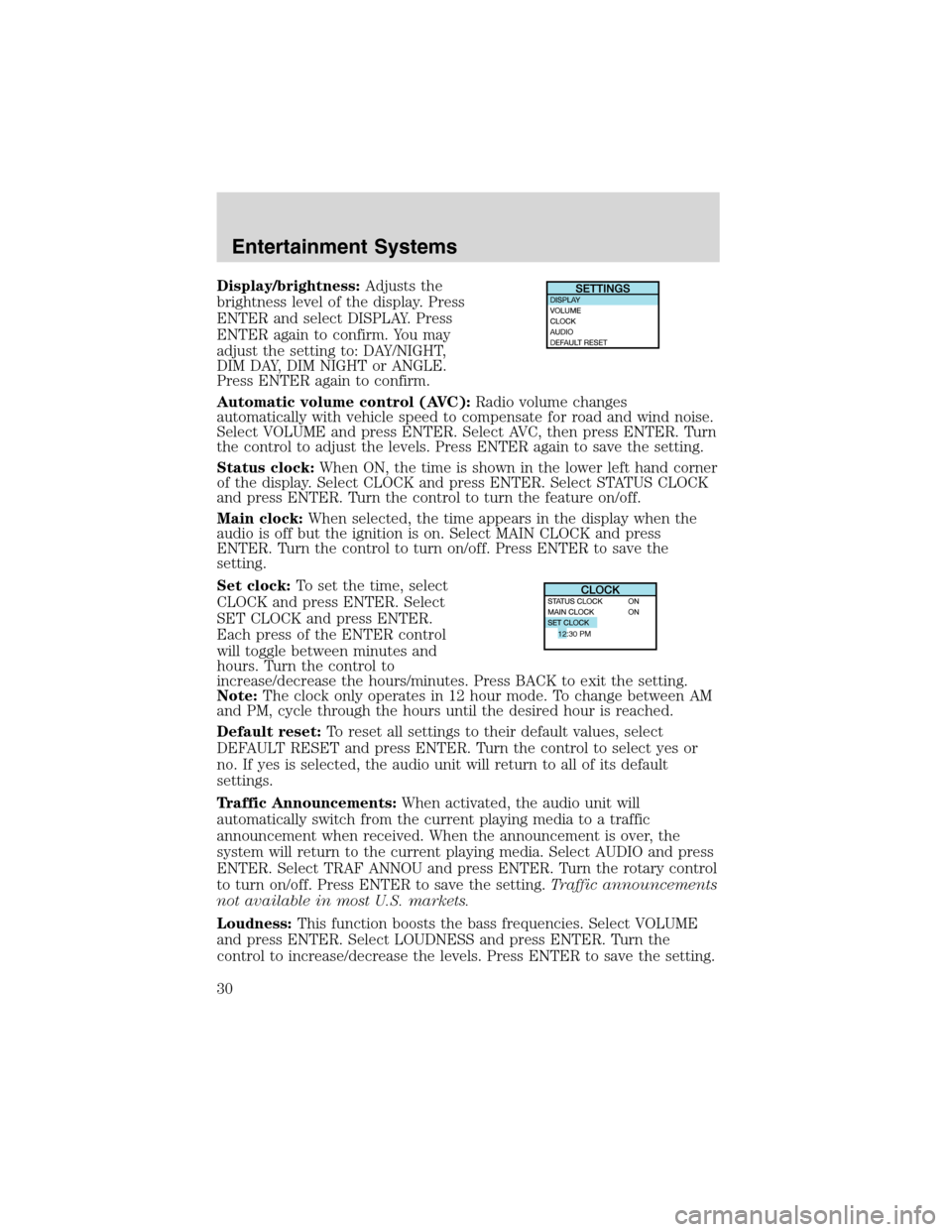
Display/brightness:Adjusts the
brightness level of the display. Press
ENTER and select DISPLAY. Press
ENTER again to confirm. You may
adjust the setting to: DAY/NIGHT,
DIM DAY, DIM NIGHT or ANGLE.
Press ENTER again to confirm.
Automatic volume control (AVC):Radio volume changes
automatically with vehicle speed to compensate for road and wind noise.
Select VOLUME and press ENTER. Select AVC, then press ENTER. Turn
the control to adjust the levels. Press ENTER again to save the setting.
Status clock:When ON, the time is shown in the lower left hand corner
of the display. Select CLOCK and press ENTER. Select STATUS CLOCK
and press ENTER. Turn the control to turn the feature on/off.
Main clock:When selected, the time appears in the display when the
audio is off but the ignition is on. Select MAIN CLOCK and press
ENTER. Turn the control to turn on/off. Press ENTER to save the
setting.
Set clock:To set the time, select
CLOCK and press ENTER. Select
SET CLOCK and press ENTER.
Each press of the ENTER control
will toggle between minutes and
hours. Turn the control to
increase/decrease the hours/minutes. Press BACK to exit the setting.
Note:The clock only operates in 12 hour mode. To change between AM
and PM, cycle through the hours until the desired hour is reached.
Default reset:To reset all settings to their default values, select
DEFAULT RESET and press ENTER. Turn the control to select yes or
no. If yes is selected, the audio unit will return to all of its default
settings.
Traffic Announcements:When activated, the audio unit will
automatically switch from the current playing media to a traffic
announcement when received. When the announcement is over, the
system will return to the current playing media. Select AUDIO and press
ENTER. Select TRAF ANNOU and press ENTER. Turn the rotary control
to turn on/off. Press ENTER to save the setting.Traffic announcements
not available in most U.S. markets.
Loudness:This function boosts the bass frequencies. Select VOLUME
and press ENTER. Select LOUDNESS and press ENTER. Turn the
control to increase/decrease the levels. Press ENTER to save the setting.
12:30 PM
Entertainment Systems
30