Page 80 of 165
76
Introduction AudioTe l e p h o n eNavigation Index
System settings
Quick-dialing
When the main telephone menu is displayed press one
of the number keys ... (e.g.: ) for longer
than 2 seconds.
The phone number or the name stored at this memory
location will appear on the screen.
When the call is initiated, the call time will appear in
the display.
End the call:
Press .Emergency call
Important!
If you press and press the number stored in
memory location 1 (default is 9-1-1) will be dialed.
Pressing and holding for more than 2 seconds will
also initiate the call.
The 9-1-1 emergency call system is a public service.
Using it without due cause is a criminal offence.
The emergency call will be placed as long as the corre-
sponding mobile communications network is available.
To do this, switch the telephone on, if you have not
already done so.
Emergency call will also be placed, if the phone is
locked.
Telephone
Page 83 of 165
79
Introduction AudioTe l e p h o n eNavigation Index
System settings
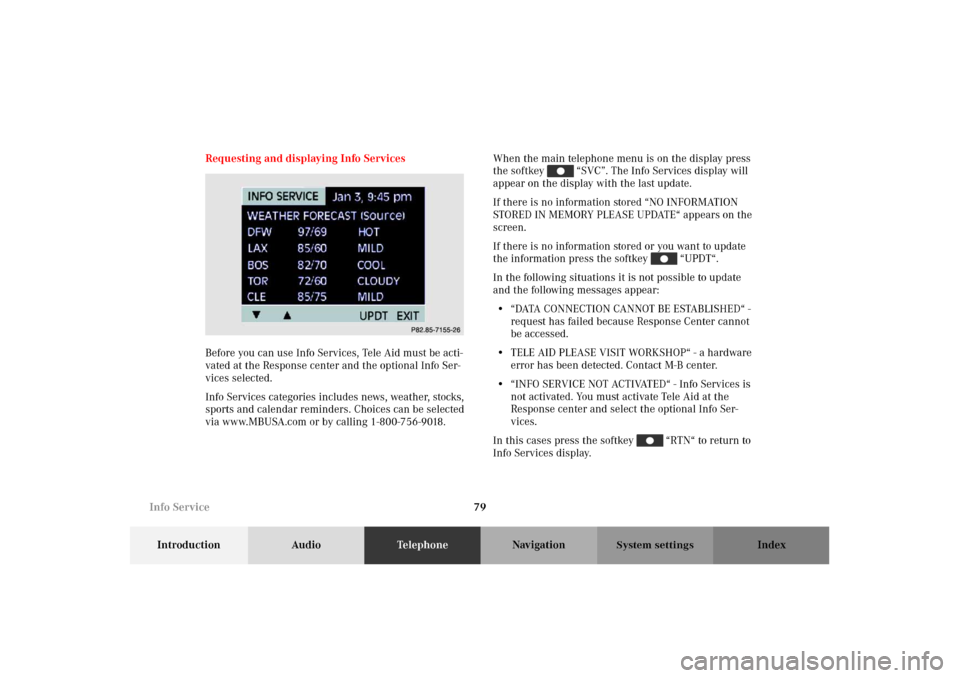
Requesting and displaying Info Services
Before you can use Info Services, Tele Aid must be acti-
vated at the Response center and the optional Info Ser-
vices selected.
Info Services categories includes news, weather, stocks,
sports and calendar reminders. Choices can be selected
via www.MBUSA.com or by calling 1-800-756-9018.When the main telephone menu is on the display press
the softkey “SVC”. The Info Services display will
appear on the display with the last update.
If there is no information stored “NO INFORMATION
STORED IN MEMORY PLEASE UPDATE“ appears on the
screen.
If there is no information stored or you want to update
the information press the softkey “UPDT“.
In the following situations it is not possible to update
and the following messages appear:
• “ DATA C O N N E C T I O N CA N N O T B E E S TA B L I S H E D “ -
request has failed because Response Center cannot
be accessed.
• TELE AID PLEASE VISIT WORKSHOP“ - a hardware
error has been detected. Contact M-B center.
• “INFO SERVICE NOT ACTIVATED“ - Info Services is
not activated. You must activate Tele Aid at the
Response center and select the optional Info Ser-
vices.
In this cases press the softkey “RTN“ to return to
Info Services display.
P82.85-7155-26
Info Service
Page 84 of 165
80
Introduction AudioTe l e p h o n eNavigation Index
System settings
After new information has been downloaded “NEW
INFO RECEIVED READ LATER WHEN STOPPED“
appears on the screen.
By pressing the softkey “YES“ you will switch
back to the current background audio mode (e. g. radio
mode).
By pressing the softkey “NO“ the new informa-
tions will appear on the screen.With the softkeys and or with the joy-
stick you can flip to the next or previous page.
To exit the Info Service mode press the softkey
“EXIT“ you will return to the main telephone menu.
P82.85-7154-26
G
Wa r n i n g !
In order to avoid distraction which could lead to an
accident, information should only be read with the
vehicle at stillstand and the system should be oper-
ated by the driver only when traffic condition per-
mit.
Bear in mind that at a speed of just 30 mph
(approximately 50 km/h), your car is covering a
distance of 50 feet (approximately 14 m) every sec-
ond.
Info Service
Page 86 of 165
82
Introduction Audio TelephoneNavigationIndex
System settings
Before you use the navigation systemG
Wa r n i n g !
During route guidance, you will not receive any
information on traffic lights, stop or yield signs, no
parking or no stopping zones, one-way streets, nar-
row bridges and similar traffic regulation data.
Please always strictly observe traffic regulations
while driving. Traffic regulations always have pri-
ority over any route recommendations given. Study
the manual and select route before driving, do not
watch display screen or operate buttons while the
vehicle is in motion - let voice notifications guide
you. Stop at a safe location before using buttons or
correcting screen. Drive carefully and always obey
traffic laws and road signs even if they contradict
system instructions.
For your safety you should only enter destinations
when the vehicle is stationary. When the vehicle is
in motion, a passenger should enter the destina-
tion.
G
Wa r n i n g !
The CD reader contains a Class 1 laser product.
There is a danger of invisible laser radiation if the
cover is opened or damaged.
Do not remove the cover. The CD reader does not
contain any parts which can be serviced by the
user. For safety reasons, have any service work
which may be necessary performed only by quali-
fied personnel. Notes
Page 158 of 165
154
Introduction Audio Telephone Navigation Index
System settings
Use the softkeys “-” and “+” or “L“ and “R“ to set
the desired value.
Once you are satisfied with the sound setting press soft-
key “EXIT”.
Press and hold both softkeys “-” and “+” for longer
then 2 seconds to reset the selected parameter.
Vehicles with sound system:
With the softkeys , and select the
parameter “SOUND“.
You can select with the softkeys , and
the desired sound impression.Sound impressions available:
• Standard - the sound is set to linear for the centre of
the vehicle
• Speech - emphasises voices
• Driver - the sound is set to the optimum values for
the front seats
• Ambience - recreates the sound of rooms
Note:
Sound optimisation is not available for the service
sources.
System settings
Page 165 of 165

R
Recent Route editing ....................................................... 120
Redial ....................................................................................74
Requesting and displaying Info Services ....................... 79
Road obstructed.................................................................131
Route guidance................................................................. 124
S
Saving the current vehicle position .............................. 109
Scanning (tape) .................................................................. 37
Scanning (CD) .................................................................... 56
Selecting a station
(FM or AM mode) ............................................................19
Selecting CDs (MCS with CD changer) .......................... 53
Selecting the language.................................................... 147
Selecting the off-route recalculation mode.................. 146
Selecting the route calculation mode ........................... 144
Select time display............................................................. 59
Setting map screen orientation ..................................... 139
Setting points of interest icon options ..........................141
Setting the display dimming characteristics............... 157
Setting type of guidance display ................................... 137
Setting voice prompt type/frequency........................... 135
Skip blanks ......................................................................... 38
Speed-dialing ...................................................................... 75Switching between
the light mode and the dark mode ............................ 155
Switching CD operation on and off ................................. 50
Switching navigation operation on and off .................... 88
Switching radio operation on and off ............................. 18
Switching tape operation on and off ............................... 33
Switching telephone operation on and off ..................... 66
T
The principle of route guidance..................................... 122
Today’s Plan .......................................................................115
Track select ......................................................................... 54
V
Viewing GPS Information ............................................... 149
Viewing the Maneuver List during guidance .............. 130
Viewing Software Information ....................................... 150
W
Weather band...................................................................... 22


