Page 94 of 420
Horn
Nearly the entire surface of the center pad of the
steering wheel is an active horn switch. Press anywhere
on the pad to sound the horn.
Tilt Wheel
A tilt steering wheel allows
you to adjust the steering
wheel before you drive.
You can also raise it to the highest level to give your
legs more room when you exit and enter the vehicle.
To tilt the wheel, hold the steering wheel and pull the
lever toward you. Move the steering wheel to a
comfortable position, then release the lever to lock the
wheel in place.
'hrn SignaVMultifunction Lever
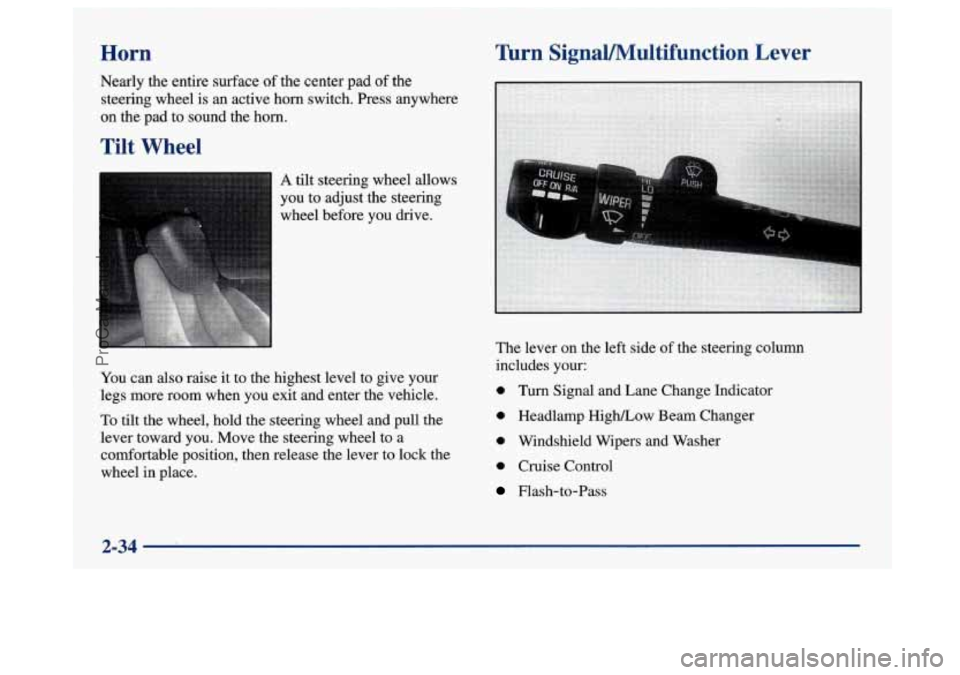
The lever on the left side of the steering column
includes your:
0 Turn Signal and Lane Change Indicator
0 Headlamp High/Low Beam Changer
0 Windshield Wipers and Washer
0 Cruise Control
Flash-to-Pass
2-34
ProCarManuals.com
Page 123 of 420
To block out glare, swing down the visors. The larger
sun visor can be removed from the center mount and
moved to the side, while the auxiliary sun visor remains
to block glare from the front.
Auxiliary Power Outlets
Your vehicle may have one or two power outlets
depending on the type of front seat you have. If your
front seat has a fold-down armrest, the power outlet is
located in the center of the front seat below the cushion.
If your vehicle has front bucket seats with a center
console, you will find one outlet inside the storage
compartment and the other on the lower front edge
of the console.
These power outlets can be used to plug in electrical
equipment such as a cellular telephone or
CB radio.
Follow the proper installation instructions that are
included with the equipment you install.
Garment Hooks
For your convenience, you will find a two-hanger
capacity garment hook above each rear
door near the
reading lamps.
Cellular Phone Readiness Package
(If Equipped)
If you have this option, your vehicle has been prewired
for dealer installation of a portable phone. This system
will have steering wheel controls for volume only, and
infomation output through the
DIC. Voice activation
and hands-free operation are standard features. For more
information, contact your dealer.
A user’s guide will be
provided with the telephone completion lut.
2-63
ProCarManuals.com
Page 129 of 420
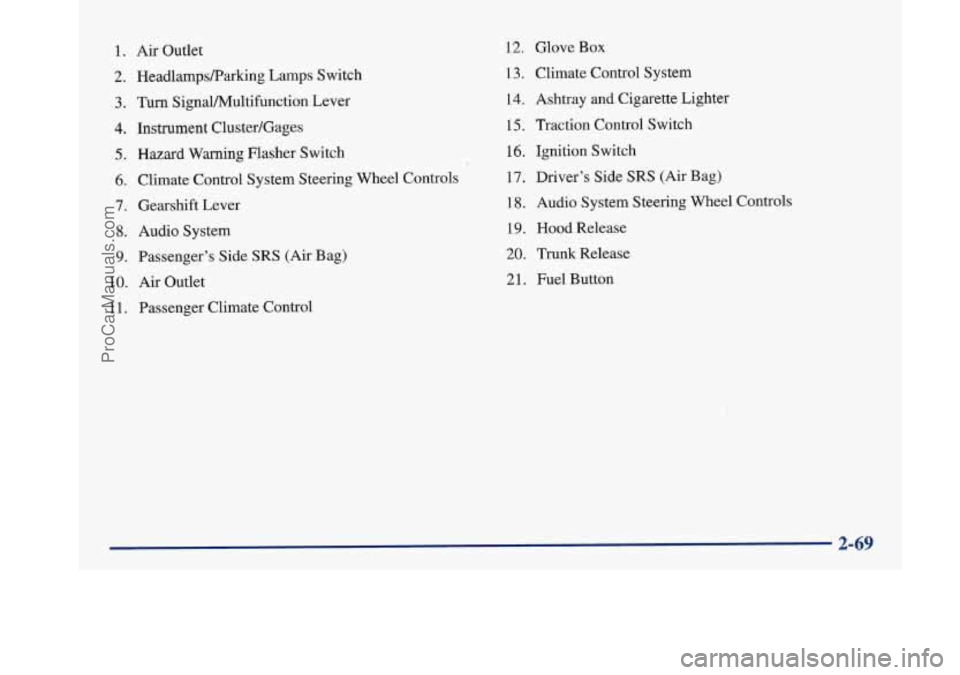
1. Air Outlet
2. HeadlampsRarking Lamps Switch
3. Turn SignaVPv4ultifunction Lever
4. Instrument Cluster/Gages
5. Hazard Warning Flasher Switch
6. Climate Control System Steering Wheel Controls
7. Gearshift Lever
8. Audio System
9. Passenger’s Side SRS (Air Bag)
10.
Air Outlet
1 1. Passenger Climate Control
12. Glove Box
13. Climate Control System
14. Ashtray
and Cigarette Lighter
15, Traction Control Switch
16. Ignition Switch
17. Driver’s Side
SRS (Air Bag)
18. Audio System Steering Wheel Controls
19. Hood Release
20. Trunk Release
21. Fuel Button
ProCarManuals.com
Page 143 of 420
I NOTICE:
Although the HUD image appears to be near the
front
of the vehicle, do not use it as a parking aid.
The
HUD was not designed for that purpose. If
you try to use the display as a marker for the
front of your vehicle, such as in a parking
lot, you
may misjudge distance and hit an obstacle or
another vehicle.
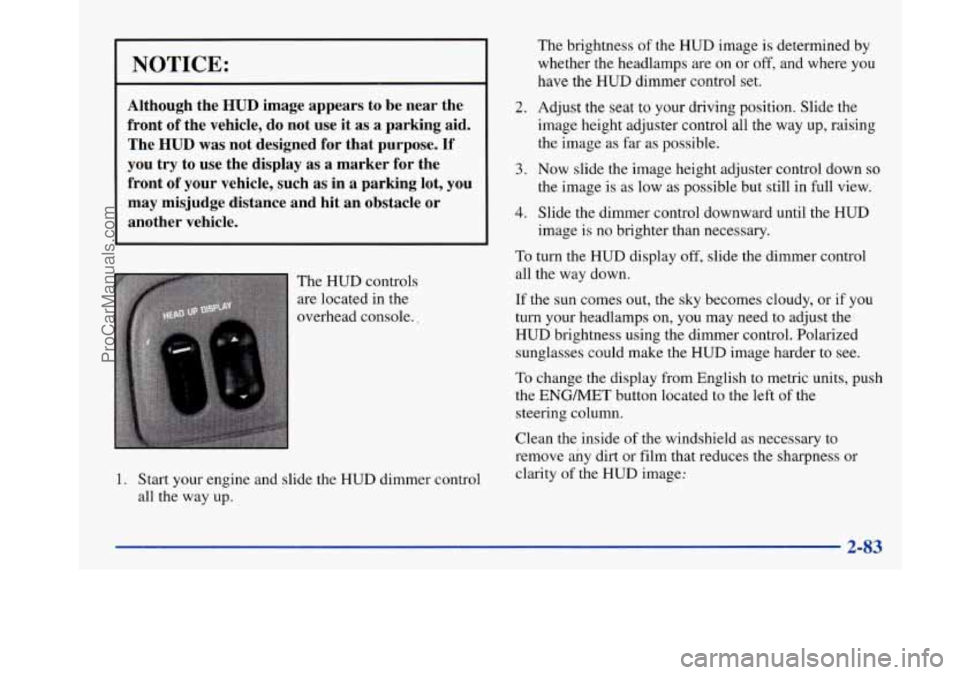
The HUD controls
are located in the
overhead console..
1. Start your engine and slide the HUD dimmer control
all the way up.
2.
3.
4.
The brightness of the HUD image is determined by
whether the headlamps are on or
off, and where you
have the
HUD dimmer control set.
Adjust the seat
to your driving position. Slide the
image height adjuster control all the way
up, raising
the image
as far as possible.
Now slide the image height adjuster control down so
the image is as low as possible but still in full view.
Slide the dimmer control downward until the HUD
image is no brighter than necessary.
To turn the HUD display off, slide the dimmer control
all the way down.
If the sun comes out, the sky becomes cloudy, or if you
turn your headlamps
on, you may need to adjust the
HUD brightness using the dimmer control. Polarized
sunglasses could make the HUD image harder to see.
To change the display from English to metric units, push
the ENGMET button located to the left of the
steering column.
Clean the inside of the windshield as necessary to
remove any dirt or film that reduces the sharpness or
clarity of the
HUD image:
2-83
ProCarManuals.com
Page 144 of 420

To clean the HUD lens, spray household glass cleaner
on a soft, clean cloth. Gently wipe
and dry the HUD
lens. Do not spray cleaner directly on the lens to avoid
cleaner leaking inside the unit.
If the ignition is on and you can’t see the HUD image,
check to see
if
The headlamps are on.
Something is covering the HUD unit.
The HUD dimmer control is adjusted properly.
The HUD image is adjusted to the proper height.
A fuse is blown. See “Fuses and Circuit Breakers” in
the Index.
Keep in mind that your windshield is part of the HUD
system. If you ever have to have your windshield
replaced, be sure to get one that is designed for HUD or
your HUD image may look blurred or out of focus.
Driver Information Center (DIC)
(If Equipped)
Your Park Avenue may be equipped with a Driver
Information Center (DIC). The DIC will display
information about how your vehicle is functioning,
as well as warning messages if a system problem
is detected. The
following buttons
are
on the DIC control panel
which
is located to the left
of the steering column:
ODOKRIP: Use this button to display your total and
trip miles.
FUEL INFO: Press this button to display fuel
information such as, fuel used, fuel range and fuel
economy.
GAGE INFO: Use this button to display oil pressure,
oil life, coolant temperature, tire pressure and battery
information.
RESET: This button, used along with other buttons,
will reset system functions.
ENGMET: Use this button to change the display
between English and metric units.
ProCarManuals.com
Page 153 of 420
Section 3 Comfort Controls and Audio Systems
In this section, you’ll find out how to operate the comfort control and audio systems offered with your Buick. Be sure
to read about the particular systems supplied with your vehicle.
3-2
3-2
3-5
3-5
3-6
3-7 3-8
3-8
3-9
3-9
3-10
3-10
3- 14 Comfort Controls
Personal Choice Comfort Controls
Air Conditioning
Heating
Ventilation System
Passenger Compartment Air Filter
Defogging and Defrosting
Rear Window Defogger
Passenger Climate Control Steering Wheel Controls for Climate Control
Setting the Clock
AM-FM Stereo with Cassette Tape Player
AM-FM Stereo with Cassette Tape Player
and Tone Control 3-18
3-21
3 -27
3-30
3-32
3-33
3-33
3-34 3-35
3-35 AM-FM Stereo
with Compact Disc Player
and Tone Control
AM-FM Stereo with Cassette, CD Player
and Tone Control
Trunk Mounted CD Changer
Theft-Deterrent Feature
Steering Wheel Controls
Understanding Radio Reception
Tips About Your Audio System
Care of Your Cassette Tape Player
Care
of Your Compact Discs
Heated Backlite Antenna
ProCarManuals.com
Page 161 of 420
Passenger Climate Control Steering Wheel Controls for Climate
Control
(Option)
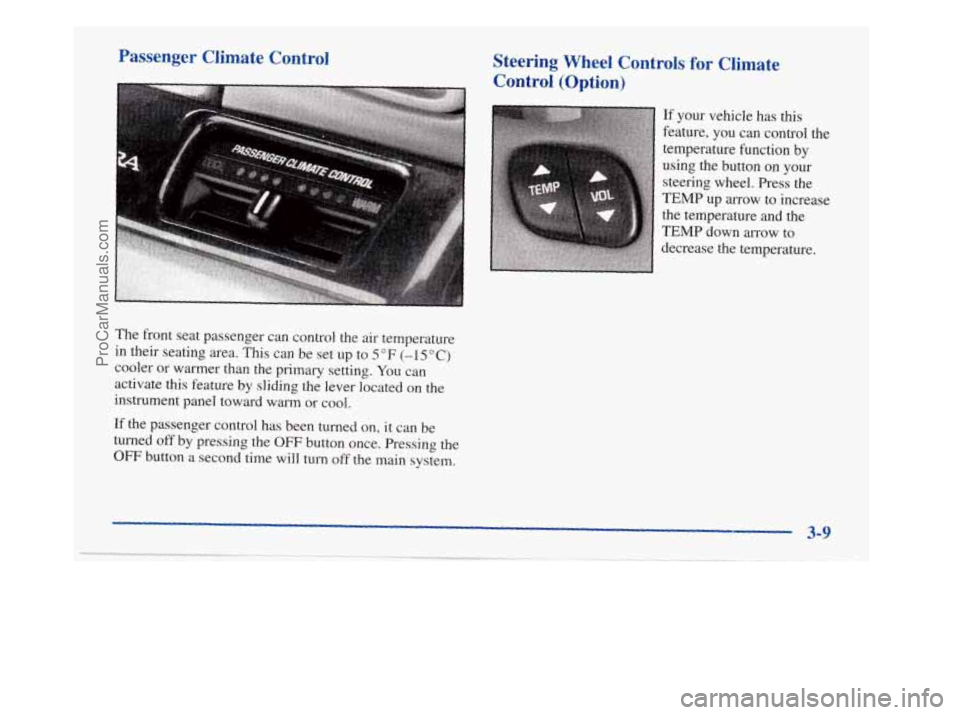
If your vehicle has this
feature, you can control the
temperature function by
using the button
on your
steering wheel. Press the
TEMP up arrow to increase
the temperature and the
TEMP down arrow to
, decrease the temperature.
The front seat passenger can control the air temperature
in their seating area.
Tlus can be set up to 5 OF (-1 5 O C)
cooler or warmer than the primary setting. You can
activate this feature
by sliding the lever located on the
instrument panel toward warm
or cool.
If the passenger control has been turned on, it can be
turned
off by pressing the OFF button once. Pressing the
OFF button a second time will turn off the main system.
3-9
ProCarManuals.com
Page 184 of 420
Steering Wheel Controls (If Equipped)
If your vehicle has this feature, you ‘can control certain
radio functions using the buttons on your steering wheel.
Some steering wheel controls may operate climate
controls. See “Steering Wheel Controls for Climate
Control” earlier in this section.
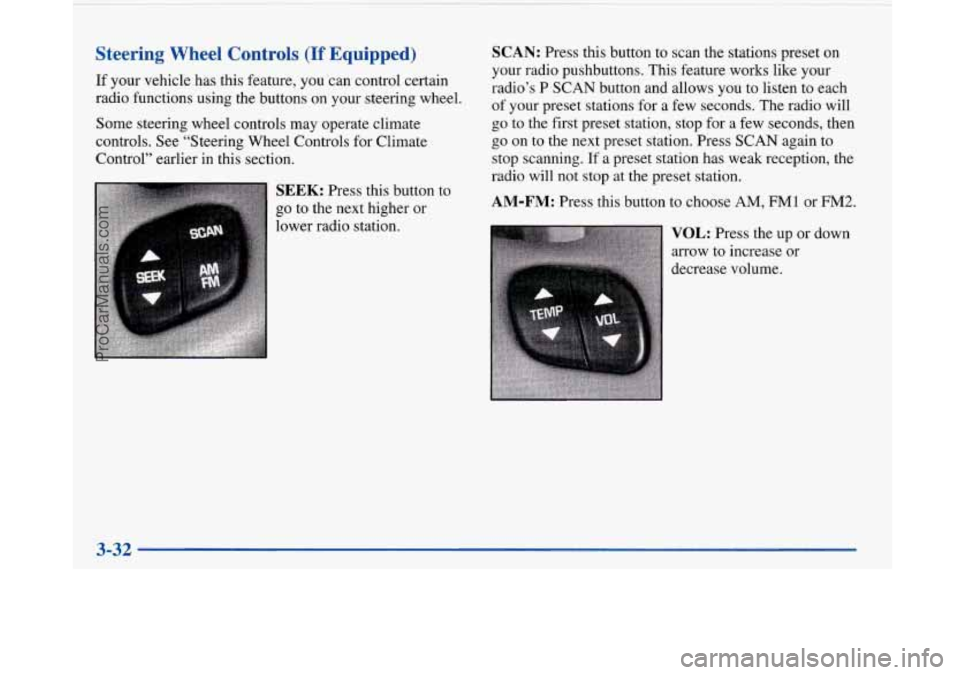
SEEK: Press this button to
go to the next higher or
lower radio station.
SCAN: Press this button to scan the stations preset on
your radio pushbuttons. This feature works like your
radio’s P SCAN button and allows you to listen to each
of your preset stations for a few seconds. The radio will
go to the first preset station, stop for a few seconds, then
go on
to the next preset station. Press SCAN again to
stop scanning.
If a preset station has weak reception, the
radio will not stop at the preset station.
AM-FM: Press this button to choose AM, FMl or FM2.
VOL: Press the up or down
arrow to increase or
decrease volume.
3-32
ProCarManuals.com