2024 MAZDA CX90 change time
[x] Cancel search: change timePage 230 of 687

How to Use the Rear
Window Defogger Switch
Using the Rear Window Defogger
Switch
1. Start the hybrid system.
2.
The rear window defogger operates
and the switch indicator light turns on.
The rear window defogger stops
automatically after it operates about
15 minutes.
NOTE
The rear window defogger operation
time can be changed.
Refer to the Settings section in the
Mazda Connect Owner's Manual.
Stopping the Rear Window Defogger
Press the rear window defogger switch
while the rear window defogger is
operating.
The rear window defogger stops and
the switch indicator light turns off.
Mirror Defogger*
The mirrors are heated using heat
filaments to remove fog.
Driving
Rear Window Defogger Switch
*Some models.5-79
CX-90_8KG7-EA-22L_Edition1_new
2022-11-17 16:05:04
Page 244 of 687

How to Use the HillDescent Control
Using the Hill Descent Control
1. When the vehicle speed is about 25 km/h (15 mph) or slower, press the
hill descent control switch.
The hill descent control is operable,
and the hill descent control
indicator light (white)
turns on.
2. Depress the accelerator pedal or the brake pedal to drive the vehicle
at a speed between about 3 km/h
and 20 km/h (2 and 12 mph).
3. Release the accelerator pedal or the brake pedal when the desired
target speed is reached.
The hill descent control operates,
the hill descent control indicator
light (white)
changes to the hill
descent control indicator light
(green)
, and then the target
speed is displayed.
The brake lights turn on while the
hill descent control is operating.
NOTE
If the braking system is overheated
after using the hill descent control for
a long time, the operation of the hill
descent control may be temporarily
stopped. When the operation of the
hill descent control stops, a warning
sound is activated and the hill
descent control indicator light turns off.
The hill descent control may not be
available due to a system
malfunction in the following cases.
Have your vehicle inspected by an
Authorized Mazda Dealer.
The hill descent control indicator
light does not turn on even if the
hill descent control switch is
pressed.
The TCS/DSC operation indicator
light turns on.
The hill descent control is not
available while Mazda Radar Cruise
Control (MRCC) or Cruising & Traffic
Support (CTS) is operating.
Driving
Hill Descent Control
5-93
CX-90_8KG7-EA-22L_Edition1_new 2022-11-17 16:05:04
Page 268 of 687

Charge indicator
The illumination/flash pattern of the
charge indicator can be checked using
the labels on the charge lid.
Charge indicator
illumination/flash pattern Content
— OFF Charging is possible.
(White) ON
Turns on when waiting for
starting to charge.
(White) Flashes
slowly The brightness changes
when the charging timer is
set.
(Green)
Flashes
slowly The brightness changes
during charging.
(Green)
ONTu r n s o n w h e n c h a rg i n g i s
completed.
Turns off after a certain pe-
riod of time has passed
since charging was com-
pleted.
(Amber)
FlashesFlashes when the charging
connector is connected and
the selector lever is in a po-
sition other than P.
Shift the selector lever to
the P position.
Charge indicator
illumination/
flash pattern Content
(Amber)
ONTurns on if there is a prob-
lem with the charging sys-
tem when the charging
connector is connected.
Wait a few minutes then re-
connect the charging con-
nector.
(Red)
ONTurns on if there is a prob-
lem with the charging sys-
tem and the charging port
lid is opened or the charg-
ing connector is connected.
Have your vehicle inspect-
ed by an Authorized Mazda
Dealer.
Charge status screen
When the driver's door is opened
while the charge connector is
connected, the charging status is
displayed in the instrument cluster.
1. Charge status icon
2. Message
3. Remaining power of the high
voltage battery (Displayed only
when vehicle power is switched
OFF)
4. Time to complete charging
5. EV maximum driving distance (Displayed only when vehicle
power is switched OFF)
Driving
Charging
5-117
CX-90_8KG7-EA-22L_Edition1_new 2022-11-17 16:05:04
Page 269 of 687

NOTE
When charging is started, the charging
status screen is displayed. The charging
status screen turns off after a certain
period of time passes or the doors or
liftgate is locked. The screen is
displayed again when the doors or
liftgate is unlocked.Convenient Ways to Useof Charging
Charging Schedule
Timer charging is a function which
charges the battery automatically ac-
cording to a preset time.
You can charge the battery using this
function during time periods when
electricity rates are low. In addition,
the maximum charge limit can be set
and changed.
1. Select Settings from the homescreen on Mazda Connect.
2. Select EV Settings from the setting
screen.
3. Select Charging Schedule from the selection screen.
Function Available setting changes
1 ----
Enable, Disa-ble
*1Edit, Delete*2
2 ----
3 ----
4 ----
5 ----
6 ----
7 ----
*1 If a list selected using the cursor has beenset, the item can be Enable or Disable.
*2 Settings can be Edit/Delete by sliding a listselected using the cursor to the right.
NOTE
The charging timer does not work
immediately after the lead-acid
battery is removed or installed, or
when no GPS signal has been
received. When charging without
receiving GPS, charging begins.
When GPS signals are received, the
charging timer becomes operational.
Driving
Charging
5-118
CX-90_8KG7-EA-22L_Edition1_new 2022-11-17 16:05:04
Page 270 of 687
Immediately after switching to
daylight savings, charging may occur
at the charging timer time set before
the switch to daylight savings until
the vehicle power is switched ON.
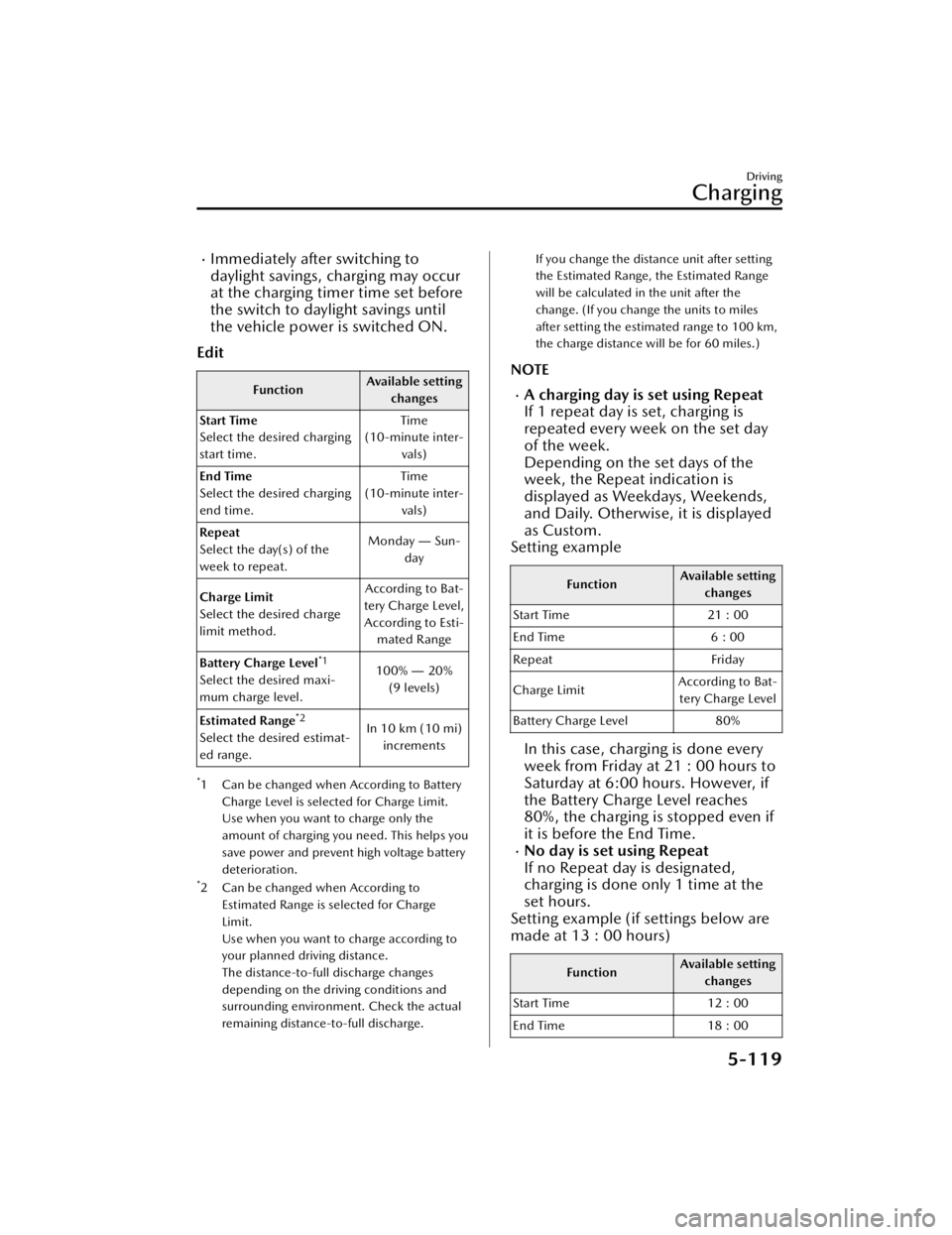
Edit
Function Available setting
changes
Start Time
Select the desired charging
start time. Time
(10-minute inter- vals)
End Time
Select the desired charging
end time. Time
(10-minute inter- vals)
Repeat
Select the day(s) of the
week to repeat. Monday
― Sun-
day
Charge Limit
Select the desired charge
limit method. According to Bat-
tery Charge Level, According to Esti- mated Range
Battery Charge Level
*1
Select the desired maxi-
mum charge level. 100%
― 20%
(9 levels)
Estimated Range
*2
Select the desired estimat-
ed range. In 10 km (10 mi)
increments
*1 Can be changed when According to Battery
Charge Level is selected for Charge Limit.
Use when you want to charge only the
amount of charging you need. This helps you
save power and prevent high voltage battery
deterioration.
*2 Can be changed when According toEstimated Range is selected for Charge
Limit.
Use when you want to charge according to
your planned driving distance.
The distance-to-full discharge changes
depending on the driving conditions and
surrounding environment. Check the actual
remaining distance-to-full discharge.
If you change the distance unit after setting
the Estimated Range, the Estimated Range
will be calculated in the unit after the
change. (If you change the units to miles
after setting the estimated range to 100 km,
the charge distance will be for 60 miles.)
NOTE
A charging day is set using Repeat
If 1 repeat day is set, charging is
repeated every week on the set day
of the week.
Depending on the set days of the
week, the Repeat indication is
displayed as Weekdays, Weekends,
and Daily. Otherwise, it is displayed
as Custom.
Setting example
Function Available setting
changes
Start Time 21 : 00
End Time 6 : 00
Repeat Friday
Charge Limit According to Bat-
tery Charge Level
Battery Charge Level 80%
In this case, charging is done every
week from Friday at 21 : 00 hours to
Saturday at 6:00 hours. However, if
the Battery Charge Level reaches
80%, the charging is stopped even if
it is before the End Time.
No day is set using Repeat
If no Repeat day is designated,
charging is done only 1 time at the
set hours.
Setting example (if settings below are
made at 13 : 00 hours)
Function Available setting
changes
Start Time 12 : 00
End Time 18 : 00
Driving
Charging
5-119
CX-90_8KG7-EA-22L_Edition1_new 2022-11-17 16:05:04
Page 271 of 687
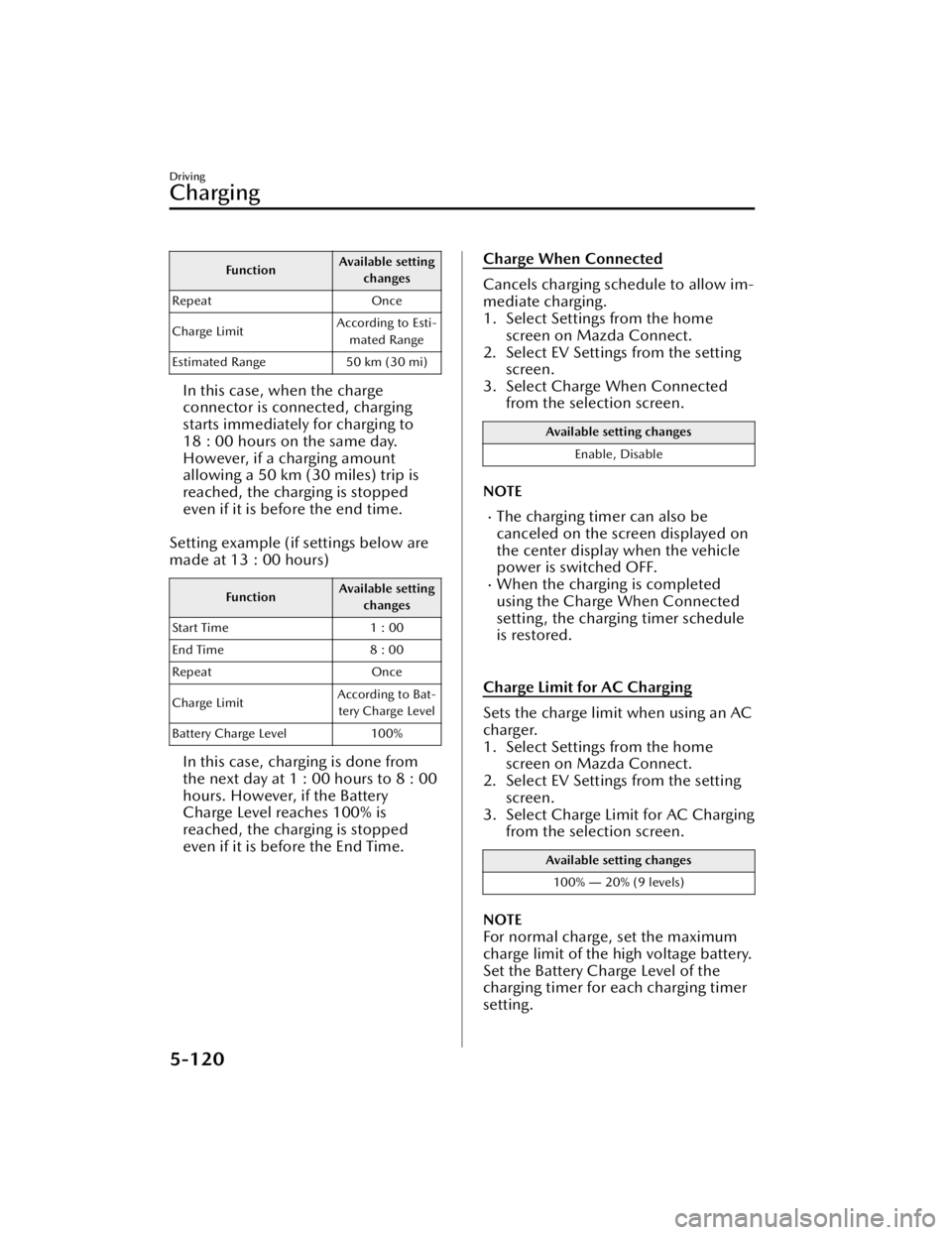
FunctionAvailable setting
changes
Repeat Once
Charge Limit According to Esti-
mated Range
Estimated Range 50 km (30 mi)
In this case, when the charge
connector is connected, charging
starts immediately for charging to
18 : 00 hours on the same day.
However, if a charging amount
allowing a 50 km (30 miles) trip is
reached, the charging is stopped
even if it is before the end time.
Setting example (if settings below are
made at 13 : 00 hours)
Function Available setting
changes
Start Time 1 : 00
End Time 8 : 00
Repeat Once
Charge Limit According to Bat-
tery Charge Level
Battery Charge Level 100%
In this case, charging is done from
the next day at 1 : 00 hours to 8 : 00
hours. However, if the Battery
Charge Level reaches 100% is
reached, the charging is stopped
even if it is before the End Time.
Charge When Connected
Cancels charging schedule to allow im-
mediate charging.
1. Select Settings from the home screen on Mazda Connect.
2. Select EV Settings from the setting
screen.
3. Select Charge When Connected from the selection screen.
Available setting changes
Enable, Disable
NOTE
The charging timer can also be
canceled on the screen displayed on
the center display when the vehicle
power is switched OFF.
When the charging is completed
using the Charge When Connected
setting, the charging timer schedule
is restored.
Charge Limit for AC Charging
Sets the charge limit when using an AC
charger.
1. Select Settings from the home screen on Mazda Connect.
2. Select EV Settings from the setting
screen.
3. Select Charge Limit for AC Charging from the selection screen.
Available setting changes
100% ― 20% (9 levels)
NOTE
For normal charge, set the maximum
charge limit of the high voltage battery.
Set the Battery Charge Level of the
charging timer for each charging timer
setting.
Driving
Charging
5-120
CX-90_8KG7-EA-22L_Edition1_new 2022-11-17 16:05:04
Page 272 of 687

Climate control timer
The climate control timer is a function
which operates the cooling or heating
system automatically according to a
preset time. The power consumption
of the air conditioner after starting to
drive the vehicle is reduced by
operating the air conditioner and
providing a comfortable temperature
in the cabin before driving.
Refer to Convenient Ways to Use the
Fully Automatic Air-Conditioning on
page 6-12.
Charge Connector Lock
The charge connector lock is a function
which locks the charge connector con-
nected to the vehicle so that it cannot
be pulled out. You can also select the
lock conditions for the charge connec-
tor according to locations and situa-
tions.
1. Select Settings from the homescreen on Mazda Connect.
2. Select EV Settings from the setting screen.
3. Select Charge Connector Lock from the selection screen.
4. Set the lock condition from the se- lection screen.
Available setting changes
Locked When Charging
Unlocks connector when charging is complete
or vehicle is unlocked.
Locked When Connected
Unlocks connector only when vehicle is un-
locked.
Available setting changes
Off
Charge connector remains unlocked at all
times.
Functions using a Smartphone
You can check the remaining high
voltage battery power, operate the
charging, and operate the air
conditioner remotely by a Smartphone
remote control operation using the
Connected Service. For details, consult
an Authorized Mazda Dealer.
Driving
Charging
5-121
CX-90_8KG7-EA-22L_Edition1_new 2022-11-17 16:05:04
Page 303 of 687

NOTE
The screen display ends after a certain
period of time has passed since the
sign was displayed on the screen.
Tu r n i n g off the TSR
The TSR can be turned off using the
Mazda Connect.
Refer to the Settings section in the
Mazda Connect Owner's Manual.
Convenient Ways to Use
the Traffic Sign
Recognition System (TSR)
You can set an excessive speed
warning to be issued when your
vehicle's speed exceeds the speed
indicated on the speed limit sign.
Turn on the excessive speed warning
using Mazda Connect.
Refer to the Settings section in the
Mazda Connect Owner's Manual.
If your vehicle’s speed exceeds the
speed on the speed limit sign, the area
around the display of the speed limit
sign flashes in amber
and a warning
sound is activated. In addition, if the
vehicle speed continues to be
excessive, it stops flashing and remains
on.
NOTE
The warning pattern and the warning
activation timing can be changed using
Mazda Connect.
Refer to the Settings section in the
Mazda Connect Owner's Manual.
Driving
Tra ffi c Sign Recognition System (TSR)
5-152
CX-90_8KG7-EA-22L_Edition1_new
2022-11-17 16:05:04