2023 TOYOTA PRIUS PRIME key
[x] Cancel search: keyPage 206 of 680

2064-2. Opening, closing and locking the doors
●When the electronic key is placed
near a battery charger or elec-
tronic devices
●When the vehicle is parked in a
pay parking spot where radio
waves are emitted.
If the doors cannot be
locked/unlocked using the smart key
system, lock/unlock the doors by
performing any of the following:
●Bring the electronic key close to
either front door handle and oper-
ate the entry function.
●Operate the wireless remote con-
trol.
If the doors cannot be
locked/unlocked using the above
methods, use the mechanical key.
( P.587)
If the hybrid system cannot be
started using the smart key system,
refer to P.588.
■Note for the entry function
●Even when the electronic key is
within the effective range (detec-
tion areas), the system may not
operate properly in the following
cases:
• The electronic key is too close to the window or outside door han-
dle, near the ground, or in a high
place when the doors are locked
or unlocked.
• The electronic key is on the instru- ment panel, luggage compartment
or floor, or in the door pockets or
glove box when the hybrid system
is started or power switch modes
are changed.
●Do not leave the electronic key on
top of the instrument panel or near
the door pockets when exiting the
vehicle. Depending on the radio
wave reception co nditions, it may
be detected by the antenna out-
side the cabin and the door will
become lockable from the outside,
possibly trapping the electronic
key inside the vehicle.
●As long as the electronic key is within the effective range, the
doors may be locked or unlocked
by anyone. However, only the
doors detecting the electronic key
can be used to unlock the vehicle.
●Even if the electronic key is not
inside the vehicle, it may be possi-
ble to start the hybrid system if the
electronic key is near the window.
●The doors may unlock if a large
amount of water splashes on the
door handle, such as in the rain or
in a car wash when the electronic
key is within the effective range.
(The doors will automatically be
locked after approximately 60 sec-
onds if the doors are not opened
and closed.)
●If the wireless remote control is
used to lock the doors when the
electronic key is near the vehicle,
there is a possibilit
y that the door
may not be unlocked by the entry
function. (Use the wireless remote
control to unlock the doors.)
●Touching the door lock sensor
while wearing gloves may delay or
prevent lock operation. Remove
the gloves and touch the lock sen-
sor again.
●When the lock operation is per-
formed using the lock sensor, rec-
ognition signals will be shown up
to two consecutive times. After
this, no recognition signals will be
given.
●If the door handle becomes wet
while the electronic key is within
the effective range, the door may
lock and unlock repeatedly. In that
case, follow the following correc-
tion procedures to wash the vehi-
cle:
• Place the electron ic key in a loca-
tion 6 ft. (2 m) or more away from
the vehicle. (Take care to ensure
that the key is not stolen.)
• Set the electronic key to battery- saving mode to disable the smart
key system. ( P.205)
●If the electronic key is inside the
Page 207 of 680

2074-2. Opening, closing and locking the doors
4
Before driving
vehicle and a door handle
becomes wet during a car wash, a
message may be shown on the
multi-information display and a
buzzer will sound outside the vehi-
cle. To turn off the alarm, lock all
the doors.
●The lock sensor may not work
properly if it comes into contact
with ice, snow, mud, etc. Clean
the lock sensor and attempt to
operate it again.
●A sudden approach to the effec-
tive range or door handle may pre-
vent the doors from being
unlocked. In this case, return the
door handle to the original position
and check that the doors unlock
before pulling the door handle
again.
●If there is another electronic key in
the detection area, it may take
slightly longer to unlock the doors
after the door handle is gripped.
■When the vehicle is not driven
for extended periods
●To prevent theft of the vehicle, do
not leave the electronic key within
6 ft. (2 m) of the vehicle.
●The smart key system can be
deactivated in advance. ( P.622)
●Battery-saving mode can reduce
the power consumption of elec-
tronic keys. ( P.205)
■To operate the system properly
Make sure to carry the electronic
key when operating the system. Do
not get the electronic key too close
to the vehicle when operating the
system from the outside of the vehi-
cle.
Depending on the position and hold-
ing condition of the electronic key,
the key may not be detected cor-
rectly and the system may not oper-
ate properly. (The alarm may go off
accidentally, or the door lock pre-
vention may not operate.)
■If the smart key system does
not operate properly
●Locking and unlocking the doors:
Use the mechanical key.
( P.587)
●Starting the hybrid system:
P.588
■Customization
Settings (e.g. smart key system)
can be changed.
(Customizable features: P.622)
If the smart key system has been
deactivated in a customized setting,
refer to the explanations for the fol-
lowing operations.
●Locking and unlocking the doors:
Use the wireless remote control or
mechanical key. ( P.185, 587)
●Starting the hybrid system and
changing power switch modes:
P.588
●Stopping the hybrid system:
P.253
WARNING
■Caution regarding interfer-
ence with electronic devices
●People with implantable car-
diac pacemakers, cardiac
resynchronization therapy-
pacemakers or implantable car-
dioverter defibrillators should
keep away from the smart key
system antennas. ( P.203)
The radio waves may affect the
operation of such devices. If
necessary, the entry function
can be disabled. Ask your
Toyota dealer fo r details, such
as the frequency of radio waves
and timing of the emitted radio
waves. Then, consult your doc-
tor to see if you should disable
the entry function.
Page 228 of 680

2284-5. Opening, closing the windows
5Release the power window
switch for a moment, resume
pushing the switch in the one-
touch opening direction, and
hold it there for approximately 4
seconds or more.
6 Pull and hold the power window
switch in the one-touch closing
direction again. After the side
window is completely closed,
continue holding the switch for a
further 1 second or more.
If you release the switch while the
side window is moving, start again
from the beginning.
If the side window reverses and
cannot be fully closed or opened,
have the vehicle inspected by your
Toyota dealer.
■Door lock linked power window
operation
●The power windows can be
opened and closed using the
mechanical key.
* ( P.587)
●The power windows can be
opened using the wireless remote
control.
* ( P.185)
*: These settings must be custom-
ized at your Toyota dealer.
■Power window open reminder
function
A message is shown on the multi-
information display when the power
switch is turned to OFF and the
driver’s door is opened with the
power windows open.
■Customization
Settings (e.g. linked door lock oper-
ation) can be changed. (Customiz-
able features: P.624)
WARNING
Observe the following precau-
tions.
Failing to do so may result in
death or serious injury.
■Closing the power windows
●The driver is responsible for all
the power window operations,
including the operation for the
passengers. In order to prevent
accidental operation, especially
by a child, do not let a child
operate the power windows. It is
possible for children and other
passengers to have body parts
caught in the power window.
Also, when riding with a child, it
is recommended to use the win-
dow lock switch. ( P.229)
●Check to make sure that all pas-
sengers do not have any part of
their body in a position where it
could be caught when a power
window is being operated.
●When using the wireless remote
control or mechanical key and
operating the power windows,
operate the power window after
checking to make sure that
there is no possibility of any
passenger having any of their
body parts caught in the side
window. Also, do not let a child
operate the power window by
the wireless remote control or
mechanical key. It is possible
for children and other passen-
gers to get caught in the power
window.
●When exiting the vehicle, turn
the power switch to OFF, carry
the key and exit the vehicle
along with the child. There may
be accidental operation, due to
mischief, etc., that may possibly
lead to an accident.
Page 230 of 680

2304-6. Favorite settings
4-6.Favorite settings
*: If equipped
When all of the following have
been performed, the driver’s
seat is automatically adjusted to
a position that allows driver to
enter and exit the vehicle easily.
The shift position has been
shifted to P.
The power switch has been
turned to OFF.
The driver’s seat belt has
been unfastened.
When any of the following has
been performed, the driver’s
seat automatically returns to its
original position.
The power switch has been
turned to ACC or ON.
The driver’s seat belt has
been fastened.
■Operation of the power easy
access system
●When exiting the vehicle, the
power easy ac cess system may
not operate if the seat is already
close to the rearmost position, etc.
●If the seat position is adjusted
Driving position mem-
ory*
This feature automatically
adjusts the positions of the
driver’s seat to make enter-
ing and exiting the vehicle
easier or to suit your prefer-
ences.
When My Settings is turned
on:
Driving positions for the
registered drivers (3 pat-
terns) and guest (1 pattern)
can be registered in My Set-
tings.
When electronic key assign-
ment is registered for My
Settings, the driving posi-
tion for each driver can be
recalled (memory recall
function).
When My Settings is turned
off:
Up to 2 different driving
positions can be recorded.
Each electronic key can be
registered to recall your pre-
ferred driving position
(memory recall function).
For details about My Set-
tings, refer to P.234.
Enabling easier driver
entry and exit (power easy
access system)
Page 232 of 680
2324-6. Favorite settings
■Using the voice control system
(if equipped)
The following operations can be
performed using the voice control
system:
●Driving position registration
●Recalling the drivin g position (can
be operated only when the shift
position is in P)
For details regarding the voice con-
trol system, refer to the “MULTIME-
DIA OWNER’S MANUAL”.
■Seat positions that can be
memorized ( P.209)
The adjusted positions other than
the position adjusted by lumbar sup-
port switch can be recorded.
■Operating the driving position
memory after turning the power
switch to OFF
Recorded seat positions can be
activated up to 180 seconds after
the driver’s door is opened and
another 60 seconds after it is closed
again.
■In order to correctly use the
driving position memory func-
tion
If a seat position is already in the
furthest possible position and the
seat is operated in the same direc-
tion, the recorded position may be
slightly different when it is recalled.
■When recalling the driving posi-
tion
Take care when recalling the driving
position so that the head restraint
does not touch the ceiling.
■When the recorded seat posi-
tion cannot be recalled
The seat position may not be
recalled in some situations when the
seat position is recorded in a certain
range. For details, contact your
Toyota dealer.
■When My Settings is turned
off
Registering procedure
Record your driving position to
button “1” or “2” before perform-
ing the following:
Carry only the electronic key
you want to register, and then
close the driver’s door.
If 2 or more electronic keys are
in the vehicle, the driving posi-
tion cannot be recorded prop-
erly.
1 Check that the shift position
is in P.
2 Turn the power switch to ON.
3 Recall the driving position
that you want to record.
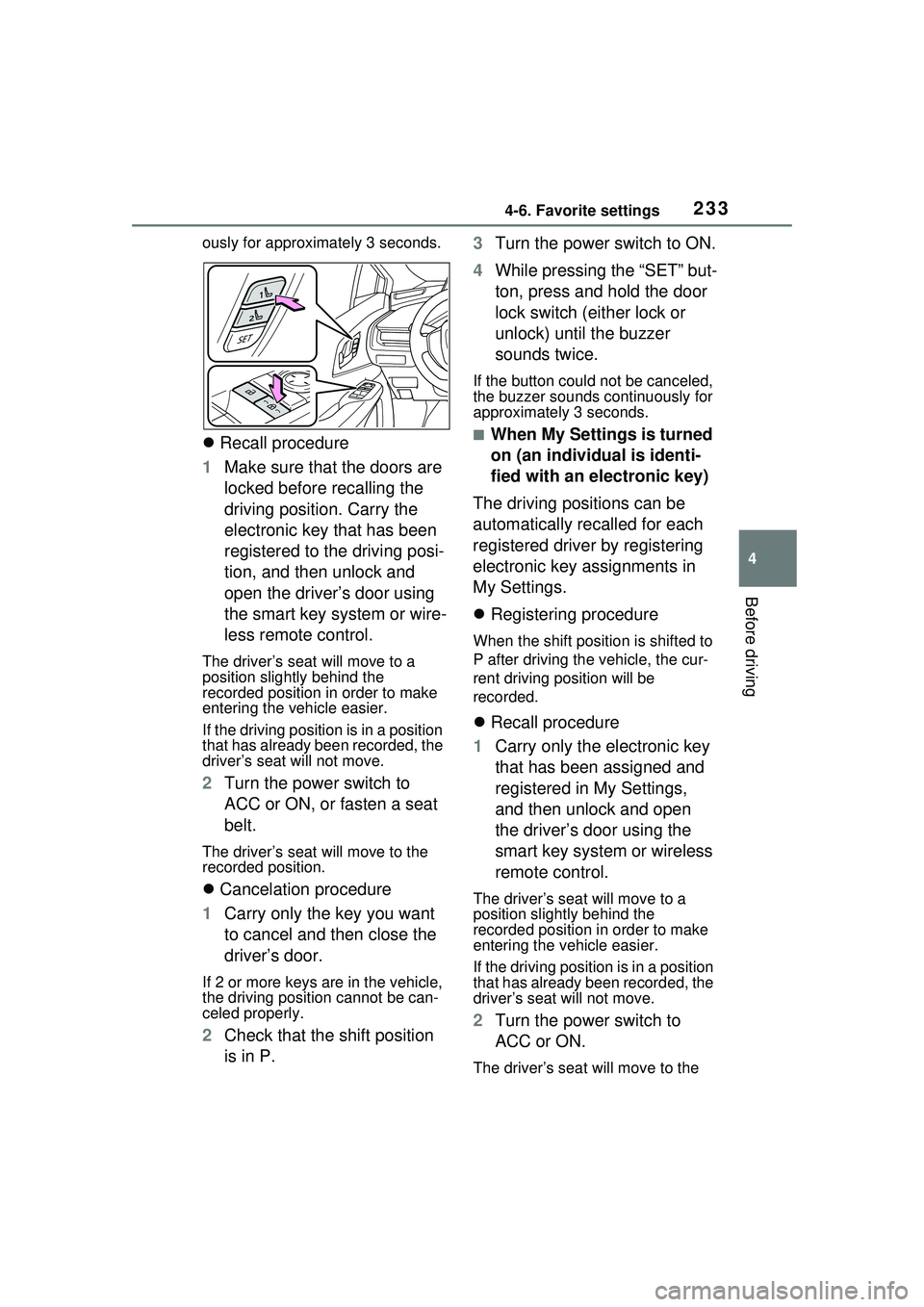
4 While pressing the recalled
button, press and hold the
door lock switch (either lock
or unlock) until the buzzer
sounds.
If the button could not be regis-
tered, the buzzer sounds continu-
WARNING
■Seat adjustment caution
Take care during seat adjustment
so that the seat does not strike
the rear passenger or squeeze
your body against the steering
wheel.
Registering/recalling/can-
celing a driving position
to an electronic key
(memory recall function)
Page 233 of 680
2334-6. Favorite settings
4
Before driving
ously for approximately 3 seconds.
Recall procedure
1 Make sure that the doors are
locked before recalling the
driving position. Carry the
electronic key that has been
registered to the driving posi-
tion, and then unlock and
open the driver’s door using
the smart key system or wire-
less remote control.
The driver’s seat will move to a
position slightly behind the
recorded position in order to make
entering the vehicle easier.
If the driving position is in a position
that has already been recorded, the
driver’s seat will not move.
2 Turn the power switch to
ACC or ON, or fasten a seat
belt.
The driver’s seat will move to the
recorded position.
Cancelation procedure
1 Carry only the key you want
to cancel and then close the
driver’s door.
If 2 or more keys are in the vehicle,
the driving position cannot be can-
celed properly.
2Check that the shift position
is in P. 3
Turn the power switch to ON.
4 While pressing the “SET” but-
ton, press and hold the door
lock switch (either lock or
unlock) until the buzzer
sounds twice.
If the button could not be canceled,
the buzzer sounds continuously for
approximately 3 seconds.
■When My Settings is turned
on (an individual is identi-
fied with an electronic key)
The driving positions can be
automatically recalled for each
registered driver by registering
electronic key assignments in
My Settings.
Registering procedure
When the shift position is shifted to
P after driving the vehicle, the cur-
rent driving position will be
recorded.
Recall procedure
1 Carry only the electronic key
that has been assigned and
registered in My Settings,
and then unlock and open
the driver’s door using the
smart key system or wireless
remote control.
The driver’s seat will move to a
position slightly behind the
recorded position in order to make
entering the vehicle easier.
If the driving position is in a position
that has already been recorded, the
driver’s seat will not move.
2Turn the power switch to
ACC or ON.
The driver’s seat will move to the
Page 234 of 680
2344-6. Favorite settings
recorded position.
Cancelation procedure
Initialize the driver registered set-
tings in My Settings.
For information on initializing driver
registered settings, refer to “MULTI-
MEDIA OWNER’S MANUAL”.
■Recalling the driving position
using the memory recall func-
tion
●Different driving positions can be
registered for each electronic key.
Therefore, the driving position that
is recalled may be different
depending on the key being car-
ried.
●If the a door other than the driver’s
door is unlocked with the smart
key system, the driving position
cannot be recalled. In this case,
press the driving position button
which has been set.
■Jam protection function
If a person or object interferes while
the seat is moving automatically, the
operation will stop.
An individual can be identified
using the following authentica-
tion devices.
Electronic key
An individual is identified when the
smart key system detects their
electronic key. ( P.203)
My Settings
Drivers are identified using
devices such as electronic
keys to store the driving
position and vehicle set-
tings for each. Then the
information can be recalled
the next time the vehicle is
driven.
Authentication devices can
be assigned in advance to
drivers so that they can
drive using their preferred
settings.
Settings for 3 drivers can be
stored in My Settings.
For information on authenti-
cation devices registra-
tion/deletion, changing the
driver’s name, initializing
driver registered settings,
manually switching drivers
and deleting drivers regis-
tration, refer to the “MULTI-
MEDIA OWNER’S
MANUAL”.
Types of assigned
authentication devices
Page 235 of 680

2354-6. Favorite settings
4
Before driving
Digital Key (if equipped)
An individual is identified when the
smart key system detects their Digi-
tal Key. ( P.183)
Bluetooth® devices
An individual can be identified if the
same Bluetooth
® device that was
used as a hands-free phone the
last time the vehicle was entered is
connected to the audio system.
If an individual is identified by
detecting an electronic key, identifi-
cation by Bluetooth
® device will not
be performed.
Bluetooth
® is a registered trade-
mark of Bluetooth SIG, Inc.
When an individual is identified
from an authentication device,
settings for the following func-
tions are recalled.
Driving position (memory
recall function) (if equipped)
After an individual is identified, the
driving position that was set when
driving was last completed is
recalled when either of the follow-
ing operations is performed.
• Identification using electronic key:
The door is unlocked and opened
using the smart key system or
wireless remote control.
• Identification using Digital Key (if equipped): The door is unlocked
and opened using the smart key
system.
Refer to P.231 for information on
driving position registration and recall.
Multimedia settings*
When an individual is identified, the
multimedia system settings used
when the power switch was last
turned off are recalled.
Vehicle settings* (items that
can be set on the multi-infor-
mation display and Multime-
dia Display)
When an individual is identified, the
vehicle settings used when the
power switch was last turned off are
recalled.
*: Some settings are excluded
Recalled functions