2023 TOYOTA COROLLA HATCHBACK warning
[x] Cancel search: warningPage 76 of 436
762-1. Instrument cluster
Display change button (P.76)
■Outside temperature display
●In the following situations, the cor-
rect outside tempe rature may not
be displayed, or the display may
take longer than normal to
change:
• When stopped, or driving at low
speeds (less than 12 mph [20
km/h])
• When the outside temperature
has changed suddenly (at the
entrance/exit of a garage, tunnel,
etc.)
●When “--” or “E” is displayed, the
system may be malfunctioning.
Take your vehicle to your Toyota
dealer.
■Liquid crystal display
P. 8 3
■Customization
The gauges and meters can be cus-
tomized in of the multi-informa-
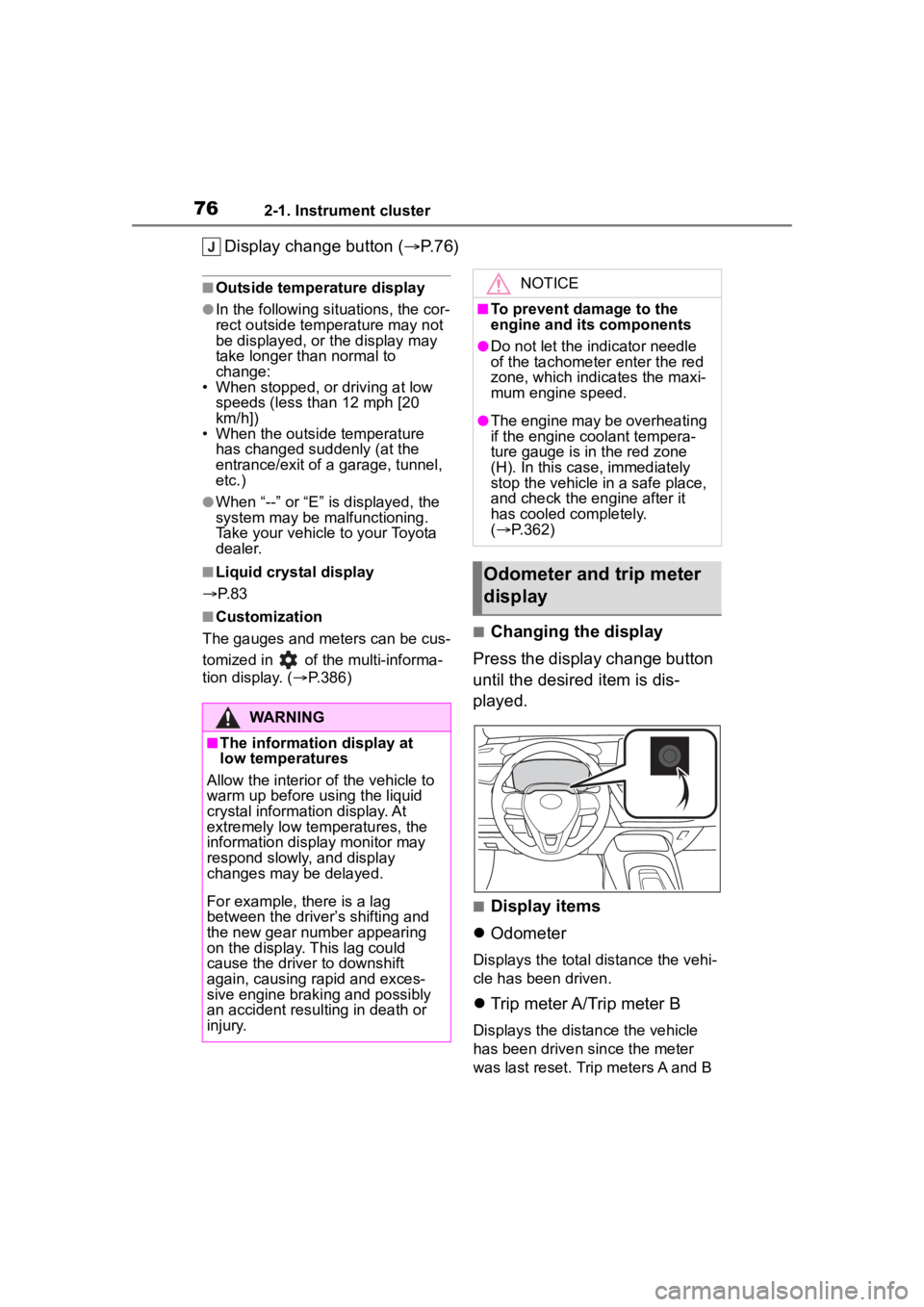
tion display. ( P.386)■Changing the display
Press the display change button
until the desired item is dis-
played.
■Display items
Odometer
Displays the total distance the vehi-
cle has been driven.
Trip meter A/Trip meter B
Displays the distance the vehicle
has been driven since the meter
was last reset. Trip meters A and B
WARNING
■The information display at
low temperatures
Allow the interior of the vehicle to
warm up before u sing the liquid
crystal informat ion display. At
extremely low temperatures, the
information display monitor may
respond slowly, and display
changes may be delayed.
For example, there is a lag
between the driver’s shifting and
the new gear number appearing
on the display. This lag could
cause the driver to downshift
again, causing rapid and exces-
sive engine braking and possibly
an accident resulting in death or
injury.
NOTICE
■To prevent damage to the
engine and its components
●Do not let the indicator needle
of the tachometer enter the red
zone, which indicates the maxi-
mum engine speed.
●The engine may be overheating
if the engine coolant tempera-
ture gauge is in the red zone
(H). In this case, immediately
stop the vehicle in a safe place,
and check the engine after it
has cooled completely.
( P.362)
Odometer and trip meter
display
Page 77 of 436

772-1. Instrument cluster
2
Vehicle status information and indicators
can be used to record and display
different distances independently.
To reset, display the desired trip
meter and press and hold the dis-
play change button.
The brightness of the instrument
panel lights can be adjusted.
1Brighter
2 Darker
■Instrument panel light bright-
ness adjustment
When the headlights or parking
lights are turned on, the meter and
instrument panel lights will be
dimmed. However, if the instrument
panel brightness dial is set to the
highest position, the lights will not
dim even if the headlights or parking
lights are turned on.
■The clocks can be adjusted
on the audio system
screen.
Refer to “MULTIMEDIA
OWNER’S MANUAL”.
■Display
Driving support system status
display area
Displays an image when the follow-
ing systems are operating and a
menu icon other than is
selected:
• LTA (Lane Tracing Assist)
• LDA (Lane Departure Alert)
• RSA (Road Sign Assist)
• Dynamic radar cruise control
• Cruise control
Content display area
By selecting menu icons on the
multi-information di splay, a variety
of driving-related information can
be displayed. The multi-information
display can also be used to change
display settings and other vehicle
settings.
Warning or advice pop-up displays
are also displayed in certain situa-
tions.
■Menu icons
The menu icons will be dis-
played by pressing the or
Changing the instrument
panel light brightness
Adjusting the clock
Multi-infor mation dis-
play (4.2-inch display)
Display and menu icons
Page 78 of 436

782-1. Instrument cluster
meter control switch.
■Liquid crystal display
Small spots or light spots may
appear on the display. This phenom-
enon is characteristi c of liquid crys-
tal displays, and there is no problem
continuing to use the display.
The multi-information display is
operated using the meter control switches.
/ : Select menu icons
/ : Change displayed
content, scroll up/down the
screen and move the cursor
up/down
Press: Enter/Set
Press and hold: Reset/Dis-
play customizable items
Return to the previous screen
Call sending/receiving and
history display
Linked with the hands-free system,
sending or receiving call is dis-
played. For details regarding the
hands-free system, refer to the
“Multimedia Owner’s Manual”.
■Display items
Speedometer display/Driving
range
Fuel economy
Eco Driving Indicator/Driving
range
Driving information display
( P. 7 8 )
Driving support system
information display
( P. 8 0 )
Audio system-linked dis-
play ( P. 8 1 )
Vehicle information dis-
play ( P. 8 1 )
Settings display ( P. 8 1 )
Warning message display
( P.330)
WARNING
■Caution for use while driving
●When operating the multi-infor-
mation display while driving,
pay extra attention to the safety
of the area aroun d the vehicle.
●Do not look continuously at the
multi-information display while
driving as you may fail to see
pedestrians, objects on the
road, etc. ahead o f the vehicle.
■The information display at
low temperatures
P. 7 3
Changing the meter dis-
play
Content of driving infor-
mation
Page 82 of 436

822-1. Instrument cluster
• Fuel economy display
Select to change the average fuel
consumption display between after
start/after reset. (P. 7 9 )
Select to display/not display the
audio system linked display.
Select to change the displayed con-
tent of the following:
• Drive information type
Select to change the drive informa-
tion type display between after
start/after reset.
• Drive information items
Select to set the first and second
items of the drive information dis-
play to any of the following: aver-
age vehicle
speed/distance/elapsed time.
Pop-up display
Select to enable/disable pop-up
displays for each relevant system.
Multi-information display off
Select to turn the m ulti-information
display off.
To turn the multi-in formation display
on again, press any of the following
meter control switches
//// /.
Default setting
Select to reset the meter display
settings to the default setting.
■Vehicle functions and set-
tings that can be changed
P.386
■Suspension of the settings dis-
play
●Some settings cannot be changed
while driving. When changing set-
tings, park the vehicle in a safe
place.
●If a warning message is displayed,
operation of the settings display
will be suspended.
WARNING
■Cautions during setting up
the display
If the engine is running when
changing the dis play settings,
ensure that the vehicle is parked
in a place with adequate ventila-
tion. In a closed area such as a
garage, exhaust gases including
harmful carbon monoxide (CO)
may collect and enter the vehicle.
This may lead to death or a seri-
ous health hazard.
NOTICE
■During setting up the display
To prevent batte ry discharge,
ensure that the engine is running
while setting up the display fea-
tures.
Page 83 of 436

832-1. Instrument cluster
2
Vehicle status information and indicators
■DisplayContent display area
By selecting menu icons on the
multi-information display, a variety
of driving-related information can
be displayed. The multi-information
display can also be used to change
display settings and other vehicle
settings.
Warning or advice pop-up displays
are also displayed in certain situa-
tions.
Driving support system status
display area
Displays an image when the follow-
ing systems are operating and a
menu icon other than is
selected:
• LTA (Lane Tracing Assist)
• LDA (Lane Departure Alert)
• Dynamic radar cruise control
• Cruise control
■Menu icons
The menu icons will be dis-
played by pressing the or
meter control switch.
■Liquid crystal display
Small spots or light spots may
appear on the display. This phenom-
enon is characteristic of liquid crys-
tal displays, and there is no problem
continuing to use the display.
The multi-information display is
operated using the meter control
switches.
Multi-infor mation dis-
play (7-inch display)
Display and menu icons
Driving information display
( P. 8 4 )
Driving support system
information display
( P. 8 5 )
Audio system-linked dis-
play ( P. 8 6 )
Vehicle information dis-
play ( P. 8 6 )
Settings display ( P.86)
Warning message display
( P.330)
WARNING
■Caution for use while driving
●When operating the multi-infor-
mation display while driving,
pay extra attention to the safety
of the area around the vehicle.
●Do not look continuously at the
multi-informatio n display while
driving as you may fail to see
pedestrians, objects on the
road, etc. ahead of the vehicle.
■The information display at
low temperatures
P. 7 6
Changing the meter dis-
play
Page 87 of 436

872-1. Instrument cluster
2
Vehicle status information and indicators
Dial Type
Select to change the display of the
speedometer or tachometer.
Eco Driving Indicator Light
Select to enable/disable the Eco
Driving Indicator Light.
Fuel economy display
Select to change the average fuel
consumption display to any of the
following: trip ave rage/total aver-
age/tank average. ( P. 8 4 )
Select to display/not display the
audio system linked display.
Select to change the displayed con-
tent of the following:
• Drive information type
Select to change the drive informa-
tion type display between trip infor-
mation/total information.
• Drive information items
Select to set the first and second
items of the drive information dis-
play to any of the following: aver-
age vehicle
speed/distance/elapsed time.
Pop-up display
Select to enable/disable pop-up
displays for each relevant system.
Multi-information display off
Select to turn the m ulti-information
display off.
To turn the multi-in formation display
on again, press any of the following
meter control switches //// /.
Default setting
Select to reset the meter display
settings to the default setting.
■Vehicle functions and set-
tings that can be changed
P.386
■Suspension of the settings dis-
play
●Some settings cannot be changed
while driving. When changing set-
tings, park the vehicle in a safe
place.
●If a warning message is displayed,
operation of the settings display
will be suspended.
WARNING
■Cautions during setting up
the display
If the engine is running when
changing the dis play settings,
ensure that the vehicle is parked
in a place with adequate ventila-
tion. In a closed area such as a
garage, exhaust gases including
harmful carbon monoxide (CO)
may collect and enter the vehicle.
This may lead to death or a seri-
ous health hazard.
NOTICE
■During setting up the display
To prevent batte ry discharge,
ensure that the engine is running
while setting up the display fea-
tures.
Page 97 of 436

973-2. Opening, closing and locking the doors
3
Before driving
tem or wireless remote control. Lock
or unlock the doors using the
mechanical key. (P.356)
■Rear seat reminder function
In order to remind you not to forget
luggage, etc. in the rear seat, when
the engine switch is turned off after
any of the following conditions are
met, a buzzer will sound and a mes-
sage will be displayed on the
multi-information di splay for approx-
imately 6 seconds.
●The engine is started within
approximately 10 minutes after
opening and closing a rear door.
●A rear door has been opened and
closed after the engine was
started.
However, if a rear door is opened
and then closed within approxi-
mately 2 seconds , the rear seat
reminder function may not operate.
The rear seat rem inder function
determines that luggage, etc. has
been placed in a rear seat based on
opening and closing of a rear door.
Therefore, depending on the situa-
tion, the rear seat reminder function
may not operate and you may still
forget luggage, etc. in the rear seat,
or it may operate unnecessarily.
■Customization
Some functions can be customized.
( P.386)
WARNING
■To prevent an accident
Observe the following precautions
while driving t he vehicle.
Failure to do so m ay result in a
door opening and an occupant
being thrown out of the vehicle,
resulting in death or serious injury.
●Ensure that all doors are prop-
erly closed and locked.
●Do not pull the inside door han-
dle while driving.
Be especially careful of the front
doors, as the doors may be
opened even if the inside lock
buttons are in the locked posi-
tion.
●Set the rear door child-protector
locks when children are seated
in the rear seats.
■When opening or closing a
door
Check the surroundings of the
vehicle such as wh ether the vehi-
cle is on an incline, whether there
is enough space for a door to
open and whether a strong wind
is blowing. When opening or clos-
ing the door, hold the door handle
tightly to prepare for any unpre-
dictable movement.
■When using the wireless
remote control and operating
the power windows
Operate the power windows after
checking to make sure that there
is no possibility of any passenger
having any of their body parts
caught in the windows. Also, do
not allow children to operate the
wireless remote control. It is pos-
sible for children and other pas-
sengers to get caught in the
power windows.
Page 98 of 436

983-2. Opening, closing and locking the doors
■Door lock switches (to
lock/unlock)
For driver’s side
For passenger’s side
1 Locks all the doors
2 Unlocks all the doors
■Inside lock buttons
1 Locks the door
2 Unlocks the door
The front doors can be opened by pulling the inside handle even if the
lock buttons are in the lock position.
■Locking the front doors from
the outside without a key
1 Move the inside lock button to
the lock position.
2 Close the door.
The door cannot be locked if the
engine switch is in ACC or ON, or
the electronic key is left inside the
vehicle.
The key may not be detected cor-
rectly and the doo r may be locked.
■Open door warning buzzer
If a door or the back door is not fully
closed, a buzzer will sound when
the vehicle speed reaches 3 mph (5
km/h).
The open door(s) or back door is
indicated on the multi-information
display.
The door cannot be opened
from inside the vehicle when
lock is set.
1 Unlock
2 Lock
These locks can be set to prevent
children from opening the rear
doors. Push down on each rear
door switch to lock both rear doors.
Unlocking and locking the
doors from the inside
Rear door child-protector
lock