2023 TESLA MODEL 3 power off
[x] Cancel search: power offPage 3 of 296

Overview................................................................3
Exterior Overview............................................................................3
Interior Overview.............................................................................4
Touchscreen Overview..................................................................5
Opening and Closing.......................................10
Keys.....................................................................................................10
Doors..................................................................................................14
Windows............................................................................................16
Rear Trunk.........................................................................................17
Front Trunk.......................................................................................19
Interior Storage and Electronics..............................................22
Seating and Safety Restraints.....................25
Front and Rear Seats...................................................................25
Seat Belts.........................................................................................29
Child Safety Seats.........................................................................32
Airbags..............................................................................................38
Driving..................................................................45
Driver Profiles.................................................................................45
Steering Wheel..............................................................................47
Mirrors...............................................................................................49
Starting and Powering Off........................................................50
Shifting...............................................................................................51
Lights.................................................................................................53
Car Status.........................................................................................56
Wipers and Washers....................................................................59
Braking and Stopping.................................................................60
Traction Control.............................................................................64
Park Assist.......................................................................................65
Vehicle Hold....................................................................................67
Acceleration Modes......................................................................68
Track Mode......................................................................................69
Trip Information..............................................................................71
Rear Facing Camera(s)...............................................................72
Pedestrian Warning System......................................................73
Cold Weather Best Practices....................................................74
Autopilot..............................................................77
About Autopilot.............................................................................77
Traffic-Aware Cruise Control....................................................80
Autosteer..........................................................................................85
Navigate on Autopilot................................................................90
Traffic Light and Stop Sign Control.......................................93
Autopark........................................................................................100
Summon..........................................................................................102
Smart Summon............................................................................105
Active Safety Features.................................108
Lane Assist.....................................................................................108
Collision Avoidance Assist..........................................................111
Speed Assist...................................................................................114
Cabin Camera.................................................................................115
Using the Touchscreen..................................116
Climate Controls...........................................................................116
Phone, Calendar, and Web Conferencing...........................122
Voice Commands.........................................................................125
Safety & Security Settings........................................................127
Dashcam.........................................................................................129
Sentry Mode...................................................................................131
USB Drive Requirements for Recording Videos..............133
Smart Garage Connectivity.....................................................134
Connecting to Wi-Fi...................................................................137
Software Updates........................................................................138
Mobile App....................................................................................140
Navigation and Entertainment..................142
Maps and Navigation.................................................................142
Media................................................................................................148
Theater, Arcade, and Toybox....................................................151
Charging and Energy Consumption........154
Electric Vehicle Components..................................................154
High Voltage Battery Information.........................................156
Charging Instructions.................................................................158
Scheduled Charging and Scheduled Departure..............163
Getting Maximum Range..........................................................164
Maintenance......................................................166
Maintenance Service Intervals................................................166
Tire Care and Maintenance......................................................176
Cleaning..........................................................................................183
Windshield Wiper Blades, Jets and Fluid...........................187
Jacking and Lifting.....................................................................189
Parts and Accessories...............................................................190
Do It Yourself Maintenance....................................................204
Specifications..................................................205
Identification Labels..................................................................205
Vehicle Loading..........................................................................206
Dimensions...................................................................................208
Subsystems....................................................................................210
Wheels and Tires..........................................................................213
Roadside Assistance....................................220
Contacting Tesla Roadside Assistance..............................220
Instructions for Transporters...................................................221
Running Out of Range..............................................................224
Jump Starting...............................................................................225
Troubleshooting..............................................227
Troubleshooting Alerts.............................................................227
Consumer Information.................................280
Contents
Page 10 of 296

3.
After a few seconds, the Tesla logo appears. Wait approximately 30 seconds for the touchscreen to restart. If the
touchscreen is still unresponsive or demonstrating unusual behavior after a few minutes, try power cycling the
vehicle (if possible). See
Power Cycling the Vehicle on page 50.
NOTE: Pressing the scroll buttons only restarts the touchscreen. It does not restart any other vehicle component and
does not power
Model 3 off and on.
Customizing My Apps
For one-touch access to commonly used apps and controls, you can customize what displays in the My Apps area on
the touchscreen
Page 17 of 296

CAUTION: Manual door releases are designed to
be used only in situations when Model 3 has no
power. When Model 3 has power, use the button
located at the top of the interior door handle.
Interior Locking and Unlocking
While sitting inside Model 3, you can lock and unlock all
doors and trunks by touching the lock icon
on the
touchscreen.
The icon changes to indicate whether
doors are locked or unlocked.
You can also unlock the doors by pressing the Park
button on the end of the drive stalk a second time.
Pressing this button once engages Park and pressing it again unlocks the doors.
Walk-Away Door Lock
Doors and trunks can automatically lock when you walk away carrying your phone key or paired key fob
(if
ordered after approximately October 1, 2019). To turn
this feature on or
off, touch Controls > Locks > Walk-
Away Door Lock.
When the doors lock, the exterior lights flash once and
the mirrors fold (if
Fold Mirrors is on). To also hear a
confirmation sound when Model 3 locks, touch Controls
> Locks > Lock Confirmation Sound.
Model 3 does not automatically lock if:
Page 24 of 296

Center Console
In addition to housing an RFID transmitter that reads key fobs and key cards (see
Key Card on page 10), the
center console includes cup holders, two storage
compartments, and
a wireless phone charger.
To open the main storage compartment, pull its cover upward. Open the front storage compartment by sliding its cover forward.
Second Row Console
Your Model 3 has a rear console integrated in the center
of the second row seat back. Pull the console down to
access the rear cup holders, or use it as an armrest.
Glovebox
To open the glovebox, touch Controls > Glovebox. The
glovebox automatically opens and its light turns on.
To close the glovebox, push it upward until it clicks into its closed position.
For additional glovebox security, touch Controls >
Safety > Glovebox PIN to set a 4-digit PIN (see
Glovebox PIN on page 127).
NOTE: If you leave the glovebox open, its light
eventually turns
off.
NOTE: The glovebox locks whenever closed and you
lock
Model 3 using the mobile app, key card, you leave
Model 3 carrying your phone key (if Walk-Away Door
Lock is turned on), or if Valet mode is active (see
Valet
Mode on page 46). It does not lock when Model 3 is
locked by touching the lock icon on the touchscreen.
WARNING: When driving, keep the glovebox
closed to prevent injury to a passenger if a
collision or sudden stop occurs.
Wireless Phone Charger
A wireless phone charger (if equipped), is integrated
into the front console to provide up to 15W of power to charge a Qi-enabled phone. Simply place your phone on
the charger. Your device may feel warm while charging, but this is a normal
effect of inductive charging.
When placed on the wireless charger, your phone
charges whenever the vehicle is powered on (the
touchscreen is on and you are inside the vehicle). Your
phone will not charge after exiting the vehicle
unless a
feature (such as Sentry mode) is enabled and providing
power to the USB ports. Model 3 will also not charge a
phone if the vehicle
Page 42 of 296

Front Passenger Occupant Detection
Model 3 has an occupancy sensor in the front passenger seat that controls the status of the front airbag.
NOTE: The occupancy classification system (OCS) meets the regulatory requirement of FMVSS 208 and
automatically detects when
inflating the passenger front airbag would be unnecessary or potentially harmful.
WARNING: Seating an infant in a rear facing child restraint system on a seat equipped with an operational
airbag can cause serious injury or death.
Object ClassificationOCS Passenger
Airbag Status*Indicator statusNotesEmptyOFFPASSENGER AIRBAG OFF ObjectOFF or ONPASSENGER AIRBAG OFF
or PASSENGER AIRBAG ONDepends on material/
contents.Rear-facing child restraint
system designed for children
up to a year oldOFFPASSENGER AIRBAG OFF20 lbs (9 kg) or lessForward facing child restraint
systemOFFPASSENGER AIRBAG OFF35 lbs (16 kg) or lessChild in a booster seatOFF or ONPASSENGER AIRBAG OFF
or PASSENGER AIRBAG ON20-100 lbs (9-45 kg)*Large childOFF or ONPASSENGER AIRBAG OFF
or PASSENGER AIRBAG ON 5th percentile female or
larger (by weight)ONPASSENGER AIRBAG ONOver approximately 100 lbs
(45 kg)
*If the passenger airbag status indicator does not match the situation, do not use the seat. The passenger must
ride in a
different seat. Contact Tesla Service.
NOTE: It takes approximately six seconds after you power on Model 3 for the occupant classification system (OCS)
to report accurate status of the front passenger airbag. As a result, when you
first power on Model 3, even in
situations when it should be OFF because the seat is occupied by a weight of
20 lbs (9 kg) or less, it will take the
touchscreen approximately six seconds to display the status, PASS AIRBAG OFF. If it fails to do so, contact Tesla
Service and do not seat a child in the front passenger seating position.
To make sure the sensing system can correctly detect occupancy status, eliminate the following:
Page 59 of 296
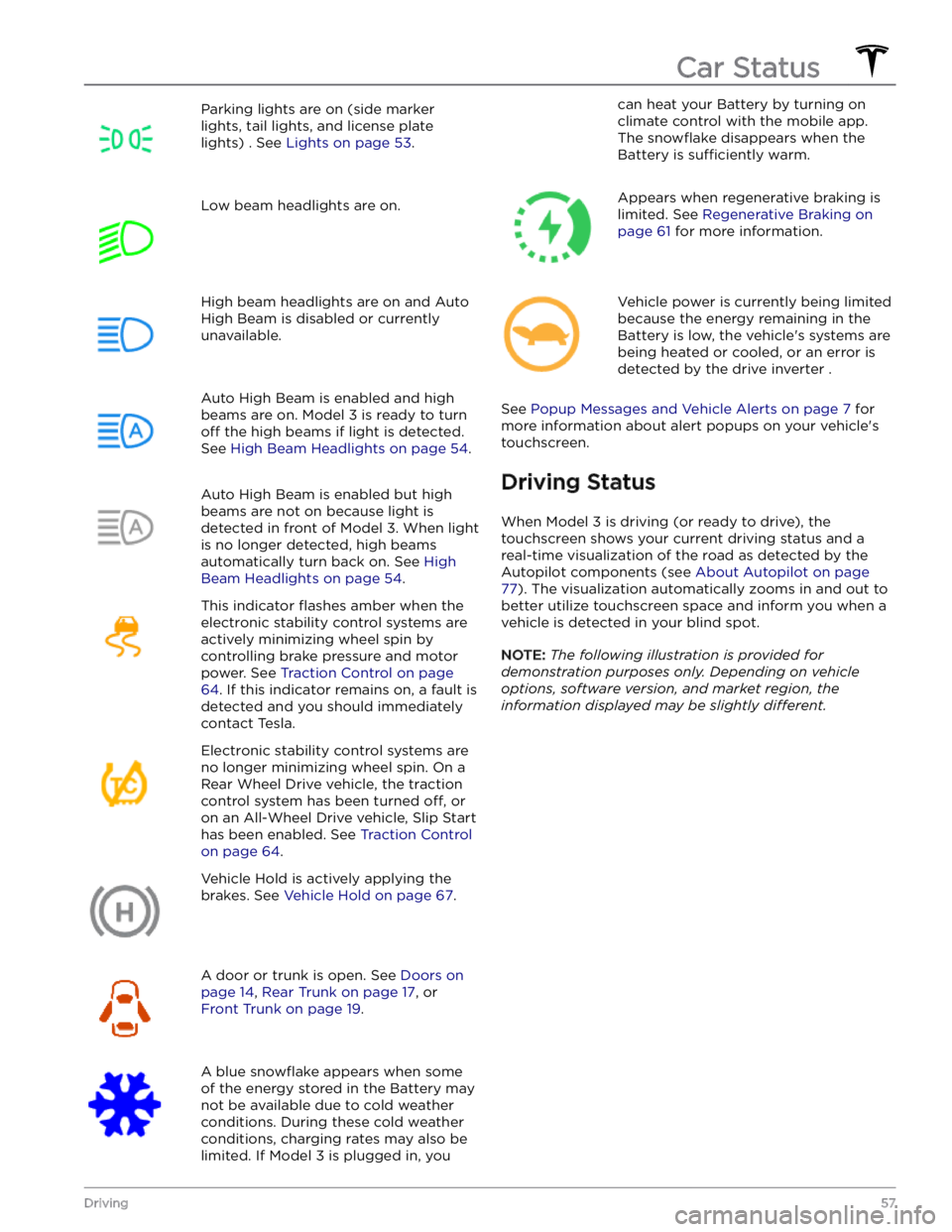
Parking lights are on (side marker
lights, tail lights, and license plate lights) . See
Lights on page 53.
Low beam headlights are on.High beam headlights are on and Auto
High Beam is disabled or currently
unavailable.Auto High Beam is enabled and high
beams are on.
Model 3 is ready to turn
off the high beams if light is detected.
See
High Beam Headlights on page 54.
Auto High Beam is enabled but high beams are not on because light is
detected in front of
Model 3. When light
is no longer detected, high beams
automatically turn back on. See
High
Beam Headlights on page 54.
This indicator flashes amber when the
electronic stability control systems are actively minimizing wheel spin by
controlling brake pressure and motor
power. See
Traction Control on page
64. If this indicator remains on, a fault is
detected and you should immediately contact Tesla.
Electronic stability control systems are no longer minimizing wheel spin. On a
Rear Wheel Drive vehicle, the traction
control system has been turned
off, or
on an All-Wheel Drive vehicle, Slip Start has been enabled. See
Traction Control
on page 64.
Vehicle Hold is actively applying the brakes. See
Vehicle Hold on page 67.
A door or trunk is open. See Doors on
page 14, Rear Trunk on page 17, or
Front Trunk on page 19.
A blue snowflake appears when some
of the energy stored in the Battery may not be available due to cold weather conditions. During these cold weather
conditions, charging rates may also be
limited. If
Model 3 is plugged in, you
can heat your Battery by turning on climate control with the mobile app.
The
snowflake disappears when the
Battery is
sufficiently warm.
Appears when regenerative braking is limited. See
Regenerative Braking on
page 61 for more information.
Vehicle power is currently being limited
because the energy remaining in the
Battery is low, the vehicle
Page 67 of 296
How Park Assist Works
This feature may be temporarily limited or inactive until
it is enabled with a future software update for vehicles
manufactured as of approximately October 2022.
Model 3 is designed to detect the presence of objects.
When driving slowly in Drive or Reverse (for example,
when parking), the vehicle alerts you if an object is
detected in close proximity of your
Model 3. Objects are
only detected in your chosen direction; front objects in
Drive, rear objects in Reverse.
WARNING: You may not be alerted if Model 3 rolls
freely in the opposite direction (for example, Park
Assist does not display an alert if Model 3 rolls
backwards down a hill while in Drive).
Park Assist is activated when driving slower than 5 mph
(8 km/h).
WARNING: Never depend on Park Assist to inform
you if an area you are approaching is free of
objects and/or people. Several external factors can
reduce the performance of Park Assist, causing
either no readings or false readings (see
Limitations and False Warnings on page 65).
Therefore, depending on Park Assist to determine
if Model 3 is approaching an obstruction can result
in damage to the vehicle and/or objects, and can
potentially cause serious injury. Always inspect the
area with your own eyes. When reversing, perform
shoulder checks and use all mirrors. Park assist
does not detect children, pedestrians, bicyclists,
animals, or objects that are moving, protruding,
located too far above or below the sensors (if
equipped) or cameras, or too close or too far from
the sensors or cameras. Park Assist is for guidance
purposes only and is not intended to replace your
own direct visual checks. It is not a substitute for
careful driving.
Visual and Audio Feedback
When you shift to Reverse, the Park Assist view displays on the
touchscreen, showing objects that are in close
proximity to the front and rear of
Model 3. This view
closes when you shift into Drive unless an object is
detected close to the front of
Model 3, in which case the
Park Assist view closes automatically when your driving speed exceeds
5 mph (8 km/h). When reversing, visual
feedback also displays on the touchscreen (see
Rear
Facing Camera(s) on page 72). You can manually close
the park assist view on the touchscreen by touching the
X.
When driving with the Camera app displayed on the
touchscreen, you can switch to the Park Assist view
when driving at speeds below
5 mph (8 km/h). Touch
the button located in the upper left corner of the Camera app screen. This is useful if you need assistance
with parallel parking.
If chimes are turned on (see Controlling Audible
Feedback on page 65), an audible beep sounds as you
approach an object.
NOTE: If Park Assist is unable to provide feedback, the
touchscreen displays an alert message.
CAUTION: Keep sensors (if equipped) and
cameras clean from dirt, debris, snow, and ice.
Avoid using a high pressure power washer on the
sensors and cameras, and do not clean a sensor or
camera with a sharp or abrasive object that can
scratch or damage its surface.
CAUTION: Do not install accessories or stickers on
or near the sensors (if equipped) or cameras.
Controlling Audible Feedback
You can use Park Assist with or without audible feedback. To turn chimes on or
off, touch Controls >
Safety > Park Assist Chimes.
Limitations and False Warnings
Park Assist may not function correctly in these situations:
Page 118 of 296
Overview of Climate Controls
Climate controls are available at the bottom of the touchscreen. By default, climate control is set to Auto, which
maintains optimum comfort in all but the most severe weather conditions. When you adjust the cabin temperature
while in the
Auto setting, the system automatically adjusts the heating, air conditioning, air distribution, and fan
speed to maintain the cabin at your selected temperature.
Touch the displayed temperature at the bottom of the touchscreen to access the main climate controls screen, where you can adjust your climate preferences. You can revert back to Auto at any time by touching
Auto. Touch the
power button on the main climate controls screen to toggle on or
off. For quick access to common controls, touch <
or > to display the climate popup.
NOTE: The climate control system is powered by the high voltage Battery. Therefore, prolonged use decreases
driving range.
WARNING: To avoid burns resulting from prolonged use, individuals who have peripheral neuropathy, or whose
capacity to feel pain is limited because of diabetes, age, neurological injury, or some other condition, should
exercise caution when using the climate control system and seat heaters.
Adjusting Climate Control Settings
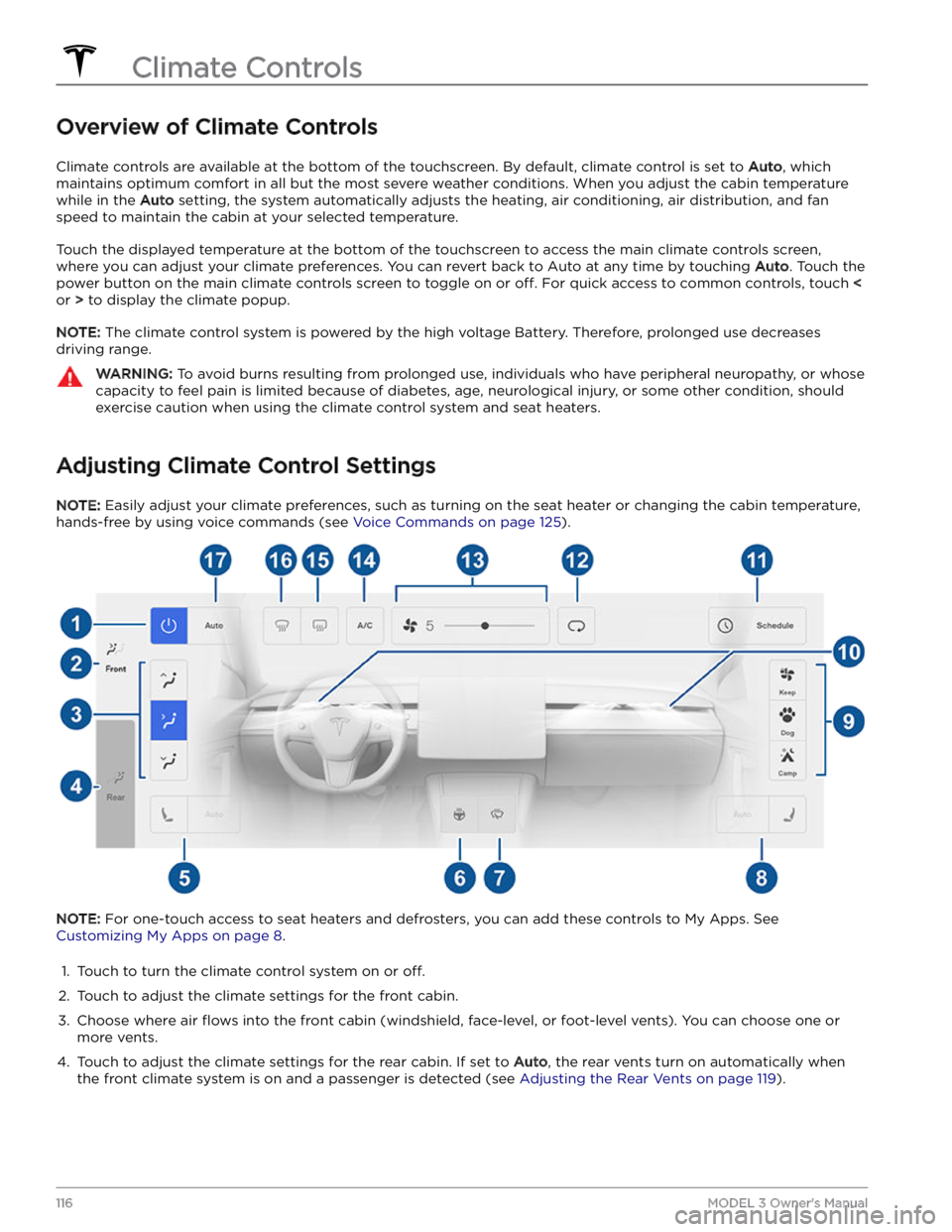
NOTE: Easily adjust your climate preferences, such as turning on the seat heater or changing the cabin temperature,
hands-free by using voice commands (see
Voice Commands on page 125).
NOTE: For one-touch access to seat heaters and defrosters, you can add these controls to My Apps. See
Customizing My Apps on page 8.
1.
Touch to turn the climate control system on or off.
2.
Touch to adjust the climate settings for the front cabin.
3.
Choose where air flows into the front cabin (windshield, face-level, or foot-level vents). You can choose one or
more vents.
4.
Touch to adjust the climate settings for the rear cabin. If set to Auto, the rear vents turn on automatically when
the front climate system is on and a passenger is detected (see Adjusting the Rear Vents on page 119).
Climate Controls
116MODEL 3 Owner