2023 PEUGEOT EXPERT ESP
[x] Cancel search: ESPPage 225 of 348

223
Technical data
9Engine technical data and
towed loads
Engines
The engine characteristics are given in the
vehicle's registration document, as well as in
sales brochures.
Only the values available at the time of
publication are presented in the tables.
Contact a PEUGEOT dealer or a qualified
workshop to obtain missing values.
The maximum power corresponds to the value type-approved on a test bed, under
conditions defined by European legislation
(Directive 1999/99/EC).
For more information, contact a PEUGEOT
dealer or a qualified workshop.
Weights and towed loads
The weights and towed loads relating to
the vehicle are indicated on the registration
document, as well as in sales brochures.
These values are also indicated on the
manufacturer's plate or label.
For more information, contact a PEUGEOT
dealer or a qualified workshop.
The GTW (Gross Train Weight) and towed load
values indicated are valid up to a maximum
altitude of 1,000 metres. The towed load value
must be reduced by 10% for each additional
1,000 metres of altitude.
The maximum authorised nose weight
corresponds to the weight permitted on the
towball.
When exterior temperatures are high, the
vehicle performance may be limited in
order to protect the engine. When the exterior
temperature is higher than 37°C, reduce the
towed weight.
Towing even with a lightly loaded vehicle can adversely affect its road holding.
Braking distances are increased when towing
a trailer.
When using a vehicle to tow, never exceed
a speed of 62 mph (100
km/h) (observe the
local legislation in force). CarM an uals 2 .c o m
Page 237 of 348

235
Bluetooth® audio system
10Press the TA button to activate or
deactivate traffic messages.
Receiving INFO messages
The INFO function gives priority to TA alert messages. To be active, this
function needs good reception of a radio
station that transmits this type of message.
When a message is transmitted, the current
audio source (Radio, CD, USB, etc.) is
interrupted automatically to receive the INFO
message. Normal play of the media
previously playing is resumed at the end of
the message.
Make a long press on this button to
display the list of categories.
Select or deselect categories.
Activate or deactivate the reception of the corresponding messages.
Display TEXT INFOS
Radio text is information transmitted by
the radio station related to the station's
current programme or song.
When the radio station is displayed in the
screen, press OK to display the
contextual menu.
Select "RadioText (TXT) display" and
confirm OK to save.
DAB (Digital Audio
Broadcasting) radio
Terrestrial Digital Radio
Depending on version
If the current DAB radio station is not
available on FM, "DAB FM" is struck out.
1 Options display: if active but not available, the
display will be struck out.
2 Display showing the name of the current
station.
3 Preset stations, buttons 1 to 6.
Short press: select the preset radio station.
Long press: memorise a radio station.
4 Display showing the name of the “multiplex”
service being used.
5 RadioText (TXT) display for the current radio
station.
6 Represents the signal strength for the band
being listened to.
When changing region, updating the list
of preset radio stations is recommended.
Full list of radio stations and "multiplexes".
Terrestrial digital radio
Digital radio provides a superior audio
quality and also additional categories of
traffic announcements (TA INFO).
The different "multiplex / ensemble” services
offer a choice of radio stations in alphabetical
order.
Change of band (FM1, FM2, DAB, etc.)
Change of station within the same
"multiplex / ensemble".
Starting of a search for the previous / next
"multiplex / ensemble".
Long press: selection of the categories of
news desired among Transport, News,
Entertainment and Special Flash (available
depending on the station). CarM an uals 2 .c o m
Page 238 of 348
236
Bluetooth® audio system
When the radio station is displayed in the
screen , press "OK" to display the
contextual menu.
(Frequency search (RDS), DAB
/ FM auto
tracking, RadioText (TXT) display, Information
on the station, etc.)
DAB / FM station tracking
"DAB" does not have 100% coverage of
the country.
When the digital signal is weak, "DAB
/ FM
auto tracking" allows you to continue
listening to the same station, by automatically
switching to the corresponding analogue FM
station (if it exists).
When the "DAB
/ FM auto tracking" is active,
the DAB station will be selected automatically.
Press the MENU button.
Select "Multimedia" and confirm.
Select "DAB / FM auto tracking" and
confirm.
If "DAB / FM auto tracking" tracking is
enabled, there is a lag of a few seconds
when the system switches to the analogue
FM station sometimes with a change in
volume.
If the "DAB" station you are listening to is
not available on FM (" DAB/FM" option
struck out), or if "DAB
/ FM auto tracking" is
not on, the sound will be cut when the digital
signal is too weak.
Media
USB socket
Insert the USB memory stick into the USB
socket or connect the USB device to the
USB socket using a suitable cable (not supplied).
The system changes automatically to "USB"
source.
To protect the system, do not use a USB hub.
Any additional devices connected to the system must comply with the standard
applicable to the product and/or the standard
IEC 60950-1.
The system builds playlists (in temporary
memory); this operation can take from a
few seconds to several minutes at the first
connection.
Reduce the number of non-music files and the
number of folders to reduce the waiting time.
Playlists are updated every time a new USB
memory stick is connected.
When the USB socket is used, the
portable device charges automatically.
Play mode
The play modes available are:
– Normal : the tracks are played in order,
depending on the classification of the selected
files.
–
Random
: the tracks in an album or folder are
played in a random order.
–
Random on all media : all of the tracks saved
in the media are played in random order
.
–
Repeat
: the tracks played are only those from
the current album or folder.
Press this button to display the contextual
menu for the Media function.
Press this button to select the chosen
play mode.
Press this button to confirm.
The choice made is displayed at the top of the
screen.
Choosing a track to play
Press one of these buttons to go to the
previous / next track.
Press one of these buttons to go to the
previous / next folder.
File classification
Make a long press on this button to
display the different classifications. CarM an uals 2 .c o m
Page 243 of 348

241
Bluetooth® audio system
10Interactive voice response
From the contextual menu, select "DTMF
tones" and confirm to use the digital
keypad to navigate in the interactive voice
response menu.
Confirm with OK.
Consultation call
From the contextual menu, select
"Switch" and validate to return to a call
left on hold.
Confirm with OK.
Directory
To access the directory, press and hold SRC/TEL.
Select "Directory" to see the list of
contacts.
Confirm with OK.
To modify the contacts saved in the system, press MENU then select
"Telephone" and confirm.
Select "Directory management " and confirm.
You can:
–
"Consult an entry",
–
"Delete an entry",
–
"Delete all entries".
The system accesses the telephone's contacts directory, depending on its
compatibility, and while it is connected via
Bluetooth.
With certain telephones connected by
Bluetooth you can send a contact to the
directory of the audio system.
Contacts imported in this way are saved in a
permanent directory visible to all, whatever the
telephone connected.
The menu for the directory is not accessible if it
is empty.
Voice recognition
This function allows you to use your
smartphone's voice recognition via the system.
To start voice recognition, depending on the type
of steering mounted controls:
Make a long press on the end of the lighting
control stalk.
OR
Press this button.
Voice recognition requires the use of a
compatible smartphone first connected to
the vehicle by Bluetooth.
Frequently asked
questions
The following information groups together the answers to the most frequently asked questions
concerning your audio system. With the engine off, the audio system
switches off after a few minutes of use.
When the engine is switched off, the audio
system operating time depends on the state of
charge of the battery.
The switch-off is normal: the audio system
switches to economy mode and switches off to
avoid discharging the vehicle's battery.
►
Start the vehicle’
s engine to increase the
charge of the battery.
The message "the audio system is
overheated" is displayed onscreen.
To protect the installation if the ambient
temperature is too high, the audio system
switches to an automatic thermal protection
mode, in which the volume may be decreased or
the CD player stopped.
►
Switch the audio system off for a few minutes
to allow the system to cool.
Radio
There is a difference in sound quality
between the different audio sources (radio,
CD, etc.).
For optimal listening quality, the audio settings
(Volume, Bass, Treble, Ambience and Loudness)
can be adjusted to different audio sources,
resulting in audible differences when switching
between sources (radio, CD, etc.).
►
Check that the audio settings (V
olume, Bass,
Treble, Ambience and Loudness) are appropriate
to the sources being listened to. We recommend
setting the audio functions (Bass, Treble, Fr-Re CarM an uals 2 .c o m
Page 246 of 348
244
Audio System with Touch Screen
Audio System with Touch Screen
Multimedia audio system -
Applications - Bluetooth
®
telephone
The functions and settings described
vary according to the vehicle version and
configuration, as well as the country of sale.
For safety reasons and because they
require sustained attention by the driver,
the following operations must be carried out
with the vehicle stationary and the ignition
on:
–
Pairing the smartphone with the system via
Bluetooth.
–
Using the smartphone.
–
Connecting to the CarPlay® or Android
Auto applications (certain applications stop
displaying when the vehicle is moving).
–
Changing the system settings and
configuration.
The system is protected so that it only operates in the vehicle.
The message Energy economy mode is
displayed when the system is about to go into
standby.
The system’s Open Source Software (OSS) source codes are available at the
following addresses:
https://www.groupe-psa.com/fr/oss/
https://www.groupe-psa.com/en/oss/
First steps
With the engine running, a press mutes
the sound.
With the ignition off, a press turns the system on.
Increase or decrease the volume using
the wheel or the "plus" or "minus" buttons
(depending on the equipment).
Use the buttons on either side of or below the
touch screen to access the menus, then press
the virtual buttons on the touch screen.
Depending on the model, use the "Source" and
"Menu" buttons on the left of the touch screen to
access the menus, then press the virtual buttons
on the touch screen.
At all times it is possible to display the rolling
menus by pressing the screen briefly with three
fingers.
All touch-sensitive areas on the screen are
white.
On pages with multiple tabs at the bottom of the
screen, you can switch between pages either
by tapping the tab for the desired page or by
swiping the pages to the left or right with your
finger.
Press in the shaded area to go back up a level
or confirm.
Press the back arrow to go back a level or
confirm.
The touch screen is of the "capacitive" type.
To clean the screen, use a soft, non-abrasive
cloth (e.g. spectacles cloth) with no additional
product.
Do not use sharp objects on the screen.
Do not touch the screen with wet hands.
Certain information is displayed permanently in
the upper bar of the touch screen:
–
Air conditioning status information (depending
on version), and direct access to the
corresponding menu.
–
Radio Media and
Telephone menu status
information.
–
Privacy status information.
–
Access to the touch screen and digital
instrument panel settings.
Audio source selection (depending on
equipment):
–
FM/DAB/AM radio stations (depending on
equipment).
–
T
elephone connected via Bluetooth and
Bluetooth multimedia broadcast (streaming).
–
USB Memory stick.
–
Media player connected via the auxiliary
socket (depending on equipment).
CarM an uals 2 .c o m
Page 251 of 348
249
Audio System with Touch Screen
11Select the "Tone", "Balance", "Sound",
"Voice" or "Ringtones" tab to configure
the sound settings.
Press the back arrow to confirm.
In the "Tone" tab, the Ambience, Bass ,
Medium and Treble sound settings are
different and independent for each audio
source.
In the "Balance” tab, the All passengers,
Driver and Front only settings are common
to all sources.
In the "Sound ” tab, activate or deactivate
"Volume linked to speed ", "Auxiliary input"
and "Touch tones ".
The balance/distribution (or spatialisation
with the Arkamys© system) uses audio
processing to adjust the sound quality
according to the number of passengers in the
vehicle.
Onboard audio: Arkamys Sound Staging©
optimises the sound distribution inside
the passenger compartment.
DAB (Digital Audio
Broadcasting) radio
Terrestrial Digital Radio
Terrestrial Digital Radio
Digital radio provides higher quality sound.
The various "multiplexes/ensembles" offer a
choice of radio stations organised in alphabetical
order.
Press Radio Media to display the main
page.
Press the "OPTIONS " button to access the
secondary page.
Press "Band" to select "DAB band".
Press in the shaded area to confirm.
FM-DAB Follow-up
"DAB" does not cover 100% of the territory.
When the digital radio signal is poor, the
"FM-DAB Follow-up" enables you to continue
listening to the same station by automatically
switching to the corresponding "FM" analogue
station (if there is one).
Press Radio Media to display the main
page.
Press the "OPTIONS " button to go to the
secondary page.
Activate/deactivate "FM-DAB Follow-up ".
Press in the shaded area to confirm.
If "FM-DAB Follow-up" is activated, there
may be a time offset of a few seconds
when the system switches to "FM" analogue
radio, and in some cases a change in volume.
When the digital signal quality is restored, the
system automatically changes back to "DAB".
To minimise this time lag, storing radio
stations in the "DAB" band is recommended.
If the "DAB" station being listened to is
not available on "FM", or if "FM-DAB
Follow-up" is not activated, the sound will cut
out when the digital signal becomes too weak.
Media
USB port
Insert the USB memory stick into the USB
port or connect the USB device to the
USB port using a suitable cable (not supplied).
To protect the system, do not use a USB hub.
The system builds playlists (in temporary
memory); this operation can take from a
few seconds to several minutes at the first
connection. CarM an uals 2 .c o m
Page 259 of 348
257
3D Connected Navigation
123D Connected Navigation
GPS navigation -
Applications - Multimedia
audio system - Bluetooth
®
telephone
The functions and settings described
vary according to the vehicle version and
configuration, as well as the country of sale.
For safety reasons and because they
require sustained attention by the driver,
the following operations must be carried out
with the vehicle stationary and the ignition
on:
–
Pairing the smartphone with the system via
Bluetooth.
–
Using the smartphone.
–
Connecting to the CarPlay® or Android
Auto applications (certain applications stop
displaying when the vehicle is moving).
–
W
atching a video (the video stops when the
vehicle starts to move again).
–
Changing the system settings and
configuration.
AM and DAB radio are not available on Hybrid vehicles.
The system is protected so that it only operates in the vehicle.
The message Energy economy mode is
displayed when the system is about to go into
standby.
System and map updates can be
downloaded from the Brand's website.
The update procedure is also available there.
The system’s Open Source Software (OSS) source codes are available at the
following addresses:
https://www.groupe-psa.com/fr/oss/
https://www.groupe-psa.com/en/oss/
First steps
With the engine running, a press mutes
the sound.
With the ignition off, a press turns the system on.
Increase or decrease the volume using
the wheel or the "plus" or "minus" buttons
(depending on the equipment).
Use the menu buttons on either side of or below
the touch screen for access to the menus, then
press the virtual buttons in the touch screen.
Depending on the model, use the "Source" or
"Menu" buttons to access the rolling menus, then
press the virtual buttons in the touch screen.
Display the rolling menus at any time by pressing
the screen briefly with three fingers.
All of the touch areas of the screen are white.
Press the back arrow to go back a level.
Press "OK" to confirm.
The touch screen is of the "capacitive" type.
To clean the screen, use a soft, non-abrasive
cloth (e.g. spectacles cloth) with no additional
product.
Do not use sharp objects on the screen.
Do not touch the screen with wet hands.
Certain information is displayed permanently
in the side bars or in the upper bar of the touch
screen (depending on equipment):
–
Air conditioning status information (depending
on version), and direct access to the
corresponding menu.
–
Go directly to the audio source selection
option, to view the list of radio stations (or list of
titles depending on the source).
–
Go to the "Notifications" of messages, emails,
map updates and, depending on the services,
the navigation notifications.
–
Go to the settings for the touch screen and the
digital instrument panel.
Audio source selection (depending on
equipment):
–
FM/DAB/AM radio stations (depending on
equipment).
–
T
elephone connected via Bluetooth and
Bluetooth multimedia broadcast (streaming).
–
USB memory stick. CarM an uals 2 .c o m
Page 264 of 348
262
3D Connected Navigation
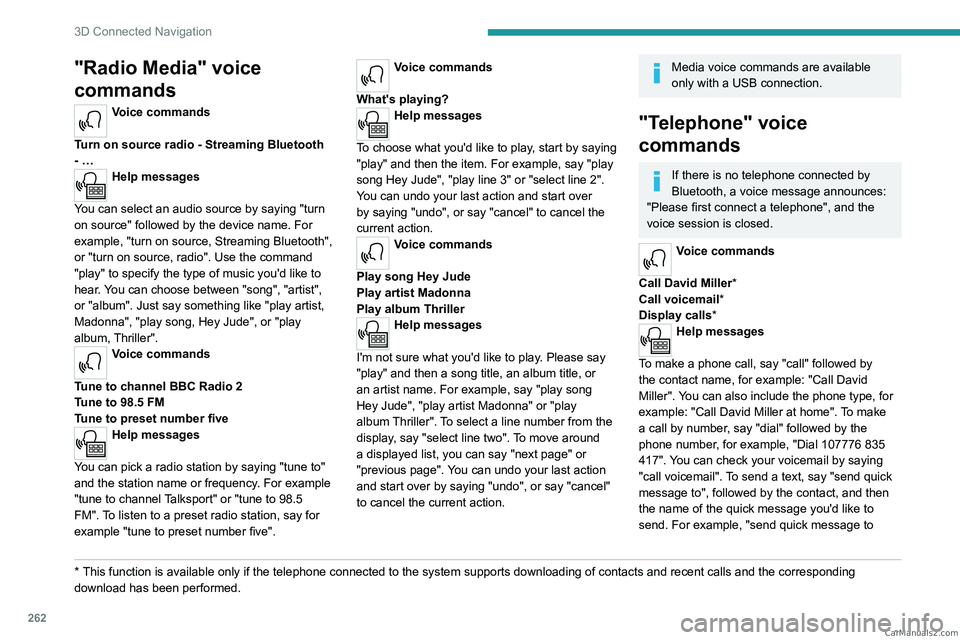
"Radio Media" voice
commands
Voice commands
Turn on source radio - Streaming Bluetooth
- …
Help messages
You can select an audio source by saying "turn
on source" followed by the device name. For
example, "turn on source, Streaming Bluetooth",
or "turn on source, radio". Use the command
"play" to specify the type of music you'd like to
hear. You can choose between "song", "artist",
or "album". Just say something like "play artist,
Madonna", "play song, Hey Jude", or "play
album, Thriller".
Voice commands
Tune to channel BBC Radio 2
Tune to 98.5 FM
Tune to preset number five
Help messages
You can pick a radio station by saying "tune to"
and the station name or frequency. For example
"tune to channel Talksport" or "tune to 98.5
FM". To listen to a preset radio station, say for
example "tune to preset number five".
* This function is av ailable only if the telephone connected to the system supports downloadi\
ng of contacts and recent calls and the corresponding
download has been performed.
Voice commands
What's playing?
Help messages
To choose what you'd like to play, start by saying
"play" and then the item. For example, say "play
song Hey Jude", "play line 3" or "select line 2".
You can undo your last action and start over
by saying "undo", or say "cancel" to cancel the
current action.
Voice commands
Play song Hey Jude
Play artist Madonna
Play album Thriller
Help messages
I'm not sure what you'd like to play. Please say
"play" and then a song title, an album title, or
an artist name. For example, say "play song
Hey Jude", "play artist Madonna" or "play
album Thriller". To select a line number from the
display, say "select line two". To move around
a displayed list, you can say "next page" or
"previous page". You can undo your last action
and start over by saying "undo", or say "cancel"
to cancel the current action.
Media voice commands are available
only with a USB connection.
"Telephone" voice
commands
If there is no telephone connected by
Bluetooth, a voice message announces:
"Please first connect a telephone", and the
voice session is closed.
Voice commands
Call David Miller*
Call voicemail*
Display calls*
Help messages
To make a phone call, say "call" followed by
the contact name, for example: "Call David
Miller". You can also include the phone type, for
example: "Call David Miller at home". To make
a call by number, say "dial" followed by the
phone number, for example, "Dial 107776 835
417". You can check your voicemail by saying
"call voicemail". To send a text, say "send quick
message to", followed by the contact, and then
the name of the quick message you'd like to
send. For example, "send quick message to CarM an uals 2 .c o m