Page 7 of 556
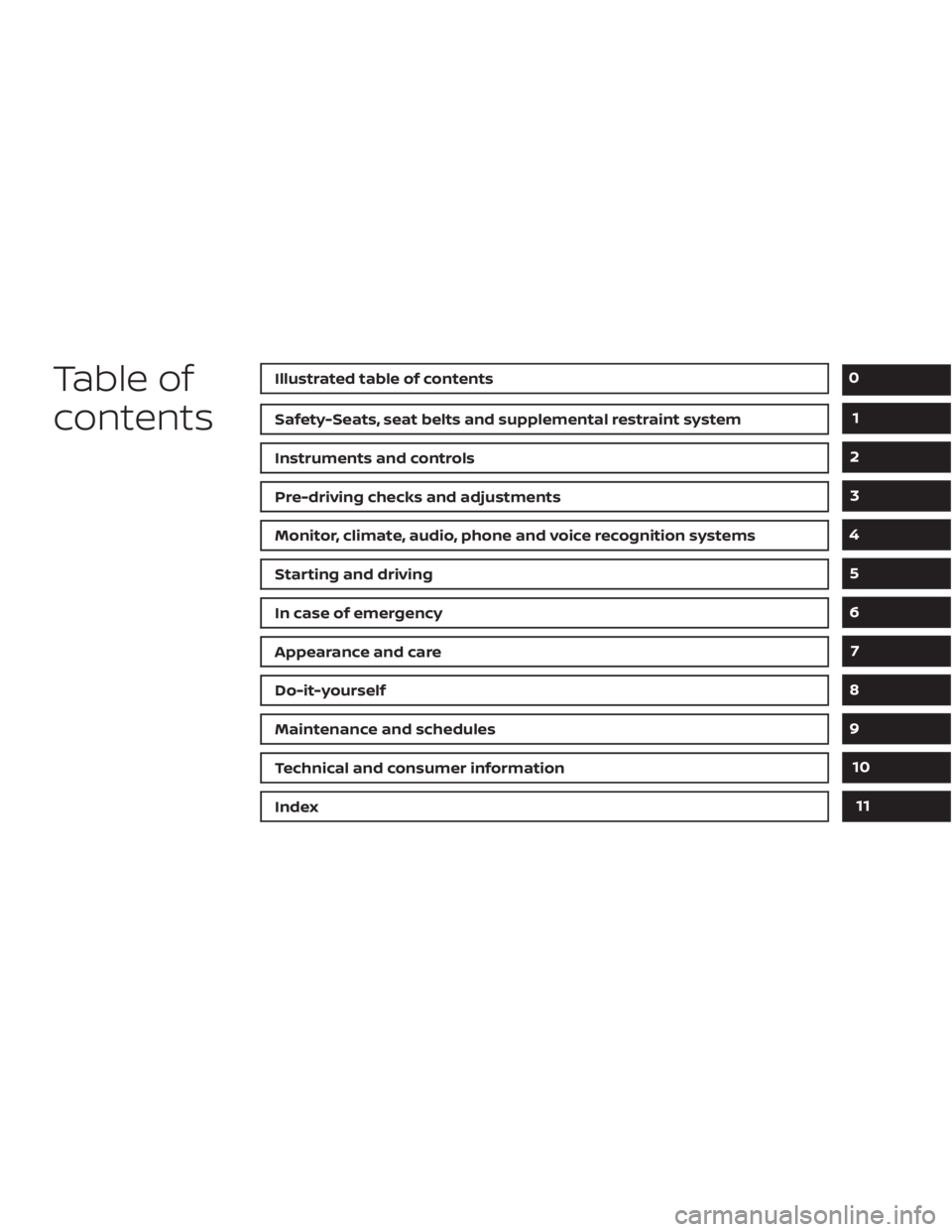
Table of
contentsIllustrated table of contents
Safety-Seats, seat belts and supplemental restraint system
Instruments and controls
Pre-driving checks and adjustments
Monitor, climate, audio, phone and voice recognition systems
Starting and driving
In case of emergency
Appearance and care
Do-it-yourself
Maintenance and schedules
Technical and consumer information
Index
0
1
2
3
4
5
6
7
8
9
10
11
Page 104 of 556
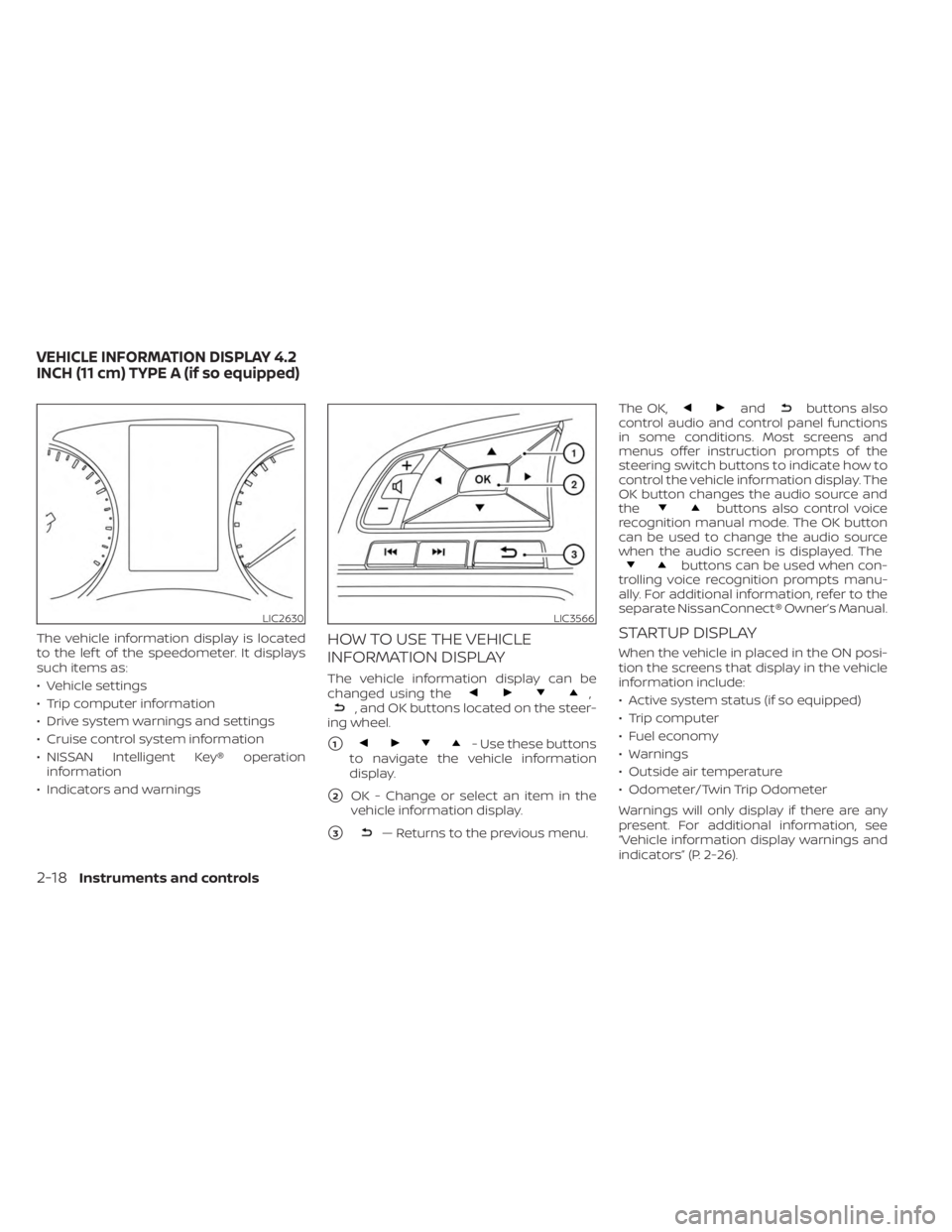
The vehicle information display is located
to the lef t of the speedometer. It displays
such items as:
• Vehicle settings
• Trip computer information
• Drive system warnings and settings
• Cruise control system information
• NISSAN Intelligent Key® operationinformation
• Indicators and warningsHOW TO USE THE VEHICLE
INFORMATION DISPLAY
The vehicle information display can be
changed using the,, and OK buttons located on the steer-
ing wheel.
�1- Use these buttons
to navigate the vehicle information
display.
�2OK - Change or select an item in the
vehicle information display.
�3— Returns to the previous menu. The OK,
andbuttons also
control audio and control panel functions
in some conditions. Most screens and
menus offer instruction prompts of the
steering switch buttons to indicate how to
control the vehicle information display. The
OK button changes the audio source and
the
buttons also control voice
recognition manual mode. The OK button
can be used to change the audio source
when the audio screen is displayed. The
buttons can be used when con-
trolling voice recognition prompts manu-
ally. For additional information, refer to the
separate NissanConnect® Owner’s Manual.
STARTUP DISPLAY
When the vehicle in placed in the ON posi-
tion the screens that display in the vehicle
information include:
• Active system status (if so equipped)
• Trip computer
• Fuel economy
• Warnings
• Outside air temperature
• Odometer/Twin Trip Odometer
Warnings will only display if there are any
present. For additional information, see
“Vehicle information display warnings and
indicators” (P. 2-26).
LIC2630LIC3566
VEHICLE INFORMATION DISPLAY 4.2
INCH (11 cm) TYPE A (if so equipped)
2-18Instruments and controls
Page 119 of 556
• Driving Aids
• Odometer/twin trip odometer
• Distance to empty
• Clock and outside temperature
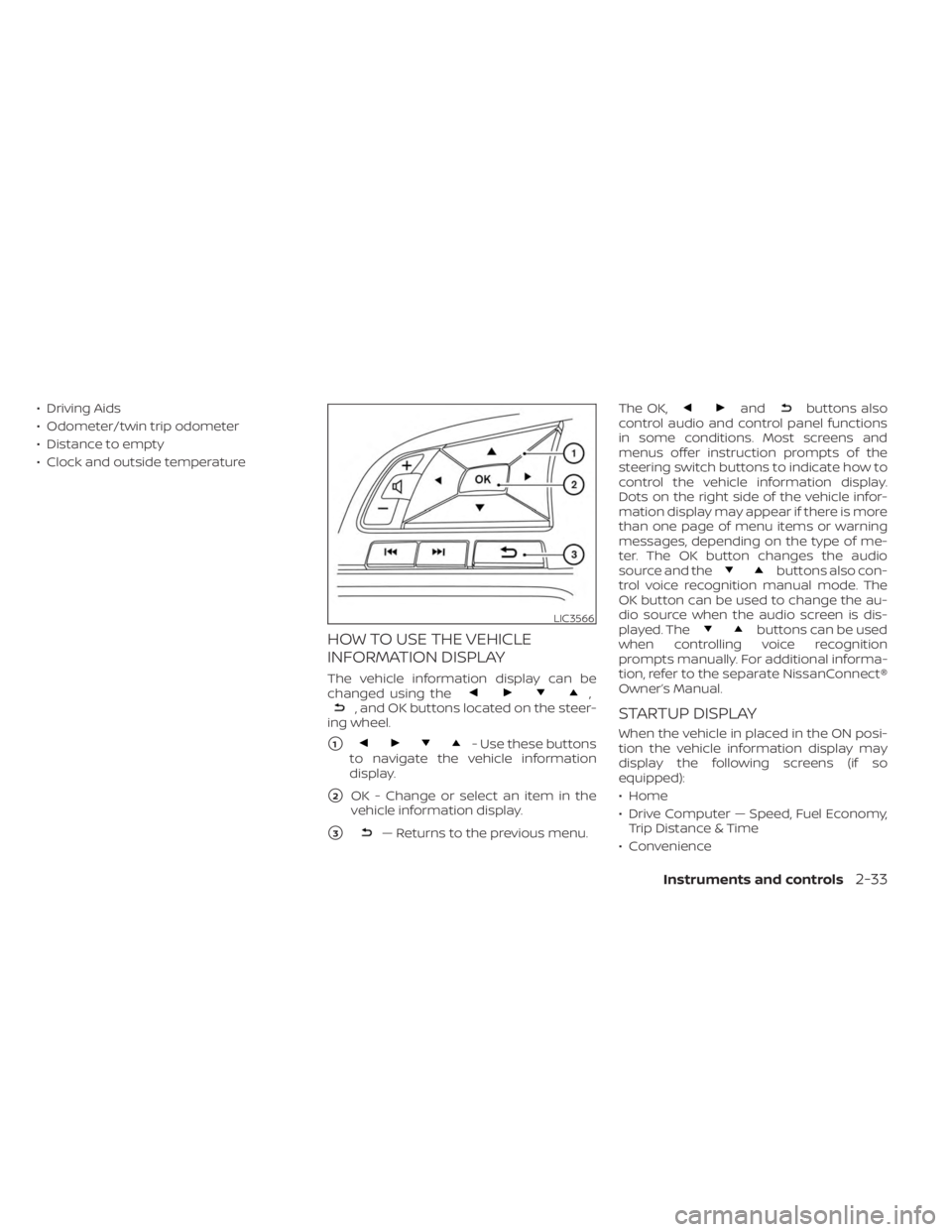
HOW TO USE THE VEHICLE
INFORMATION DISPLAY
The vehicle information display can be
changed using the,, and OK buttons located on the steer-
ing wheel.
�1- Use these buttons
to navigate the vehicle information
display.
�2OK - Change or select an item in the
vehicle information display.
�3— Returns to the previous menu. The OK,
andbuttons also
control audio and control panel functions
in some conditions. Most screens and
menus offer instruction prompts of the
steering switch buttons to indicate how to
control the vehicle information display.
Dots on the right side of the vehicle infor-
mation display may appear if there is more
than one page of menu items or warning
messages, depending on the type of me-
ter. The OK button changes the audio
source and the
buttons also con-
trol voice recognition manual mode. The
OK button can be used to change the au-
dio source when the audio screen is dis-
played. The
buttons can be used
when controlling voice recognition
prompts manually. For additional informa-
tion, refer to the separate NissanConnect®
Owner’s Manual.
STARTUP DISPLAY
When the vehicle in placed in the ON posi-
tion the vehicle information display may
display the following screens (if so
equipped):
• Home
• Drive Computer — Speed, Fuel Economy, Trip Distance & Time
• Convenience
LIC3566
Instruments and controls2-33
Page 192 of 556
4 Monitor, climate, audio, phone and
voice recognition systems
NissanConnect® Owner’s Manual...............4-2
Control panel buttons ...........................4-3
How to use the touch-screen ................4-4
How to use the
MENU button ...........4-5(brightness control) button .............4-7
How to use the VOL (volume) knob /
PUSH
(power)button....................4-7
Selecting menu from launch bar .............4-7
RearView Monitor (if so equipped) ...............4-8
RearView Monitor system operation ..........4-9
How to read the displayed lines ..............4-9
Difference between predicted and
actual distances ............................ 4-10
How to park with predicted course
lines (if so equipped) ........................ 4-12
Adjusting the screen ........................ 4-13
How to turn on and off predicted
course lines (if so equipped) .................4-13
RearView Monitor system limitations ........4-13
System maintenance ....................... 4-15
Intelligent Around View® Monitor
(if so equipped) ................................. 4-16
Intelligent Around View® Monitor
system operation ........................... 4-17
Difference between predicted and
actual distances ............................ 4-20How to park with predicted course
lines
......................................... 4-22
How to switch the display ...................4-23
Adjusting the screen ........................ 4-24
Intelligent Around View® Monitor
system limitations .......................... 4-24
System maintenance .......................4-26
Moving Object Detection (MOD)
(if so equipped) ................................. 4-27
MOD system operation ......................4-28
Turning MOD on and off (if so equipped) .....4-30
MOD system limitations .....................4-30
System maintenance ....................... 4-31
Vents .......................................... 4-31
Heater and air conditioner (manual)
(if so equipped) ................................. 4-32
Controls ..................................... 4-33
Heater operation ............................ 4-33
Air conditioner operation ....................4-35
Air flow charts ............................... 4-36
Heater and air conditioner (automatic)
(if so equipped) ................................. 4-39
Automatic operation ........................ 4-40
Manual operation ........................... 4-41
Operating tips ............................... 4-42
Page 194 of 556
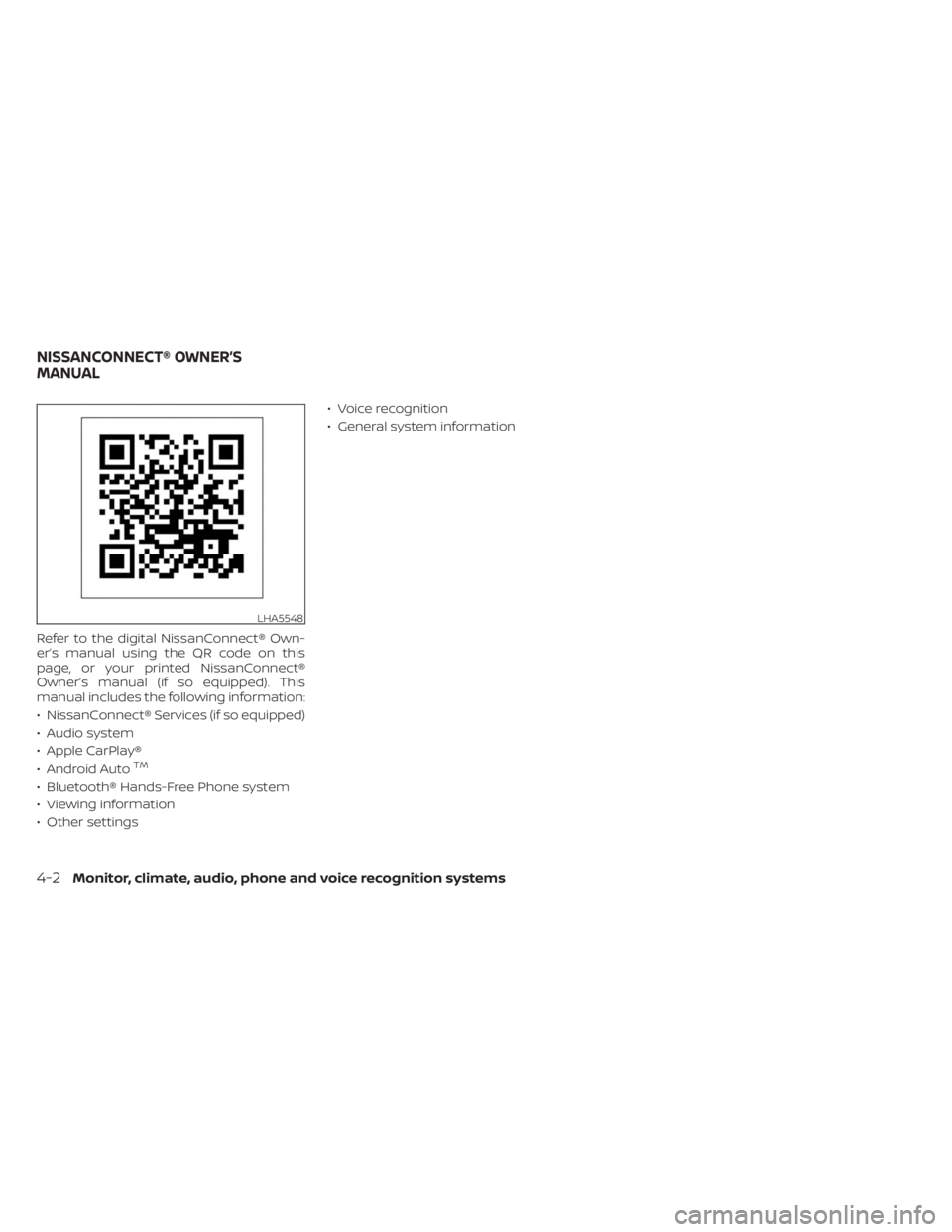
Refer to the digital NissanConnect® Own-
er’s manual using the QR code on this
page, or your printed NissanConnect®
Owner’s manual (if so equipped). This
manual includes the following information:
• NissanConnect® Services (if so equipped)
• Audio system
• Apple CarPlay®
• Android Auto
TM
• Bluetooth® Hands-Free Phone system
• Viewing information
• Other settings• Voice recognition
• General system information
LHA5548
NISSANCONNECT® OWNER’S
MANUAL
4-2Monitor, climate, audio, phone and voice recognition systems
Page 195 of 556
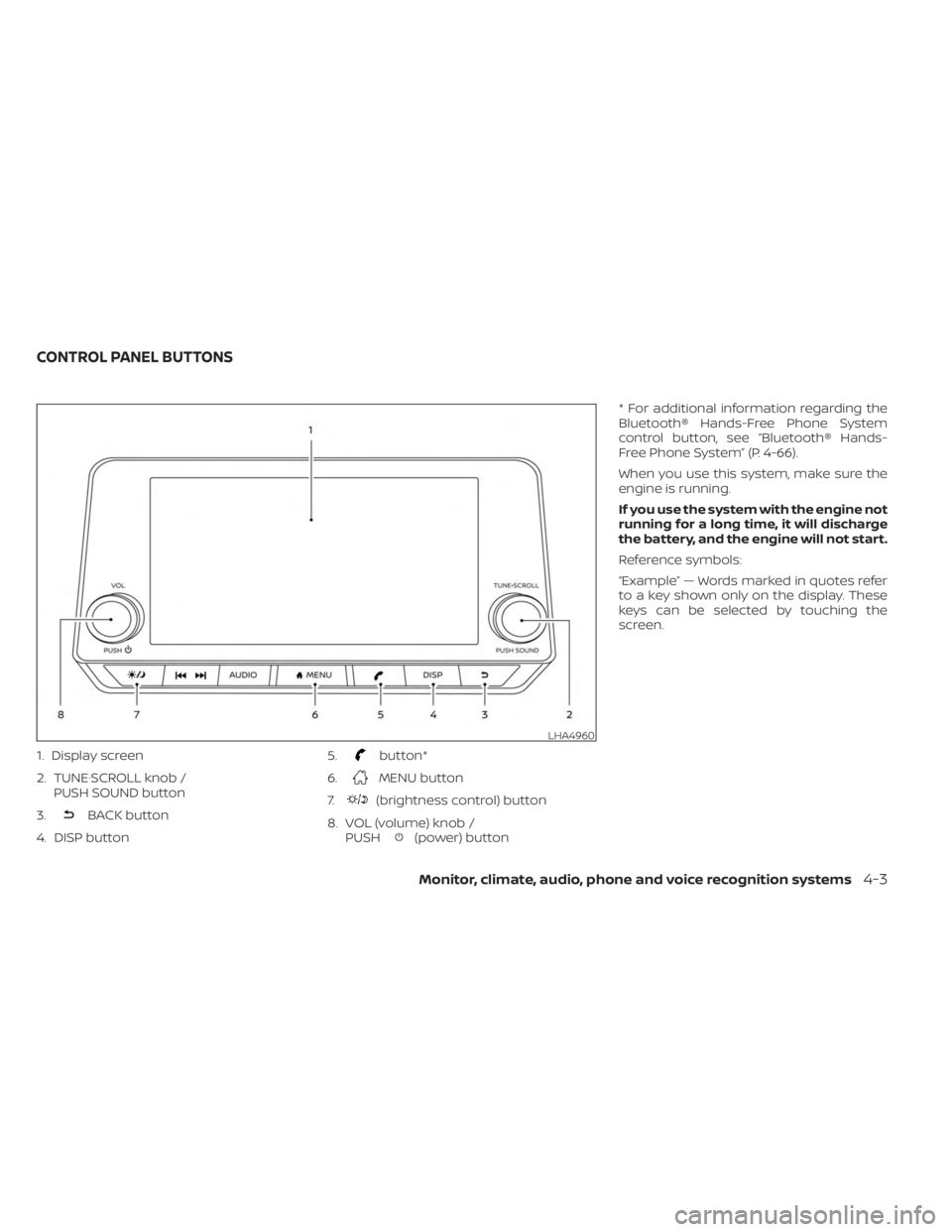
1. Display screen
2. TUNE·SCROLL knob /PUSH SOUND button
3.
BACK button
4. DISP button 5.
button*
6.
MENU button
7.
(brightness control) button
8. VOL (volume) knob / PUSH
(power) button * For additional information regarding the
Bluetooth® Hands-Free Phone System
control button, see “Bluetooth® Hands-
Free Phone System” (P. 4-66).
When you use this system, make sure the
engine is running.
If you use the system with the engine not
running for a long time, it will discharge
the battery, and the engine will not start.
Reference symbols:
“Example” — Words marked in quotes refer
to a key shown only on the display. These
keys can be selected by touching the
screen.
LHA4960
CONTROL PANEL BUTTONS
Monitor, climate, audio, phone and voice recognition systems4-3
Page 196 of 556
HOW TO USE THE TOUCH-SCREEN
CAUTION
• The glass display screen may break if
it is hit with a hard or sharp object. If
the glass screen breaks, do not touch
it. Doing so could result in an injury.
• To clean the display, never use a
rough cloth, alcohol, benzine, thinner
or any kind of solvent or paper towel
with a chemical cleaning agent. They
will scratch or deteriorate the panel.
• Do not splash any liquid such as wa-
ter or car fragrance on the display.
Contact with liquid will cause the sys-
tem to malfunction. To help ensure safe driving, some functions
cannot be operated while driving.
The on-screen functions that are not avail-
able while driving will be “grayed out” or
muted.
WARNING
• ALWAYS give your full attention to
driving.
• Avoid using vehicle features that
could distract you. If distracted, you
could lose control of your vehicle and
cause an accident.
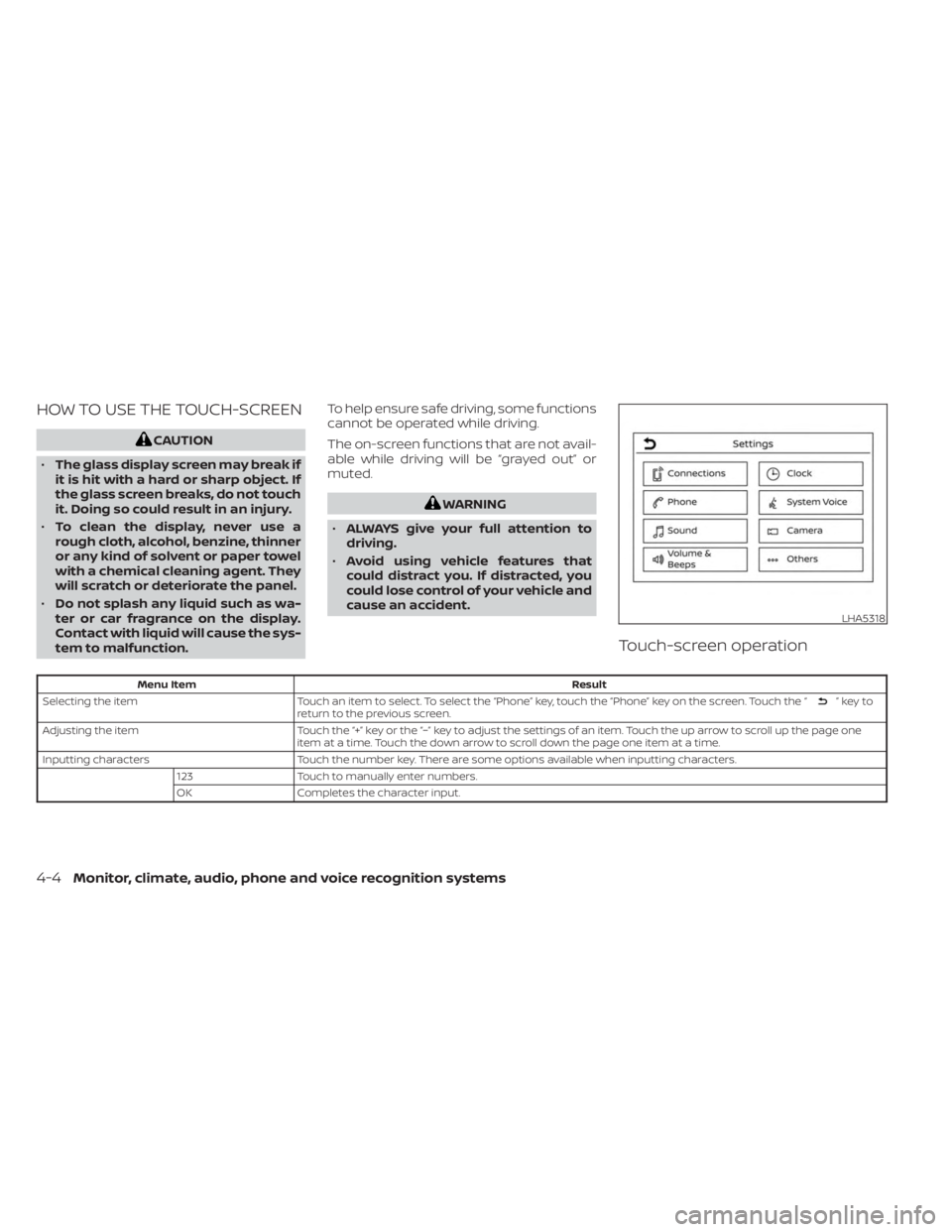
Touch-screen operation
Menu Item Result
Selecting the item Touch an item to select. To select the “Phone” key, touch the “Phone” key on the screen. Touch the “
”keyto
return to the previous screen.
Adjusting the item Touch the “+” key or the “−” key to adjust the settings of an item. Touch the up arrow to scroll up the page one
item at a time. Touch the down arrow to scroll down the page one item at a time.
Inputting characters Touch the number key. There are some options available when inputting characters.
123 Touch to manually enter numbers.
OK Completes the character input.
LHA5318
4-4Monitor, climate, audio, phone and voice recognition systems
Page 197 of 556
Touch-screen maintenance
If you clean the display screen, use a dry,
sof t cloth. If additional cleaning is neces-
sary, use a small amount of neutral deter-
gent with a sof t cloth. Never spray the
screen with water or detergent. Dampen
the cloth first and then wipe the screen.
HOW TO USE THEMENU
BUTTON
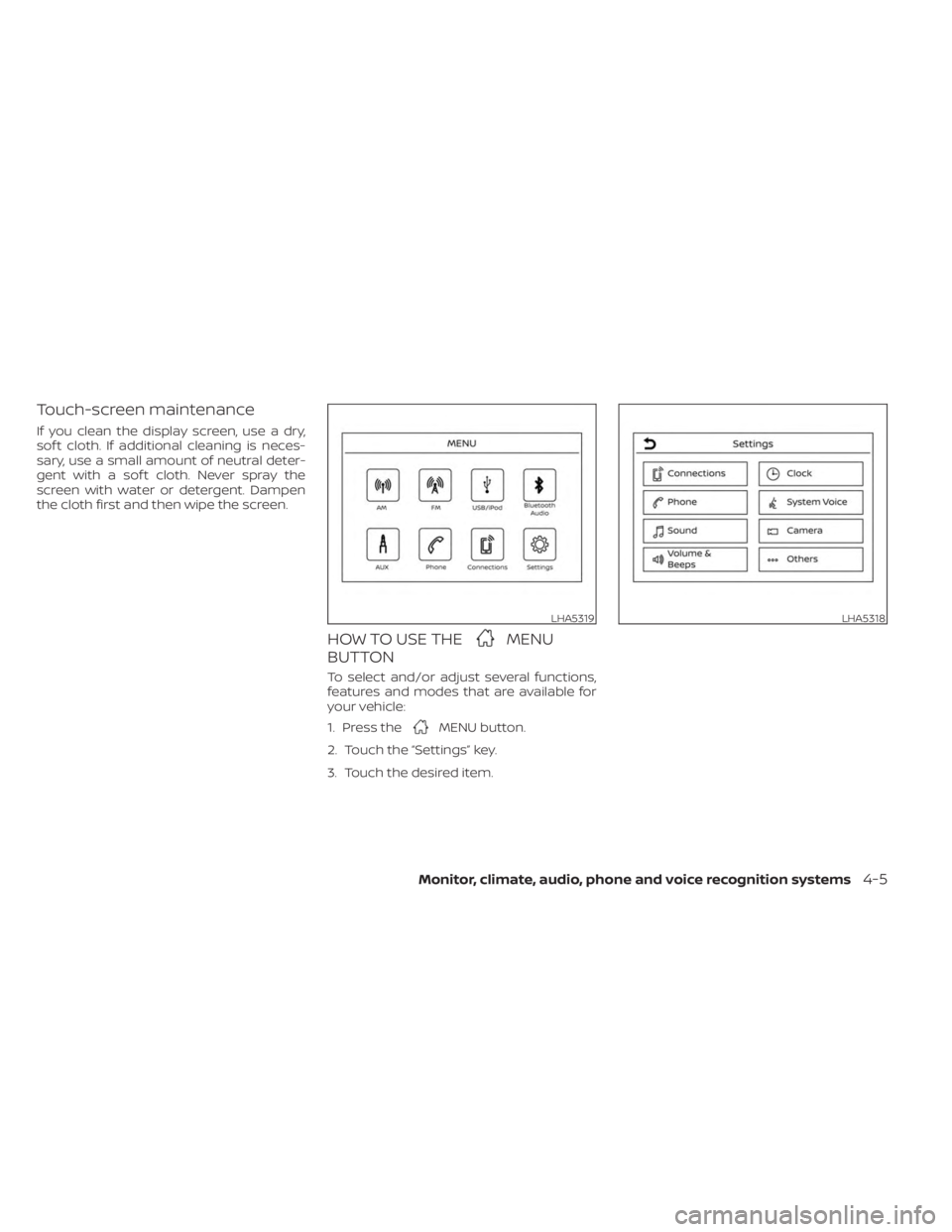
To select and/or adjust several functions,
features and modes that are available for
your vehicle:
1. Press the
MENU button.
2. Touch the “Settings” key.
3. Touch the desired item.
LHA5319LHA5318
Monitor, climate, audio, phone and voice recognition systems4-5