2023 NISSAN PATHFINDER audio
[x] Cancel search: audioPage 204 of 665
–– Speed Limit Sign
–– Audio
–– TEL/SMS
• Reset
NOTE:
• Emergency information may display even if the HUD is turned off.
• If the HUD is turned off, the settings items are grayed out and cannot be
modified until the HUD is turned back
on.
This product includes the following
sof tware.
(1) Panasonic Corporation or sof tware de-
veloped for Panasonic Corporation
(2) Third-party sof tware licensed to Pana-
sonic Corporation
(3) Open source sof tware
Regarding (3) Open source sof tware, it in-
cludes open source sof tware (OSS), includ-
ing various sof tware to which license infor-
mation applies.
Refer to the license web site at:
http://car.panasonic.jp/oss/i02lln39.
DRIVER ASSISTANCE/NAVIGATION
LINKING
The HUD will display driver assistance and
navigation information.
The driver assistance display will show
warning situations for the following sys-
tems:
• Automatic Emergency Braking (AEB) with Pedestrian Detection
• Lane Departure Warning (LDW)
• Intelligent Forward Collision Warning (IFCW)
• Hands-free warning (for vehicles with ProPILOT Assist) (if so equipped)
• Traffic Sign Recognition (TSR) (if so equipped)
The navigation system linking display will
show the following items:
• Intersection names
• Arrows indicating turning direction
• Distance to the next intersection The Audio System linking display will show
the following items:
• Songs
• Radio stations
The TEL/SMS linking display will show the
following items:
• Caller’s name or phone number
Instruments and controls2-97
Page 211 of 665
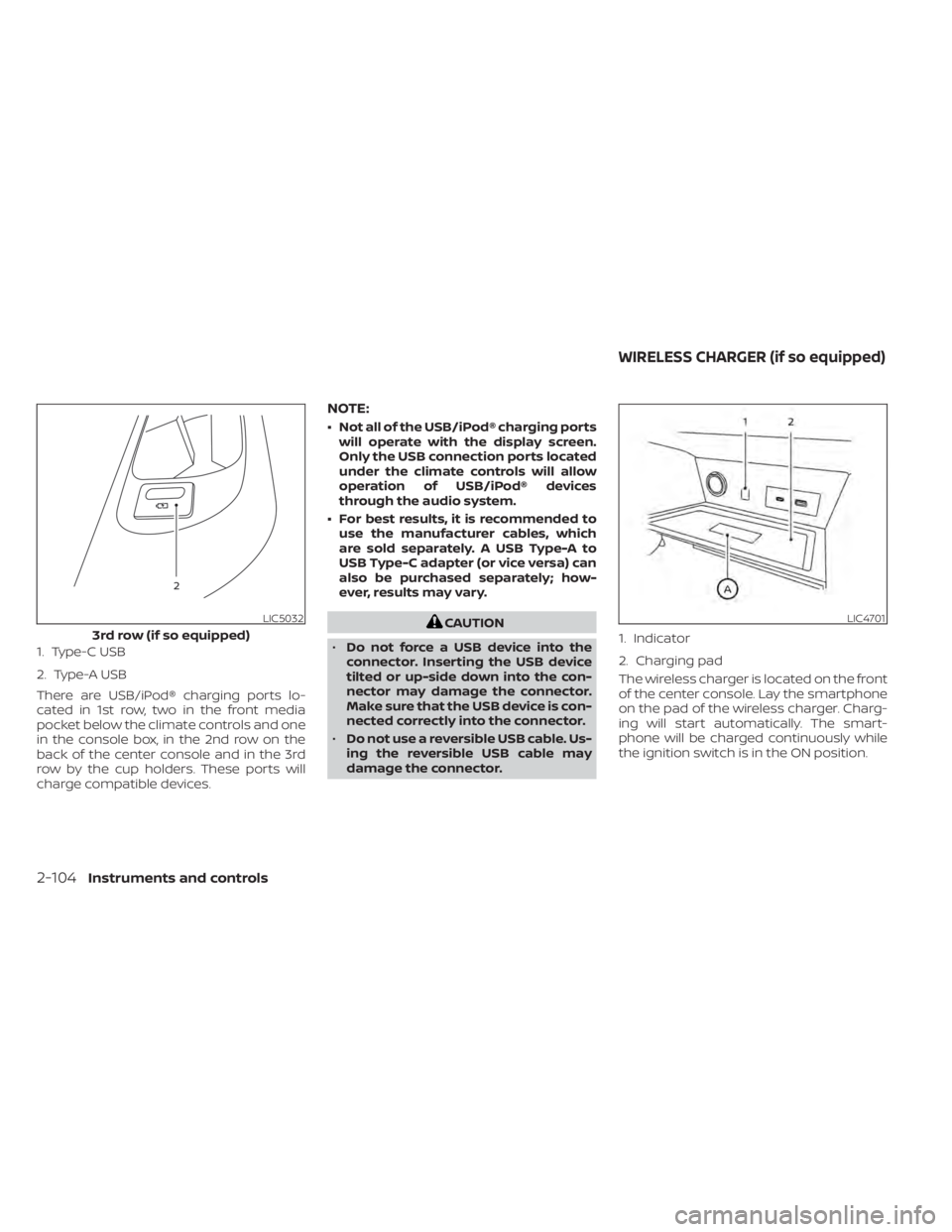
1. Type-C USB
2. Type-A USB
There are USB/iPod® charging ports lo-
cated in 1st row, two in the front media
pocket below the climate controls and one
in the console box, in the 2nd row on the
back of the center console and in the 3rd
row by the cup holders. These ports will
charge compatible devices.
NOTE:
• Not all of the USB/iPod® charging portswill operate with the display screen.
Only the USB connection ports located
under the climate controls will allow
operation of USB/iPod® devices
through the audio system.
• For best results, it is recommended to use the manufacturer cables, which
are sold separately. A USB Type-A to
USB Type-C adapter (or vice versa) can
also be purchased separately; how-
ever, results may vary.
CAUTION
• Do not force a USB device into the
connector. Inserting the USB device
tilted or up-side down into the con-
nector may damage the connector.
Make sure that the USB device is con-
nected correctly into the connector.
• Do not use a reversible USB cable. Us-
ing the reversible USB cable may
damage the connector. The wireless charger is located on the front
of the center console. Lay the smartphone
on the pad of the wireless charger. Charg-
ing will start automatically. The smart-
phone will be charged continuously while
the ignition switch is in the ON position.LIC5032
3rd row (if so equipped)
LIC4701
1. Indicator
2. Charging pad
WIRELESS CHARGER (if so equipped)
2-104Instruments and controls
Page 240 of 665
CAUTION
Listed below are conditions or occur-
rences which will damage the Intelli-
gent Key:
• Do not allow the Intelligent Key,
which contains electrical compo-
nents, to come into contact with wa-
ter or salt water. This could affect the
system function.
• Do not drop the Intelligent Key.
• Do not strike the Intelligent Key
sharply against another object.
• Do not change or modif y the Intelli-
gent Key.
• Wetting may damage the Intelligent
Key. If the Intelligent Key gets wet,
immediately wipe until it is com-
pletely dry.
• Do not place the Intelligent Key for an
extended period in an area where
temperatures exceed 140°F (60°C).
• Do not attach the Intelligent Key with
a key holder that contains a magnet.
• Do not place the Intelligent Key near
equipment that produces a magnetic
field, such as a TV, audio equipment
and personal computers. If an Intelligent Key is lost or stolen,
NISSAN recommends erasing the ID
code of that Intelligent Key from the
vehicle. This may prevent the unau-
thorized use of the Intelligent Key to
operate the vehicle. For information re-
garding the erasing procedure, it is rec-
ommended that you visit a NISSAN
dealer.
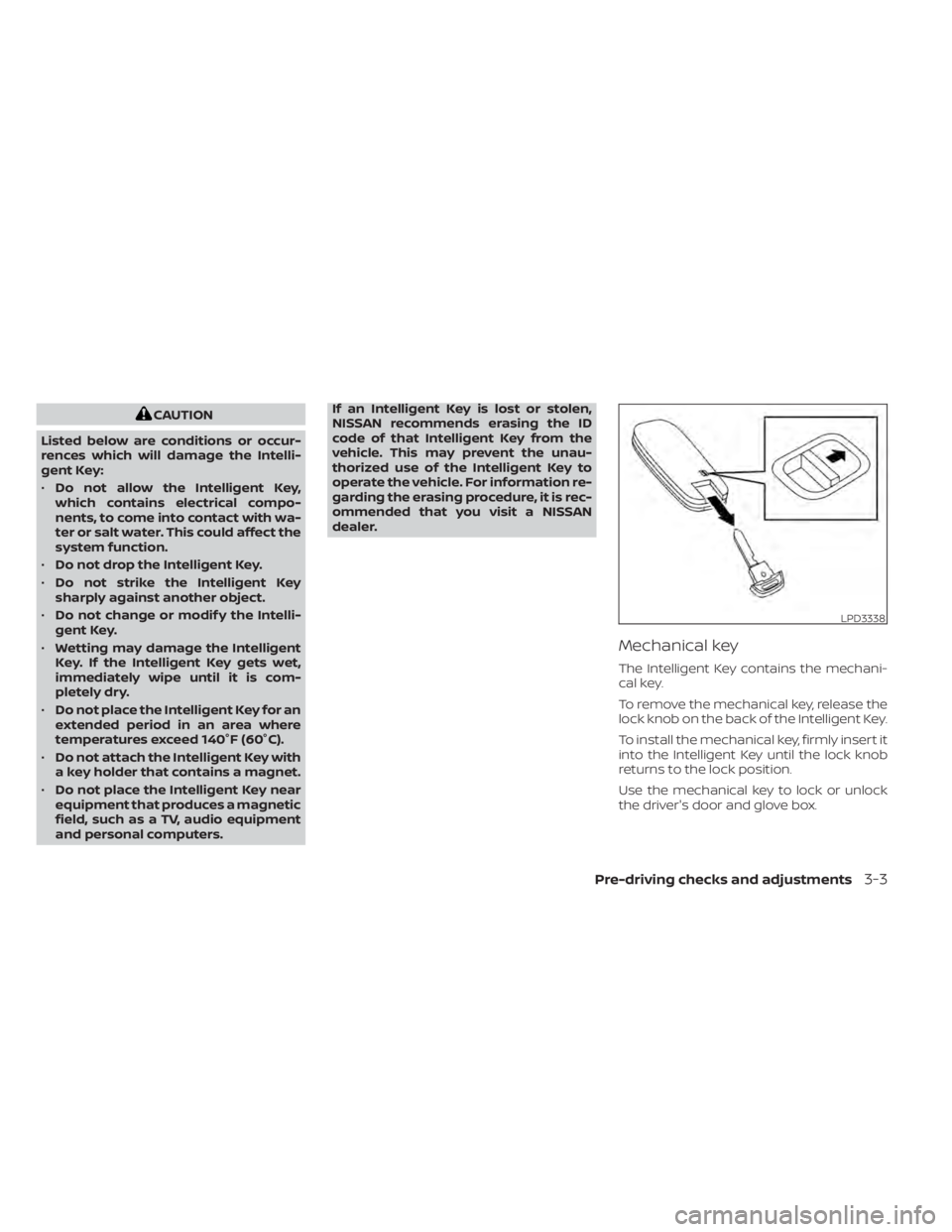
Mechanical key
The Intelligent Key contains the mechani-
cal key.
To remove the mechanical key, release the
lock knob on the back of the Intelligent Key.
To install the mechanical key, firmly insert it
into the Intelligent Key until the lock knob
returns to the lock position.
Use the mechanical key to lock or unlock
the driver's door and glove box.
LPD3338
Pre-driving checks and adjustments3-3
Page 280 of 665

Restarting the entry/exit function
If the battery cable is disconnected or if the
fuse opens, the stored memory positions
may be lost and some of the functions will
be restricted.
1. Drive the vehicle over 25 mph (40 km/h).
OR
2. Open and close the driver's door morethan two times with the ignition switch
in the OFF position.
The entry/exit function should now work
properly.
SETTING MEMORY FUNCTION
The position of the following settings can
be linked to the Intelligent Key and the
memorized settings can be available for
each Intelligent Key.
• Climate control system
• Audio system
To use the memory function, set the cli-
mate and audio systems to the driver's
preferred settings. Lock the doors with the
Intelligent Key. Each Intelligent Key may be
set with the driver's individual preferences.
When a new Intelligent Key is used, “Con-
nection with the key has been done” will be displayed on the vehicle information dis-
play and the memorized settings are
available.
To engage the memorized settings, per-
form the following:
1. Carry the Intelligent Key that is linked to
the memorized settings.
2. Unlock the doors by wrapping hand around the capacitive door handle or
the
button on the Intelligent Key.
3. Place the ignition switch in the ON posi- tion. The settings linked to the Intelligent
Key will start.
For additional information on using the cli-
mate control system, see “Heater and air
conditioner (automatic)” (P. 4-32).
SYSTEM OPERATION
The memory seat system will not work or
will stop operating under the following
conditions:
• When the vehicle speed is above 4 mph (7 km/h).
• When any of the memory switches are pushed while the memory seat is
operating. • When the switch for the driver’s seat and
steering wheel is pushed while the
memory seat is operating.
• When the seat has already been moved to the memorized position.
• When no seat position is stored in the memory switch.
• When the shif t position is moved from P (Park) position to any other position.
Pre-driving checks and adjustments3-43
Page 282 of 665

4 Monitor, climate, audio, phone and
voice recognition systems
NissanConnect® Owner’s Manual...............4-2
RearView Monitor (if so equipped) ...............4-3
RearView Monitor system operation ..........4-4
How to read the displayed lines ..............4-4
Difference between predicted and
actual distances .............................4-5
How to park with predicted course
lines ..........................................4-7
Adjusting the screen .........................4-8
How to turn on and off predicted
course lines ..................................4-8
RearView Monitor system limitations .........4-8
System maintenance ........................4-9
Intelligent Around View® Monitor
(if so equipped) ................................. 4-10
Intelligent Around View® Monitor
system operation ............................ 4-11
Difference between predicted and
actual distances ............................ 4-16
How to park with predicted course
lines ......................................... 4-17
How to switch the display ...................4-18
Off-road mode (for 4WD model)
(if so equipped) .............................. 4-19
Adjusting the screen ........................ 4-19
Intelligent Around View® Monitor
system limitations .......................... 4-20System maintenance
.......................4-22
Camera aiding sonar (parking sensor)
(if so equipped) ................................. 4-23
Sonar system operation .....................4-23
Turning on and off the sonar function .......4-24
Sonar system limitations ....................4-25
System maintenance .......................4-25
Moving Object Detection (MOD)
(if so equipped) ................................. 4-26
MOD system operation ......................4-27
Turning MOD on and off .....................4-29
MOD system limitations .....................4-29
System maintenance .......................4-30
Vents .......................................... 4-31
Heater and air conditioner (automatic) .........4-32
Automatic operation ........................ 4-33
Manual operation ........................... 4-34
Operating tips ............................... 4-36
Rear automatic air conditioning system .....4-37
Servicing air conditioner ........................4-39
Antenna ........................................ 4-39
R
oof Mounted Antenna ......................4-39
Car phone or CB radio .......................... 4-40
iPod®/iPhone® ................................. 4-40
Page 283 of 665
Refer to the digital NissanConnect® Own-
er’s manual using the QR code on this
page, or your printed NissanConnect®
Owner’s manual (if so equipped). This
manual includes the following information:
• NissanConnect® Services (if so equipped)
• Navigation system (if so equipped)
• Audio system
• Apple CarPlay®
• Android Auto™
• Bluetooth® Hands-Free Phone system
• Viewing information
• Other settings• Voice recognition
• General system information
LHA5681
NISSANCONNECT® OWNER’S
MANUAL
4-2Monitor, climate, audio, phone and voice recognition systems
Page 284 of 665

1. CAMERA button
WARNING
• Failure to follow the warnings and in-
structions for proper use of the Rear-
View Monitor system could result in
serious injury or death. •
RearView Monitor is a convenience
feature and is not a substitute for
proper backing. Always turn and look
out the windows and check mirrors
to be sure that it is safe to move be-
fore operating the vehicle. Always
back up slowly. •
The system is designed as an aid to
the driver in showing large station-
ary objects directly behind the ve-
hicle, to help avoid damaging the
vehicle.
LHA5430
REARVIEW MONITOR (if so
equipped)
Monitor, climate, audio, phone and voice recognition systems4-3
Page 285 of 665
•The distance guide line and the ve-
hicle width line should be used as a
reference only when the vehicle is on
a level paved surface. The distance
viewed on the monitor is for refer-
ence only and may be different than
the actual distance between the ve-
hicle and displayed objects.
CAUTION
Do not scratch the camera lens when
cleaning dirt or snow from the front of
the camera.
The RearView Monitor system automati-
cally shows a rear view of the vehicle when
the shif t lever is shif ted into the R (Reverse)
position. The radio can still be heard while
the RearView Monitor is active. To display the rear view, the RearView Moni-
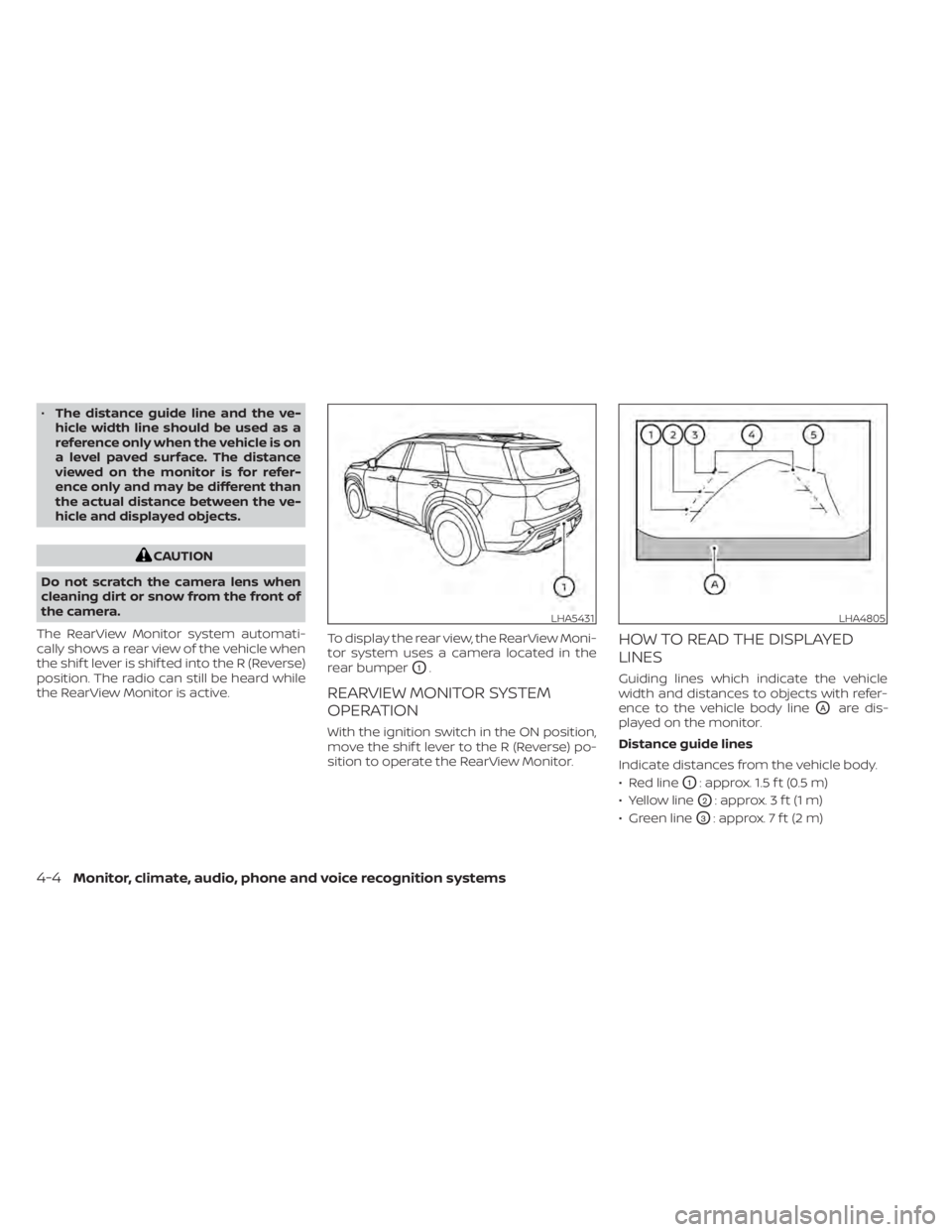
tor system uses a camera located in the
rear bumper
O1.
REARVIEW MONITOR SYSTEM
OPERATION
With the ignition switch in the ON position,
move the shif t lever to the R (Reverse) po-
sition to operate the RearView Monitor.
HOW TO READ THE DISPLAYED
LINES
Guiding lines which indicate the vehicle
width and distances to objects with refer-
ence to the vehicle body line
OAare dis-
played on the monitor.
Distance guide lines
Indicate distances from the vehicle body.
• Red line
O1: approx. 1.5 f t (0.5 m)
• Yellow line
O2: approx. 3 f t (1 m)
• Green line
O3: approx. 7 f t (2 m)
LHA5431LHA4805
4-4Monitor, climate, audio, phone and voice recognition systems