2023 NISSAN PATHFINDER warning
[x] Cancel search: warningPage 417 of 665
• Steering Assist indicator (green):Steering Assist active
4. Set distance indicator
Displays the selected distance
5. Lane marker indicator
Indicates whether the system detects
lane markers • No lane markers displayed: Steering Assist is turned off
• Lane marker indicator (gray): No lane markers detected
• Lane marker indicator (green): Lane markers detected, Steering Assist is
active
• Lane marker indicator (orange): Lane departure is detected
6. ProPILOT Assist status indicator
Indicates the status of the ProPILOT As-
sist system by the color of the indicator – ProPILOT Assist status indicator (white): ProPILOT Assist is on but in
standby.
– ProPILOT Assist status indicator (blue): ProPILOT Assist active 7.
Steering Assist status indicator/
warning
Displays the status of the Steering Assist
by the color of the indicator/warning
• No Steering Assist status indicator displayed: Steering Assist is turned off
• Steering Assist indicator (gray): Steer- ing Assist standby
• Steering Assist indicator (green): Steering Assist active
• Steering Assist indicator (orange): Steering Assist malfunction
8. Speed control status indicator/set
distance indicator/lane marker indi-
cator (
)
Displays the status of speed control by
the color of the indicator, and displays
the selected distance by the number of
horizontal bars shown • Speed control status indicator (white): ICC standby
• Speed control status indicator (green): ICC (distance control mode) is active
– Green vehicle icon displayed: Vehicle detected ahead
– No vehicle icon shown: No vehicle de- tected ahead (Your vehicle maintains
the driver-selected set speed.) • Speed control status indicator (or-
ange): Indicates an ICC malfunction
For the lane marker indicator, see “Steering
Assist display and indicators” (P. 5-120).
9. Set vehicle speed indicator
Indicates the set vehicle speed
10. Vehicle set speed indicator (if so
equipped) (
)
Indicates the vehicle set speed
11. Road information indicator (if so
equipped) (
,)
Indicates the detected road
information.
For additional information, see “Speed
Adjust by Rout e-afeature of ProPILOT
Assist with Navi-link” (P. 5-111).
12. Detected speed limit indicator (if so
equipped) (
)
Indicates the currently detected speed
limit.
For additional information, see “Speed
Limit Assist-afe ature of ProPILOT As-
sist with Navi-link” (P. 5-109).
5-94Starting and driving
Page 418 of 665
13.Speed Limit Assist indicator (if so
equipped) (A,,)
Indicates the Speed Limit Assist activa-
tion mode or system operation.
For additional information, see “Speed
Limit Assist-afe ature of ProPILOT As-
sist with Navi-link” (P. 5-109).
TURNING THE CONVENTIONAL
(fixed speed) CRUISE CONTROL
MODE ON
NOTE:
ProPILOT Assist provides no approach
warnings, automatic braking, or steering
assist in the conventional (fixed speed)
cruise control mode.
To choose the conventional (fixed speed)
cruise control mode, push and hold the
ProPILOT Assist switch for longer than ap-
proximately 1.5 seconds. For additional in-
formation, see “Conventional (fixed speed)
cruise control mode” (P. 5-127).
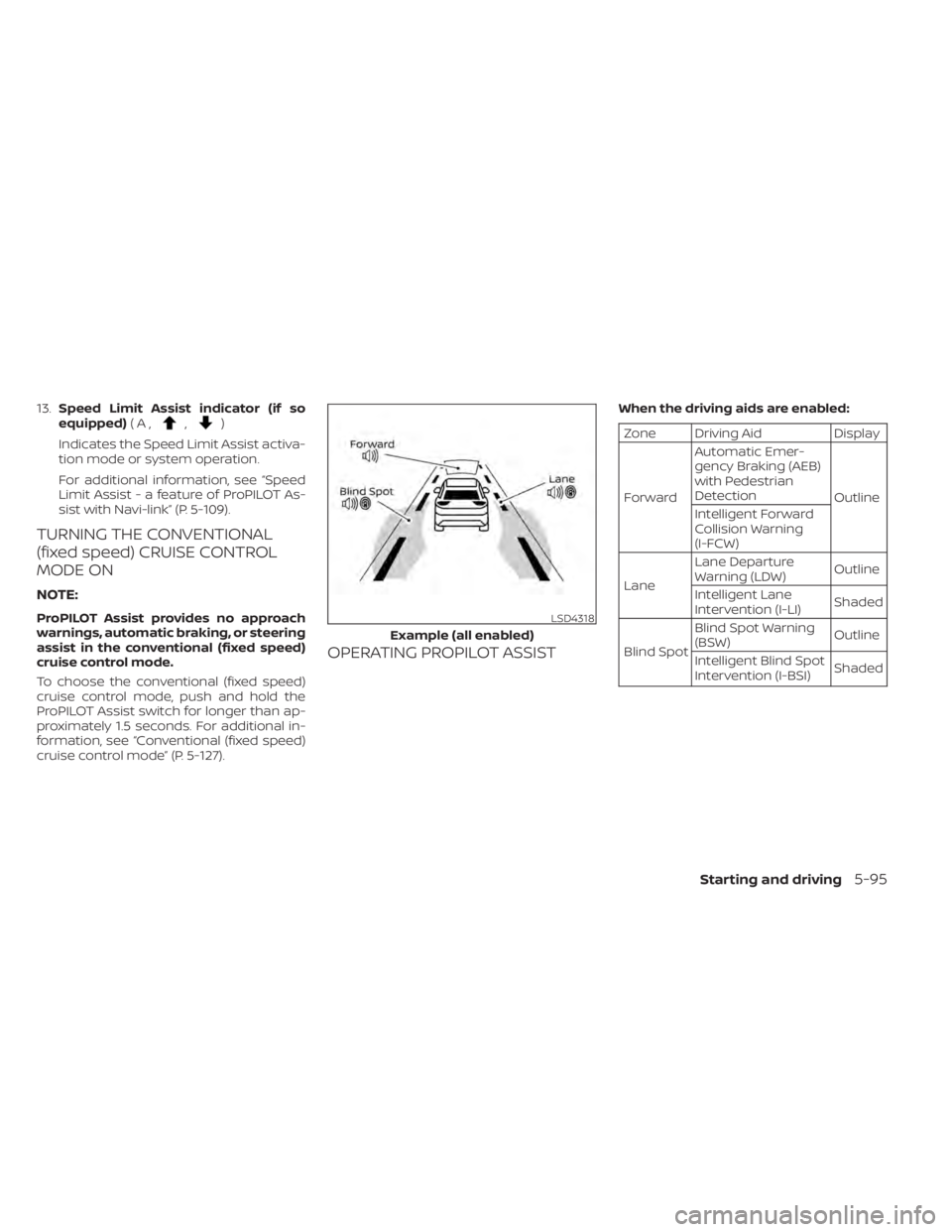
OPERATING PROPILOT ASSIST
When the driving aids are enabled:
Zone Driving Aid Display
Forward Automatic Emer-
gency Braking (AEB)
with Pedestrian
Detection
Outline
Intelligent Forward
Collision Warning
(I-FCW)
Lane Lane Departure
Warning (LDW)
Outline
Intelligent Lane
Intervention (I-LI) Shaded
Blind Spot Blind Spot Warning
(BSW)
Outline
Intelligent Blind Spot
Intervention (I-BSI) Shaded
LSD4318
Example (all enabled)
Starting and driving5-95
Page 419 of 665
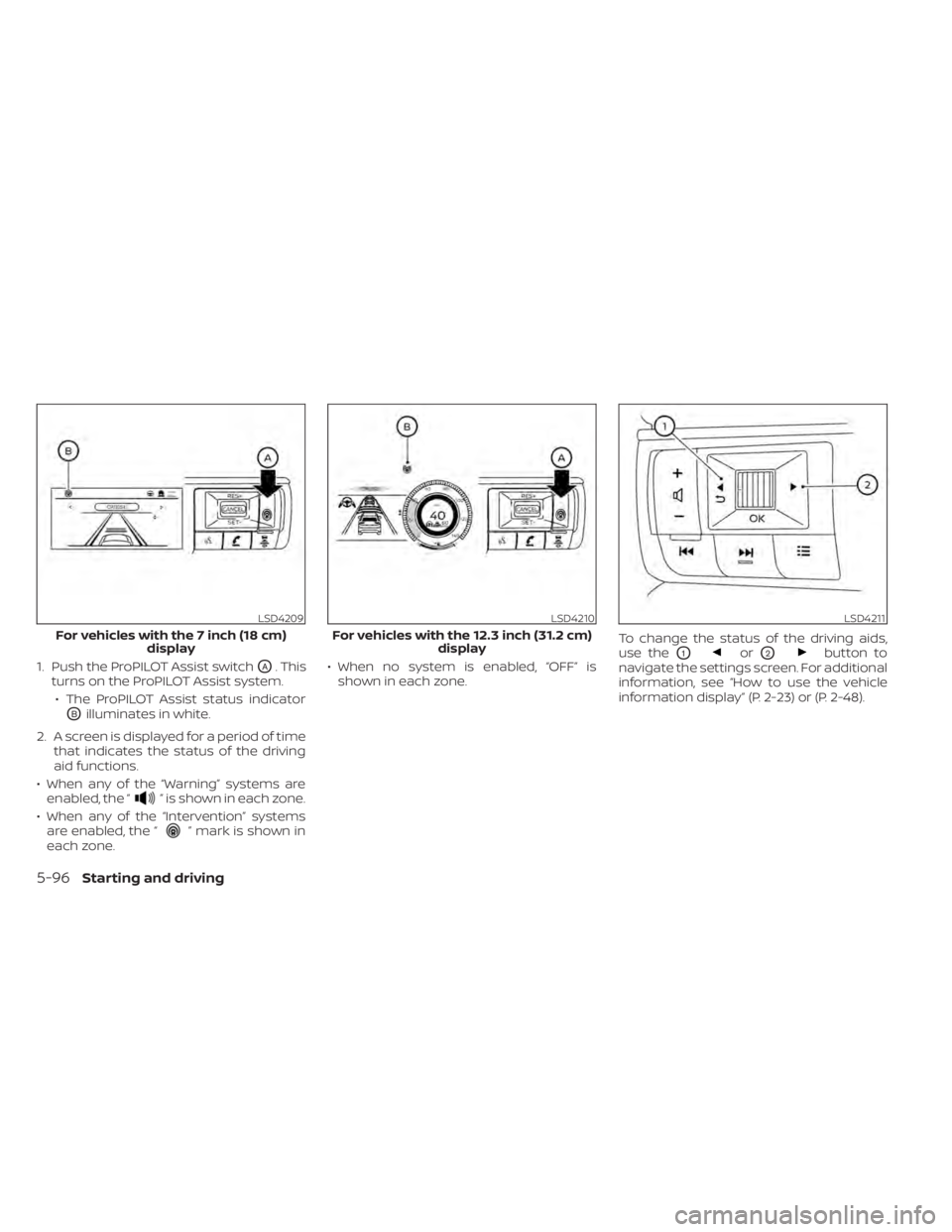
1. Push the ProPILOT Assist switchOA. This
turns on the ProPILOT Assist system.
• The ProPILOT Assist status indicator
OBilluminates in white.
2. A screen is displayed for a period of time that indicates the status of the driving
aid functions.
• When any of the “Warning” systems are enabled, the “
” is shown in each zone.
• When any of the “Intervention” systems are enabled, the “
” mark is shown in
each zone. • When no system is enabled, “OFF” is
shown in each zone. To change the status of the driving aids,
use the
O1orO2button to
navigate the settings screen. For additional
information, see “How to use the vehicle
information display” (P. 2-23) or (P. 2-48).
LSD4209
For vehicles with the 7 inch (18 cm) display
LSD4210
For vehicles with the 12.3 inch (31.2 cm) display
LSD4211
5-96Starting and driving
Page 422 of 665
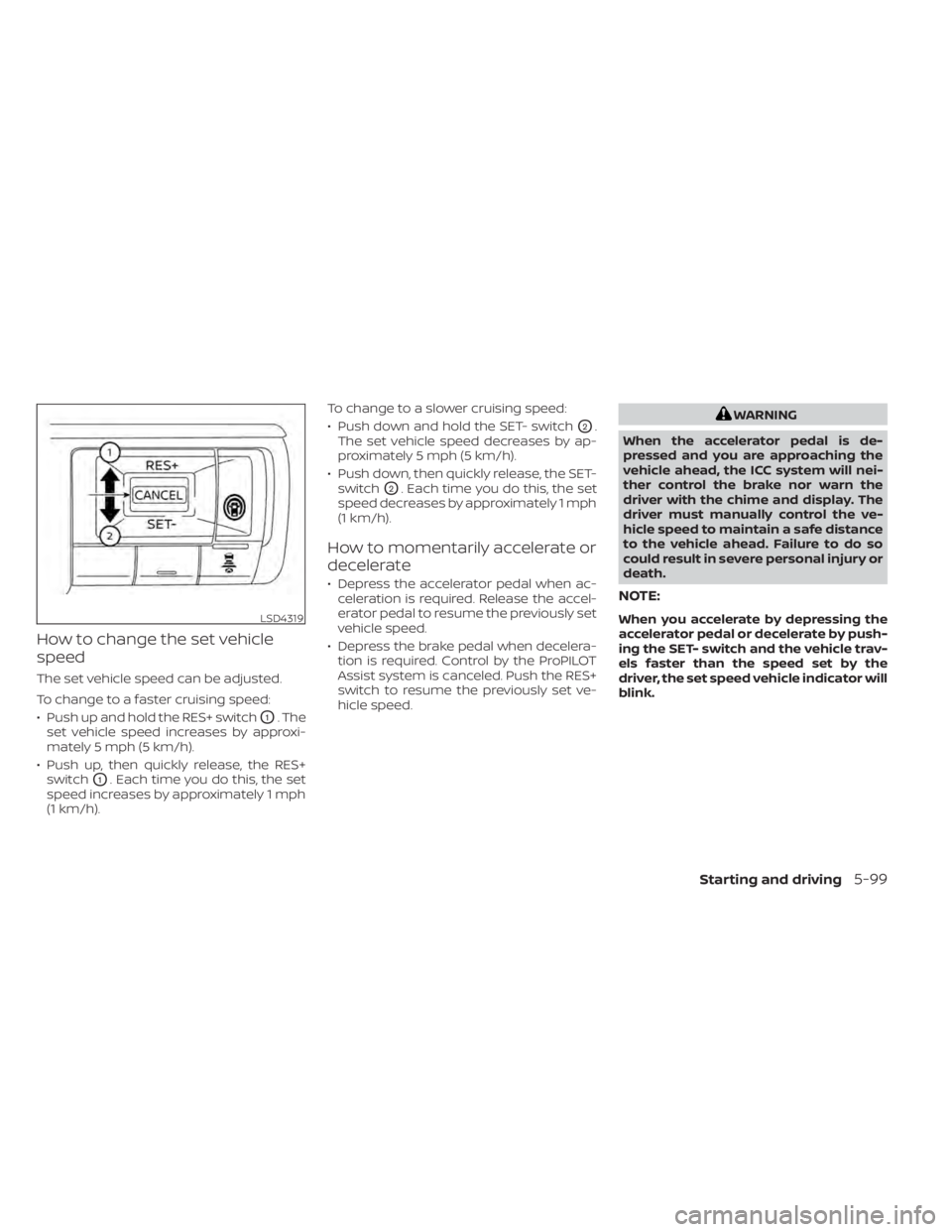
How to change the set vehicle
speed
The set vehicle speed can be adjusted.
To change to a faster cruising speed:
• Push up and hold the RES+ switch
O1. The
set vehicle speed increases by approxi-
mately 5 mph (5 km/h).
• Push up, then quickly release, the RES+ switch
O1. Each time you do this, the set
speed increases by approximately 1 mph
(1 km/h). To change to a slower cruising speed:
• Push down and hold the SET- switch
O2.
The set vehicle speed decreases by ap-
proximately 5 mph (5 km/h).
• Push down, then quickly release, the SET- switch
O2. Each time you do this, the set
speed decreases by approximately 1 mph
(1 km/h).
How to momentarily accelerate or
decelerate
• Depress the accelerator pedal when ac- celeration is required. Release the accel-
erator pedal to resume the previously set
vehicle speed.
• Depress the brake pedal when decelera- tion is required. Control by the ProPILOT
Assist system is canceled. Push the RES+
switch to resume the previously set ve-
hicle speed.
WARNING
When the accelerator pedal is de-
pressed and you are approaching the
vehicle ahead, the ICC system will nei-
ther control the brake nor warn the
driver with the chime and display. The
driver must manually control the ve-
hicle speed to maintain a safe distance
to the vehicle ahead. Failure to do so
could result in severe personal injury or
death.
NOTE:
When you accelerate by depressing the
accelerator pedal or decelerate by push-
ing the SET- switch and the vehicle trav-
els faster than the speed set by the
driver, the set speed vehicle indicator will
blink.LSD4319
Starting and driving5-99
Page 426 of 665

3. Use the scroll dialO1to select “Steering
Assist” and then press the OK button
O1
to turn the system on or off.
NOTE:
• When the Cruise screen is displayed on the vehicle information display, press
the OK button on the steering wheel to
call up the “Driving Aids” setting
display.
• When enabling/disabling the system through the vehicle information dis-
play or when pushing the Steering As-
sist switch, the system retains the cur-
rent settings even if the engine is
restarted.
How to cancel the ProPILOT Assist
system
To cancel the ProPILOT Assist system, use
one of the following methods:
• Push the CANCEL switch.
• Tap the brake pedal (except at astandstill).
• Push the ProPILOT Assist switch to turn the system off. The ProPILOT Assist status
indicator will go out. When the ProPILOT Assist system is can-
celed while the vehicle is stopped, the elec-
tronic parking brake is automatically
activated.
WARNING
To prevent the vehicle from moving or
rolling unexpectedly, which could re-
sult in serious personal injury or prop-
erty damage, before exiting the vehicle
make sure to push the ProPILOT Assist
switch to turn the system off, press the
park button to shif t to the P (Park) po-
sition, and turn the engine off.
INTELLIGENT CRUISE CONTROL
(ICC) (for vehicles with ProPILOT
Assist)
WARNING
Failure to follow the warnings and in-
structions for proper use of the ICC sys-
tem could result in serious injury or
death. •
The ICC system is only an aid to assist
the driver and is not a collision
warning or avoidance device. It is rec-
ommended for highway use only and
it is not intended for city driving. It is
the driver’s responsibility to stay
alert, drive safely, and be in control of
the vehicle at all times.
• There are limitations to the ICC sys-
tem capability. The ICC system does
not function in all driving, traffic,
weather, and road conditions. It is the
driver’s responsibility to stay alert,
drive safely, keep the vehicle in the
traveling lane, and be in control of the
vehicle at all times.
• Always observe posted speed limits
and do not set the speed over them.
• The ICC system does not react to sta-
tionary and slow moving vehicles.
Starting and driving5-103
Page 427 of 665

•Always drive carefully and atten-
tively when using the ICC system.
Read and understand the Owner’s
Manual thoroughly before using the
ICC system. To avoid serious injury or
death, do not rely on the system to
prevent accidents or to control the
vehicle’s speed in emergency situa-
tions. Do not use the ICC system ex-
cept in appropriate road and traffic
conditions.
ICC system operation
The ICC system is designed to maintain a
selected distance from the vehicle in front
of you and can reduce the speed to match
a slower vehicle ahead. The system decel-
erates the vehicle as necessary and if the
vehicle ahead comes to a stop, the vehicle
decelerates to a standstill. However, the ICC
system can only apply up to 40% of the
vehicle’s total braking power. This system
should only be used when traffic condi-
tions allow vehicle speeds to remain fairly
constant or when vehicle speeds change
gradually. If a vehicle moves into the travel-
ing lane ahead or if a vehicle traveling
ahead rapidly decelerates, the distance be-
tween vehicles may become closer be-
cause the ICC system cannot decelerate the vehicle quickly enough. If this occurs,
the ICC system sounds a warning chime
and blinks the system display to notif y the
driver to take necessary action.
The ICC system cancels and a warning
chime sounds if the speed is below ap-
proximately 15 mph (24 km/h) and a vehicle
is not detected ahead. For ProPILOT Assist
with Navi-link equipped vehicles on a lim-
ited access freeway as identified in the
navigation map data, the ICC system can-
cels and a warning chime sounds if your
vehicle is at a standstill for more than ap-
proximately 3 seconds and a vehicle is not
detected ahead.
The ICC system operates as follows:
• When there are no vehicles traveling
ahead, the ICC system maintains the
speed set by the driver. The set speed
range is between approximately 20 and
90 mph (32 and 144 km/h).
• When there is a vehicle traveling ahead, the ICC system adjusts the speed to
maintain the distance, selected by the
driver, from the vehicle ahead. If the ve-
hicle ahead comes to a stop, the vehicle
decelerates to a standstill. Once your ve-
hicle stops, the ICC system keeps the ve-
hicle stopped. • When your vehicle is stopped for less
than 3 seconds and the vehicle ahead
begins to move, your vehicle will start
moving again automatically.
• When your vehicle is at a standstill for more than 3 seconds and the vehicle
ahead begins to accelerate, push the
RES+ switch or lightly depress the accel-
erator pedal. The ICC system starts to
follow the vehicle ahead.
• When the vehicle traveling ahead moves to a different traveling lane, the ICC sys-
tem accelerates and maintains vehicle
speed up to the set speed.
The ICC system does not control vehicle
speed or warn you when you approach
stationary and slow moving vehicles. You
must pay attention to vehicle operation to
maintain proper distance from vehicles
ahead when approaching toll gates or traf-
fic congestion.
5-104Starting and driving
Page 431 of 665

When passing another vehicle, the set
speed indicator
OAflashes when the ve-
hicle speed exceeds the set speed. The ve-
hicle ahead detection indicator turns off
when the area ahead of the vehicle is open.
When the pedal is released, the vehicle re-
turns to the previously set speed. Even
though your vehicle speed is set in the ICC
system, you can depress the accelerator
pedal when it is necessary to accelerate
your vehicle rapidly.
Cut-in detection
If a vehicle moves into your traveling lane
near your vehicle, the ICC system may in-
form the driver by flashing the vehicle
ahead detection indicator.
Approach warning
If your vehicle comes closer to the vehicle
ahead due to rapid deceleration of that ve-
hicle or if another vehicle cuts in, the sys-
tem warns the driver with the chime and
ICC system display. Decelerate by depress-
ing the brake pedal to maintain a safe ve-
hicle distance if:
• The chime sounds.
• The vehicle ahead detection indicator blinks.
• You judge it necessary to maintain a safe distance.
The warning chime may not sound in
some cases when there is a short distance
between vehicles. Some examples are:
• When the vehicles are traveling at the same speed and the distance between
vehicles is not changing. • When the vehicle ahead is traveling faster
and the distance between vehicles is
increasing.
• When a vehicle cuts in near your vehicle.
The warning chime will not sound when:
• Your vehicle approaches other vehicles that are parked or moving slowly.
• The accelerator pedal is depressed, over- riding the system.
NOTE:
The approach warning chime may sound
and the system display may flash when
the radar sensor detects objects on the
side of the vehicle or on the side of the
road. This may cause the ICC system to
decelerate or accelerate the vehicle. The
radar sensor may detect these objects
when the vehicle is driven on winding,
narrow, or hilly roads or when the vehicle
is entering or exiting a curve. In these
cases, you will have to manually control
the proper distance ahead of your
vehicle.
LSD4237
5-108Starting and driving
Page 432 of 665

Also, the sensor sensitivity can be af-
fected by vehicle operation (steering
maneuver or driving position in the lane)
or traffic or vehicle conditions (for ex-
ample, if a vehicle is being driven with
some damage).
Acceleration when passing
When the ICC system is engaged above 44
mph and following a slower vehicle (below
ICC set speed), and the turn signal is acti-
vated to the lef t, the ICC system will auto-
matically start to accelerate the vehicle to
help initiate passing on the lef t and will
begin to reduce the distance to vehicle di-
rectly ahead. Only the lef t side turn signal
operates this feature. As the driver steers
the vehicle and moves into the passing
lane, if no vehicle is detected ahead the ICC
system will continue to accelerate to the
ICC system set speed. If another vehicle is
detected ahead, then the vehicle will accel-
erate up to the following speed of that ve-
hicle. If the vehicle is not steered into the
lef t lane to pass, the acceleration will stop
af ter a short time and regain the set follow-
ing distance. Acceleration can be stopped
at any point by depressing the brake pedal
or the CANCEL switch on the steering
wheel.
WARNING
In order to reduce the risk of a collision
that may result in serious injury or
death, please be aware of the following:
• This function is only activated with
the lef t turn signal and will briefly ac-
celerate the vehicle even if a lane
change is not initiated. This can in-
clude non-passing situations such as
lef t side exits.
• Ensure that when passing another
vehicle, the adjacent lane is clear be-
fore initiating the pass. Sudden
changes in traffic may occur while
passing- always manually steer or
brake as needed- never solely rely on
the system.
Speed Limit Assist-afe ature of
ProPILOT Assist with Navi-link (if
so equipped)
When the ProPILOT Assist with Navi-link is
active and it detects a change of the speed
limit, the new speed limit is indicated and it
can be applied to the vehicle set speed
automatically or manually. The Speed Limit Assist operates:
• When the detected speed limit is 20 mph
(30 km/h) and above.
• The “Spd. Limit Assist” is enabled in the settings menu of the vehicle information
display.
NOTE:
•While the accelerator pedal is operated
with AUTO mode selected, the Speed
Limit Assist will function (automatically
adjusts the vehicle set speed) only
when the detected speed limit is faster
than the vehicle set speed.
• In the following situations, the Speed
Limit Assist will not operate: – When an increase in the posted
speed limit is detected, but the ve-
hicle set speed is already faster than
the new speed limit.
– When a decrease in the posted
speed limit is detected, but the ve-
hicle set speed is already lower than
the new speed limit.
Starting and driving5-109