2023 NISSAN PATHFINDER warning
[x] Cancel search: warningPage 154 of 665
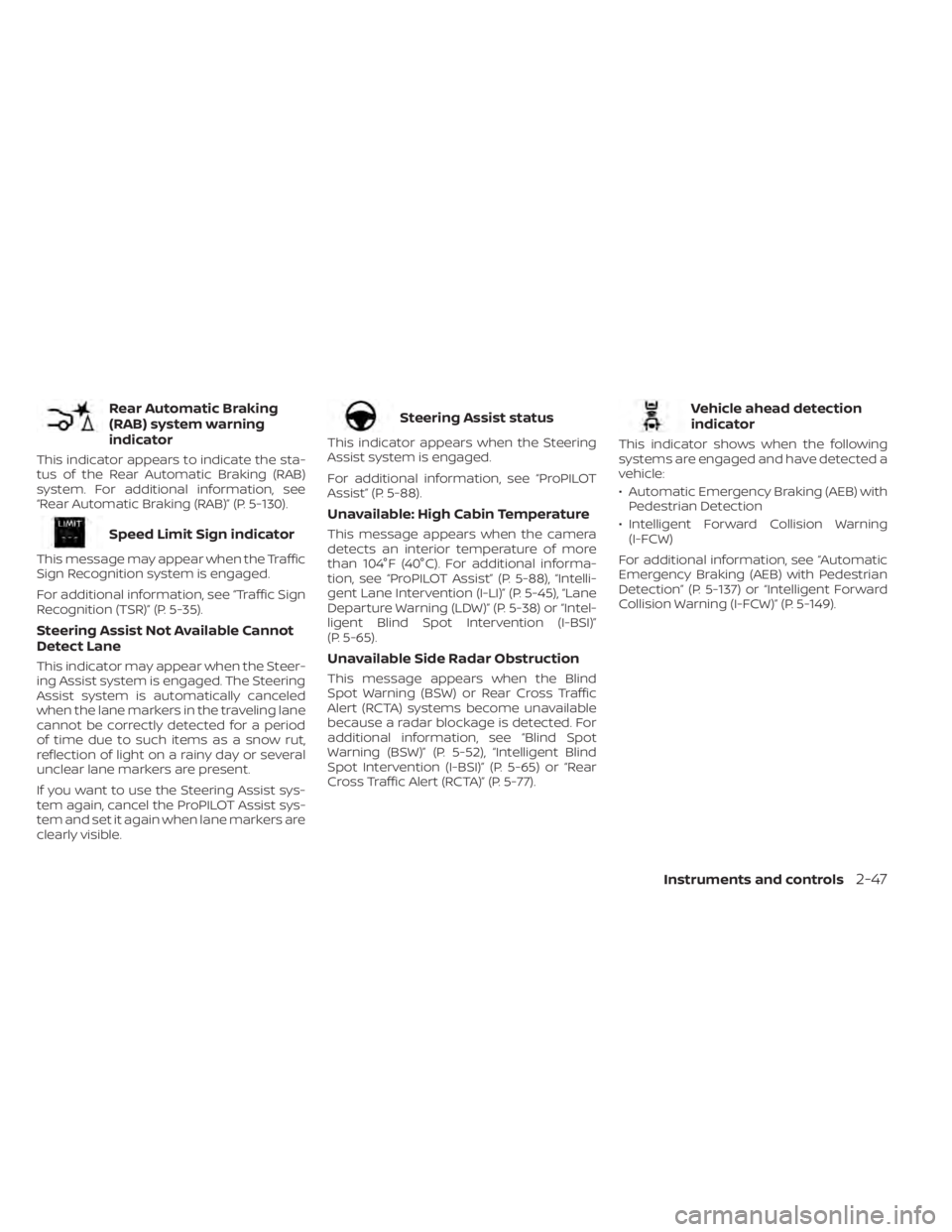
Rear Automatic Braking
(RAB) system warning
indicator
This indicator appears to indicate the sta-
tus of the Rear Automatic Braking (RAB)
system. For additional information, see
“Rear Automatic Braking (RAB)” (P. 5-130).
Speed Limit Sign indicator
This message may appear when the Traffic
Sign Recognition system is engaged.
For additional information, see “Traffic Sign
Recognition (TSR)” (P. 5-35).
Steering Assist Not Available Cannot
Detect Lane
This indicator may appear when the Steer-
ing Assist system is engaged. The Steering
Assist system is automatically canceled
when the lane markers in the traveling lane
cannot be correctly detected for a period
of time due to such items as a snow rut,
reflection of light on a rainy day or several
unclear lane markers are present.
If you want to use the Steering Assist sys-
tem again, cancel the ProPILOT Assist sys-
tem and set it again when lane markers are
clearly visible.
Steering Assist status
This indicator appears when the Steering
Assist system is engaged.
For additional information, see “ProPILOT
Assist” (P. 5-88).
Unavailable: High Cabin Temperature
This message appears when the camera
detects an interior temperature of more
than 104°F (40°C). For additional informa-
tion, see “ProPILOT Assist” (P. 5-88), “Intelli-
gent Lane Intervention (I-LI)” (P. 5-45), “Lane
Departure Warning (LDW)” (P. 5-38) or “Intel-
ligent Blind Spot Intervention (I-BSI)”
(P. 5-65).
Unavailable Side Radar Obstruction
This message appears when the Blind
Spot Warning (BSW) or Rear Cross Traffic
Alert (RCTA) systems become unavailable
because a radar blockage is detected. For
additional information, see “Blind Spot
Warning (BSW)” (P. 5-52), “Intelligent Blind
Spot Intervention (I-BSI)” (P. 5-65) or “Rear
Cross Traffic Alert (RCTA)” (P. 5-77).
Vehicle ahead detection
indicator
This indicator shows when the following
systems are engaged and have detected a
vehicle:
• Automatic Emergency Braking (AEB) withPedestrian Detection
• Intelligent Forward Collision Warning (I-FCW)
For additional information, see “Automatic
Emergency Braking (AEB) with Pedestrian
Detection” (P. 5-137) or “Intelligent Forward
Collision Warning (I-FCW)” (P. 5-149).
Instruments and controls2-47
Page 155 of 665

The vehicle information display is located
to the lef t of the speedometer. It displays
such items as:
• Vehicle settings
• Indicators and warnings
• Information/warning messages
• Tire pressure information
• Drive computer information
• Cruise control system information
• Driving Aids (if so equipped)
• ProPILOT Assist (if so equipped)
• NISSAN Intelligent Key® operationinformation • Audio information
• Compass and navigation information (if
so equipped)
• Shif t position
• Distance to empty
• Odometer/twin trip odometer
• Clock and outside temperature
• Intelligent 4x4 (if so equipped)HOW TO USE THE VEHICLE
INFORMATION DISPLAY
The vehicle information display can be
navigated using the,but-
tons and scroll dial located on the steering
wheel.
1.
,— navigate through the items
in the vehicle information display.
2. Scroll dial — Use the scroll dial to navi- gate through the items and change or
select an item in the vehicle information
display. The scroll dial allows up or down
navigation and press to select.
LIC4677LIC4871
VEHICLE INFORMATION DISPLAY 12.3
INCH (31 cm) TYPE B (if so equipped)
2-48Instruments and controls
Page 156 of 665

3. Short cut menu button— Press this but-ton to open a shortcut menu.
4.
— go back to the previous menu
STARTUP DISPLAY
When the vehicle in placed in the ON posi-
tion the screens that display in the vehicle
information include:
• Active system status (if so equipped)
• Trip computer
• Fuel economy
• Distance to empty
• Tire pressure information
• Intelligent 4x4 (if so equipped)
• Navigation (if so equipped)
• Audio
• Warnings
Warnings will only display if there are any
present. For additional information on
warnings and indicators see “Vehicle infor-
mation display warnings and indicators”
(P. 2-65).
To control what items display in the vehicle
information display, see “Customize Dis-
play ” (P. 2-63).
Instruments and controls2-49
Page 159 of 665

Manual Reset2 can be reset manually by
using the scroll dial or will be reset auto-
matically each time the ignition switch is
placed in the OFF position (if so equipped).
Auto Refuel will be reset automatically each
time when refueling.
For additional information, see “ECO Mode”
(P. 5-34).
6. Tire Pressures
The tire pressure mode shows the pres-
sure of all four tires while the vehicle is
driven.
With the “Tire Pres ECO advice” function ON,
when the tire pressure is getting low,
“Check Tire Pressures for Best Fuel
Economy” or “Add air for Best Fuel
Economy” appears. For additional informa-
tion, see “ECO Mode Setting” (P. 5-34) or “Tire
Pres ECO advice” (P. 5-34).
When the “Tire Pressure Low — Add Air”
warning appears, the display can be
switched to the tire pressure mode by
pushing the scroll dial to reveal additional
details on the displayed warning.
7. Intelligent 4x4 torque
distribution display (if so
equipped)
When the Intelligent 4x4 torque distribution
display is selected, you can view the distri-
bution ratio of the transmission torque to
the front and rear wheels during driving.
8. Compass (if so equipped)
This display indicates the direction the ve-
hicle is heading.
9. Navigation (if so equipped)
When the route guidance is set in the navi-
gation system, this item shows the naviga-
tion route information.
10. Audio
The audio mode shows the status of audio
information.
11. Driver Assistance
The Driver Assistance mode shows the op-
erating condition for the following systems:
•Forward–– Automatic Emergency Braking (AEB)with Pedestrian Detection system –
– Intelligent Forward Collision Warning
(I-FCW)
• Lane: –– Lane Departure Warning (LDW)
–– Intelligent Lane Intervention (I-LI)
• Blind Spot: –– Blind Spot Warning (BSW)
–– Intelligent Blind Spot Intervention (I-
BSI) (if so equipped)
For additional information, see “Intelligent
Blind Spot Intervention (I-BSI)” (P. 5-65),
“Blind Spot Warning (BSW)” (P. 5-52), “Lane
Departure Warning (LDW)” (P. 5-38), “Auto-
matic Emergency Braking (AEB) with Pe-
destrian Detection” (P. 5-137), “Intelligent
Forward Collision Warning (I-FCW)” (P. 5-149)
or “Intelligent Lane Intervention (I-LI)”
(P. 5-45).
12. ProPILOT Assist (if so equipped)
The ProPILOT Assist mode shows operat-
ing conditions for the following systems:
• Intelligent Cruise Control (ICC)
• Steering Assist
The display will also be shown when the
ProPILOT Assist is turned on. For additional
information, see “ProPILOT Assist” (P. 5-88).
2-52Instruments and controls
Page 163 of 665
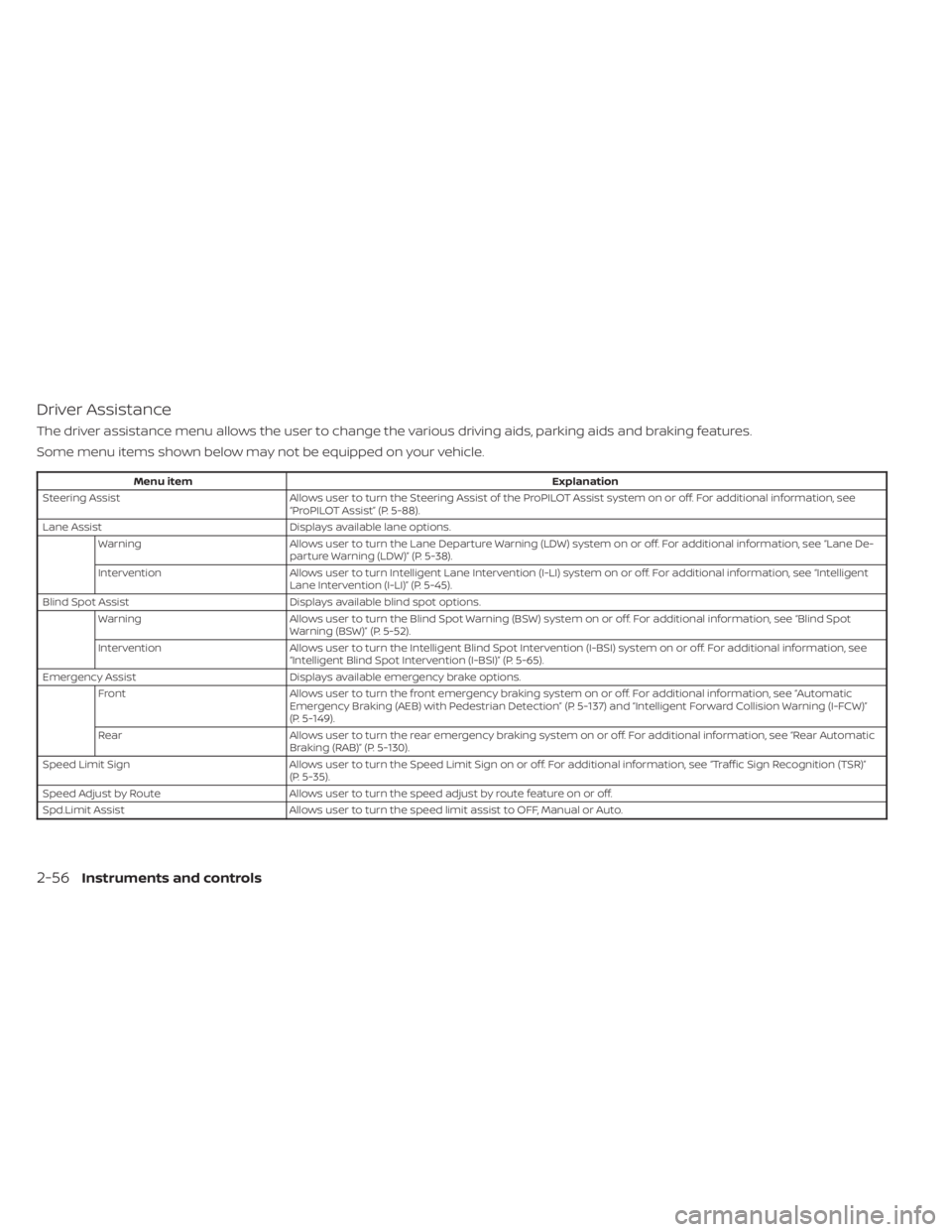
Driver Assistance
The driver assistance menu allows the user to change the various driving aids, parking aids and braking features.
Some menu items shown below may not be equipped on your vehicle.
Menu itemExplanation
Steering Assist Allows user to turn the Steering Assist of the ProPILOT Assist system on or off. For additional information, see
“ProPILOT Assist” (P. 5-88).
Lane Assist Displays available lane options.
Warning Allows user to turn the Lane Departure Warning (LDW) system on or off. For additional information, see “Lane De-
parture Warning (LDW)” (P. 5-38).
Intervention Allows user to turn Intelligent Lane Intervention (I-LI) system on or off. For additional information, see “Intelligent
Lane Intervention (I-LI)” (P. 5-45).
Blind Spot Assist Displays available blind spot options.
Warning Allows user to turn the Blind Spot Warning (BSW) system on or off. For additional information, see “Blind Spot
Warning (BSW)” (P. 5-52).
Intervention Allows user to turn the Intelligent Blind Spot Intervention (I-BSI) system on or off. For additional information, see
“Intelligent Blind Spot Intervention (I-BSI)” (P. 5-65).
Emergency Assist Displays available emergency brake options.
Front Allows user to turn the front emergency braking system on or off. For additional information, see “Automatic
Emergency Braking (AEB) with Pedestrian Detection” (P. 5-137) and “Intelligent Forward Collision Warning (I-FCW)”
(P. 5-149).
Rear Allows user to turn the rear emergency braking system on or off. For additional information, see “Rear Automatic
Braking (RAB)” (P. 5-130).
Speed Limit Sign Allows user to turn the Speed Limit Sign on or off. For additional information, see “Traffic Sign Recognition (TSR)”
(P. 5-35).
Speed Adjust by Route Allows user to turn the speed adjust by route feature on or off.
Spd.Limit Assist Allows user to turn the speed limit assist to OFF, Manual or Auto.
2-56Instruments and controls
Page 169 of 665

Maintenance
The maintenance menu allows the user to set reminders for various vehicle maintenance items.
Some menu items shown below may not be equipped on your vehicle.
WARNING
The tire replacement indicator is not a substitute for regular tire checks, including tire pressure checks. For additional informa-
tion, see “Changing wheels and tires” (P. 8-39). Many factors including tire inflation, alignment, driving habits and road conditions
affect tire wear and when tires should be replaced. Setting the tire replacement indicator for a certain driving distance does not
mean your tires will last that long. Use the tire replacement indicator as a guide only and always perform regular tire checks.
Failure to perform regular tire checks, including tire pressure checks could result in tire failure. Serious vehicle damage could
occur and may lead to a collision, which could result in serious personal injury or death.
Menu item Explanation
Service Allows user to reset the service interval. This should only be done af ter completing an oil and filter change main-
tenance. For additional information, see “Oil Control System” (P. 2-54).
Air Filter Allows user to set a reminder at a desired interval to perform an air filter change, or reset the reminder af ter com-
pleting the maintenance.
Tire Allows user to set a reminder at a desired interval to perform a tire rotation/replacement, or reset the reminder
af ter completing the tire service.
Other Allows user to set a reminder at a desired interval to perform additional maintenance items (other than oil, air fil-
ter, or tire), or reset the reminder af ter completing the maintenance.
2-62Instruments and controls
Page 172 of 665

VEHICLE INFORMATION DISPLAY
WARNINGS AND INDICATORS
The following messages may appear in
your vehicle information display.
Engine start operation for
Intelligent Key system (if
I-Key battery level is low)
This indicator appears when the battery of
the Intelligent Key is low and when the In-
telligent Key system and the vehicle are not
communicating normally.
If this appears, touch the ignition switch
with the Intelligent Key while depressing
the brake pedal. For additional information,
see “NISSAN Intelligent Key® battery dis-
charge” (P. 5-15).
Key ID Incorrect
This warning appears when the ignition
switch is placed from the OFF position and
the Intelligent Key is not recognized by the
system. You cannot start the engine with
an unregistered key.
For additional information, see “NISSAN In-
telligent Key® system” (P. 3-7).
Key System Error: See
Owner’s Manual
Af ter the ignition switch is placed in the ON
position, this warning appears for a period
of time and then turns off.
The Key System Error message warns of a
malfunction with the Intelligent Key sys-
tem. If the warning appears while the en-
gine is stopped, it may be impossible to
start the engine.
If the warning appears while the engine is
running, you can drive the vehicle. However,
in these cases, have the system checked. It
is recommended that you visit a NISSAN
dealer for this service.
Key Battery Low
This indicator appears when the Intelligent
Key battery is running out of power.
If this indicator appears, replace the bat-
tery with a new one. For additional infor-
mation, see “Battery replacement” (P. 8-24).
No Key Detected
This warning appears when the Intelligent
Key is lef t outside the vehicle with the igni-
tion switch in the ON position. Make sure
the Intelligent Key is inside the vehicle.For additional information, see “NISSAN In-
telligent Key® system” (P. 3-7).
Automatic brake hold
indicator light
(white/green)
The automatic brake hold indicator light
(white) illuminates when the automatic
brake hold system is on standby.
The automatic brake hold indicator light
(green) illuminates when the automatic
brake hold system is operating.
For additional information, see “Automatic
brake hold” (P. 5-28).
Brightness indicator
This indicator shows the brightness ad-
justment of the instrument panel. For addi-
tional information, see “Instrument bright-
ness control” (P. 2-88).
Caution Steep slope
This indicator appears, and a chime
sounds when the automatic brake hold
function is activated while the vehicle is on
a steep hill. Apply the foot brake to stop the
vehicle from moving. For additional infor-
mation, see “Automatic brake hold” (P. 5-28).
Instruments and controls2-65
Page 173 of 665

Chassis Control System Error See
Owner’s Manual
This warning appears if the chassis control
module detects a malfunction in the chas-
sis control system. Have the system
checked. It is recommended that you visit a
NISSAN dealer for this service. For addi-
tional information, see “Chassis Control”
(P. 5-181).
Check Rear Seat For All Articles
When the system is enabled, this message
appears when the vehicle comes to a com-
plete stop, the vehicle is transitioned from
the D (Drive) position to P (Park) position,
and the driver exits the vehicle. This mes-
sage alerts the driver, af ter a period of time,
to check for items in the rear seat af ter the
audible alert has been provided.
NOTE:
This system is disabled until a driver en-
ables it using the vehicle information
display. For additional information, see
“How to use the vehicle information dis-
play ” (P. 2-48).
For additional information, see “Rear Door
Alert” (P. 2-100).
Rear Door Alert is activated
When the system is enabled, this message
appears when the Rear Door Alert system
is active and can remind the driver to check
the back seat.
• Using the steering wheel switch, a drivercan select “Dismiss Message” to clear the
display for a period of time. If no selection
is made, this message automatically
turns off af ter a period of time.
• Using the steering wheel switch, a driver can select “Disable Alert” to disable the
horn alert for the remainder of the cur-
rent trip.
WARNING
Selecting “Dismiss Message” during a
stop within a trip temporarily dis-
misses the message for that stop with-
out turning the system off. Alerts can
be provided for other stops during the
trip. Selecting “Disable Alert” turns off
the Rear Door Alert system for the re-
mainder of a trip and no audible alert
will be provided.
NOTE:
This system is disabled until a driver en-
ables it using the vehicle information
display. For additional information, see
“How to use the vehicle information dis-
play ” (P. 2-48).
For additional information, see “Rear Door
Alert” (P. 2-100).
Door/Lif tgate Open
This warning appears when a door or the
lif tgate has been opened.
Drive Mode Selector indicator
When a driving mode is selected using the
Drive Mode Selector, the selected mode in-
dicator is displayed.
• SAND (4WD models)
• MUD/RUT (4WD models)
• SNOW
• STANDARD (2WD models)
• AUTO (4WD models)
•ECO
• SPORT
•TOW
For additional information, see “Drive Mode
Selector” (P. 5-31).
2-66Instruments and controls