2023 NISSAN PATHFINDER warning
[x] Cancel search: warningPage 127 of 665

•If the light illuminates while driving,
avoid sudden steering maneuvers or
abrupt braking, reduce vehicle
speed, pull off the road to a safe loca-
tion and stop the vehicle as soon as
possible. Driving with under-inflated
tires may permanently damage the
tires and increase the likelihood of
tire failure. Serious vehicle damage
could occur and may lead to an acci-
dent and could result in serious per-
sonal injury or death. Check the tire
pressure for all four tires. Adjust the
tire pressure to the recommended
COLD tire pressure shown on the Tire
and Loading Information label lo-
cated in the driver’s door opening to
turn the low tire pressure warning
light off. If the light still illuminates
while driving af ter adjusting the tire
pressure, a tire may be flat or the
TPMS may be malfunctioning. If you
have a flat tire, replace it with a spare
tire as soon as possible. If no tire is
flat and all tires are properly inflated,
have the vehicle checked. It is recom-
mended that you visit a NISSAN
dealer for this service. •
When using a wheel without the
TPMS such as the spare tire, the TPMS
will not function and the low tire
pressure warning light will flash for
approximately 1 minute. The light will
remain on af ter 1 minute. Have your
tires replaced and/or TPMS system
reset as soon as possible. It is recom-
mended that you visit a NISSAN
dealer for these services.
• Replacing tires with those not origi-
nally specified by NISSAN could af-
fect the proper operation of the
TPMS.
CAUTION
• The TPMS is not a substitute for the
regular tire pressure check. Be sure
to check the tire pressure regularly.
• If the vehicle is being driven at
speeds of less than 16 mph (25 km/h),
the TPMS may not operate correctly.
• Be sure to install the specified size of
tires to the four wheels correctly.
Malfunction Indicator Light
(MIL) (if so equipped)
If this indicator light comes on steady or
blinks while the engine is running, it may
indicate a potential emission control
malfunction.
The MIL may also come on steady if the
vehicle runs out of fuel. Check to make sure
that the vehicle has at least 3 gallons (11.4
liters) of fuel in the fuel tank.
Operation
The MIL will come on in one of two ways:
• MIL on steady — An emission control sys- tem malfunction has been detected.
Have the vehicle inspected. It is recom-
mended that you visit a NISSAN dealer for
this service. You do not need to have your
vehicle towed to the dealer.
• MIL blinking — An engine misfire has been detected which may damage the emis-
sion control system. To reduce or avoid
emission control system damage:
do not drive at speeds above 45 mph (72
km/h).
avoid hard acceleration or deceleration.
avoid steep uphill grades.
if possible, reduce the amount of cargo be-
ing hauled or towed.
2-20Instruments and controls
Page 128 of 665

The MIL may stop blinking and come on
steady. Have the vehicle inspected. It is rec-
ommended that you visit a NISSAN dealer
for this service. You do not need to have
your vehicle towed to the dealer.
CAUTION
Continued vehicle operation without
having the emission control system
checked and repaired as necessary
could lead to poor driveability, reduced
fuel economy, and possible damage to
the emission control system.
Master warning light (if so
equipped)
When the ignition is in the ON position, the
master warning light illuminates if a
warning message appears in the vehicle
information display.
For additional information, see “Vehicle in-
formation display–7 inch (18 cm) Type A”
(P. 2-23) or “Vehicle information display—12.3
inch (31 cm) Type B” (P. 2-48).
Rear Automatic Braking
(RAB) system warning light
(if so equipped)
This light comes on when the ignition
switch is placed in the ON position. It turns
off af ter the engine is started.
This light illuminates when the RAB system
is turned off in the vehicle information
display.
If the light illuminates when the RAB sys-
tem is on, it may indicate that the system is
unavailable. For additional information, see
“Rear Automatic Braking (RAB)” (P. 5-130).
Slip indicator light
This indicator light will blink when the Ve-
hicle Dynamic Control (VDC) system is op-
erating, thus alerting the driver to the fact
that the road surface is slippery and the
vehicle is nearing its traction limits.
You may feel or hear the system working;
this is normal.
The light will blink for a few seconds af ter
the VDC system stops limiting wheel spin. The
indicator light also comes on
when you place the ignition switch in the
ON position. The light will turn off af ter ap-
proximately 2 seconds if the system is op-
erational. If the light does not come on
have the system checked. It is recom-
mended that you visit a NISSAN dealer for
this service.
Vehicle Dynamic Control
(VDC) OFF indicator light
This indicator light comes on when the
VDC system is disabled in the vehicle infor-
mation display. This indicates the VDC sys-
tem has been turned off.
Enable the VDC system in the vehicle infor-
mation display or restart the engine and
the system will operate normally. For addi-
tional information, see “Vehicle Dynamic
Control (VDC) system” (P. 5-177).
The VDC OFF indicator light also comes on
when you place the ignition switch in the
ON position. The light will turn off af ter
about 2 seconds if the system is opera-
tional. If the light stays on or comes on
along with the
indicator light while
you are driving, have the VDC system
checked. It is recommended that you visit a
NISSAN dealer for this service.
Instruments and controls2-21
Page 129 of 665
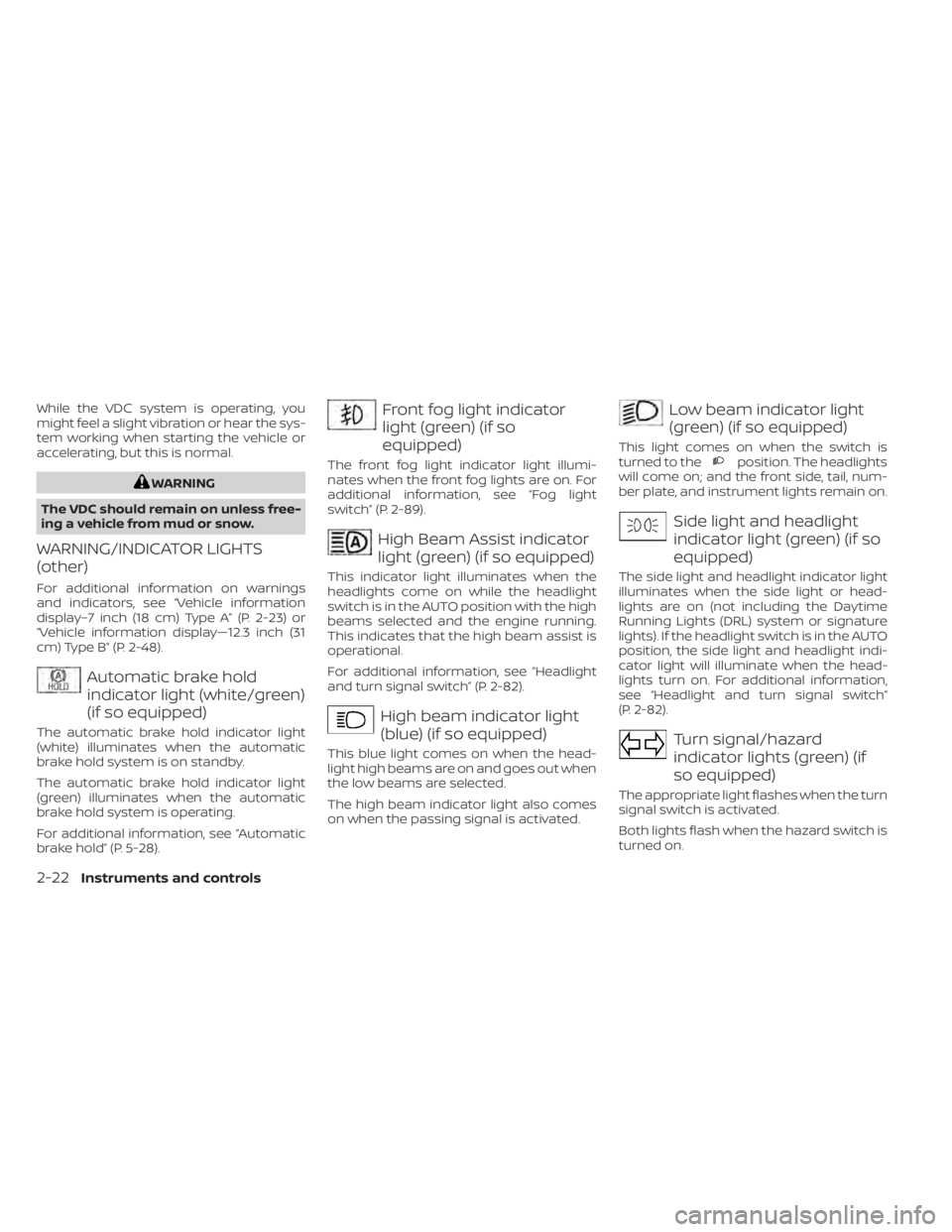
While the VDC system is operating, you
might feel a slight vibration or hear the sys-
tem working when starting the vehicle or
accelerating, but this is normal.
WARNING
The VDC should remain on unless free-
ing a vehicle from mud or snow.
WARNING/INDICATOR LIGHTS
(other)
For additional information on warnings
and indicators, see “Vehicle information
display–7 inch (18 cm) Type A” (P. 2-23) or
“Vehicle information display—12.3 inch (31
cm) Type B” (P. 2-48).
Automatic brake hold
indicator light (white/green)
(if so equipped)
The automatic brake hold indicator light
(white) illuminates when the automatic
brake hold system is on standby.
The automatic brake hold indicator light
(green) illuminates when the automatic
brake hold system is operating.
For additional information, see “Automatic
brake hold” (P. 5-28).
Front fog light indicator
light (green) (if so
equipped)
The front fog light indicator light illumi-
nates when the front fog lights are on. For
additional information, see “Fog light
switch” (P. 2-89).
High Beam Assist indicator
light (green) (if so equipped)
This indicator light illuminates when the
headlights come on while the headlight
switch is in the AUTO position with the high
beams selected and the engine running.
This indicates that the high beam assist is
operational.
For additional information, see “Headlight
and turn signal switch” (P. 2-82).
High beam indicator light
(blue) (if so equipped)
This blue light comes on when the head-
light high beams are on and goes out when
the low beams are selected.
The high beam indicator light also comes
on when the passing signal is activated.
Low beam indicator light
(green) (if so equipped)
This light comes on when the switch is
turned to theposition. The headlights
will come on; and the front side, tail, num-
ber plate, and instrument lights remain on.
Side light and headlight
indicator light (green) (if so
equipped)
The side light and headlight indicator light
illuminates when the side light or head-
lights are on (not including the Daytime
Running Lights (DRL) system or signature
lights). If the headlight switch is in the AUTO
position, the side light and headlight indi-
cator light will illuminate when the head-
lights turn on. For additional information,
see “Headlight and turn signal switch”
(P. 2-82).
Turn signal/hazard
indicator lights (green) (if
so equipped)
The appropriate light flashes when the turn
signal switch is activated.
Both lights flash when the hazard switch is
turned on.
2-22Instruments and controls
Page 130 of 665

AUDIBLE REMINDERS
Brake pad wear warning
The disc brake pads have audible wear
warnings. When a disc brake pad requires
replacement, it makes a high pitched
scraping sound when the vehicle is in mo-
tion, whether or not the brake pedal is de-
pressed. Have the brakes checked as soon
as possible if the warning sound is heard. It
is recommended that you visit a NISSAN
dealer for this service.
Key reminder chime (if so
equipped)
A chime sounds if the driver's door is
opened while the ignition switch is placed
in the AUTO ACC or OFF position or placed
in the OFF or LOCK position with the Intelli-
gent Key lef t in the vehicle. Make sure the
ignition switch is placed in the LOCK posi-
tion, and take the Intelligent Key with you
when leaving the vehicle.
Light reminder chime
With the ignition switch placed in the OFF
position, a chime sounds when the driver's
door is opened if the headlights or parking
lights are on.
Turn the headlight control switch off or to
AUTO before leaving the vehicle.
NISSAN Intelligent Key® door
buzzer
The Intelligent Key door buzzer sounds if
any one of the following improper opera-
tions is found.
• The Intelligent Key is lef t inside the vehiclewhen locking the doors.
• The Intelligent Key is taken outside the vehicle when operating the vehicle.
When the buzzer sounds, be sure to check
both the vehicle and the Intelligent Key. For
additional information, see “NISSAN Intelli-
gent Key® system” (P. 3-7). The vehicle information display is located
to the lef t of the speedometer. It displays
such items as:
• Vehicle settings
• Indicators and warnings
• Information/warning messages
• Tire pressure information
• Drive computer information
• Cruise control system information
• Driving Aids (if so equipped)
• ProPILOT Assist (if so equipped)
• NISSAN Intelligent Key® operation
information
LIC3224
VEHICLE INFORMATION DISPLAY 7
INCH (18 cm) TYPE A (if so equipped)
Instruments and controls2-23
Page 131 of 665

• Audio information
• Compass and navigation information (ifso equipped)
• Shif t position
• Distance to empty
• Odometer
• Clock and outside temperature
HOW TO USE THE VEHICLE
INFORMATION DISPLAY
The vehicle information display can be
navigated using the,but-
tons and scroll dial located on the steering
wheel.
1.
,— navigate through the items
in the vehicle information display.
2. Scroll dial — Use the scroll dial to navi- gate through the items and change or
select an item in the vehicle information
display. The scroll dial allows up or down
navigation and press to select. 3. Short cut menu button— Press this but-
ton to open a shortcut menu.
4.
— go back to the previous menu
STARTUP DISPLAY
When the vehicle in placed in the ON posi-
tion the screens that display in the vehicle
information include:
• Active system status (if so equipped)
• Trip computer
• Fuel economy
• Distance to empty
• Tire pressure information
• Intelligent 4x4 (if so equipped)
• Navigation (if so equipped)
• Audio
• Warnings
Warnings will only display if there are any
present. For additional information on
warnings and indicators see “Vehicle infor-
mation display warnings and indicators”
(P. 2-39).
To control what items display in the vehicle
information display, see “Customize Dis-
play ” (P. 2-36).
LIC4871
2-24Instruments and controls
Page 134 of 665

Manual Reset2 can be reset manually by
using the scroll dial or will be reset auto-
matically each time the ignition switch is
placed in the OFF position (if so equipped).
Auto Refuel will be reset automatically each
time when refueling.
For additional information, see “ECO Mode”
(P. 5-34).
6. Tire Pressures
The tire pressure mode shows the pres-
sure of all four tires while the vehicle is
driven.
With the “Tire Pres ECO advice” function ON,
when the tire pressure is getting low,
“Check Tire Pressures for Best Fuel
Economy” or “Add air for Best Fuel
Economy” appears. For additional informa-
tion, see “ECO Mode Setting” (P. 5-34) or “Tire
Pres ECO advice” (P. 5-34).
When the “Tire Pressure Low — Add Air”
warning appears, the display can be
switched to the tire pressure mode by
pushing the scroll dial to reveal additional
details on the displayed warning.
7. Intelligent 4x4 torque
distribution display (if so
equipped)
When the Intelligent 4x4 torque distribution
display is selected, you can view the distri-
bution ratio of the transmission torque to
the front and rear wheels during driving.
8. Compass (if so equipped)
This display indicates the direction the ve-
hicle is heading.
9. Navigation (if so equipped)
When the route guidance is set in the navi-
gation system, this item shows the naviga-
tion route information.
10. Audio
The audio mode shows the status of audio
information.
11. Driver Assistance
The Driver Assistance mode shows the op-
erating condition for the following systems:
•Forward–– Automatic Emergency Braking (AEB)with Pedestrian Detection system –
– Intelligent Forward Collision Warning
(I-FCW)
• Lane: –– Lane Departure Warning (LDW)
–– Intelligent Lane Intervention (I-LI)
• Blind Spot: –– Blind Spot Warning (BSW)
–– Intelligent Blind Spot Intervention
(I-BSI) (if so equipped)
For additional information, see “Intelligent
Blind Spot Intervention (I-BSI)” (P. 5-65),
“Blind Spot Warning (BSW)” (P. 5-52), “Lane
Departure Warning (LDW)” (P. 5-38), “Auto-
matic Emergency Braking (AEB) with Pe-
destrian Detection” (P. 5-137), “Intelligent
Forward Collision Warning (I-FCW)” (P. 5-149)
or “Intelligent Lane Intervention (I-LI)”
(P. 5-45).
12. ProPILOT Assist (if so equipped)
The ProPILOT Assist mode shows operat-
ing conditions for the following systems:
• Intelligent Cruise Control (ICC)
• Steering Assist
The display will also be shown when the
ProPILOT Assist is turned on. For additional
information, see “ProPILOT Assist” (P. 5-88).
Instruments and controls2-27
Page 137 of 665
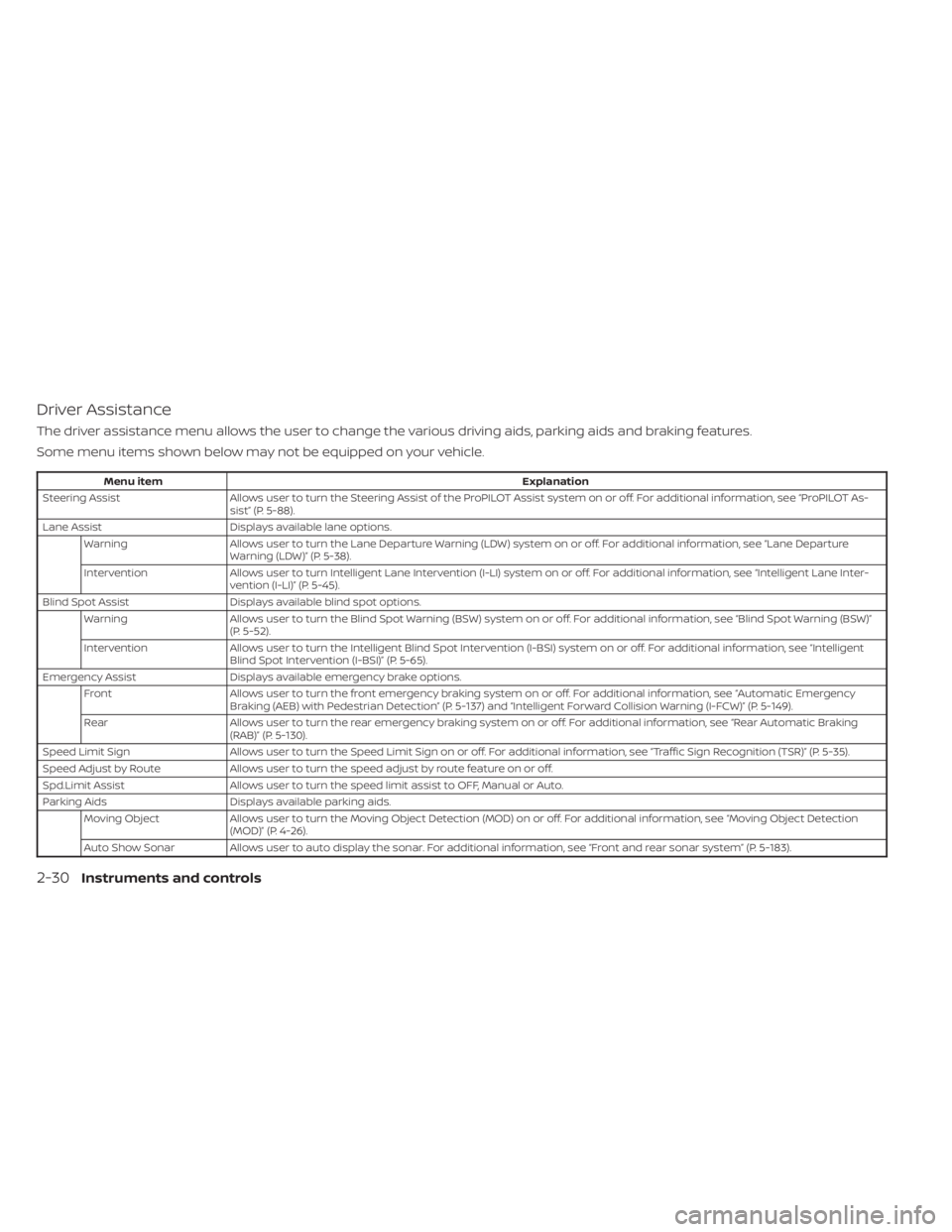
Driver Assistance
The driver assistance menu allows the user to change the various driving aids, parking aids and braking features.
Some menu items shown below may not be equipped on your vehicle.
Menu itemExplanation
Steering Assist Allows user to turn the Steering Assist of the ProPILOT Assist system on or off. For additional information, see “ProPILOT As-
sist” (P. 5-88).
Lane Assist Displays available lane options.
Warning Allows user to turn the Lane Departure Warning (LDW) system on or off. For additional information, see “Lane Departure
Warning (LDW)” (P. 5-38).
Intervention Allows user to turn Intelligent Lane Intervention (I-LI) system on or off. For additional information, see “Intelligent Lane Inter-
vention (I-LI)” (P. 5-45).
Blind Spot Assist Displays available blind spot options.
Warning Allows user to turn the Blind Spot Warning (BSW) system on or off. For additional information, see “Blind Spot Warning (BSW)”
(P. 5-52).
Intervention Allows user to turn the Intelligent Blind Spot Intervention (I-BSI) system on or off. For additional information, see “Intelligent
Blind Spot Intervention (I-BSI)” (P. 5-65).
Emergency Assist Displays available emergency brake options.
Front Allows user to turn the front emergency braking system on or off. For additional information, see “Automatic Emergency
Braking (AEB) with Pedestrian Detection” (P. 5-137) and “Intelligent Forward Collision Warning (I-FCW)” (P. 5-149).
Rear Allows user to turn the rear emergency braking system on or off. For additional information, see “Rear Automatic Braking
(RAB)” (P. 5-130).
Speed Limit Sign Allows user to turn the Speed Limit Sign on or off. For additional information, see “Traffic Sign Recognition (TSR)” (P. 5-35).
Speed Adjust by Route Allows user to turn the speed adjust by route feature on or off.
Spd.Limit Assist Allows user to turn the speed limit assist to OFF, Manual or Auto.
Parking Aids Displays available parking aids.
Moving Object Allows user to turn the Moving Object Detection (MOD) on or off. For additional information, see “Moving Object Detection
(MOD)” (P. 4-26).
Auto Show Sonar Allows user to auto display the sonar. For additional information, see “Front and rear sonar system” (P. 5-183).
2-30Instruments and controls
Page 142 of 665

Maintenance
The maintenance menu allows the user to set reminders for various vehicle maintenance items.
Some menu items shown below may not be equipped on your vehicle.
WARNING
The tire replacement indicator is not a substitute for regular tire checks, including tire pressure checks. For additional informa-
tion, see “Changing wheels and tires” (P. 8-39). Many factors including tire inflation, alignment, driving habits and road conditions
affect tire wear and when tires should be replaced. Setting the tire replacement indicator for a certain driving distance does not
mean your tires will last that long. Use the tire replacement indicator as a guide only and always perform regular tire checks.
Failure to perform regular tire checks, including tire pressure checks could result in tire failure. Serious vehicle damage could
occur and may lead to a collision, which could result in serious personal injury or death.
Menu item Explanation
Service Allows user to reset the service interval. This should only be done af ter completing an oil and filter change main-
tenance. For additional information, see “Oil Control System” (P. 2-28).
Air Filter Allows user to set a reminder at a desired interval to perform an air filter change, or reset the reminder af ter com-
pleting the maintenance.
Tire Allows user to set a reminder at a desired interval to perform a tire rotation/replacement, or reset the reminder
af ter completing the tire service.
Other Allows user to set a reminder at a desired interval to perform additional maintenance items (other than oil, air fil-
ter, or tire), or reset the reminder af ter completing the maintenance.
Instruments and controls2-35