2023 NISSAN MURANO camera
[x] Cancel search: cameraPage 217 of 518
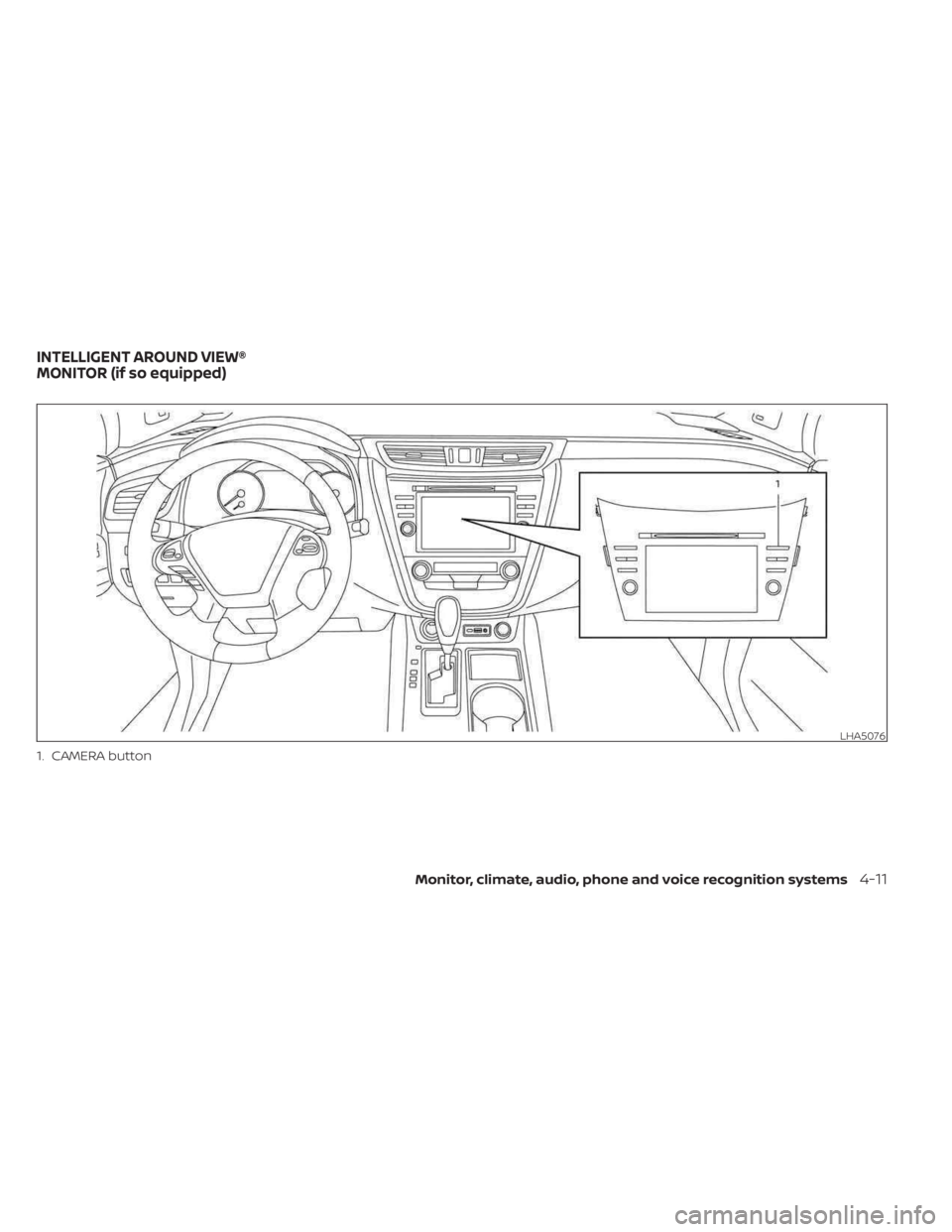
1. CAMERA button
LHA5076
INTELLIGENT AROUND VIEW®
MONITOR (if so equipped)
Monitor, climate, audio, phone and voice recognition systems4-11
Page 218 of 518
WARNING
• Failure to follow the warnings and in-
structions for the proper use of the
Intelligent Around View® Monitor
system could result in serious injury
or death.
• The Intelligent Around View® Monitor
is a convenience feature and is not a
substitute for proper vehicle opera-
tion because it has areas where ob-
jects cannot be viewed. The four cor-
ners of the vehicle in particular, are
areas where objects do not always
appear in the bird’s-eye, front, or rear
views. Always check your surround-
ings to be sure that it is safe to move
before operating the vehicle. Always
operate the vehicle slowly.
• The driver is always responsible for
safety during parking and other
maneuvers.
CAUTION
Do not scratch the camera lens when
cleaning dirt or snow from the front of
the camera. The Intelligent Around View® Monitor sys-
tem is designed as an aid to the driver in
situations such as slot parking or parallel
parking.
The monitor displays various views of the
position of the vehicle in a split screen for-
mat. Not all views are available at all times.
Available views:
• Front View
An approximately 150–degree view of the
front of the vehicle.
• Rear View An approximately 150–degree view of the
rear of the vehicle.
• Bird's-Eye View The surrounding views of the vehicle
from above.
• Front-Side View The view around and ahead of the front
passenger's side wheel.
• Full Screen Rear View The view to the rear of the vehicle (which
is a little wider than the standard Rear
View). To display the multiple views, the Intelligent
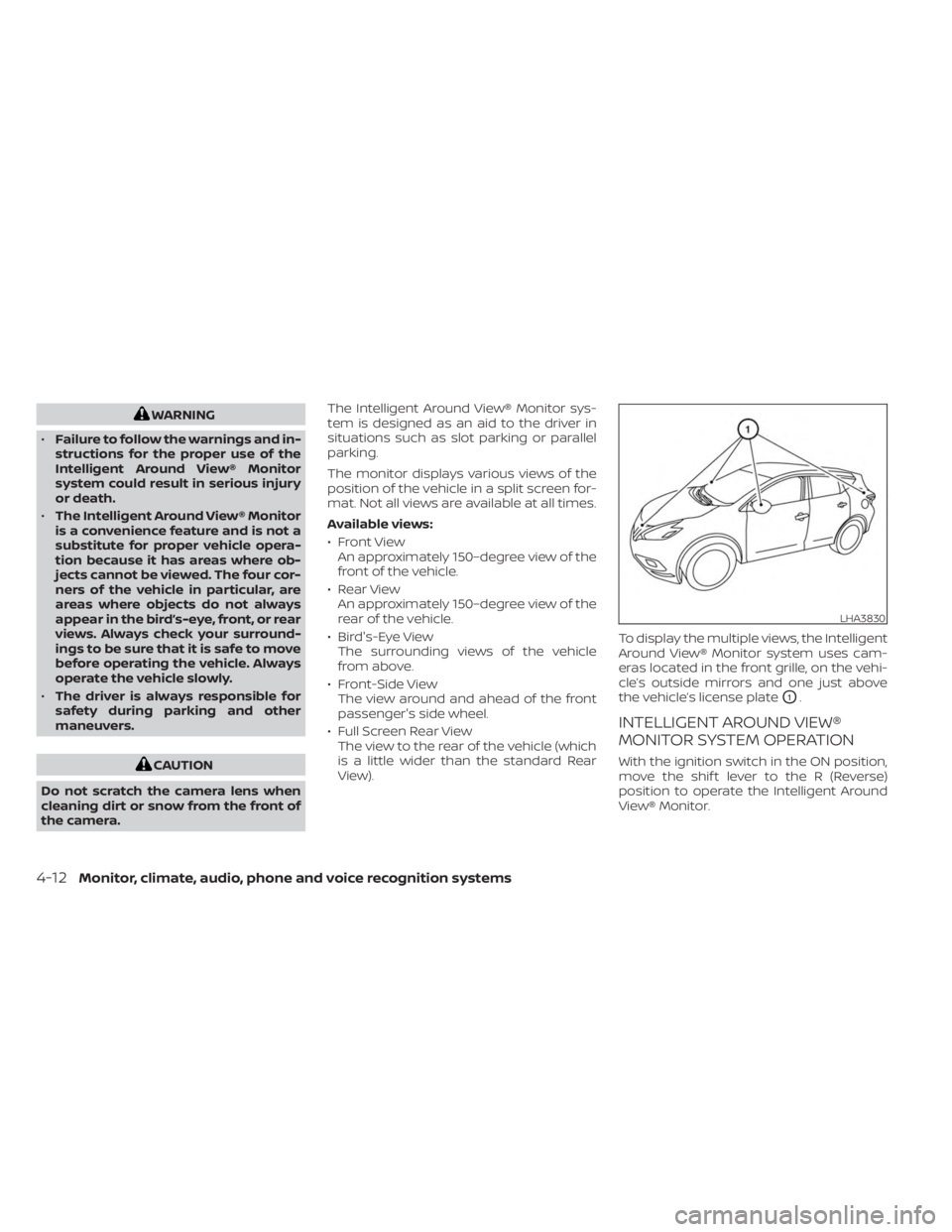
Around View® Monitor system uses cam-
eras located in the front grille, on the vehi-
cle’s outside mirrors and one just above
the vehicle’s license plate
O1.
INTELLIGENT AROUND VIEW®
MONITOR SYSTEM OPERATION
With the ignition switch in the ON position,
move the shif t lever to the R (Reverse)
position to operate the Intelligent Around
View® Monitor.
LHA3830
4-12Monitor, climate, audio, phone and voice recognition systems
Page 219 of 518
When the camera is first activated with the
bird’s-eye view in the display, a red icon (if so
equipped) will flash on the screen. This
indicates that the sonar system (if so
equipped) is activated. For additional infor-
mation on the front and rear sonar system
(if so equipped), see “Front and rear sonar
system” (P. 5-126).
The screen displayed on the Intelligent
Around View® Monitor will automatically re-
turn to the previous screen 3 minutes af ter
the CAMERA button has been pressed with
the shif t lever in a position other than the R
(Reverse) position.
Available views
WARNING
• The distance guide lines and the ve-
hicle width lines should be used as a
reference only when the vehicle is on
a paved, level surface. The apparent
distance viewed on the monitor may
be different than the actual distance
between the vehicle and displayed
objects. •
Use the displayed lines and the bird’s-
eye view as a reference. The lines and
the bird’s-eye view are greatly af-
fected by the number of occupants,
cargo, fuel level, vehicle position, road
condition and road grade.
• If the tires are replaced with different
sized tires, the predicted course lines
and the bird's-eye view may be dis-
played incorrectly.
• When driving the vehicle up a hill,
objects viewed in the monitor are
further than they appear. When driv-
ing the vehicle down a hill, objects
viewed in the monitor are closer than
they appear.
• Objects in the rear view will appear
visually opposite compared to when
viewed in the monitor and outside
mirrors.
• Use the mirrors or actually look to
properly judge distances to other
objects.
• On a snow-covered or slippery road,
there may be a difference between
the predicted course lines and the
actual course line. •
The vehicle width and predicted
course lines are wider than the actual
width and course.
• The displayed lines will appear
slightly off to the right, because the
rearview camera is not installed in
the rear center of the vehicle.
Monitor, climate, audio, phone and voice recognition systems4-13
Page 221 of 518
Bird’s-eye view
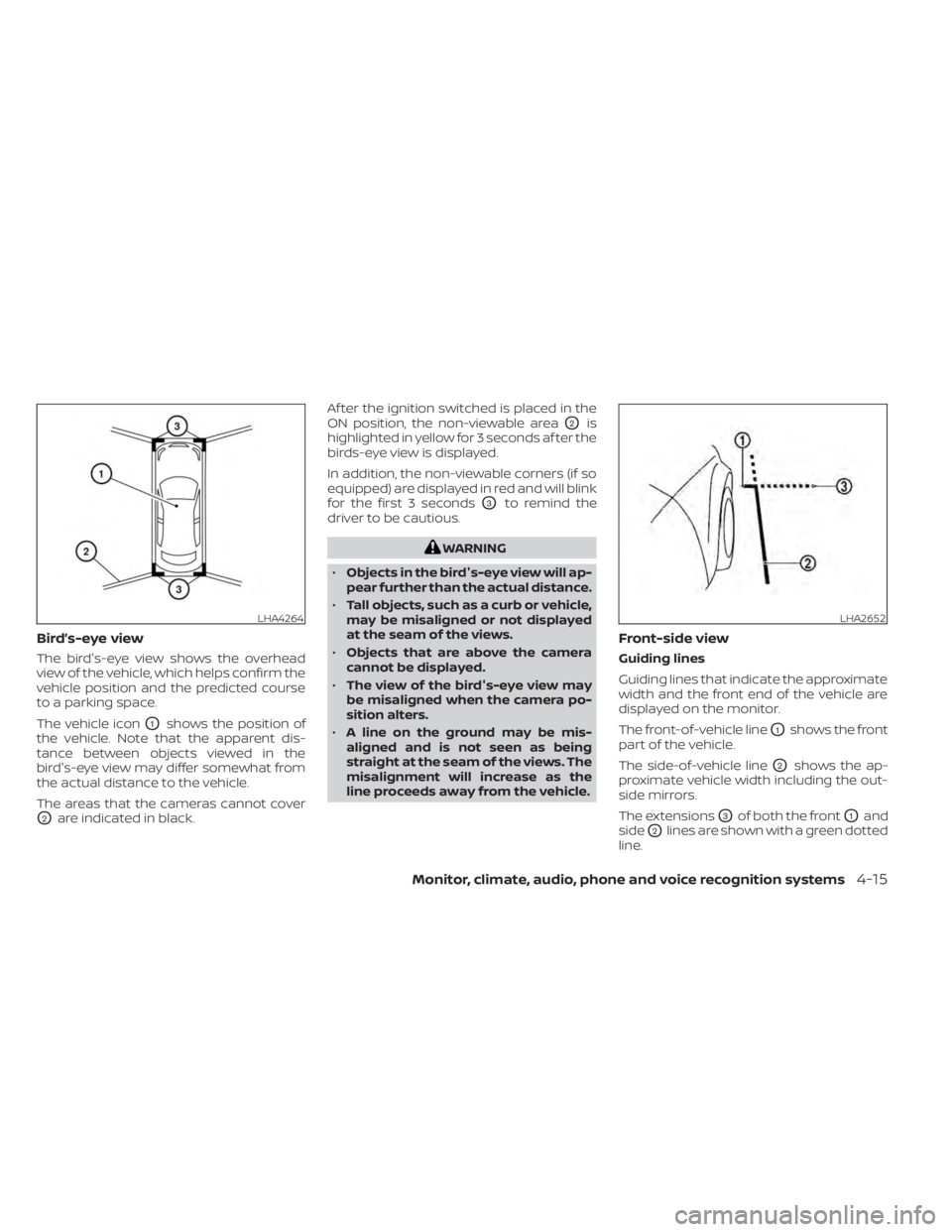
The bird's-eye view shows the overhead
view of the vehicle, which helps confirm the
vehicle position and the predicted course
to a parking space.
The vehicle icon
O1shows the position of
the vehicle. Note that the apparent dis-
tance between objects viewed in the
bird's-eye view may differ somewhat from
the actual distance to the vehicle.
The areas that the cameras cannot cover
O2are indicated in black. Af ter the ignition switched is placed in the
ON position, the non-viewable area
O2is
highlighted in yellow for 3 seconds af ter the
birds-eye view is displayed.
In addition, the non-viewable corners (if so
equipped) are displayed in red and will blink
for the first 3 seconds
O3to remind the
driver to be cautious.
WARNING
• Objects in the bird's-eye view will ap-
pear further than the actual distance.
• Tall objects, such as a curb or vehicle,
may be misaligned or not displayed
at the seam of the views.
• Objects that are above the camera
cannot be displayed.
• The view of the bird's-eye view may
be misaligned when the camera po-
sition alters.
• A line on the ground may be mis-
aligned and is not seen as being
straight at the seam of the views. The
misalignment will increase as the
line proceeds away from the vehicle.
Front-side view
Guiding lines
Guiding lines that indicate the approximate
width and the front end of the vehicle are
displayed on the monitor.
The front-of-vehicle line
O1shows the front
part of the vehicle.
The side-of-vehicle line
O2shows the ap-
proximate vehicle width including the out-
side mirrors.
The extensions
O3of both the frontO1and
side
O2lines are shown with a green dotted
line.
LHA4264LHA2652
Monitor, climate, audio, phone and voice recognition systems4-15
Page 224 of 518
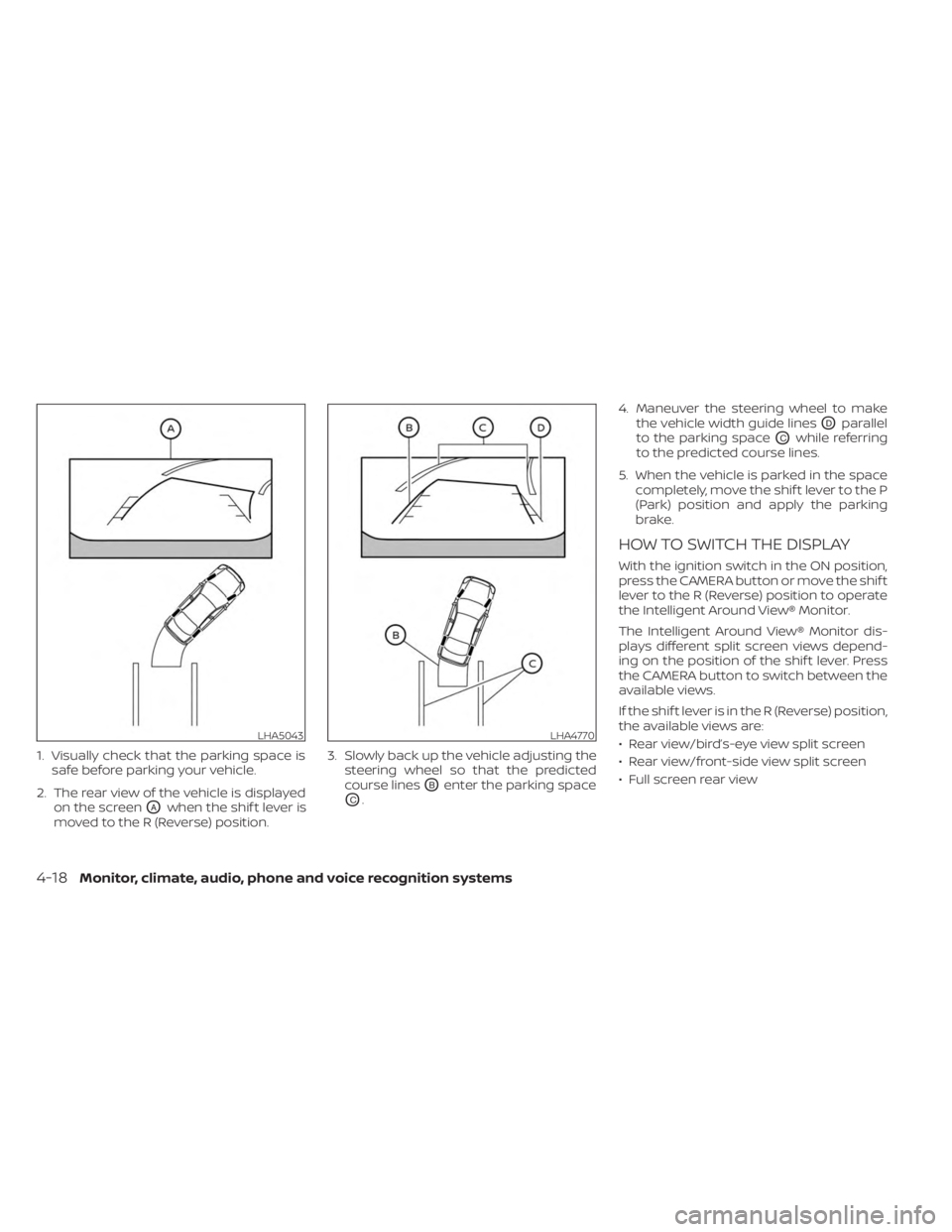
1. Visually check that the parking space issafe before parking your vehicle.
2. The rear view of the vehicle is displayed on the screen
OAwhen the shif t lever is
moved to the R (Reverse) position. 3. Slowly back up the vehicle adjusting the
steering wheel so that the predicted
course lines
OBenter the parking space
OC. 4. Maneuver the steering wheel to make
the vehicle width guide lines
ODparallel
to the parking space
OCwhile referring
to the predicted course lines.
5. When the vehicle is parked in the space completely, move the shif t lever to the P
(Park) position and apply the parking
brake.
HOW TO SWITCH THE DISPLAY
With the ignition switch in the ON position,
press the CAMERA button or move the shif t
lever to the R (Reverse) position to operate
the Intelligent Around View® Monitor.
The Intelligent Around View® Monitor dis-
plays different split screen views depend-
ing on the position of the shif t lever. Press
the CAMERA button to switch between the
available views.
If the shif t lever is in the R (Reverse) position,
the available views are:
• Rear view/bird’s-eye view split screen
• Rear view/front-side view split screen
• Full screen rear view
LHA5043LHA4770
4-18Monitor, climate, audio, phone and voice recognition systems
Page 225 of 518
If the shif t lever is in the P (Park) or D (Drive)
position, the available views are:
• Front view/bird’s-eye view split screen
• Front view/front-side view split screen
The display will switch from the Intelligent
Around View® Monitor screen when:
• The shif t lever is in the D (Drive) positionand the vehicle speed increases above
approximately 6 mph (10 km/h)
• A different screen is selected.
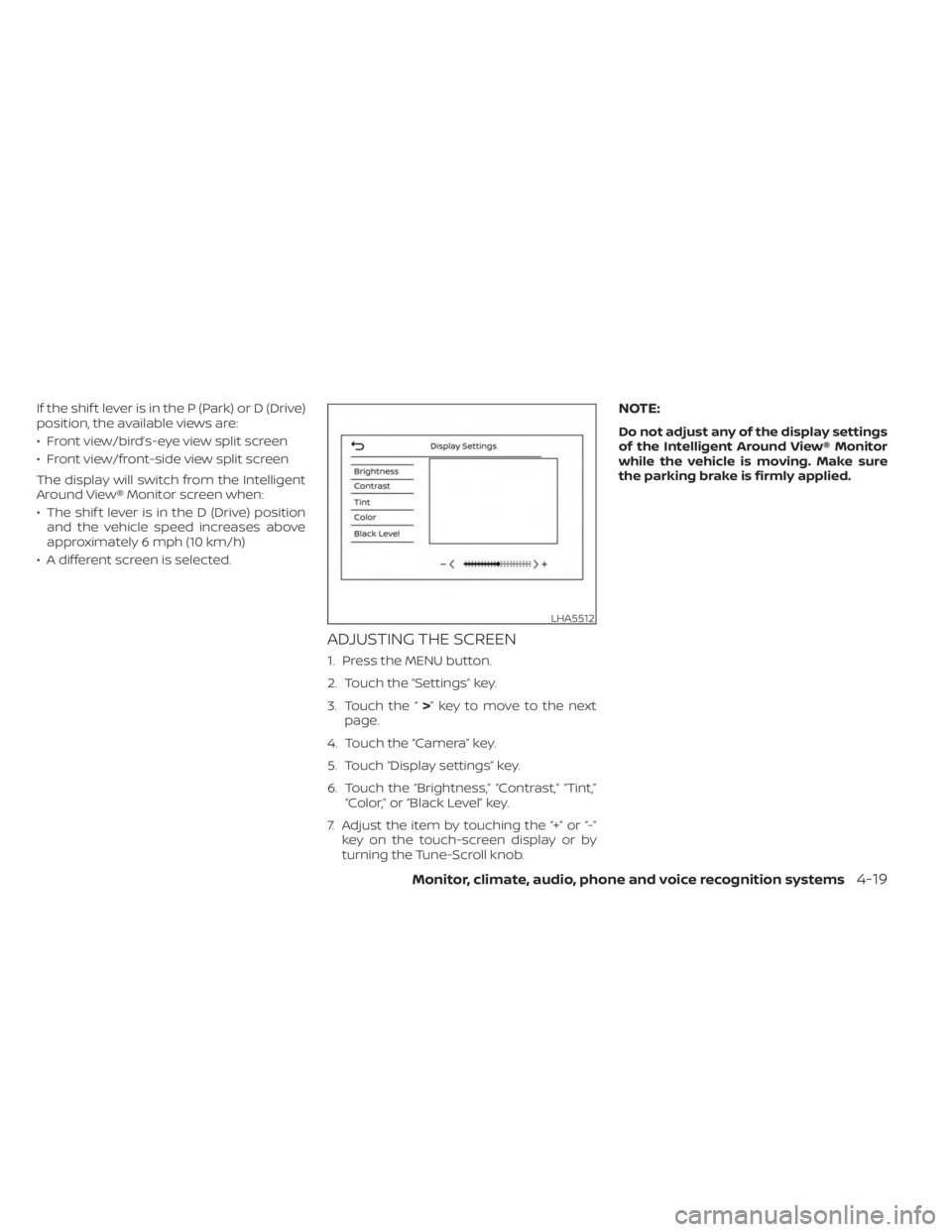
ADJUSTING THE SCREEN
1. Press the MENU button.
2. Touch the “Settings” key.
3. Touch the “ >” key to move to the next
page.
4. Touch the “Camera” key.
5. Touch “Display settings” key.
6. Touch the “Brightness,” “Contrast,” “Tint,” “Color,” or “Black Level” key.
7. Adjust the item by touching the “+” or “-” key on the touch-screen display or by
turning the Tune-Scroll knob.
NOTE:
Do not adjust any of the display settings
of the Intelligent Around View® Monitor
while the vehicle is moving. Make sure
the parking brake is firmly applied.
LHA5512
Monitor, climate, audio, phone and voice recognition systems4-19
Page 226 of 518
INTELLIGENT AROUND VIEW®
MONITOR SYSTEM LIMITATIONS
WARNING
Listed below are the system limitations
for Intelligent Around View® Monitor.
Failure to operate the vehicle in accor-
dance with these system limitations
could result in serious injury or death.
• Do not use the Intelligent Around
View® Monitor with the outside mir-
rors in the stored position, and make
sure that the lif tgate is securely
closed when operating the vehicle
using the Intelligent Around View®
Monitor.
• The apparent distance between ob-
jects viewed on the Intelligent
Around View® Monitor differs from
the actual distance.
• The cameras are installed on the
front grille, the outside mirrors and
above the rear license plate. Do not
put anything on the vehicle that cov-
ers the cameras.
• When washing the vehicle with high
pressure water, be sure not to spray it
around the cameras. Otherwise, wa-
ter may enter the camera unit caus-
ing water condensation on the lens, a
malfunction, fire or an electric shock. •
Do not strike the cameras. They are
precision instruments. Doing so
could cause a malfunction or cause
damage resulting in a fire or an elec-
tric shock.
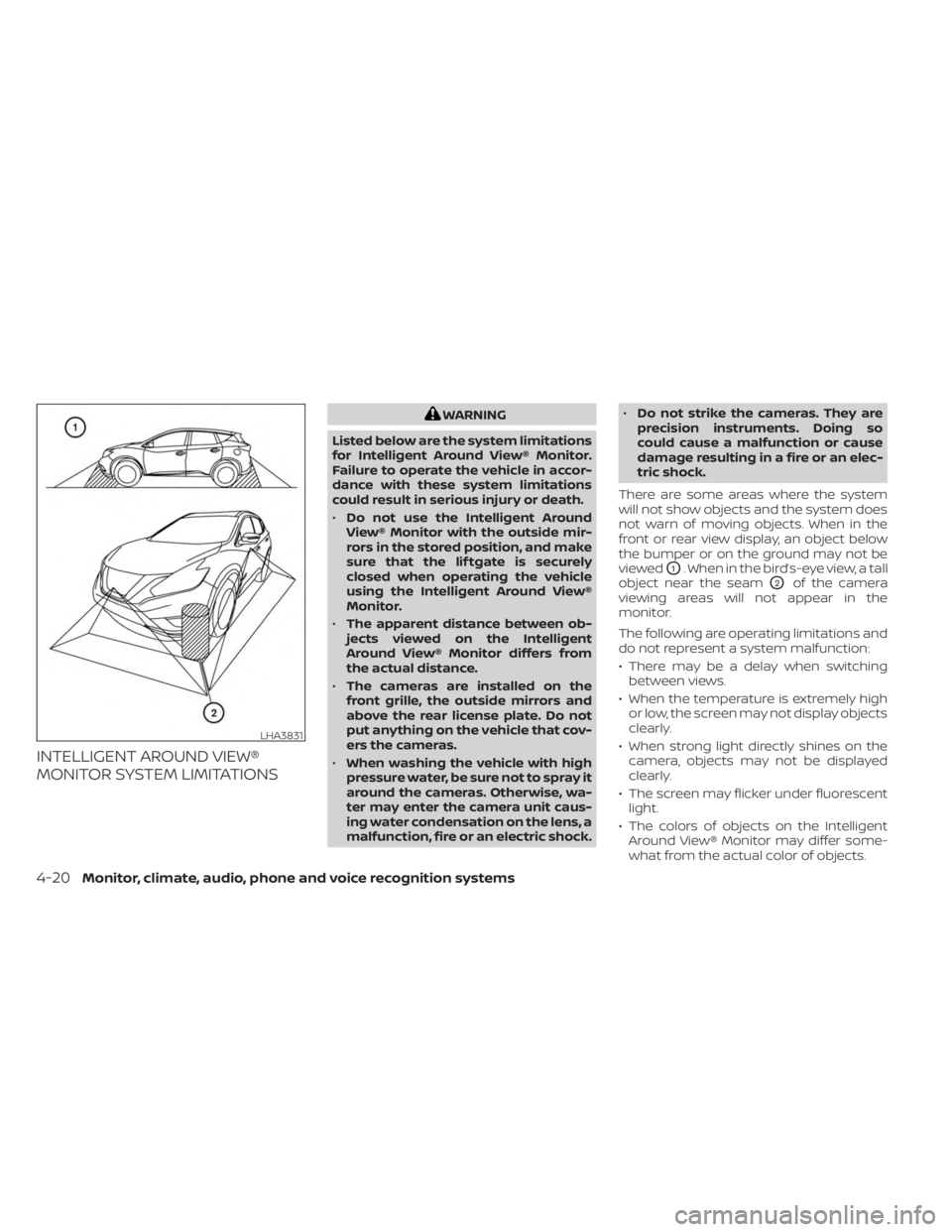
There are some areas where the system
will not show objects and the system does
not warn of moving objects. When in the
front or rear view display, an object below
the bumper or on the ground may not be
viewed
O1. When in the bird’s-eye view, a tall
object near the seam
O2of the camera
viewing areas will not appear in the
monitor.
The following are operating limitations and
do not represent a system malfunction:
• There may be a delay when switching between views.
• When the temperature is extremely high or low, the screen may not display objects
clearly.
• When strong light directly shines on the camera, objects may not be displayed
clearly.
• The screen may flicker under fluorescent light.
• The colors of objects on the Intelligent Around View® Monitor may differ some-
what from the actual color of objects.
LHA3831
4-20Monitor, climate, audio, phone and voice recognition systems
Page 227 of 518
• Objects on the Intelligent Around View®Monitor may not be clear and the color of
the object may differ in a dark
environment.
• There may be differences in sharpness between each camera view of the bird's-
eye view.
• Do not use wax on the camera lens. Wipe off any wax with a clean cloth that has
been dampened with a diluted mild
cleaning agent, then wipe with a dry
cloth.
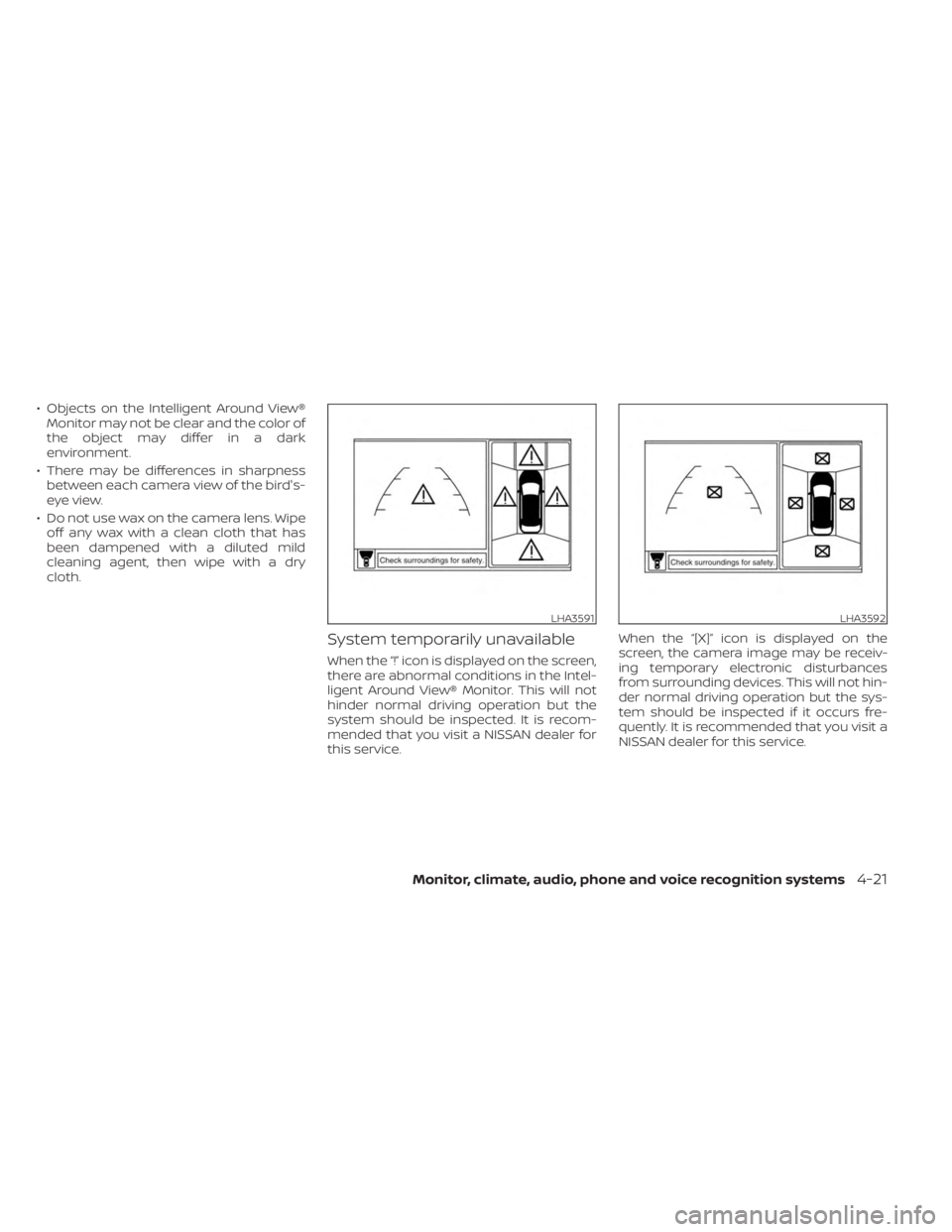
System temporarily unavailable
When the “!” icon is displayed on the screen,
there are abnormal conditions in the Intel-
ligent Around View® Monitor. This will not
hinder normal driving operation but the
system should be inspected. It is recom-
mended that you visit a NISSAN dealer for
this service. When the “[X]” icon is displayed on the
screen, the camera image may be receiv-
ing temporary electronic disturbances
from surrounding devices. This will not hin-
der normal driving operation but the sys-
tem should be inspected if it occurs fre-
quently. It is recommended that you visit a
NISSAN dealer for this service.
LHA3591LHA3592
Monitor, climate, audio, phone and voice recognition systems4-21