2023 NISSAN KICKS climate settings
[x] Cancel search: climate settingsPage 268 of 558
NOTE:
Some cellular phones may require you to
accept certain permissions in order to
enable features on your Bluetooth® sys-
tem. During the Bluetooth® pairing pro-
cess, please check your cellular phone’s
display for a pop-up with the request to
grant phonebook access.
Granting phonebook access permission
will allow your contacts to be down-
loaded to the vehicle’s Bluetooth® sys-
tem. A pop-up may display on your cellu-
lar phone stating that the Bluetooth®
system would like to access your con-
tacts and call history. Please select “Al-
low” or Yes” to grant this permission.
Automatic Connecting Procedure
If no phone is connected to the system,
press and hold thebutton on the steer-
ing wheel for less than 1.5 seconds. Af ter the
prompt, speak “Add Phone”, the system will
announce “transferring to the add phone
settings menu”. The system will start the
pairing procedure. When a compatible
phone is found, a message with a PIN ap-
pears on the screen. Operate the Bluetooth®
phone to complete the connection process.
For additional information, see “Bluetooth®
connections screen” (P. 4-79).
VOICE COMMANDS
Voice commands can be used to operate
the Bluetooth® Hands-Free Phone System.
Press and hold the
button for less
than 1.5 seconds to bring up the phone
command menu. The commands avail-
able are:
• Call
• Dial
• Recent Calls
• Read/Send Text (if so equipped)
• Siri® (if so equipped)
• Voice Assistant (if so equipped)
• Phonebook
• Quick Dial
• Redial
• Select Phone
• Add Phone
• Call
• Call
• Call
• Call
• Call
• Settings
“Call
Speak this command to make a call to a
contact that is stored in the phonebook.
Say “Call” followed by a phonebook name to
initiate a call. If the system does not recog-
nize the name it will display a list of similar
names. Af ter the prompt, speak or touch
an item number from the displayed list to
place the call.
“Dial
Speak this command to make a call with a
spoken phone number. Af ter the prompt,
say “Dial” followed b ya7to10digit phone
number. The system will repeat the num-
ber back. Say “Dial” to initiate the call or
“Correction” to re-enter the phone number.
4-72Monitor, climate, audio, phone and voice recognition systems
Page 270 of 558
“Select Phone”
Speak this command to access the Connec-
tions menu. For additional information, see
“Bluetooth® connections screen” (P. 4-79).
“Add Phone”
Speak this command to access the Connec-
tions menu. For additional information, see
“Bluetooth® connections screen” (P. 4-79).
“Settings”
Speak this command to access the Sys-
tem Voice settings menu. The system will
exit Voice Recognition mode. Touch one of
the following options on the screen to
change the settings.
• Beep Only for Opening PromptBy touching the “ON” key, the indicator
light will illuminate, the system voice will
turn off and only a tone will sound when
the Bluetooth® Hands-Free Phone Sys-
tem is activated. To turn the system voice
back on, touch the “ON” key again, the
indicator light will turn off. • Best Match List
When the system doesn't recognize a
phonebook name or dial number, it will
provide a list of similar sounding results.
To turn this off, touch the “ON” key, the
indicator light will turn off. To turn on,
touch the “ON” key again, the indicator
light will turn on.
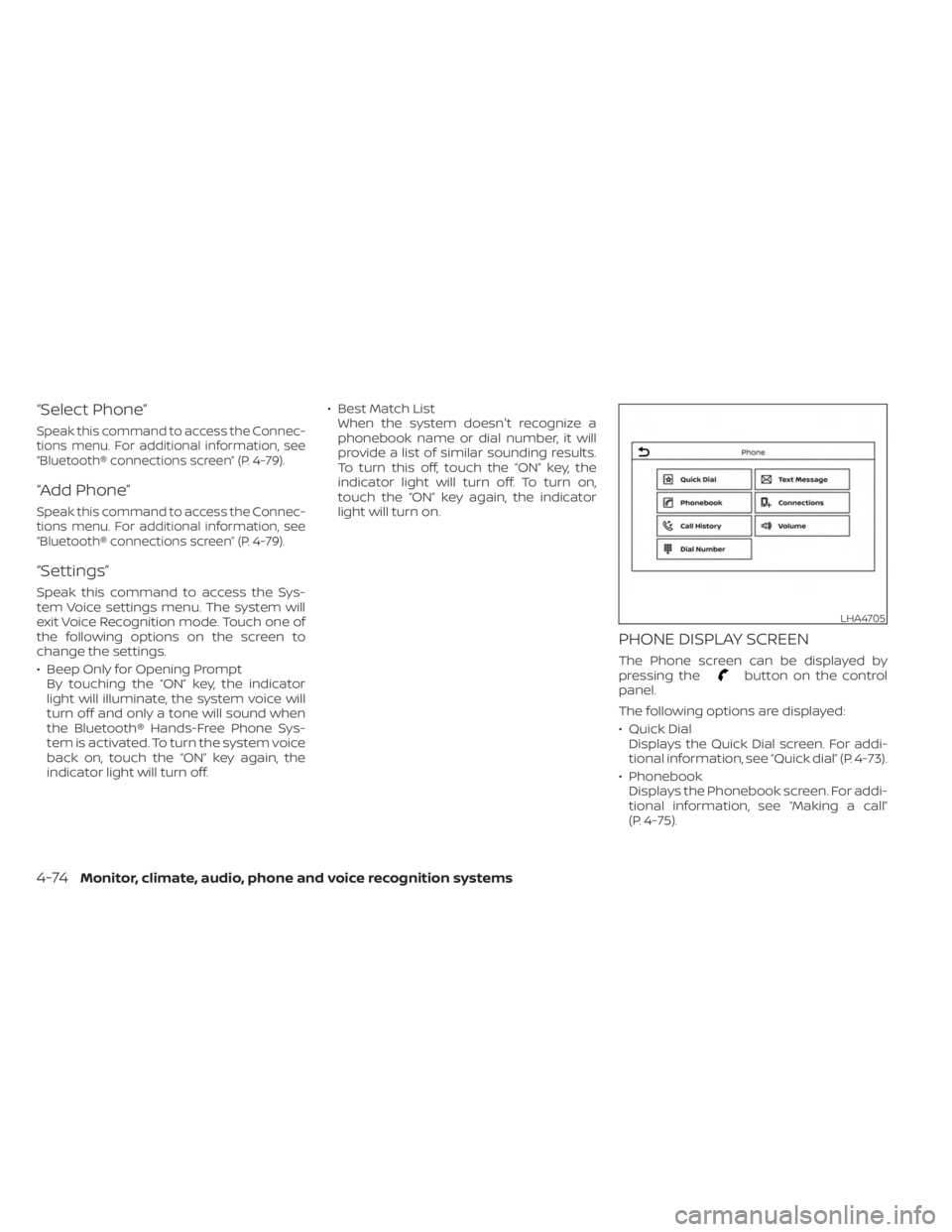
PHONE DISPLAY SCREEN
The Phone screen can be displayed by
pressing thebutton on the control
panel.
The following options are displayed:
• Quick Dial Displays the Quick Dial screen. For addi-
tional information, see “Quick dial” (P. 4-73).
• Phonebook Displays the Phonebook screen. For addi-
tional information, see “Making a call”
(P. 4-75).
LHA4705
4-74Monitor, climate, audio, phone and voice recognition systems
Page 271 of 558
• Call HistoryDisplays the Call History screen. For addi-
tional information, see “Making a call”
(P. 4-74).
• Dial Number Displays the Dial Number screen. For ad-
ditional information, see “Making a call”
(P. 4-74).
• Text Message Displays the received message screen.
For additional information, see “Text mes-
saging” (P. 4-76).
• Connections Displays the Connections screen. For ad-
ditional information, see “Bluetooth® con-
nections screen” (P. 4-79).
• Volume Displays the volume adjustment screen.
For additional information, see “Volume &
beeps” (P. 4-82).
MAKING A CALL
To make a call press thebutton on the
control panel. Touch an option from menu
screen: • Phonebook
Select a person and the phone number
you wish to call from the phonebook.
Depending on the device, the phonebook
will be downloaded from the cellular
phone automatically when it is con-
nected. If the automatic download does
not take place, the phone number must
be transferred to the hands-free phone
system from the cellular phone prior to
using this method. For additional infor-
mation, see “Phone and text message
settings” (P. 4-80).
• Call History Select a phonebook name or phone
number from the recent incoming, out-
going or missed calls tabs. Touch a
phonebook name or phone number
listed to initiate the call.
• Dial Number Enter the phone number manually using
the keypad displayed on the screen.
Touch the “OK” key on the screen to initi-
ate the call.
For additional options to make a call, see
“Voice commands” (P. 4-72).
RECEIVING A CALL
When a call is received by the phone con-
nected to the vehicle’s Bluetooth® Hands-
Free Phone System, the call information is
displayed on the control panel display.
Press the
button on the steering
wheel or touch the “Answer” key on
the screen to accept the call. To reject the
call touch the “
Decline” key on the
screen.
If the user is not able to answer the call
right away, touch the “Hold Call” key dis-
played on the screen. A message will be
played for the caller: “I’m not able to take a
call right now.” The user may then accept
the call when available or reject the call.
To reject a call, press and hold the
button on the steering wheel.
DURING A CALL
While a call is active the following options
will appear on the control panel display:
• Mute Touch this key to mute or unmute the
system.
• Dial Number Touch this key to dial digits during the
phone call.
Monitor, climate, audio, phone and voice recognition systems4-75
Page 275 of 558
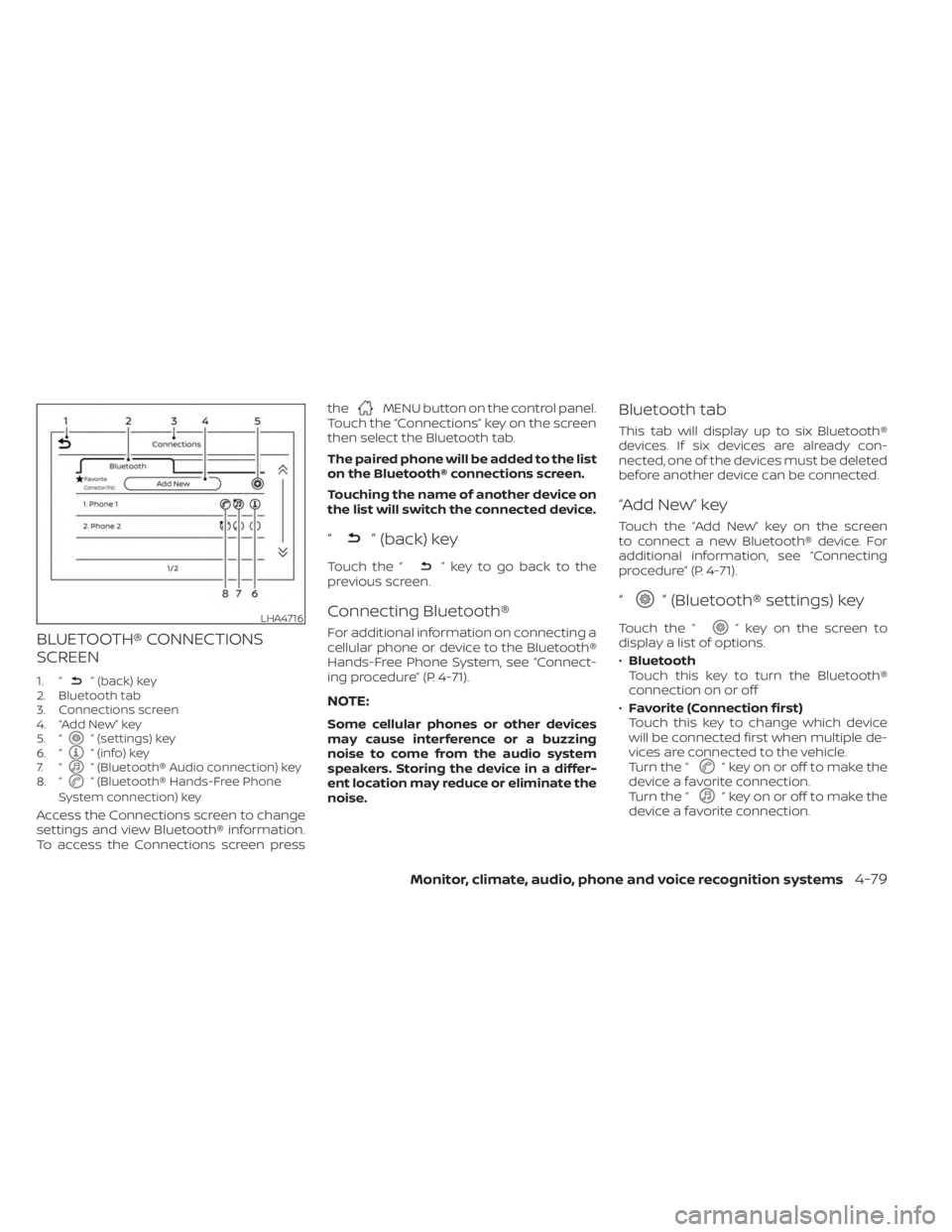
BLUETOOTH® CONNECTIONS
SCREEN
1. “” (back) key
2. Bluetooth tab
3. Connections screen
4. “Add New” key
5. “
” (settings) key
6. “” (info) key
7. “” (Bluetooth® Audio connection) key
8. “” (Bluetooth® Hands-Free Phone
System connection) key
Access the Connections screen to change
settings and view Bluetooth® information.
To access the Connections screen press the
MENU button on the control panel.
Touch the “Connections” key on the screen
then select the Bluetooth tab.
The paired phone will be added to the list
on the Bluetooth® connections screen.
Touching the name of another device on
the list will switch the connected device.
“” (back) key
Touch the “” key to go back to the
previous screen.
Connecting Bluetooth®
For additional information on connecting a
cellular phone or device to the Bluetooth®
Hands-Free Phone System, see “Connect-
ing procedure” (P. 4-71).
NOTE:
Some cellular phones or other devices
may cause interference or a buzzing
noise to come from the audio system
speakers. Storing the device in a differ-
ent location may reduce or eliminate the
noise.
Bluetooth tab
This tab will display up to six Bluetooth®
devices. If six devices are already con-
nected, one of the devices must be deleted
before another device can be connected.
“Add New” key
Touch the “Add New” key on the screen
to connect a new Bluetooth® device. For
additional information, see “Connecting
procedure” (P. 4-71).
“” (Bluetooth® settings) key
Touch the “” key on the screen to
display a list of options.
• Bluetooth
Touch this key to turn the Bluetooth®
connection on or off
• Favorite (Connection first)
Touch this key to change which device
will be connected first when multiple de-
vices are connected to the vehicle.
Turn the “
” key on or off to make the
device a favorite connection.
Turn the “
” key on or off to make the
device a favorite connection.
LHA4716
Monitor, climate, audio, phone and voice recognition systems4-79
Page 276 of 558
•Pin
Touch this key to customize the PIN code.
Input a four digit number then touch the
“OK” key. The new PIN will be set.
“” (info) key
Touch the “” key on the screen to
display the information of the cellular
phone or to delete the device.
Touch the “Delete” key to remove a paired
device then select “Yes” when a message
appears.
“” (Bluetooth® Hands-Free
Phone System connection) key
A list of connected devices will be displayed
on the screen. Touch the “” key next to
the name to connect a device to the
Hands-Free Phone System. If the phone is
listed as a favorite, a star will appear on the
icon. Touch the key again to disconnect the
device. The device will not be removed
from the list. For additional information
on removing a device, see “
” (info) key
(P. 4-80).
“” (Bluetooth® Audio
connection) key
A list of connected devices will be displayed
on the screen. Touch the “” key next to
the name to connect a device to
Bluetooth® Audio. If the device is listed as a
favorite, a star will appear on the icon.
Touch the key again to disconnect the
device. The device will not be removed
from the list. For additional information
on removing a device, see “
” (info) key
(P. 4-80).
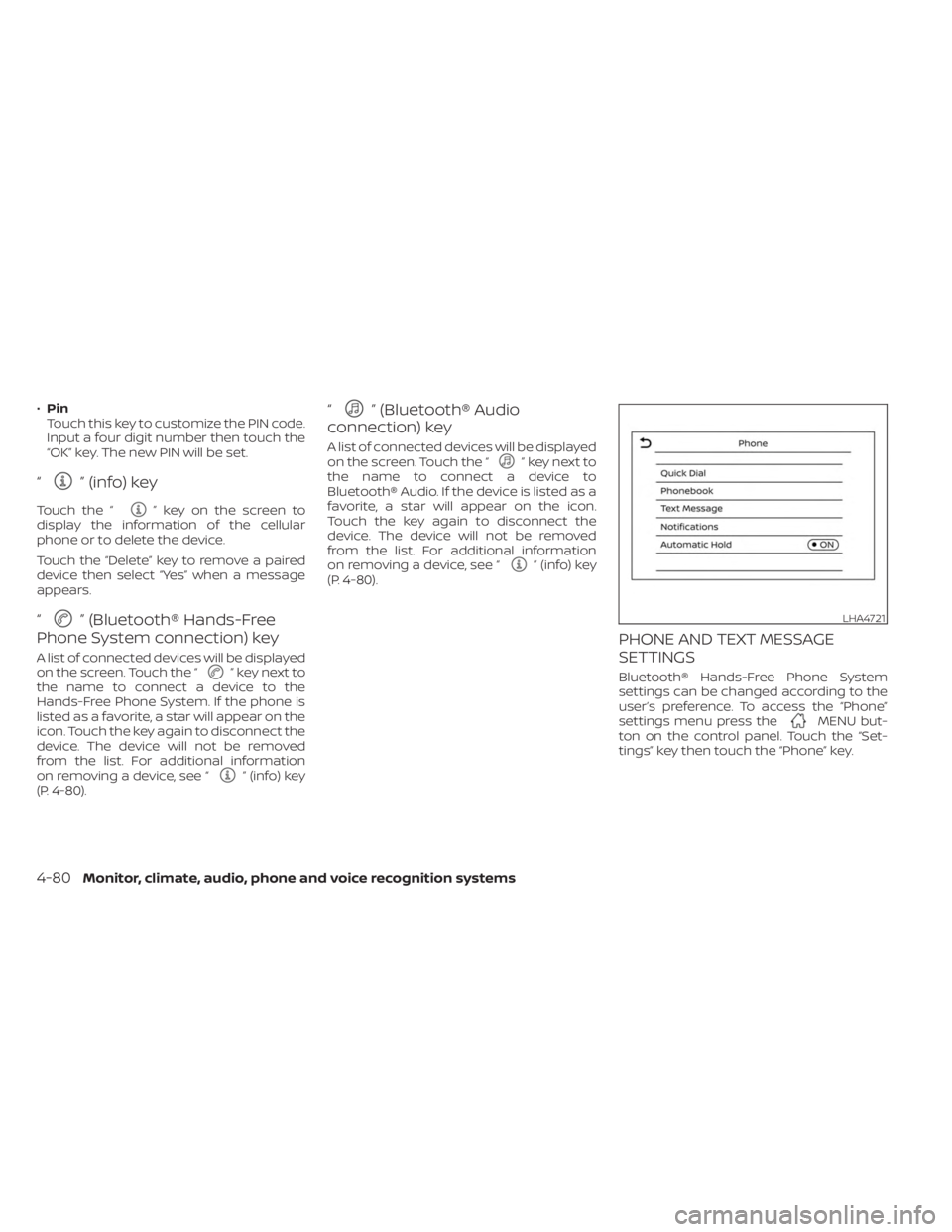
PHONE AND TEXT MESSAGE
SETTINGS
Bluetooth® Hands-Free Phone System
settings can be changed according to the
user’s preference. To access the “Phone”
settings menu press the
MENU but-
ton on the control panel. Touch the “Set-
tings” key then touch the “Phone” key.
LHA4721
4-80Monitor, climate, audio, phone and voice recognition systems
Page 278 of 558
Volume & beeps
There are several methods to customize
the volume settings.
Volume & Beeps
The Volume & Beeps screen can be found
by pressing the
MENU button on the
control panel, touching the “Settings” key
on the screen and selecting “Volume &
Beeps”. To adjust the volume of the follow-
ing options, touch the “-” and “+” keys on the
screen.
The available settings are:
• Ringtone Adjust the volume level of the ringtone of
incoming calls.
• Outgoing Call Adjust the volume level of the outgoing
calls.
• Voice Prompt Vol. Adjust the volume level of the system
voice.
• Text-to-speech Vol. Adjust the volume of the replay voice for
text messaging.
• Button Beeps Turns on/off the button beep sounds and
alarm for prohibited operations. Volume Settings
The Volume settings screen can be found
by pressing the
button on the control
panel then touching the “Volume” key on
the screen. To adjust the volume of the
following options, touch the “-” and “+” keys
on the screen.
The available settings are:
• Ringtone Adjust the volume level of the ringtone of
incoming calls.
• Outgoing Call Adjust the volume level of the outgoing
calls. “Made for iPod”, “Made for iPhone” and
“Made for iPad” mean that an electronic
accessory has been designed to connect
specifically to iPod, iPhone or iPad, respec-
tively, and has been certified by the devel-
oper to meet Apple performance stan-
dards. Apple is not responsible for the
operation of this device or its compliance
with safety and regulatory standards.
Please note that the use of this accessory
with iPod, iPhone or iPad may affect wire-
less performance.
iPad, iPhone, iPod classic, iPod nano, iPod
shuffle and iPod touch are trademarks of
Apple Inc., registered in the U.S. and other
countries. Lightning is a trademark of
Apple Inc.
iPod®/iPhone®
4-82Monitor, climate, audio, phone and voice recognition systems