2023 LINCOLN AVIATOR phone
[x] Cancel search: phonePage 77 of 681

WHAT IS PHONE AS A KEY
Phone as a Key allows you to use your phone
in place of a passive key.
You can use your phone for the following
functions:
• Remote locking and unlocking.
• Passive entry and exit.
• Passive start and drive the vehicle.
• Remote start.
• Memory function recall.
PHONE AS A KEY LIMITATIONS
Limitations can vary based on the make and
model of your phone, phone location and
physical obstructions.
The following items could impact Phone as
a Key performance or prevent functionality
in some cases:
• The typical operating range for Phone as
a Key is 131 ft (40 m).• Your Bluetooth® connection is not
enabled, is disrupted, or out of range.
• Your Phone as a Key is not active or
enabled on at least one phone.
• Your vehicle battery has depleted.
• Your phone battery has depleted.
• Interference from other devices using
radio frequencies or physical
obstructions.
• Your phone is too close to metal objects
or other electronic devices.
Note:Do not leave a duplicate coded key
in the vehicle. Always take your keys and
phone and lock all doors when leaving the
vehicle.
PROGRAMMING YOUR PHONE
To program your smartphone as phone as a
key:
1. Visit your device's app store to download
the Lincoln Way app.
2. Create a new account or sign in to an
existing account on the Lincoln Way app.3. Add the vehicle identification number to
your account and follow the prompts in
the Lincoln Way app to complete the
Sync Connect Authorization process.
4. After the authorization is complete, you
can set up phone as a key following the
prompts in the Lincoln Way app.
5. After phone as a key is set up, you can
set up the backup start passcode by
following the prompts on your
touchscreen.
Note:Keep your new backup start passcode
with you in case of an emergency.
Resetting Phone as a Key
1. Press Settings on the touchscreen.
2. Press General.
3. Press Reset.
4. Press the app connect reset option.
5. Press Phone as a Key Reset.
6. Confirm you would like to continue with
erasing all phone as a key, keys and
backup start passcodes.
7. Press Continue.
74
Phone as a Key (If Equipped)
Page 78 of 681
8. Confirm you are aware you are
de-authorizing all authorized users and
Lincoln Way Connect settings.
9. Press Continue.
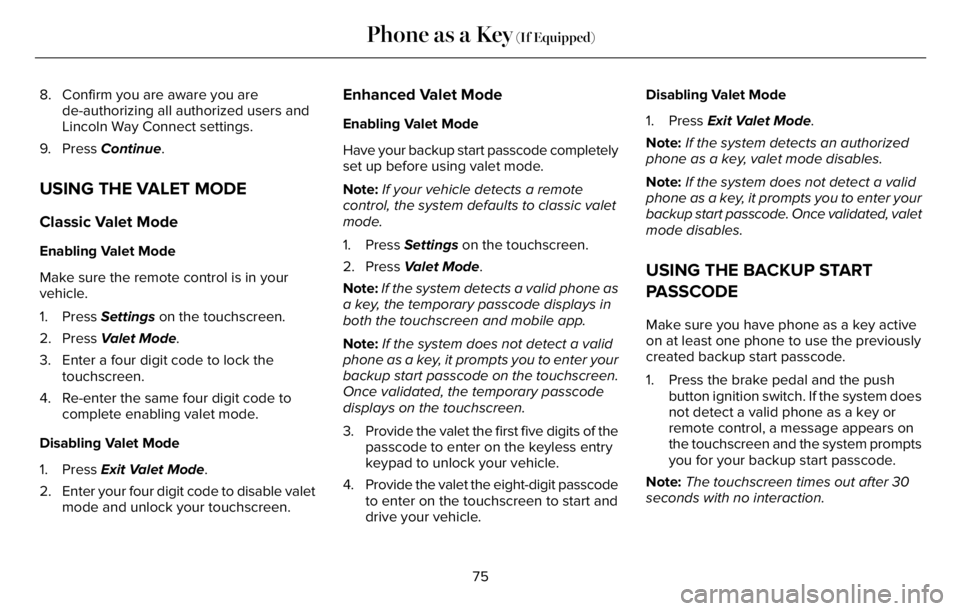
USING THE VALET MODE
Classic Valet Mode
Enabling Valet Mode
Make sure the remote control is in your
vehicle.
1. Press Settings on the touchscreen.
2. Press Valet Mode.
3. Enter a four digit code to lock the
touchscreen.
4. Re-enter the same four digit code to
complete enabling valet mode.
Disabling Valet Mode
1. Press Exit Valet Mode.
2. Enter your four digit code to disable valet
mode and unlock your touchscreen.
Enhanced Valet Mode
Enabling Valet Mode
Have your backup start passcode completely
set up before using valet mode.
Note:If your vehicle detects a remote
control, the system defaults to classic valet
mode.
1. Press Settings on the touchscreen.
2. Press Valet Mode.
Note:If the system detects a valid phone as
a key, the temporary passcode displays in
both the touchscreen and mobile app.
Note:If the system does not detect a valid
phone as a key, it prompts you to enter your
backup start passcode on the touchscreen.
Once validated, the temporary passcode
displays on the touchscreen.
3. Provide the valet the first five digits of the
passcode to enter on the keyless entry
keypad to unlock your vehicle.
4. Provide the valet the eight-digit passcode
to enter on the touchscreen to start and
drive your vehicle.Disabling Valet Mode
1. Press Exit Valet Mode.
Note:If the system detects an authorized
phone as a key, valet mode disables.
Note:If the system does not detect a valid
phone as a key, it prompts you to enter your
backup start passcode. Once validated, valet
mode disables.
USING THE BACKUP START
PASSCODE
Make sure you have phone as a key active
on at least one phone to use the previously
created backup start passcode.
1. Press the brake pedal and the push
button ignition switch. If the system does
not detect a valid phone as a key or
remote control, a message appears on
the touchscreen and the system prompts
you for your backup start passcode.
Note:The touchscreen times out after 30
seconds with no interaction.
75
Phone as a Key (If Equipped)
Page 79 of 681

Note:If the backup start passcode screen
does not appear, press the brake pedal and
push button ignition switch again.
2. Use the touchscreen to enter your
backup start passcode.
3. After entering your backup start
passcode, press Enter within 30 seconds.
4. Once the system validates the backup
start passcode, a message alerts you to
start your vehicle.
5. Press the brake pedal and the push
button ignition switch within 20 seconds
to start the vehicle.
6. If your vehicle does not start, repeat
steps 1-5.
System Lockout
The system locks after five combined
incorrect attempts of the following:
• Entering a backup start passcode.
• Resetting a current passcode.
• Entering a valet mode passcode.Note:The system remains locked for five
minutes. After five minutes the system allows
codes to be entered again.
PHONE AS A KEY –
TROUBLESHOOTING
PHONE AS A KEY – FREQUENTLY
ASKED QUESTIONS
How can I tell if my vehicle has Phone as a
Key?
The touchscreen shows the Phone as a
Key reset option if your vehicle has
Phone as a Key. If you have registered
your vehicle through the Lincoln Way
app, a control button appears on the
home screen of the Lincoln Way app.What happens if I cannot unlock the vehicle
with Phone as a Key?
Attempt to move your phone closer to
the vehicle. Check that the Lincoln Way
app is still running and that the Phone
as a Key control screen shows
connected. If the phone is connected,
attempt to press the remote unlock
button in the Lincoln Way app. If the
phone is not connected or the remote
unlock button does not work in the
Lincoln Way app, attempt to force close
and restart the app.
Why do I get a No Key Detected message
in the instrument cluster display when I am
using Phone as a Key and my phone is in
the car?
Your phone’s Bluetooth connection has
been disrupted or is not connected. Try
reconnecting your phone's Bluetooth
connection. Move the phone closer to
the center of the vehicle near the cup
holder or center console. Verify your
Phone as a Key is still active, enabled
and has not been revoked.
76
Phone as a Key (If Equipped)
Page 80 of 681

What do I do if my phone is lost, damaged,
or the battery has depleted?
Use the Backup Start Passcode that you
created to protect you in the event that
you lose your phone, damage it, or the
battery depletes. See Using the
Backup Start Passcode (page 75).
How many phones can I use for Phone as
a Key?
You can program and activate up to four
phones with Phone as a Key to your
vehicle.
How does a valet drive my car if I only use
my Phone as a Key?
Have the valet use the temporary valet
passcode that you created when using
valet mode. See Using the Valet Mode
(page 75).I uninstalled my Lincoln Way app and
reinstalled it. Why am I not able to get a
new Phone as a Key?
Remove the Phone as a Key that was
previously associated with your phone
or reset Phone as a Key from your
vehicle, and then request a new Phone
as a Key. See Programming Your
Phone (page 74).
Why can I not remotely start the vehicle
with my Phone as a Key?
Using the Lincoln Way app, verify your
Phone as a Key setup is complete and
enabled via Bluetooth connection on at
least one phone. If Bluetooth has
connected but Phone as a Key setup is
not complete, complete the setup of
your Phone as a Key, as prompted from
the Lincoln Way app. See Programming
Your Phone (page 74).
77
Phone as a Key (If Equipped)
Page 107 of 681

AUDIO CONTROL
You can operate the following
functions with the control:
E281219
E280803
Move the selector switch up to
increase volume level.
E280802
Move the selector switch down to
decrease volume level.
E265045
Move the selector switch to the left
to access the previous media
selection.
E265044
Move the selector switch to the
right to access the next media
selection.
EE28128181818181811111182202202202222202220220
Note:The controls change when you enter
a submenu.
The following controls are not available when
you enter a submenu:
Move the selector switch to the
right to enter the mode phone
submenu.
E100027
Move the selector switch to the left
to enter the media submenu.
VOICE CONTROL
The controls are on the steering wheel.
E142599
Press and release to activate voice
recognition.
CRUISE CONTROL - VEHICLES
WITH: ADAPTIVE CRUISE
CONTROL WITH LANE CENTERING
E281217
The following controls are only available
when you switch cruise control on.
104
Steering Wheel
Page 139 of 681

GENERAL INFORMATION
WARNING: Driving while distracted
can result in loss of vehicle control, crash
and injury. We strongly recommend that
you use extreme caution when using any
device that may take your focus off the
road. Your primary responsibility is the safe
operation of your vehicle. We recommend
against the use of any hand-held device
while driving and encourage the use of
voice-operated systems when possible.
Make sure you are aware of all applicable
local laws that may affect the use of
electronic devices while driving.
You can control various systems on your
vehicle using the quick action menu on the
right-hand side of the steering wheel. The
information display provides the
corresponding information.
Information Display Controls
EE281281818181818111118220222222022022220220
Note:The controls change when you enter
a submenu.
E281481
Move the selector switch up to
enter the navigation submenu.
E280315
Move the selector switch down to
enter the settings submenu.
Move the selector switch to the
right to enter the mode phone
submenu.
E100027
Move the selector switch to the left
to enter the media submenu.
E281483
Press the folder button to scroll
through information on demand
display screens. See Personalized
Settings (page 140).
Menu Controls
The following controls are only available
once you enter a submenu:
EE2992992999999999999999701701701070107010701
Use the selector switch to toggle up and
down.
E272621
Press the home button to exit a
submenu.
136
Information Displays
Page 141 of 681

Note:Additional vehicle settings are
available through your touchscreen. See
Settings (page 555).
Head Up Display
Head Up Display
Menu options covered in the head up display section.
Phone
Phone
Menu options covered in the SYNC chapter. See Phone (page 536).
Audio
Audio
Menu options covered in the SYNC chapter. See Entertainment (page 521).
138
Information Displays
Page 189 of 681

Linking a Personal Profile to Your Remote
Control or Mobile Device
You can save preset memory positions for
up to three remote controls, by assigning a
remote control to a personal profile in your
SYNC 3. You can assign three additional
remote controls set up as Phone as a Key.
See Keys and Remote Controls (page 68).
Use the SYNC display to link a remote
control, mobile device or both to a personal
profile.
1. Switch the ignition on and leave the
vehicle in park (P).
2. Select the Personal Profiles button under
Settings.
3. Touch the arrow for the profile you wish
to link to a remote control or mobile
device.
4. Select the correct button to link a remote
control, mobile device, or both.
5. Follow the instructions on the display.Note:To successfully link a mobile device,
the mobile device must be present in your
vehicle, and must have previously been
setup as a remote control for your vehicle.
Note:If more than one linked remote control
is in range, the memory function moves to
the settings of the first key to initiate a
memory recall.
Note:The guest profile consists of existing
settings when there is no driver profile
created. After you create a driver profile, the
guest profile serves as an additional driver
profile.
Note:You cannot link a personalized name,
a memory seat button or a remote control
to a guest profile.
Personal Settings
Personal Profiles allow you to personalize
positional settings such as seats and mirrors,
as well as non-positional settings such as
radio, navigation, driver assist and system
settings. See SYNC™ 3 (page 507). You
cannot change the menu locations and
settings of those personalized features with
Personal Profiles.Note:Non-positional settings are saved to
the active driver profile whenever you
change a setting.
Note:You can save positional settings if you
press and hold a memory seat button.
Recalling and Changing a Profile
You can recall a profile by:
• Using a remote control or mobile device
that has been linked to a driver profile to
access the remote start feature, press an
unlock button or open the door with the
exterior door handle.
• Pressing a memory seat button that has
been linked to a driver profile.
• Using the Personal Profiles menu on the
SYNC touchscreen.
Note:The recalled profile replaces the
previously active profile. If the active profile
is not your preferred profile, you can change
it using any of the three methods listed.
186
Seats