Page 134 of 356
5-26
Setting a saved favorite place as the destination
You can set any in the saved places of the navigation system as a destination.
1 On the Navigation Menu screen, press Saved Places.
2 Select the desired option from the left of the screen.
3 Select the place to set as a destination.
4 Check the location of the destination and then press Set as Destination.
5 Select a route and press Start Guidance.
Setting a frequently visited place as the destination
You can set your home, office, or other frequently visited places as a destination directly from
your favorites list once you add them.
At the bottom of the Navigation Menu screen, press a desired shortcut
button.
A
When guidance to a destination is in progress, press Change Destination.
A
Available icons and their arrangement may differ depending on the vehicle model and
specifications.
Page 174 of 356
7-10
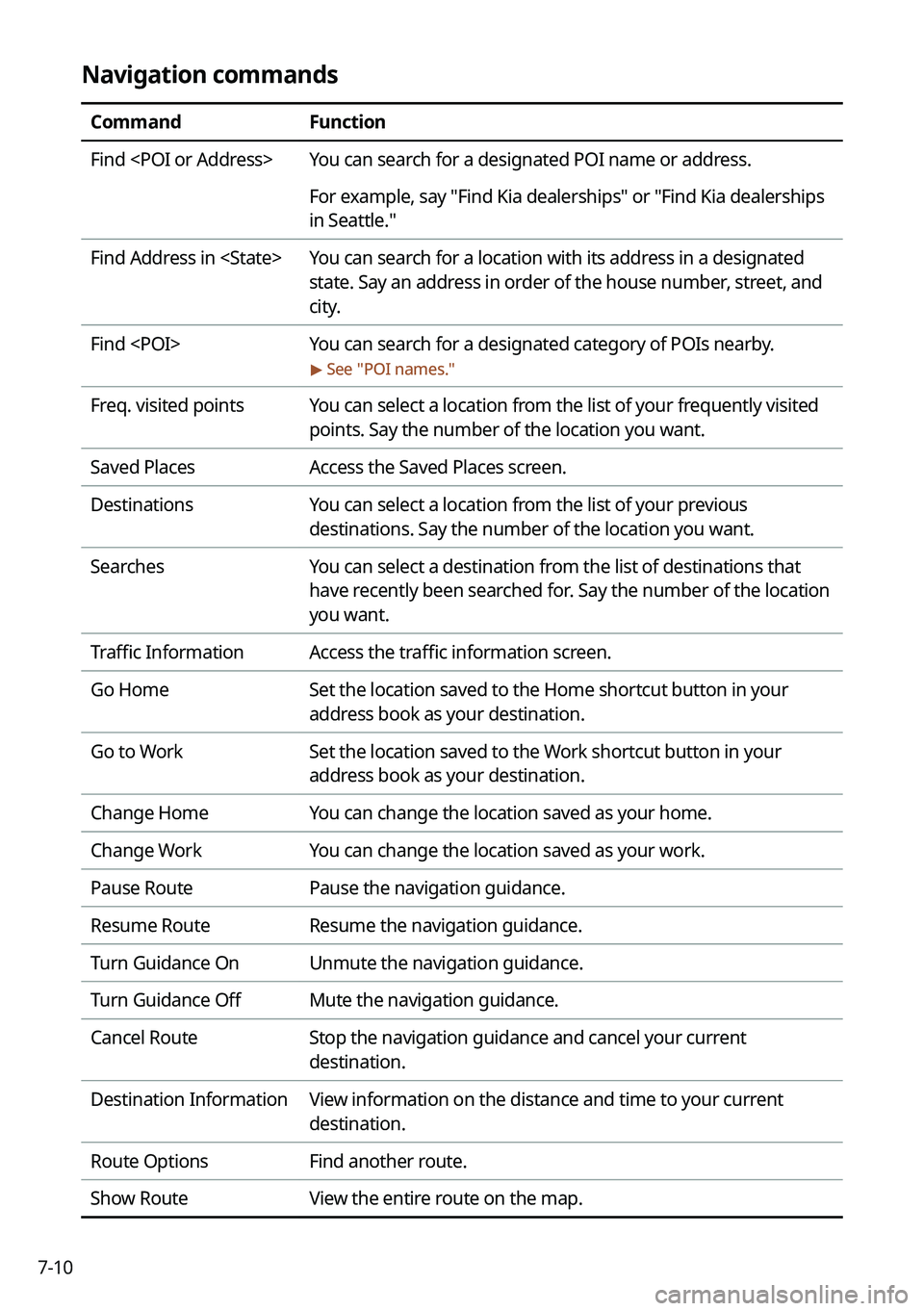
Navigation commands
CommandFunction
Find You can search for a designated POI name or address.
For example, say "Find Kia dealerships" or "Find Kia dealerships
in Seattle."
Find Address in You can search for a location with its address in a designated
state. Say an address in order of the house number, street, and
city.
Find You can search for a designated category of POIs nearby.
> See "POI names."
Freq. visited points You can select a location from the list of your frequently visited
points. Say the number of the location you want.
Saved Places Access the Saved Places screen.
Destinations You can select a location from the list of your previous
destinations. Say the number of the location you want.
Searches You can select a destination from the list of destinations that
have recently been searched for. Say the number of the location
you want.
Traffic Information Access the traffic information screen.
Go Home Set the location saved to the Home shortcut button in your
address book as your destination.
Go to Work Set the location saved to the Work shortcut button in your
address book as your destination.
Change Home You can change the location saved as your home.
Change Work You can change the location saved as your work.
Pause Route Pause the navigation guidance.
Resume Route Resume the navigation guidance.
Turn Guidance On Unmute the navigation guidance.
Turn Guidance Off Mute the navigation guidance.
Cancel Route Stop the navigation guidance and cancel your current
destination.
Destination Information View information on the distance and time to your current
destination.
Route Options Find another route.
Show Route View the entire route on the map.
Page 179 of 356

7-15
Navigation commands
CommandFunction
Find You can search for a designated POI name or address.
For example, say "Find Kia dealerships" or "Find Kia dealerships
in Seattle."
Find Address in You can search for a location with its address in a designated
state. Say an address in order of the house number, street, and
city.
Find You can search for a designated category of POIs nearby.
> See "POI names."
Freq. visited points You can select a location from the list of your frequently visited
points. Say the number of the location you want.
Saved Places Access the Saved Places screen.
Destinations You can select a location from the list of your previous
destinations. Say the number of the location you want.
Searches You can select a destination from the list of destinations that
have recently been searched for. Say the number of the location
you want.
Traffic Information Access the traffic information screen.
Go Home Set the location saved to the Home shortcut button in your
address book as your destination.
Go to Work Set the location saved to the Work shortcut button in your
address book as your destination.
Change Home You can change the location saved as your home.
Change Work You can change the location saved as your work.
Reroute Can perform routing again.
Pause Route Pause the navigation guidance.
Resume Route Resume the navigation guidance.
Cancel Route Stop the navigation guidance and cancel your current
destination.
Destination Information View information on the distance and time to your current
destination.
Route Options Find another route.
Page 236 of 356

9-26
Energy Consumption Reset (if equipped)
You can set to automatically initialize the average fuel economy.
�After Vehicle On: The average fuel economy is automatically initialize whenever you
drive the vehicle.
�After refueling: The average fuel economy is automatically initialize whenever you refuel
the vehicle.
�After Recharging: The average fuel economy is automatically initialize whenever you
charge the vehicle (EV only).
�Off: The average fuel economy initialize is unavailable.
Reset Fuel Economy (if equipped)
Select which average fuel economy to display on the cluster.
�At vehicle start: Displays the fuel economy after engine restart.
�After refueling: Displays the fuel economy after refueling.
�After Recharging: Displays the fuel economy after recharging (EV only).
�Manually: Displays the accumulated fuel economy.
Content Selection (if equipped)
You can set the content to display on the instrument cluster.
�Wiper/Lights Display: When the wiper or light lever operates, the operation mode
appears.
�Traffic Signs: Displays the road information such as speed bumps and speed limits.
�Blind-Spot View Monitor: Displays the blind spot view on the instrument cluster when
the turn signal lamp is operating.
�Icy Road Warning: When the outside temperature drops below 4 °C (39 °F), the
possibility of road icing appears.
Cluster Voice Guidance Volume (if equipped)
You can adjust the voice guidance volume of the cluster.
Welcome Sound (if equipped)
You can set to generate the notification sound when turning on or off the instrument cluster.
Tachometer Display (if equipped)
Selects the drive modes in which the tachometer is displayed.
Oil Change Reminder (if equipped)
Shows the residual life of the engine oil.
Page 253 of 356
9-43
Custom Button ☆
You can set the frequently used functions by pressing the custom button on the control
panel. Set the frequently used functions as custom buttons to access them easily.
A
The screen may differ depending on the vehicle model and specifications.
Steering Wheel MODE Button
You can select the media mode to run when the [ MODE] button on the steering wheel is
pressed.
A
The screen may differ depending on the vehicle model and specifications.
Home Screen
You can change the layout of the Home screen.
Page 280 of 356
9-70
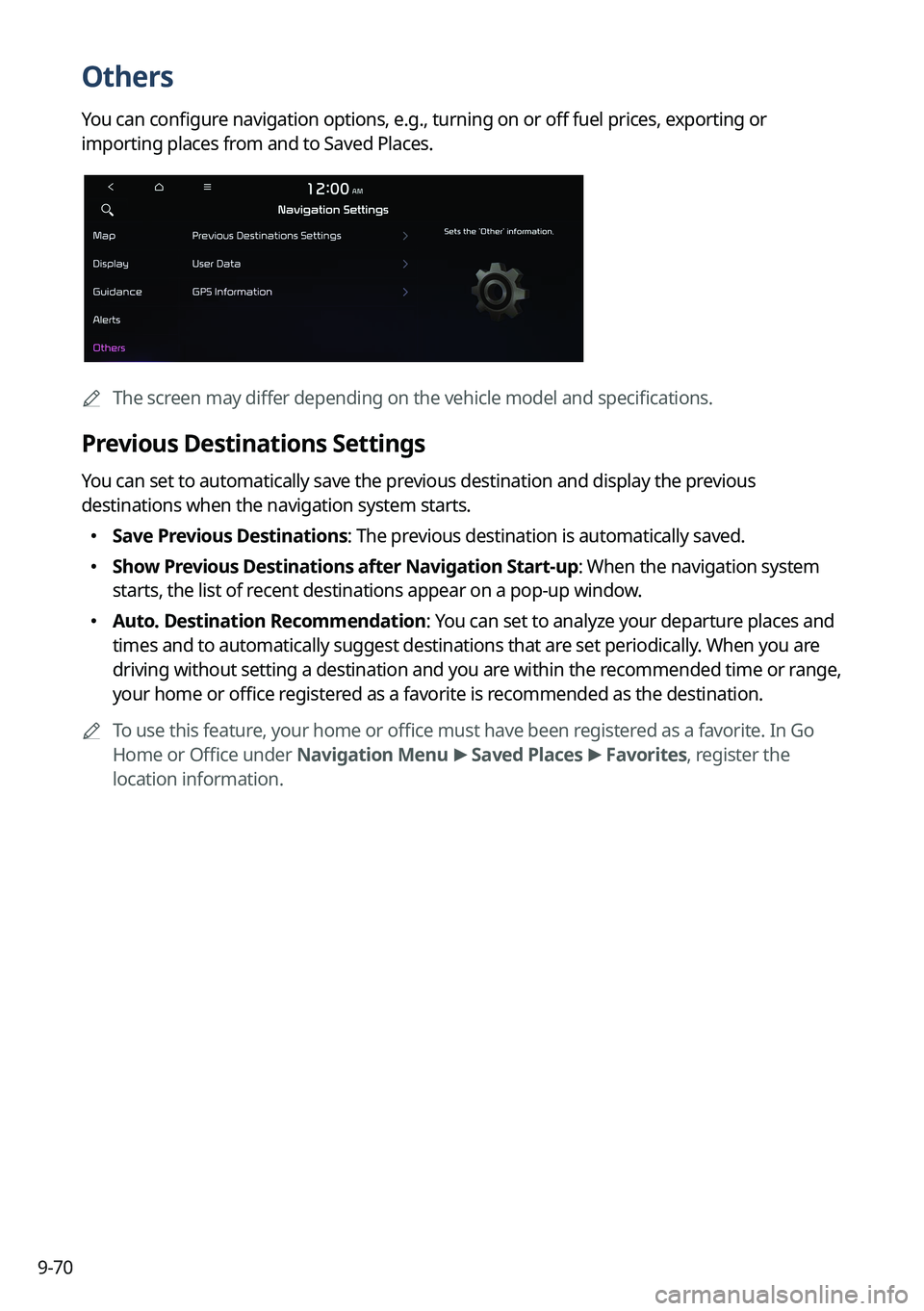
Others
You can configure navigation options, e.g., turning on or off fuel prices, exporting or
importing places from and to Saved Places.
A
The screen may differ depending on the vehicle model and specifications.
Previous Destinations Settings
You can set to automatically save the previous destination and display the previous
destinations when the navigation system starts.
�Save Previous Destinations: The previous destination is automatically saved.
�Show Previous Destinations after Navigation Start-up: When the navigation system
starts, the list of recent destinations appear on a pop-up window.
�Auto. Destination Recommendation: You can set to analyze your departure places and
times and to automatically suggest destinations that are set periodically. When you are
driving without setting a destination and you are within the recommended time or range,
your home or office registered as a favorite is recommended as the destination.
A
To use this feature, your home or office must have been registered as a favorite. In Go
Home or Office under Navigation Menu >
Saved Places >
Favorites, register the
location information.
Page 344 of 356
11-22
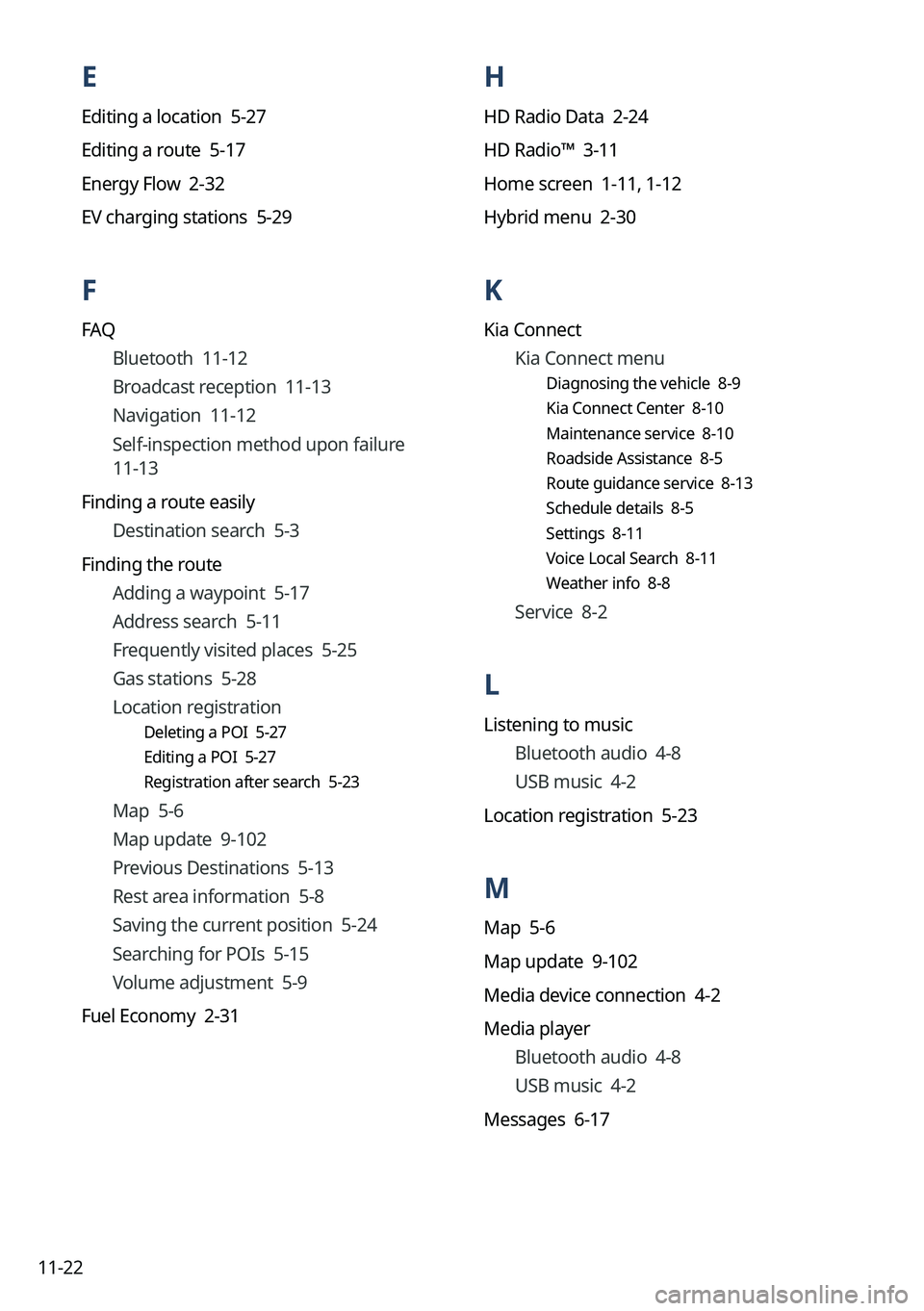
H
HD Radio Data 2-24
HD Radio™ 3-11
Home screen 1-11, 1-12
Hybrid menu 2-30
K
Kia Connect Kia Connect menu
Diagnosing the vehicle 8-9
Kia Connect Center 8-10
Maintenance service 8-10
Roadside Assistance 8-5
Route guidance service 8-13
Schedule details 8-5
Settings 8-11
Voice Local Search 8-11
Weather info 8-8
Service 8-2
L
Listening to musicBluetooth audio 4-8
USB music 4-2
Location registration 5-23
M
Map 5-6
Map update 9-102
Media device connection 4-2
Media player Bluetooth audio 4-8
USB music 4-2
Messages 6-17
E
Editing a location 5-27
Editing a route 5-17
Energy Flow 2-32
EV charging stations 5-29
F
FAQ Bluetooth 11-12
Broadcast reception 11-13
Navigation 11-12
Self-inspection method upon failure
11-13
Finding a route easily Destination search 5-3
Finding the route Adding a waypoint 5-17
Address search 5-11
Frequently visited places 5-25
Gas stations 5-28
Location registration
Deleting a POI 5-27
Editing a POI 5-27
Registration after search 5-23
Map 5-6
Map update 9-102
Previous Destinations 5-13
Rest area information 5-8
Saving the current position 5-24
Searching for POIs 5-15
Volume adjustment 5-9
Fuel Economy 2-31

