Page 23 of 356
7
Contents
01 System overview
Component names and functions 1-2
Turning on/off the system 1-6
Using the touch screen 1-8
Using the Home screen 1-11
Accessing the All Menus screen 1-15
Using the split screen 1-15
02 Useful functions
Using the First Run Setup 2-2
Using the phone projection function 2-4
Viewing the driving assistance screen 2-9
Using the climate control function 2-14
Using the rear-seat climate control function 2-17
Using the rear-seat conversation mode 2-19
Using the rear-seat view 2-20
Using the rear-seat quiet mode 2-21
Using the sound mood lamp 2-22
Playing Sounds of Nature 2-23
Using the HD Radio™ Data 2-24
Viewing the driving information 2-27
Viewing notifications 2-28
Using the Valet mode 2-29
Using the Hybrid menu 2-30
Page 40 of 356

1-12
a a Current time. Depending on the vehicle model or specifications, time and date display
may vary. Press to access the time and date settings screen.
> See "Date/Time."
b b System status icons. Status icons are not included in the screenshots in this guide,
because their appearance may differ depending on the system status or mode.
> See "System status indicator icons."
c c Displays active widgets. When a widget is pressed, the corresponding function runs in full
screen.
> See "Editing the widgets on the Home screen (Type1)."
d d Displays the specified user profile image. When the image is pressed, the user profile
setting screen appears (if equipped).
> See "Configuring the user profile settings (Type1) (if
equipped)."
e e The list of menu items appears.
� Edit Home Widgets: Used to edit the types and positions of widgets on the Home
screen.
�Edit Home Icons: Used to edit the types of icons on the Home screen.
�User's Manual on Web (QR Code): Displays the QR code that provides access to the
online user manual for the system.
A
The screen may differ depending on the vehicle model and specifications.
Home screen (Type2)
The Home screen layout is as follows:
A
To return to the Home screen from other screens, press
.
a
c
d
b
a
c
d
e
b
(for EV6 only)
Page 41 of 356
1-13
a a Displays the specified user profile image. To display the user profile settings screen, press
the user image or name.
b b Displays the date and time.
c c Displays weather, and other information.
d d Displays Radio/Media information.
e e If you press the vehicle image, the Electric Vehicle screen appears.
A
The screen may differ depending on the vehicle model and specifications.
A
To display the map screen, press the map area.
Editing the widgets on the Home screen (Type1)
You can edit the types and positions of the widgets to display on the Home screen.
1 At the upper left of the Home screen, press Menu >
Edit Home
Widgets.
2 Perform any of the following methods:
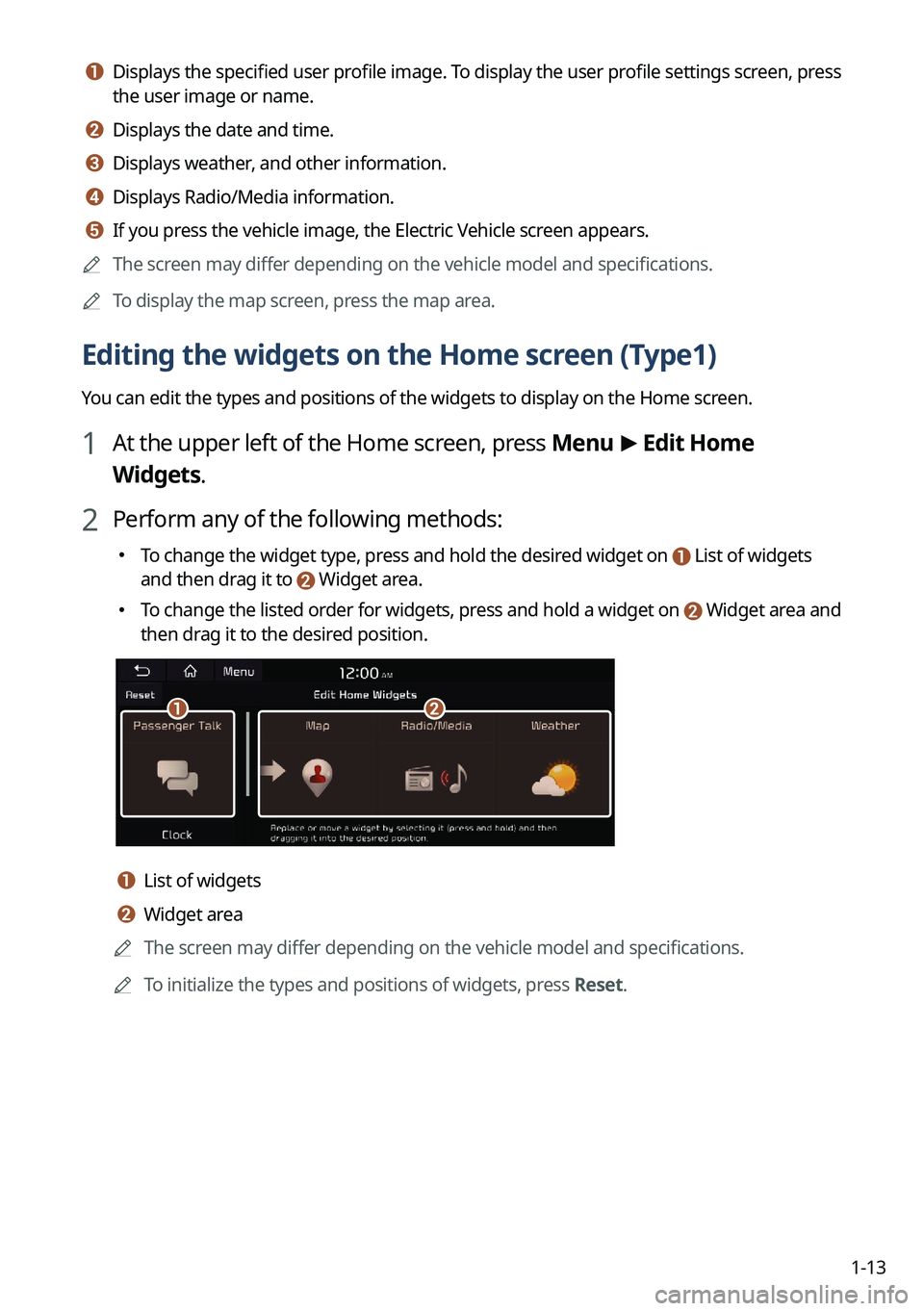
� To change the widget type, press and hold the desired widget on List of widgets
and then drag it to Widget area.
�To change the listed order for widgets, press and hold a widget on Widget area and
then drag it to the desired position.
ab
a a List of widgets
b b Widget area
A
The screen may differ depending on the vehicle model and specifications.
A
To initialize the types and positions of widgets, press Reset.
Page 42 of 356
1-14
Editing the icons on the Home screen (Type1)
You can see the icon list on the Home screen and change the locations for icons.
1 At the upper left of the Home screen, press Menu >
Edit Home Icons.
2 To change the location of an icon, press and hold, and drag the icon to
the desired position.
A
The screen may differ depending on the vehicle model and specifications.
A
To initialize the positions of icons, press Reset.
Editing the icons on the Home screen (Type2)
You can see the icon list on the All screen and change the locations for icons.
1 At the upper left of the All Menus screen, press >
Edit Home Icons.
2 To change the location of an icon, press and hold, and drag the icon to
the desired position.
A
The screen may differ depending on the vehicle model and specifications.
A
To initialize the positions of icons, press Reset.
Page 43 of 356
1-15
Accessing the All Menus screen
You can see All Menus on the Home screen.
Press and gently swipe the Home screen to the left as shown below.
The All Menus screen appears. You can see the list of all functions of the system.
AThe screen may differ depending on the vehicle model and specifications.
Using the split screen (if equipped)
You can set to display various information such as map, Radio/Media info, driving info, and
clock on the split system screen.
Opening the split screen
Press the split screen button.
The split screen appears on the right.
A
To open split screens, press Split Screen on the menu at the top of the screen.
Page 48 of 356
2-4
7 When the First Run Setup screen appears, press OK.
Displays the Home screen.
ATo set the detailed user information and operation environment, press Profile
Settings.
Using the phone projection function
When you connect an Android smartphone or iPhone to the vehicle with a USB cable, you can
run and control Apps on the phone through the widescreen using its user-friendly interface.
ÝWarning
Do not adjust or set up any phone settings while driving. You may lose your steering control
which could cause an accident and severe bodily injuries.
Page 54 of 356
2-10
a a VIEW icon
� (Home icon): Displays the Home screen.
� (Rear view icon): Press the icon to display the desired view.
� (Settings icon): Used to adjust the brightness and contrast of camera images.
A
To select the information to display on the screen, press Display Contents (if
equipped).
b b Parking Distance Warning or Split Screen (if equipped)
�Parking Distance Warning: Provides a visual warning in color and an audible
warning according to the level of collision risk, based on the distance from an
ambient obstacle.
�Split Screen: The split screen appears.
A
Available settings may differ depending on the vehicle model and specifications.
A
You can set to display the rear camera display even when you change the shift position
other than "R" (Reverse) after reversing. To change rear camera operation settings, On
the All Menus screen, press Setup >
Display >
Extend Rear Camera Use (if equipped).
A
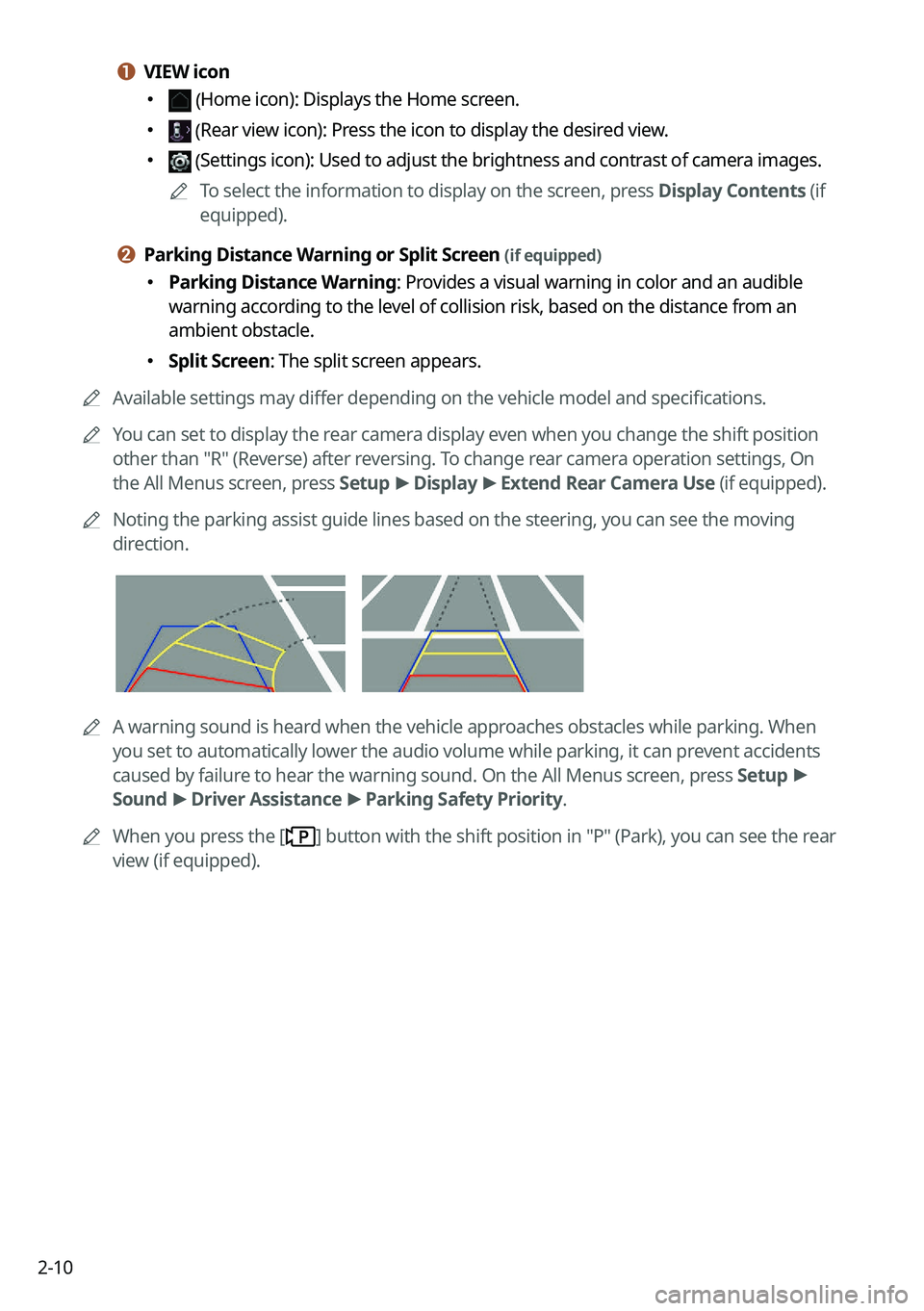
Noting the parking assist guide lines based on the steering, you can see\
the moving
direction.
AA warning sound is heard when the vehicle approaches obstacles while parking. When
you set to automatically lower the audio volume while parking, it can prevent accidents
caused by failure to hear the warning sound. On the All Menus screen, press Setup >
Sound >
Driver Assistance >
Parking Safety Priority.
A
When you press the [
] button with the shift position in "P" (Park), you can see the rear
view (if equipped).
Page 114 of 356
5-6
Map screen
The map screen provides various functions and informations, as follows:
j
ih
k
a
b
c
d
e
f
lmn
g
Option A
o
2SWLRQ�%��(9\
�RQO\\f
a a Displays the Home screen.
b b Used to change the map display mode.
� (2D Heading Up): Rotates the map depending on the travel direction.
� (2D North Up): Displays the map with the north fixed at the top.
� (3D Map): Rotates the map depending on the travel direction for 3D view.
c c Adjust the navigation sound volume.
d d Zooms in the map.
e e Set the map scale change mode to automatic or manual.
f f Zooms out the map.


