Page 193 of 380

7-3
A
Voice recognition may not work properly when:
The sunroof or windows are open so the wind is strong.
The fan speed of the air conditioner or heater is high.
The vehicle is passing through a tunnel.
The vehicle is driving on an unpaved road and its noise and vibration are loud.
Noise is loud due to a heavy rain or storm.
A
When using speech recognition from the rear seats, some commands may not be
supported depending on the vehicle model and type.
A
Special characters included in a contact are not recognized by voice (e.g., School_John,
John!).
A
Voice recognition is supported only for certain languages. If you change the sy\
stem
language, voice recognition may not be supported.
Using the voice recognition function (Type1)
1 On the steering wheel, press the Voice Recognition button.
Voice recognition starts along with voice guidance.
A
To skip the voice guidance, press the Voice Recognition button on the steering wheel.
2 When a beep sound is heard, say a command to perform (e.g.
navigation, music, call).
> See "Available voice commands (Type1)" or " Viewing the voice
recognition help."
The recognized command appears in text at the top of the screen and the corresponding
function is performed.
A
When an additional command is required to perform, the commands that can be
followed in the next step appear on the screen. Say a command or press a command.
A
When there are several similar commands, say a command number to perform.
A
The screen may differ depending on the vehicle and specifications.
Page 233 of 380
8-11
Using Voice Local Search (if equipped)
With Kia Connect, you can search for locations from the online map database by using voice
commands.
A
This function is only available in vehicle models with
l l (3 Button type).
A
Depending on the conditions such as vehicle type, system type, and the s\
ubscribed
service package, available services may differ.
A
The exact appearance or position of the button may differ depending on the vehicle
model and specifications.
If you did not update the map or system or you cannot find your destination in the
navigation, you can use the latest information from the online server to search for locations
and receive guidance.
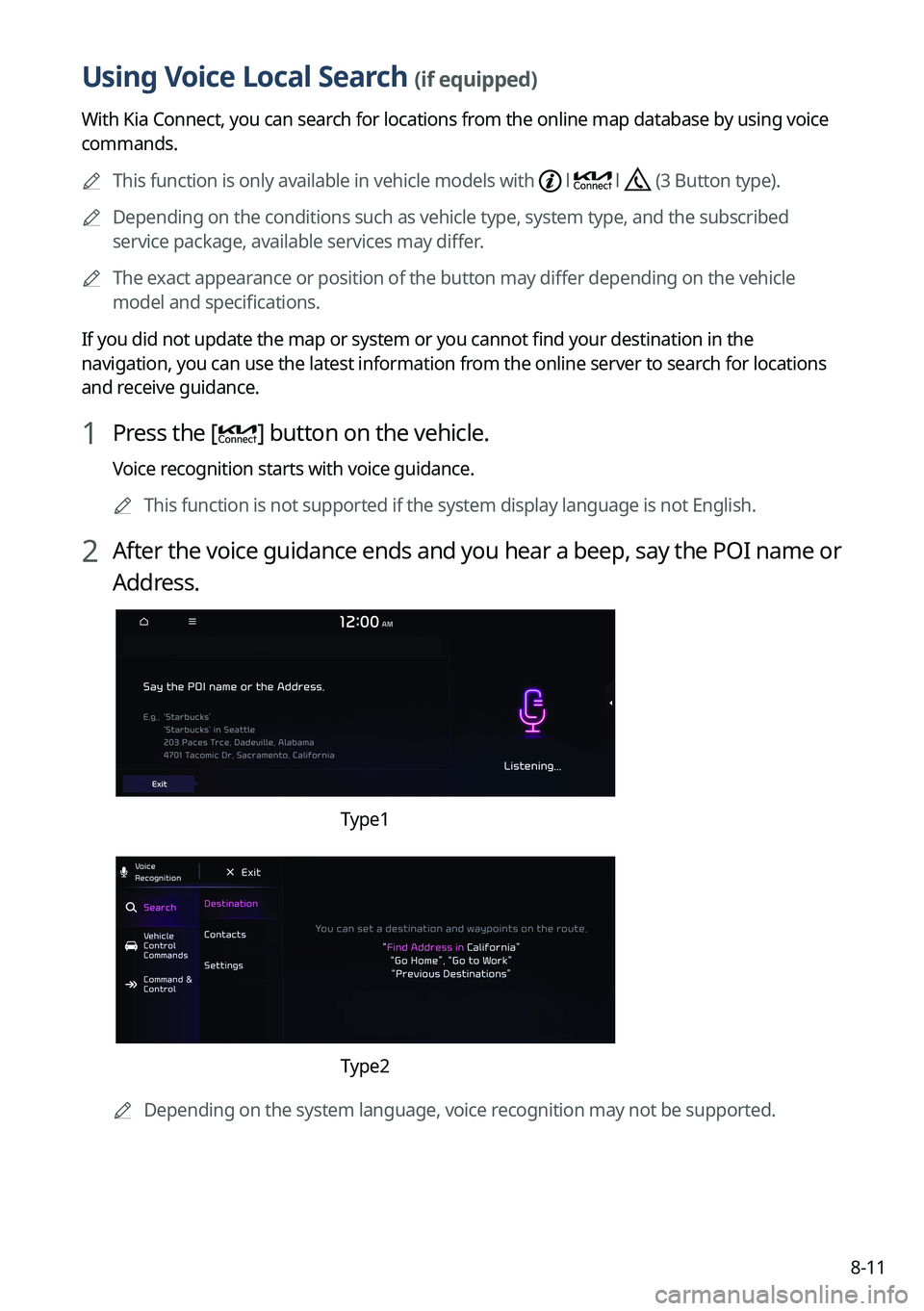
1 Press the [] button on the vehicle.
Voice recognition starts with voice guidance.
A
This function is not supported if the system display language is not Eng\
lish.
2 After the voice guidance ends and you hear a beep, say the POI name or
Address.
Type1
Type2
A
Depending on the system language, voice recognition may not be supported.
Page 237 of 380
Settings
Configuring system settings
Configuring the vehicle settings (Type1/ Type2)
Configuring the device connections settings (Type1/ Type2)
Configuring the advanced system settings (Type1) Configuring the button settings (Type1/ Type2)
Configuring the sound settings (Type1/ Type2)
Configuring the voice recognition settings (Type1/ Type2)
Configuring the navigation settings (Type1/ Type2)
Configuring the UVO settings (Type1)
Configuring the Kia Connect settings (Type2)
Configuring the data/network settings (Type2)
Configuring the user profile settings (Type1/ Type2)
Configuring the general system settings (Type1/ Type2)
Configuring the screen layout settings (Type2)
Configuring the display settings (Type1/ Type2)
Configuring the media settings (Type1)
How to Update the Map and Software for your Infotainment System
09
Page 282 of 380
9-46
Import Address Book from USB Device
You can import the location data on a USB device to the system.
A
The previous location data on the system is to be deleted.
A
While importing from a navigation system that uses a different coordinate system, the
locations may appear differently.
Export Address Book to USB Device
You can export the location data on the system to a USB device.
A
The location data on the USB device is deleted.
Extend Rear Camera Use (if equipped)
You can set to display the rear camera display even when you change the shift position other
than "R" (Reverse) after reversing.
A
When you shift to "P" (Park) or drive at a predetermined speed or faster, the rear view
display disappears to display the previous screen.
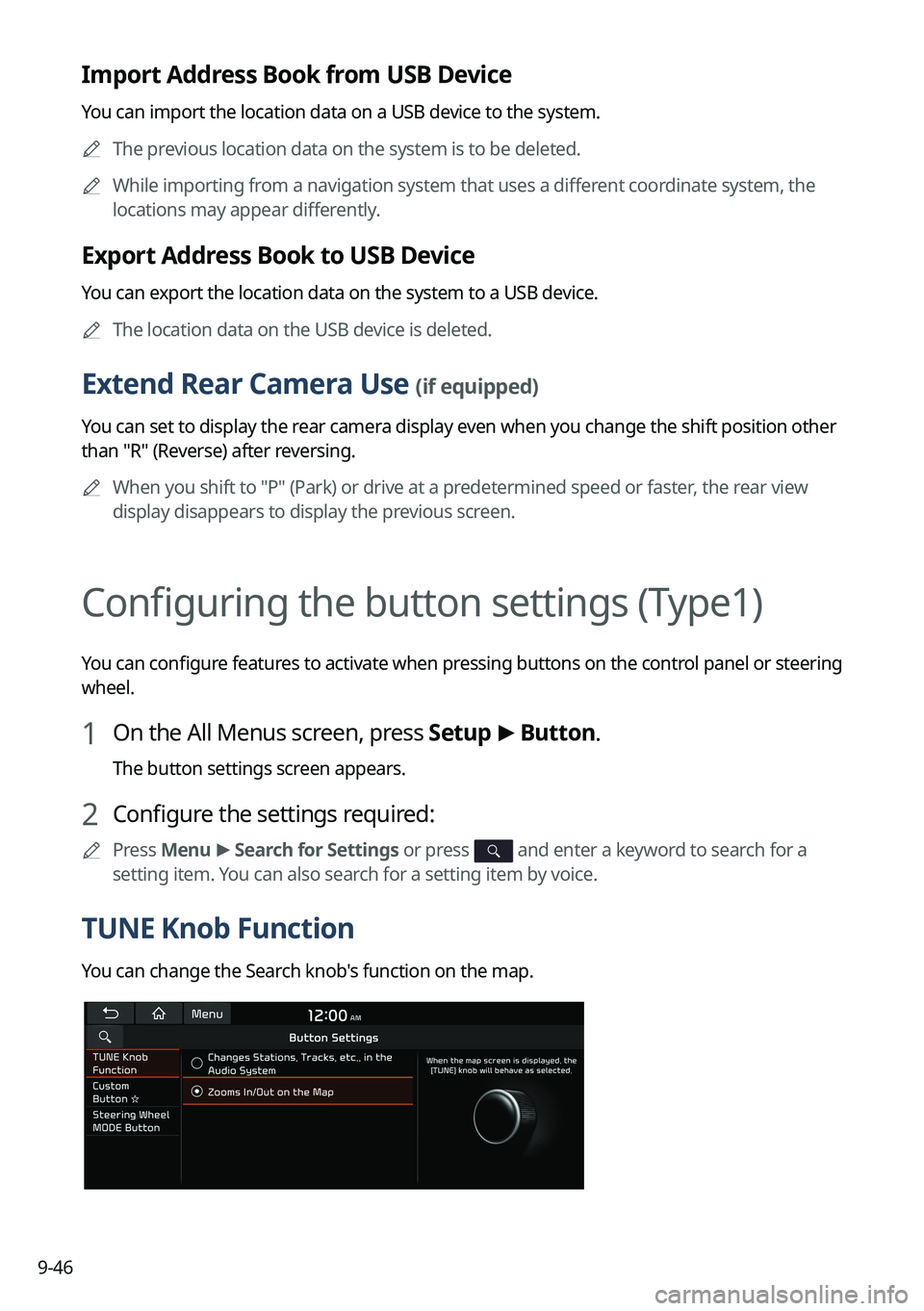
Configuring the button settings (Type1)
You can configure features to activate when pressing buttons on the control panel or steering
wheel.
1 On the All Menus screen, press Setup >
Button.
The button settings screen appears.
2 Configure the settings required:
A
Press Menu >
Search for Settings or press and enter a keyword to search for a
setting item. You can also search for a setting item by voice.
TUNE Knob Function
You can change the Search knob's function on the map.
Page 284 of 380
9-48
Configuring the button settings (Type2)
You can configure features to activate when pressing buttons on the control panel or steering
wheel.
1 On the All Menus screen, press Setup >
Button.
The button settings screen appears.
2 Configure the settings required:
A
Press >
Search for Settings or press and enter a keyword to search for a
setting item. You can also search for a setting item by voice.
Custom Button ☆ (Navigation) (if equipped)
You can set the frequently used functions by pressing the custom button on the control
panel. Set the frequently used functions as custom buttons to access them easily.
A
The screen may differ depending on the vehicle model and specifications.
Custom Button ★ (Steering Wheel) (if equipped)
Specify the functions that can be activated by pressing the user button on the steering wheel.
Set the frequently used functions as custom buttons to access them easily.
A
The screen may differ depending on the vehicle model and specifications.
Page 288 of 380
9-52
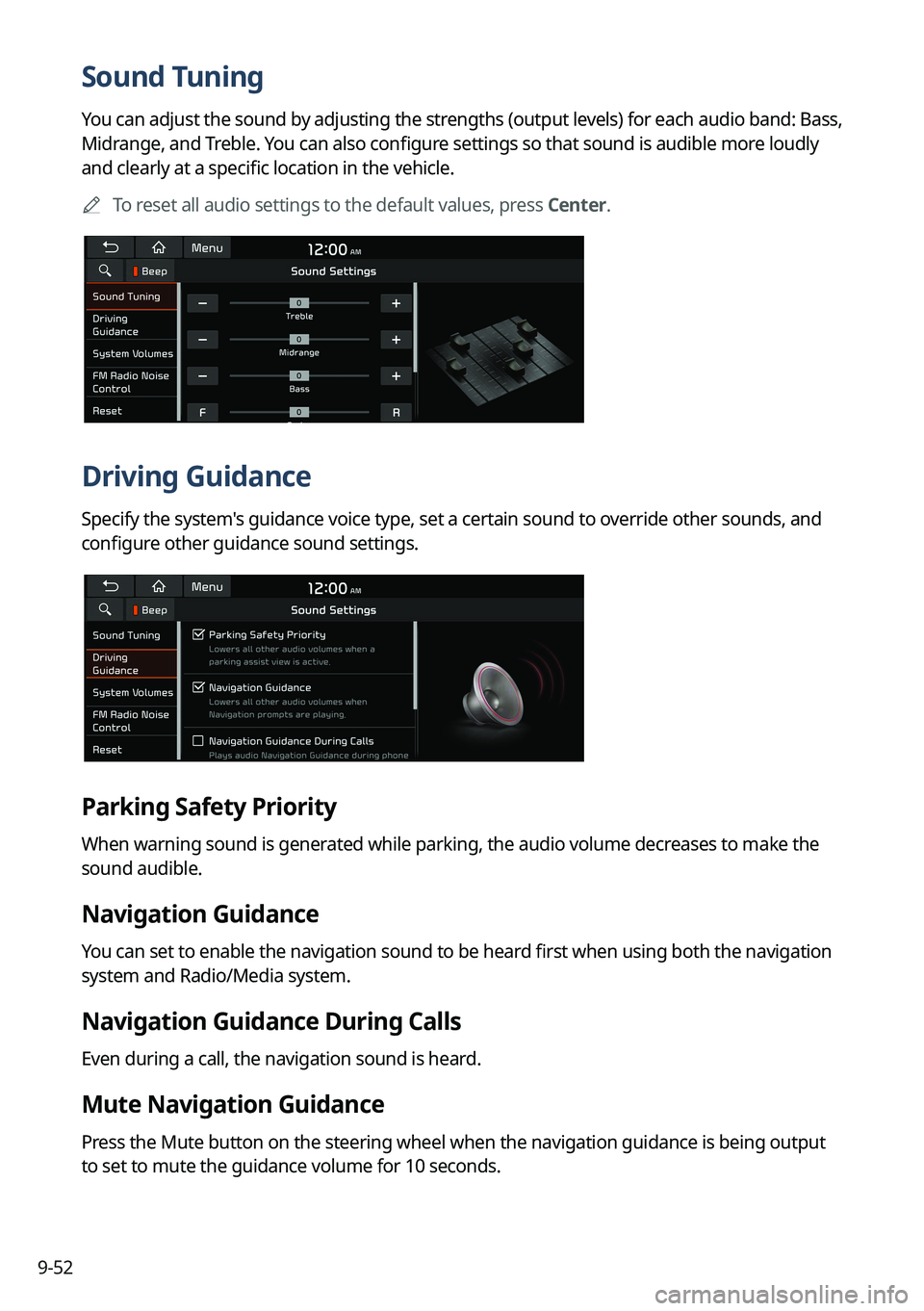
Sound Tuning
You can adjust the sound by adjusting the strengths (output levels) for each audio band: Bass,
Midrange, and Treble. You can also configure settings so that sound is audible more loudly
and clearly at a specific location in the vehicle.
A
To reset all audio settings to the default values, press Center.
Driving Guidance
Specify the system's guidance voice type, set a certain sound to override other sounds, and
configure other guidance sound settings.
Parking Safety Priority
When warning sound is generated while parking, the audio volume decreases to make the
sound audible.
Navigation Guidance
You can set to enable the navigation sound to be heard first when using both the navigation
system and Radio/Media system.
Navigation Guidance During Calls
Even during a call, the navigation sound is heard.
Mute Navigation Guidance
Press the Mute button on the steering wheel when the navigation guidance is being output
to set to mute the guidance volume for 10 seconds.
Page 293 of 380
9-57
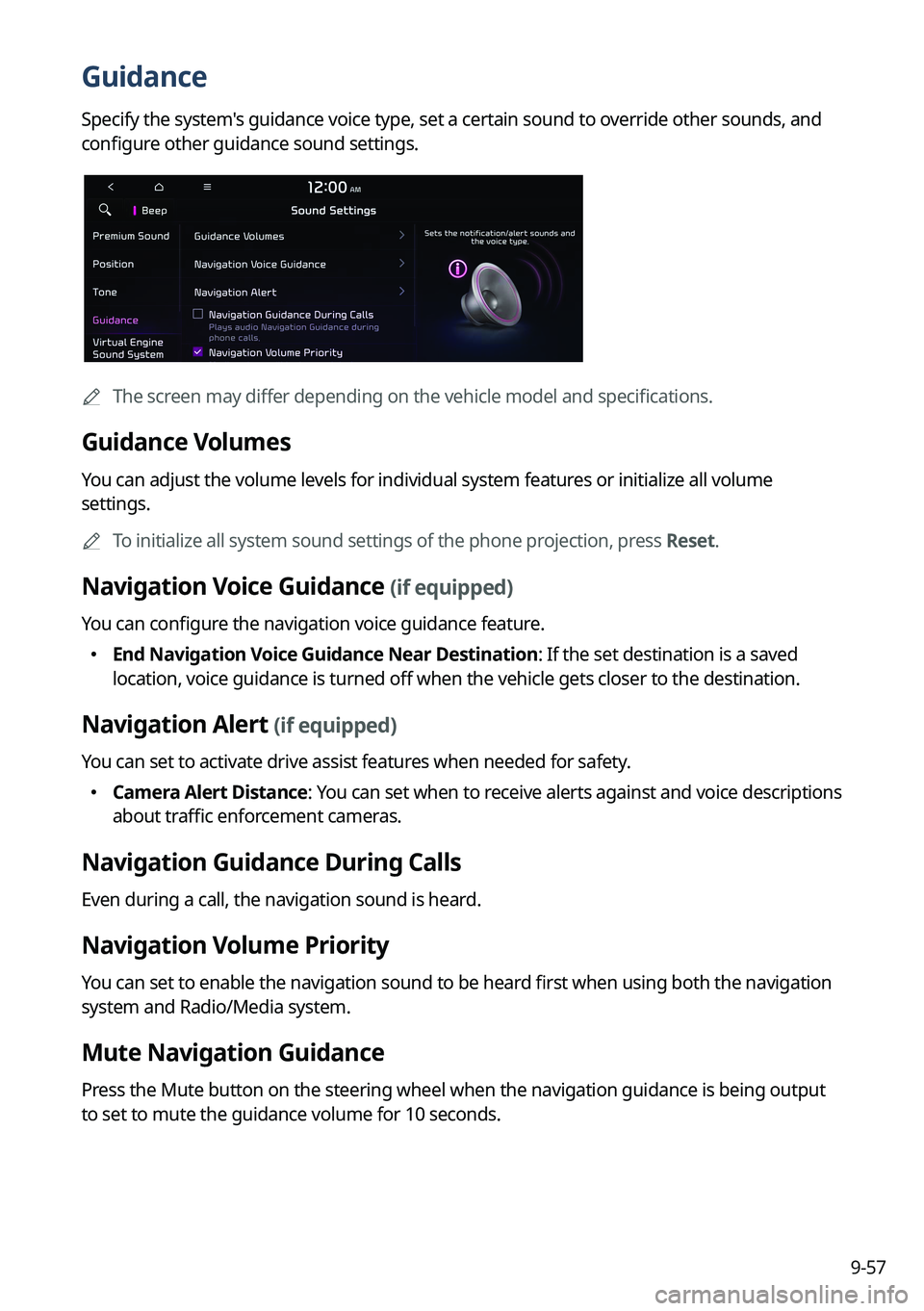
Guidance
Specify the system's guidance voice type, set a certain sound to override other sounds, and
configure other guidance sound settings.
A
The screen may differ depending on the vehicle model and specifications.
Guidance Volumes
You can adjust the volume levels for individual system features or initialize all volume
settings.
A
To initialize all system sound settings of the phone projection, press Reset.
Navigation Voice Guidance (if equipped)
You can configure the navigation voice guidance feature.
�End Navigation Voice Guidance Near Destination: If the set destination is a saved
location, voice guidance is turned off when the vehicle gets closer to the destination.
Navigation Alert (if equipped)
You can set to activate drive assist features when needed for safety.
�Camera Alert Distance
: You can set when to receive alerts against and voice descriptions
about traffic enforcement cameras.
Navigation Guidance During Calls
Even during a call, the navigation sound is heard.
Navigation Volume Priority
You can set to enable the navigation sound to be heard first when using both the navigation
system and Radio/Media system.
Mute Navigation Guidance
Press the Mute button on the steering wheel when the navigation guidance is being output
to set to mute the guidance volume for 10 seconds.
Page 299 of 380
9-63
Configuring the navigation settings (Type1)
You can configure the navigation settings for navigation operations, screen display, voice
guidance, etc. You can also export or import the location data.
A
For details on how to use navigation functions, see the "Navigation" chapter.
> See
" Navigation."
1 On the All Menus screen, press Setup >
Navigation.
The navigation settings screen appears.
2 Configure the settings required:
A
Press Menu >
Search for Settings or press and enter a keyword to search for a
setting item. You can also search for a setting item by voice.
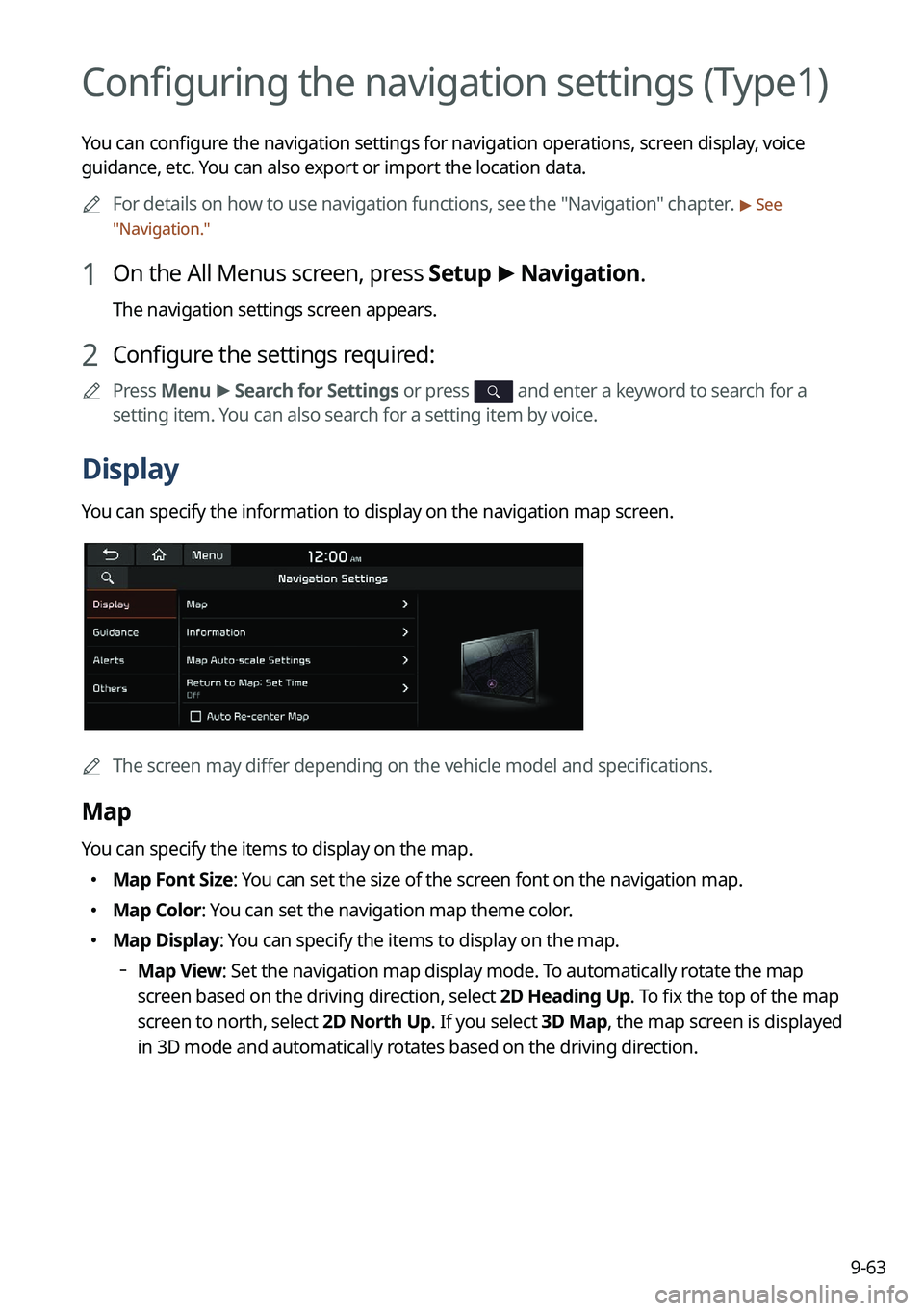
Display
You can specify the information to display on the navigation map screen.
A
The screen may differ depending on the vehicle model and specifications.
Map
You can specify the items to display on the map.
�Map Font Size: You can set the size of the screen font on the navigation map.
�Map Color: You can set the navigation map theme color.
�Map Display: You can specify the items to display on the map.
Map View: Set the navigation map display mode. To automatically rotate the map
screen based on the driving direction, select 2D Heading Up. To fix the top of the map
screen to north, select
2D North Up. If you select 3D Map, the map screen is displayed
in 3D mode and automatically rotates based on the driving direction.

