Page 302 of 380
9-66
ÝWarning
Be sure to check the road conditions while driving, because the camera information may get
changed occasionally after a map update to the latest version. Relying solely on the driving
assist system may cause violation of traffic rules and regulations, resulting in an accident.
Camera Alert Distance
You can set when to receive alerts against and voice descriptions about traffic enforcement
cameras.
�Camera Alerts with Navigation Muted: You can set traffic enforcement camera alerts
or warning sounds for safe driving when the navigation is muted.
None: No guidance is provided when the navigation is muted.
Use Beeps Only: Guidance is provided only with warning sound.
Use Voice Prompts with Beeps: Guidance is provided with warning sound and voice.
� Camera Alert Distance Depending on the Vehicle Speed: The time when to get alerts
for traffic enforcement cameras is automatically set depending on the driving speed.
When the Camera Alert Distance Depending on the Vehicle Speed function is off, the
time when to get guidance on traffic enforcement cameras on
Local Roads and Highway
can be selected.
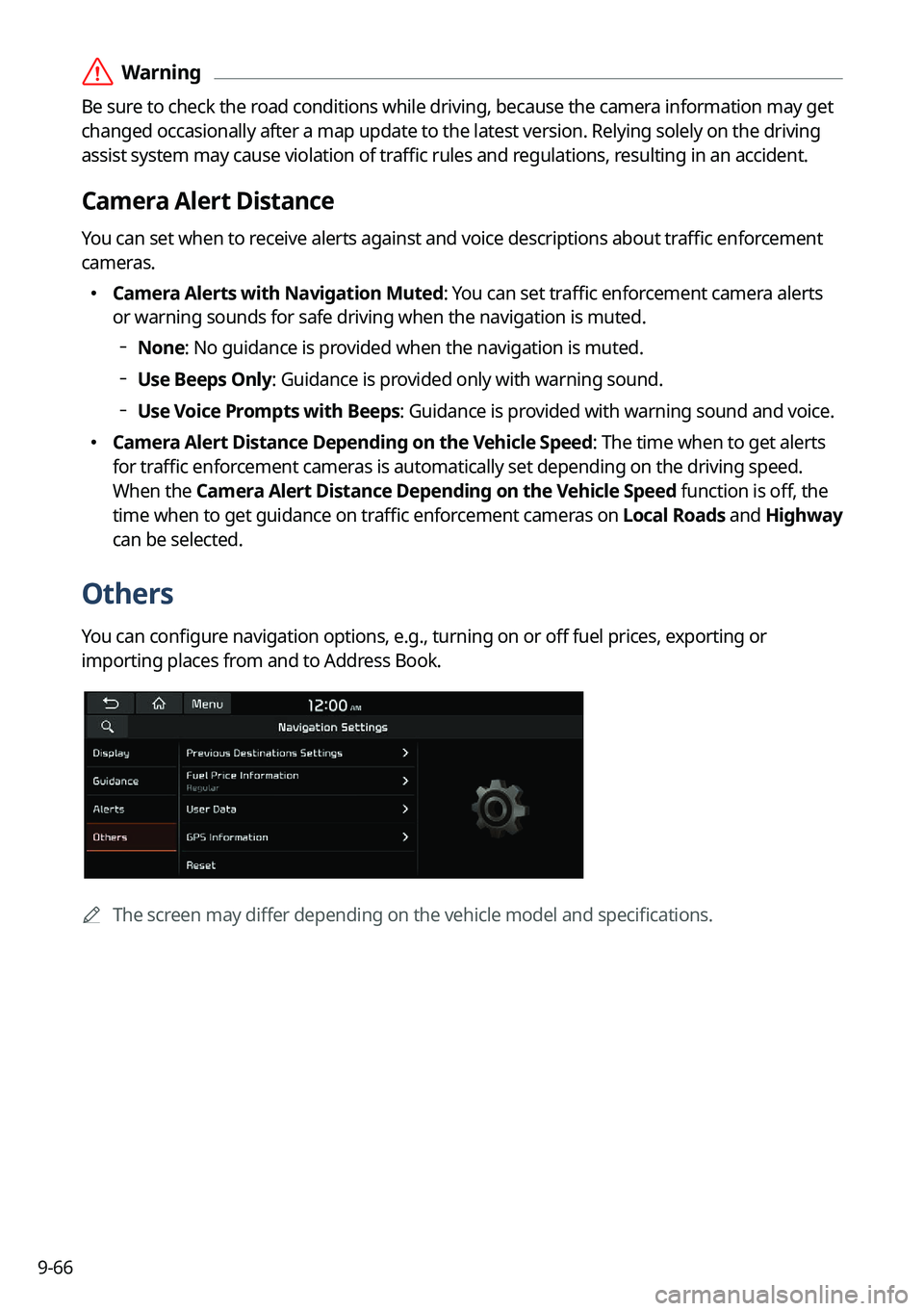
Others
You can configure navigation options, e.g., turning on or off fuel prices, exporting or
importing places from and to Address Book.
A The screen may differ depending on the vehicle model and specifications.
Page 304 of 380
9-68
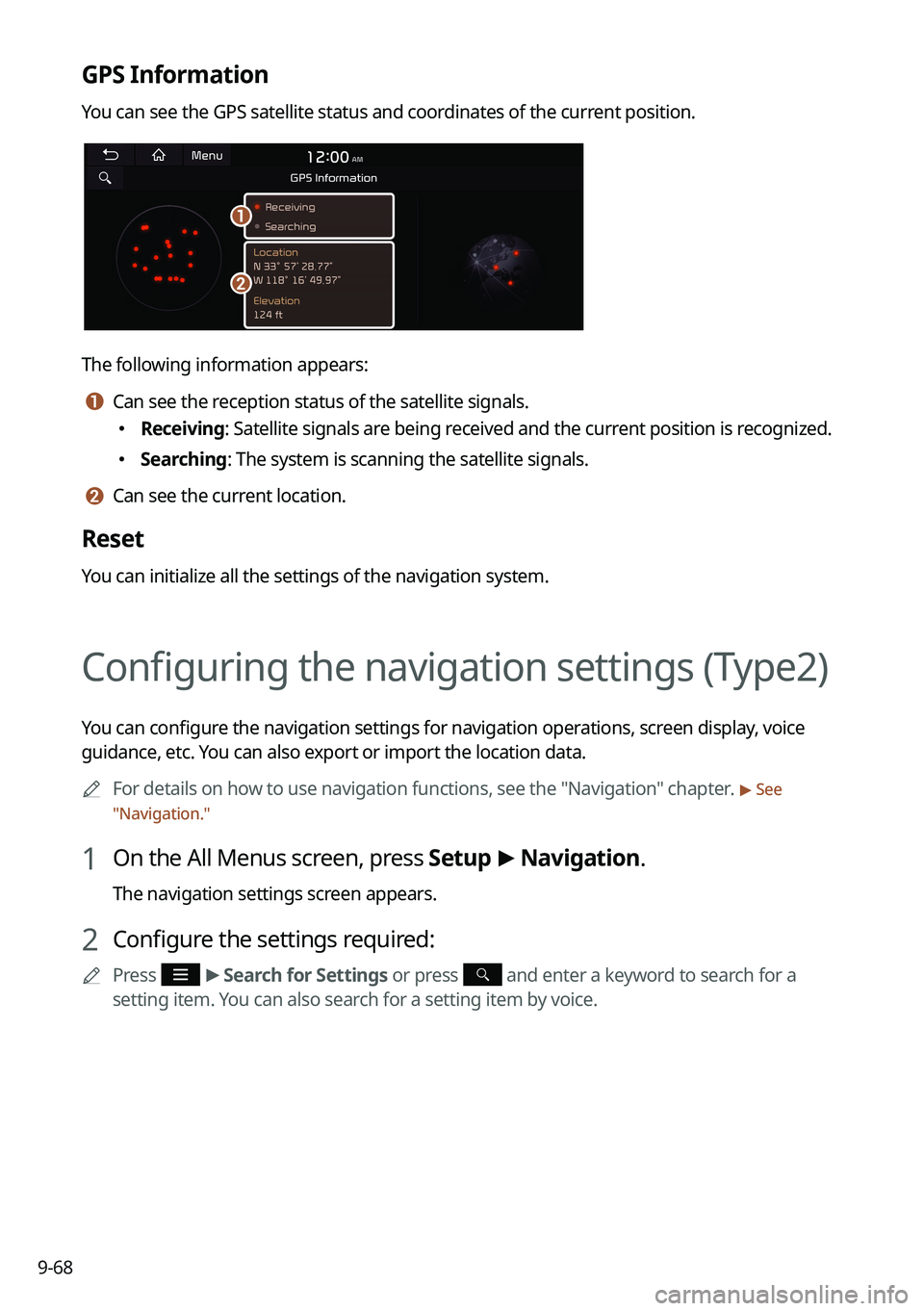
GPS Information
You can see the GPS satellite status and coordinates of the current position.
a
b
The following information appears:
a a Can see the reception status of the satellite signals.
�Receiving: Satellite signals are being received and the current position is recognized.
�Searching: The system is scanning the satellite signals.
b b Can see the current location.
Reset
You can initialize all the settings of the navigation system.
Configuring the navigation settings (Type2)
You can configure the navigation settings for navigation operations, screen display, voice
guidance, etc. You can also export or import the location data.
A
For details on how to use navigation functions, see the "Navigation" chapter.
> See
" Navigation."
1 On the All Menus screen, press Setup >
Navigation.
The navigation settings screen appears.
2 Configure the settings required:
A
Press >
Search for Settings or press and enter a keyword to search for a
setting item. You can also search for a setting item by voice.
Page 306 of 380

9-70
Guidance
You can configure the navigation guidance settings.
AThe screen may differ depending on the vehicle model and specifications.
Detailed Guidance
You can specify the information to display on the navigation map screen while driving.
�Detailed Guidance View: You can set to display detailed information on the Map screen,
such as moving directions and lane change.
�Speed Limits: Sets whether or not to display the speed limits on the screen.
�Units: You can set the distance unit of the navigation map to Kilometers (km) or Miles
(mi)
(if equipped).
Route Options (if equipped)
You can set desired route search options.
Set Type of Guide Distance
You can configure settings for displaying the distance to the destination during guidance.
�Interval Distance: Displays the distance as the one between different zones.
�Cumulative
Distance: Displays the distance as the one between the current position and
target position.
Navigation Voice Guidance
You can configure the navigation voice guidance feature.
� End Navigation Voice Guidance Near Destination: If the set destination is a saved
location, voice guidance is turned off when the vehicle gets closer to the destination.
Border Crossing Information
You can set whether or not to display the border crossing information on the screen.
�Border Crossing Information: Configure settings for notification when entering a
country's border.
�Country Information: View country information of the current location.
Page 308 of 380
9-72
Camera Alert Distance
You can set when to receive alerts against and voice descriptions about traffic enforcement
cameras.
�Camera Alert Distance Depending on the Speed Limit: The time when to get alerts for
traffic enforcement cameras is automatically set depending on the driving speed. When
the Camera Alert Distance Depending on the Speed Limit function is off, the time
when to get guidance on traffic enforcement cameras on Local Roads and Freeway can
be selected.
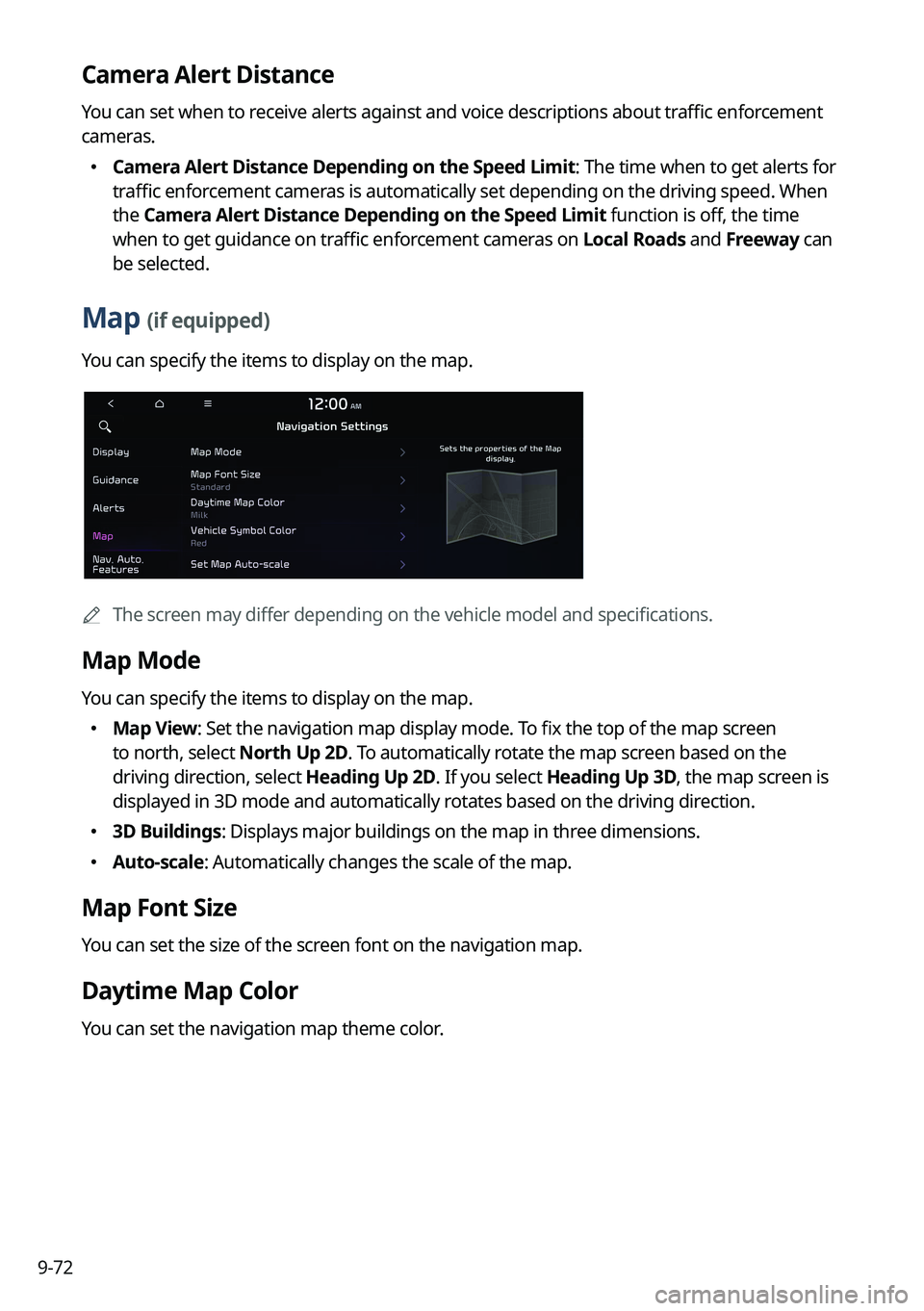
Map (if equipped)
You can specify the items to display on the map.
A
The screen may differ depending on the vehicle model and specifications.
Map Mode
You can specify the items to display on the map.
�Map View: Set the navigation map display mode. To fix the top of the map screen
to north, select North Up 2D. To automatically rotate the map screen based on the
driving direction, select Heading Up 2D. If you select Heading Up 3D, the map screen is
displayed in 3D mode and automatically rotates based on the driving direction.
�3D Buildings: Displays major buildings on the map in three dimensions.
�Auto-scale: Automatically changes the scale of the map.
Map Font Size
You can set the size of the screen font on the navigation map.
Daytime Map Color
You can set the navigation map theme color.
Page 319 of 380
9-83
System Info
You can check the system storage space. You can also use your smartphone to access the
online user's manual of the system, or initialize all system settings to default values.
Storage
You can check the storage space of the system memory where voice memos can be saved.
User's Manual on Web (QR Code)
You can access the online user's manual of the system by scanning the QR code with your
smartphone.
Reset
You can initialize all system settings including general settings and navigation settings.
A
You can also initialize all settings of the login profile.
Page 323 of 380
9-87
Configuring the general system settings
(Type2)
You can configure general settings for date, time, language, and the like. You can also check
information of the system.
1 On the All Menus screen, press Setup >
General.
The general settings screen appears.
2 Configure the settings required:
A
Press >
Search for Settings or press and enter a keyword to search for a
setting item. You can also search for a setting item by voice.
SW Info/Update
You can see the versions of system components. You can also update the system to the latest
version.
A
For details on how to update the system software using a USB storage device, refer to
the following:
> see Navigation Update site, "How to Update the Map and Software for your
Infotainment System."
A
For details on how to update the system software via a wireless connection, refer to the
following:
> see " Wireless update (if equipped)."
Page 357 of 380
11-9
System status indicator icons
You can see the system status by checking the status indicator icons at the top right of the
system screen.
Different status indicator icons appear when each function is performed. The meanings of
the icons are as follows:
Mute/memo recording
Navigation sound muted
Radio/Media sound muted
All sound outputs muted
Recording a voice memo
Bluetooth/call
Connecting a phone via Bluetooth
Connecting an audio device via Bluetooth
Connecting a phone and an audio device via Bluetooth
Making a call via a Bluetooth phone
Bluetooth phone's microphone off
Downloading the contact and list of recent calls from the connected Bluetooth
phone
Page 371 of 380

11-23
Destination search 5-3
Finding the route Adding a waypoint 5-16
Address search 5-10
Frequently visited places 5-25
Gas stations 5-29
Location registration
Deleting a POI 5-27
Editing a POI 5-27
Registration after search 5-23
Map 5-6
Map update 9-106
Previous Destinations 5-14
Rest area information 5-8
Saving the current position 5-24
Searching for POIs 5-12
Volume adjustment 5-9
H
HD Radio Data 2-23
HD Radio™ 3-15
Home screen 1-11
K
Kia ConnectKia Connect menu
Diagnosing the vehicle 8-9
Kia Connect Center 8-10
Maintenance service 8-10
Roadside Assistance 8-5
Route guidance service 8-13
Schedule details 8-5
Settings 8-12, 9-77
Voice Local Search 8-11
Weather info 8-8
Service 8-2
E
Editing a location 5-27
Editing a route 5-16
Electric Vehicle 2-29
Charging management features 2-34,
2-48
Battery level 2-37, 2-51
Charge and climate controls 2-35, 2-48
Charging current 2-38
Location-based charging 2-37
Drivable range 2-31, 2-42
Nearby charging stations 2-32, 2-44
Eco-driving information 2-38, 2-45
Environmental contribution information
2-39
EV economy history 2-39, 2-46
Electric Vehicle screen 2-30, 2-41
Energy information 2-33, 2-45
Energy information screen 2-33, 2-45
EV settings 2-40, 2-51
EV Route 2-40
Warning 2-40
Winter Mode 2-40
EV charging stations 5-30
F
FAQ
Bluetooth 11-12
Broadcast reception 11-13
Kia Connect 11-13
Navigation 11-12
Self-inspection method upon failure
11-14
Finding a route easily 5-3


