2023 JEEP WAGONEER warning lights
[x] Cancel search: warning lightsPage 154 of 396

152STARTING AND OPERATING
INDICATIONS ON THE DISPLAY
The Active Driving Assist system status can always be
viewed in the instrument cluster display, and status
changes are shown by changes in color of the system’s
indicator lights.
As the system detects driver inattentiveness as previously
described
Úpage 148, the system status indicator lights
will change from green, to yellow, to red. The following
indicators will change in color as warnings to the driver
escalate:
Active Driving Assist Indicator (steering wheel icon in
the instrument cluster display or Head Up Display
[if equipped])
Glow effect of the instrument cluster display
For Hands-Free ADA only, light strips in the driver and
front passenger’s door panels (red and green only)
For Base ADA, if driver attention is not returned, the
system will deactivate.
For Hands-Free ADA, if driver attention is not returned, the
system will perform a Stop-In-Lane maneuver. Once the
vehicle is at a standstill, the vehicle will be shifted to PARK
and the Electric Park Brake (EPB) will be applied. Then, the
vehicle will attempt to place an emergency call through
the Assist and SOS system. If too many Stop-In-Lane
maneuvers are initiated, or if one is completed, the system
will be unavailable until the ignition is cycled OFF, then
back to ON. Active Driving Assist Indicators Are Off
ADA is not turned on/enabled by the driver.
Active Driving Assist Indicators Are White
ADA is turned on/enabled by the driver, but the system
is not actively steering and providing speed control for
the vehicle.
Active Driving Assist Indicators Are Green
System is actively steering and providing speed control
for the vehicle and the system detects driver is atten -
tive.
Active Driving Assist Indicators Are Yellow
Driver inattentiveness has been detected, warning the
driver to place hands on the steering wheel, or look
back toward the road (if equipped with the Hands-Free
system).
Active Driving Assist Indicators Are Red
Driver inattentiveness is still being detected, or driver
take-over is being requested, warning the driver to
place hands on the steering wheel, or if equipped with
the Hands-Free system, take control of the vehicle.
NOTE:For both Base ADA and Hands-Free ADA, the driver MUST
replace hands on the steering wheel and take control of
the vehicle when the system is deactivated.
Base ADA Cancelled Message
SYSTEM STATUS
Along with changes in the system’s indicator lights (green,
yellow, and red), the system can also issue several
accompanying warnings intended to provide the driver
with enough time to react, avoid or mitigate a potential
collision.
Base Active Driving Assist System
Two haptic brake jerk warnings will be issued (red
warning light is being issued).
A steering wheel vibration warning (if enabled) will
occur if the vehicle crosses a lane marker, for example,
when driving on a tight curve. The steering wheel vibra -
tion feature can be turned on or off within the Uconnect
system
Úpage 197.
23_WS_OM_EN_USC_t.book Page 152
Page 155 of 396

STARTING AND OPERATING153
(Continued)
Hands-Free Active Driving Assist System
Two haptic brake jerk warnings will be issued (red
warning light is being issued).
A seat vibration warning will occur (red warning light is
being issued).
The driver can take control of the vehicle at any time to
override the warnings by pressing the gas or brake pedal,
moving the steering wheel, and being attentive to the
road.
SYSTEM OPERATION/LIMITATIONS
The Base Active Driving Assist and Hands-Free Active
Driving Assist systems DO NOT:
Warn or prevent collisions with other vehicles
Steer your vehicle around stopped vehicles, slower
vehicles, construction zones or equipment, pedes -
trians, or animals
Respond to traffic lights or stop signs
Merge onto highways or exit off ramps
Change lanes (exception: Hands-Free, only when initi -
ated by the driver)
React to cross traffic
NOTE:Adaptive Cruise Control (ACC) is a core component of ADA.
For ACC system limitations Úpage 139.
The Active Driving Assist system may have limited or
reduced functionality when one of the following conditions
occur:
The vehicle’s radar sensors and/or forward facing
camera is damaged, covered, misaligned, or
obstructed (e.g. by mud, ice, snow, etc.)
If the suspension alignment is not correct, if the vehicle
is modified (e.g. lifting or lowering the suspension,
installing different sized wheels or tires) or if there has
been damage due to road hazards
Driving near highway toll booths
NOTE:If damage to the windshield occurs, have the windshield
replaced by an authorized dealer as soon as possible.
WARNING!
Active Driving Assist is an SAE Level 2 Driver Assist
feature, requiring driver attention at all times. To
prevent serious injury or death:
Always remember that the Active Driving Assist
system is a convenience system that cannot accu -
rately detect all situations. Complete attention is
always required while driving, even when using the
Active Driving Assist system.
Always remain alert and be ready to take control of
the vehicle in the event that the Active Driving Assist
system deactivates, or otherwise lacks full function -
ality as described further before and after this
statement.
Always keep your hands on the steering wheel when
the Base Active Driving Assist system is activated.
Always keep your eyes on the road when the
Hands-Free Active Driving Assist system is activated.
Maintain a safe distance from other vehicles and pay
attention to traffic conditions.
Do not use a hand held device when either Base or
Hands-Free Active Driving Assist system is engaged.
Always pay attention to the road when the
Hands-Free Active Driving Assist system is engaged.
The Active Driving Assist system will not steer to
avoid safety hazards, construction zones, objects, or
road impediments. You need to take control to steer
and brake the vehicle in such situations, and when
merging into traffic, exiting the highway, making a
turn for crossing traffic, or stopping for traffic control
devices.
Do not place any objects on the steering wheel (e.g.
steering wheel covers) which could interfere with the
hand detection sensors.
WARNING!
4
23_WS_OM_EN_USC_t.book Page 153
Page 174 of 396

172STARTING AND OPERATING
The display will show the entire view inside the vehicle on
the left side of the screen, and will show a zoomed-in view
of the selected seat on the right side of the screen.
FamCam Display Example (7 Passenger Vehicle Shown)
To change the seat shown in the zoomed-in view, press a
different seat location on the left side of the display. The
zoomed-in view will then show the new seat location. By
default, the second row driver’s side seat will be displayed
in the zoomed-in view.
The display will appear in color in well lit conditions and
will appear black and white in low light conditions.
If the driver shifts into REVERSE or presses the
touchscreen X button, the view will close. Otherwise, the
FamCam view will remain on the display.
NOTE:When FamCam is turned off, the selected seat in the
zoomed-in view on the right side of the display will be
retained. The next time the feature is activated, the same
seat will be shown in the zoomed-in view.
NIGHT VISION CAMERA SYSTEM —
IF EQUIPPED
Your vehicle may be equipped with a Night Vision Camera
system which uses an infrared camera to view the area
ahead of the vehicle, beyond the headlights, to detect
people and large animals when it is dark outside.
The system detects pedestrians or large animals by
measuring the temperature difference between the object
and the surrounding area.
The thermal objects detected by the camera can be
displayed in the instrument cluster display. Scroll to the
Night Vision page in the instrument cluster display menu
Úpage 104 to display the Night Vision screen.
Warm objects (e.g. animals) will appear lighter on the
display while cold objects (e.g. traffic signs) will appear
darker.
NOTE:
Night Vision only shows objects of interest that are
warmer or colder than the surroundings.
Adjust the instrument cluster dimmer control bright -
ness to make the image appear brighter or dimmer.
To exit out of the Night Vision screen, select a different
menu in the instrument cluster display.
A yellow or red border and box highlight will appear around
objects of interest. More than one object of interest may
be highlighted.
Highlight Around Objects Of Interest
The highlighting of the object(s) of interest will update in
real time based upon the current Night Vision
assessment.
The Night Vision system display can be deactivated under
certain conditions. See
Úpage 174 for further
information.
The two categories of Night Vision warnings are
Pedestrian Warnings and Animal Warnings.
Pedestrian Warning Telltale
Animal Warning Telltale
A Pedestrian or Animal Warning is considered either Level
1 or Level 2. Level 1 warnings are yellow, and Level 2
warnings are red. The colors are not configurable.
23_WS_OM_EN_USC_t.book Page 172
Page 175 of 396

STARTING AND OPERATING173
(Continued)
Level 1 Warnings:
Yellow telltale in the instrument cluster display
Yellow highlights around the detected
pedestrian/animal
Occurs when the vehicle is moving at speeds greater
than 8 mph (13 km/h) and the target is in or
approaching the vehicle path
Level 2 Warnings:
Red telltale in the instrument cluster display
Red highlights around the detected pedestrian/animal
Occurs when the vehicle is moving at speeds greater
than 8 mph (13 km/h) and a collision with the detected
pedestrian/animal is possible
The pedestrian/animal is directly in the vehicle path,
close to the headlight area
A video pop-up will display when there is a target
detected and the instrument cluster display is not
showing the Night Vision page
A chime will sound for a Level 2 Warning detection
event
Only one telltale can be displayed at a time based upon
priority.
The priority order of the warnings from highest to lowest is:
1. Pedestrian Warning Level 2
2. Animal Warning Level 2
3. Pedestrian Warning Level 1
4. Animal Warning Level 1
Level 2 Warnings may display in the Head Up Display
(if equipped).
NOTE:If the vehicle is stopped, or slowing down, all Level 2
warnings become Level 1 warnings.
You can enable or disable the warnings within the
Uconnect system
Úpage 197.
If the warnings are off, the telltales, chimes, and warning
messages will all be off. Pedestrians and animals can still
be detected by the system, but there will be no warnings. The Night Vision alert status telltale will be gray
when the warnings are suppressed. The telltale
will also turn gray to indicate that the alerts are
suppressed due to environmental factors (e.g.
daylight hours, external temperature is greater than 86°F
(30°C)) or if the gear selector is in REVERSE. When the
Night Vision alerts are active, the telltale will be green
Úpage 108.
Camera Washers
When the front window washer is activated, the Night
Vision camera will also be washed
Úpage 63.DETECTION RANGE
The system can detect people 4 ft (1.25 m) tall or greater
in the upright position. The system can also detect
animals that are four-legged and 3 ft (1 m) tall or greater
in the upright position.
The detection distance for the system is between 26 ft
(8 m) and 328 ft (100 m) from the front of the vehicle.WARNING!
Do not jerk the steering wheel in response to a
warning.
Never attempt to swerve around animals if doing so
would endanger you or others.
Do not stare at the image while driving. You could
crash and you or others could be injured.
The Night Vision system only provides alerts to
objects of interest and cannot serve as a substitute
for the driver’s personal judgment. The warnings are
meant to direct your attention to the detected
objects, but the Night Vision system does not auto -
matically brake the vehicle and may not provide a
warning with enough time to help avoid a crash.
Warnings are only provided if a pedestrian or large
animal is detected by the system.
It is always the driver’s responsibility to be attentive
of road, traffic, and weather conditions, vehicle
speed, distance to the vehicle ahead, and most
importantly, brake operation, to ensure safe opera -
tion of the vehicle under all road conditions. Your
complete attention is always required while driving to
maintain safe control of your vehicle.
WARNING!
4
23_WS_OM_EN_USC_t.book Page 173
Page 176 of 396

174STARTING AND OPERATING
(Continued)
The system may not be able to detect pedestrians or
animals in the following situations:
Pedestrian/animal is outside of the detection range
Pedestrian/animal is fully or partially covered
Pedestrian/animal does not reach the minimum detec -
tion height
NOTE:Other objects on the road that meet the height/shape/
temperature (e.g. sun exposure) of pedestrians/animals
may be detected and classified as targets.
SERVICE THE NIGHT VISION SYSTEM
When service conditions are present, the following fault
messages may appear in the instrument cluster display
when the vehicle is placed in the ON position.
If "Night Vision Unavailable Sensor Blocked" appears in
the instrument cluster display, make sure the camera is
clear of snow, ice, mud, dirt or other debris. The camera is
located in the upper fascia/bumper, inside the driver side
grille slot. Clean the camera using a soft wet cloth or by
pressing the Clean Camera button in the Uconnect
system. If the message continues to appear after cycling
the ignition, see an authorized dealer.
If “Night Vision Temporarily Unavailable” or “Night Vision
Unavailable Service Required" appears in the instrument
cluster display after cycling the ignition, see an authorized
dealer.
The camera must be properly aligned to work correctly.
If the camera needs adjustment, see an authorized
dealer. Do not attempt to adjust the camera yourself.
NOTE:Alignment and performance of the Night Vision may be
affected by aftermarket modifications. Mopar® parts
should be used to get the optimal performance of this
system.
NIGHT VISION SYSTEM LIMITATIONS
The Night Vision display is deactivated under the following
conditions:
Vehicle is shifted into REVERSE
The ignition is not in the ON/RUN position
The headlights are off and the vehicle speed is greater
than 8 mph (13 km/h)
The Night Vision display warnings are suppressed under
the following conditions:
Daylight hours
Temperatures above 86°F (30°C)
The system may not be fully functional in the following
situations:
On steep hills
On tight curves of the road
If the camera/sensor is damaged or blocked by dirt,
snow, ice, or other debris
In poor visibility conditions such as heavy fog, rain,
snow, or other weather conditions
If the vehicle has been modified with aftermarket parts
and/or accessories
NOTE:If any of these conditions are present, the system does not
need service.
WARNING!
Night Vision can only detect pedestrians and animals
located within the range of the infrared camera.
Night Vision may not detect pedestrians or animals
and highlight them if:
They are not in an upright position, for example
if they are sitting or lying down, or if the pedes -
trian is riding a bicycle
The figure in the display appears incomplete, for
example because the pedestrian or animal is
partially behind a vehicle
The pedestrian/animal is not directly ahead in
the coverage area
The pedestrian/animal is part of a group
The pedestrian is wearing certain types of
clothing
The pedestrian/animal is moving too quickly
through the field of view
The sensor is blocked by dirt, rain, snow, or ice
WARNING!
23_WS_OM_EN_USC_t.book Page 174
Page 190 of 396

188STARTING AND OPERATING
Display Messages
The trailer brake control interacts with the instrument
cluster display. Display messages, along with a single
chime, will be displayed when a malfunction is determined
in the trailer connection, trailer brake control, or on the
trailer
Úpage 99.
NOTE:
An aftermarket controller may be available for use with
trailers with air or EOH trailer brake systems. To deter -
mine the type of brakes on your trailer and the avail -
ability of controllers, check with your trailer
manufacturer or dealer.
Removal of the ITBM will cause errors and it may cause
damage to the electrical system and electronic
modules of the vehicle. See an authorized dealer if an
aftermarket module is to be installed.
Towing Requirements — Trailer Lights
And Wiring
Whenever pulling a trailer, regardless of the trailer size,
stop lights and turn signals on the trailer are required for
motoring safety.
The Trailer Tow Package may include a four- and seven-pin
wiring harness. Use a factory approved trailer harness and
connector.
NOTE:Do not cut or splice wiring into the vehicle’s wiring
harness.
The electrical connections are all complete to the vehicle
but you must mate the harness to a trailer connector.
Refer to the following illustrations.
NOTE:
Disconnect the trailer wiring connector from the vehicle
(or any other device plugged into the vehicle's electrical
connectors) before launching a boat into water.
Be sure to reconnect once clear from water area.
Four-Pin Connector
WARNING!
Connecting a trailer that is not compatible with the
ITBM system may result in reduced or complete loss of
trailer braking. There may be an increase in stopping
distance or trailer instability which could result in
personal injury.
CAUTION!
Connecting a trailer that is not compatible with the
ITBM system may result in reduced or complete loss of
trailer braking. There may be an increase in stopping
distance or trailer instability which could result in
damage to your vehicle, trailer, or other property.
1 — Ground
2 — Park
3 — Left Stop/Turn
4 — Right Stop/Turn
23_WS_OM_EN_USC_t.book Page 188
Page 194 of 396
192STARTING AND OPERATING
Use the following procedure to prepare your vehicle for
recreational towing:
1. Bring the vehicle to a complete stop on level ground,
with the engine running.
2. Press and hold the brake pedal.
3. Shift the transmission into NEUTRAL.
4. If vehicle is equipped with Quadra-Lift air suspension, ensure the vehicle is set to Normal Ride Height.
NOTE:
Steps 1 through 4 are requirements that must be
met before pushing the N (Neutral) button, and
must continue to be met until the shift has been
completed. If any of these requirements are not
met before pushing the N (Neutral) button or are
no longer met during the shift, then the N (Neutral)
indicator light will flash continuously until all
requirements are met or until the N (Neutral)
button is released.
The ignition must be in the ON/RUN position for a
shift to take place and for the position indicator
lights to be operable. If the ignition is not in the
ON/RUN position, the shift will not take place and
no position indicator lights will be on or flashing.
A flashing N (Neutral) position indicator light indi-
cates that shift requirements have not been met.
If the vehicle is equipped with Quadra-Lift air
suspension, the engine should be started and left
running for a minimum of 60 seconds (with all the
doors closed) at least once every 24 hours. This
process allows the air suspension to adjust the
vehicle’s ride height to compensate for tempera -
ture effects.
Engaging/disengaging of the Electric Park Brake
requires the ignition to be in the ON/RUN position.
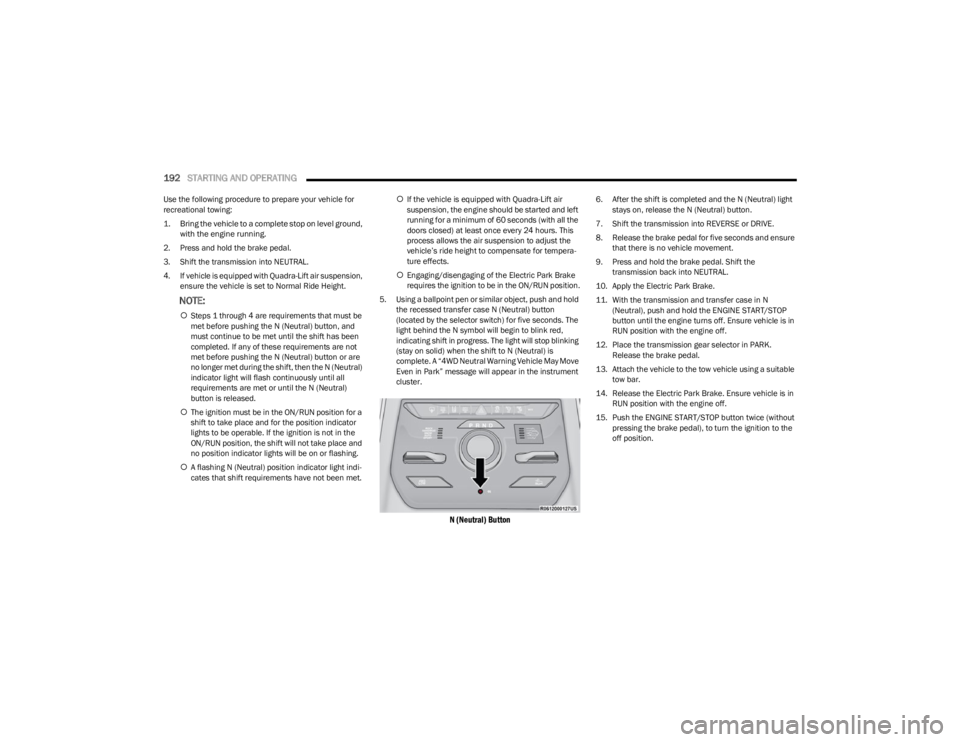
5. Using a ballpoint pen or similar object, push and hold the recessed transfer case N (Neutral) button
(located by the selector switch) for five seconds. The
light behind the N symbol will begin to blink red,
indicating shift in progress. The light will stop blinking
(stay on solid) when the shift to N (Neutral) is
complete. A “4WD Neutral Warning Vehicle May Move
Even in Park” message will appear in the instrument
cluster.
N (Neutral) Button
6. After the shift is completed and the N (Neutral) light stays on, release the N (Neutral) button.
7. Shift the transmission into REVERSE or DRIVE.
8. Release the brake pedal for five seconds and ensure that there is no vehicle movement.
9. Press and hold the brake pedal. Shift the transmission back into NEUTRAL.
10. Apply the Electric Park Brake.
11. With the transmission and transfer case in N (Neutral), push and hold the ENGINE START/STOP
button until the engine turns off. Ensure vehicle is in
RUN position with the engine off.
12. Place the transmission gear selector in PARK. Release the brake pedal.
13. Attach the vehicle to the tow vehicle using a suitable tow bar.
14. Release the Electric Park Brake. Ensure vehicle is in RUN position with the engine off.
15. Push the ENGINE START/STOP button twice (without pressing the brake pedal), to turn the ignition to the
off position.
23_WS_OM_EN_USC_t.book Page 192
Page 206 of 396

204MULTIMEDIA
Night Vision Video Warning This setting will turn the Night Vision Video Warning and green/gray cluster indicator light
on or off.
ParkSense This setting will change the type of ParkSense alert when a close object is detected and
can provide both an audible chime and a visual display.
Front ParkSense Volume This setting adjusts the volume of the Front ParkSense system. The available settings are
“Low”, “Medium”, and “High”.
Rear ParkSense Volume This setting adjusts the volume of the Rear ParkSense system. The available settings are
“Low”, “Medium”, and “High”.
Active ParkSense Mode This setting will adjust the level of vehicle control when the Active ParkSense Mode is
active. The available settings are “Full Auto” and “Steering Only”
Active ParkSense Proximity Chime This setting will turn the Active ParkSense Proximity Chime on or off.
Side Distance Warning This setting will adjust the warning for side distance. The available options are “Off”,
“Sound Only”, and “Sound & Display”.
Drowsy Driver Alert This setting will monitor the driver’s driving habits and warn you of any changes,
indicating that the driver may be drowsy. The available options are “On” and “Off”.
Blind Spot Alert This setting will change the type of alert provided when an object is detected in the
vehicle’s blind spot. The “Off” setting will turn off Blind Spot Alert. The “Lights” setting will
activate the Blind Spot Alert lights on the outside mirrors. The “Lights & Chime” setting
will activate the lights on the outside mirrors and an audible chime.
Electric Power Steering Default This setting will change the Electric Power Steering mode. The available options are
“Comfort” for a lower effort steering experience, “Normal” for the standard effort steering
experience, and “Sport” for a higher effort steering experience.
Power Side Step This setting will activate the Power Side Step. The “Auto” setting will lower the step when
the door is opened and retract it once the door is closed. The “Off” setting will deactivate
the feature.
Hill Start Assist This setting will turn the Hill Start Assist system on or off.
Tire Fill Assist This setting will turn Tire Fill Assist on or off.
Setting NameDescription
23_WS_OM_EN_USC_t.book Page 204