2023 HYUNDAI I30 Automatic
[x] Cancel search: AutomaticPage 248 of 533
4-23
Multimedia System
4
USB
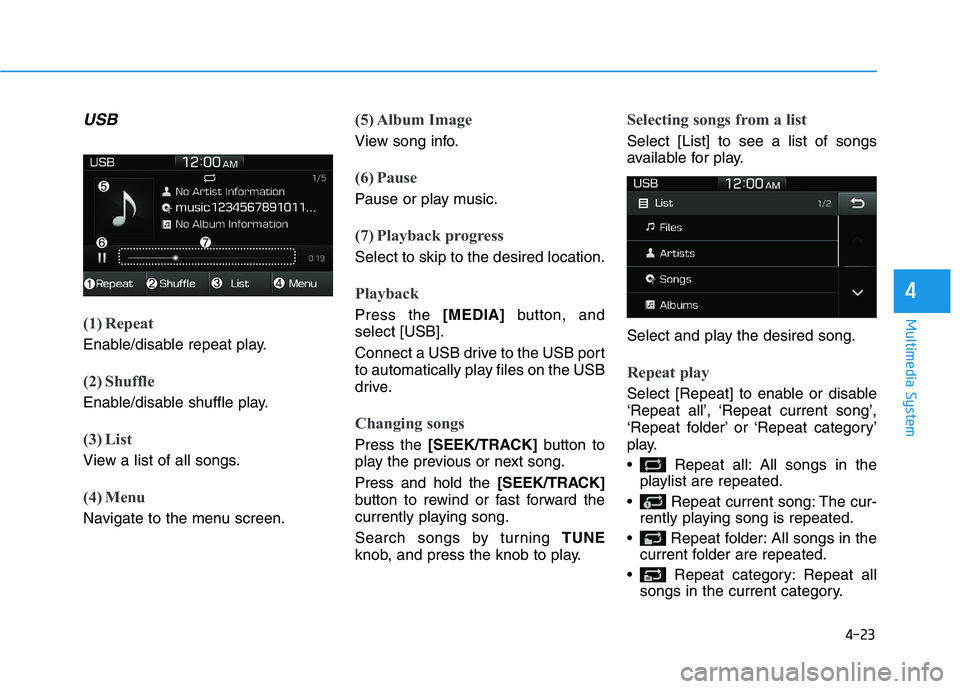
(1) Repeat
Enable/disable repeat play.
(2) Shuffle
Enable/disable shuffle play.
(3) List
View a list of all songs.
(4) Menu
Navigate to the menu screen.
(5) Album Image
View song info.
(6) Pause
Pause or play music.
(7) Playback progress
Select to skip to the desired location.
Playback
Press the [MEDIA]button, and
select [USB].
Connect a USB drive to the USB port
to automatically play files on the USB
drive.
Changing songs
Press the [SEEK/TRACK]button to
play the previous or next song.
Press and hold the [SEEK/TRACK]
button to rewind or fast forward the
currently playing song.
Search songs by turning TUNE
knob, and press the knob to play.
Selecting songs from a list
Select [List] to see a list of songs
available for play.
Select and play the desired song.
Repeat play
Select [Repeat] to enable or disable
‘Repeat all’, ‘Repeat current song’,
‘Repeat folder’ or ‘Repeat category’
play.
Repeat all: All songs in the
playlist are repeated.
Repeat current song: The cur-
rently playing song is repeated.
Repeat folder: All songs in the
current folder are repeated.
Repeat category: Repeat all
songs in the current category.
Page 252 of 533
4-27
Multimedia System
4
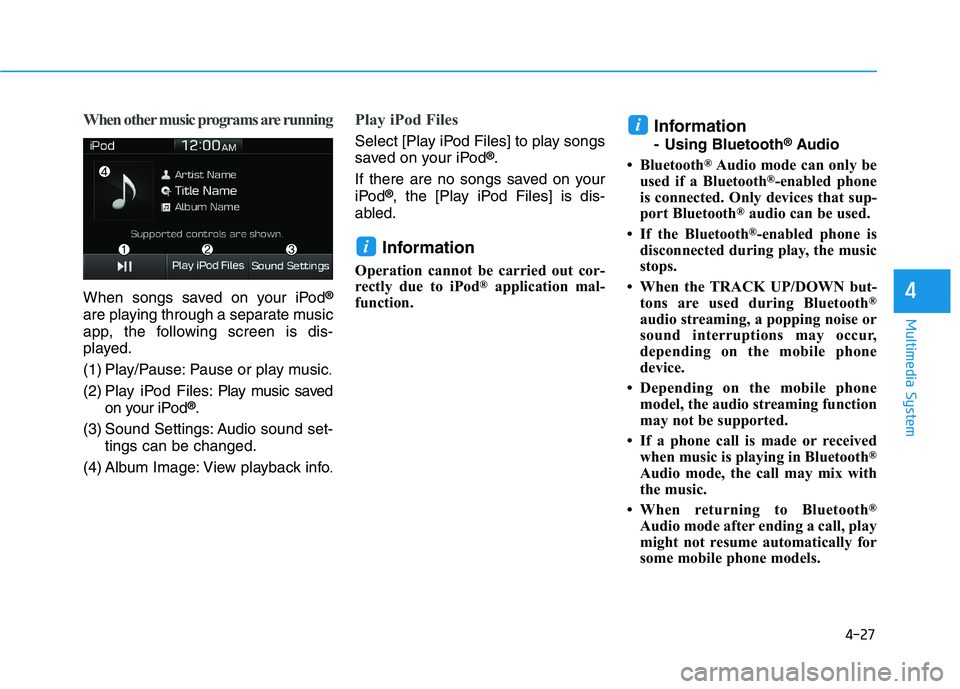
When other music programs are running
When songs saved on your iPod®
are playing through a separate music
app, the following screen is dis-
played.
(1) Play/Pause: Pause or play music
.
(2) Play iPod Files: Play music saved
on your iPod®.
(3) Sound Settings: Audio sound set-
tings can be changed.
(4) Album Image: View playback info
.
Play iPod Files
Select [Play iPod Files] to play songs
saved on your iPod®.
If there are no songs saved on your
iPod
®, the [Play iPod Files] is dis-
abled.
Information
Operation cannot be carried out cor-
rectly due to iPod®application mal-
function.
Information
- Using Bluetooth®Audio
• Bluetooth
®Audio mode can only be
used if a Bluetooth®-enabled phone
is connected. Only devices that sup-
port Bluetooth
®audio can be used.
• If the Bluetooth
®-enabled phone is
disconnected during play, the music
stops.
• When the TRACK UP/DOWN but-
tons are used during Bluetooth
®
audio streaming, a popping noise or
sound interruptions may occur,
depending on the mobile phone
device.
• Depending on the mobile phone
model, the audio streaming function
may not be supported.
• If a phone call is made or received
when music is playing in Bluetooth
®
Audio mode, the call may mix with
the music.
• When returning to Bluetooth
®
Audio mode after ending a call, play
might not resume automatically for
some mobile phone models.
i
i
Page 257 of 533
4-32
Multimedia System
(Continued)
• When Bluetooth
®is connected and
calls are attempted through a con-
nected mobile phone from outside
the vehicle, the call is connected
through the Bluetooth
®Handsfree
function of the vehicle.
• Please be sure to disconnect the
Bluetooth
®Handsfree function
throughyour Bluetooth®device or
the audio screen.
Safety precautions
The Bluetooth®Handsfree function
helps drivers to drive safely. By
connecting a Bluetooth
®-enabled
phone to the vehicle’s audio sys-
tem, phone calls can be made and
received through the audio system
and contacts can be managed.
Consult the user manual before
use.
Excessive manipulation of controls
whilst driving, making it difficult to
pay attention to the road ahead,
can lead to accidents. Do not oper-
ate the device excessively whilst
driving.
Looking at the screen for a pro-
longed time increases the risk of
accidents. Keep time spent looking
at the screen to a minimum.
Precautions when connecting
Bluetooth®devices
The vehicle supports the following
Bluetooth®functions. Some
Bluetooth®devices may not sup-
port some functions.
1) Bluetooth
®Handsfree phone
calls
2) Operations during a call
(Private, Switch, Out Vol. con-
trols)
3) Download call history saved to
the Bluetooth
®device
4) Download contacts saved to the
Bluetooth
®device
5) Automatic contacts/call history
download when Bluetooth
®is
connected
6) Automatic Bluetooth
®device
connection when the vehicle is
started
7) Bluetooth
®audio streaming
playback
Before connecting the audio sys-
tem to your device, make sure your
device supports Bluetooth
®.
Page 258 of 533
4-33
Multimedia System
4
Even if your device supports
Bluetooth®, a Bluetooth®connec-
tion cannot be established if the
device’s Bluetooth
®function is
switched off. Search and connect
with the Bluetooth
®function
enabled.
Pair or connect Bluetooth
®devices
to the audio system with the vehi-
cle at a standstill.
If a Bluetooth
®connection is lost
due to abnormal conditions whilst
a Bluetooth
®device is connected
(communication range exceeded,
device power OFF, communication
errors, etc.), the disconnected
Bluetooth
®device is searched for
and automatically reconnected.
If you want to disable the
Bluetooth
®device auto-connect
function, turn the Bluetooth®func-
tion OFF on your device. Consult
the user manuals for individual
devices to see whether Bluetooth
®
is supported.
Handsfree call quality and volume
may vary depending on the type of
Bluetooth
®device. Some Bluetooth
®devices are sub-
ject to intermittent Bluetooth®con-
nection failures. In this case, use
the following method.
1) Turn the Bluetooth
®function off
on your Bluetooth®device ➟
Turn it on and try again.
2) Delete the paired device from
both the audio system and
Bluetooth
®device, then pair
again.
3) Power down your Bluetooth
®
device ➟Turn it on and try
again.
4) Completely remove the battery
from your Bluetooth
®device;
reinsert it, reboot, and attempt
connection.
5) Restart the vehicle and reat-
tempt connection.
Pairing a Bluetooth®device
Information on pairing Bluetooth®
devices
Pairing refers to the process of
pairing Bluetooth®mobile phones
or devices with the system prior to
connection. This is a necessary
procedure for Bluetooth
®connec-
tion and usage.
Up to five devices can be paired.
Pairing Bluetooth
®device is not
allowed whilst vehicle is moving.
Page 260 of 533
![HYUNDAI I30 2023 Owners Manual 4-35
Multimedia System
4
Pairing a second Bluetooth®device
Press the [SETUP]button on the
audio system ➟ Select [Bluetooth] ➟
Select [Connections] ➟Select [Add
New].
- The pairing procedure fro](/manual-img/35/56144/w960_56144-259.png "HYUNDAI I30 2023 Owners Manual 4-35
Multimedia System
4
Pairing a second Bluetooth®device
Press the [SETUP]button on the
audio system ➟ Select [Bluetooth] ➟
Select [Connections] ➟Select [Add
New].
- The pairing procedure fro")
4-35
Multimedia System
4
Pairing a second Bluetooth®device
Press the [SETUP]button on the
audio system ➟ Select [Bluetooth] ➟
Select [Connections] ➟Select [Add
New].
- The pairing procedure from this
point is identical to [Pairing the first
Bluetooth device].Information
• Bluetooth®standby mode lasts for
three minutes. If a device is not
paired within three minutes, pairing
is cancelled. Start over from the
beginning.
• For most Bluetooth
®devices, a con-
nection is established automatically
after pairing. Some devices, howev-
er, require separate confirmation
when connecting after pairing. Be
sure to check your Bluetooth
®
device after pairing to confirm that
it has connected.
Connecting Bluetooth®devices
If there are no connected devices
Press the [PHONE]button on the
audio system or the [CALL]button in
the steering wheel remote control ➟
List of paired Bluetooth
®devices ➟
Select the desired Bluetooth®device
from the list ➟Connect Bluetooth®.
i
Page 262 of 533
![HYUNDAI I30 2023 Owners Manual 4-37
Multimedia System
4
Operation during calls
Incoming call with Bluetooth®con-
nected ➟Select [Accept].
(1) Call duration: Call duration dis-
play.
(2) Caller name: If the caller number is
in y](/manual-img/35/56144/w960_56144-261.png "HYUNDAI I30 2023 Owners Manual 4-37
Multimedia System
4
Operation during calls
Incoming call with Bluetooth®con-
nected ➟Select [Accept].
(1) Call duration: Call duration dis-
play.
(2) Caller name: If the caller number is
in y")
4-37
Multimedia System
4
Operation during calls
Incoming call with Bluetooth®con-
nected ➟Select [Accept].
(1) Call duration: Call duration dis-
play.
(2) Caller name: If the caller number is
in your contacts, the corresponding
name is displayed.
(3) Incoming phone number: Incoming
phone number is displayed.
(4) Keypad: Number keypad for
Automatic Response Service input
is displayed.
(5) Private: Call is transferred to a
cell phone.
(6) Outgoing Volume: Adjust outgo-
ing voice volume.
(7) End: End call.Information
• Some Bluetooth®devices may not
support the Private function.
• The outgoing voice volume may
vary depending on the type of
Bluetooth
®device. If the outgoing
voice volume is too high or low,
adjust the Outgoing Volume.
Favorites
Press the [PHONE]button on the
audio system ➟Select [Favorites] ➟
Favorites list displayed.
(1) Favorites list: A list of paired
favorites is displayed.
Connect a call when selected.
(2) Add to Favorites: Add a down-
loaded phone number to favorites.
(3) Delete: Delete a saved favorite.
Information
• Up to 20 favorites can be saved for
each connected Bluetooth®device.
• Favorites can be accessed when the
Bluetooth
®device they were paired
from is connected.
• The audio system does not down-
load favorites from Bluetooth
®
devices. Favorites must be newly
saved before use.
• To add to favorites, contacts must be
downloaded first.
• Saved favorites are not updated
even if the contacts of the connected
Bluetooth
®device are changed. In
this case, favorites need to be delet-
ed and added again.
ii
Page 264 of 533
4-39
Multimedia System
4
(2) Clear
- Shortly press to delete individual
digits.
- Press and hold to delete the
entire phone number.
(3) Keypad: Enter phone number.
(4) Bluetooth
®Phone name
- The name of the connected
Bluetooth
®device is displayed.
- Contacts matching the keypad
number/letter input are dis-
played.
(5) Call
- Enter and select a phone num-
ber to call.
- Select without entering a phone
number to see the most recent
dialed call.
Settings
Press the [PHONE]button on the
audio ➟Select [Settings].
- For phone Setup, refer to Setup
page ➟Select [Bluetooth].
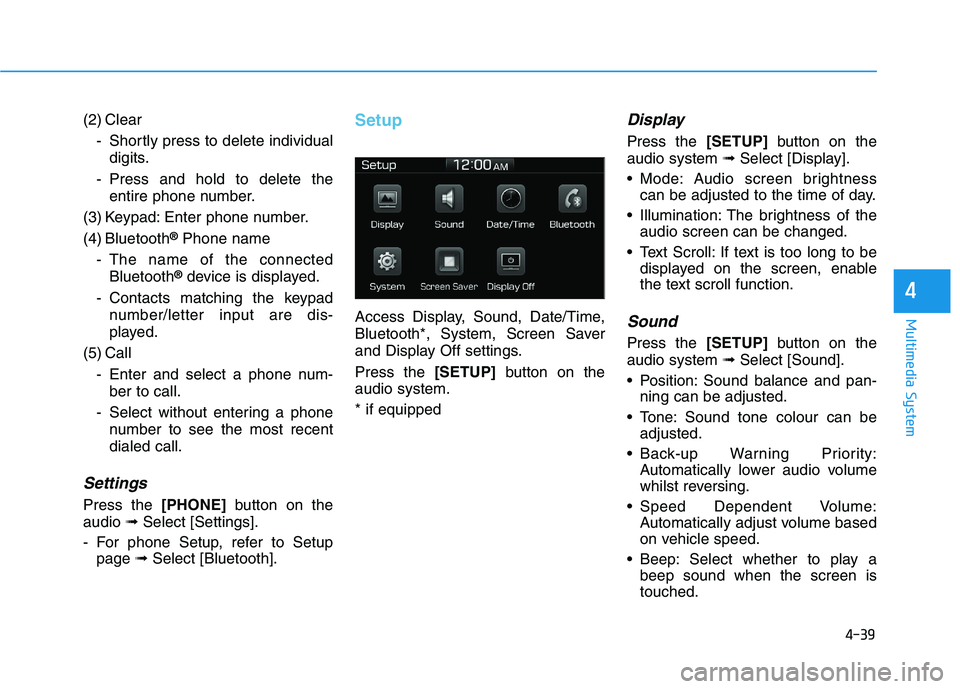
Setup
Access Display, Sound, Date/Time,
Bluetooth*, System, Screen Saver
and Display Off settings.
Press the [SETUP]button on the
audio system.
* if equipped
Display
Press the [SETUP]button on the
audio system ➟Select [Display].
Mode: Audio screen brightness
can be adjusted to the time of day.
Illumination: The brightness of the
audio screen can be changed.
Text Scroll: If text is too long to be
displayed on the screen, enable
the text scroll function.
Sound
Press the [SETUP]button on the
audio system ➟Select [Sound].
Position: Sound balance and pan-
ning can be adjusted.
Tone: Sound tone colour can be
adjusted.
Back-up Warning Priority:
Automatically lower audio volume
whilst reversing.
Speed Dependent Volume:
Automatically adjust volume based
on vehicle speed.
Beep: Select whether to play a
beep sound when the screen is
touched.
Page 266 of 533

Driving your vehicle
Before driving.........................................................5-5
Before entering the vehicle ...........................................5-5
Before starting...................................................................5-5
Key ignition switch ............................................................5-7
Ignition switch ........................................................5-7
Engine Start/Stop button ..............................................5-11
Manual transmission............................................5-20
Manual transmission operation ..................................5-20
Good driving practices ..................................................5-22
Automatic transmission .......................................5-24
Automatic transmission operation ..............................5-24
Parking ...............................................................................5-29
Good driving practices ...................................................5-29
Dual clutch transmission .....................................5-31
Dual clutch transmission operation ............................5-31
Parking ...............................................................................5-39
Good driving practices ..................................................5-39
Braking system.....................................................5-41
Power brakes ...................................................................5-41
Disc brakes wear indicator ...........................................5-42
Parking brake (hand type) ............................................5-42
Electronic Parking Brake (EPB)...................................5-44
Auto hold ...........................................................................5-49
Anti-lock Brake System (ABS) ....................................5-53
Electronic Stability Control (ESC)................................5-55
Vehicle Stability Management (VSM).........................5-58
Hill-Start Assist Control (HAC) ....................................5-60
Emergency Stop Signal (ESS) ......................................5-60
Good braking practices..................................................5-61
Drive mode integrated control system .............5-62
Blind-spot collision warning (BCW) system ....5-64
BCW ....................................................................................5-65
RCCW (Rear cross-traffic collision warning) ...........5-67
Detecting sensor .............................................................5-69
Limitations of the system .............................................5-71
5