2023 HYUNDAI I30 reset
[x] Cancel search: resetPage 238 of 533
4-13
Multimedia System
4
Feature of your Audio
Head unit
❈The actual features in the vehicle
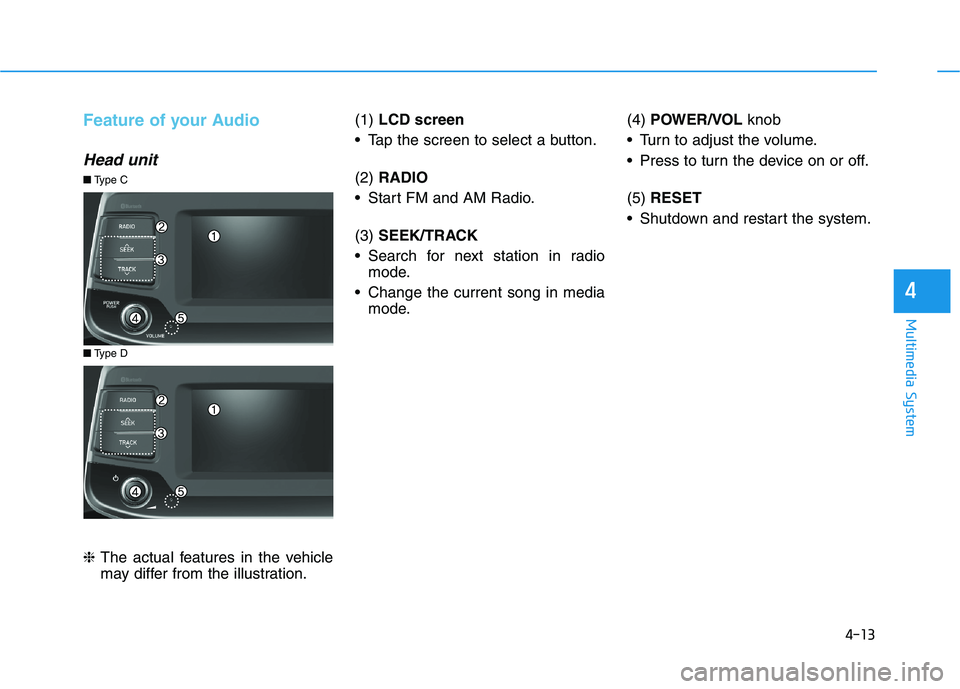
may differ from the illustration.(1) LCD screen
Tap the screen to select a button.
(2) RADIO
Start FM and AM Radio.
(3) SEEK/TRACK
Search for next station in radio
mode.
Change the current song in media
mode.(4) POWER/VOL knob
Turn to adjust the volume.
Press to turn the device on or off.
(5) RESET
Shutdown and restart the system.
■Type D
■Type C
Page 240 of 533
4-15
Multimedia System
4
Steering wheel remote control
(Bluetooth equipped model)
❈The actual features in the may dif-
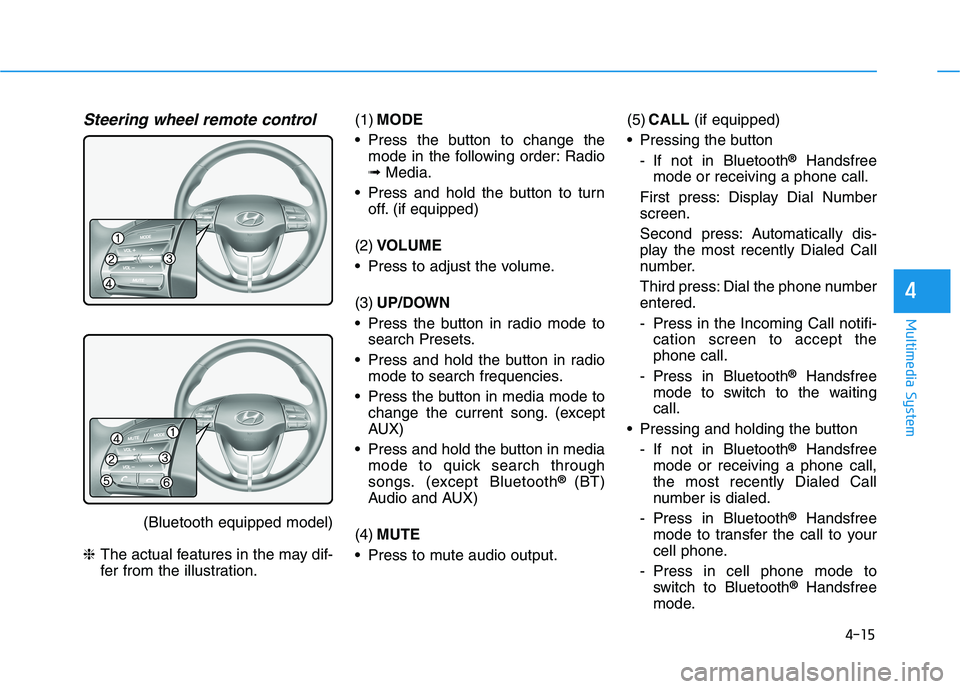
fer from the illustration.(1)MODE
Press the button to change the
mode in the following order: Radio
➟Media.
Press and hold the button to turn
off. (if equipped)
(2)VOLUME
Press to adjust the volume.
(3)UP/DOWN
Press the button in radio mode to
search Presets.
Press and hold the button in radio
mode to search frequencies.
Press the button in media mode to
change the current song. (except
AUX)
Press and hold the button in media
mode to quick search through
songs. (except Bluetooth
® (BT)
Audio and AUX)
(4)MUTE
Press to mute audio output.(5)CALL(if equipped)
Pressing the button
- If not in Bluetooth
®Handsfree
mode or receiving a phone call.
First press: Display Dial Number
screen.
Second press: Automatically dis-
play the most recently Dialed Call
number.
Third press: Dial the phone number
entered.
- Press in the Incoming Call notifi-
cation screen to accept the
phone call.
- Press in Bluetooth
®Handsfree
mode to switch to the waiting
call.
Pressing and holding the button
- If not in Bluetooth
®Handsfree
mode or receiving a phone call,
the most recently Dialed Call
number is dialed.
- Press in Bluetooth
®Handsfree
mode to transfer the call to your
cell phone.
- Press in cell phone mode to
switch to Bluetooth
®Handsfree
mode.
Page 243 of 533
4-18
Multimedia System
(Continued)
In this case of product malfunc-
tion, please contact your place of
purchase or After Service centre.
Placing the audio system within
an electromagnetic environment
may result in noise interference.
Prevent caustic solutions such
as perfume and cosmetic oil
from contacting the instrument
panel because they may cause
damage or discoloration.
Information on status icons
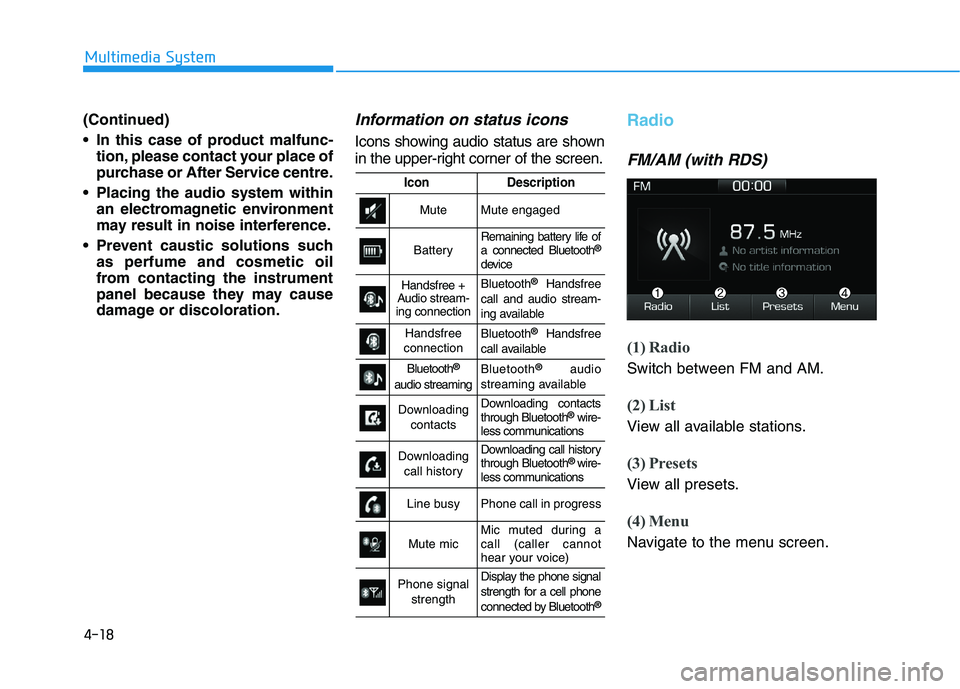
Icons showing audio status are shown
in the upper-right corner of the screen.
Radio
FM/AM (with RDS)
(1) Radio
Switch between FM and AM.
(2) List
View all available stations.
(3) Presets
View all presets.
(4) Menu
Navigate to the menu screen.
IconDescription
MuteMute engaged
BatteryRemaining battery life of
a connected Bluetooth®
device
Handsfree +
Audio stream-
ing connectionBluetooth®Handsfree
call and audio stream-
ing available
Handsfree
connectionBluetooth®Handsfree
call available
Bluetooth®
audio streaming
Bluetooth®audio
streaming available
Downloading
contactsDownloading contacts
through Bluetooth®wire-
less communications
Downloading
call historyDownloading call history
through Bluetooth® wire-
less communications
Line busyPhone call in progress
Mute micMic muted during a
call (caller cannot
hear your voice)
Phone signal
strengthDisplay the phone signal
strength for a cell phone
connected by Bluetooth
®
Page 244 of 533
![HYUNDAI I30 2023 Owners Manual 4-19
Multimedia System
4
Switching between FM and AM
Press the [RADIO]button on the
audio system to switch between
FM and AM.
Select [Radio] on the screen to
switch between FM and AM.
Searching stat](/manual-img/35/56144/w960_56144-243.png "HYUNDAI I30 2023 Owners Manual 4-19
Multimedia System
4
Switching between FM and AM
Press the [RADIO]button on the
audio system to switch between
FM and AM.
Select [Radio] on the screen to
switch between FM and AM.
Searching stat")
4-19
Multimedia System
4
Switching between FM and AM
Press the [RADIO]button on the
audio system to switch between
FM and AM.
Select [Radio] on the screen to
switch between FM and AM.
Searching stations
Press the [SEEK/TRACK]button to
search stations.
List
A list of all available stations in the
vehicle’s current location is dis-
played. Select the desired station.
Favorite stations can be saved to
[Presets] by selecting [+].
Presets
Save up to 40 frequently used stations.
To listen to a preset, select the
desired station list.
Press and hold the desired slot from
1 through 40. This saves the current
station in the selected slot.
If the slot is empty, simply selecting
saves the station to the slot.
Menu
Select [Menu], and select the desired
function.
Traffic Announcement (TA): Enable
or disable Traffic Announcements.
Scan: All available stations are
played for five seconds each.
Sound Settings: Audio sound set-
tings can be changed.
FM/AM (without RDS)
(1) Band
Switch between FM, AM.
(2) Presets
View all presets.
(3) List
View all available stations.
(4) Menu
Navigate to the menu screen.
Switching between FM, AM
Press the [RADIO]button on the
audio system to switch between
FM, AM.
Select [Band] on the screen to
switch between FM, AM.
Searching stations
Press the [SEEK/TRACK]button to
search stations.
List
A list of all available stations in the
vehicle’s current location is dis-
played. Select the desired station.
Favorite stations can be saved to
[Presets] by selecting [save].
Page 245 of 533
4-20
Multimedia System
Presets
Save up to 40 frequently used stations.
To listen to a preset, select the
desired station list.
Press and hold the desired slot from
1 through 40. This saves the current
station in the selected slot.
If the slot is empty, simply selecting
saves the station to the slot.
Menu
Select [Menu], and select the desired
function.
Scan: All available stations are
played for five seconds each.
Sound Settings: Audio sound set-
tings can be changed.
Media
Information
- Using MP3
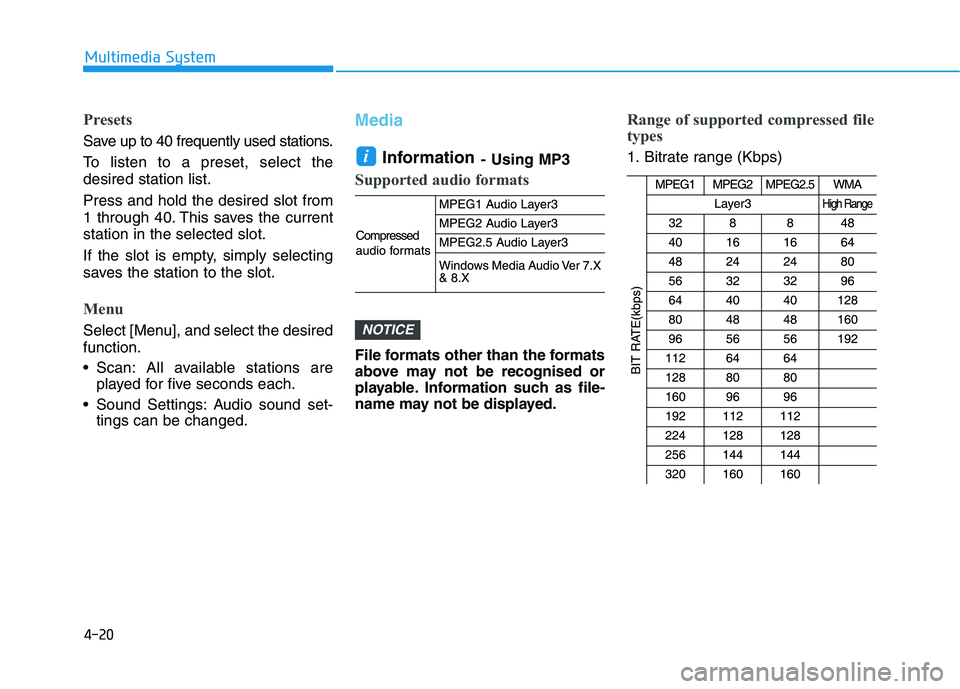
Supported audio formats
File formats other than the formats
above may not be recognised or
playable. Information such as file-
name may not be displayed.
Range of supported compressed file
types
1. Bitrate range (Kbps)
NOTICE
i
Page 250 of 533
4-25
Multimedia System
4
Information
- Using the iPod®Devices
• To use the audio system’s iPod
®con-
trol function, use the dedicated
cable provided with your iPod
®.
• Connecting the iPod
®to the vehicle
during play may result in a loud
noise that lasts about one to two sec-
onds. Connect the iPod
®to the vehi-
cle after stopping or pausing play.
• Connect the iPod
®with the vehicle in
the ACC ON state to begin charging.
• When connecting the iPod
®cable,
be sure to fully push the cable into
the port.
• When EQ effects are enabled simul-
taneously on external devices, such
as iPod
®s and the audio system, the
EQ effects may overlap, causing
sound quality deterioration or dis-
tortion. Deactivate the EQ function
for all external devices, if possible.
• Noise may occur when your iPod
®
or the AUX port is connected.
Disconnect and store separately
when not in use.
(Continued)(Continued)
• There may be noise if the audio sys-
tem is used with an iPod
®or AUX
external device connected to the
power jack. In these cases, discon-
nect the iPod
®or external device
from the power jack.
• Play may be interrupted, or device
malfunctions may occur depending
on the characteristics of your
iPod
®/iPhone®.
• Play may fail if your iPhone
®is con-
nected through both Bluetooth®and
USB. In this case, select Dock con-
nector or Bluetooth
®on your
iPhone®to change the sound output
settings.
• If your software version does not
support the communication proto-
col or your iPod
®is not recognised
due to device failure, anomalies or
defects, iPod
®mode cannot be used.
• iPod
®nano (5th generation) devices
may not be recognised if the battery is
low. Charge sufficiently before use.
(Continued)(Continued)
• The search and song play order in
the iPod
®device may be different
from the search order in the audio
system.
• If the iPod
®has failed due to an
internal defect, please reset the
iPod
®(consult your iPod®manual).
• Depending on the software version,
the iPod
®may fail to sync with the
system. If the media is removed or
disconnected before recognition, the
previous mode may not be restored
(iPad
®cannot be charged).
• Cables other than the 1-meter cable
provided with iPod
®/iPhone®prod-
ucts may not be recognised.
• When other music apps are used on
your iPod
®, the system sync func-
tion may fail due to malfunction of
the iPod
®application.
i
Page 265 of 533
![HYUNDAI I30 2023 Owners Manual 4-40
Multimedia System
Date/Time
Press the [SETUP]button on the
audio system ➟Select [Date/Time].
Set Time: Set the time displayed on
the audio screen.
Time Format: Choose between 12-
hour and 24-](/manual-img/35/56144/w960_56144-264.png "HYUNDAI I30 2023 Owners Manual 4-40
Multimedia System
Date/Time
Press the [SETUP]button on the
audio system ➟Select [Date/Time].
Set Time: Set the time displayed on
the audio screen.
Time Format: Choose between 12-
hour and 24-")
4-40
Multimedia System
Date/Time
Press the [SETUP]button on the
audio system ➟Select [Date/Time].
Set Time: Set the time displayed on
the audio screen.
Time Format: Choose between 12-
hour and 24-hour time formats.
Set Date: Set the date displayed on
the audio screen.
Bluetooth (if equipped)
Press the [SETUP]button on the
audio system ➟Select [Bluetooth].
Connections: Control pairing, dele-
tion, connection and disconnection
of Bluetooth
®devices.
Auto Connection Priority: Set the
connection priority of Bluetooth
®
devices when the vehicle is start-
ed.
Download Contacts: Contacts can
be downloaded from connected
Bluetooth
®devices.
Information
• When paired devices are deleted,
the call history and contacts of the
device saved to the audio system are
deleted.
• For Bluetooth
®connections with
low connection priority, some time
may be required for the connection
to be established.
• Contacts can be downloaded only
from the currently connected
Bluetooth
®device.
• If no Bluetooth
®device is connected,
the Download Contacts button is
disabled.
System
Press the [SETUP]button on the
audio system ➟Select [System].
Memory Information: View My
Music memory usage.
Language: Change the user language.
Default: Reset the audio system.
Information
The system resets to the default val-
ues, and all saved data and settings
are lost.
Screen Saver
Set the information displayed when
the audio system is switched off or
the screen is turned off.
Press the [SETUP]button on the
audio system ➟Select [Screen
Saver].
Analog: An analog clock is dis-
played.
Digital: A digital clock is displayed.
None: No information is displayed.
Display Off
To prevent glare, the screen can be
turned off with the audio system in
operation.
Press the [SETUP]button on the
audio system ➟Select [Display Off].
Information
Use ‘Screen Saver’ to set the informa-
tion to be displayed when the screen is
turned off.
i
i
i
Page 267 of 533

5
Forward collision assist (FCA) system
(Front radar + Front camera) ............................5-76
System Setting and Activation.....................................5-76
FCA Warning Message and System Control ............5-78
FCA Sensor .......................................................................5-80
System Malfunction .......................................................5-82
Limitations of the System .............................................5-84
Lane keeping assist (LKA) system ....................5-88
LKA Operation..................................................................5-90
Warning Light and Message.........................................5-93
Limitations of the System .............................................5-94
LKA Function Change ...................................................5-95
Driver attention warning (DAW) system ..........5-96
System Setting and Activation.....................................5-96
Resetting the System .....................................................5-97
System Standby ...............................................................5-98
System Malfunction .......................................................5-98
Cruise control .....................................................5-100
Cruise Control operation .............................................5-100
Smart cruise control system (SCC) .................5-106
Smart Cruise Control Speed .......................................5-107
Smart Cruise Control Vehicle-to-Vehicle
Distance ...........................................................................5-112
Sensor to Detect Distance to the Vehicle
Ahead ...............................................................................5-115
To Adjust the Sensitivity of Smart Cruise
Control .............................................................................5-117
To Convert to Cruise Control Mode .........................5-117
Limitations of the System...........................................5-118
Special driving conditions .................................5-123
Hazardous driving conditions ....................................5-123
Rocking the vehicle ......................................................5-123
Smooth cornering .........................................................5-124
Driving at night ..............................................................5-124
Driving in the rain .........................................................5-124
Driving in flooded areas..............................................5-125
Highway driving .............................................................5-125
Reducing the risk of a rollover .................................5-126