Page 279 of 664
Continued277
uuAudio System Basic Operation uPlaying SiriusXM ® Radio
Features
The system can record up to the last 60 minutes of your currently tuned channel’s
broadcast, as well as the last 30 minutes of your preset channel’s broadcast, starting
from the moment you turn the vehicle on. If you tuned to a preset channel, the
system records up to 60 minutes of a broadcast instead of up to 30 minutes. You
can rewind and replay the last 30 or 60 minutes of a broadcast.
Move the position you want to replay by selecting or .
To play or pause on playback mode, select the play/pause icon.
■Returning to real-time broadcast
Select and hold .
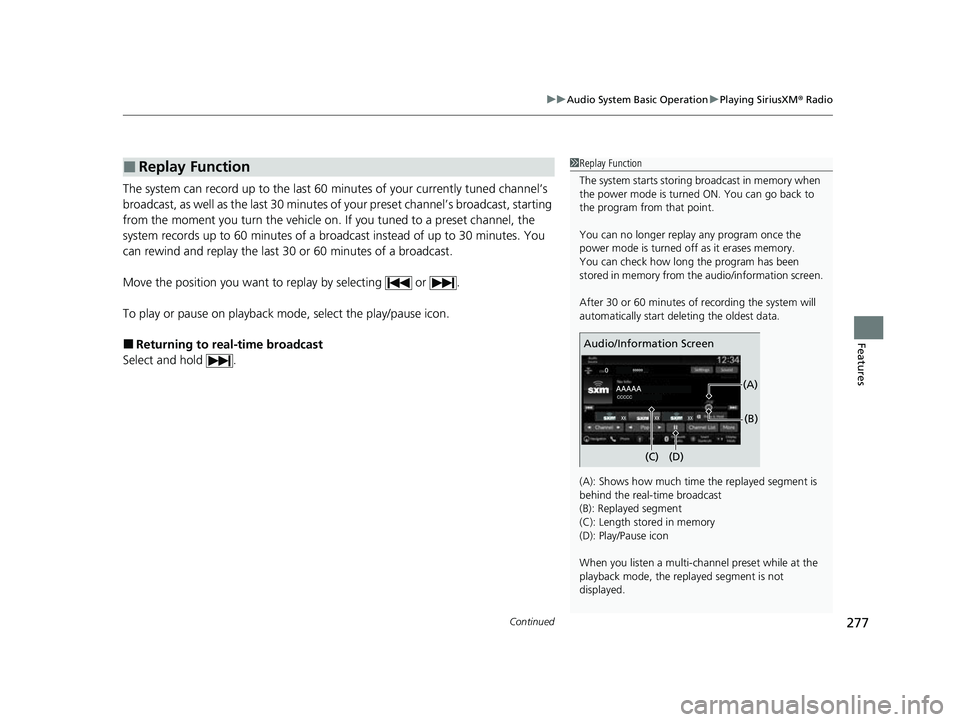
■Replay Function1 Replay Function
The system starts storing broadcast in memory when
the power mode is turned ON. You can go back to
the program from that point.
You can no longer repl ay any program once the
power mode is turned off as it erases memory.
You can check how long the program has been
stored in memory from th e audio/information screen.
After 30 or 60 minutes of recording the system will
automatically start deleting the oldest data.
(A): Shows how much time the replayed segment is
behind the real-time broadcast
(B): Replayed segment
(C): Length stored in memory
(D): Play/Pause icon
When you listen a multi-channel preset while at the
playback mode, the repl ayed segment is not
displayed.
Audio/Information Screen
(C) (B)
(A)
(D)
23 HR-V-313V06000_01.book 277 ページ 2022年4月4日 月曜日 午前10時49分
Page 284 of 664
uuAudio System Basic Operation uPlaying SiriusXM ® Radio
282
Features
Sample each channel on the selected mode for 10 seconds.
1. Select More.
2. Select Scan.
You can change a scan mode by the following procedure.
1. Select Settings .
2. Select Scan Mode .
3. Select Channel or Preset.
To turn off scan, select Stop.
■Scan1Scan
The “Scan Songs in Preset s” function is based on
TuneScan
TM technology of SiriusXM ®.
The “Featured Channels ” function is based on
Featured Favorites
TM technology of SiriusXM ®.
TuneScan
TM and Featured FavoritesTM are registered
trademarks of SiriusXM ® Radio, Inc.
23 HR-V-313V06000_01.book 282 ページ 2022年4月4日 月曜日 午前10時49分
Page 287 of 664
Continued285
uuAudio System Basic Operation uPlaying an iPod
Features
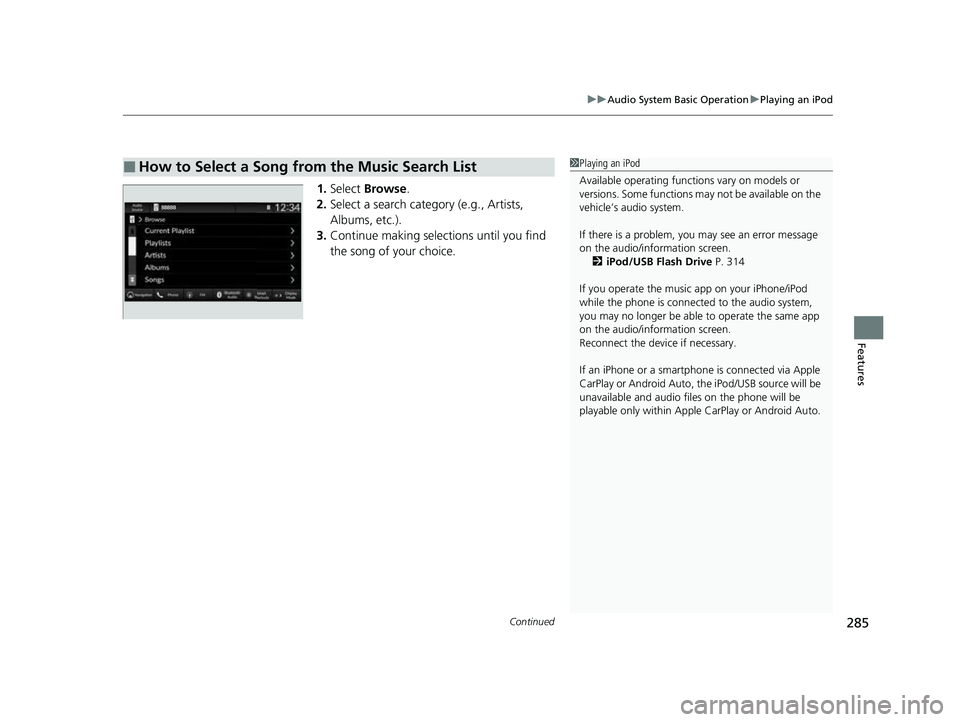
1. Select Browse .
2. Select a search catego ry (e.g., Artists,
Albums, etc.).
3. Continue making selections until you find
the song of your choice.
■How to Select a Song from the Music Search List1Playing an iPod
Available operating functi ons vary on models or
versions. Some functions ma y not be available on the
vehicle’s audio system.
If there is a problem, you may see an error message
on the audio/information screen. 2 iPod/USB Flash Drive P. 314
If you operate the musi c app on your iPhone/iPod
while the phone is connected to the audio system,
you may no longer be able to operate the same app
on the audio/information screen.
Reconnect the devi ce if necessary.
If an iPhone or a smartpho ne is connected via Apple
CarPlay or Android Auto, th e iPod/USB source will be
unavailable and a udio files on the phone will be
playable only within Appl e CarPlay or Android Auto.
23 HR-V-313V06000_01.book 285 ページ 2022年4月4日 月曜日 午前10時49分
Page 289 of 664
287
uuAudio System Basic Operation uPlaying a USB Flash Drive
Continued
Features
Playing a USB Flash Drive
Your audio system reads and plays sound files on a USB flash drive in either MP3,
WMA, AAC*1, FLAC, or WAV format.
Connect your USB flash drive to the USB port, then select the USB mode.
2 USB Ports P. 213
*1:Only AAC format files recorded with iTunes are playable on this unit.
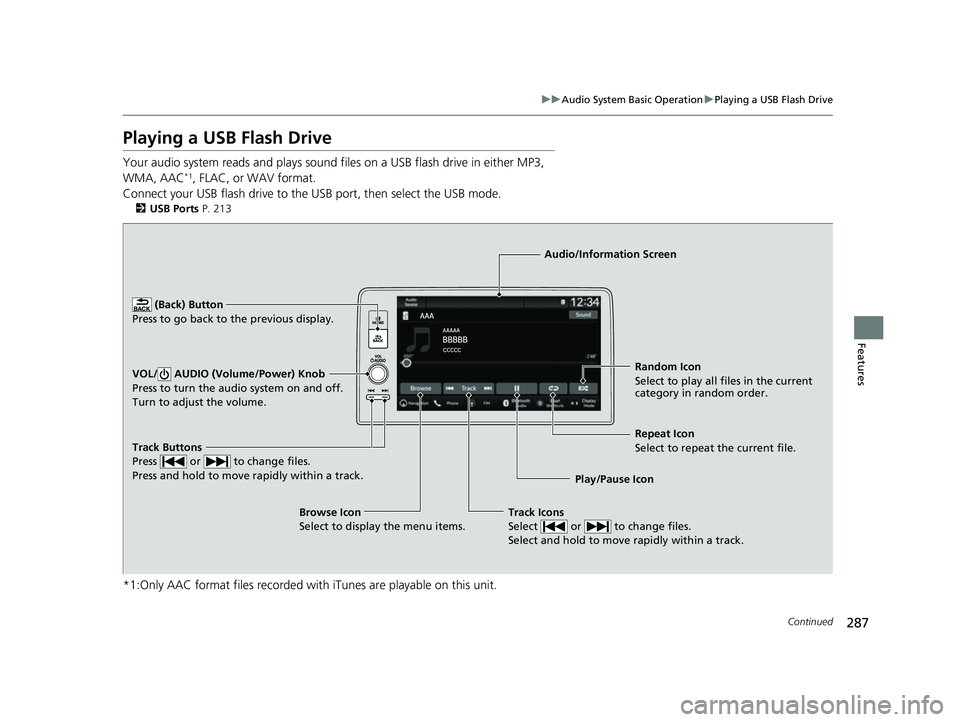
Track Buttons
Press or to change files.
Press and hold to move rapidly within a track.
Random Icon
Select to play all files in the current
category in random order.
Audio/Information Screen
Play/Pause Icon
(Back) Bu
tt
on
Press to go bac
k to the previous display.
VOL/ AUDIO (Volume/Power) Knob
Press to turn the audio system on and off.
Turn to adjust the volume.
Track Icons
Select or to change files.
Select and hold to move rapidly within a track.
Repeat Icon
Select to repeat the current file.
Browse Icon
Select to display the menu items.
23 HR-V-313V06000_01.book 287 ページ 2022年4月4日 月曜日 午前10時49分
Page 293 of 664
Continued291
uuAudio System Basic Operation uPlaying Bluetooth ® Audio
Features
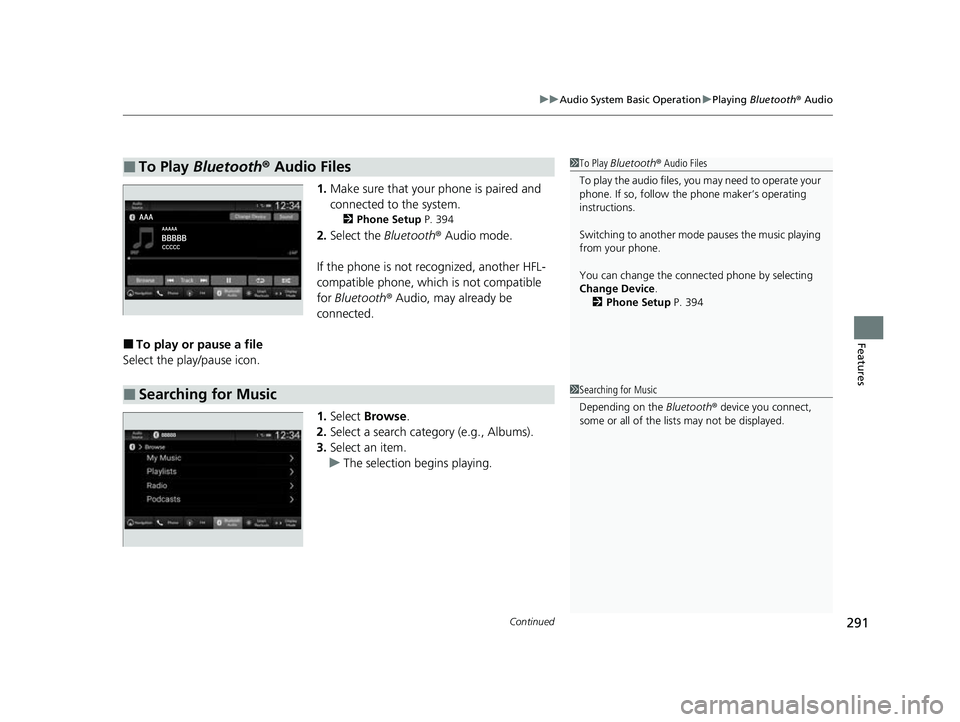
1. Make sure that your phone is paired and
connected to the system.
2 Phone Setup P. 394
2.Select the Bluetooth® Audio mode.
If the phone is not recognized, another HFL-
compatible phone, which is not compatible
for Bluetooth ® Audio, may already be
connected.
■To play or pause a file
Select the play/pause icon.
1.Select Browse .
2. Select a search catego ry (e.g., Albums).
3. Select an item.
u The selection begins playing.
■To Play Bluetooth® Audio Files1To Play Bluetooth ® Audio Files
To play the audio files, y ou may need to operate your
phone. If so, follow the phone maker’s operating
instructions.
Switching to another mode pauses the music playing
from your phone.
You can change the connected phone by selecting
Change Device .
2 Phone Setup P. 394
■Searching for Music1Searching for Music
Depending on the Bluetooth® device you connect,
some or all of the list s may not be displayed.
23 HR-V-313V06000_01.book 291 ページ 2022年4月4日 月曜日 午前10時49分
Page 300 of 664
uuAudio System Basic Operation uSmart Shortcuts
298
Features
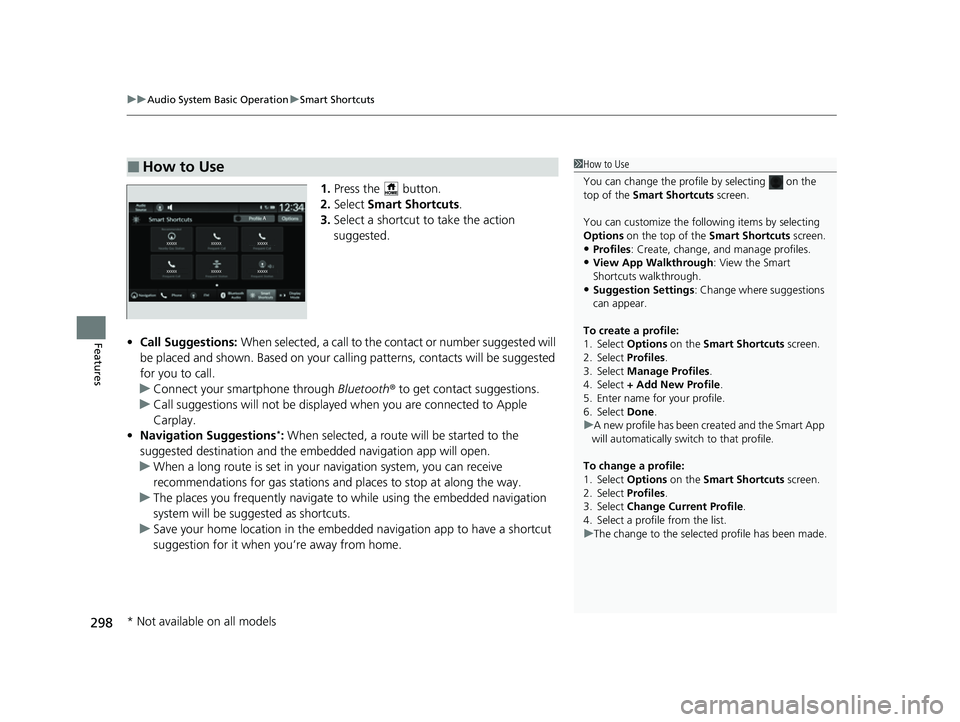
1. Press the button.
2. Select Smart Shortcuts .
3. Select a shortcut to take the action
suggested.
• Call Suggestions: When selected, a call to the c ontact or number suggested will
be placed and shown. Based on your cal ling patterns, contacts will be suggested
for you to call.
u Connect your smartphone through Bluetooth® to get contact suggestions.
u Call suggestions will not be displayed when you are connected to Apple
Carplay.
• Navigation Suggestions
*: When selected, a route will be started to the
suggested destination and the embedded navigation app will open.
u When a long route is set in your navigation system, you can receive
recommendations for gas stations and places to stop at along the way.
u The places you frequently navigate to while using the embedded navigation
system will be suggested as shortcuts.
u Save your home location in the embedded navigation app to have a shortcut
suggestion for it when you’re away from home.
■How to Use1How to Use
You can change the profile by selecting on the
top of the Smart Shortcuts screen.
You can customize the foll owing items by selecting
Options on the top of the Smart Shortcuts screen.
•Profiles: Create, change, a nd manage profiles.
•View App Walkthrough : View the Smart
Shortcuts walkthrough.
•Suggestion Settings : Change where suggestions
can appear.
To create a profile:
1. Select Options on the Smart Shortcuts screen.
2. Select Profiles .
3. Select Manage Profiles .
4. Select + Add New Profile .
5. Enter name for your profile.
6. Select Done .
u A new profile has been cr eated and the Smart App
will automatically switch to that profile.
To change a profile:
1. Select Options on the Smart Shortcuts screen.
2. Select Profiles .
3. Select Change Current Profile .
4. Select a profile from the list.
u The change to the selected profile has been made.
* Not available on all models
23 HR-V-313V06000_01.book 298 ページ 2022年4月4日 月曜日 午前10時49分
Page 316 of 664
314
Features
Audio Error Messages
iPod/USB Flash Drive
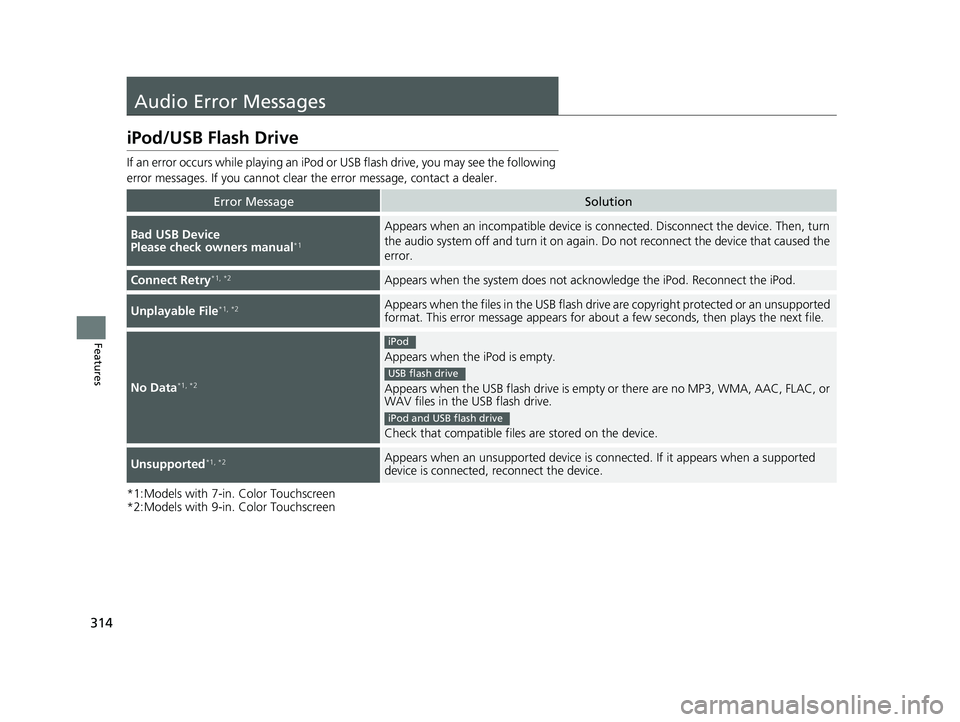
If an error occurs while playing an iPod or USB flash drive, you may see the following
error messages. If you cannot clear the error message, contact a dealer.
*1:Models with 7-in. Color Touchscreen
*2:Models with 9-in. Color Touchscreen
Error MessageSolution
Bad USB Device
Please check owners manual*1
Appears when an incompatible device is co nnected. Disconnect the device. Then, turn
the audio system off and turn it on again. Do not reconnect the device that caused the
error.
Connect Retry*1, *2Appears when the system does not acknowledge the iPod. Reconnect the iPod.
Unplayable File*1, *2Appears when the files in the USB flash driv e are copyright protected or an unsupported
format. This error message appears for abou t a few seconds, then plays the next file.
No Data*1, *2
Appears when the iPod is empty.
Appears when the USB flash drive is empty or there are no MP3, WMA, AAC, FLAC, or
WAV files in the USB flash drive.
Check that compatible files are stored on the device.
Unsupported*1, *2Appears when an unsupported device is conn ected. If it appears when a supported
device is connected, reconnect the device.
iPod
USB flash drive
iPod and USB flash drive
23 HR-V-313V06000_01.book 314 ページ 2022年4月4日 月曜日 午前10時49分
Page 317 of 664
315
uuAudio Error Messages uiPod/USB Flash Drive
Features*1:Models with 7-in. Color Touchscreen
*2:Models with 9-in. Color Touchscreen
Error MessageSolution
Device No Response*1, *2Appears when the system does not communicat e with a connected device. If it appears
when a device is connected, contact your place of device purchase.
USB hub not supported*1, *2Appears when only a HUB is conn ected. If it appears, connect a USB flash drive to the
HUB.
A charging error has occurred with the
connected USB device. When safe please
check the compatibility of the device and
USB cable and try again.
*1, *2
Appears when an incompatible device is co nnected. Disconnect the device. Then, turn
the audio system off and turn it on again. Do not reconnect the device that caused the
error.
23 HR-V-313V06000_01.book 315 ページ 2022年4月4日 月曜日 午前10時49分