Page 208 of 719
Continued207
uuSeats uFront Seats
Controls
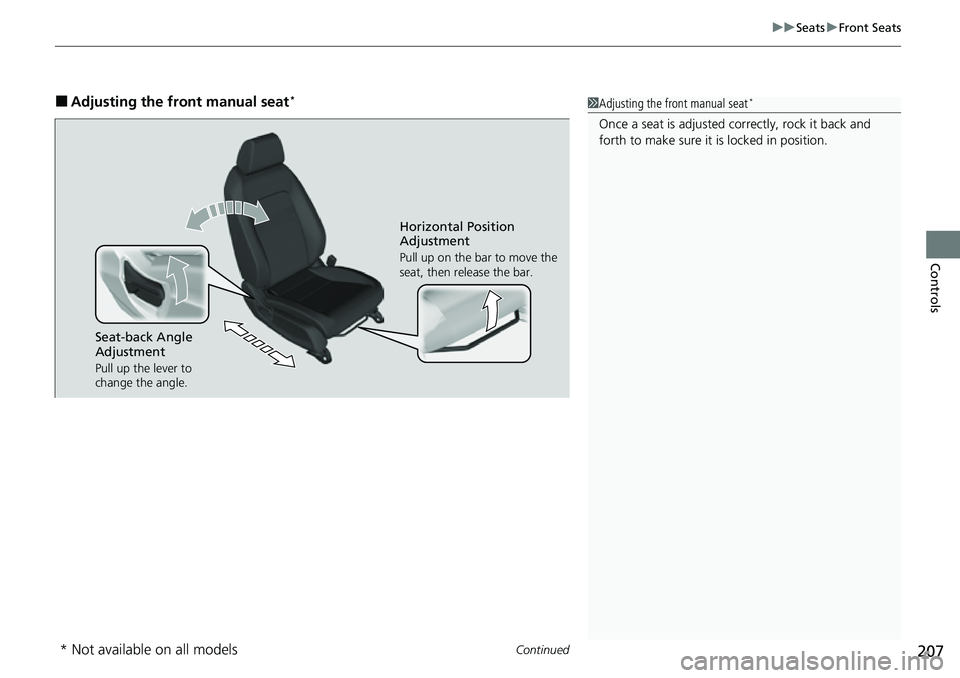
■Adjusting the front manual seat*1Adjusting the front manual seat*
Once a seat is adjusted co rrectly, rock it back and
forth to make sure it is locked in position.
Seat-back Angle
Adjustment
Pull up the lever to
change the angle.
Horizontal Position
Adjustment
Pull up on the bar to move the
seat, then release the bar.
* Not available on all models
Page 210 of 719
209
uuSeats uRear Seats
Continued
Controls
Rear Seats
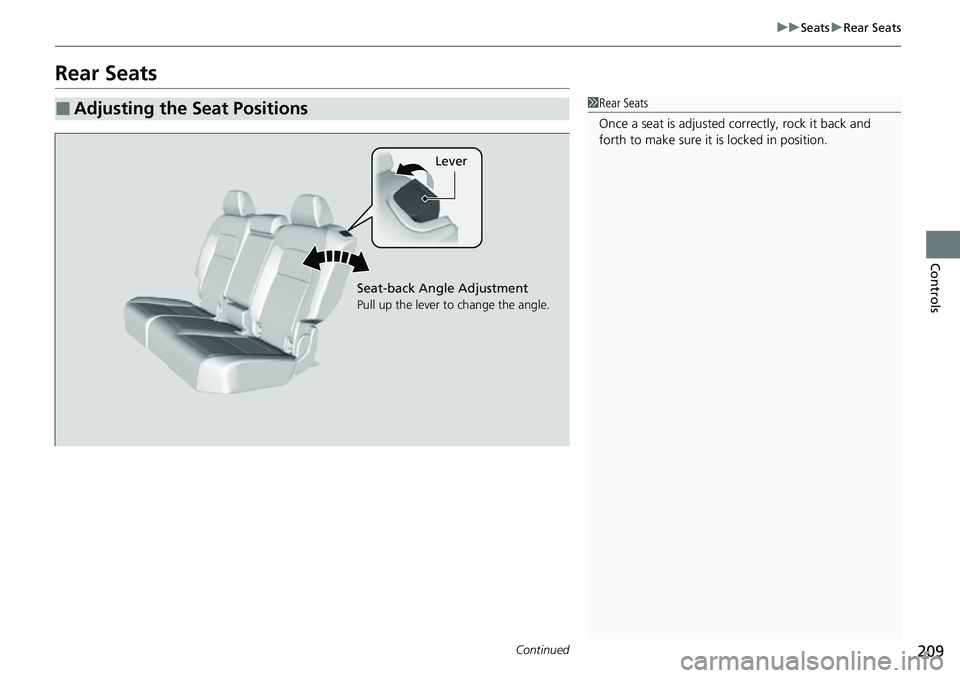
■Adjusting the Seat Positions1Rear Seats
Once a seat is adjusted co rrectly, rock it back and
forth to make sure it is locked in position.
Lever
Seat-back Angle Adjustment
Pull up the lever to change the angle.
Page 215 of 719
uuSeats uHead Restraints
214
Controls
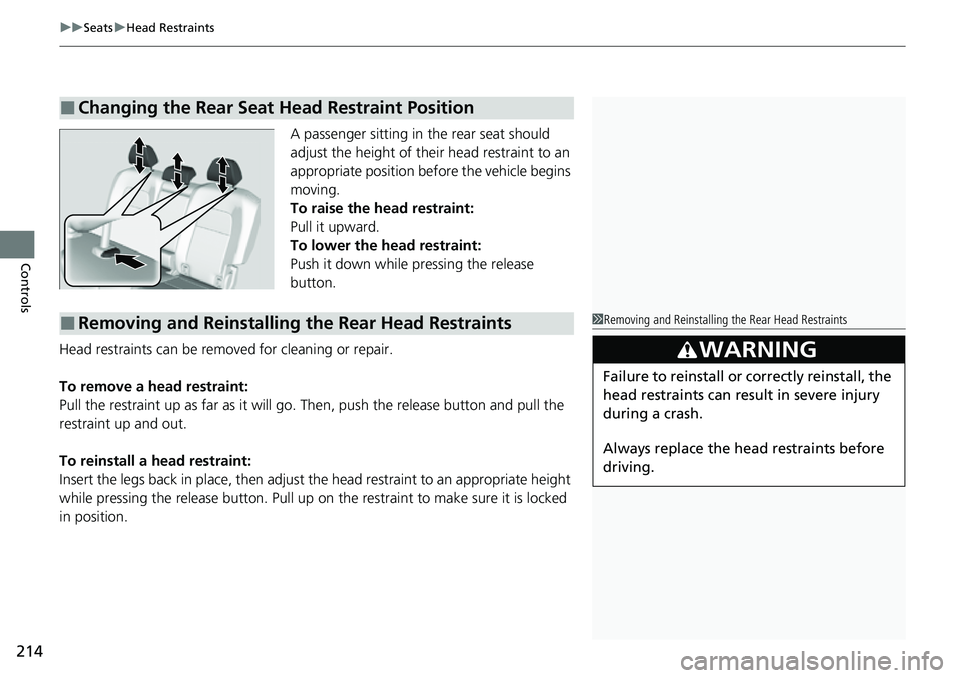
A passenger sitting in the rear seat should
adjust the height of their head restraint to an
appropriate position befo re the vehicle begins
moving.
To raise the head restraint:
Pull it upward.
To lower the head restraint:
Push it down while pressing the release
button.
Head restraints can be removed for cleaning or repair.
To remove a head restraint:
Pull the restraint up as far as it will go. Then, push the release button and pull the
restraint up and out.
To reinstall a head restraint:
Insert the legs back in place, then adjust the head restraint to an appropriate height
while pressing the release button. Pull up on the restraint to make sure it is locked
in position.
■Changing the Rear Seat Head Restraint Position
■Removing and Reinstalling the Rear Head Restraints1 Removing and Reinstalling the Rear Head Restraints
3WARNING
Failure to reinstall or correctly reinstall, the
head restraints can result in severe injury
during a crash.
Always replace the he ad restraints before
driving.
Page 217 of 719
216
Controls
Interior Convenience Items
Interior Lights
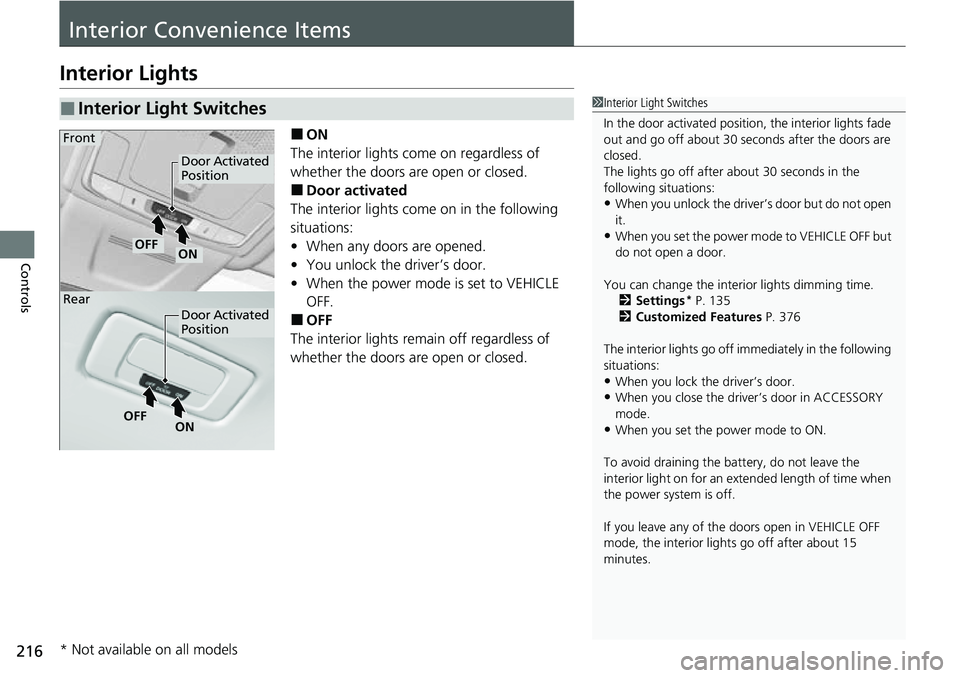
■ON
The interior lights come on regardless of
whether the doors are open or closed.
■Door activated
The interior lights come on in the following
situations:
• When any doors are opened.
• You unlock the driver’s door.
• When the power mode is set to VEHICLE
OFF.
■OFF
The interior lights remain off regardless of
whether the doors are open or closed.
■Interior Light Switches1 Interior Light Switches
In the door activated position, the interior lights fade
out and go off about 30 seconds after the doors are
closed.
The lights go off after about 30 seconds in the
following situations:
•When you unlock the driver’s door but do not open
it.
•When you set the power mode to VEHICLE OFF but
do not open a door.
You can change the interi or lights dimming time.
2 Settings
* P. 135
2 Customized Features P. 376
The interior lights go off im mediately in the following
situations:
•When you lock the driver’s door.•When you close the driver’s door in ACCESSORY
mode.
•When you set the power mode to ON.
To avoid draining the ba ttery, do not leave the
interior light on for an extended length of time when
the power system is off.
If you leave any of the doors open in VEHICLE OFF
mode, the interior light s go off after about 15
minutes.
Door Activated
Position
Door Activated
Position
ONOFF
ONOFF
Front
Rear
* Not available on all models
Page 219 of 719
218
uuInterior Convenience Items uStorage Items
Controls
Storage Items
Pull the handle to open the glove box.
You can lock the glove box with the built-in
key.
■Glove Box1Glove Box
3WARNING
An open glove box can cause serious injury
to your passenger in a crash, even if the
passenger is wearing the seat belt.
Always keep the glove box closed while
driving.
Glove Box
Handle
To Lock
Page 247 of 719

246
Features
Audio System Basic Operation
To use the audio system, the power mode must be in ACCESSORY or ON.Use the selector knob or MENU button to
access some audio functions.
Press to switch between the normal and
extended display fo r some functions.
Selector knob: Rotate left or right to scroll
through the available choices. Press to set
your selection.
MENU button: Press to display the menu
screen. (Back) button: Press to go back to the
previous display.
Models with 7-in. Color Touchscreen1 Audio System Basic Operation
These indications are used to show how to operate
the selector knob.
Rotate to select.
Press to enter.
Menu Items 2 Adjusting the Clock P. 146
2 Adjusting the Sound P. 247
2 Display Setup P. 248
2 Customized Features P. 368
Press the buttons on the steering wheel to change
any audio setting. 2 Audio Remote Controls P. 242
Touchscreen operation
•Use simple gestures - in cluding touching, swiping
and scrolling - to operate certain audio functions.
•Some items may be grayed out during driving to
reduce the potential for distraction.
•You can select them when the vehicle is stopped.•Wearing gloves may limit or prevent touchscreen
response.
You can change the touchs creen sensitivity setting.
2 Customized Features P. 368
(Back)
Button
Selector Knob
MENU Button
Menu Display
Page 276 of 719
275
uuAudio System Basic Operation uAudio/Information Screen
Continued
Features
■Trip Computer
Displays the trip computer information.
• Current Drive tab: Displays the current trip information.
• Trip A /Trip B tab: Displays information for the current and three previous drives.
The information is stored ever y time you reset Trip A/B.
To reset the Trip A/B, select Settings, then select Delete Trip History .
To change the setting of how to reset Trip A/B, select Settings, then select “Trip A”
Reset Timing or “Trip B” Reset Timing .
■System Updates
Updates the software version of the audio system.
2 System Updates P. 284
■Wi-Fi Hotspot*
Displays the AT&T Hotspot screen.
2AT&T Hotspot* P. 328
■Clock
Displays the clock.
■Smart Shortcuts
Displays the Smart Shortcuts screen.
2Smart Shortcuts P. 324
■Display Mode
Displays the brightness bar.
■Compass*
Displays the compass screen.
* Not available on all models
Page 277 of 719

uuAudio System Basic Operation uAudio/Information Screen
276
Features
You can change, store, and delete the wallpaper on the audio/information screen.
■Import wallpaper
You can import up to 11 images, one at a time, for wallpaper from a USB flash drive.
1.Connect the USB flash drive to the USB
port.
2 USB Ports P. 239
2.Press the button.
3. Select Clock.
4. Select Settings .
5. Select Clock Faces.
6. Select Add More .
u The image of the pictures stored in the
USB flash drive are displayed on the list.
7. Select a desired picture to import.
u Multiple pictures can be selected at the
same time.
8. Select OK.
u The selected pictures are displayed.
9. Select Transfer.
u It will return to the clock wallpaper
setting screen.
■Wallpaper Setup1Wallpaper Setup
The wallpaper you set up on Clock Faces cannot be
displayed on the driver information interface.
•When importing wallpaper f iles, the image must be
in the USB flash drive’s root directory.
Images in a folder cannot be imported.
•The file name must be less than 64 bytes.
•The file format of the im age that can be imported
is BMP (bmp) or JPEG (jpg).
•The individual file size limit is 10 MB.
•The maximum image size is 4,096 × 2,304 pixels. If
the image size is less than 1,280 × 720 pixels, the
image is displayed in the middle of the screen with
the extra area appearing in black.
•If the USB flash drive doe s not have any pictures,
the message appears.