Page 133 of 719
132
uuGauges and Driver Information Interface uDriver Information Interface
Instrument Panel
2 POWER Gauge P. 114
2 CHARGE/DECEL Gauge P. 114
■Speed/Distance Units
Enables you to show another unit on th e driver information interface and audio/
information screen and set the displayed m easurements to read in either miles and
mph or km and km/h.
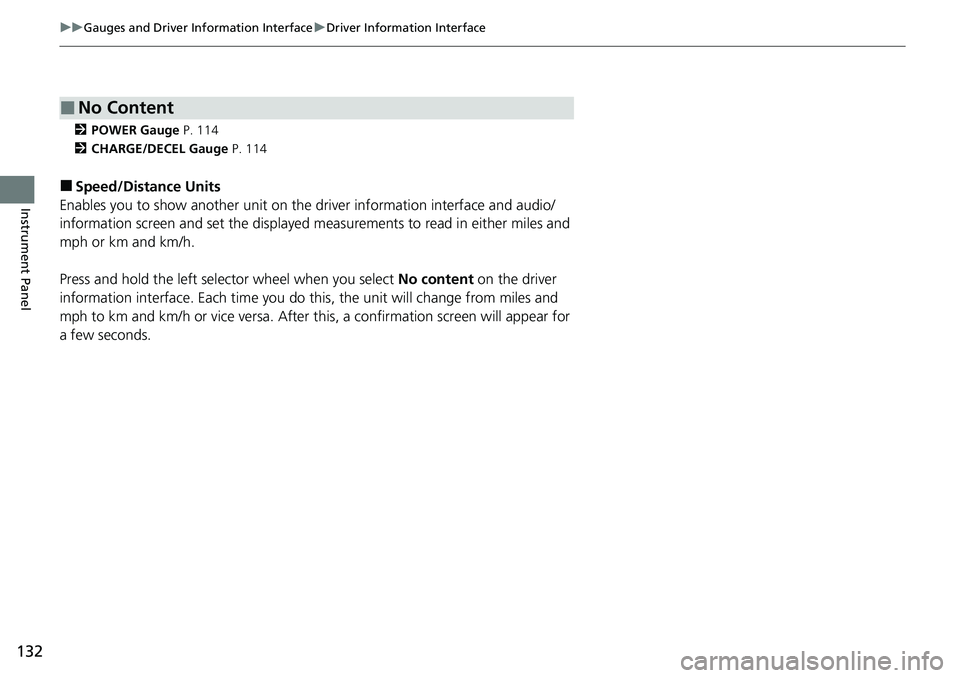
Press and hold the left selector wheel when you select No content on the driver
information interface. Each ti me you do this, the unit will change from miles and
mph to km and km/h or vice versa. After this, a confirmation screen will appear for
a few seconds.
■No Content
Page 134 of 719
Continued133
uuGauges and Driver Information Interface uDriver Information Interface
Instrument Panel
Display the adjustment for instrument panel brightness.
When the power mode is in ON, you can use the left selector wheel to adjust
instrument panel brightness.
Brighten: Roll the left selector wheel up.
Dim: Roll the left selector wheel down.
Press the left selector wheel to exit.
■Brightness1 Brightness
The brightness of the gauge is automatically adjusted
depending on the ambient brightness.
•The brightness dims when the ambient light is
dark.
•The brightness brightens when the ambient light is
bright.
You can change the setting even when the ambient
lighting is bright, but the brightness of the gauge
won’t change.
Page 135 of 719
uuGauges and Driver Information Interface uDriver Information Interface
134
Instrument Panel
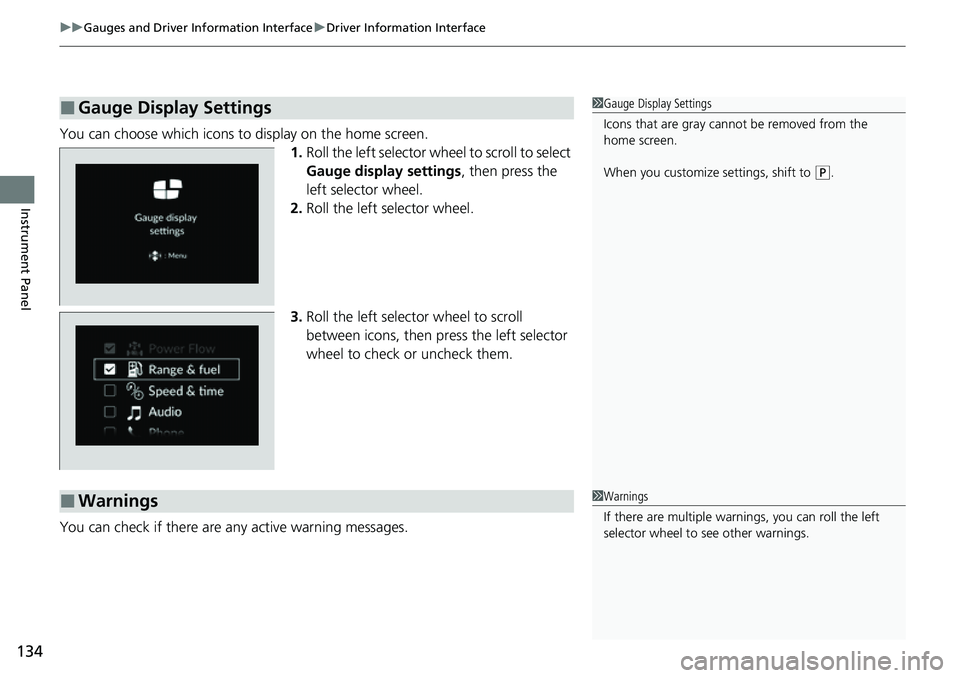
You can choose which icons to display on the home screen.
1.Roll the left selector wheel to scroll to select
Gauge display settings, then press the
left selector wheel.
2. Roll the left selector wheel.
3. Roll the left selector wheel to scroll
between icons, then press the left selector
wheel to check or uncheck them.
You can check if there are any active warning messages.
■Gauge Display Settings1 Gauge Display Settings
Icons that are gray cannot be removed from the
home screen.
When you customize settings, shift to
(P.
■Warnings1 Warnings
If there are multiple warnings, you can roll the left
selector wheel to see other warnings.
Page 136 of 719
Continued135
uuGauges and Driver Information Interface uDriver Information Interface
Instrument Panel
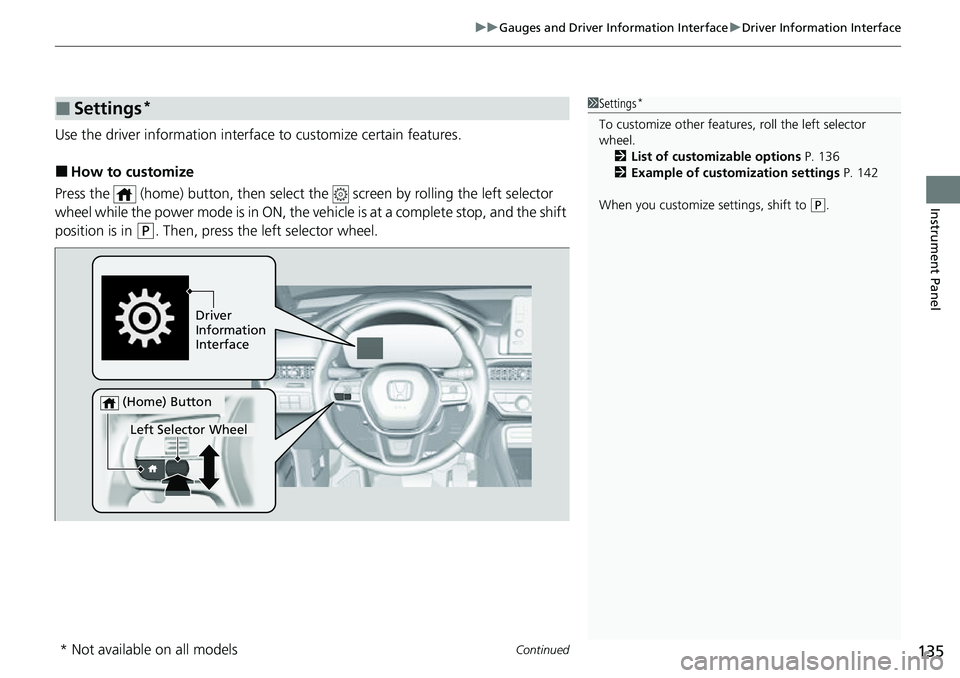
Use the driver information interface to customize certain features.
■How to customize
Press the (home) button, then select the screen by rolling the left selector
wheel while the power mode is in ON, the ve hicle is at a complete stop, and the shift
position is in
(P. Then, press the left selector wheel.
■Settings*1 Settings*
To customize other features , roll the left selector
wheel. 2 List of customizable options P. 136
2 Example of customization settings P. 142
When you customize settings, shift to
( P.
Driver
Information
Interface
Left Selector Wheel
(Home) Button
* Not available on all models
Page 143 of 719
142
uuGauges and Driver Information Interface uDriver Information Interface
Instrument Panel
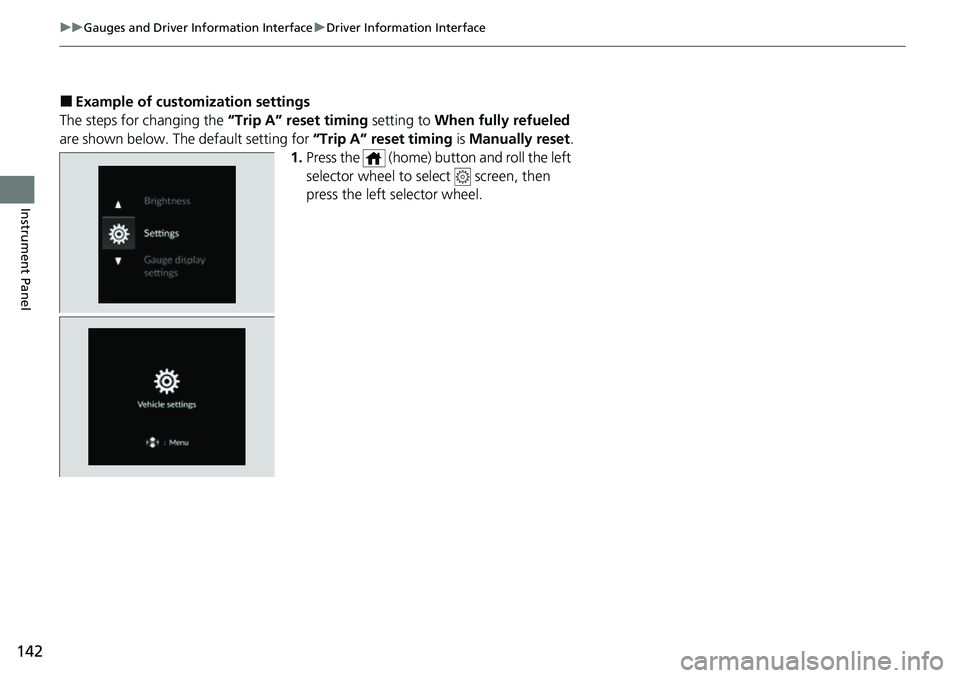
■Example of customization settings
The steps for changing the “Trip A” reset timing setting to When fully refueled
are shown below. The default setting for “Trip A” reset timing is Manually reset.
1. Press the (home) button and roll the left
selector wheel to select screen, then
press the left selector wheel.
Page 144 of 719
143
uuGauges and Driver Information Interface uDriver Information Interface
Continued
Instrument Panel
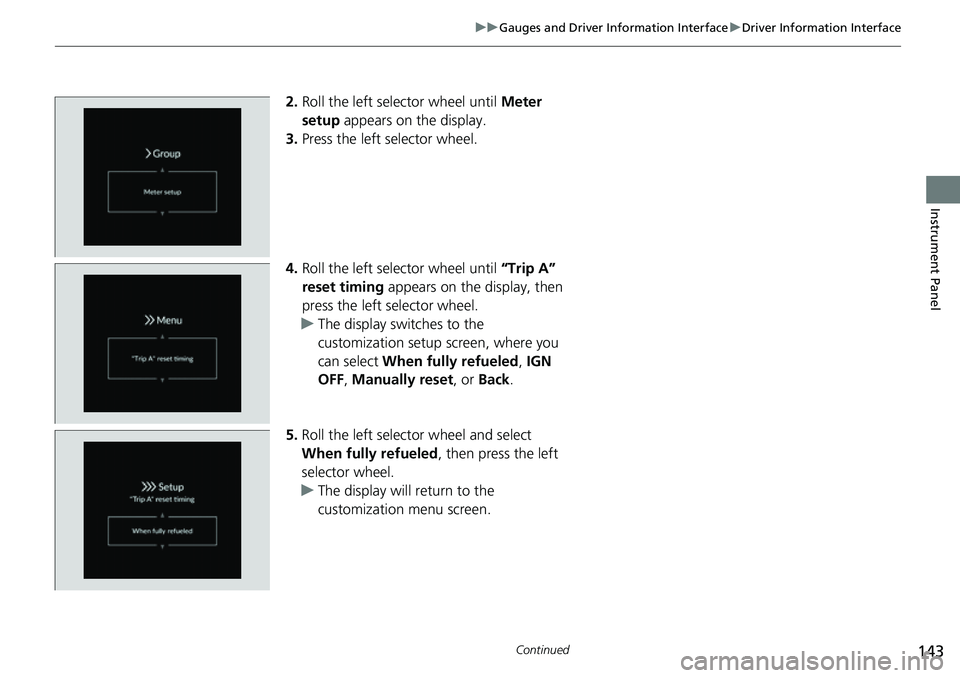
2. Roll the left selector wheel until Meter
setup appears on the display.
3. Press the left selector wheel.
4. Roll the left selector wheel until “Trip A”
reset timing appears on the display, then
press the left selector wheel.
u The display swit ches to the
customization setup screen, where you
can select When fully refueled , IGN
OFF , Manually reset , or Back .
5. Roll the left selector wheel and select
When fully refueled , then press the left
selector wheel.
u The display will return to the
customization menu screen.
Page 145 of 719
144
uuGauges and Driver Information Interface uDriver Information Interface
Instrument Panel
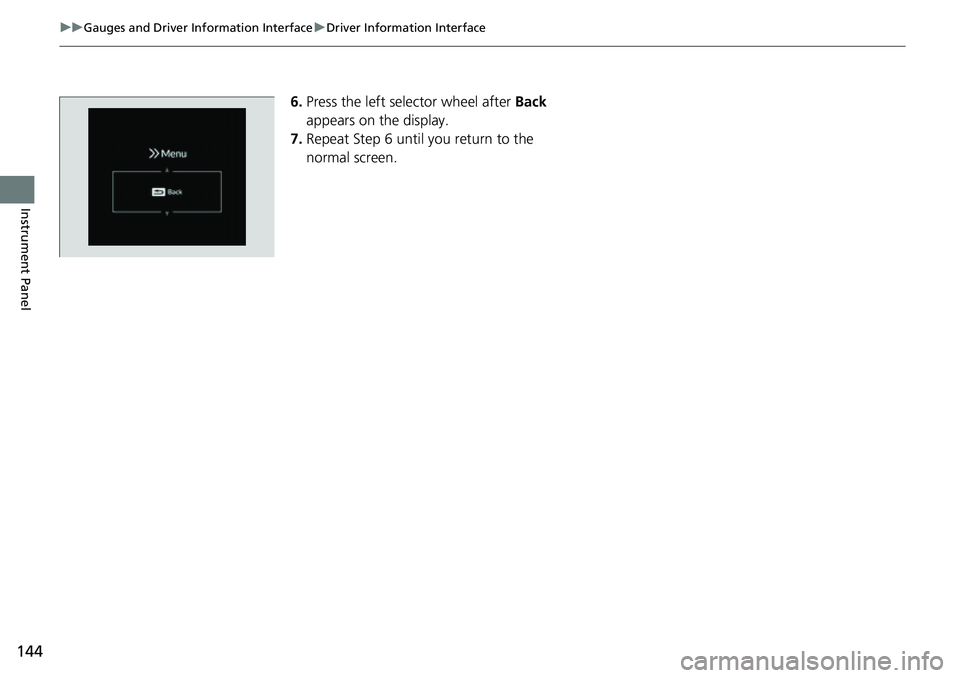
6. Press the left selector wheel after Back
appears on the display.
7. Repeat Step 6 until you return to the
normal screen.
Page 146 of 719

145
Controls
This chapter explains how to operate the various controls necessary for driving.
Clock.................................................. 146
Locking and Unlocking the Doors Key .................................................. 148
Low Keyless Remote Signal Strength ... 150
Locking/Unlocking the Doors from the Outside .......................................... 151
Locking/Unlocking the Doors from the Inside ............................................. 161
Childproof Door Locks ..................... 163
Auto Door Locking/Unlocking .......... 164
Tailgate .............................................. 165
Security System Immobilizer System .......................... 176
Security System Alarm ...................... 176Windows ............................................... 179Moonroof .......................................... 183
Operating the Switches Around the Steering Wheel
POWER Button................................. 184
Turn Signals ..................................... 187
Light Switches.................................. 188
Daytime Running Lights ................... 192
Auto High-Beam .............................. 193
Wipers and Washers ........................ 196
Rear Defogger/Heated Door Mirror Button ... 199
Heated Windshield Button ............... 199
Driving Position Memory System*.... 200
Adjusting the Steering Wheel .......... 202
Mirrors ............................................... 203
Seats .................................................. 205
Interior Convenience Items .............. 216
Climate Control System Using Automatic Climate Control .... 232
Automatic Climate Control Sensors ...... 236
Canadian models
* Not available on all models